
Your MacBook screen just cracked, flickered out, or went completely blank. That sinking feeling is real, and so is the pressure to get back to work fast. Screen damage is one of the most common hardware problems MacBook users in Los Angeles face, and the repair path you choose matters. DIY screen replacement can save costs but carries risks for newer MacBooks. This guide walks you through every stage: identifying your model, gathering tools, executing the repair, and testing the result, so you can make the right call with confidence.
Table of Contents
- Understanding your MacBook model and screen damage
- Essential tools, parts, and safety precautions
- Step-by-step MacBook screen replacement process
- Testing your repair and avoiding common pitfalls
- Expert perspective: When to repair yourself and when to call a pro
- Get help from Los Angeles MacBook screen experts
- Frequently asked questions
Key Takeaways
| Point | Details |
|---|---|
| Identify your MacBook model | Understanding your device ensures you get the right screen and process. |
| Use the right tools and safety protocols | Battery discharge and anti-static steps prevent further damage and personal risk. |
| Follow proven replacement steps | Step-by-step instructions improve success and keep your MacBook functioning. |
| Test thoroughly after repair | Check screen, camera, and touch to make sure everything works before finishing. |
| Know when to call a pro | For complex or newer MacBooks, expert help can prevent costly mistakes. |
Understanding your MacBook model and screen damage
Now that you’re ready to tackle your screen problem, let’s start by identifying your MacBook’s model and understanding the damage.
Knowing your exact MacBook model is the foundation of any successful screen repair. Click the Apple menu in the top left corner, select “About This Mac,” and note the model name and year. You can also find the model identifier on the bottom case of your MacBook. This detail determines which replacement screen you need and whether DIY is even a realistic option.
Screen damage shows up in several distinct ways. Each symptom points to a different underlying issue:
- Cracked or shattered glass: Physical impact, usually from drops or pressure
- Flickering display: Loose flex cable, failing backlight, or GPU issue
- Blank or black screen: Backlight failure, logic board fault, or connector issue
- Dead pixels or color distortion: Panel degradation or impact damage
- Backlight bleeding: Pressure on the LCD panel edges
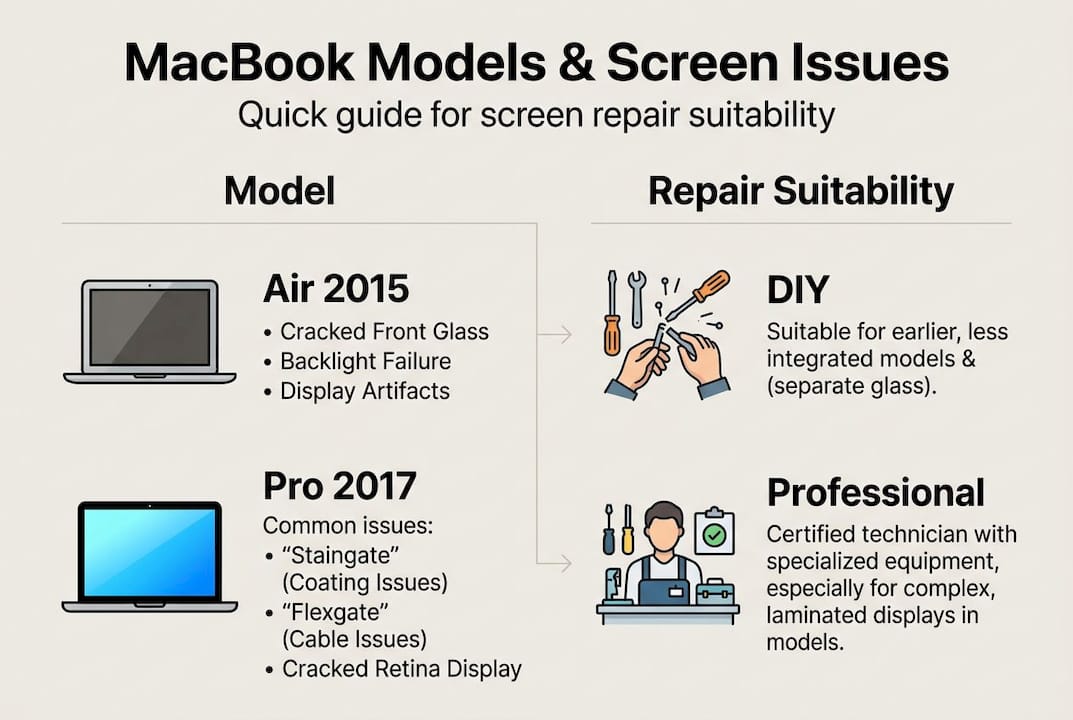
The table below gives you a quick reference for common MacBook models, typical screen issues, and how suitable each is for DIY repair.
| MacBook model | Common screen issues | DIY suitability |
|---|---|---|
| MacBook Pro 2015 and older | Cracked glass, backlight failure | Moderate, manageable for experienced users |
| MacBook Air 2017 and older | Dead pixels, flickering | Moderate, straightforward disassembly |
| MacBook Pro 2016 to 2019 | Flexgate, backlight strip failure | Low, fragile flex cables |
| MacBook Pro M1/M2/M3 | Integrated display assembly | Very low, high risk of further damage |
| MacBook Air M1/M2 | Laminated display, adhesive bonding | Very low, professional assessment strongly advised |
Newer M-series MacBooks use tightly integrated display assemblies that combine the screen, camera, and sensor array into a single bonded unit. Separating these components without specialized tools almost always causes additional damage. For these models, MacBook Air repair service from a trained technician is the smarter path.
Important: If your MacBook is still under AppleCare+ or warranty, attempting DIY repair will void that coverage. Always check your warranty status before opening the device.
For older models, experienced users can often handle the repair themselves. For anything from 2020 onward, a professional assessment through Mac repairs is strongly recommended before you commit to DIY.
Essential tools, parts, and safety precautions
Once you know your model and type of screen damage, gather the right materials and observe these critical safety tips before diving in.
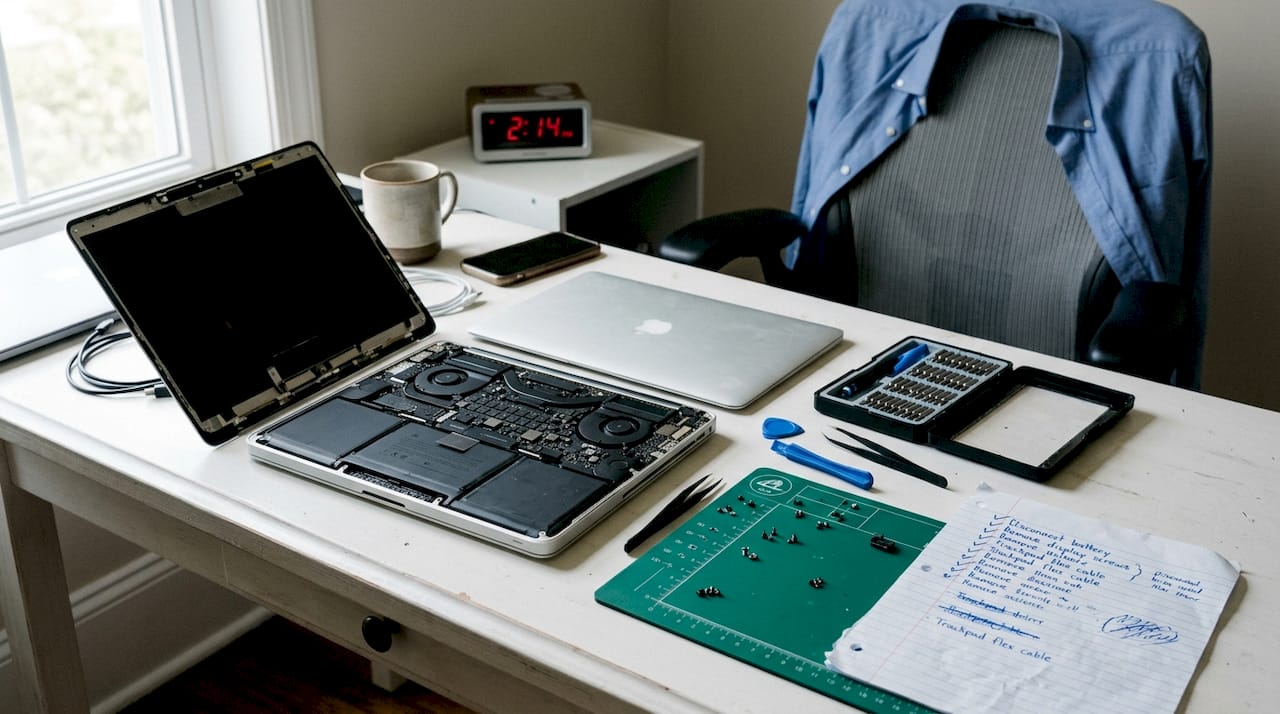
Using the wrong tools is one of the fastest ways to turn a screen repair into a logic board replacement. Here is what you need:
- Pentalobe screwdriver (P5 or P6): For the bottom case screws
- Torx screwdrivers (T3, T5, T8): For internal components
- Plastic pry tools and spudgers: To separate adhesive bonds without scratching
- Suction cup handle: To lift the display panel
- Anti-static wrist strap: Prevents electrostatic discharge damage
- Tweezers: For small connectors and screws
- Replacement screen: Must match your exact model number
- Adhesive strips: For resealing the display on glued models
- Magnetic screw mat: Keeps screws organized and labeled
The table below compares OEM (original equipment manufacturer) parts against third-party alternatives.
| Factor | OEM parts | Third-party parts |
|---|---|---|
| Color accuracy | Excellent, factory matched | Variable, may look different |
| Longevity | High, designed for the model | Moderate, depends on supplier |
| Cost | Higher | Lower, often 30 to 50% less |
| Compatibility | Guaranteed | Verify carefully before purchase |
| Warranty impact | Minimal if authorized | May void remaining coverage |
Safety is non-negotiable. Always discharge your battery below 25% and take anti-static precautions before starting any internal work. A lithium battery punctured during repair can cause a fire. Work on a clean, flat, non-conductive surface. Keep liquids away from your workspace. If your MacBook has had prior liquid damage, inspect the board for corrosion before proceeding, as hidden damage can complicate the repair significantly.
Safety rule: Never skip the anti-static wrist strap. A single electrostatic discharge can silently destroy sensitive components on the logic board, causing failures that only appear days later.
Pro Tip: Place a piece of tape next to each screw location on your magnetic mat and write the step number on it. This makes reassembly much faster and eliminates the guesswork about which screw goes where.
Step-by-step MacBook screen replacement process
With everything ready and safety ensured, follow these exact steps to replace your MacBook screen correctly.
A successful DIY repair can extend your MacBook’s lifespan significantly and save up to 50% of what a retail repair center would charge. Precision and patience are what separate a clean fix from a costly mistake.
- Power down completely. Shut down your MacBook, not just sleep. Hold the power button until it turns off.
- Discharge the battery. Use the device until battery drops below 25%, or use a battery disconnect tool after opening.
- Remove the bottom case. Use your pentalobe screwdriver to remove all bottom screws. Lift the case gently with a plastic pry tool.
- Disconnect the battery. Use a spudger to carefully lift the battery connector from the logic board. This prevents accidental power-on during repair.
- Remove the display assembly. Locate and remove the hinge screws (usually T8 Torx). There are typically two to four screws per hinge bracket.
- Disconnect the display cables. These are flat flex cables running from the display to the logic board. Lift the locking tab gently before pulling the cable. Never yank.
- Separate the display from the chassis. On older models, the display lifts away cleanly. On newer models with adhesive, use a heat gun on low to soften the bond before using a suction cup.
- Install the new screen. Reverse the process: connect the flex cables first, secure the hinges, then reattach the bottom case.
- Reconnect the battery. Press the connector firmly back onto the logic board.
- Power on and test. Before closing everything up, boot the MacBook and check the display.
Pro Tip: Take a photo with your phone at every disassembly step. When you’re reassembling, scroll back through the photos instead of guessing. This habit alone prevents most reassembly errors.
Warning: Never force a connector or overtighten a screw. Flex cables tear easily, and stripped screws can make future repairs nearly impossible. If something resists, stop and reassess.
For detailed model-specific guidance, MacBook repair instructions from a trusted source can supplement this process with visual references.
Testing your repair and avoiding common pitfalls
After reassembling your MacBook, here’s how to confirm the fix and handle any unexpected problems.
Do not fully close and seal your MacBook until you have tested the display. Power it on and run through this checklist:
- Brightness: Adjust from minimum to maximum using keyboard controls
- Color accuracy: Open a white image and check for yellow tinting or uneven color
- Dead pixels: Display a solid red, green, and blue screen to spot any dead or stuck pixels
- Webcam: Open Photo Booth or FaceTime to confirm the camera works
- Backlight uniformity: Look for any bleeding or dark patches at the screen edges
- Hinge movement: Open and close the lid several times to confirm smooth, even movement
Common mistakes that cause problems after reassembly include:
- Leaving a flex cable partially connected or not fully locked
- Missing a screw, which can allow components to shift and damage cables
- Forgetting to reconnect the battery before powering on
- Using too much heat on adhesive, which can warp the display bezel
- Static discharge from skipping the anti-static strap
Even experienced users may need professional help if there is no display after replacement, especially on M-series models where integration risks are significantly higher.
| Issue after repair | Likely cause | Next step |
|---|---|---|
| Black screen | Loose display cable | Reseat the flex cable connector |
| Flickering | Incomplete cable lock | Open and re-lock the cable tab |
| No backlight | Damaged backlight connector | Inspect connector for bent pins |
| Camera not working | Camera cable disconnected | Check secondary flex cable |
| Screen works but dim | Brightness setting reset | Adjust in System Settings |
Note: If your screen still does not work after double-checking all connections, do not force the issue. Repeated disassembly increases the risk of cable damage. Reach out to a Mac repair service in Los Angeles for a professional diagnosis.
Expert perspective: When to repair yourself and when to call a pro
With your repair complete or if you’re facing challenges, consider this deeper perspective from our technicians who have handled thousands of MacBook repairs since 2006.
Most DIY guides focus on the steps. We want to talk about the decision. The honest truth is that the MacBook lineup has changed dramatically. Apple’s shift to M-series chips brought tightly bonded, highly integrated displays that are not designed to be separated outside of a controlled environment. Professionals are recommended for M-series or models with highly integrated screens, and that recommendation exists for good reason.
We have seen customers come in after a DIY attempt on an M2 MacBook Air with a cracked replacement screen, a torn camera cable, and a damaged antenna. The original repair cost would have been $400. The follow-up cost was $750. Saving money is a legitimate goal. But the math only works in your favor on older, modular MacBooks.
For anything pre-2019, a careful, experienced user with the right tools can absolutely succeed. For 2020 and newer, the risk-to-reward ratio shifts sharply. Choosing trusted MacBook repair pros is not about lacking skill. It is about recognizing when the engineering of the device itself changes the calculus.
Get help from Los Angeles MacBook screen experts
If you want the most reliable results or need expert help, connect with professional MacBook screen replacement services in Los Angeles.
At Macwest Data Recovery & Mac Repair, we have been restoring MacBooks since 2006. Our technicians handle everything from straightforward panel swaps on older models to complex integrated display replacements on the latest M-series hardware.
Every repair comes with a warranty, and we offer same-day service for many screen replacement jobs. Whether your MacBook Air needs a new display or your MacBook Pro has a more complex issue, our local MacBook repair service team is ready to help. We also offer MacBook Air repair in Los Angeles with fast turnaround. Explore our full-service Mac repairs to see everything we cover, and contact us today to get a free diagnostic estimate.
Frequently asked questions
Is DIY MacBook screen replacement safe for all models?
DIY is generally safe for older models, but newer M-series and Retina MacBooks are best left to professionals due to integrated screens and significantly higher risk of compounding damage.
What tools are required for MacBook screen replacement?
You will need precision Pentalobe and Torx screwdrivers, plastic pry tools, an anti-static wrist strap, a suction cup, tweezers, and a compatible replacement screen matched to your exact MacBook model number.
How can I test if my MacBook screen repair was successful?
Check display brightness, color accuracy, dead pixels, webcam function, and backlight uniformity. All should function normally after a clean reassembly before you seal the bottom case.
What should I do if the new screen doesn’t work?
Double-check all flex cable connections and make sure the battery connector is fully seated. If the issue persists, consult a local pro to avoid further damage to the logic board or display cables.
Does screen replacement void my warranty?
DIY repairs can void your AppleCare+ coverage or remaining manufacturer warranty. Professional repairs at authorized or reputable service centers help keep your coverage and device protection intact.