
Imagine you plug your micro SD card into your Mac, ready to pull up the photos from last weekend’s shoot, and the folder is empty. No files. No warning. Just silence where your memories used to be. This situation is more common than most Mac users in Los Angeles realize, and the stakes can be high whether you’re dealing with irreplaceable personal photos, client footage, or critical project files. This guide walks you through understanding why data disappears, how to prepare your system correctly, which software tools give you the best shot at recovery, and when it makes sense to call in professionals.
Table of Contents
- Understanding micro SD card data loss
- Preparing your Mac and micro SD for recovery
- Step-by-step recovery using Mac software
- Verifying your recovered files and next steps
- What most Mac users in Los Angeles overlook about micro SD recovery
- Connect with Los Angeles data recovery experts
- Frequently asked questions
Key Takeaways
| Point | Details |
|---|---|
| Stop using the card | Halting use immediately prevents further data loss and increases recovery success. |
| Prepare carefully | Proper setup of your Mac and card reader protects your files before recovery. |
| Use trusted software | Disk Drill has proven results for recovering photos and videos from micro SD cards on Macs. |
| Verify recovery | Always check recovered files for completeness and integrity, and seek professional help if needed. |
Understanding micro SD card data loss
Data loss on micro SD cards rarely happens in one specific way. In fact, the cause of your loss shapes every recovery decision you’ll make afterward, so identifying the source of the problem is your most important first step.
The most frequent causes fall into two categories: logical failures and physical failures. Logical failures occur when the data still physically exists on the card but has become inaccessible due to accidental deletion, formatting, file system corruption, or interrupted write operations. Physical failures are a different matter entirely. These involve actual hardware damage such as a broken connector, water exposure, or NAND flash degradation, and they typically require professional-grade tools to address.
For Mac users specifically, additional complications can arise from file system compatibility. macOS uses APFS and HFS+ natively, but micro SD cards commonly use FAT32 or exFAT. When a card doesn’t mount properly in macOS, it may appear as “unreadable” in Disk Utility, which many users misinterpret as total data loss. Often, this is a logical issue.
Here is a breakdown of the most common causes:
- Accidental deletion: Files removed manually or by an app without a Trash backup on the card
- Reformatting: Quick or full format operations that erase file table references
- Corruption: Interrupted writes, unsafe ejection, or card errors that damage the file system
- Physical damage: Cracked housing, bent contacts, or water exposure
- Compatibility issues: macOS failing to mount FAT32 cards correctly due to driver or format conflicts
Software recovery tools work by using a quick scan for file tables and a deep scan for file signatures, making them effective for logical issues like deletion or quick format. This is an important distinction: if your card was quick-formatted, your files are almost certainly still recoverable using software. If the card experienced physical failure, software alone won’t get the job done.
Key insight: A card that shows as “blank” or “unreadable” on your Mac has not necessarily lost its data. The file system index may be damaged while the raw data remains intact on the NAND storage.
Pro Tip: Before you try anything else, check if your Mac recognizes the card in Disk Utility under Applications > Utilities. If the card appears but won’t mount, a logical recovery attempt is worth pursuing. If it doesn’t appear at all, the issue may be physical.
For cards from major brands that aren’t mounting or showing errors, SanDisk SD card data recovery is one service path worth exploring. More broadly, working with local data recovery experts in Los Angeles gives you the advantage of an in-person diagnosis before committing to any recovery path.
Preparing your Mac and micro SD for recovery
Once you’ve identified your data loss type, the preparation phase is critical. Poor preparation is one of the most common reasons recoveries fail before they even start.
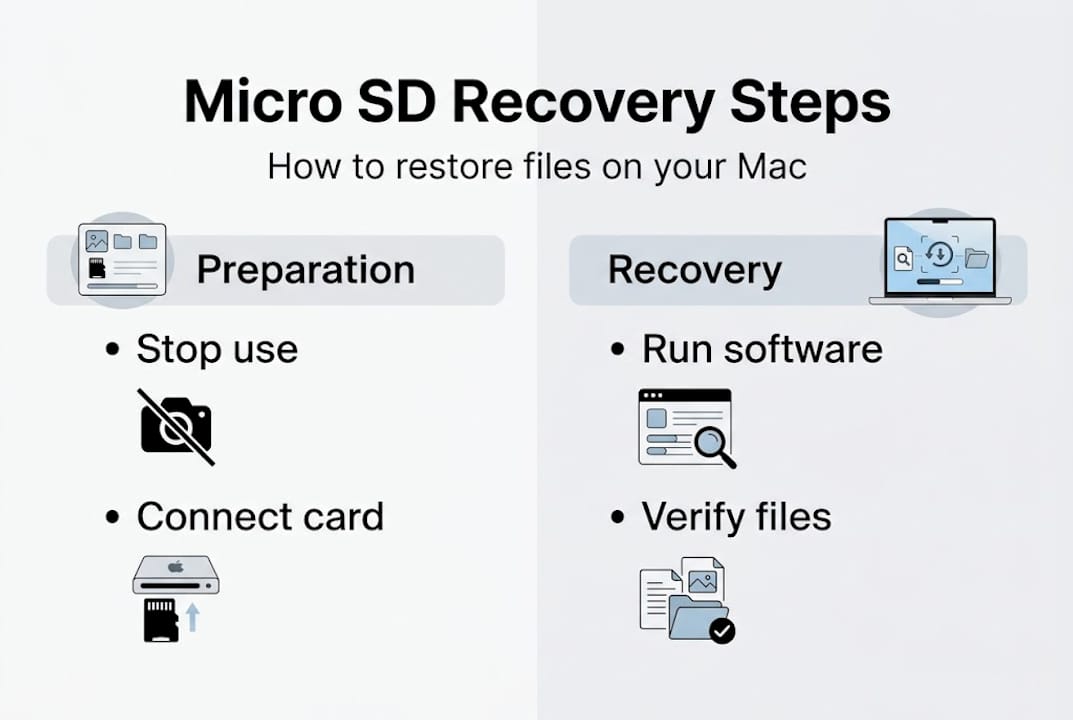
The single most important rule: stop using the card immediately. Every write operation on the card, including saving new files or even letting macOS index the card, risks overwriting the sectors where your lost data still resides. Remove the card from your device and do not reinsert it into a camera or phone.
Next, connect the micro SD card to your Mac using a reliable USB card reader. Avoid built-in slots on older MacBook models if they show signs of wear, as poor connections can create read errors that complicate recovery. A USB 3.0 card reader that supports micro SD directly is ideal.

Here’s a comparison of the most commonly used recovery approaches to help you choose:
| Recovery method | Best for | Cost | Mac compatible |
|---|---|---|---|
| Disk Drill (software) | Logical loss, deletion, format | Free up to 500MB | Yes, FAT32/exFAT/APFS |
| PhotoRec (open source) | Fragmented or corrupted files | Free | Yes |
| Professional service | Physical damage, failed DIY | Varies | All formats |
| Cloud backup restore | Files previously backed up | Subscription | Yes |
For hardware and software tools, gather the following before you begin:
- A USB card reader with micro SD slot
- A separate internal or external drive to save recovered files to (never save back to the source card)
- Disk Drill for Mac, downloaded from the official developer site
- Enough free storage space: plan for at least double the capacity of your micro SD card
Disk Drill achieves 100% photo recovery and 99% video recovery in independent tests, and it supports Mac with FAT32 and exFAT formatted cards with free recovery up to 500MB. That makes it the strongest starting point for most Mac users.
Pro Tip: Create a sector-by-sector disk image of the micro SD card using Disk Utility before running any recovery software. This gives you a safe copy of the card’s current state so you can retry recovery without risking additional data loss to the original card.
If your situation involves a Mac Mini or Mac Pro that you use as a workstation and your micro SD workflow is tied to those systems, Mac Mini data recovery and Mac Pro recovery services are available locally to assist when standard software approaches fall short.
Step-by-step recovery using Mac software
With your Mac prepared and your tools ready, you can begin the actual recovery process. Follow these steps carefully and in order to maximize your chances.
- Download and install Disk Drill from the official website. Do not install it to the same drive you plan to recover files to.
- Launch Disk Drill and connect your micro SD card via the USB card reader.
- Select your micro SD card from the list of drives. It should appear as an external device with the card’s volume label or capacity.
- Click “Search for lost data.” Disk Drill will run both a quick scan and a deep scan automatically.
- Preview the scan results. Disk Drill allows you to preview photos, videos, and documents before committing to recovery. Use this feature to verify that your target files are present.
- Select the files you want to recover and choose a save location on your Mac’s internal drive or a separate external drive.
- Click “Recover” and wait for the process to complete. Do not interrupt the operation.
Here’s a quick reference for common recovery scenarios and expected outcomes:
| Scenario | Recommended scan type | Likely recovery rate |
|---|---|---|
| Accidental deletion | Quick scan | Very high |
| Quick format | Deep scan | High |
| Full format | Deep scan | Moderate |
| Corruption or errors | Deep scan | Moderate to high |
| Physical damage | Professional service | Varies |
If Disk Drill doesn’t detect your card, check that macOS has mounted the card in read-only mode and that the card reader is functioning. Sometimes switching USB ports or restarting the Mac resolves detection issues. Cards formatted with APFS that have experienced partition table corruption may require additional steps, and that’s a situation where MacBook Pro recovery steps performed by a specialist become relevant.
For cards where 99% video recovery matters, such as footage from a DSLR or action camera, Disk Drill’s deep scan is the correct tool. It reads raw file signatures rather than relying on the damaged file table, which is why it recovers files even when the directory structure is completely gone.
If you encounter issues beyond software capability, Mac repair service solutions can provide hands-on evaluation of both the card and your Mac’s connectivity setup.
Verifying your recovered files and next steps
Completing the recovery scan is not the finish line. Verifying the integrity of your recovered files is just as important as the recovery itself, and this step is where many users make avoidable mistakes.
Start by browsing the recovered files in their save location on your Mac. Open photos with Preview, play video files in QuickTime Player, and open documents directly to check for complete content. A file that recovered successfully will open without errors and display its full content.
Here are the key verification steps to follow:
- Check file sizes. A recovered photo that shows as 0KB or 2KB when it should be several megabytes is likely corrupt.
- Open every critical file. Don’t assume recovery was complete based on filename alone.
- Compare against originals if you have any cloud backup or thumbnail reference.
- Check video files for playback issues, especially at the beginning and end of clips where fragmentation most commonly causes problems.
- Document what is missing. If certain files didn’t recover, note their names or approximate content for a professional assessment.
If your files are missing, partially readable, or outright corrupted, it’s a signal that the damage extends beyond what software can address. A deep scan for file signatures is effective for logical issues but has real limits when file fragments are scattered across damaged sectors or when the NAND itself has degraded.
When to call a professional: If the card makes clicking or grinding sounds, doesn’t appear in Disk Utility at all, or if multiple software tools have returned incomplete results, physical damage is likely. Do not attempt further DIY recovery, as additional attempts can permanently reduce recoverable data.
Pro Tip: Never save recovered files back to the original micro SD card. Always use a separate drive as the destination. This preserves the card’s current state in case a second recovery attempt or professional service is needed.
Understanding the professional recovery benefits before you’re in a crisis makes it easier to make a clear-headed decision when stakes are high. For more complex situations tied to your MacBook, MacBook advanced recovery services are available for cases where the card, the adapter, or the Mac itself is contributing to access failures.
For future prevention, adopt these habits: eject micro SD cards safely before removal, avoid using the same card across multiple devices without reformatting, and maintain a regular backup routine using Time Machine or a cloud service.
What most Mac users in Los Angeles overlook about micro SD recovery
Here’s something we’ve observed consistently since 2006: most people who attempt DIY recovery don’t fail because they used the wrong software. They fail because they used the right software at the wrong time, or in the wrong sequence.
Running multiple recovery tools back-to-back on the same card without imaging it first is one of the most damaging things you can do. Each scan that writes temporary data to the card reduces the total recoverable data available for the next attempt. By the time someone comes to us after three or four software attempts, the window for full recovery has narrowed significantly.
The other overlooked factor is the difference in success rates between home recovery and professional recovery for physical failures. Software tools are genuinely excellent for logical loss, but NAND-level damage requires clean-room access and specialized hardware that no consumer software can replicate. Understanding expert recovery benefits before a crisis hits gives you the right framework to make faster, better decisions when data loss actually occurs.
Connect with Los Angeles data recovery experts
When your micro SD card holds files that matter and software recovery hasn’t delivered complete results, the next step is working with specialists who have the tools and experience to go further.
MacWest Data Recovery & Mac Repair has served Los Angeles since 2006, handling everything from accidental deletions to physically damaged memory cards, SSDs, and RAID systems. Whether your situation calls for a straightforward data recovery near you consultation or a more advanced recovery from a heavily damaged card, our team provides transparent diagnostics and fast turnaround options, including same-day and emergency services. If you’re looking for the best data recovery in LA, visit MacWest data recovery or call us to discuss your specific situation before the recovery window closes.
Frequently asked questions
What causes data loss on micro SD cards?
Deleted files, formatting, corruption, and physical damage are the most common causes. Logical issues like deletion or quick format are usually recoverable with software, while physical failures require professional tools.
Is it possible to recover files from a formatted micro SD card on a Mac?
Yes, recovery software can often restore deleted or formatted files if the card hasn’t been overwritten. A quick format recovery is typically more complete than a full format recovery because less data has been erased.
Which Mac software is most effective for micro SD recovery?
Disk Drill is highly effective, delivering 100% photo recovery and 99% video recovery in independent testing, with support for FAT32, exFAT, and APFS formatted cards.
When should I use professional recovery services?
If software can’t recover your files or the card has physical damage, professional services offer safer and more complete recovery. Cards that don’t appear in Disk Utility at all are strong candidates for professional evaluation rather than continued DIY attempts.