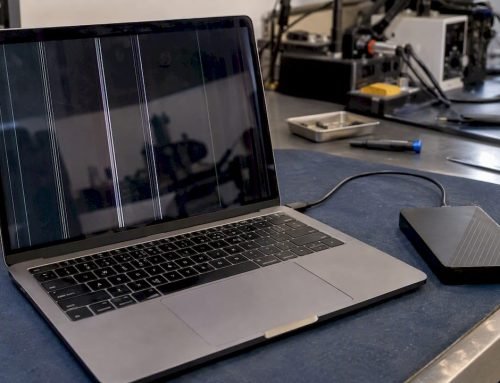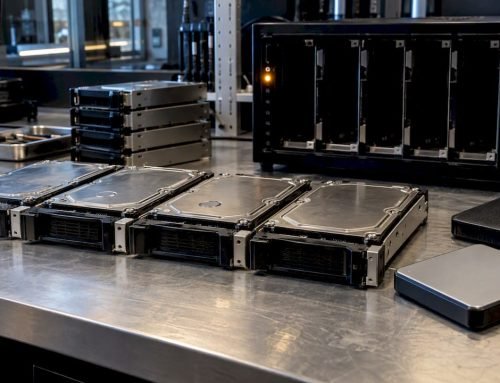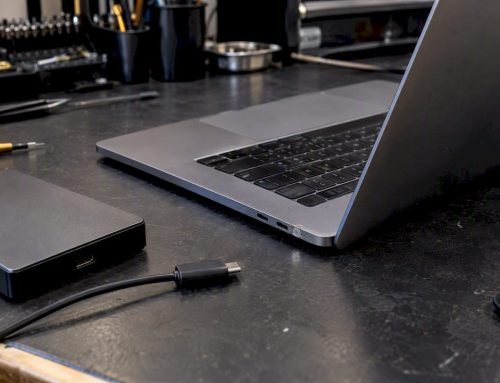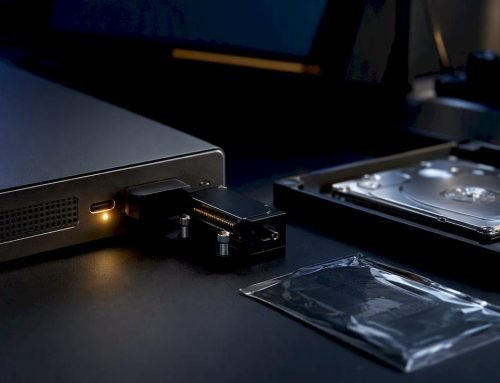

Key takeaways: Not all Mac hard drives work the same way, and recovery options depend entirely on your specific model and storage type. Apple Silicon Macs use soldered NAND chips that cannot be removed or upgraded, making professional recovery the only path when data loss strikes. Since 2006, Macwest Data Recovery has helped Los Angeles Mac users recover critical data and restore their devices through precise, hardware-specific techniques.
Many Mac users assume their computer stores data the same way a PC does, or that swapping out a failing drive is a straightforward weekend project. That assumption can lead to decisions that permanently destroy recoverable data. Whether you are running an older Intel MacBook Pro or a new M3 iMac, the type of storage inside your Mac determines exactly what can go wrong, how serious the risk is, and what recovery actually requires. This article walks you through the real differences, the warning signs to watch for, and the steps that protect your data before problems escalate.
Table of Contents
- What is a Mac hard drive?
- Types of Mac storage: HDD, SSD, Fusion Drive, and Apple Silicon
- Common Mac hard drive issues and warning signs
- Best practices for backup, maintenance, and when to seek help
- A professional perspective: What most Mac users get wrong about hard drive issues
- How Los Angeles Mac users can get expert help today
- Frequently asked questions
Key Takeaways
| Point | Details |
|---|---|
| Mac drive types | Macs use HDDs, SSDs, Fusion Drives, and newer Apple Silicon chips, each with unique features and risks. |
| Drive failure warning signs | Stay alert for slow performance, odd noises, or frequent errors as early drive failure warnings. |
| Smart backups | Regular Time Machine backups to external drives are the best way to prevent permanent data loss. |
| When to seek help | Consult a professional at the first sign of hardware issues or before attempting DIY repairs. |
What is a Mac hard drive?
A Mac hard drive refers to the internal storage device in a Mac computer that holds apps, files, the macOS operating system, and user data. It is the foundation of everything your Mac does. Without a functioning internal drive, your Mac cannot boot, run software, or access saved work.
The term “hard drive” is technically a holdover from older mechanical storage technology, but it is still widely used to describe all forms of Mac internal storage, including modern solid-state options. Understanding what type of storage your Mac actually contains is the first step toward diagnosing problems and making smart decisions about repair or recovery.
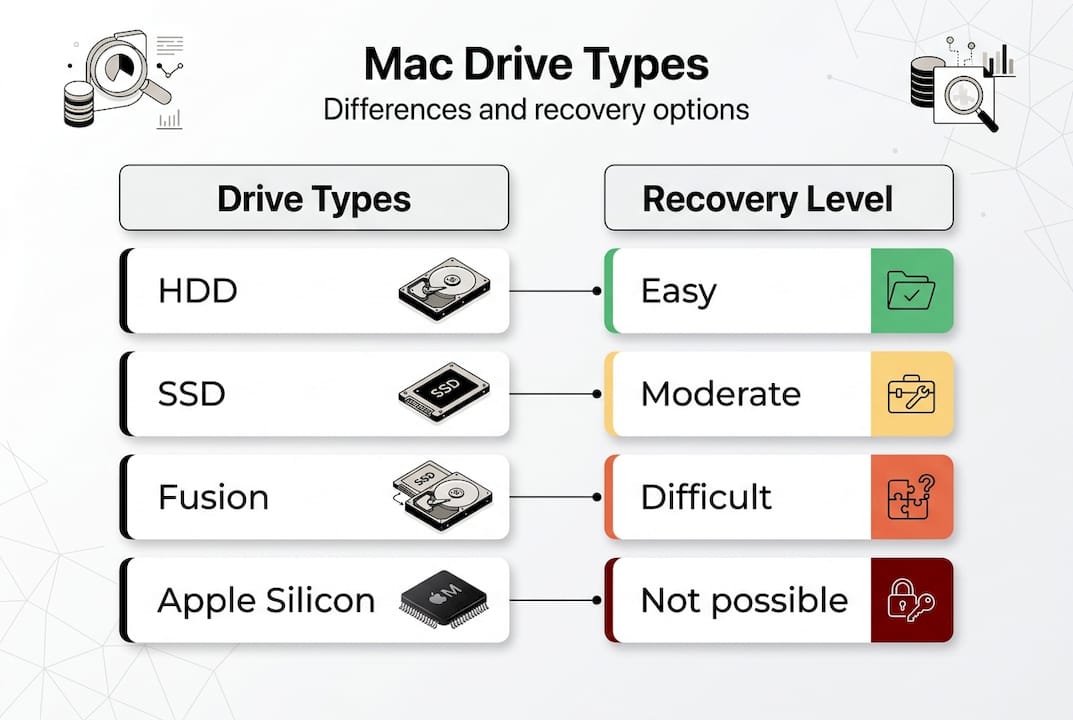
Apple has used several storage technologies across its product lineup over the years:
- HDD (Hard Disk Drive): Mechanical spinning disks found in older iMacs and Mac Minis. Prone to physical failure from drops or age.
- SSD (Solid State Drive): Flash-based storage used in MacBooks and higher-end Macs since around 2013. Much faster and more shock-resistant than HDDs.
- Fusion Drive: A hybrid system combining an HDD with a small SSD cache, used in iMacs and Mac Minis from 2012 to 2020. Faster than a pure HDD but more complex to recover.
- Apple Silicon soldered SSD: In M-series Macs (M1, M2, M3, M4), NAND flash chips are soldered directly onto the logic board. There is no removable drive module at all.
Apple notes that on Apple Silicon Macs, the storage is integrated with the processor and cannot be removed, upgraded, or replaced independently of the logic board.
This last point carries major implications. On an older Intel Mac, a technician could remove a failing SSD, connect it to a recovery workstation, and attempt to read the data directly. On an M-series Mac, that option does not exist. The Mac repairs overview process for Apple Silicon machines requires specialized firmware-level tools and, in many cases, logic board micro-soldering expertise.
Many users also wrongly assume their Mac’s storage can be upgraded at any time. With most post-2019 Macs, that is simply not possible. If you are searching for hard drive recovery services and you own an Apple Silicon Mac, the recovery process is fundamentally different from anything involving a removable drive.
Types of Mac storage: HDD, SSD, Fusion Drive, and Apple Silicon
Choosing between storage types used to be a consumer decision. Today, Apple makes that choice for you based on the model you buy. Still, understanding each type helps you assess failure risk, speed expectations, and what recovery looks like when things go wrong.
| Storage type | Speed | Reliability | Capacity | Cost | Recovery difficulty |
|---|---|---|---|---|---|
| HDD | Slow | Low (mechanical) | High | Low | Moderate |
| SSD (Intel) | Fast | High | Medium | Medium | Moderate |
| Fusion Drive | Medium | Medium | High | Medium | High |
| Apple Silicon SSD | Very fast | Very high | Medium | High | Very high |
As storage research shows, HDDs offer cheaper per-gigabyte cost and larger capacities but are far more failure-prone due to moving mechanical parts. SSDs are faster and more reliable but cost more per gigabyte. Fusion Drives attempt to balance both but introduce complexity that makes recovery difficult when either component fails.
Signs each drive type is failing:
- HDD: Clicking or grinding sounds, slow file access, sectors marked bad in Disk Utility
- SSD (Intel removable): Sudden unmounting, kernel panics, files appearing corrupted
- Fusion Drive: Frequent beachballing, macOS failing to recognize the full volume, split-volume errors
- Apple Silicon SSD: Boot failures, Activation Lock errors, T2 or Secure Enclave warnings
Pro Tip: To identify your Mac’s storage type, click the Apple menu, select “About This Mac,” then choose “More Info” or “System Report.” Under the Storage section, you will see the drive model number and interface type (SATA, PCIe/NVMe). NVMe indicates a solid-state drive; SATA on an older iMac likely means an HDD or Fusion Drive.
Knowing your drive type is not just technical curiosity. It directly shapes the urgency of your response and the type of specialist you need to contact. For detailed guidance, reviewing Mac drive restoration tips can help you understand what each scenario requires.
Common Mac hard drive issues and warning signs
Stop all disk writes immediately if you suspect your Mac’s drive is failing. Every write operation, including system logs and autosave events, can overwrite recoverable data. Recognizing the warning signs early is one of the most impactful things you can do.
Frequent Mac drive issues include:
- Mac fails to boot or gets stuck on the loading bar
- Files disappear or become inaccessible without explanation
- Abnormally slow performance when opening apps or saving files
- Audible clicking or grinding (specific to HDDs)
- Frequent application crashes or kernel panics
- Disk Utility reports errors that First Aid cannot repair
- Mac restarts unexpectedly or freezes during routine tasks
| Symptom | Most likely drive type | Urgency | Recommended action |
|---|---|---|---|
| Clicking sounds | HDD | Critical | Stop use, call a professional |
| Boot loop or no boot | Any | High | Run First Aid, then seek help |
| Slow file access | HDD or Fusion | Medium | Back up immediately |
| Kernel panics | SSD or Apple Silicon | High | Diagnostic scan required |
| Corrupted files | Any | High | Stop writes, attempt backup |
| Disk not recognized | Apple Silicon | Critical | Professional recovery only |
Studies consistently show that a significant percentage of hard drives fail within the first five years of use, with mechanical HDDs failing at higher rates than SSDs. However, SSDs are not immune. NAND flash cells degrade with write cycles, and sudden power loss can corrupt the drive’s firmware, making data inaccessible even when the hardware appears intact.

Apple recommends using Time Machine backups to external APFS or HFS+ formatted drives as the primary defense against data loss. APFS (Apple File System) is the preferred format for modern Time Machine backups because it supports snapshots and faster incremental backups than the older HFS+ format.
If your Mac is showing any of the symptoms above, MacBook data recovery services can assess the situation before it becomes unrecoverable.
Best practices for backup, maintenance, and when to seek help
Protecting your data does not require advanced technical skills, but it does require consistency. These steps apply to every Mac user, regardless of whether your machine uses an HDD, SSD, Fusion Drive, or Apple Silicon storage.
- Enable Time Machine immediately. Connect an external drive formatted as APFS (for macOS Ventura and later) or HFS+, open System Settings, and enable Time Machine. Set it to back up hourly if possible.
- Maintain a second cloud backup. Services like iCloud, Backblaze, or another off-site solution provide a safety net if your external drive and Mac are both damaged or lost.
- Run Disk Utility First Aid monthly. Open Disk Utility from Applications > Utilities, select your startup disk, and click First Aid. This checks for file system errors and permission issues before they worsen.
- Monitor drive health with third-party tools. Apps like DriveDx or SMART Utility read drive health metrics that Disk Utility does not show, including reallocated sectors and read error rates.
- Avoid force-shutting down your Mac. Abrupt power loss during writes is one of the most common causes of file system corruption, especially on Fusion Drives.
Pro Tip: Run Disk Utility First Aid from macOS Recovery mode (hold Command+R at startup on Intel Macs, or hold the power button on Apple Silicon Macs) for a more thorough scan than what is possible while the drive is actively in use.
Apple recommends backing up to an external drive using Time Machine before performing any macOS updates or major system changes, to ensure full recovery options are available if something goes wrong.
Knowing when to stop and call a professional matters just as much as knowing what to do yourself. If First Aid reports errors it cannot fix, if your Mac fails to boot after a normal shutdown, or if you hear any unusual mechanical sounds, do not continue attempting home repairs. The risk of overwriting recoverable data grows with every attempt. Residents across West LA, Santa Monica, Beverly Hills, and Culver City can reach experienced technicians quickly for Mac drive restoration guidance and same-day appointments.
A professional perspective: What most Mac users get wrong about hard drive issues
After working with Mac data recovery since 2006, we have seen a consistent pattern: the clients who lose data permanently are almost never the ones who called us first. They are the ones who tried three different “free recovery” apps, rebooted the machine repeatedly, or attempted to reinstall macOS on a failing drive before seeking help.
The most dangerous misconception is that because the Mac still boots, the drive must be fine. A drive can be in active failure and still function for days, even weeks. Every boot cycle on a degrading NAND array or a mechanically weakened HDD shortens the window for successful recovery.
Apple Silicon makes this worse. Because storage is soldered to the logic board, there is no physical separation between the drive and the system. Water damage, power surge, or even a failed macOS update can make data inaccessible in ways that no consumer software can address. Apple’s warranty does not cover data loss from liquid damage or physical impact, which means many clients arrive thinking their data is protected when it is not.
For MacBook Pro recovery situations involving encrypted APFS volumes, T2 security chips, or Secure Enclave lockouts, professional diagnosis is the only realistic path forward. If your Mac is showing any unresolved issue, get a professional diagnostic even if it still appears to be working.
How Los Angeles Mac users can get expert help today
When a Mac drive fails, time is the most critical variable. Macwest Data Recovery & Mac Repair has served Los Angeles since 2006, offering free diagnostics and a no-recovery, no-charge policy that takes the financial risk out of getting a professional opinion.
Located at 12041 Wilshire Blvd, Ste 26, between the 405 freeway and Santa Monica, near UCLA and the Getty Center, Macwest serves clients from Brentwood, Westwood, Venice, Hollywood, and beyond. Whether you need hard drive data recovery for a failed HDD or complex NVMe NAND recovery from an Apple Silicon Mac, the team handles every Mac model with hardware-specific tools. Same-day appointments are available. Call (310) 866-0828 or visit the Mac repair service LA page to book a diagnostic. For a full list of recovery options, explore Los Angeles data recovery services.
Frequently asked questions
Where is the hard drive located in a modern Mac?
On Apple Silicon Macs, storage chips are soldered directly onto the logic board and cannot be removed, accessed independently, or replaced without logic board-level repair.
Can I upgrade or replace my Mac hard drive?
Most new Macs with Apple Silicon cannot be upgraded after purchase. Older Intel Macs with removable HDDs, Fusion Drives, or blade-style SSDs sometimes allow upgrades, depending on the model year.
What are the main signs of a failing Mac hard drive?
Common signs include clicking or grinding sounds on HDDs, repeated kernel panics, files becoming inaccessible, abnormally slow read and write speeds, and Disk Utility errors that First Aid cannot resolve.
What backup methods are safest for Mac drives?
Time Machine backups to external APFS or HFS+ formatted drives are the most reliable protection, ideally paired with a second off-site or cloud backup to guard against physical loss or damage.
Can data be recovered from a water-damaged Apple Silicon Mac?
Yes, in many cases. Because Apple Silicon storage is soldered to the logic board, recovery requires specialized micro-soldering and firmware-level NAND access tools, not standard consumer software. Professional evaluation is essential before any power-on attempts.