
TL;DR:
- Most Mac drive failures are recognizable early and often recoverable with professional help.
- Physically damaged drives require expert cleanroom services, DIY attempts can worsen the situation.
- Regular verified backups via Time Machine and cloud services are key to preventing data loss.
For Mac users in Los Angeles, hard drive data loss can feel sudden and catastrophic, but the reality is that most failures follow recognizable patterns and many are recoverable with the right professional approach. What surprises most people is just how much the outcome depends on what they do in the first critical minutes after a failure. DIY attempts on physically damaged drives can actually reduce recovery success rates from near-certain to zero, a fact that underscores the importance of understanding your options before you act. This guide covers the main causes of data loss, the warning signs to watch for, the mistakes to avoid, and the backup strategies that can protect your data long before a crisis occurs.
Table of Contents
- Common causes of hard drive data loss
- How Mac users can spot the early signs of data loss
- Mistakes to avoid: DIY data recovery and risks
- Preventing data loss: Backup strategies for Mac users
- Why professional recovery matters more than ever for Mac users
- Get expert help for hard drive and SSD recovery in Los Angeles
- Frequently asked questions
Key Takeaways
| Point | Details |
|---|---|
| Physical damage dominates | Most hard drive failures stem from drops, power surges, and hardware wear. |
| DIY recovery is risky | Attempting data recovery at home often reduces the chances of success or worsens the problem. |
| Backups are vital | Consistent backups like Time Machine provide the best protection against data loss. |
| Professional help increases success | Local data recovery experts offer cleanroom service and higher success rates for Mac users. |
| Early warning signs matter | Spotting noises or slowdowns early can prevent permanent data loss. |
Common causes of hard drive data loss
Data loss on Mac systems stems from a surprisingly wide range of causes, and correctly identifying the source of the problem is the first step toward a successful recovery. Not all failures are alike, and the treatment for a logically corrupted drive is entirely different from the approach needed for a physically damaged one.
Physical damage is one of the most common culprits. Traditional spinning hard disk drives (HDDs) contain sensitive mechanical components: read/write heads, spinning platters, and actuator arms. A single drop, a power surge, or years of normal wear can knock these components out of alignment or cause them to fail entirely. When you hear clicking, grinding, or a repetitive ticking sound from your drive, that is almost certainly a physical problem.
Logical corruption is another frequent cause and often more difficult to identify because the drive may still spin and appear to function. Logical corruption includes:
- File system errors that prevent the operating system from reading data correctly
- Software crashes that interrupt write operations and leave data in an inconsistent state
- Malware or ransomware that overwrites or encrypts your files
- Accidental formatting or deletion of partitions
- Corruption of APFS (Apple File System) metadata, which macOS relies on to organize data on modern drives
Environmental factors are often overlooked. Excessive heat, humidity, and liquid exposure can degrade drive components quickly. Los Angeles may have a relatively dry climate, but liquid spills on MacBooks are among the most common scenarios we see, and water can reach internal storage components even when a laptop appears to be functioning normally after the incident.
SSD-specific failures require a completely different recovery approach. Modern MacBooks use NAND flash storage that is often soldered directly onto the logic board, making traditional drive removal impossible. When a soldered SSD fails, recovery requires specialized NAND access tools and expertise in handling FileVault encryption, which macOS uses by default. According to hard drive failure data, professional recovery is essential for physical damage because DIY attempts such as spinning a failing HDD often worsen the situation, with success rates exceeding 99% for properly handled head swaps but dropping to 0% after severe crashes.
For a detailed breakdown of what happens during each type of failure and what recovery involves, the step-by-step Mac drive recovery guide provides an in-depth walkthrough.
| Failure type | Typical cause | Recovery complexity | DIY viable? |
|---|---|---|---|
| Physical HDD damage | Drop, wear, power surge | High | No |
| Logical corruption | Software error, malware | Medium | Sometimes |
| Environmental damage | Liquid, heat, humidity | High | No |
| Soldered SSD failure | NAND degradation, logic board | Very high | No |
| Accidental deletion | User error | Low to medium | Sometimes |
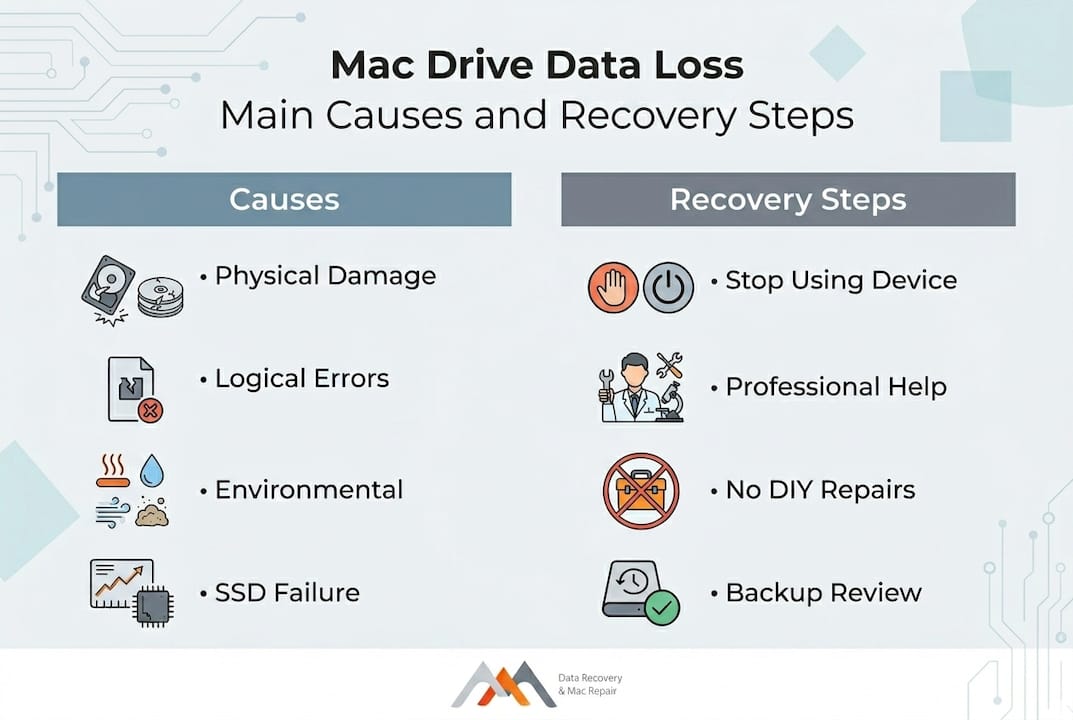
Pro Tip: If your Mac stops recognizing the drive or you hear abnormal sounds, power off the device immediately and do not restart it. Every additional spin of a damaged HDD increases the risk of permanent platter damage.
How Mac users can spot the early signs of data loss
Catching a failing drive early can be the difference between a straightforward recovery and losing data permanently. Mac hardware often provides warning signs well before a total failure, but those signals are easy to dismiss or misattribute to other causes.
Unusual noises are the most recognizable early indicator on traditional HDDs. A healthy drive operates with a quiet, consistent hum. If you begin hearing clicking sounds (often called the “click of death”), rhythmic ticking, or grinding, these point to mechanical failure involving the read/write heads or platters. Treat any abnormal sound as urgent.
Performance degradation is often the first sign of a failing SSD or an HDD developing bad sectors. Watch for:
- Files that take unusually long to open or save
- Applications that freeze or crash frequently, especially when reading from storage
- The spinning beachball cursor appearing more often than normal
- Your Mac taking several minutes to boot rather than the usual seconds
Error messages and missing files are another critical warning. If macOS reports that a disk is unreadable, prompts you to initialize a drive you have used for years, or if files you know exist suddenly appear missing, that is a strong indicator of either logical corruption or physical sector failure.
Time Machine behaving unexpectedly is a signal that many Mac users miss. If Time Machine suddenly stops completing backups, reports errors, or skips scheduled backups without an obvious reason, the source drive may already be developing problems. As highlighted in research on better security and recoverability, backups are critical first responders, and checking Time Machine snapshots is always the recommended starting point before attempting any recovery procedure.
Early recognition gives you the ability to back up remaining data before total failure, consult professionals while recovery is still straightforward, and avoid actions that could make the situation worse. Resources on Mac recovery methods can help you evaluate your specific situation, and if your device is a MacBook with a soldered SSD, MacBook SSD recovery outlines what the process looks like from a professional perspective.
Key fact: Many drive failures give users days or even weeks of warning before complete failure. Acting on early symptoms dramatically increases the likelihood of full data recovery without the need for complex physical intervention.
The worst outcome is a drive that fails completely without any prior backup in place. If your Mac is showing even one of the above signs, treat it as an immediate priority rather than something to address when convenient.
Mistakes to avoid: DIY data recovery and risks
When data disappears, the instinct is to act fast, and that urgency leads many Mac users to attempt recovery methods that end up causing more harm than good. Understanding what not to do is just as valuable as knowing the right steps.
Here are the most damaging DIY mistakes to avoid:
- Continuing to use a failing drive. If your drive is clicking or your Mac is struggling to read files, every minute of operation risks additional damage. Write operations on a degraded drive can overwrite the very sectors that contain your recoverable data.
- Running Disk Utility First Aid on a physically damaged drive. Disk Utility’s repair function is designed for logical errors, not physical failures. Running it on a mechanically compromised drive can cause more read/write cycles and accelerate the damage.
- Installing data recovery software on the affected drive. Many people download recovery applications and install them on the same drive that contains the lost data. This is a critical mistake because the installation process can overwrite deleted file sectors, making them unrecoverable.
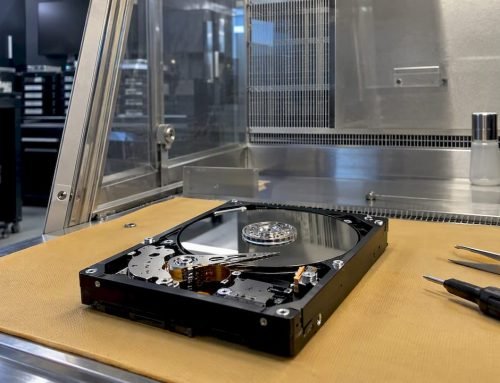
- Opening the hard drive yourself. HDDs must be serviced in a cleanroom environment with controlled particulate levels. Even a single dust particle landing on a platter can cause a head crash and permanently destroy data. Opening a drive in any other environment will almost certainly cause irreversible damage.
- Trying the freezer method or other home remedies. These techniques occasionally circulated online as solutions for failing drives, but they are not effective for modern Mac storage and can introduce moisture or condensation damage.
According to recovery success statistics, professional recovery services achieve success rates above 99% for cases like read/write head swaps when the drive arrives in the proper condition, but that rate collapses to 0% once a severe crash has occurred due to mishandling.
Professional data recovery in Los Angeles requires access to cleanroom facilities, specialized firmware tools, and experience with Apple’s proprietary storage architectures, including the T2 and M-series security chips that manage encryption on modern Macs. A service familiar with best Mac data recovery LA practices will evaluate the drive without causing additional harm before any recovery attempt begins.
The moment you suspect a physical failure, the best action is to stop using the device, do not attempt repairs, and contact a professional who can assess the situation under controlled conditions.
Preventing data loss: Backup strategies for Mac users
The most reliable way to survive a hard drive failure is to have a complete, current backup already in place. Backups are not complicated to set up, but they require consistency to be effective, and many Mac users discover their backup system was incomplete only after data is already lost.
Time Machine is Apple’s built-in backup solution and remains one of the most practical options available. It automatically creates hourly snapshots of your data and retains daily and weekly backups over time. For Time Machine to be effective, you need to connect your backup drive regularly, or use a network-attached storage (NAS) device that keeps it continuously connected.
A well-rounded backup strategy should include:
- Local backup with Time Machine using an external drive connected regularly or always attached
- Cloud backup through services such as iCloud Drive, Backblaze, or Dropbox for offsite redundancy
- Secondary external drive stored in a separate physical location to protect against theft, fire, or environmental damage
- Periodic verification of your backups by attempting to restore a test file, confirming the backup is functional and not just running silently in the background
As noted in guidance on better security and recoverability, the increasing use of FileVault encryption and Apple Silicon security architecture means that encrypted and soldered SSDs present unique challenges for recovery. Having multiple backup layers is the most effective defense when professional cleanroom recovery becomes the only remaining option.
| Backup type | Cost | Access speed | Offsite protection | Best for |
|---|---|---|---|---|
| Time Machine (local) | Low | Fast | No | Daily recovery needs |
| Cloud backup | Medium | Slower | Yes | Offsite redundancy |
| External drive (secondary) | Low to medium | Fast | Possible | Additional local copy |
| NAS (network storage) | Medium to high | Fast | No | Home or business use |
For Mac users who use their devices for business purposes, particularly in demanding creative industries common in Los Angeles, professional backup consultation is worth considering. A Mac repair in Los Angeles provider can assess your current hardware and recommend a backup solution matched to your workflow and risk level. Resources on Mac failure prevention offer additional guidance on building a sustainable protection strategy.
Pro Tip: Set Time Machine to back up to a NAS device on your home or office network so backups occur automatically without needing to plug in an external drive. This removes the single biggest reason backups fail, which is that users simply forget to connect the drive.
Why professional recovery matters more than ever for Mac users
There is a persistent assumption in some circles that data recovery is a task a technically inclined person can handle at home with the right software. That assumption was questionable ten years ago and is simply wrong today, at least for modern Mac hardware.
Apple’s transition to M-series chips and soldered NAND storage has fundamentally changed what is physically possible in a recovery scenario. The combination of proprietary storage controllers, T2 security chip involvement in encryption key management, and APFS metadata complexity means that even experienced technicians need specialized equipment and training to navigate these systems successfully. Recovery success rates for head swaps and physical failures confirm that professional intervention consistently outperforms DIY attempts, often by an enormous margin.
For Mac users in Los Angeles, proximity to a qualified recovery specialist matters. Emergency situations benefit from fast turnaround, and local providers can assess hardware in person without the risk of further damage during shipping. Whether the device is a MacBook Air with a soldered SSD or an older Mac Pro with traditional HDDs, specialists handling Mac Pro recovery LA understand the full spectrum of Apple hardware configurations. Professional recovery is not a last resort. It is the most reliable first step when data integrity is the priority.
Get expert help for hard drive and SSD recovery in Los Angeles
When your Mac drive fails, the decisions you make in the first few hours have a direct impact on whether your data can be recovered. Macwest Data Recovery and Mac Repair has been serving Los Angeles since 2006, offering professional hard drive data recovery LA services for both traditional HDDs and modern soldered SSDs across all Mac models.
Whether you are dealing with physical damage, accidental deletion, or a corrupted APFS volume, our team provides a thorough diagnostic before any recovery attempt begins. We handle FileVault-encrypted drives, NAND-level SSD recovery, and cleanroom work that cannot safely be performed at home. For straightforward Mac repair LA needs or more complex recovery scenarios, we encourage you to review the data recovery steps LA process and reach out for a consultation. Your data deserves the best possible chance of coming back intact.
Frequently asked questions
What are the most common causes of hard drive data loss for Mac users?
Physical failures, logical corruption, and environmental damage are the top reasons Mac drives lose data, with physical damage being particularly destructive because DIY recovery attempts can reduce success rates from near-certain to zero.
Can I recover lost data from an SSD without professional help?
DIY recovery is risky for soldered or encrypted SSDs because accessing NAND storage requires specialized tools, and as research on encrypted drive recoverability shows, professional cleanroom services offer a significantly higher success rate.
How can Mac users prevent hard drive data loss?
Regular, verified backups using Time Machine, external drives, and cloud storage are the most reliable defense, and resources on better security practices recommend checking Time Machine snapshots as the first step in any data recovery situation.
What are the signs of an impending hard drive failure on a Mac?
Clicking or grinding sounds, slow file access, frequent application crashes, error messages about unreadable disks, and Time Machine failing to complete backups are all strong indicators of imminent drive failure.
Is it possible to recover data after severe physical damage?
Professional recovery services can succeed in scenarios like read/write head swaps, but severe physical crashes often result in a 0% success rate, which is why early professional intervention before complete failure is always the better outcome.