TL;DR:
- Unusual noises, slow performance, or detection issues indicate critical early signs of hard drive failure that require immediate action. Continuing to run or attempt repairs on physically failing drives can cause irreversible data loss, making professional recovery essential. Prompt power-down and professional assessment maximizes the chances of successful data retrieval and prevents further damage.
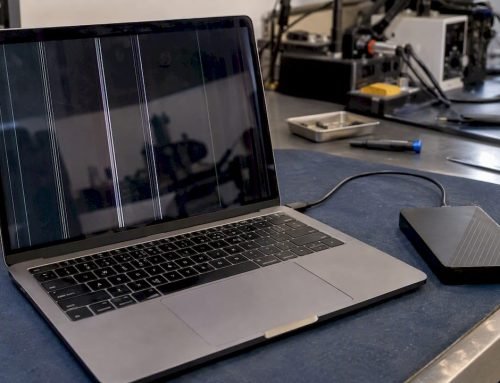
Stop all disk writes immediately if your drive is making unusual noises or behaving erratically. Those are the first signs of hard drive failure, and continuing to use the drive can mean the difference between a full recovery and permanent data loss. The hard drive warning signs most people miss are not dramatic at first. A slight slowdown here, a corrupted file there, and suddenly the drive stops spinning entirely. This guide covers the 10 most critical hard drive failure indicators, explains what each one means technically, and tells you exactly what to do next before you lose anything you cannot get back.
Table of Contents
- Key takeaways
- 1. Clicking or ticking sounds (“click of death”)
- 2. Grinding or scraping sounds
- 3. Beeping on startup
- 4. The drive is not recognized by BIOS or macOS
- 5. Extremely slow file access and long boot times
- 6. Frequent system crashes, kernel panics, and freezes
- 7. Corrupted or missing files
- 8. S.M.A.R.T. status warnings and diagnostic errors
- 9. Disk Utility errors and failed CHKDSK results
- 10. Drive runs unusually hot or vibrates excessively
- What happens when you ignore these signs (and why recovery tools make it worse)
- Choosing the right recovery option
- My take on what most people get wrong about failing drives
- Macwestlosangeles: expert hard drive recovery in Los Angeles
- FAQ
Key takeaways
| Point | Details |
|---|---|
| Act on early symptoms | Slow file access, corrupted data, and strange noises are early signs that require immediate attention. |
| Power down on noise | Grinding or clicking sounds indicate mechanical failure; shut down and do not restart the drive. |
| Avoid recovery software on physical failures | Running software tools on a mechanically failing drive accelerates damage and can destroy recoverable data. |
| Professional labs maximize recovery | Cleanroom environments and specialized hardware imagers recover data that consumer tools cannot reach. |
| Free diagnostics available locally | Macwestlosangeles offers free diagnostics and same-day appointments at 12041 Wilshire Blvd, Los Angeles. |
1. Clicking or ticking sounds (“click of death”)
The click of death is one of the most recognized hard drive malfunction signs in the industry. It occurs when the read/write heads attempt to position themselves on the magnetic platter and fail repeatedly, producing a rhythmic clicking or ticking sound. Each click represents a failed read cycle, and the drive is effectively attempting to recover from a positioning error over and over.
Clicking sounds are a symptom of mechanical head failure, not necessarily an indication that all data is gone. Professional intervention at this stage can still preserve most or all of your files. The critical mistake is continuing to run the drive, which forces additional failed read attempts and worsens the mechanical stress on the heads.
Pro Tip: Use your phone to record the sound before powering down. A short audio clip helps technicians diagnose the failure mode before they even open a work order.
2. Grinding or scraping sounds
If clicking is urgent, grinding is a genuine emergency. Grinding or scraping sounds signal a head crash, which is direct physical contact between the read/write heads and the magnetic platter surface. Every second the drive continues to spin, the heads are scoring grooves into the platter and erasing data at the physical layer.
Power off the machine immediately. Do not save any files first. Do not run a backup. Pull the power cable if you have to. The data you might lose by forcing a hard shutdown is far less significant than the data being destroyed every additional second the drive remains running.
3. Beeping on startup
A beeping hard drive typically points to a spindle motor failure or a serious power delivery problem. The spindle motor spins the platters up to operating speed (usually 5,400 or 7,200 RPM), and when it cannot generate enough torque, the drive often beeps in a distinct pattern while failing to spin up at all.
This is distinct from your system’s POST beeps. The sound comes directly from the drive enclosure itself. Spindle motor issues often require a donor drive with compatible firmware and platters to complete recovery, which is work that only a professional lab can perform safely.
4. The drive is not recognized by BIOS or macOS
When your Mac does not see the drive at startup, or your PC’s BIOS reports no storage device, that is one of the clearest warning signs of disk failure at either the physical or firmware level. Physical failure includes mechanical issues and non-detection; logical failure typically means the drive is detected but the file system is corrupted or the partition table is damaged.
A drive that disappears from Disk Utility on macOS or Device Manager on Windows, especially intermittently, is a drive in the process of failing. Intermittent detection is actually more alarming than consistent non-detection because it suggests the failure is progressing in real time.
5. Extremely slow file access and long boot times
Performance degradation is one of the earliest and most overlooked symptoms of hard drive issues. When sectors on the platter begin to fail, the drive’s firmware will attempt to re-read those sectors multiple times before reporting an error, causing file access to stall for seconds or even minutes on what should be an instant operation.

If your Mac is taking three to five times longer than usual to open folders, launch applications, or complete Time Machine backups, do not attribute it to a software update. S.M.A.R.T. warnings, slow access times, and frequent crashes are software indicators pointing to a failing drive. This is especially true on older spinning HDDs running APFS, where file system overhead can make early sector degradation even more apparent.
6. Frequent system crashes, kernel panics, and freezes
A Mac that kernel panics repeatedly, or a Windows machine hitting blue screens tied to disk read errors, is communicating a specific message: the operating system cannot reliably read the data it needs to function. Random application freezes, especially when saving files or loading large documents, follow the same pattern.
Many users spend weeks reinstalling macOS or running diagnostics on RAM and logic board components when the real culprit is a drive with failing sectors. If crashes correlate with disk activity (copying files, running backups, opening large projects), the drive is the first thing to investigate.
7. Corrupted or missing files
Files that open to garbage data, folders that appear empty when they should not, and documents that were present yesterday but cannot be located today are all hard drive error symptoms with a specific cause. Sector failures corrupt the data written to those locations, and the file system metadata pointing to those files can become inconsistent.
On APFS volumes, the copy-on-write architecture provides some protection, but it cannot compensate for a drive that is actively degrading. If you notice corruption on files you have not touched recently, that is a sign the failure is spreading to previously written sectors.
8. S.M.A.R.T. status warnings and diagnostic errors
S.M.A.R.T. (Self-Monitoring, Analysis, and Reporting Technology) is built into every modern hard drive and SSD. The problem is that macOS only surfaces a pass/fail result in Disk Utility. You need a dedicated tool like DriveDx or CrystalDiskInfo to read the individual attribute values.
Windows tools may show “Pred Fail” or display wrong capacity readings (a 1TB drive reporting 0 bytes), both of which are serious early signs of drive failure. On Mac, look for reallocated sector counts above zero, pending sector counts, and uncorrectable errors. Any increase in these values over time confirms the drive is actively failing, even if it still seems to function day to day.
Pro Tip: Run a S.M.A.R.T. check once a month on drives older than three years. A single elevated reallocated sector count is a clear signal to back up immediately and plan for replacement.
9. Disk Utility errors and failed CHKDSK results
macOS Disk Utility’s First Aid function and Windows CHKDSK are built-in tools that check the logical integrity of the file system. When First Aid reports errors it cannot repair, or CHKDSK finds bad sectors and cannot fix them, that is detecting hard drive failure at the logical layer.
These tools are useful for diagnosing logical failures (corrupted partition tables, directory errors, damaged catalog files on HFS+ or APFS volumes). They cannot repair physical sector damage. Running them repeatedly on a physically failing drive is counterproductive because each scan forces additional read operations against sectors the drive is already struggling to access. If the tool reports errors on multiple consecutive runs, stop and consult a professional.
10. Drive runs unusually hot or vibrates excessively
Heat and vibration are mechanical stress indicators that most users never think to check. A drive running significantly hotter than its rated operating temperature accelerates bearing wear and platter expansion, both of which affect read/write head alignment. You can check drive temperature through S.M.A.R.T. attribute 190 or 194 using any S.M.A.R.T. monitoring utility.
Excessive vibration, which you can sometimes feel through a laptop chassis or hear as a subtle rattling, indicates worn spindle bearings. Bearing failure is progressive. It starts as vibration, advances to clicking, and ends as a complete spindle seizure where the platters stop moving entirely. At that stage, recovery requires a donor drive in a cleanroom environment.
What happens when you ignore these signs (and why recovery tools make it worse)
The most damaging mistake people make after noticing hard drive failure indicators is downloading consumer data recovery software and running it against a mechanically failing drive. Running recovery software on a failing drive forces read operations that the drive cannot safely handle, accelerating the mechanical failure and permanently destroying data that a professional could have retrieved.
There is also the cleanroom issue. Opening a hard drive outside an ISO Class 5 cleanroom introduces dust particles that cause irreparable platter damage the moment the drive spins up again. Even a single particle between the head and platter surface causes scoring that destroys the data in that region permanently. Hard drives are assembled in cleanroom environments for exactly this reason, and any service that does not maintain that standard is not a safe choice for physical recovery.
The right steps after noticing symptoms of hard drive issues are:
- Power down immediately and do not restart the drive
- Do not run disk repair tools if you hear mechanical sounds
- Do not attempt to copy files from a clicking or grinding drive
- Do not open the enclosure under any circumstances
- Contact a professional lab that uses hardware imagers and cleanroom facilities
Immediate power down on detection of abnormal sounds or non-recognition maximizes recovery chances. Every additional minute of operation reduces the probability of a full recovery.
Choosing the right recovery option
Not all recovery providers are equal. The table below compares your options when you are facing a failing drive:
| Recovery option | Best for | Limitations |
|---|---|---|
| Consumer software (DIY) | Logical failures with no physical damage | Accelerates damage on mechanically failing drives |
| General repair shop | Basic software issues, OS reinstalls | No cleanroom; cannot handle head crashes or motor failure |
| Professional data recovery lab | All physical and complex logical failures | Higher cost, but only reliable option for mechanical damage |
| Cloud backup restore | Files already backed up before failure | Only works if backup was current before failure occurred |
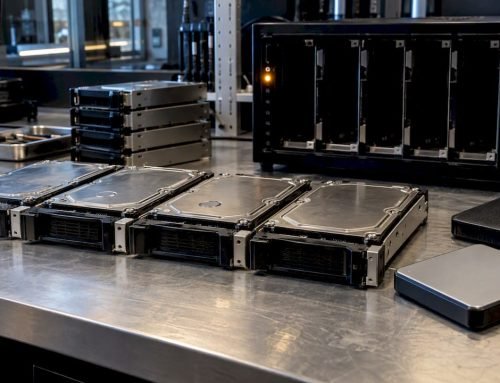
Professional recovery labs use specialized hardware imagers designed to safely read failing drives one sector at a time, creating a working image before any repair work begins. Consumer software cannot replicate this process. When you are evaluating a service provider, ask specifically about their cleanroom certification, their imaging hardware, and whether they offer a no-data, no-charge policy. For Mac users specifically, look for a provider with experience in APFS, NVMe, and RAID (0, 1, 3, 5) recovery, as these file system architectures require specialized tooling beyond standard recovery workflows. You can learn more about Mac recovery options before making a decision.
My take on what most people get wrong about failing drives
I’ve worked with hundreds of clients who came to us after trying to fix a clicking drive themselves, and the pattern is almost always the same. They heard the noise, Googled it, found a free recovery tool, ran it for eight hours, and then called us with a drive that was now making a different, worse sound.
The misconception I encounter most is the belief that clicking automatically means data loss. It doesn’t. In my experience, a drive that clicks but has never been spun back up after the noise started has a significantly higher recovery rate than one that was run through two rounds of software scanning. The clicking is a warning, not a verdict.
What I’ve also seen is that people wait too long because the drive still “kind of works.” Intermittent detection is not a sign that the drive is recovering on its own. It is a sign that the failure is progressing. The window for a full recovery narrows every day. If you are in the Los Angeles area and you are reading this while your drive is making noise, call before you do anything else. Same-day triage can be the difference between recovering everything and recovering nothing.
— Kaya
Macwestlosangeles: expert hard drive recovery in Los Angeles
When you are dealing with early signs of drive failure or already facing a drive that will not spin up, Macwestlosangeles is the resource to call first. Since 2006, the team has been recovering data from failing HDDs, NVMe SSDs, RAID arrays, and Mac storage systems across West LA, Santa Monica, Beverly Hills, Brentwood, Westwood, Venice, Hollywood, and Culver City.
Free diagnostics are available with no obligation, and the no recovery, no charge policy means you pay only when your data comes back. Services cover everything from Logic Board component repair to full RAID (0, 1, 3, 5) reconstruction. The lab is centrally located at 12041 Wilshire Blvd, Ste 26, near the 405 and UCLA, and same-day appointments are available for urgent cases. You can also review proven Mac recovery methods to understand exactly what the process looks like before you come in. Call (310) 866-0828 to speak with a technician now.
FAQ
What are the first signs of hard drive failure?
The earliest hard drive failure indicators are slow file access, longer boot times, and occasional corrupted files. S.M.A.R.T. warnings showing elevated reallocated sector counts are a reliable early signal before audible symptoms appear.
Is a clicking hard drive always unrecoverable?
No. Clicking indicates a mechanical head issue, not automatic data destruction. Powering down immediately and contacting a professional recovery lab gives you the best chance of retrieving your files intact.
Can I run data recovery software on a clicking drive?
You should not. Running software on a physically failing drive forces read operations that accelerate the mechanical damage and can permanently destroy data that would otherwise be recoverable.
How do I check if my hard drive is failing on a Mac?
Open Disk Utility and run First Aid to check for file system errors. For a deeper look, use a S.M.A.R.T. monitoring tool like DriveDx to check individual attributes such as reallocated sectors and pending uncorrectable errors, which macOS does not display by default.
When should I contact a professional data recovery service?
Contact a professional immediately if you hear clicking, grinding, or beeping from the drive, if the drive is not detected by your system, or if Disk Utility reports errors it cannot repair. These are signs that software tools will cause more harm than good, and professional lab intervention is the appropriate response.