TL;DR:
- Implementing the 3-2-1 backup rule and encrypting your Mac with FileVault protects against data loss and theft. Regularly testing backups and updating privacy settings minimize vulnerabilities and ensure recovery readiness. Securing your primary email and locking down accounts with multi-factor authentication prevent unauthorized access and account compromises.
Data loss prevention is the practice of applying consistent backup, security, and access-control strategies to protect your files before disaster strikes. The 3-2-1 backup rule, FileVault encryption, and NIST SP 800-63B credential standards form the three pillars every Mac user needs. Whether you use a MacBook, iMac, or Mac Mini, these data loss prevention tips apply directly to your setup and require no technical background to implement.
1. How does the 3-2-1 backup rule protect your data?
The 3-2-1 rule is the gold standard for personal data resilience. It means keeping 3 copies of your data, stored on 2 different media types, with 1 copy offsite or in the cloud. This structure means a house fire, theft, or ransomware attack cannot wipe out every copy at once.
For Mac users, a practical 3-2-1 setup looks like this:
- Copy 1: Your Mac’s internal APFS drive (your working copy)
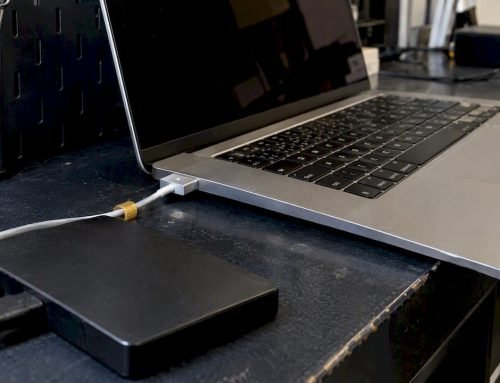
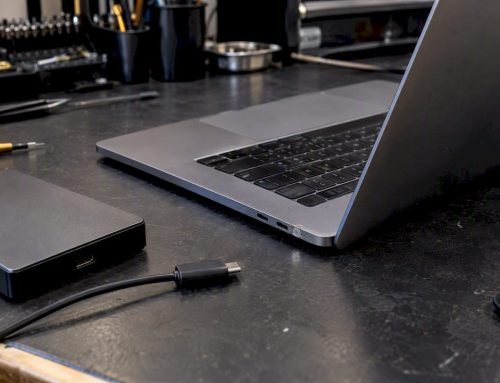
- Copy 2: An external USB or Thunderbolt drive using Time Machine
- Copy 3: A cloud backup service storing encrypted files offsite
CISA and NIST both identify the 3-2-1 architecture as the highest-priority mitigation against ransomware. That recommendation carries weight because ransomware frequently encrypts cloud-synced files before you notice the infection.
Pro Tip: Keep one external drive completely disconnected from your Mac when not in use. This air-gapped backup cannot be reached by ransomware, because cloud sync can overwrite clean files with encrypted versions if malware activates before detection.

Testing your backups at least quarterly is non-negotiable. An untested backup is an assumption, not a plan. Restore a sample folder to a different location every three months to confirm the process actually works.
2. What macOS privacy and security settings protect your data?
macOS ships with several powerful protections that are either off by default or misconfigured out of the box. Activating them takes about 30 minutes with a checklist. That small investment closes the most common entry points for malware and unauthorized access.
Work through these settings in System Settings:
- FileVault: Turn on full disk encryption under Privacy & Security. FileVault encrypts your entire APFS volume, so a stolen Mac reveals nothing without your password.
- Firewall: Enable the firewall and activate Stealth Mode. Stealth Mode stops your Mac from responding to network probes.
- Full Disk Access: Open Privacy & Security, then Full Disk Access. Remove any app that does not absolutely need it.
- Accessibility permissions: Audit this list carefully. Apps with Accessibility access can control your entire Mac.
- Camera and Microphone: Revoke access for any app you do not actively use for video or audio.
- Analytics and advertising: Disable “Share Mac Analytics” and limit ad tracking under Privacy & Security.
- Mail Privacy Protection: Enable this in Mail preferences to block tracking pixels in emails.
- Safari privacy: Set cross-site tracking prevention to Strict and clear cookies from unknown sites.
Many macOS privacy protections are disabled by default and require active auditing. Skipping this step leaves your data exposed even when your hardware is physically secure.
Pro Tip: Screenshot your permission lists after the initial audit. When you revisit them in 90 days, you will immediately spot any new app that granted itself elevated access.
3. How do strong credentials prevent data loss?
Securing your primary email account is the single most important credential step you can take. Your email is the recovery gateway for every other account, including iCloud, banking, and cloud backups. If an attacker controls your email, they can reset every password you own.
Follow these credential practices:
- Use a password manager to generate and store unique passwords for every account. Reused passwords are the leading cause of account compromise, not sophisticated attacks.
- Enable MFA on all critical accounts. NIST SP 800-63B recommends multi-factor authentication on email, cloud storage, and financial accounts at minimum.
- Audit recovery options quarterly. Check that your backup phone number and recovery email are current and still under your control.
- Rotate passwords after any breach notification. Use services like Have I Been Pwned to monitor whether your email address appears in known data dumps.
Most data breaches trace back to reused passwords and unprotected recovery accounts, not sophisticated exploits. Fixing your credentials costs nothing and takes under an hour.
4. What maintenance routines keep your data protection current?
Data protection is not a one-time setup. Threats evolve, apps change permissions, and backups silently fail. A monthly maintenance routine catches these gaps before they become crises.
Build these habits into your calendar:
- Monthly OS updates: Apple patches security vulnerabilities in every macOS update. Delaying updates leaves known exploits open.
- App and extension audits: A minimal, documented software catalog helps detect persistence mechanisms. Remove any browser extension or app you no longer recognize or use.
- Login item review: Open System Settings, then General, then Login Items. Delete anything unfamiliar. Malware frequently hides here.
- Backup integrity check: Confirm your Time Machine drive mounted and completed its last backup. Check your cloud backup dashboard for error alerts.
- Account access review: Log into your primary email and iCloud accounts and check active sessions. Revoke any device or location you do not recognize.
Pro Tip: Write a one-page recovery plan and share it with a trusted household member. Personal data protection is as much about social and procedural discipline as it is about technology. Knowing who controls your accounts matters as much as the tools you use.
Documenting your recovery steps also forces you to think through gaps. Most people discover a missing backup or forgotten account during the writing process, not during an actual emergency.
5. How to respond immediately to suspected data loss on a Mac
Stop all disk writes immediately if you suspect data loss or a malware infection. Every write operation after a loss event risks overwriting the files you need to recover.
Follow these steps in order:
- Disconnect from Wi-Fi and all networks. Pull the Ethernet cable and turn off Wi-Fi in the menu bar. This stops malware from exfiltrating data or receiving commands.
- Do not reboot. Avoiding a reboot preserves volatile memory evidence and prevents some ransomware from completing its encryption cycle.
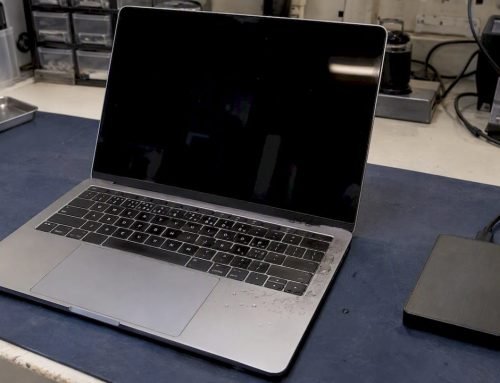
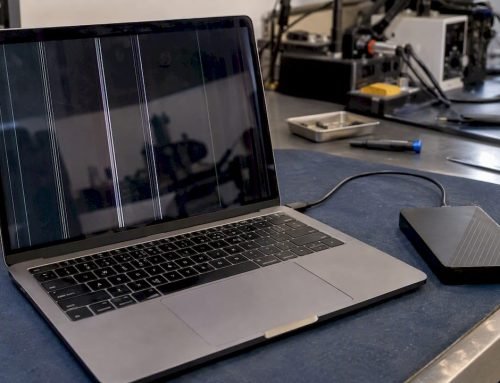
- Do not open or charge a physically damaged Mac. Power cycling a Mac with liquid damage or a failing drive can cause permanent data loss.
- Change critical passwords from a clean device. Use a phone or a different computer to change your email, iCloud, and banking passwords immediately.
- Verify your most recent backup. Confirm the backup predates the infection before you attempt any restoration.
- Contact a professional recovery service. If files are missing or the drive shows errors, professional intervention before further use gives you the best recovery odds.
Macwestlosangeles has handled Mac data recovery from APFS, NVMe, and RAID systems since 2006. Same-day appointments are available for urgent situations at 12041 Wilshire Blvd, Ste 26, Los Angeles.
Key Takeaways
The most effective data loss prevention strategy for Mac users combines the 3-2-1 backup rule, FileVault encryption, MFA on all critical accounts, and a tested monthly maintenance routine.
| Point | Details |
|---|---|
| Apply the 3-2-1 backup rule | Keep 3 copies on 2 media types, with 1 air-gapped or offsite copy to survive ransomware. |
| Lock down macOS privacy settings | Enable FileVault, firewall Stealth Mode, and audit Full Disk Access permissions within 30 minutes. |
| Secure your email account first | Your primary email controls recovery for every other account, so protect it with MFA. |
| Test backups every quarter | An untested backup is not a plan; restore a sample folder to confirm the process works. |
| Stop disk writes at first sign of loss | Disconnect from the network and avoid rebooting to preserve recoverable data. |
Why most people lose data they could have saved
Most of the data loss cases I see were completely preventable. Not because the person lacked the right tools, but because they skipped the boring part: actually testing the backup.
People set up Time Machine, see the green checkmark, and assume they are covered. Then a drive fails, and they discover the backup stopped running three months ago because the external drive filled up silently. That moment is brutal, and it happens constantly.
The other pattern I see is credential collapse. Someone’s iCloud account gets locked out because their recovery email is an address they stopped using in 2019. Now they cannot access their photos, documents, or backups. No expensive software fixes that. Only a recovery process that takes weeks, if it works at all.
The good news is that none of this requires technical expertise. A structured Mac data protection checklist, run once a month, catches 90% of these problems before they become emergencies. The people who avoid data loss are not the ones with the most sophisticated setups. They are the ones who check their backups and update their recovery contacts on a schedule.
— Kaya
Macwestlosangeles: expert data recovery when prevention falls short
When prevention is not enough, Macwestlosangeles provides professional hard drive data recovery for Mac users across West LA, Santa Monica, Beverly Hills, Brentwood, Westwood, Venice, Hollywood, and Culver City. The team has specialized in APFS, NVMe, RAID (0, 1, 3, 5), and logic board component repair since 2006. Free diagnostics are available with every case, and the no-recovery, no-charge policy means you pay only for results. Same-day appointments are available for urgent data loss situations. Call 310-866-0828 or visit the office at 12041 Wilshire Blvd, Ste 26, Los Angeles, to speak with a recovery specialist directly.
FAQ
What is the 3-2-1 backup rule for Mac users?
The 3-2-1 rule means keeping 3 copies of your data on 2 different media types, with 1 copy stored offsite or in the cloud. It protects against hardware failure, theft, and ransomware simultaneously.
How long does it take to lock down macOS privacy settings?
A structured checklist covering FileVault, firewall, and permission audits takes approximately 30 minutes for non-technical users. Completing it once and reviewing it quarterly keeps your settings current.
Why should I secure my email account before anything else?
Your primary email account is the recovery gateway for every other digital service, including iCloud and cloud backups. An attacker who controls your email can reset all your other passwords.
What should I do first if I suspect data loss on my Mac?
Stop all disk writes immediately, disconnect from Wi-Fi, and do not reboot the machine. These three steps preserve the data that a professional recovery service can retrieve.
Does MFA really prevent data loss?
MFA blocks unauthorized access to cloud backups and email accounts, which are the two most common paths attackers use to delete or encrypt your data. NIST SP 800-63B recommends MFA on all critical accounts as a baseline protection.