Most MacBook keyboards that seem “dead” are fixed by a two-minute software check or a 30-second SMC reset. Plug in an external keyboard first: if it types normally while the built-in one stays silent, you’re almost certainly looking at a settings problem or a firmware freeze, not a fried logic board. If you suspect liquid got into the keyboard well or you smell anything burning, stop all disk writes immediately and skip straight to the professional inspection section below. Otherwise, try this first:
- Force restart by holding the power button for 10 seconds, then power back on.
- Open System Settings > Accessibility > Keyboard and turn off Slow Keys and Sticky Keys.
- Connect a USB or Bluetooth keyboard to confirm whether the fault is hardware or software.
Key Takeaways
An unresponsive MacBook keyboard is usually software (an accessibility setting, SMC freeze, or NVRAM corruption), not a hardware failure, and an external keyboard test tells you which within two minutes.
| Point | Details |
|---|---|
| Test with an external keyboard first | If it works and the built-in one doesn’t, the fault is hardware, not software. |
| Rule out Accessibility settings | Disable Slow Keys and Sticky Keys before assuming any deeper problem exists. |
| SMC reset fixes most total failures | A quick reset resolves the majority of complete keyboard non-response cases. |
| Liquid exposure needs urgency | Corrosion can cause failure weeks after a spill, even if typing still seems fine now. |
| Macwestlosangeles offers same-day repair | Free diagnostics and no recovery, no charge apply to keyboard and data issues alike. |
Table of Contents
- Two-Minute Checks Before You Do Anything Else
- Fixes for Four Common Keyboard Failure Patterns
- How Do You Tell Hardware Failure From a Software Glitch?
- When Should You Stop Troubleshooting and Call a Professional?
- Symptom-to-Cause Quick Reference
- What Actually Matters When Your Keyboard Stops Working
- Get Your Keyboard Fixed the Same Day in West LA
- Sources
- FAQ
Two-Minute Checks Before You Do Anything Else
Before you touch a screwdriver or dial a repair shop, rule out the causes that take seconds to fix. A shocking number of “broken” MacBook keyboards are just misconfigured settings left over from an accidental keystroke.
- Kill Slow Keys, Sticky Keys, and Mouse Keys. Go to Accessibility in System Settings. Slow Keys adds a delay between a keystroke and its registration that can stretch several seconds, long enough to convince you the keyboard is dead when it’s simply lagging. Sticky Keys changes how modifier keys behave, and Mouse Keys can hijack the numeric pad entirely.
- Check your Input Source. Open System Settings > Keyboard > Input Sources and confirm the layout matches your physical keyboard. A stray Control+Space or Control+Option+Space press can silently swap you into a different language layout, making every key type the wrong character.
- Open Keyboard Viewer. Search Spotlight for “Keyboard Viewer” and press keys while watching the on-screen diagram. Apple’s own troubleshooting guidance recommends this exact test because it shows, in real time, whether a keystroke is generating any electrical signal at all.
- Plug in an external keyboard. A USB keyboard through a hub, or a Bluetooth keyboard if it’s already paired, tells you almost everything. If it works, the problem lives in software. If it doesn’t, macOS itself may be frozen or misconfigured at a deeper level.
Pro Tip: Keep a cheap USB keyboard in your bag or desk drawer. It’s the single fastest diagnostic tool for isolating hardware from software, and it costs less than a single repair diagnostic fee.
Fixes for Four Common Keyboard Failure Patterns
How your keyboard fails tells you almost everything about why. Match your symptom to the sequence below instead of trying every fix you find online.
Complete non-response
When every key is silent, work through this order and stop as soon as one step resolves it:
- Force restart the MacBook (hold power for 10 seconds).
- Test with an external keyboard to confirm the fault isn’t macOS itself.
- Perform an SMC reset. On MacBooks with the T2 chip or Apple silicon, this happens automatically on restart or by shutting down, waiting 30 seconds, then powering on. Older Intel models without T2 use the Shift+Control+Option+power combination held for 10 seconds. SMC corruption is one of the most common causes of a MacBook keyboard that appears completely unresponsive, and the reset is non-destructive.
- Boot into Recovery Mode (hold power at startup until “Options” appears, or Command+R on Intel Macs) and see if the keyboard responds there. If it does, your macOS installation likely has a corrupted process or extension.
- Reinstall macOS only if Recovery confirms the hardware is fine and Safe Mode hasn’t already solved it.
One or a few keys not working
Isolated key failure is almost always physical, and Keyboard Viewer will confirm it instantly. If a key doesn’t highlight when pressed, it isn’t generating a signal. Debris, dried liquid residue, or a worn key switch typically causes this kind of localized failure, rather than anything in macOS.
- Tilt the MacBook at a 75-degree angle and use compressed air in short bursts under the key.
- For visible grime, dampen a cotton swab with isopropyl alcohol (91% or higher) and gently clean around the key’s edges, never underneath the keycap on butterfly-style keyboards.
- If cleaning doesn’t restore the key within a session or two, the switch itself has likely failed. On 2016 to 2019 models with butterfly mechanisms, this usually means a keycap or full top-case assembly replacement, since individual switches aren’t user-serviceable.
Wrong characters or scrambled mapping
If pressing “A” produces something else entirely, the fix is rarely hardware.
- Recheck Input Source first. This is the number one cause of “wrong character” complaints.
- Reset NVRAM (shut down, then hold Option+Command+P+R for about 20 seconds during startup on Intel Macs). NVRAM stores keyboard mapping and modifier-key configuration, and corruption here after a system change or a bad shutdown commonly scrambles character output.
- Check Accessibility for custom modifier key remapping under Keyboard > Modifier Keys, which can silently reassign Control, Option, or Command.
Failure right after a macOS update
Boot into Safe Mode (hold Shift at startup) to load a minimal set of drivers. If the keyboard works normally in Safe Mode but not in a normal boot, a third-party kernel extension or keyboard utility installed before the update is the likely culprit. Uninstall recently added input-remapping or productivity apps before considering a full reinstall, and only reinstall macOS after Safe Mode and an external keyboard test have both confirmed the hardware itself is fine.
How Do You Tell Hardware Failure From a Software Glitch?
The external keyboard test is the fastest, most reliable method you have. Plug in a USB keyboard: if it types normally, the built-in keyboard’s hardware is probably fine and something in macOS or settings is at fault. Try a Bluetooth keyboard too, since it rules out a possible USB port or controller issue on the logic board.
- Both external and built-in fail: the problem is systemic, likely macOS itself, not the keyboard.
- External works, built-in doesn’t: hardware issue on the built-in keyboard assembly.
- Works in Safe Mode, fails on normal boot: a software conflict, often from a recently installed app or extension.
- Works in Recovery, fails after full boot: points to a corrupted user-level process rather than firmware.
- Fails everywhere, including Recovery: the SMC, keyboard controller, or logic board itself may be involved.
Keyboard Viewer remains the most definitive single test, because it isolates one key’s electrical actuation from everything else running on the machine. If you do end up needing a repair appointment, bring notes: when the problem started, whether there was any spill or drop beforehand, your exact model and serial number, and screenshots of any Keyboard Viewer results. That timeline saves a technician real diagnostic time.
When Should You Stop Troubleshooting and Call a Professional?
Some symptoms mean you should put the laptop down and get it inspected rather than keep experimenting. Watch for:
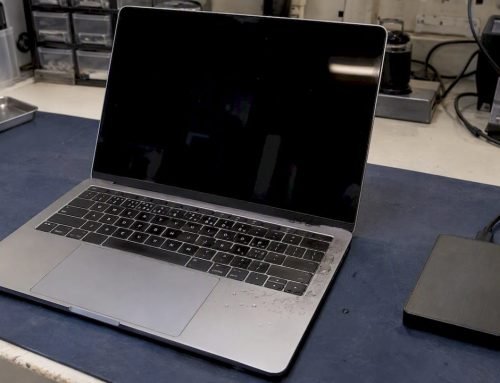
- Any liquid exposure, even a small splash, especially if typing became erratic hours or days afterward.
- A raised or bulging chassis, which usually signals battery swelling.
- Trackpad and keyboard failing together, often pointing to a shared ribbon cable or connector issue.
- A burning smell or visible corrosion around keys.
- Keys that feel physically different (mushy, sticky, or resistant) compared to before.
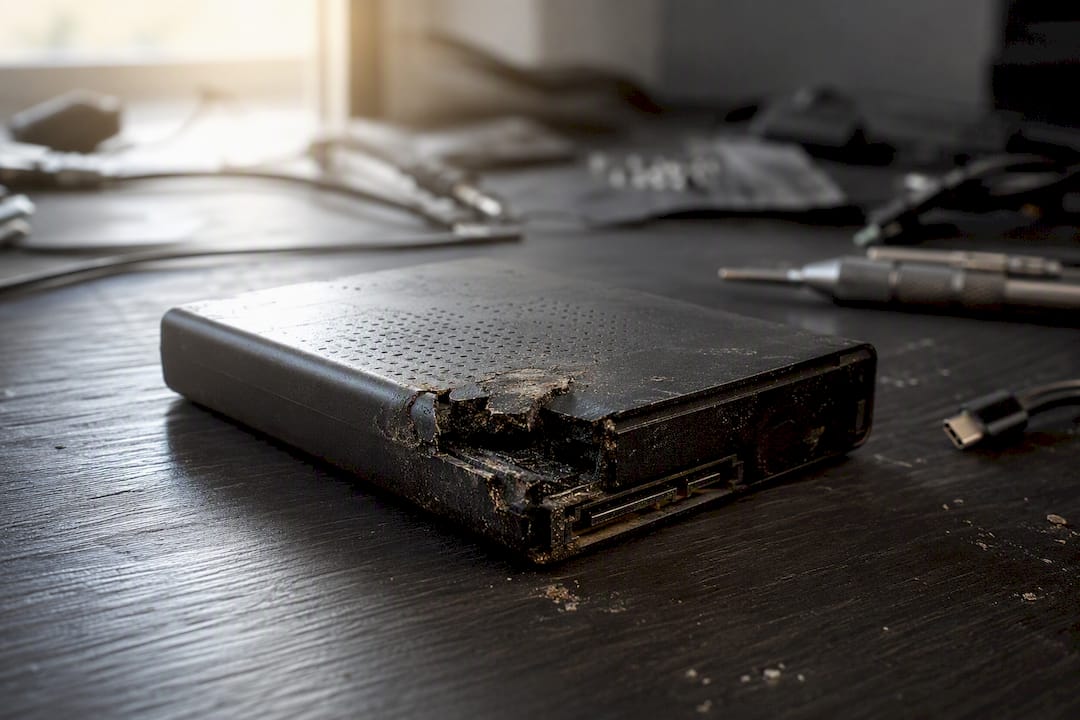
Liquid residue causes corrosion that can take days or weeks to fully manifest, which is why a MacBook that “seemed fine” after a spill can fail suddenly later. Battery swelling puts physical pressure on the keyboard and trackpad from underneath, and continuing to use a swollen battery is a genuine safety risk, not just an inconvenience.
A qualified technician inspects the top-case and keyboard assembly, the ribbon cable and its connector, and performs component-level SMD repair on the logic board when corrosion has spread to nearby traces. Ultrasonic cleaning removes residue that compressed air and alcohol can’t reach, and a data-first shop checks your drive’s APFS file system integrity before any repair work begins, since a keyboard failure sometimes coincides with a failing NVMe drive underneath it.
Macwestlosangeles has been repairing Mac hardware since 2006, with free diagnostics and a no recovery, no charge policy on every data job. Same-day and emergency appointments are available for exactly this kind of “stop using it now” situation. Call 310-866-0828 to get a technician looking at it today.
Symptom-to-Cause Quick Reference
| Symptom | Likely Cause | Urgency | Immediate Action |
|---|---|---|---|
| No response at all | SMC freeze or software fault | Low if no liquid involved | Force restart, then SMC reset |
| Row or cluster of keys dead | Ribbon cable or connector issue | Medium | External keyboard test, then professional inspection |
| Single key not working | Debris or worn switch | Low | Compressed air, then isopropyl cleaning |
| Wrong characters typed | Input Source or NVRAM issue | Low | Check layout, reset NVRAM |
| Intermittent failures | Early corrosion or loose connector | High | Stop use, seek inspection |
| Keyboard and trackpad both fail | Shared cable, swollen battery | High | Stop all disk writes, and get inspected |
What Actually Matters When Your Keyboard Stops Working
Most advice online treats every keyboard failure as a coin flip between “restart it” and “replace it.” That’s lazy, and it wastes readers’ time. The pattern of failure tells you almost everything before you touch a single setting. A single dead key is a cleaning problem nine times out of ten. A keyboard that’s silent everywhere, including Recovery Mode, is a different animal entirely, and no amount of NVRAM resetting fixes a corroded logic board trace.
What gets overlooked most is timing. People troubleshoot for days after a spill because the keyboard “still works fine,” not realizing corrosion is a slow process, not an instant one. If liquid touched your keyboard, the clock that matters isn’t how the machine behaves today. It’s how it behaves in three weeks. That’s the gap between conventional advice and what actually protects your data: professional inspection isn’t an overreaction to a small spill, it’s the only way to catch a slow failure before it takes your files with it.
— Kaya
Get Your Keyboard Fixed the Same Day in West LA
If cleaning, resets, and settings haven’t solved it, you’re past the point where more searching helps. Macwestlosangeles is the alternative to shipping your MacBook off to a mail-in repair queue and waiting a week for a diagnosis. Centrally located at 12041 Wilshire Blvd, Ste 26, between the 405 and Santa Monica near UCLA and the Getty Center, we serve Brentwood, Westwood, Venice, Hollywood, Culver City, Santa Monica, and Beverly Hills with free diagnostics and no recovery, no charge on every data job. Whether the issue turns out to be a keyboard assembly, a ribbon cable, or a logic board problem underneath it, our technicians have handled it since 2006. If a spill or drop happened alongside the keyboard failure, start with our liquid damage inspection page. For everything else, book a same-day Mac repair appointment or call 310-866-0828 to get on the schedule today.
Sources
- If your Mac doesn’t respond to key presses — Apple Support
- How to use keyboard accessibility features on Mac
- MacBook water damage diagnostic — iFixit
FAQ
Why is my MacBook keyboard not typing?
The most common causes are an Accessibility setting like Slow Keys, an SMC freeze, or a wrong Input Source layout. Testing with an external keyboard tells you within seconds whether it’s software or hardware.
How do I unfreeze my MacBook keyboard?
Force restart by holding the power button for 10 seconds, then perform an SMC reset. SMC corruption is a common cause of a keyboard that seems completely frozen, and the reset is safe and non-destructive.
Why is my keyboard suddenly unresponsive?
Sudden unresponsiveness across the whole keyboard usually points to an SMC freeze, a stuck accessibility toggle, or in rarer cases a connector or logic board issue if liquid was involved recently. Rule out software first with a force restart and external keyboard test before assuming hardware failure.
How do you unlock the keyboard on a Mac?
Check Accessibility settings for Slow Keys or Sticky Keys, since these can make the keyboard feel locked without any actual malfunction. If the keyboard is genuinely unresponsive rather than delayed, an SMC reset or NVRAM reset usually restores normal function.
Is it worth repairing a MacBook keyboard or replacing the laptop?
For most models, keyboard assembly replacement costs far less than a new machine, and Macwestlosangeles offers free diagnostics to confirm the actual repair scope before you commit to anything. Same-day appointments are available for keyboard and top-case repairs in the West LA area.