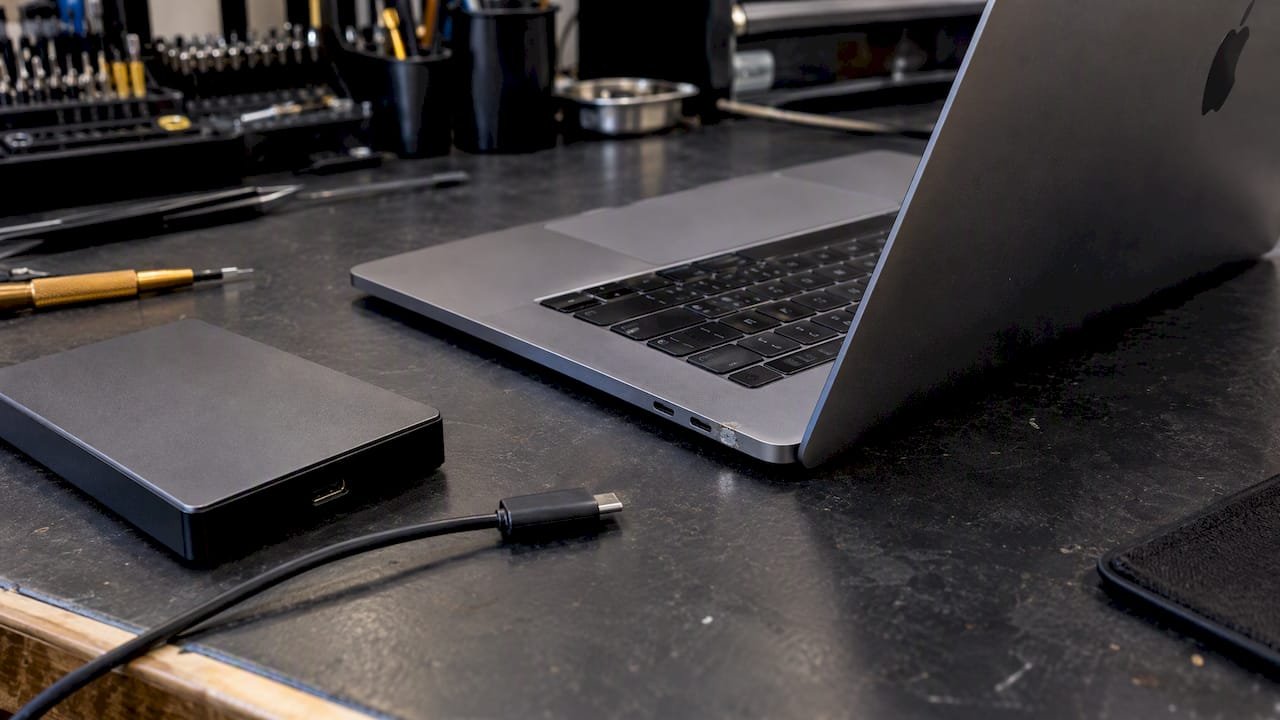
Your MacBook detected moisture or a conductive short near the USB-C connector and disabled charging to protect the circuitry. Unplug every cable, power down the Mac, and leave the port alone until it is completely dry. Charging or forcing a connection while the port is wet risks corrosion, a short circuit, and damage that spreads to the charging circuitry or logic board.
TL;DR:
- Moisture or conductive short detected by the USB-C port triggers an alert based on electrical measurements of the connector’s pins, not a guess.
- Immediate steps include unplugging all cables, powering down the Mac, and drying the port in a well-ventilated room for at least 24 hours, avoiding heat and rice.
- Persistent liquid detection after drying likely indicates residue or corrosion under the pins, which can lead to intermittent or complete port failure and may require professional repair.
- Apple’s warranty explicitly excludes liquid damage, and repair costs increase significantly if corrosion has spread to the logic board or if the Mac will not boot.
- DIY inspection and cleaning carry risks of dislodging tiny components or causing further damage; professional diagnostics are recommended if issues persist beyond initial drying.
Table of Contents
- How USB-C liquid detection actually works
- What to do right now if you see the alert
- What the alert means for your warranty and repair costs
- What you can safely try yourself
- When to call a professional for diagnostics or recovery
- Matching the symptom to the right response
- A technician’s take on urgency
- How Macwest can help when drying time isn’t enough
- Sources
- FAQ
How USB-C liquid detection actually works
The alert is not a guess. It comes from real electrical measurements happening inside the connector itself. USB-C ports carry several dedicated pins beyond the ones that move data and power. The SBU (sideband use) pins and the CC (configuration channel) pins sit near the edges of the connector, and modern power controllers constantly monitor the voltage on those pins according to the USB Type-C Cable and Connector Specification, which defines what each pin is supposed to do and what a normal signal looks like.
Texas Instruments’ TPS25751 USB Type-C and USB PD controller illustrates how that monitoring works at the chip level. The controller toggles pull-up and pull-down resistors on the SBU pins and watches for voltage behavior that does not match a normal cable or device. A conductive bridge, such as salt water or a sugary drink, creates exactly that kind of abnormal reading. Once detected, the controller cuts the power path and flags the liquid-detected state to the embedded controller, which is what triggers the alert on screen.
- Conductive liquids (water with minerals, coffee, soda) reliably trigger the sensor.
- Non-conductive liquids (pure isopropyl alcohol, certain oils) may not trigger detection at all but can still corrode pins over time.
- The system is built to prevent electrical faults, not to diagnose how much damage has already occurred.
That last point matters. A triggered alert is a warning about risk, not a verdict on the state of your hardware.
What to do right now if you see the alert
Acting correctly in the first few hours makes a real difference in whether the damage stays minor.
- Unplug every cable, dongle, and accessory from the USB-C ports immediately.
- Shut the MacBook down completely rather than letting it sleep.
- Do not attempt to charge, restart, or force a connector into the port until it is fully dry.
- Set the Mac on a dry towel in a well-ventilated room, port facing down if possible, for a full day or longer as needed to fully dry.
- Avoid heat guns, hair dryers, direct sunlight, and rice; heat can push moisture deeper and rice dust can lodge in the connector.
- After the waiting period, plug in a cable briefly to see if the alert clears, according to Apple’s own liquid-detection guidance, which recommends shutting down, unplugging, and waiting several hours to a full day before trying again.
If the alert returns after a full dry-out period, that usually means residue or corrosion is trapped under the pins, which a towel and patience cannot fix.
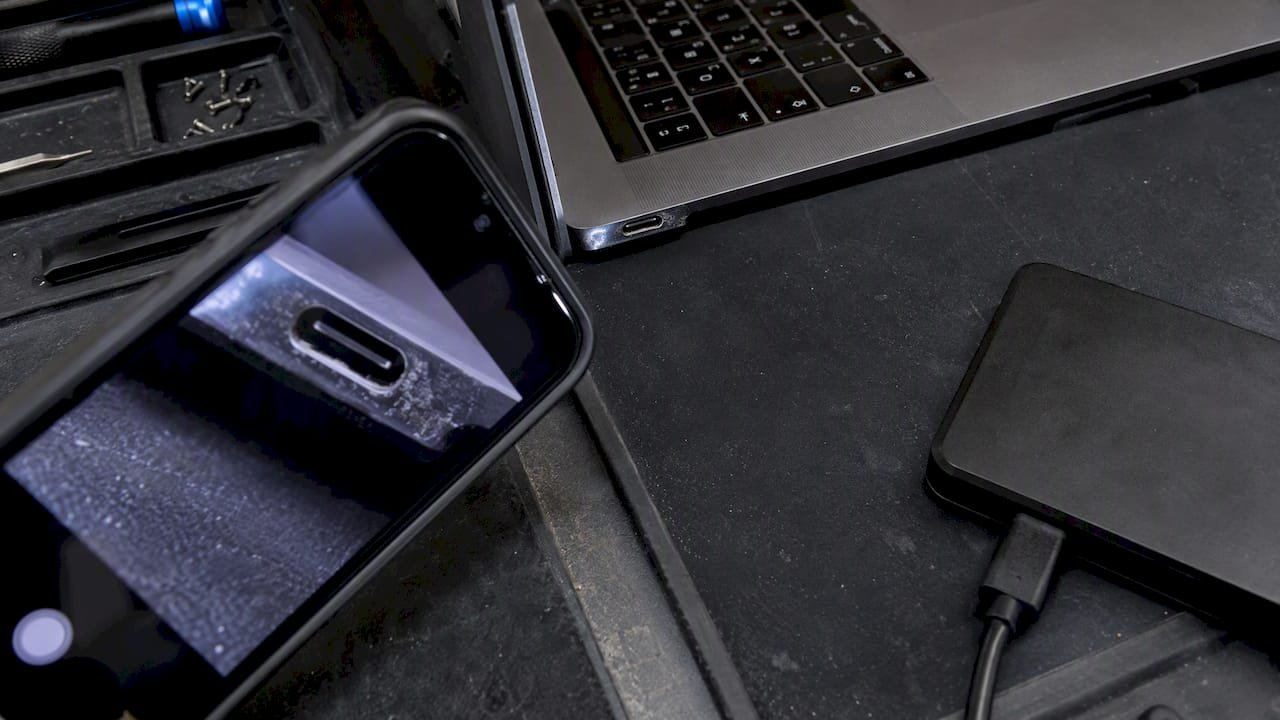
Pro Tip: Photograph the port with your phone’s macro mode before and after drying. It gives you, and any technician you call later, a clear record of whether visible residue changed over time.
What the alert means for your warranty and repair costs
Apple is direct about this: liquid damage falls outside the standard One-Year Limited Warranty. According to Apple’s liquid damage warranty guidance, AppleCare+ may cover accidental liquid damage, but only with an added service fee and a physical inspection to confirm the cause.
The practical risk tends to follow a progression rather than appearing all at once:
- Early stage: surface moisture triggers the alert but pins are undamaged.
- Mid-stage: trapped moisture begins corroding port pins, causing intermittent charging or data transfer.
- Late stage: corrosion spreads to the charging circuit or nearby logic-board components, sometimes requiring micro-soldering or full board replacement.
If the Mac reaches the point where it will not boot, the SSD and its APFS volume are often still intact even when the logic board is not. That distinction is worth knowing before you assume your files are gone.
What you can safely try yourself
A cautious, patient approach protects both the hardware and your data. A rushed one often turns a repairable spill into an expensive one.
- Inspect the port visually with a flashlight for discoloration, residue, or bent pins.
- Photograph any damage you see for reference.
- Use short bursts of canned air held a few inches away to clear loose debris, never sprayed directly into the connector.
- Let the Mac dry undisturbed in a ventilated room rather than rushing the process.
Avoid these common mistakes, which repair shops see constantly:
- Scrubbing the port with a toothbrush or pick, which can bend or dislodge the tiny SBU and CC contacts.
- Powering the Mac on “just to check” while it is still wet.
- Inserting metal tools or paperclips into the connector to pry out residue.
- Opening the case yourself without proper ESD precautions, which risks static damage to components that survived the spill.
As one repair write-up on port cleaning notes, aggressive mechanical cleaning can dislodge surface-mount components that are only millimeters wide, turning a simple cleaning job into a micro-soldering repair.
Pro Tip: If the alert disappears after drying but charging still feels inconsistent, that intermittent behavior is often the first sign of pin corrosion, not a loose cable.
When to call a professional for diagnostics or recovery
Certain signs mean the situation has moved past what drying time and patience can fix:
- The liquid-detection alert keeps returning after 24 to 48 hours of thorough drying.
- Charging is intermittent or has stopped entirely.
- The Mac will not boot or shows a black screen after power-up.
- You can see corrosion, discoloration, or residue inside the port.
- Files, photos, or projects on the drive are suddenly inaccessible.
At that point, a professional diagnostic separates a simple port cleaning from a logic-board repair, and separates a logic-board repair from a true data-recovery case. Professional data recovery and Mac repair providers in Los Angeles offer experience with MacBook liquid damage and recovery, free diagnostics, and no recovery, no charge policies on data recovery work.
| Service need | What a professional checks | Typical next step |
|---|---|---|
| Port only wet, no charging issue | SBU/CC pin condition, residue | Cleaning, retest |
| Intermittent charging | Charging circuit, connector pins | Component-level repair |
| Won’t boot | Logic board, power delivery path | Micro-soldering or board replacement |
| Inaccessible files | NVMe/SSD condition, APFS structure | Forensic imaging, data recovery |
| RAID or external drive affected | RAID 0, 1, 5 array health | RAID data recovery |
For liquid-specific cases, our liquid damage repair page and MacBook Pro water damage repair guide walk through what in-person diagnostics look like. Call 310-866-0828 to schedule a same-day evaluation.
Matching the symptom to the right response
| Symptom | Likely severity | Immediate action | Recommended path |
|---|---|---|---|
| Alert only, no other issue | Low | Unplug, dry 24 hours | Wait and retest |
| Intermittent charging | Moderate | Stop using charger | Professional diagnostics |
| Visible corrosion | Moderate to high | Stop all use | Pro repair |
| Won’t boot | High | Power off, do not retry repeatedly | Logic board repair |
| Fully soaked device | High | Power off immediately | Pro repair and data recovery |
A technician’s take on urgency
Stop all disk writes immediately if you suspect data loss. The most common mistake is powering a wet Mac back on “to see if it still works,” which spreads conductive residue and heat into components that were still salvageable. Acting within the same day, rather than after a few attempts to force a restart, consistently produces better outcomes.
— Kaya
How Macwest can help when drying time isn’t enough
If your port is still flagging liquid after a full dry-out, or charging has stopped working altogether, a free diagnostic tells you exactly what you are dealing with before you spend anything. Macwest Data Recovery & Mac Repair has worked on Apple hardware since 2006, serving West LA, Santa Monica, Beverly Hills, Brentwood, Westwood, Venice, Hollywood, and Culver City from our shop at 12041 Wilshire Blvd, Ste 26, between the 405 and Santa Monica near UCLA and the Getty Center.

This provider offers free diagnostics and a no recovery, no charge policy on data recovery work, with same-day appointments available for urgent liquid damage cases. Visit our Mac repair service page to book an evaluation, or call 310-866-0828 to talk through your symptoms directly.
Sources
- TPS25751 USB Type-C® and USB PD Controller with moisture detection and programmable power-supply – TI
- USB Type‑C Cable and Connector Specification (USB‑IF)
FAQ
My MacBook says “liquid detected in USB port.” What should I do?
Unplug every cable immediately, shut the Mac down, and let the port air dry in a ventilated room for at least 24 hours before trying again. Avoid heat sources and rice, and retest with a cable only once the port looks and feels completely dry, following Apple’s own alert guidance.
Can a MacBook with liquid damage be repaired?
Yes, in many cases. Outcomes range from a simple port cleaning to component-level logic-board repair involving micro-soldering, depending on how far corrosion has spread before the Mac is serviced.
Is a MacBook ruined if it gets wet?
Not necessarily; if repair isn’t an option, you can learn how to sell a broken MacBook to recover some value from your device. A quick response that avoids charging or powering on a wet device gives the best chance of a full recovery, while delayed or repeated power-on attempts are what typically turn a minor spill into permanent damage.
What to do if a MacBook charger gets wet?
Unplug the charger from both the wall and the Mac, and let both the cable and the brick dry completely before reconnecting. A wet charger carries the same short-circuit risk as a wet port, so treat it with the same caution.
Does AppleCare+ cover liquid damage?
AppleCare+ may cover accidental liquid damage, but only with a service fee and a physical inspection, since Apple’s standard warranty excludes liquid damage entirely.