
TL;DR:
- Many MacBook owners in Los Angeles face unexpected shutdowns and rapid battery drain, indicating the need for a replacement. Proper tools, preparation, and professional service help ensure a safe, effective battery swap, especially for swollen or degraded batteries causing safety and performance issues. Choosing expert repair services minimizes risks, guarantees genuine parts, and restores your MacBook’s reliability efficiently.
Your MacBook shuts down at 40% charge. The battery drains in two hours on a full charge. Sound familiar? Many MacBook owners across Los Angeles deal with exactly this situation, and it makes everything from morning Zoom calls to late-night deadlines feel unreliable. Replacing your MacBook battery can restore the performance you depend on, but the process requires the right tools, correct parts, and an understanding of when professional service is the smarter call. This guide walks you through every stage, from recognizing the problem to completing a safe, successful battery swap.
Table of Contents
- Signs you need to replace your MacBook battery
- What you need: Tools and preparation checklist
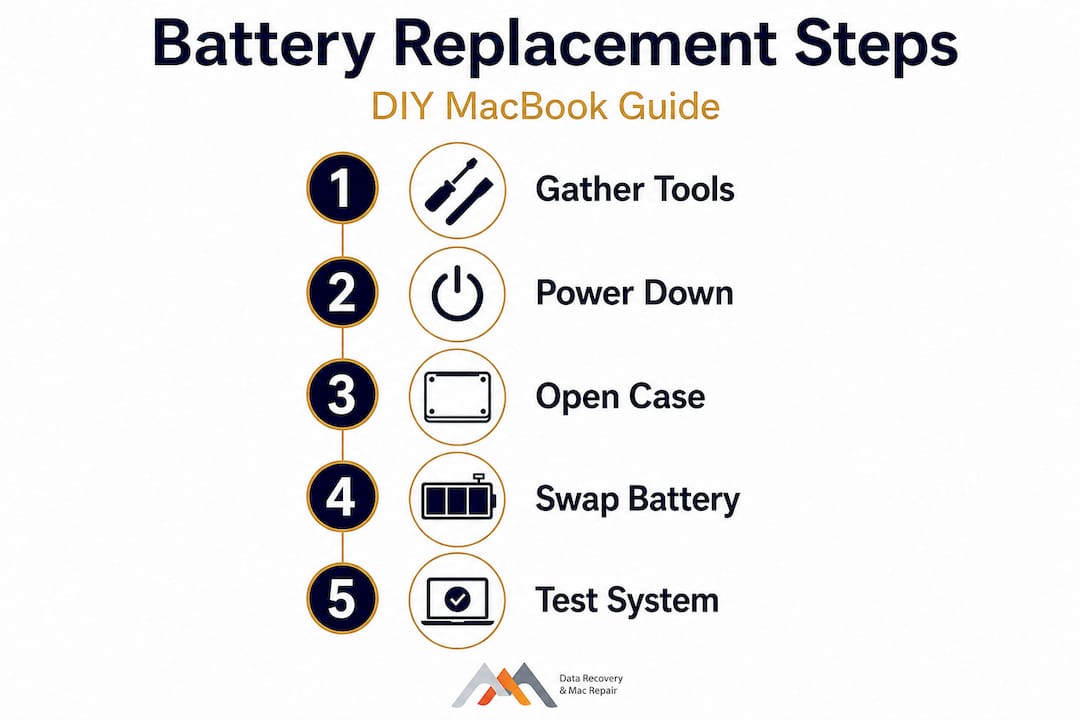
- Step-by-step: How to replace a MacBook battery
- After the swap: Testing and troubleshooting
- DIY vs professional replacement: What should LA MacBook owners choose?
- A local expert’s view on MacBook battery replacement
- Professional MacBook battery replacement in Los Angeles
- Frequently asked questions
Key Takeaways
| Point | Details |
|---|---|
| Recognize battery failure | Knowing the signs saves you from unexpected shutdowns and poor performance. |
| Prepare with the right tools | A proper toolkit and workspace reduce errors and speed up installation. |
| Follow each replacement step | Carefully following a step-by-step process improves safety and success. |
| Check results and troubleshoot | Testing after installation confirms your MacBook is ready for use. |
| Consider local expert help | Professional repair services in LA protect your device and warranty. |
Signs you need to replace your MacBook battery
Knowing when your battery has reached the end of its useful life is the first step toward fixing the problem. MacBook batteries are rated for approximately 1,000 charge cycles, after which their ability to hold a full charge drops significantly. The signs below indicate that a replacement is likely overdue.
- Unexpected shutdowns at high charge percentages. Your MacBook powers off at 30%, 50%, or even 70% battery. This happens when the battery’s actual capacity no longer matches what macOS reports.
- Rapid percentage drops. The battery goes from 80% to 20% within an hour of moderate use, even with energy-saving settings active.
- macOS “Service Recommended” notification. This alert appears in the battery menu bar icon and signals that macOS has detected reduced battery health through its built-in Battery Health Management system.
- Visible swelling under the chassis. A swollen battery pushes against the bottom case or trackpad, which is a safety concern that requires immediate attention.
- Excessive heat without heavy workloads. A failing battery often generates more heat than normal during standard tasks like browsing or document editing.
- Dramatically shorter runtime. A MacBook that once lasted 8 to 10 hours now barely manages 2 to 3 hours on the same workload.
You can verify battery cycle count by navigating to Apple menu > About This Mac > System Report > Power. There, you’ll find the current cycle count and battery condition status. Understanding when your MacBook battery is no longer holding a charge or causing shutdowns is key to avoiding further device issues, including logic board stress from power irregularities.
If multiple signs from this list apply to your MacBook, the battery has likely degraded past the point where software fixes or power setting adjustments will help. Scheduling a diagnostic with a trusted MacBook repair service can confirm the issue before you invest in parts.
Once you’ve recognized your MacBook may need a new battery, it’s time to gather the right tools and understand the requirements.
What you need: Tools and preparation checklist
Preparation is the foundation of a successful battery replacement. Skipping this stage is one of the most common reasons DIY repairs go wrong. Preparation is crucial for a successful MacBook battery replacement, minimizing risk of device or data damage from rushed or uninformed steps.
Essential tools
| Tool | Purpose |
|---|---|
| Pentalobe screwdriver (P5) | Removes bottom case screws on most MacBooks |
| Tri-point Y000 screwdriver | Required for battery connector screws on newer models |
| Spudger (plastic pry tool) | Separates adhesive strips and connectors safely |
| Suction cup | Assists with bottom case removal |
| Anti-static mat and wrist strap | Prevents electrostatic discharge damage to logic board |
| Isopropyl alcohol (90%+) | Softens battery adhesive for safe removal |
| Adhesive strips | Required for securing the new battery in place |
| Replacement battery (model-specific) | The core part, must match your MacBook model number |
Pre-repair checklist
Before touching any hardware, complete these steps in order:
- Back up your data. Use Time Machine or a cloud backup service. Battery replacement does not typically erase data, but any physical repair carries a small risk of accidental disconnection or static discharge affecting storage.
- Identify your exact model. Go to Apple menu > About This Mac and note the model identifier (e.g., MacBookPro18,1). This determines which battery is compatible.
- Charge the current battery to below 25%. A lower charge reduces the risk from a swollen or damaged cell during removal.
- Power down completely. Do not simply close the lid. Shut down via the Apple menu before opening the case.
- Choose a clean, well-lit workspace. A flat, hard surface with good overhead lighting reduces the chance of dropping small screws or missing fine connector details.
Pro Tip: Photograph each stage of disassembly with your phone before removing screws or connectors. This visual reference makes reassembly far less stressful, especially when you’re dealing with six or more different screw lengths.
For broader repair context before you start, reviewing the step-by-step MacBook repair guide and the MacBook screen replacement guide gives you a solid understanding of how Apple laptops are structured internally.
With your tools and checklist ready, you can proceed confidently to the actual replacement steps.
Step-by-step: How to replace a MacBook battery
Follow these steps carefully and work methodically. Rushing any single stage is the most common cause of damaged connectors or stripped screws.
- Power down and disconnect all peripherals. Close any open apps, shut down macOS fully, and unplug all cables and accessories before beginning.
- Remove the bottom case screws. Use the P5 pentalobe screwdriver to remove all bottom screws. Most MacBooks have between 6 and 10 screws. Place them in a labeled tray or on a magnetic work mat to avoid mix-ups.
- Lift the bottom case. Use a suction cup near the rear edge and gently lift. Do not force it. Some models use clips that require a plastic spudger to release before the panel comes free.
- Disconnect the battery connector first. Before touching anything else, locate the battery connector on the logic board and carefully disconnect it using a spudger. This step is non-negotiable for safety. Following a model-specific approach is vital to stay safe and avoid logic board or trackpad cable damage.
- Apply isopropyl alcohol to loosen adhesive strips. Most MacBook batteries from 2016 onward use strong adhesive strips rather than screws. Apply a small amount of 90%+ isopropyl alcohol along the battery edges and let it soak for 1 to 2 minutes.
- Remove the battery with a spudger. Gently work the spudger under each battery cell and lift slowly. Do not bend, puncture, or apply direct force to any cell. Lithium polymer cells can rupture if improperly handled.
- Clean the battery tray. Remove any remaining adhesive residue using a spudger or a soft cloth with isopropyl alcohol. The surface should be clean and flat for the new battery.
- Install the new battery. Align the replacement battery with the tray, peel the adhesive backing, and press each cell firmly into position. Route the battery cable toward the logic board connector.
- Reconnect the battery connector. Press the connector firmly until it seats with a faint click. Incorrect seating is the leading cause of “no power” issues after reassembly.
- Replace the bottom case and screws. Reattach the bottom panel and tighten all screws. Do not overtighten, as this can strip the threads in aluminum chassis models.
Battery safety note: Used MacBook batteries contain lithium polymer chemistry and must be disposed of at a certified e-waste facility. Do not place them in household trash or recycling bins. Los Angeles has multiple certified battery drop-off locations, including many Apple Authorized Service Providers and hardware retailers.
Pro Tip: If your trackpad feels stiff or unresponsive after reassembly, the battery may be seated too high, pushing against the trackpad from below. Power down and reseat the battery before assuming there is an electrical fault.
By following these steps, most users can complete a battery replacement successfully. Next, verify the job was done correctly and address any common post-installation issues.
After the swap: Testing and troubleshooting
Once the bottom case is reattached and the MacBook powers on, the work is not fully done. Verifying the installation and calibrating the new battery properly ensures long-term performance.
Checking battery health in macOS
Navigate to Apple menu > System Settings > Battery (macOS Ventura and later) or use System Report > Power for detailed stats. Confirm the following:
- Cycle count reads 0 or 1. A brand-new battery should show a low cycle count.
- Battery condition shows “Normal.” If it shows “Service Recommended” immediately after install, the battery may be counterfeit, incompatible, or improperly connected.
- Maximum capacity reads 90% or above. Genuine replacement batteries should start near full capacity.
Calibrating your new battery
Calibration helps macOS learn the new battery’s true capacity and display accurate charge percentages.
- Charge to 100% and keep it plugged in for at least 2 hours after it reaches full charge.
- Use the MacBook on battery only until it shuts down from low charge.
- Plug it back in without powering on and charge uninterrupted to 100% again.
This cycle helps the battery management system (BMS) establish accurate baseline readings. Testing your MacBook before and after replacement ensures any installation issues are addressed early and device health is maintained.
Common post-installation problems
- Trackpad not clicking or responding. Usually caused by battery swelling or improper seating pressing against the trackpad mechanism.
- “Service Battery” warning persists. This can indicate a non-genuine battery or an SMC (System Management Controller) that needs to be reset. Reset the SMC by holding Shift + Control + Option + Power for 10 seconds with the MacBook plugged in.
- MacBook does not power on after reassembly. Check that the battery connector is fully seated. A partially connected cable is the most frequent cause of this issue.
- Unusual sounds during charging. Any hissing, crackling, or popping should prompt you to power down immediately and consult a MacBook Air repair service before continuing to use the device.
If you still run into snags or want guaranteed results, it’s smart to know your local professional options.
DIY vs professional replacement: What should LA MacBook owners choose?
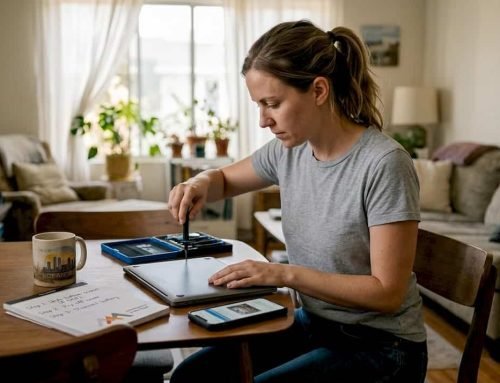
Our experience in Los Angeles shows there is no one-size-fits-all answer. The right choice depends on your model, your comfort with hardware repairs, and what your time is worth.
Pros of DIY replacement
- Lower parts cost, typically $40 to $100 for a quality replacement battery.
- Immediate repair without waiting for a service appointment or turnaround time.
- Educational value for users who want to understand their hardware better.
Cons of DIY replacement
- Warranty impact. Opening your MacBook voids any remaining AppleCare+ coverage.
- Risk of damage. Torn trackpad cables, stripped screws, and incorrect battery seating are all real risks without professional tools and experience.
- Counterfeit parts. The online parts market includes many low-quality batteries that fail quickly or pose safety risks.
- Time investment. A first-time repair often takes 2 to 3 hours, not the 30 minutes some tutorials suggest.
Los Angeles-specific considerations
LA’s climate and lifestyle factors add real weight to this decision. Heat accelerates battery degradation, meaning a replacement that is installed incorrectly or uses a substandard cell may fail faster than in cooler environments. Long commutes and travel between locations mean MacBook users in LA often cannot afford downtime while waiting for replacement parts to ship. Comparing professional and DIY solutions for MacBook battery issues ensures you select the safest, most cost-effective route for your specific situation.
Pro Tip: Before any repair, make a full backup of your SSD. Even if battery replacement doesn’t directly touch storage, having your data protected gives you full confidence to proceed with either DIY or professional service without the anxiety of potential loss.
If the MacBook model is a newer Apple Silicon unit with a soldered SSD and tightly integrated components, professional service from certified MacBook repair experts is the recommended path. The same applies for any MacBook showing signs of water damage or swollen battery cells, where the risk of secondary damage is higher. For Air models specifically, consulting MacBook Air specialists ensures the ultra-thin chassis is handled with the proper tooling and technique.
A local expert’s view on MacBook battery replacement
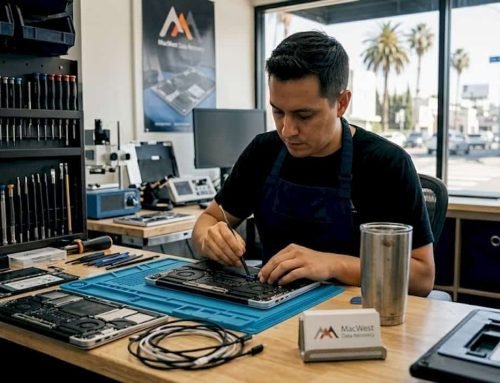
After handling Mac repairs in Los Angeles since 2006, the team at Macwest has seen a consistent pattern: most MacBook owners underestimate what DIY battery replacement actually involves until they are midway through the process.
The most persistent myth is that DIY always saves money. In reality, one stripped Pentalobe screw can mean a damaged bottom case. One poorly seated battery connector means a logic board diagnostic visit. The cost of fixing a botched DIY repair often exceeds what a professional service would have charged from the start. This is not a reason to avoid DIY entirely, but it is a reason to be honest about your skill level before starting.
Genuine Apple batteries and quality third-party equivalents from reputable suppliers prevent the vast majority of post-repair complications. Counterfeit cells are the single biggest problem we see from DIY repairs. They degrade quickly, report inaccurate charge levels, and in worst-case scenarios, they generate dangerous heat.
For Los Angeles specifically, the combination of heat, dust from commutes, and the demanding work schedules most users keep makes precision repairs more valuable than in other markets. A battery installed without proper adhesive in LA summer temperatures is going to shift and cause trackpad issues within months. Getting it done right the first time is worth more than saving $80 on the service fee.
Having a professional available when things go sideways is also underrated. Whether it is a torn ZIF connector (zero insertion force, the type used on trackpad and keyboard cables) or an SMC that needs recalibration after a deep discharge, knowing you can call on experienced Mac repairs in LA prevents small issues from becoming expensive ones.
Professional MacBook battery replacement in Los Angeles
When you need a reliable, safe battery replacement without the risk of DIY complications, Macwest Data Recovery & Mac Repair has been the trusted choice for Los Angeles MacBook owners since 2006. Our technicians use genuine and high-quality replacement batteries, handle safe disposal of your old cell, and provide warranty protection on every repair completed in our shop.
Every MacBook repair in Los Angeles starts with a free diagnostic estimate, so you know exactly what the repair involves and what it will cost before any work begins. From standard battery swaps to complex logic board and liquid damage repairs, the team handles every MacBook model with the precision and care your device requires. If you are running a MacBook Air and need a fast turnaround, explore your MacBook Air repair options and get back to full performance without the stress of a DIY attempt.
Frequently asked questions
How long does it take to replace a MacBook battery?
Most battery replacements take between 30 and 90 minutes depending on the MacBook model and the technician’s experience level, with professional services typically completing the job faster and more reliably.
Will replacing the battery erase my data?
Replacing the battery does not erase any data stored on your SSD, but backing up your files before the repair is strongly recommended in case of accidental issues during reassembly.
Is it safe to replace a MacBook battery myself?
With proper tools and detailed model-specific instructions, DIY replacement is generally manageable, but DIY battery replacement carries real risks of hardware damage, and professional service is the safer option for most users.
How much does professional MacBook battery replacement cost in Los Angeles?
Prices typically range from $129 to $249 depending on the MacBook model and service provider, and LA MacBook repair shops commonly offer free diagnostic estimates so you can confirm the cost before committing.