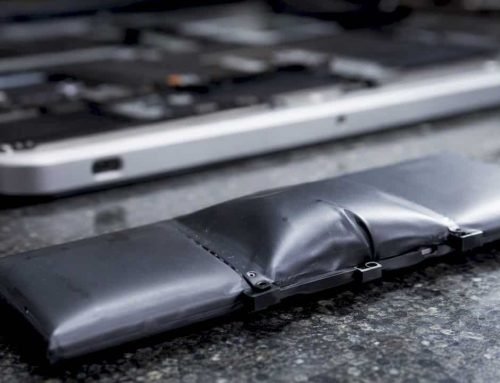
Stop all disk writes immediately. Short answer: t2 chip data recovery succeeds only in specific scenarios: a working T2 chip and logic board, known account credentials or a FileVault recovery key, or an existing backup you’d forgotten about. If the Secure Enclave or logic board is physically destroyed, the data is usually gone for good.
Before doing anything else, stop using the Mac. Every extra boot attempt, reinstall, or “let me just try one more thing” writes data that can overwrite what you’re trying to save. Photograph any error screens or blinking lights you’re seeing. Then hunt for two things: a backup (Time Machine drive, iCloud, or a cloud sync folder) and your FileVault recovery key, often stored in your Apple ID account or written down somewhere from setup day.
Run through this quickly:
- Does the Mac power on at all, even to a blank or flashing screen?
- Do you know your account password or have your 24-character FileVault recovery key?
- Do backups exist anywhere (Time Machine, iCloud, Backblaze, an old clone)?
Pro Tip: If the Mac still boots or can enter Target Disk Mode, you can try copying files to an external drive yourself, but only after you’ve confirmed writes have stopped and you’re copying to a completely separate destination drive, never back onto the same disk.
Key Takeaways
T2 chip data recovery depends almost entirely on whether the Secure Enclave and logic board still function and whether valid credentials or a recovery key exist.
| Point | Details |
|---|---|
| Stop writes first | Every additional boot attempt risks overwriting recoverable data or triggering key erasure. |
| Credentials decide the outcome | A password or 24-character FileVault recovery key is often the deciding factor in success. |
| Chip-off methods fail | NAND extraction can’t retrieve keys locked inside the T2’s Secure Enclave. |
| Board damage usually ends recovery | A destroyed T2 or logic board makes data recovery largely impossible. |
| Macwestlosangeles offers free diagnostics | Since 2006, the shop has offered free diagnostics and a no recovery, no charge policy for T2 cases. |
Primary sources and further reading
- Apple T2 Security Chip Overview: Apple’s own technical breakdown of Secure Enclave and encryption architecture.
- Macworld’s T2/FileVault recovery explainer: practical guidance for locked-out users.
Table of Contents
- Why the T2 Chip Makes Data Recovery Different
- Which Mac Models Have a T2 Chip?
- How Does FileVault Affect T2 Chip Recovery?
- What Symptoms Mean Your Data Might Still Be Recoverable?
- What Professional Recovery Methods Actually Work on T2 Macs?
- Common Mistakes That Permanently Block T2 Recovery
- How Long Does T2 Data Recovery Take, and What Does It Cost?
- How Macwestlosangeles Handles T2 Chip Recovery Cases
- Get a Free T2 Data Recovery Diagnostic Today
- Sources
- FAQ
Why the T2 Chip Makes Data Recovery Different
The Apple T2 Security Chip is not a security feature bolted onto storage. It is the storage controller. Every Mac built around it routes data through a Secure Enclave coprocessor and a dedicated AES hardware engine that encrypts information at line speed before it ever touches the NAND storage. That’s a fundamentally different architecture than the SATA and PCIe drives recovery labs cut their teeth on for two decades.
Here’s the mechanism that trips up most DIY attempts and even some general repair shops:
- APFS volume keys get wrapped and locked inside the T2’s Secure Enclave, not stored in plain form anywhere accessible.
- A concept called effaceable storage holds the “media key” that unlocks the volume. Wipe that media key, and the entire volume becomes cryptographically inaccessible, instantly and permanently.
- Password attempts at the login screen are rate-limited with escalating delays, and exhausting them can trigger further lockouts.
- Startup Security Utility enforces secure boot policies that block external-boot workarounds unless you authenticate with Secure Enclave-backed credentials.
Because the encryption keys never leave the T2, physically removing the SSD and reading it in another machine does nothing. The chip isn’t guarding the data from outside the drive. It’s baked into the drive’s ability to be read at all.
Which Mac Models Have a T2 Chip?
Apple shipped the T2 across most Mac desktops and laptops released between late 2017 and 2020, before shifting fully to Apple silicon. Common carriers include the iMac Pro, the Mac mini (2018), the Mac Pro (2019), and MacBook Pro and MacBook Air models from roughly 2018 through 2020.
To check your own Mac:
- Click the Apple menu, choose About This Mac, then System Report.
- Look under Controller or Hardware for a listing labeled “Apple T2 Security Chip.”
- If you see it, your Mac’s encryption and recovery path runs through everything described in this guide.
Touch ID on a laptop is a strong hint, but it’s not proof by itself. Some non-T2 configurations existed in the same product cycle, so the System Report check is the only reliable method. If you’re not sure and the Mac is already showing symptoms, bringing it in for a free diagnostic or calling 310-866-0828 gets you a definitive answer faster than guessing.
How Does FileVault Affect T2 Chip Recovery?
T2 hardware encrypts your drive by default, whether or not you ever turned on FileVault. That surprises a lot of Mac owners. The distinction that actually matters for recovery is what happens after the drive locks you out.
With FileVault switched on, the volume key gets wrapped by a key-encryption key built from your account password combined with the hardware’s unique ID inside the Secure Enclave. FileVault also generates a cryptographic recovery key at setup, and depending on your configuration, that key may live in your iCloud account or with an organization’s IT department as an institutional escrow. Finding that key is often the fastest route back into your files:
- Check System Settings → Privacy & Security → FileVault on another Mac tied to the same Apple ID, or your iCloud account settings.
- Ask your employer’s IT team if the Mac was issued through work.
- Look for a printed copy from setup day. Some people write these down and forget.
If FileVault was never enabled, the T2 still encrypts the drive at the hardware level, but the chip will decrypt automatically on its original machine without demanding a password. That only works while the drive stays paired with its original logic board.
Pro Tip: Before you call anyone, check every backup destination first. Time Machine and cloud sync bypass the T2 puzzle entirely, because you’re pulling from a copy that was never locked behind the chip in the first place.
What Symptoms Mean Your Data Might Still Be Recoverable?
Not every T2 failure ends the same way. The diagnostic picture depends on what’s actually broken: the drive electronics, the logic board, or just macOS itself.
Run through this sequence before touching anything else:
- Does the Mac power on and show any display activity, chime, or fan spin?
- Can it reach macOS Recovery mode (hold the power button on Apple silicon, or Command+R on Intel models)?
- Does Target Disk Mode work when connected to another Mac via a Thunderbolt or USB-C cable?
- Does it prompt for a password or FileVault recovery key at boot, or does it hang before that screen?
A Mac that reaches Target Disk Mode and prompts normally for credentials usually points to a live T2 and functional logic board, meaning recovery is realistic once you supply the password or recovery key. No power at all, repeated kernel panics before any login prompt, or a Mac that won’t hold a charge despite a known-good adapter often point toward logic-board or SSD electronics failure instead.
Document everything before you act further:
- The exact error message or blinking pattern you see.
- macOS version and model identifier from a receipt or the box, if the Mac won’t boot.
- Whether FileVault was enabled and whether you have the recovery key.
- Any backups you’ve already located.
Do not reinstall macOS or run Disk Utility’s Erase function during this stage. Either action can trigger the very media key erasure that makes a volume permanently unreadable.
What Professional Recovery Methods Actually Work on T2 Macs?
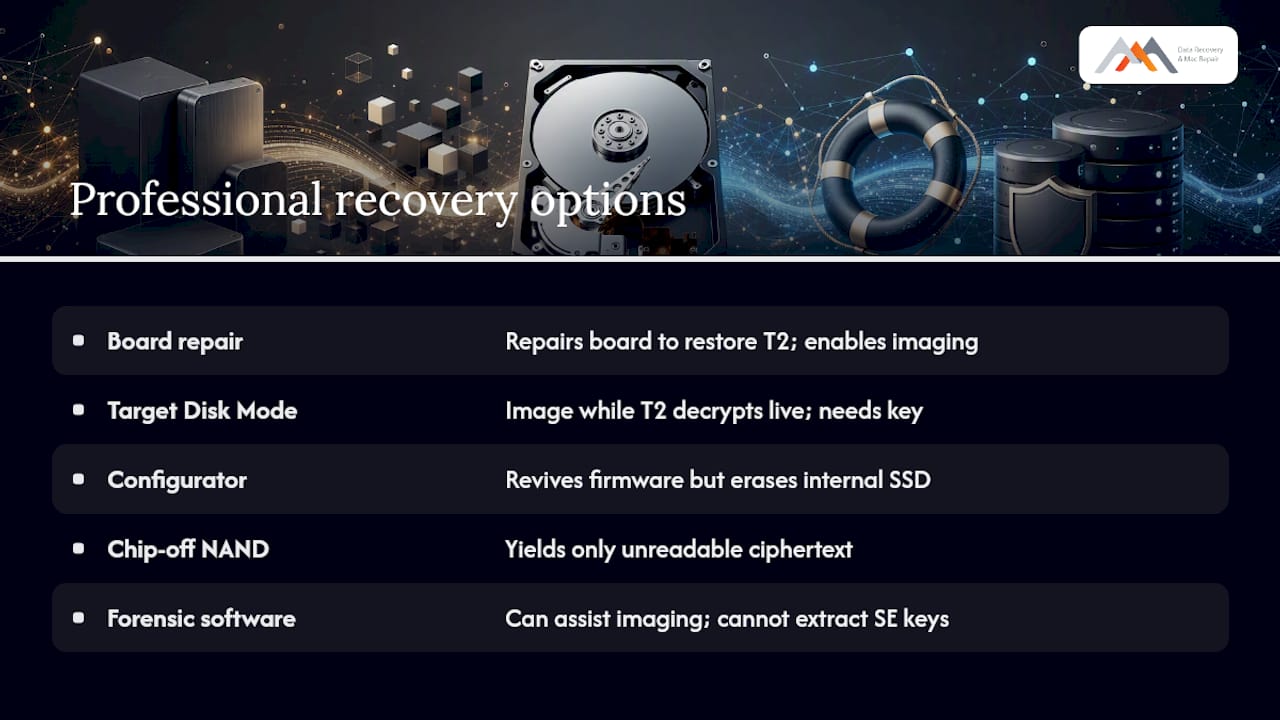
A specialist lab has more tools than a home user, but the T2 narrows the playing field considerably compared to a standard SSD recovery job. The realistic options break down into three categories.
Logic board repair. When a component failure on the board, a blown capacitor, or a failed power stage, is what’s preventing boot, repairing that component can restore the machine to a state where the T2 functions normally again and Target Disk Mode imaging becomes possible.
Target Disk Mode imaging. When the T2 and board both work, a lab can connect the Mac to a forensic workstation and image the drive while the chip handles decryption live, provided valid credentials or a recovery key are available.
Firmware revive through Apple Configurator. This is a genuine tool, but it’s a last resort, not a first move.
Restoring T2 firmware through Apple Configurator will erase the internal SSD in the process. Any lab that suggests this as a first step, rather than a final option after imaging attempts fail, is not prioritizing your data.
What doesn’t work: chip-off NAND extraction, the technique that solves plenty of traditional flash storage failures. Because encryption keys are generated and held exclusively inside the Secure Enclave and never exist in an extractable form on the NAND itself, physically pulling the memory chips and reading them elsewhere yields nothing but unreadable ciphertext.
Forensic software like Passware’s encryption-recovery tools can assist in narrow situations, unlocking a volume when partial credentials exist, or supporting read-only imaging through Target Disk Mode. They cannot pull Secure Enclave keys out of the chip under any circumstance.
Pro Tip: Ask any lab directly whether their first proposed step is imaging or a full restore. Imaging preserves your options; restoring can close them permanently.
Common Mistakes That Permanently Block T2 Recovery
Certain actions turn a recoverable situation into an unrecoverable one, and they’re more common than you’d think. Powering the Mac on repeatedly while troubleshooting, removing the SSD to read it in another machine, or letting an unfamiliar shop run a “quick restore” without your written sign-off are the three most frequent culprits.
Retail repair counters sometimes default to a firmware restore or full logic-board swap as standard procedure, because it’s faster than diagnostics. That default can wipe the very keys your files depend on. Ask for a diagnostic-first approach before authorizing any repair.
Watch for these red flags in any provider you’re considering:
- No free diagnostic offered before quoting a price.
- No clear “no recovery, no charge” policy in writing.
- Recommending NAND removal or chip-off as a first step on a T2 Mac.
When the T2 chip or main logic board is physically destroyed, beyond repair, no amount of specialized tooling changes the outcome. Recovery becomes impossible at that point, regardless of budget.
How Long Does T2 Data Recovery Take, and What Does It Cost?
Timelines and pricing both hinge on one question: is the hardware itself still functional? A same-day free diagnostic tells you that immediately. Straightforward triage and Target Disk Mode imaging, once credentials are confirmed, typically runs one to three business days. Logic-board repairs or deeper forensic work take longer, since parts sourcing and component-level troubleshooting add time.
Cost drivers include whether the T2 and board are working, whether you need targeted file retrieval versus a full forensic image, and whether any component repair (logic board, NVMe controller) is required.
Before authorizing work with any lab, ask:
- Do you offer free diagnostics before any charge?
- Is there a genuine “no recovery, no charge” policy?
- Will you preserve the original drive as evidence during the process?
- What’s the expected turnaround for my specific failure type?
- Will you attempt a firmware restore without my written authorization first?
- Are same-day appointments available?
Never authorize an operation that could erase the device without getting that authorization in writing first.
How Macwestlosangeles Handles T2 Chip Recovery Cases
Macwestlosangeles has worked on Mac hardware and data recovery since 2006, long enough to have handled the full arc of Apple’s encryption evolution from FileVault 1 through the current T2 and Apple silicon Secure Enclave designs. Every case starts with a free diagnostic, and the shop operates on a straightforward no recovery, no charge policy: if the data doesn’t come back, you don’t pay for the attempt.
The technical bench covers APFS volume structures, NVMe controller failures, RAID configurations (0, 1, 3, and 5), and component-level logic board repair, the exact skill set a T2 case demands.
A T2 Mac that powers on and reaches Target Disk Mode is a fundamentally different job than one with a dead logic board. We diagnose which situation we’re actually in before we quote anything or touch a screwdriver.
Same-day appointments are available for Los Angeles area customers in West LA, Santa Monica, Beverly Hills, Brentwood, Westwood, Venice, Hollywood, and Culver City. Call 310-866-0828 to start with a diagnostic.
A note from the bench
Every T2 case starts the same way here: stop the writes, find the backups, and diagnose before we touch anything that could trigger a media key erasure. Conservative handling beats a fast guess every time.
Get a Free T2 Data Recovery Diagnostic Today
Guessing at a T2 failure yourself risks the one thing you can’t undo: erasing the media key that makes recovery possible at all. Macwestlosangeles runs a free diagnostic on every T2 Mac that comes through the door, then quotes you honestly based on whether the chip and logic board are functional, backed by the same no recovery, no charge policy that’s guided the shop since 2006.
The hard drive and SSD data recovery service is built specifically around cases like this, encrypted APFS volumes, damaged logic boards, and drives that won’t mount anywhere else. The shop sits at 12041 Wilshire Blvd, Ste 26, right between the 405 and Santa Monica, an easy stop for anyone near UCLA or the Getty Center.
Call 310-866-0828 for a same-day appointment, or start with a step-by-step recovery walkthrough if you want to understand the process before you bring the Mac in.
Sources
- Apple T2 Security Chip Overview (Apple Australia PDF)
- How to recover data from a Mac with T2 or FileVault encryption and without a password | Macworld
- From FileVault to T2: How to deal with native Apple encryption | Passware Blog
FAQ
Does Apple still use the T2 chip?
No. Apple silicon Macs (M1 and later) integrate Secure Enclave functions directly into the main processor, replacing the standalone T2 chip used in 2017 through 2020 Intel-based models.
How do I check if my Mac has a T2 chip?
Open About This Mac → System Report and look under Controller or Hardware for “Apple T2 Security Chip.” Touch ID presence is a hint but not definitive confirmation.
How do I reset the T2 chip?
Resetting T2-related security settings typically requires Apple Configurator’s firmware revive or restore process, which erases the internal SSD, so it should only be attempted after data has been imaged or confirmed unrecoverable.
How do I put a T2 Mac into recovery mode?
On Intel Macs with a T2 chip, restart and immediately hold Command+R to boot into macOS Recovery; if the Mac won’t reach that screen, hardware failure is more likely, and a free diagnostic from Macwestlosangeles can confirm which scenario you’re facing.