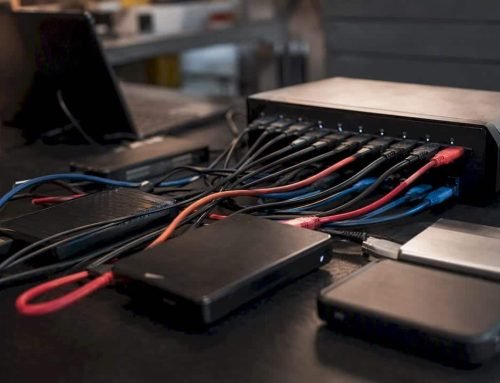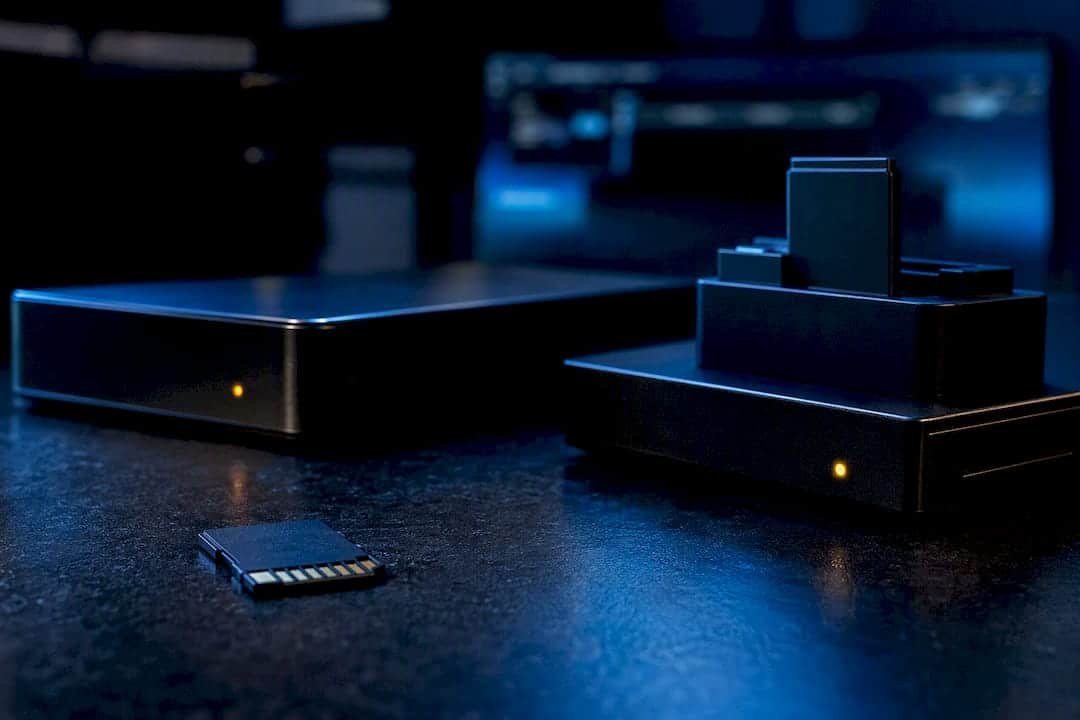
Stop all disk writes immediately. If your SD card is not readable, the fastest path to recovery is to try a different card reader first to rule out a hardware fault, then, if that fails and the data matters, create a byte-for-byte disk image before running any repair tool. Formatting or reformatting at this stage is the single most common way people turn a fixable problem into permanent data loss.
TL;DR:
- Most SD card failures are caused by hardware issues with the reader, not the card itself, and testing with multiple readers can quickly identify the culprit.
- Creating a full disk image with tools like ddrescue or Win32 Disk Imager before attempting repairs maximizes recovery chances by avoiding further stress on unstable NAND flash.
- Operating system diagnostics that show RAW formats or 0-byte capacities usually indicate file system corruption rather than physical memory damage.
- Sending the card to a professional recovery lab is advisable if the card is physically damaged, shows physical signs of failure, or no recovery attempts succeed after imaging.
- Proper preventive habits, such as safe ejection, regular backups, and avoiding counterfeit cards, can dramatically reduce the risk of data loss from SD card failures.
Table of Contents
- Why Is My SD Card Not Working? Quick Hardware Checks
- What Do Windows, macOS, and Linux Show When a Card Fails?
- Make a Disk Image Before You Touch Anything Else
- How Do I Recover Files From the SD Card Image?
- When Should You Stop DIY and Call a Professional?
- Simple Habits That Prevent Unreadable Cards
- How Do I Check and Update SD Card Reader Drivers?
- Do Windows, macOS, Linux, and Android Handle This Differently?
- Can You Recover Data From an Encrypted or Password-Protected SD Card?
- Are Cheap or Counterfeit SD Cards Worth the Risk?
- What We See Most Often: A Recovery Lab’s Perspective
- Get Your SD Card Recovered the Same Day
- Sources
- FAQ
Why Is My SD Card Not Working? Quick Hardware Checks
Before assuming the worst, rule out the cheap, obvious culprits. A large share of “sd card not detected” complaints trace back to the reader, not the card itself, according to MakeUseOf’s troubleshooting analysis. Work through these checks in order:
- Swap in a known-good external USB card reader and test the card on at least two different computers.
- Slide the physical write-protect switch on the side of the card away from “lock,” and inspect the gold contacts for dust, oxidation, or scratches.
- Clean the contacts gently with a lint-free cloth or, for stubborn grime, a white pencil eraser.
- If you use a microSD card in a full-size adapter, swap the adapter and test other cards in the same reader to isolate whether the reader, the adapter, or the card is at fault.
- Note any device-specific error messages. A camera that says “card error” behaves differently than a phone that just won’t mount the card, and that detail helps narrow down the cause.
Pro Tip: Keep a spare, brand-name SD card in your bag specifically for testing readers. If your suspect card fails but the spare works fine in the same reader on the same computer, the card itself is the problem, not your hardware.
What Do Windows, macOS, and Linux Show When a Card Fails?
Once you’ve ruled out an obvious hardware fault, the operating system’s own diagnostics tell you what kind of failure you’re dealing with. This matters because the symptom often predicts whether you’re facing simple corruption or a dying card.
- Open the built-in disk tool. On Windows, right-click the Start menu and choose Disk Management. On macOS, open Disk Utility from Applications > Utilities. Both show whether the card is detected at the hardware level even if it won’t mount as a usable drive.
- Check Device Manager or system logs for repeated errors. Windows users should look in Device Manager for a yellow warning icon next to the card reader. On macOS or Linux, open Console or run
dmesgin Terminal and watch for repeated read errors or the card disconnecting and reconnecting on its own, a strong sign of a failing connection or controller. - Understand what “RAW” and “0 bytes” actually mean. If Disk Management shows the card as “RAW” instead of exFAT or FAT32, the file system table is damaged, but the underlying data is often still intact. A capacity that reads as 0 bytes usually means the same thing: the card is alive, but its map to the files is broken.
- Cancel any format prompt. Windows and macOS both love to offer “You need to format this disk before you can use it.” Click cancel. Formatting rewrites the file system table and can overwrite the very pointers a recovery tool needs.
If the card shows up with the wrong capacity, that’s usually a filesystem problem, not proof the flash memory itself has failed.
Make a Disk Image Before You Touch Anything Else
This is the step almost everyone skips, and it’s the one that determines whether recovery succeeds. Working directly on a failing card multiplies the number of read attempts, and every failed read on unstable NAND flash increases the odds of losing data for good. SD cards fail differently than SSDs, and that difference is exactly why imaging first matters so much: a cloned image gives you an unlimited number of recovery attempts without stressing the original media again.
The tool you need depends on your operating system:
| Operating system | Recommended tool | Why it works |
|---|---|---|
| Windows | Win32 Disk Imager | Creates a raw sector-by-sector image file with a simple graphical interface |
| macOS | dd (Terminal) | Built-in, reliable for healthy-but-corrupted cards |
| macOS or Linux | GNU ddrescue | Retries failing sectors automatically and logs progress for unstable cards |
| Linux | dd or ddrescue | Same logic as macOS, run from a native terminal |
For a card that reads inconsistently, ddrescue beats plain dd because it keeps a log file of which sectors succeeded and which failed, letting you pause and resume the imaging process instead of starting over from scratch. Run the tool in read-only mode against the source card, and always confirm the input and output device paths twice, since imaging to the wrong target overwrites data instead of preserving it.
Before you start, confirm you have free storage equal to or greater than the card’s full rated capacity, not just the space its files appear to use. A 64GB card takes a 64GB image regardless of how full it looks, and depending on the reader’s speed and the card’s health, that process can run anywhere from a few minutes to well over an hour.
Pro Tip: Never image a failing card to the same drive you plan to recover files onto. If something interrupts the process, you want the original card and your recovery destination on physically separate drives.
How Do I Recover Files From the SD Card Image?
Once you have a clean image file, all recovery work happens on that copy, never on the original card again. This is where TestDisk and PhotoRec earn their reputation as the free, open-source standard for this kind of work.
- Run TestDisk first if the card shows as RAW or the partition table looks damaged. TestDisk analyzes and rebuilds the partition structure, and success looks like your familiar folder names and file structure reappearing.
- TestDisk often repairs a corrupted partition table in well under ten minutes on straightforward corruption cases, according to Save My Disk’s recovery guide.
- If TestDisk can’t rebuild a usable structure, move to PhotoRec, which carves files directly from the raw data by matching known file signatures.
- PhotoRec’s trade-off: recovered files come back as generic names in numbered folders, with original filenames and folder organization gone for good.
- Always save recovered files to a separate physical drive, never back onto the SD card, and open a sample of photos, videos, or documents to confirm they’re intact before you consider the card safe to reuse.
If TestDisk and PhotoRec can’t produce usable files, that’s usually a sign of physical damage rather than simple logical corruption, and it’s the clearest signal that continuing with DIY tools is doing more harm than good. If you’re working from a Mac, a step-by-step micro SD recovery guide walks through the same imaging and recovery sequence with Mac-specific commands.
When Should You Stop DIY and Call a Professional?
Certain symptoms tell you immediately that software tools won’t help, and every additional attempt on the card itself lowers your odds of a clean recovery.
- The card isn’t detected by any reader on any computer, not even at the raw hardware level in Disk Management or Disk Utility.
- The card shows 0 bytes capacity even after imaging attempts, or feels noticeably warm when connected.
- You can see physical cracks, bent contacts, water exposure, or corrosion on the card body.
- Multiple software scans (TestDisk, PhotoRec) complete without finding recoverable files.
- The card works intermittently, sometimes mounting and sometimes not, which often signals a failing flash controller that gets worse with every additional read attempt.
At this point, a professional lab can attempt chip-off recovery, physically removing the NAND flash die and reading it directly on specialized equipment, or controller-level repair when the card’s onboard chip has failed but the memory itself is intact, as explained in detail by a professional SD card data recovery service. These techniques recover data in cases plain software never could, though costs run higher and results aren’t guaranteed on severely damaged media.
| Symptom | Likely cause | DIY recovery odds |
|---|---|---|
| RAW format, 0 bytes, format prompt | File system corruption | Good, with imaging + TestDisk/PhotoRec |
| Intermittent detection | Failing flash controller | Poor, worsens with each attempt |
| Not detected by any reader | Controller or physical failure | Very low without lab tools |
| Cracked, bent, or corroded card | Physical damage | Requires chip-off recovery |
A reliable local provider has handled memory card and Mac data recovery cases since 2006, offering free diagnostics under a no recovery, no charge policy, so you’re never billed for an attempt that comes up empty. Same-day appointments are available for urgent cases. Have the device type, any error messages, and a short timeline of recent events (dropped the card, pulled it during a write, exposed it to water) ready when you call, since that context speeds up diagnosis considerably.
Simple Habits That Prevent Unreadable Cards
Most SD card failures are preventable, and the fixes cost nothing beyond a little discipline.
- Always use “safe eject” in your operating system, and never pull a card while a device is actively writing to it. Interrupted writes are a leading cause of the corruption that leads to SD card failure, according to the SD Association.
- Follow the 3-2-1 backup rule: three copies of important files, on two different media types, with one copy stored off-site. An SD card should never be the only copy of anything irreplaceable.
- Retire cards after years of heavy use, especially in dash cams or security cameras that write constantly, and buy cards from reputable retailers rather than unverified marketplace sellers.
- Label cards by device and date, keep them away from heat and moisture, and never force one into a reader at an angle.
How Do I Check and Update SD Card Reader Drivers?
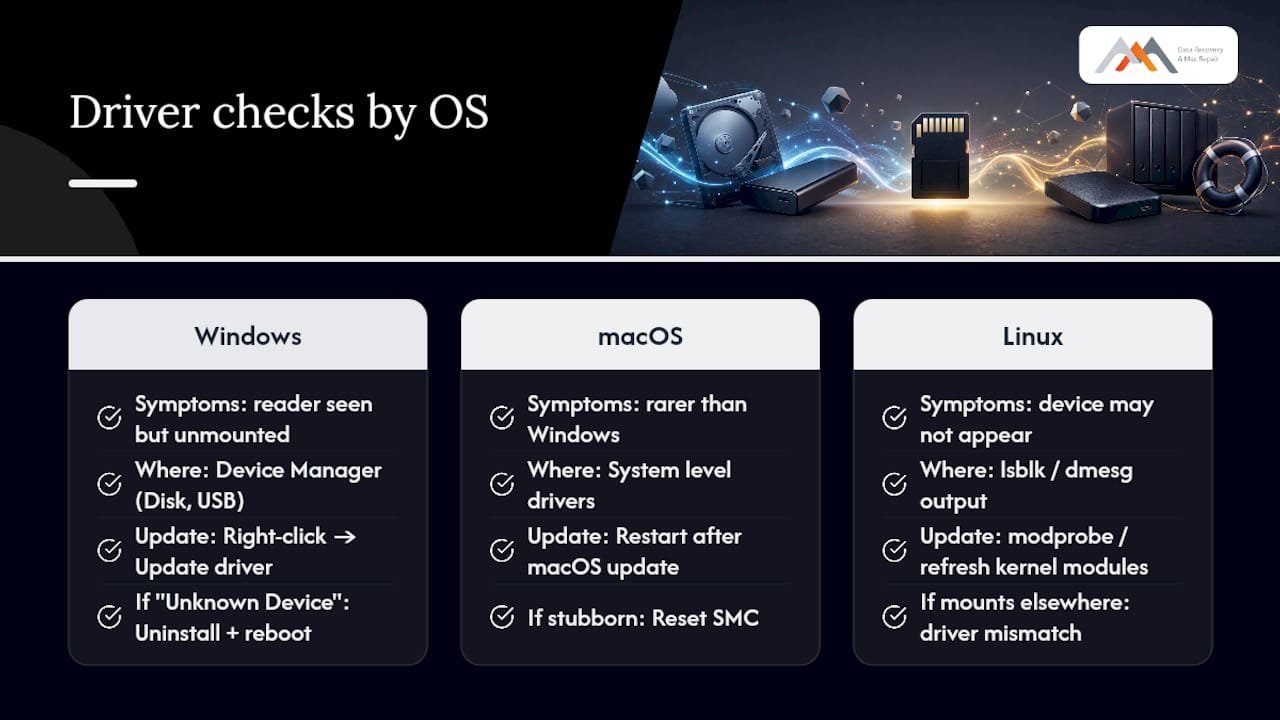
Outdated or corrupted drivers cause the same symptoms as a failing card: the reader appears in Device Manager but the card never mounts, or Windows repeatedly disconnects and reconnects it.
On Windows, open Device Manager, expand “Disk drives” and “Universal Serial Bus controllers,” and look for your card reader. A yellow warning triangle means the driver has a problem. Right-click the device, choose “Update driver,” and let Windows search automatically, or visit the reader manufacturer’s site for a current download. If the device shows as “Unknown Device,” try uninstalling it entirely and restarting your computer so Windows reinstalls a fresh driver on boot.
On macOS, driver issues are rarer since Apple handles most card reader support at the system level, but a stubborn reader can sometimes be fixed by resetting the SMC (System Management Controller) or simply restarting after a macOS update. If you’re troubleshooting a Mac that also shows broader file system symptoms, a guide to diagnosing APFS-related corruption covers the deeper diagnostic steps.
On Linux, driver problems typically show up as the device failing to appear at all in lsblk or dmesg output; running sudo apt update && sudo apt upgrade (on Debian-based distributions) refreshes kernel modules that often include reader support. If a card mounts on one machine but not another, driver mismatch, not card failure, is almost always the explanation.
Do Windows, macOS, Linux, and Android Handle This Differently?
The underlying problem is identical across platforms: a broken file system pointer or a failing card. The tools and terminology differ enough to cause real confusion.
Windows relies on Disk Management and Device Manager as your first stops, with Win32 Disk Imager and TestDisk both running natively. macOS uses Disk Utility for diagnostics and Terminal for dd or ddrescue imaging, since TestDisk and PhotoRec are command-line tools you install via Homebrew rather than double-click applications. Linux distributions handle all of this natively through the terminal, dmesg for logs, and package managers for TestDisk and PhotoRec, making it in some ways the most transparent platform for diagnosis, if not the most beginner-friendly.
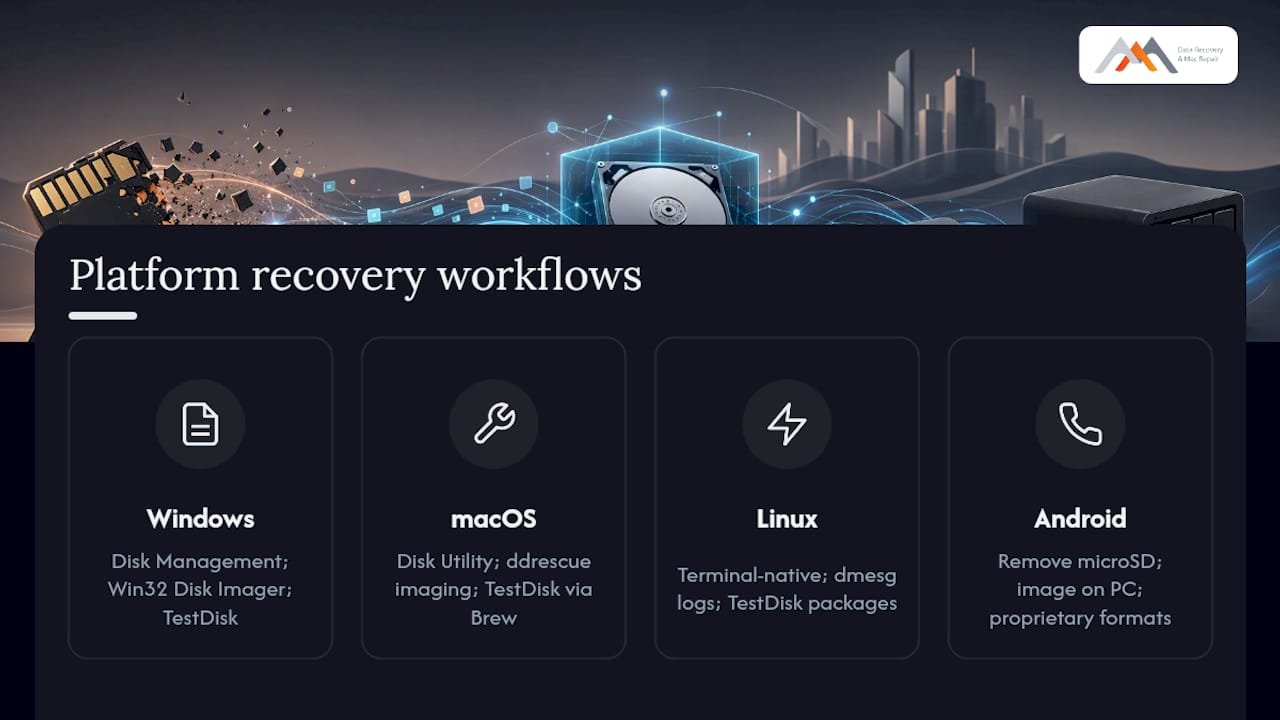
Android is the outlier. You can’t run TestDisk or PhotoRec directly on a phone, so the standard workflow is to remove the microSD card, connect it to a computer through a USB adapter, and run the same imaging and recovery process described above. Some Android devices also format cards using a proprietary or encrypted layout tied to that specific phone, which is worth knowing before you assume a card is corrupted when it may simply be unreadable on a different device by design.
Can You Recover Data From an Encrypted or Password-Protected SD Card?
Recovery is possible, but only if you still have the decryption key, password, or the exact device that encrypted it. Encrypted cards, whether locked through Android’s adopted storage encryption, a camera’s proprietary security feature, or manual encryption software, store data in a form that generic file-carving tools like PhotoRec cannot interpret without the original key.
The practical workflow is the same imaging-first approach used for any other unreadable card, with one added requirement: decrypt the image after cloning it, not before. Image the encrypted card exactly as you would an unencrypted one, then use the original device or software to unlock the image copy. This way, if decryption fails or introduces new errors, your untouched original image is still available to try again.
If the encryption was tied to a specific phone or camera that’s no longer functional, recovery odds drop significantly, since the key itself may be stored in that device’s hardware rather than something you can input manually. In these cases, a professional lab may be able to work with device-level extraction, but results depend heavily on the specific encryption scheme involved. This is a scenario worth discussing directly with a recovery specialist rather than guessing, since attempting the wrong decryption approach can permanently scramble data that was otherwise intact.
Are Cheap or Counterfeit SD Cards Worth the Risk?
Counterfeit and severely low-quality SD cards are a real and common cause of the exact failures this article addresses. Fake cards typically use recycled or substandard NAND flash chips reprogrammed to falsely report a much larger capacity than they actually hold, so the card appears to accept files well past its real storage limit, then silently overwrites or corrupts earlier data.
The warning signs are specific: a card advertised at a price dramatically below other listings for the same capacity and brand, inconsistent write speeds, or files that appear to save successfully but come back corrupted or missing later. Buying from authorized retailers and recognized brands eliminates most of this risk, and running a capacity-verification tool (such as H2testw on Windows) after any purchase from an unfamiliar seller confirms whether a card’s advertised size matches its real, usable storage.
Even genuine cards from reputable brands wear out. Flash memory has a finite number of write cycles, and cards used constantly in dash cams, trail cameras, or security systems reach that limit faster than a card used occasionally in a point-and-shoot camera. Treat any SD card, genuine or not, as a temporary storage medium rather than a permanent archive.
What We See Most Often: A Recovery Lab’s Perspective
The single most common mistake customers make is clicking “format” when Windows or macOS prompts them to, not realizing that click can turn a ten-minute TestDisk fix into an unrecoverable case. The second most common mistake is reconnecting a failing card over and over, hoping repetition will fix it, when each attempt actually pushes a struggling controller closer to total failure. When a card comes in already imaged, recovery of file system corruption is usually straightforward. When it comes in after repeated home attempts on a physically compromised card, options narrow fast. If you take away one thing: stop, image it, and if it feels warm or won’t mount anywhere, bring it in before trying anything else.
— Kaya
Get Your SD Card Recovered the Same Day
Macwestlosangeles is the practical alternative to gambling with free recovery software on a card holding photos, footage, or business files you can’t replace. Every case starts with free diagnostics and runs under a strict no recovery, no charge policy, so you pay only when your files actually come back, and same-day appointments mean you’re not waiting a week while a failing card degrades further. Centrally located at 12041 Wilshire Blvd, Ste 26, between the 405 and Santa Monica near UCLA and the Getty Center, Macwestlosangeles serves West LA, Santa Monica, Beverly Hills, Brentwood, Westwood, Venice, Hollywood, and Culver City with hands-on data recovery experience dating back to 2006.
Call 310-866-0828 and have your device type, any error messages, and a short timeline of what happened ready when you reach out. If your card involves a phone or camera memory card specifically, the phone and memory card recovery guide walks through what to expect, or start directly on the data recovery services page to book a same-day diagnostic.
Sources
- SD cards fail differently than SSDs — and that’s why recovery is so weird
- Lost data and SD memory cards: a primer
- Recover photos from a corrupted SD card (Complete 2026 guide)
- How to troubleshoot and fix microSD issues
FAQ
How do I fix an SD card that’s not readable?
Stop using the card immediately, test it in a different reader to rule out hardware failure, then create a full disk image with a tool like Win32 Disk Imager, dd, or ddrescue before running TestDisk to repair the partition table or PhotoRec to recover individual files.
How do I make an SD card readable again without losing my files?
Never click “format” when prompted. Image the card first, then run TestDisk on the image to attempt a partition table repair, since TestDisk often restores a usable file structure in well under ten minutes on straightforward corruption cases.
How can I tell if my SD card reader is broken instead of the card?
Test the same card in at least two different readers or computers. If the card works fine in one reader but fails in another, the reader or its drivers are the problem, not the card itself.
Why does my computer say the SD card needs to be formatted?
That prompt means the file system table is damaged, not necessarily that your files are gone. Cancel the format request, image the card, and run TestDisk on the image to attempt a repair before considering any format option.
When should I stop troubleshooting and call a data recovery service?
Call a professional if the card isn’t detected by any reader, feels warm when connected, shows physical cracks or corrosion, or if TestDisk and PhotoRec both fail to recover usable files after imaging. Some providers offer free diagnostics and no recovery, no charge service for these exact cases.