
TL;DR:
- MacBook issues range from minor software glitches to severe hardware failures that threaten data loss.
- Proactive evaluation steps, like restarting, running diagnostics, and backing up data, can prevent costly repairs.
Your MacBook suddenly slows to a crawl, or worse, shuts off without warning and won’t restart. For most users in Los Angeles, that moment triggers immediate anxiety, especially if critical files, client work, or personal data are at stake. MacBook issues range from minor software hiccups to serious hardware failures, and knowing how to respond quickly can mean the difference between a fast fix and a costly data recovery operation. This guide walks you through a practical evaluation framework, step-by-step solutions for the five most common problems, and clear guidance on when professional repair is the right call.
Table of Contents
- How to evaluate MacBook issues before you repair
- Top five MacBook issues and step-by-step fixes
- Comparison of MacBook hardware reliability and repair urgency
- When to seek professional data recovery or MacBook repair in Los Angeles
- Our hard-won lessons from Los Angeles MacBook repairs
- Get help fast: Los Angeles MacBook repair and data recovery
- Frequently asked questions
Key Takeaways
| Point | Details |
|---|---|
| Start with simple fixes | Most common MacBook issues can be solved by restarting or freeing storage space. |
| Backup before troubleshooting | Always create a backup before repairs or software changes to safeguard your data. |
| Know repair urgency | Hardware failures, especially with important data at risk, need quick attention from a pro. |
| Apple Silicon outlasts Intel | Newer Apple Silicon MacBooks have lower failure rates and longer average lifespans than older Intel models. |
| Local experts can help | Los Angeles MacBook specialists can save both your device and your data when DIY isn’t enough. |
How to evaluate MacBook issues before you repair
Before you attempt any repair or recovery, taking a few structured steps to evaluate what you are actually dealing with will save you time, money, and potential data loss. Jumping straight to hardware intervention without first ruling out software causes is one of the most common mistakes MacBook owners make.
Here is a practical evaluation process to follow:
- Restart your MacBook first. A full restart clears temporary caches, resolves minor kernel conflicts, and resets background processes. This single step resolves a surprisingly high number of reported issues.
- Run Apple Diagnostics. Hold the D key at startup (or Option + D for internet diagnostics) to run Apple’s built-in hardware test. It checks memory, storage, logic board components, and thermal systems, giving you reference codes for any detected faults.
- Check Activity Monitor. Open Activity Monitor from Applications > Utilities to identify which processes are consuming excessive CPU, RAM, or energy. A single runaway process can cause sluggishness that mimics failing hardware.
- Inspect available storage. Go to Apple menu > About This Mac > Storage. A drive that is more than 85% full will cause macOS to work inefficiently, leading to slow performance and even unexpected shutdowns.
- Back up your data immediately. Before proceeding with any repair attempt, connect an external drive and run a Time Machine backup. As a foundational step in Mac troubleshooting 101, troubleshooting always starts with software fixes, including restarts, Apple Diagnostics, and macOS reinstalls, before hardware work begins, and that sequence only works safely when your data is protected.
- Document your symptoms. Note exactly when the issue occurs, what applications are open, and whether error messages appear. This information is critical for a technician if you ultimately need professional service.
Pro Tip: If your MacBook is running macOS Ventura or later, you can also check System Settings > Battery > Battery Health to get a direct reading of your battery’s maximum capacity before assuming any other issue is battery-related.
For more structured guidance on evaluating your device, our MacBook repair troubleshooting guide covers the full diagnostic process in detail, and if your evaluation reveals deeper performance or storage concerns, you can find specific steps to restore performance and recover data on your Mac.
Top five MacBook issues and step-by-step fixes
Once you know what to look for, it is time to dig into the specific problems that frustrate Los Angeles MacBook users most. Each of these issues has a recognizable pattern and a logical path toward resolution.
1. Slow performance
Slow performance is one of the most common MacBook issues, typically caused by full storage, too many startup apps, or simply not restarting frequently enough. Start by freeing up disk space, removing apps from your login items under System Settings > General > Login Items, and restarting the machine. If your APFS volume is approaching capacity, use Disk Utility to verify the drive’s health. If performance remains poor after these steps, learning how to deal with slow MacBook performance at a hardware level may be necessary, particularly on older Intel-based models with traditional spinning hard drives.
2. Battery drain and charging problems
Battery drain and charging issues are frequent, directly linked to battery health degradation over charge cycles. Check System Settings > Battery > Battery Health for a “Service Recommended” flag. Close energy-intensive apps, reduce screen brightness, and disable features like Bluetooth or Location Services when not needed. If your battery health falls below 80% capacity, a replacement is the most effective solution. Attempting to replace the battery yourself on modern MacBooks is risky because the cells are often adhesive-mounted and the process requires precise tools and knowledge of the SMC reset procedure afterward.
3. Wi-Fi and Bluetooth connectivity issues
Wi-Fi and Bluetooth problems can be resolved through restarts, clearing network preference caches, or resetting network settings entirely. Go to System Settings > Wi-Fi, forget your network, then reconnect. For persistent Bluetooth issues, delete the com.apple.Bluetooth.plist file from Library > Preferences and restart. If your MacBook is regularly dropping connections in specific locations, the issue may be with the AirPort card or antenna cable rather than software, particularly on models that have experienced physical impacts.
4. Overheating and loud fan activity
Overheating and loud fan noise occur most often on Intel-based models due to dust accumulation in vents or sustained heavy workloads from tasks like video rendering or virtual machines. Use Activity Monitor to identify CPU-heavy processes and close them. Ensure your MacBook is placed on a hard, flat surface to allow proper airflow. If overheating persists after eliminating software causes, the thermal paste on the CPU may be degraded or the fan may need servicing. Do not attempt to disassemble your MacBook for thermal paste replacement unless you have professional experience, as this can void your warranty and risks damaging the logic board.

5. Unexpected shutdowns and kernel panics
Kernel panics appear as a dark overlay with the message “Your computer restarted because of a problem.” These can result from incompatible kernel extensions, corrupted macOS installations, failing RAM (on Intel models), or early-stage SSD failure. Check the crash report by navigating to Console > Crash Reports. Look for recurring error references to specific processes or hardware components. If kernel panics occur frequently without a clear software cause, this is a strong signal that you need MacBook Pro data recovery before attempting any further repairs.
Important: If your MacBook shuts off unexpectedly and you notice unusual clicking sounds, grinding, or failure to mount the drive in Disk Utility, stop using the device immediately. Continued operation on a failing drive dramatically reduces the chance of successful data recovery. Contact MacBook data recovery experts before proceeding.
Pro Tip: After any kernel panic, run Apple Diagnostics again before attempting a software repair. A hardware fault producing kernel panics will not be resolved by reinstalling macOS, and that reinstall process can overwrite recoverable data on a degraded SSD.
Our Mac repair service in LA team encounters all five of these issues regularly and can quickly assess whether your situation calls for software repair, hardware replacement, or data recovery first.
Comparison of MacBook hardware reliability and repair urgency
Hardware matters because not all MacBook failures carry the same level of urgency or risk. Understanding how different models behave over time helps you respond appropriately rather than either panicking over a minor issue or delaying action on a serious one.
Apple Silicon MacBooks have low hardware failure rates, sitting at just 9.1% over three years, with average lifespans ranging from 5.8 to over 7 years. Intel-based models show higher failure rates at similar age points, particularly around logic board and thermal system issues. The shift to Apple Silicon also changed the storage architecture significantly, with the SSD now integrated directly into the M-series chip package, meaning that data recovery from a failed Apple Silicon MacBook requires specialized NAND access procedures rather than a standard drive swap.
| Hardware Issue | Affected Models | Average Onset | Data Loss Risk | Repair Urgency |
|---|---|---|---|---|
| SSD failure (soldered) | All 2018+ MacBooks | 4 to 6 years | Very High | Immediate |
| Battery degradation | All models | 3 to 5 years | Low | Moderate |
| Logic board failure | Intel models | 3 to 5 years | High | Immediate |
| Thermal paste breakdown | Intel models | 3 to 4 years | Low to Moderate | High |
| Screen/backlight failure | All models | Variable | None | Moderate |
| Liquid damage (logic board) | All models | Any time | Very High | Immediate |
The failures that demand the fastest response are those directly tied to storage: SSD failures, logic board failures that affect the storage controller, and liquid damage events where corrosion can spread to NAND chips within hours. For owners of MacBook Air models, it is worth noting that the ultra-thin chassis provides less thermal mass, making early thermal paste degradation more impactful on performance than on thicker Pro models.
Battery and screen failures, while inconvenient, do not typically put your data at risk and allow you more time to schedule a service appointment at your convenience. Logic board and storage issues do not offer that flexibility.
When to seek professional data recovery or MacBook repair in Los Angeles
Even the best troubleshooting sometimes is not enough, and there are situations where continuing to work on your MacBook without professional help creates more damage than it prevents.
These are the clearest signs that professional intervention is necessary immediately:
- The drive does not appear in Disk Utility, even after a restart. This indicates a hardware-level storage failure where software tools will be ineffective.
- You hear clicking, grinding, or unusual sounds from the device. This is a physical failure indicator, and any further operation risks permanent data loss.
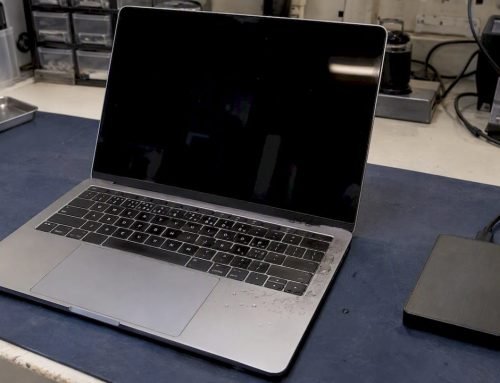
- The MacBook suffered liquid damage. Even if it appears to turn on initially, corrosion begins immediately. Do not attempt to charge or operate the device.
- Data is missing after a software update or accidental deletion. Time-sensitive action is critical here because new data written to the drive can overwrite recoverable file system structures.
- Kernel panics occur after every startup or during routine tasks. This pattern strongly suggests a hardware fault that a macOS reinstall will not fix.
- The MacBook is physically damaged from a drop, pressure, or screen impact that may have affected internal components.
As consistently emphasized in Mac troubleshooting guidance, software-level fixes are the right starting point, but attempting them past the point where hardware failure is evident can destroy the very data you are trying to protect. Time Machine backups stored on an external drive or networked storage provide the single most reliable safety net against any of these scenarios.
“The most expensive data recoveries we perform are on devices where the owner continued using the MacBook after noticing warning signs, hoping the problem would resolve itself.”
For Los Angeles users who have already lost access to their files, our team offers specialized MacBook data recovery solutions that cover everything from accidentally deleted files on APFS volumes to physically damaged SSDs requiring clean-room-level intervention.
Our hard-won lessons from Los Angeles MacBook repairs
Having worked on thousands of MacBooks since 2006 in the Los Angeles area, we have seen patterns that standard online guides consistently miss. Here is what the forums rarely tell you.
Los Angeles has a specific environmental context that affects MacBook health. The combination of warm temperatures, seasonal Santa Ana wind conditions, and the prevalence of home offices without commercial-grade climate control means that many MacBooks here accumulate thermal stress faster than units in cooler climates. Users often attribute declining performance to software when the actual cause is a thermally degraded system struggling to dissipate heat in a warm apartment or car.
The second pattern we see constantly is misdiagnosis. A MacBook that feels slow and unresponsive is almost always labeled as needing a logic board replacement by the owner, when the real cause is 90% storage utilization, an oversized login item list, or a single corrupted APFS snapshot consuming hidden space. These are ten-minute fixes in most cases, but users arrive convinced they need a full rebuild.
The third and most financially damaging pattern is delayed action on early warning signs. A MacBook that occasionally fails to boot but still works most of the time is a MacBook with a failing SSD. We have seen this exact scenario result in complete, unrecoverable data loss in more cases than we can count, simply because the owner waited to see if it would get better. It does not get better. When storage hardware begins to fail, the degradation accelerates. Early repair is almost always significantly less expensive than emergency data recovery from a fully failed drive.
Proactive off-site backups, whether through Time Machine, cloud storage, or both, remain the single most impactful habit any MacBook user can adopt. Knowing how to get reliable MacBook repair in LA before you are in a crisis situation is the second most important habit, because rushed decisions under pressure often lead to choosing the wrong service provider.
Get help fast: Los Angeles MacBook repair and data recovery
When your MacBook shows signs of serious trouble, acting quickly protects both your device and your data. The guidance in this article gives you a strong framework for evaluating and resolving common issues, but some problems genuinely require professional equipment, trained technicians, and specialized recovery tools that go far beyond what any home user can safely attempt.
Macwest Data Recovery & Mac Repair has served Los Angeles since 2006, providing fast, reliable Mac repair service for individual users and businesses across the LA area. Whether you need a straightforward battery replacement or a complex hard drive data recovery operation from a physically damaged SSD, our team offers same-day and emergency service with honest, upfront estimates before any work begins. Find data recovery near you and get your MacBook assessed by specialists who work exclusively with Apple hardware.
Frequently asked questions
What are the early warning signs of MacBook hardware failure?
Unexpected shutdowns, persistent overheating, and repeated kernel panic error messages are the clearest indicators of hardware issues that need professional attention. Overheating and loud fans occur especially on Intel models and should be investigated before they escalate to storage or logic board damage.
How long should a MacBook last before needing major repairs?
Most Apple Silicon MacBooks last between 5.8 and 7 or more years with relatively low failure rates. Apple Silicon failure rates sit at just 9.1% over three years, though individual results vary based on usage patterns, care, and environmental conditions.
Does repairing your own MacBook void the warranty?
Yes, unapproved repairs can void your Apple warranty or AppleCare coverage, particularly if internal components or the logic board are damaged during the attempt. Modern MacBooks use proprietary fasteners and soldered components that require specialized tools and training.
What should you do first if your MacBook won’t turn on?
Check your charger and cable for damage, then attempt an SMC reset and a full restart cycle. As outlined in foundational Mac troubleshooting steps, software-level interventions always come before hardware work, but persistent boot failure warrants professional evaluation.
Is it safe to recover data from a failing MacBook at home?
Using consumer data recovery software on a MacBook with hardware-level storage failure can overwrite the very sectors containing your files, making professional recovery impossible afterward. Contact a qualified data recovery specialist at the first sign of hardware-related data loss.