
TL;DR:
- Discovering missing critical files on your Mac causes significant stress, emphasizing the need for immediate action.
- Understanding how data loss occurs and acting swiftly—by stopping use, preparing recovery tools, and choosing suitable methods—increases the likelihood of successful recovery.
Discovering that critical files have vanished from your Mac is one of the most stressful experiences any computer user can face. Whether you accidentally deleted a project folder, formatted the wrong drive, or woke up to a Mac that simply won’t boot, the question on your mind is immediate: how to recover lost data before it’s gone for good. The good news is that fast, informed action dramatically improves your chances of getting those files back. This guide walks Mac users in Los Angeles through every practical step, from the moment you realize data is missing to verifying successful recovery.
Table of Contents
- Understanding data loss on your Mac
- Preparing your Mac and tools for effective recovery
- Step-by-step guide to recovering lost files on Mac
- Common mistakes and troubleshooting during Mac data recovery
- Verifying recovery success and next steps for your Mac
- Why fast action and professional help make all the difference for LA Mac users
- Get expert Mac data recovery services in Los Angeles today
- Frequently asked questions
Key Takeaways
| Point | Details |
|---|---|
| Stop disk writes immediately | Minimizing computer use after data loss prevents overwriting and increases recovery success. |
| Check Trash and backups first | Always look in Trash and Time Machine before using complex recovery tools. |
| Use professional help for best results | Experts have specialized tools that improve chances of recovering damaged or formatted drives. |
| SSDs shorten recovery time frame | TRIM on solid state drives quickly removes deleted data, making prompt action vital. |
| Regular backups prevent loss | Set up Time Machine and cloud backups to avoid future data loss emergencies. |
Understanding data loss on your Mac
Having a clear understanding of how data loss happens helps you act wisely and fast. Data loss on a Mac typically falls into a few distinct categories, each with its own implications for recoverability.
Common causes of Mac data loss include:
- Accidental deletion or emptying of the Trash
- Reformatting or repartitioning a drive
- Physical hardware failure, including failed hard drives or damaged SSDs
- Logic board failures causing the system to become unresponsive
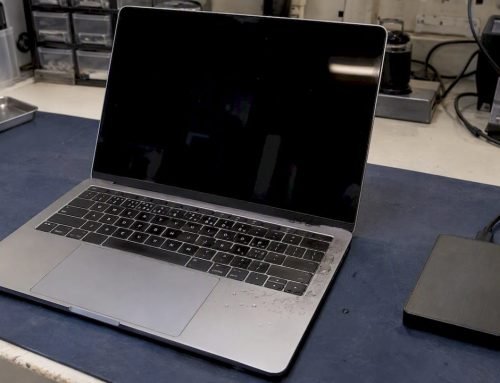
- Liquid damage, especially common with MacBooks in active work environments
- Corrupted APFS (Apple File System) volumes or file system errors
- Ransomware or malicious software overwriting files
The type of storage your Mac uses matters enormously when it comes to recovery. Traditional spinning hard drives (HDDs) store data magnetically, and deleted files often remain physically intact on the disk until new data is written over them. SSDs work differently. Modern Macs use APFS on NVMe SSDs, and these drives execute a function called TRIM, which actively erases the blocks where deleted data lived. This makes recovery chances drop when the drive keeps running and its free space is overwritten.
What this means practically: every second your Mac stays powered on and active after data loss, the operating system may be writing new data to the very sectors that held your missing files. Understanding the specific mac data recovery challenges that APFS and soldered SSDs present helps you realize why speed and restraint are both critical from the very first moment.
Pro Tip: As soon as you notice data loss, stop using your Mac immediately. Do not launch new apps, save new files, or browse the web on that machine. Every write operation is a potential nail in the coffin for your recoverable data.
Preparing your Mac and tools for effective recovery
With your Mac prepared properly, you can begin the recovery process with confidence. Before running any recovery tool or calling a specialist, there are several concrete steps to take.
Step-by-step preparation checklist:
- Power down the affected Mac if you are not actively attempting software recovery.
- Identify the drive type: open “About This Mac” and check storage details to confirm whether you have an HDD or SSD.
- Determine the file system format, which on most Macs running macOS Mojave or later will be APFS.
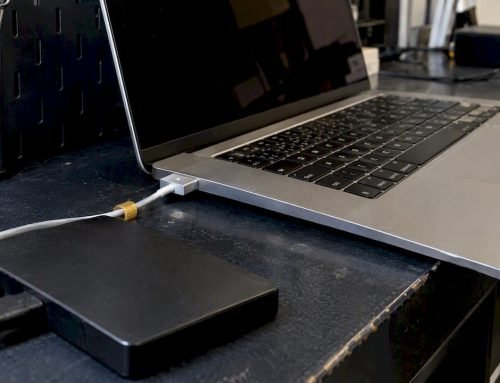
- Prepare a clean external USB drive or storage device with enough capacity to hold your recovered files.
- On a separate, unaffected device, download any file recovery software you plan to use, then transfer it to the external drive.
- Do not reinstall macOS, create new partitions, or run Disk Utility’s First Aid on the affected volume before recovering data.
The instruction to minimize computer use after data loss is not just cautious advice — it reflects how file systems actually work. When macOS marks a file as deleted, it doesn’t immediately erase the content; it frees the space for reuse. The moment new data occupies that space, your window closes.
Recovery tool comparison by scenario:
| Scenario | Recommended approach | Complexity |
|---|---|---|
| Recently deleted files, SSD intact | Check Trash, then Time Machine | Low |
| Formatted external drive | File recovery software (Disk Drill, PhotoRec) | Medium |
| Corrupted APFS volume | Professional recovery service | High |
| Physical hardware failure | Professional recovery service with cleanroom | Very high |
| RAID array failure | Specialized RAID recovery professional | Very high |
You can also explore mac data recovery proven methods specific to your Mac’s configuration before committing to a recovery approach.
Pro Tip: Always save recovered files to a different drive than the one you are recovering from. Saving to the source drive can immediately overwrite the very files you are trying to retrieve.
Step-by-step guide to recovering lost files on Mac
Following these detailed steps will maximize your chances to recover important lost files safely.
Recommended recovery sequence:
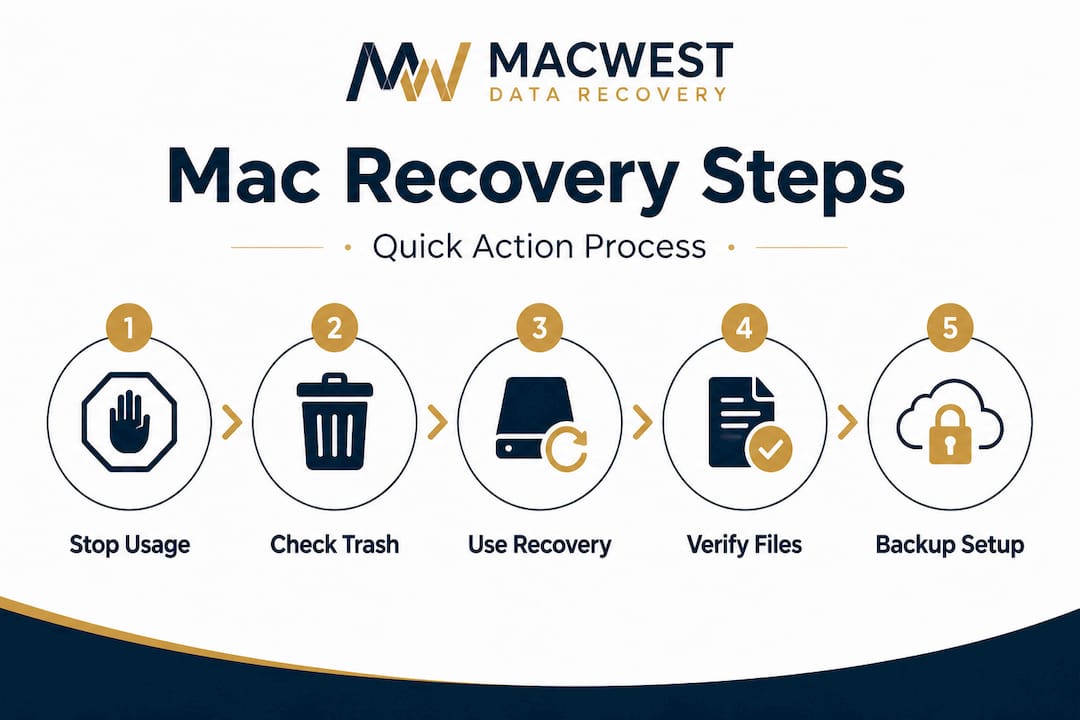
- Check the Trash first. Open the Trash and look for your missing files. If they are there, right-click and select “Put Back” to restore them to their original location. This is the fastest and safest way to recover deleted files at no risk.
- Open Time Machine. If your Mac has been backed up via Time Machine, connect the backup drive, click the Time Machine icon in the menu bar, and browse to the date before the file was lost. Select the file and click “Restore.” Time Machine snapshots also exist locally on APFS volumes, which can save you even without an external backup drive connected.
- Try iCloud Drive. If the missing files were stored in iCloud Drive or Desktop and Documents syncing was enabled, log into icloud.com on another device and check the “Recently Deleted” folder, which retains files for 30 days.
- Run third-party file recovery software. Tools like Disk Drill and PhotoRec are widely used for Mac. Boot from an external drive or run the software on the affected volume while writing recovered files to a separate destination. Follow the software’s scan instructions carefully.
- Contact a professional recovery service. For physically damaged drives, corrupted file systems, or cases where software recovery returns no results, professional intervention is the appropriate next step.
As noted by recovery specialists, check Trash and Time Machine before using recovery software, because these built-in options carry no risk of causing additional data loss.
A detailed mac hard drive recovery guide can walk you through the specific steps for different Mac drive configurations. For cases involving significant hardware damage or data that is business-critical, the professional mac data recovery benefits are substantial, including access to cleanroom environments and proprietary firmware tools that consumer software simply cannot replicate.
Pro Tip: When using Disk Drill or similar file recovery software, run a “Deep Scan” rather than a quick scan on APFS volumes. Deep scans analyze raw data structures and often surface files that standard directory-based scans miss entirely.

Common mistakes and troubleshooting during Mac data recovery
Knowing these common mistakes helps you troubleshoot problems and protect your data during recovery. Even users who know the basics often make avoidable errors that reduce recovery success rates.
Critical mistakes to avoid:
- Continuing to use the affected Mac. Overwriting free space by continued computer use drastically reduces recovery chances, particularly on TRIM-enabled SSDs.
- Saving recovered files back to the source drive. This is one of the most common and damaging errors in DIY recovery.
- Using unreliable or unverified recovery software. Some tools marketed as “free data recovery” do little more than scan for file names without actually retrieving content, and a few can write data to the disk in the process.
- Attempting to repair a physically damaged drive at home. Opening an HDD outside a certified cleanroom environment introduces dust particles that can destroy the read/write heads permanently.
- Running macOS updates on an affected drive. System updates write gigabytes of data and can eliminate any remaining recovery window instantly.
Important: If your Mac experienced liquid damage, do not power it on under any circumstances before having it inspected by a qualified technician. Powering on a liquid-damaged Mac almost always causes secondary damage to the logic board, which can make data recovery far more difficult and expensive.
If software recovery returns incomplete or zero results, the issue is likely at a lower level than the file system. APFS corruption, failing NAND flash memory, or a damaged NVMe controller all require hardware-level intervention that is beyond what consumer file recovery software can address. At that point, seeking help from mac recovery challenges solutions specialists is not optional — it is the only realistic path forward.
Pro Tip: Before running any third-party recovery software, create a byte-for-byte disk image of the affected drive using macOS Disk Utility or a tool like "ddrescue`. Run recovery on the image, not the original. This preserves the original drive state in case you need a second attempt.
Verifying recovery success and next steps for your Mac
Once your data is recovered, these verification and prevention steps ensure your Mac’s health and data security going forward.
Recovery is not complete the moment files appear in a folder. Verification is a critical step that too many users skip.
Post-recovery verification checklist:
- Open each recovered file to confirm it is readable and intact, not just a file name with corrupted content inside.
- Check file sizes against known originals where possible. A 2 MB PDF that comes back as 4 KB is almost certainly corrupted.
- Do not rename, move, or modify recovered files until you have confirmed they are intact. Any file system operation carries a small risk.
- Copy all verified, intact files to a secure backup location before doing anything else with your Mac.
- Run Apple Diagnostics (hold D on startup) to check for hardware faults that may have caused the original data loss.
Once you have confirmed recovery, it is time to build a system that prevents a repeat. Set up Time Machine or cloud storage as an ongoing backup routine rather than a one-time measure. A 3-2-1 backup strategy works well: three copies of your data, on two different media types, with one stored offsite or in the cloud.
Regular professional Mac maintenance is worth scheduling once or twice a year, especially for machines used in demanding environments like video production or architecture work. A technician can identify early signs of drive failure, logic board stress, or thermal issues before they escalate into full data loss events. Review mac maintenance importance to understand how routine care directly reduces your risk.
Why fast action and professional help make all the difference for LA Mac users
Here is a perspective that most online recovery guides will not tell you directly: the majority of irreversible data loss situations are made worse by the user, not by the original failure event.
A drive that fails or a file that gets deleted is often still recoverable. What makes it unrecoverable is the next 30 minutes of continued use while the user Googles solutions, downloads recovery software to the affected drive, or reboots repeatedly hoping the problem resolves itself. Minimizing computer use after data loss is crucial because overwritten data becomes irrecoverable, and that process happens faster than most people expect.
Professional recovery services bring something that no software tool can replicate: physical access to the storage media itself. When an SSD’s NAND controller fails, or when a hard drive’s read/write heads are damaged, the data still exists on the platters or flash chips. But reaching it requires specialized hardware, proprietary firmware tools, and in many cases, a cleanroom environment rated ISO Class 5 or better. Consumer software has no pathway to that data.
For Los Angeles Mac users, local proximity to a qualified recovery lab matters more than most realize. You can walk your device in, have it assessed the same day, and avoid the risk of shipping a damaged drive across the country — a process that introduces vibration and handling risk to already compromised hardware. The ability to discuss your specific situation with a technician in person, ask questions, and receive an honest assessment of your odds is something no remote service can provide.
The right combination is straightforward: stop all disk activity the moment you notice data loss, and then contact a professional recovery service as quickly as possible. That two-step response, done in that order, gives you the best realistic odds of getting your data back.
Get expert Mac data recovery services in Los Angeles today
When your data matters, the response needs to be immediate and handled by specialists who understand Mac hardware at a component level.
Since 2006, Macwest Data Recovery has provided professional data recovery and Mac repair services to clients throughout West LA, Santa Monica, Beverly Hills, Culver City, and surrounding neighborhoods. The team offers free diagnostics and a no-recovery, no-charge policy so you can understand your options before committing to any service. Recovery capabilities include RAID 0, 1, 3, and 5 arrays, liquid-damaged MacBooks, corrupted APFS volumes, and physically failed SSDs and hard drives. The mac repair services cover logic board component repair, screen replacement, battery replacement, and full system recovery. Same-day appointments are available for urgent cases. Conveniently located near UCLA and the Getty Center, Macwest is the trusted local resource for hard drive recovery when the stakes are high.
Frequently asked questions
What should I do immediately after losing data on my Mac?
Stop all disk writes immediately by ceasing all activity on the affected Mac, as minimizing computer use significantly increases recovery chances before any data is overwritten.
Can I recover deleted files after emptying the Trash on a Mac?
Yes, recovery is often possible if you act quickly using recovery software or professional services, because deleted file data may still exist on the drive until it is overwritten by new content.
Is professional data recovery expensive and is it worth it?
Professional recovery can be a significant investment, but for irreplaceable files it is almost always justified because professional recovery services use specialized equipment that can access data no consumer software can reach.
How do SSDs affect the chances of successful data recovery?
SSDs use the TRIM function, which means TRIM quickly erases deleted file remnants, making the recovery window significantly shorter than it is with traditional spinning hard drives.
What backup options should I use to prevent data loss on my Mac?
Use Time Machine as your primary local backup and supplement it with cloud storage, keeping both updated regularly, because Time Machine and cloud backups together provide the most reliable protection against future data loss events.