TL;DR:
- Repairing a WD HDD involves diagnosing whether the drive has a logical error or a physical failure and choosing the correct recovery method. Immediate cessation of use prevents overwriting recoverable data, especially if symptoms include clicking or grinding sounds. In such cases, professional cleanroom recovery is essential for physical damage, while DIY methods suit logical errors with no unusual noises.
Repairing a WD HDD means diagnosing whether the drive has a logical error or a physical failure, then applying the correct recovery method to protect your data. Stop all disk writes immediately if your Western Digital drive shows any warning signs. Continuing to use a failing drive overwrites recoverable data sectors and reduces your chances of a full restore. Common symptoms include clicking, beeping, non-detection in Windows or macOS, RAW partition errors, and drives that spin up but never mount. Knowing which category your problem falls into determines every step that follows.
What tools and preparations do you need to repair WD HDD?
Preparation separates a successful recovery from a permanent loss. Before you run any software or open any utility, gather the right hardware and verify your connection setup.
Hardware checklist:
- A known-good USB cable (USB-A to Micro-B or USB-C, depending on your WD model)
- The correct power adapter: 12V/2A for 3.5-inch drives and 5V/2A for 2.5-inch portable WD drives are the standard specifications. Using the wrong adapter mimics mechanical failure symptoms.
- A secondary healthy drive with at least as much free space as the failing WD drive
- A Windows or macOS computer with direct motherboard USB ports available
Software checklist:
- WD Data Lifeguard Diagnostics (free, from WD’s official support page)
- A reputable data recovery program installed on your secondary drive, not on the WD drive itself
- Disk Management (Windows) or Disk Utility (macOS) for initial detection checks
Pro Tip: Connect the WD drive directly to a rear motherboard USB port, never to a USB hub or front-panel port. Power instability from hubs causes false failure readings and can interrupt a recovery mid-scan.
| Feature | 2.5-inch WD Portable | 3.5-inch WD Desktop |
|---|---|---|
| Power source | USB bus powered (5V/2A) | External adapter (12V/2A) |
| Connection type | USB-A or USB-C | USB or eSATA |
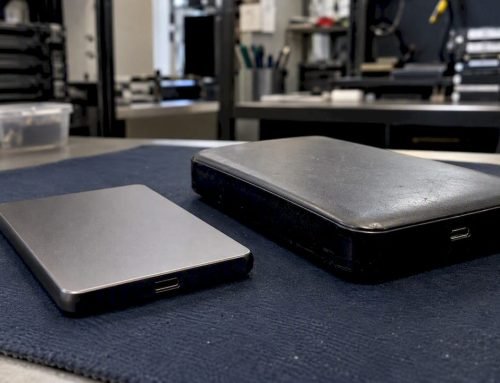
| Enclosure removal needed | Rarely | Sometimes for direct SATA |
| Cleanroom risk if opened | High | High |
How do you diagnose common failure symptoms in WD HDDs?
Accurate diagnosis is the single most important step in any WD HDD recovery guide. Getting this wrong leads to either unnecessary professional costs or permanent data destruction from misguided DIY attempts.
Physical failure symptoms
Beeping or clicking indicates head stiction or motor failure. These sounds mean the read/write heads are not parking correctly or the spindle motor cannot reach operating speed. A drive that beeps and does not spin up has a mechanical problem that no software can fix.
Critical warning: DIY success rates for beeping or non-spinning WD external drives are only 10–20%. Repeated power cycles on a mechanically failing drive worsen platter and head damage with every attempt. Power the drive off and do not turn it on again until you have a recovery plan.
Grinding or clanking sounds are even more serious. WD advises stopping drive use immediately upon unusual noises like clanking or grinding, as these noises almost always precede full mechanical failure. Moving or dropping an active drive accelerates that damage.
Logical failure symptoms
Logical errors produce no unusual sounds. The drive spins up normally, but the operating system cannot read it. You may see the drive appear in Device Manager or Disk Management as “Unknown,” “RAW,” or “Not Initialized.” Accidental deletion, partition corruption, and failed formatting operations all fall into this category. These are the failures most suited to DIY recovery.
| Symptom | Likely cause | Recommended action |
|---|---|---|
| Clicking or beeping | Head stiction or motor failure | Power off, seek professional recovery |
| No spin-up, no sound | Seized spindle motor | Power off, seek professional recovery |
| Drive detected, shows RAW | Corrupted partition table | Run recovery software on a separate drive |
| Drive not detected at all | PCB fault or connection issue | Try different cable, port, and power supply |
| Drive detected, files missing | Accidental deletion or format | Deep scan with recovery software |
| Slow transfer, frequent errors | Bad sectors accumulating | Clone drive immediately, then recover |
Check hard drive failure signs early. Catching a developing problem before full failure dramatically improves recovery outcomes.
Step-by-step DIY methods to fix WD hard drive logical errors
DIY recovery works reliably for logical errors. Physical failures require professional intervention. Follow these steps only when your drive shows no clicking, beeping, or grinding sounds.
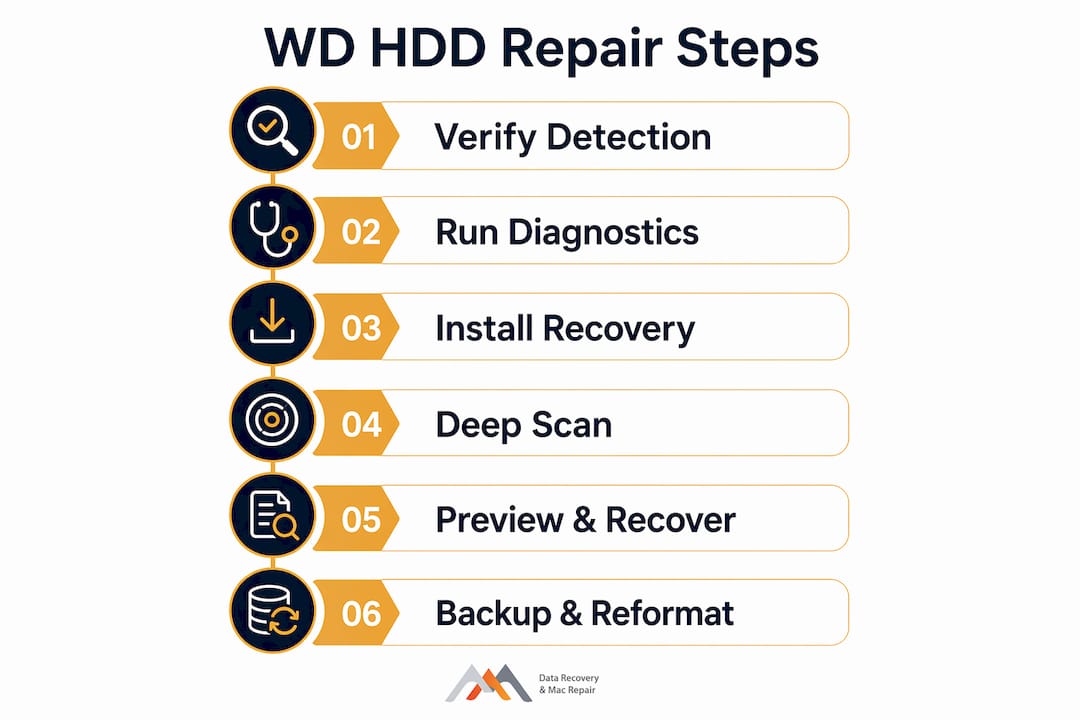
Step 1: Verify detection
Open Disk Management on Windows (right-click Start, select “Disk Management”) or Disk Utility on macOS. Confirm whether the drive appears at all. If it shows as RAW or unallocated, the partition table is corrupted but the data may still be intact.
Step 2: Run WD Data Lifeguard Diagnostics
Download WD Data Lifeguard Diagnostics from WD’s official support page and install it on your healthy secondary drive. Run the Quick Test first. If it passes, run the Extended Test. A SMART failure result confirms the drive has hardware-level problems and you should stop DIY attempts immediately.
Step 3: Install recovery software on a separate drive
Recovery software must be installed on a separate healthy storage device to avoid overwriting recoverable data on the failing WD drive. This is the most commonly violated rule in DIY recovery, and violating it permanently destroys data. Use a USB flash drive or a second internal drive as your installation target.
Step 4: Run a deep scan
If the WD drive appears in Disk Management but is not accessible, a deep scan with recovery software can restore formatted or accidentally deleted data. Logical errors including RAW partitions and accidental deletions respond well to this approach. Let the scan complete fully without interruption.
Step 5: Preview and selectively recover
Most recovery programs let you preview files before saving them. Prioritize your most critical files first. Save everything to your secondary healthy drive, never back to the failing WD drive.
Step 6: Back up before reformatting
Once you have confirmed all recoverable files are saved, you can reformat the WD drive. Reformatting without completing recovery first is a permanent mistake. After recovery, run WD Data Lifeguard’s write zeros function to reset the drive, then reformat.
Pro Tip: Avoid saving any recovery software or recovered files back to the WD drive. Every write operation to a failing drive risks overwriting the exact sectors that hold your lost data.
For a broader look at restoring a formatted drive, the process follows the same core principle: recover first, reformat second.
When should you seek professional WD drive repair services?
Professional recovery is the correct choice the moment you hear mechanical sounds, when DIY scans return no results, or when the drive fails to spin up. Continuing DIY attempts on a physically damaged drive does not improve outcomes. It makes them worse.
Repeated power-on cycles of failing WD drives worsen platter and head damage and reduce recovery chances with each attempt. A drive that clicked twice and was powered off has far better recovery odds than one that was powered on 20 times while the owner tried different cables.
What professional cleanroom recovery involves
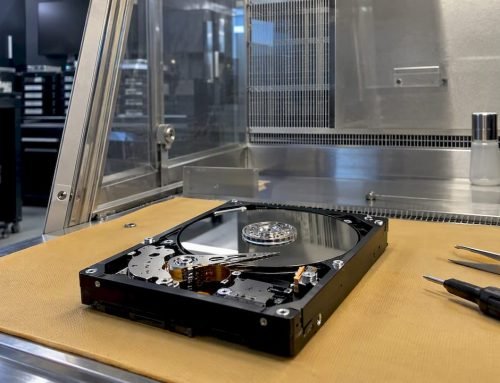
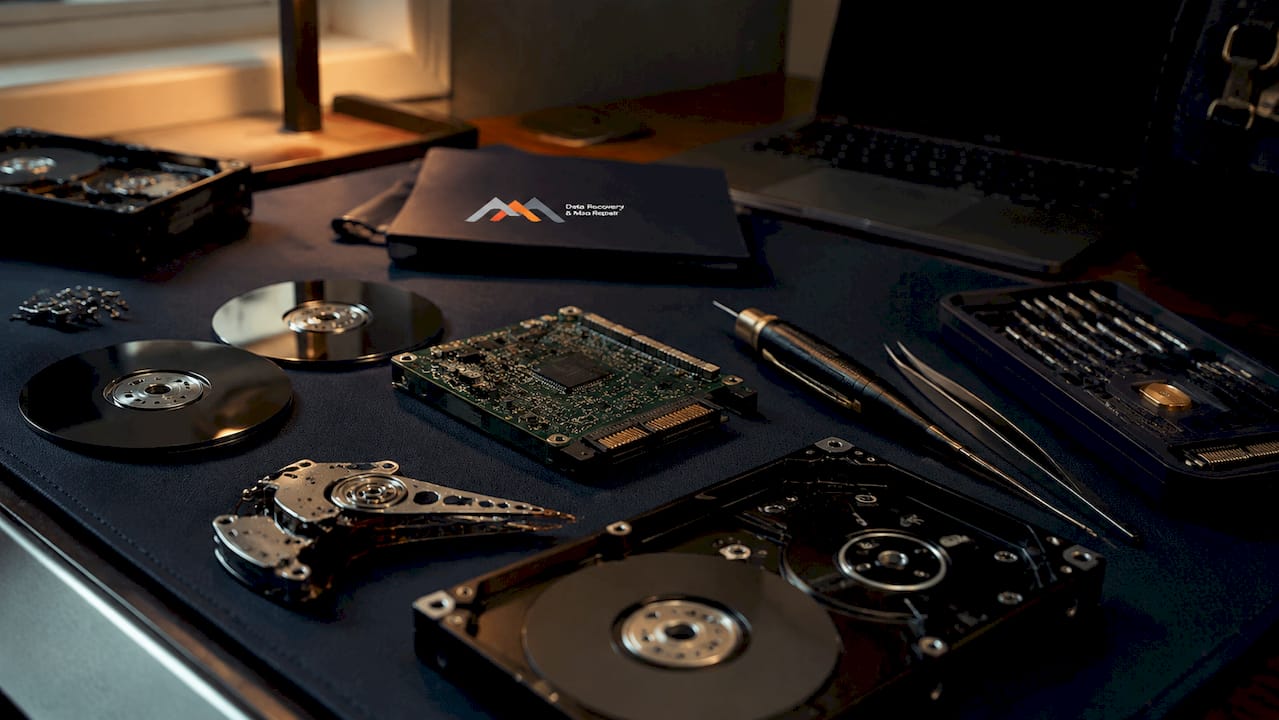
Professional cleanroom recovery involves platter transplant and head replacement and offers the highest chance of recovering data from physical WD HDD failures. Cleanroom environments maintain ISO Class 5 or better air quality to prevent microscopic contamination from landing on exposed platters. This work requires specialized tools, donor drives with matching firmware, and trained technicians.
Before sending your drive to a professional lab:
- Do not open the drive enclosure under any circumstances
- Place the drive in an anti-static bag
- Document the drive model number, serial number, and the symptoms you observed
- Choose a lab that offers free diagnostics and a no-recovery, no-charge policy
- Ask for a written quote before any work begins
For WD recovery in Los Angeles, Macwestlosangeles has served clients since 2006 with free diagnostics and same-day appointments. The lab handles WD models across the My Passport, My Book, and WD Elements product lines, covering both SATA and NVMe configurations.
Pro Tip: When evaluating professional labs, ask specifically whether they use a cleanroom or a clean bench. A cleanroom meets ISO standards for particle count. A clean bench does not. The distinction matters for platter-level work.
You can also explore hard drive data recovery options for a full breakdown of what professional recovery covers, including RAID 0, RAID 1, RAID 5, and APFS volume reconstruction.
Key Takeaways
Repairing a WD hard drive requires identifying whether the failure is logical or physical before taking any action, because the wrong approach permanently destroys recoverable data.
| Point | Details |
|---|---|
| Diagnose before acting | Clicking or beeping means physical failure; RAW or undetected means logical error. |
| Stop writes immediately | Every write to a failing drive risks overwriting recoverable data sectors. |
| Use a separate drive for software | Install recovery tools and save recovered files to a healthy drive, never the failing WD. |
| Physical failures need cleanrooms | Head replacement and platter transplant require ISO-standard cleanroom environments. |
| Free diagnostics exist | Labs like Macwestlosangeles offer free diagnostics and no-recovery, no-charge policies. |
What I’ve learned from years of WD drive recovery cases
The most damaging thing people do is keep powering a failing drive on. I understand the instinct. You want to grab your files before the window closes. But every spin-up attempt on a drive with stiction or a failing motor grinds the read/write heads across the platters. What starts as a recoverable head crash becomes an unrecoverable platter scratch within a few attempts.
The second most common mistake is installing recovery software directly onto the failing drive. People see the drive is still detected and assume it is safe to use. It is not. The act of installing software writes data to the drive and can permanently overwrite the exact sectors holding your lost files.
My honest recommendation: if the drive makes any sound it did not make before, treat it as a physical failure and stop. Do not run diagnostics. Do not try another cable. Power it off, bag it, and call a professional. The cost of a cleanroom recovery is significant, but it is far less than the cost of losing irreplaceable data permanently.
For logical errors with no unusual sounds, DIY recovery software works well when used correctly. The key discipline is patience. Let scans complete fully. Save to a separate drive. Verify your files before you do anything else to the WD drive.
Preventative maintenance matters too. A WD drive showing early failure signs like slow transfers or occasional read errors is telling you something. Back up immediately and replace the drive before it fails completely. The best data recovery is the one you never need.
— Kaya
WD hard drive recovery services at Macwestlosangeles
Macwestlosangeles has provided professional hard drive data recovery in Los Angeles since 2006, with a no-recovery, no-charge policy and free diagnostics on every case. The lab serves West LA, Santa Monica, Beverly Hills, Brentwood, Westwood, Venice, Hollywood, and Culver City from its location at 12041 Wilshire Blvd, Ste 26. Same-day appointments are available for urgent cases. The team handles WD My Passport, My Book, WD Elements, and WD internal drives across SATA, NVMe, and RAID configurations. Call 310-866-0828 to speak with a technician directly about your WD drive situation.
FAQ
What does it mean to repair a WD HDD?
Repairing a WD HDD means diagnosing whether the drive has a logical error or a physical failure, then applying the correct recovery method. Logical errors respond to software tools; physical failures require professional cleanroom intervention.
Can I fix a clicking WD hard drive myself?
A clicking WD drive has a mechanical failure, and DIY success rates for this type of fault are only 10–20%. Powering the drive on repeatedly worsens the damage and reduces recovery chances.
How do I know if my WD drive has a logical or physical failure?
A drive with logical failure spins up silently but shows as RAW, unallocated, or inaccessible in Disk Management. A drive with physical failure produces clicking, beeping, or grinding sounds, or fails to spin up at all.
What is the safest way to recover data from a WD drive?
Install recovery software on a separate healthy drive, run a deep scan on the WD drive, and save all recovered files to the secondary drive. Never write anything back to the failing WD drive during the recovery process.
How much does professional WD HDD recovery cost?
Professional cleanroom recovery costs vary based on failure type and drive capacity. Macwestlosangeles offers free diagnostics and a no-recovery, no-charge policy, so you know the cost before committing to any service.