TL;DR:
- Mac encryption operates across hardware and software layers, securing files with unique keys generated at creation. Apple Silicon Macs use hardware-accelerated encryption, making performance impact negligible, while FileVault adds default full-disk encryption in macOS Tahoe. Users should securely store recovery keys and practice strong password management to maintain Data Security.
Encryption on Macs automatically secures every file stored on the device, making unauthorized access virtually impossible without the correct credentials. The role of encryption in Macs goes far deeper than a simple on/off toggle. Apple builds protection into the hardware itself, through the Secure Enclave Processor and dedicated SSD controller circuits, so your data is shielded even before you log in. FileVault, the industry term for Apple’s full-disk encryption feature, adds a critical authentication layer on top of that hardware foundation. Understanding how these two layers interact is the key to managing your Mac’s security effectively in 2026.
How does encryption work on Macs at the hardware and software levels?
Mac encryption operates across two distinct layers that work together continuously. The first layer lives inside the SSD controller. Every file on a Mac receives a unique AES-XTS key, generated at the moment the file is created and stored securely within the APFS volume structure. This per-file key design has a practical benefit beyond security: deleting a file means discarding its key, which makes secure deletion instant rather than requiring a slow overwrite of raw NAND storage.
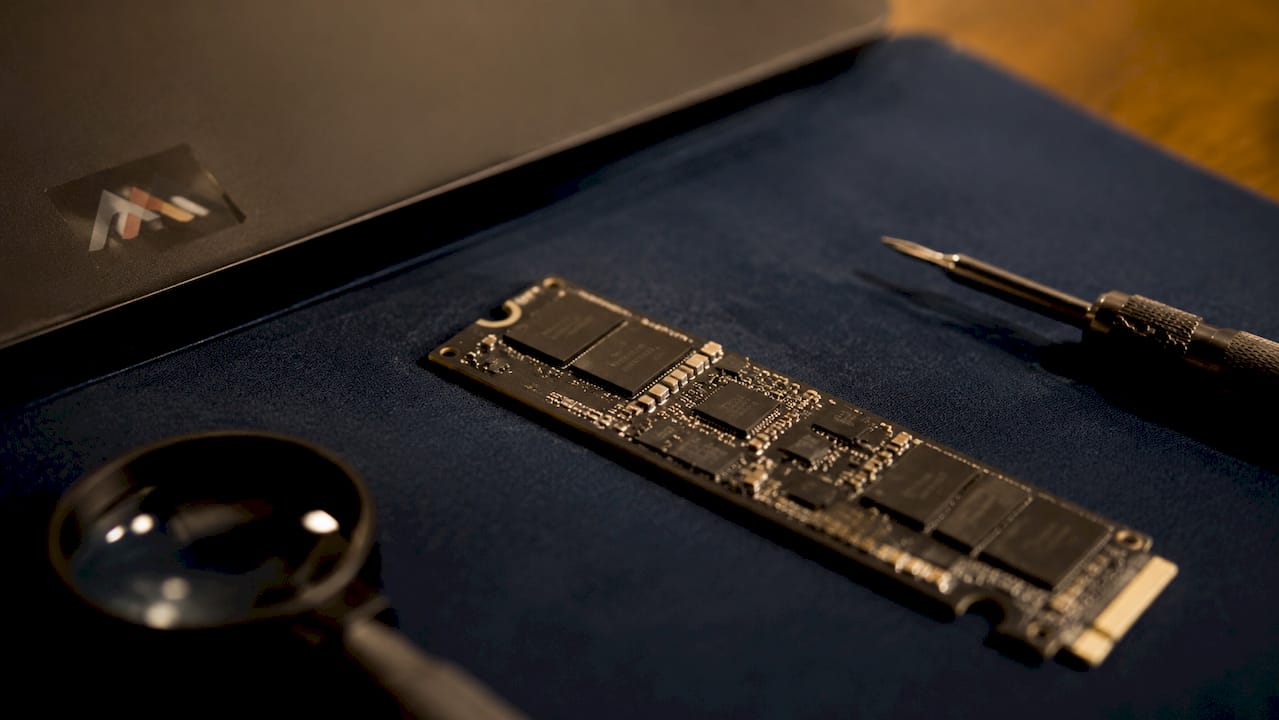
The second layer is the Secure Enclave Processor, a dedicated security chip isolated from the main CPU. The Secure Enclave manages encryption keys and processes user passwords entirely within its own protected memory. No cleartext password ever reaches the kernel or main CPU memory. The Secure Enclave communicates with the main processor through an encrypted mailbox protocol, so sensitive key material never leaves the enclave unprotected.
On Apple Silicon Macs, AES encryption and decryption are hardware-accelerated inside the SSD controller. This means the CPU handles no encryption math during normal file operations. The performance impact on an M-series Mac is negligible for the vast majority of users.
Key facts about the encryption architecture on Apple Silicon Macs:
- Per-file AES-XTS keys are generated for every file, stored within APFS metadata, and discarded on deletion.
- The Secure Enclave processes all password verification and key wrapping without exposing data to the OS.
- SSD controller hardware handles all AES operations, keeping the CPU free for application workloads.
- APFS (Apple File System) is the native format that supports this per-file encryption model on all modern Macs.
Pro Tip: If you are evaluating a Mac for professional use and need to understand its hardware encryption capabilities, check whether it runs Apple Silicon. Intel-based Macs use a different encryption pipeline with less hardware acceleration.
What does FileVault do, and what changed in macOS Tahoe?
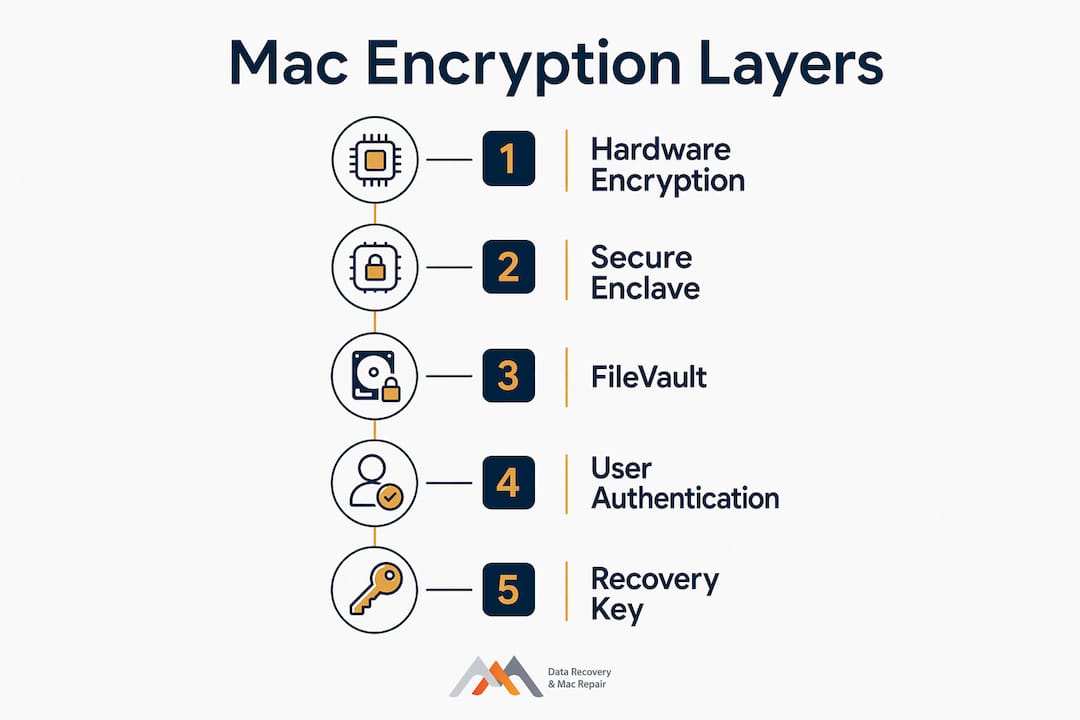
FileVault is the user-facing control for Mac full-disk encryption. FileVault uses XTS-AES-128 encryption with a 256-bit key to encrypt the entire startup disk. That is an industry-standard method used by financial institutions and government agencies worldwide. What most users do not realize is that FileVault does not encrypt a previously unencrypted disk. It changes the key wrapping of the volume encryption key, which is why enabling FileVault on a modern Mac takes seconds rather than hours.
macOS Tahoe, released in 2026, made one significant policy change: FileVault is now enabled by default on all Macs during setup. This means every Mac running Tahoe ships with the startup disk protected behind user authentication from day one. That shift represents a meaningful security milestone for Mac users who previously skipped the FileVault setup step.
Tahoe also changed how recovery keys are stored. Recovery keys now live in the native Passwords app rather than in iCloud, and they sync across Apple devices under the same Apple ID. This keeps the key within Apple’s ecosystem but separates it from iCloud’s general data store.
Here is how the FileVault authentication flow works from startup to login:
- Power on: The Mac boots into a pre-login environment before any user session starts.
- Password prompt: The system requests your user password to release the volume encryption key from the Secure Enclave.
- Key release: The Secure Enclave verifies the password and wraps the decryption key for the OS to use.
- Biometric login: Touch ID or Face ID become available only after the password unlocks the encryption layer.
- Normal session: The OS mounts the decrypted volume and your desktop loads as usual.
Pro Tip: Write your FileVault recovery key on paper and store it in a physically secure location. If you forget your password and lose access to the Passwords app, data recovery from an encrypted drive becomes significantly more complex, even for specialists.
Common misconceptions about Mac encryption performance and security
The most widespread misconception is that encryption slows down a Mac. Encryption and decryption on Apple Silicon happen in dedicated SSD hardware, not in the CPU. Users running M1, M2, M3, or M4 chips experience no measurable slowdown from encryption during everyday tasks like file transfers, video editing, or database operations.
The second misconception is that turning FileVault off removes encryption. It does not. Even with FileVault disabled, Macs encrypt data at the hardware level. FileVault controls only whether the volume decryption key is locked behind your password at startup. Without FileVault, the key is accessible without authentication, which means anyone who boots your Mac can read your files. With FileVault on, the key stays locked until your password is verified.
“The Secure Enclave’s design ensures passwords never leave a secure isolated processor, reducing the risk of memory scraping attacks and increasing overall system security.” — Mac Internals
A third misunderstanding involves biometric logins. Touch ID cannot unlock FileVault right after a reboot because the system needs the user password to release the encryption keys from the Secure Enclave at startup. Biometrics only work after the password has been entered once in a session. This is not a bug. It is a deliberate security design that prevents a stolen Mac from being unlocked with a lifted fingerprint.
Key misconceptions to correct:
- “Encryption slows my Mac down” — False on Apple Silicon. Hardware acceleration makes the overhead negligible.
- “FileVault off means no encryption” — False. Hardware encryption is always active; FileVault gates the key.
- “Touch ID replaces my password at startup” — False. Password is required first to release the encryption key.
- “Enabling FileVault re-encrypts my whole disk” — False. It only re-wraps the existing volume key, which takes seconds.
Practical best practices for managing Mac encryption and data security
Strong encryption is only as effective as the password and key management practices around it. The volume encryption key on your Mac is protected by your login password. A weak password directly weakens your encryption, regardless of the strength of AES-XTS-128 underneath.
| Recovery key storage method | Security profile | Best for |
|---|---|---|
| Passwords app (macOS Tahoe default) | High, synced across Apple devices | Most individual users |
| Local paper copy in a safe | Very high, no digital exposure | Highly sensitive personal data |
| Organization MDM server | High, centrally managed | Business and enterprise environments |
| iCloud (pre-Tahoe default) | Moderate, depends on Apple ID security | Casual users with low-risk data |
Storing recovery keys locally reduces reliance on any third-party infrastructure, including Apple’s. Organizations handling client data, legal files, or financial records should consider keeping recovery keys off any cloud service entirely. For individual users, the Passwords app in macOS Tahoe is a practical and well-secured default.
Backing up encrypted data is equally critical. FileVault encrypts the startup disk, but a Time Machine backup to an external drive is not automatically encrypted unless you configure it to be. Set a password on your Time Machine backup to extend the same protection to your backup volume. For guidance on protecting your Mac data across all storage layers, a layered approach covering both the primary drive and all backups is the standard.
Additional practices that strengthen your encryption posture:
- Use a password of at least 12 characters with mixed character types for your Mac login.
- Enable FileVault on any external drives that store sensitive data, not just the startup disk.
- Audit your Apple ID security regularly, since it controls access to the Passwords app where recovery keys are stored.
- Understand that data recovery from encrypted drives requires the correct password or recovery key. Without either, recovery is not possible even with professional tools.
Key takeaways
Mac encryption is always active at the hardware level, and FileVault in macOS Tahoe now adds mandatory authentication by default, making unauthorized access to a stolen Mac effectively impossible without the user’s password or recovery key.
| Point | Details |
|---|---|
| Hardware encryption is always on | AES-XTS encryption runs in the SSD controller regardless of FileVault status. |
| FileVault gates the decryption key | Without FileVault, the key is accessible without login; with it, your password is required at startup. |
| macOS Tahoe enables FileVault by default | All Macs set up with Tahoe (2026) have full-disk encryption active from the first boot. |
| Recovery keys moved to Passwords app | macOS Tahoe stores recovery keys in the native Passwords app, synced across Apple devices. |
| Password strength directly affects security | The volume encryption key is wrapped by your login password, so a weak password weakens the entire chain. |
Why Mac encryption is world-class but still needs your attention
After working with encrypted Mac drives since 2006, the pattern I see most often is this: users assume encryption is someone else’s job. Apple handles the hardware. macOS handles the software. The user just logs in. That assumption is correct for about 90% of the protection. The remaining 10% is where people get into serious trouble.
The most preventable data loss scenario I encounter involves FileVault recovery keys. A user forgets their password, cannot locate their recovery key, and the data is gone. Not damaged. Not corrupted. Gone, because the encryption did exactly what it was designed to do. The Secure Enclave held the key, the password was wrong, and no amount of specialist tooling can bypass a correctly implemented AES-256 implementation.
macOS Tahoe’s decision to enable FileVault by default is the right call. It closes the gap for users who never understood why the feature existed. But it also means more users will encounter the recovery key question without preparation. My recommendation is straightforward: treat your recovery key like a house key. Store it somewhere physical, somewhere you will find it in an emergency, and somewhere no one else can access it without your knowledge.
Encryption on Macs is genuinely world-class. The Secure Enclave architecture is more sophisticated than what most enterprise security hardware delivers. But the system depends on you knowing your password and having your recovery key. Those two things are your responsibility, and no hardware can substitute for them.
— Kaya
Macwestlosangeles: expert Mac data recovery in Los Angeles
When encryption intersects with hardware failure, the situation becomes technically complex fast. Macwestlosangeles has handled encrypted drive recovery for Mac users across West LA, Santa Monica, Beverly Hills, Brentwood, and Culver City since 2006. The team works with APFS volumes, NVMe SSDs, and logic board-level failures on MacBook, iMac, Mac Mini, and Mac Pro systems. Free diagnostics are available with every case, and the policy is simple: no recovery, no charge. Same-day appointments are available for urgent situations. Call 310-866-0828 or visit the office at 12041 Wilshire Blvd, Ste 26, Los Angeles, to speak with a specialist about your Mac’s data recovery options.
FAQ
What is the role of encryption in Macs?
Encryption on Macs protects all stored data by converting it into unreadable code that requires the correct decryption key to access. The role operates at two levels: hardware encryption in the SSD controller and FileVault authentication that gates the decryption key behind your password.
Does turning off FileVault remove encryption from my Mac?
No. Turning off FileVault removes the password requirement at startup but does not disable hardware-level encryption. The SSD controller continues encrypting and decrypting data; FileVault simply controls whether the decryption key is locked behind user authentication.
How does Mac encryption affect performance?
On Apple Silicon Macs, encryption and decryption are handled by dedicated hardware inside the SSD controller, so the CPU is not involved. The performance impact is negligible for virtually all users, including those doing video editing or large file transfers.
What happens if I forget my FileVault password?
Without your password or recovery key, the encrypted data on your Mac cannot be accessed. The Secure Enclave holds the encryption keys and will not release them without correct authentication. Contact a specialist like Macwestlosangeles immediately if you face this situation, as options narrow quickly.
Where are FileVault recovery keys stored in macOS Tahoe?
In macOS Tahoe (2026), recovery keys are stored in the native Passwords app and synced across Apple devices under the same Apple ID, replacing the previous iCloud storage method. Users who prefer maximum security can also store the key locally, offline.