TL;DR:
- A corrupt USB flash drive’s file system or NAND memory failure blocks access to stored data. Logical corruption is usually fully repairable with tools like CHKDSK and recovery software, but physical damage requires professional intervention. To maximize data retrieval, always image the drive before attempting repairs and avoid formatting or running CHKDSK prematurely.
A corrupt USB flash drive is a storage device whose file system or physical NAND memory has failed, blocking access to stored files. Stop all disk writes immediately if you suspect corruption. Continuing to write data to the drive overwrites the file allocation table and reduces recovery chances significantly. The good news: logical corruption is fully repairable in most cases when the physical memory chips remain intact. Tools like CHKDSK, Windows Disk Management, and data recovery software such as PandaOffice DRecov, Disk Drill, and Recuva give you a structured path back to your files before you consider professional intervention.
What causes a corrupt USB flash drive?
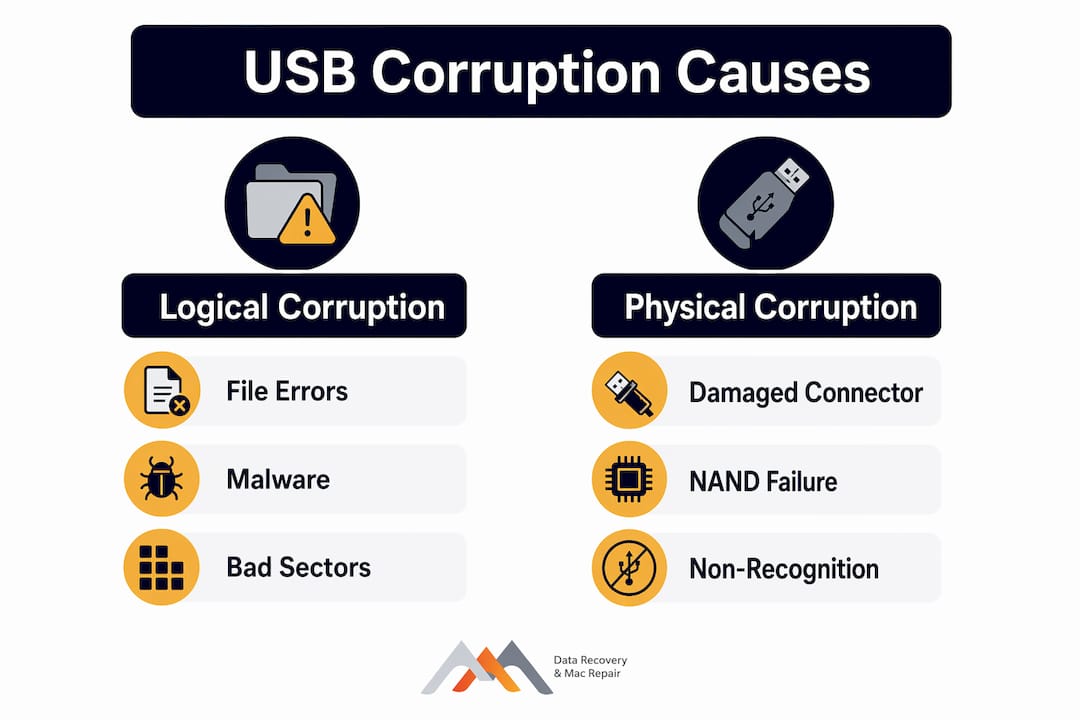
Understanding whether your drive has logical or physical corruption determines every step that follows. Logical corruption involves file system and metadata errors. Physical corruption involves damaged hardware components. Logical corruption has high repair success, while physical corruption usually requires costly professional hardware intervention. Treating a physical failure with software tools wastes time and can worsen the damage.
Logical corruption causes
Logical corruption is the more common of the two failure types and stems from software-level problems rather than hardware damage.
- Improper removal: Not using “Safely Remove” is the leading cause of USB corruption. Background write processes are still active when you yank the drive, leaving the file system in an incomplete state.
- File system errors: FAT32 and exFAT file systems are particularly vulnerable to table corruption after unexpected disconnections.
- Malware: Viruses and ransomware can overwrite or encrypt the file allocation table, making the drive appear empty or unreadable.
- Power surges: A sudden voltage spike during a write operation corrupts the sector being written and can cascade to adjacent sectors.
Physical corruption causes and symptoms
Physical corruption is less common but far more serious. Signs include the drive not appearing in Device Manager at all, audible clicking or grinding sounds, a bent or broken USB connector, or a drive that gets unusually hot during use. Damaged NAND flash chips and failed controllers fall into this category. Physical damage requires professional recovery and cannot be resolved with software tools.
To quickly assess your situation, open Windows Disk Management (right-click Start, select Disk Management). If the drive appears as RAW, has no partition, or shows as unallocated, you are dealing with logical corruption. If the drive does not appear at all, open Device Manager and check for yellow warning icons under “Disk Drives” or “Universal Serial Bus controllers.” A missing device in both utilities points strongly toward physical failure.
How to recover data from a corrupt USB drive safely
Data recovery must happen before any repair attempt. Running CHKDSK or formatting the drive before extracting your files risks overwriting the very data you are trying to save. Follow these steps in order.
- Stop using the drive. Do not save new files, do not accept Windows formatting prompts, and do not run repair utilities yet.
- Test on multiple ports and computers. Plug the drive into a different USB port and a different machine. Driver issues in Windows can make a healthy drive appear corrupted, and this step rules out the host system as the problem.
- Create a byte-to-byte disk image. Before running any recovery software, clone the drive to an image file using a tool like ddrescue or Macrium Reflect. Imaging the drive first protects your original data during recovery attempts and prevents worsening corruption if the drive is degrading.
- Run data recovery software on the image. Tools like PandaOffice DRecov, Disk Drill, and Recuva can scan RAW or corrupted file systems directly. Recovery software bypasses file system errors to extract files before any format or repair operation touches the drive.
- Preview and save recovered files to a separate device. Never save recovered files back to the same USB drive. Use a separate hard drive, SSD, or cloud storage location.
Pro Tip: If Windows displays “You need to format the disk in drive X before you can use it,” click Cancel immediately. This prompt appears when Windows cannot read the file system, but your data is still present. Accepting the format erases the file system table and makes professional recovery significantly harder.
Running data recovery scans before CHKDSK is the safest sequence to preserve data integrity. Many users skip this step and lose files that were fully recoverable.

How to repair a corrupt USB flash drive after data recovery
Once your files are safely backed up, you can proceed with repair. The methods below address the most common logical failure scenarios.
Using CHKDSK to fix file system errors
Open Command Prompt as Administrator and run "chkdsk X: /f /r(replace X with your drive letter). The/fflag fixes file system errors;/r` locates bad sectors and recovers readable data. CHKDSK fixes logical errors but can overwrite data if run before recovery scans, which is why this step belongs after your files are secured.
Repair options by symptom
| Symptom | Tool | Action |
|---|---|---|
| Drive shows as RAW | CHKDSK or recovery software | Run chkdsk /f /r after imaging |
| Drive invisible in File Explorer | Disk Management | Assign or change drive letter |
| Write protection error | DiskPart | Run diskpart → attributes disk clear readonly |
| Driver not recognized | Device Manager | Uninstall and reinstall USB mass storage driver |
| Unallocated space | DiskPart | Create new partition after full data recovery |
Reassigning a drive letter resolves cases where the USB is recognized by the system but invisible in File Explorer. Changing the drive letter in Disk Management restores visibility when corruption mimics a missing path rather than actual data loss. Right-click the drive in Disk Management, select “Change Drive Letter and Paths,” and assign an unused letter.
Clearing write protection with DiskPart is safe when the hardware is healthy. Write protection errors can be software-enforced and cleared with DiskPart commands, but hardware-level write protection signals a deeper failure. If DiskPart returns an error, treat the drive as physically compromised and stop write operations.
Pro Tip: When formatting becomes necessary after recovery, always choose a full format over a quick format. A full format scans for bad sectors and marks them, preventing future write errors to those locations. A quick format only rewrites the file system table and leaves bad sectors undetected.
Avoid quick formatting when Windows prompts for it on a corrupted USB, as it erases the file system table and makes recovery harder. Format only after your data is confirmed safe on another device.
When should you seek professional USB data recovery?
Some situations exceed what software tools can address. Recognizing these signs early prevents further damage and improves recovery odds.
- No device detection in Device Manager or Disk Management: The drive’s controller or NAND chips may have failed entirely.
- Physical damage visible on the connector or PCB: Bent pins, burn marks, or a cracked circuit board require hardware repair before any data extraction is possible.
- Repeated software recovery failures: If multiple tools return zero results or the drive disconnects mid-scan, the hardware is degrading actively.
- Clicking, grinding, or no power response: These symptoms indicate controller failure or severe NAND damage.
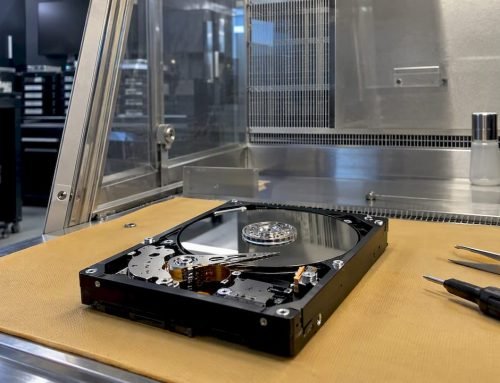
Professional data recovery services offer capabilities that go well beyond software. Chip-off recovery involves physically removing the NAND flash chip from the PCB and reading it directly with specialized hardware, bypassing a failed controller entirely. Controller repair or replacement restores the communication layer between the NAND memory and the USB interface. These procedures require cleanroom-adjacent environments and proprietary firmware tools.
Macwestlosangeles has provided USB flash drive recovery services in Los Angeles since 2006, handling both logical and physical corruption cases for individual and business clients. The team offers free diagnostics and operates on a no recovery, no charge policy, meaning you pay nothing if the data cannot be retrieved. Same-day appointments are available at 12041 Wilshire Blvd, Ste 26, serving West LA, Santa Monica, Beverly Hills, Brentwood, Westwood, Venice, and Culver City.
Before visiting a professional service, stop using the drive completely, place it in a static-free bag or its original packaging, and note the exact symptoms and any error messages you received. This information helps technicians prioritize the correct recovery path from the first diagnostic session.
Best practices to prevent USB flash drive corruption
Prevention costs nothing and protects everything. The majority of logical corruptions trace back to user behavior rather than hardware defects.
- Always eject properly. Consistent safe ejection prevents most logical corruptions by allowing background write processes to complete before the drive disconnects. Use “Safely Remove Hardware” on Windows or “Eject” on macOS every time.
- Maintain multiple backups. Store copies of critical files on at least two separate locations, such as a local external drive and a cloud service like Google Drive, iCloud, or Backblaze.
- Scan for malware regularly. Use tools like Malwarebytes or Windows Defender to detect infections before they reach your storage devices.
- Protect the drive physically. Avoid exposing USB drives to heat above 140°F (60°C), moisture, or physical impact. NAND flash degrades faster under thermal stress.
- Use quality drives and compatible ports. Budget USB drives often use lower-grade NAND with fewer write cycles. Brands like Samsung, SanDisk, and Kingston use higher-endurance NAND and more reliable controllers.
- Check drive health periodically. Tools like CrystalDiskInfo (Windows) or USB Flash Drive Tester can identify early signs of sector degradation before full failure occurs.
Pro Tip: For files you cannot afford to lose, treat the USB drive as a transport medium only, not a primary storage location. Copy files to the drive for transfer, then store the authoritative copy on a backed-up system.
Key takeaways
Recovering data from a corrupt USB flash drive requires distinguishing logical from physical failure, imaging the drive before any repair, and running recovery software before CHKDSK or formatting.
| Point | Details |
|---|---|
| Identify failure type first | Logical corruption is software-repairable; physical damage requires professional hardware intervention. |
| Image before repair | Create a byte-to-byte disk image before running CHKDSK, DiskPart, or any format operation. |
| Recovery software before CHKDSK | Tools like PandaOffice DRecov and Disk Drill extract files safely before repair utilities run. |
| Eject properly every time | Safe ejection prevents the majority of logical corruptions by completing background write processes. |
| Know when to call a professional | No device detection, physical damage, or repeated scan failures signal the need for chip-off recovery. |
What I’ve learned from years of USB recovery cases
Working with storage failures since 2006, I have seen one pattern repeat more than any other: users who panic and format the drive lose data that was completely recoverable minutes earlier. The Windows formatting prompt feels like the only option when you are staring at an error message, but it is almost never the right first move.
The second most common mistake is running CHKDSK immediately after corruption is detected. CHKDSK is a repair tool, not a recovery tool. It fixes the file system structure, and in doing so, it can overwrite the very file metadata that recovery software needs to reconstruct your files. The correct sequence is always: image the drive, scan with recovery software, save files to a separate device, then repair.
I also want to address the misconception that a drive showing as RAW or unallocated is permanently dead. Many users discard drives that are logically corrupted but fully recoverable. RAW simply means Windows cannot read the file system. The underlying NAND data is often intact. A proper deep scan with Disk Drill or PandaOffice DRecov frequently recovers 90 to 100 percent of files from drives that appeared completely blank.
Physical failures are a different matter. If the drive is not detected at all, or if you hear anything unusual from the device, software cannot help. That is the point where professional chip-off recovery becomes the only viable path. Knowing that boundary and acting on it quickly, rather than running tool after tool, is what separates a successful recovery from a permanent loss.
— Kaya
Recover your data with Macwest in Los Angeles
When software tools have not resolved the issue, or when you are dealing with physical damage to the drive, Macwestlosangeles provides expert data recovery services for USB flash drives, hard drives, SSDs, and RAID systems throughout the Los Angeles area. Since 2006, the team at 12041 Wilshire Blvd, Ste 26 has handled everything from logical file system errors to NAND chip-off recovery for clients across West LA, Santa Monica, Beverly Hills, and Culver City. Free diagnostics are included with every case, and the hard drive data recovery service operates on a strict no recovery, no charge policy. Call 310-866-0828 today to schedule a same-day appointment.
FAQ
What does it mean when a USB drive shows as RAW?
A RAW file system means Windows cannot recognize the drive’s file system structure, typically due to logical corruption. The underlying data is often intact and recoverable with tools like Disk Drill or PandaOffice DRecov before any format is applied.
Can CHKDSK fix a corrupt USB flash drive without losing data?
CHKDSK repairs file system metadata errors but can overwrite recoverable files if run before a data recovery scan. Always image the drive and extract your files with recovery software before running CHKDSK.
How do I know if my USB drive has physical or logical damage?
If the drive appears in Disk Management as RAW or unallocated, the damage is likely logical and software-repairable. If the drive does not appear in Device Manager at all, or if you notice physical damage to the connector or PCB, the failure is physical and requires professional intervention.
Is it safe to use DiskPart to remove write protection?
DiskPart write protection removal is safe when the drive hardware is healthy. If DiskPart returns an error or the drive is not detected reliably, hardware-level write protection indicates a deeper failure, and further write operations risk permanent data loss.
When should I contact a professional data recovery service?
Contact a professional when the drive is not detected by the operating system, when physical damage is visible, or when multiple recovery software scans return no results. Services like Macwestlosangeles offer free diagnostics and chip-off NAND recovery for cases that exceed software capabilities.