TL;DR:
- Mac startup issues range from software conflicts to hardware failures, with symptoms like question marks or prohibitory symbols pointing to specific problems. Troubleshooting begins with simple checks and progresses through resetting NVRAM, Safe Mode, disk repairs, and macOS reinstallation, depending on diagnostics. When software fixes fail, hardware faults such as damaged SSDs or logic board issues require professional repair and data recovery services.
When your Mac won’t start, the first step is to stay calm and work through a systematic process rather than repeatedly pressing the power button. Mac startup issues, also known as boot failures, range from a simple software conflict to a failing NVMe SSD or corrupted APFS volume. This guide walks you through the exact steps to fix Mac startup problems, from the easiest preliminary checks to Recovery Mode repairs, with clear guidance on when a professional technician is the right call. Whether you see a blank screen, a folder with a question mark, or a prohibitory symbol, you will find targeted answers here.
Table of Contents
- Key Takeaways
- How to fix Mac startup issues: understanding what goes wrong
- Preliminary checks before you troubleshoot
- Step-by-step troubleshooting for boot problems
- Advanced checks and when to get professional help
- My take on fixing Mac startup problems effectively
- Get expert Mac repair and data recovery in West LA
- FAQ
Key Takeaways
| Point | Details |
|---|---|
| Identify the symptom first | The startup icon your Mac displays (folder, prohibitory symbol, or blank screen) points directly to the likely cause. |
| Start with simple checks | Disconnecting peripherals and checking power eliminates the most common causes before any advanced fix. |
| Use Safe Mode to isolate software | Safe Mode disables third-party extensions and helps confirm whether a software conflict is blocking startup. |
| Recovery Mode repairs disk errors | macOS Recovery Mode gives you Disk Utility, First Aid, and reinstall options without booting the main OS. |
| Know when to call a professional | Hardware faults, severe APFS corruption, and logic board failures require certified repair, not more reboots. |
How to fix Mac startup issues: understanding what goes wrong
Your Mac follows a specific startup sequence every time you press the power button. It runs a power-on self-test, loads firmware, hands off to the boot loader, and then mounts the startup disk before macOS finishes loading. A failure at any one of those stages produces a distinct symptom, and recognizing that symptom is the most efficient way to begin Mac startup troubleshooting.
Common startup symptoms and what they mean
- Folder with a question mark: The Mac cannot locate a valid startup disk. This often points to a missing, corrupted, or accidentally deleted APFS startup volume.
- Prohibitory symbol (circle with a slash): macOS found a startup disk but determined it is incompatible, often after an OS update conflict or a damaged System folder.
- Spinning beach ball or hang at Apple logo: macOS began loading but stalled, typically due to a corrupted kernel extension, a failing drive, or a problematic login item.
- Completely black screen: The display may not be receiving a signal, or the Mac may not be reaching the firmware stage at all, which can indicate a power or logic board issue.
- Continuous restart loop: A kernel panic is repeating on startup, often triggered by a bad software update, incompatible driver, or failing RAM.
Hardware faults and software conflicts both surface during the startup sequence, but they behave differently. A software conflict usually allows the Mac to reach at least the Apple logo before failing, while a hardware fault, particularly a dying drive or a damaged logic board component, often prevents the Mac from getting that far. Safe Mode as a diagnostic tool is particularly useful precisely because it loads the minimum necessary software, making it easier to distinguish between the two.
Preliminary checks before you troubleshoot
Before running any fix, take two minutes to complete these preparation steps. Skipping them is the single most common reason people spend an hour on advanced repairs when the solution was a disconnected power cable.
- Check the power source. On a MacBook, confirm the MagSafe or USB-C cable is fully seated and the adapter LED is lit. A battery depleted below a critical threshold will prevent startup entirely regardless of software state.
- Disconnect all peripherals including USB hubs, external drives, printers, and dongles. An incompatible USB device or a misbehaving external drive can block the boot sequence before macOS even loads.
- Try a different display connection on an iMac or Mac mini if you see a black screen. A faulty cable or adapter can mimic a serious hardware failure.
- Attempt a force restart. Hold the power button for ten seconds until the Mac shuts down completely, wait thirty seconds, then power on again.
If the Mac has data you have not backed up, and if it can boot even partially, stop all disk writes immediately and create a Time Machine or cloud backup before proceeding with any repair attempt. Repair operations, particularly disk utility checks and OS reinstalls, carry a small but real risk of data loss on a drive that is already stressed.
Pro Tip: If your MacBook will not power on at all after checking the cable, try connecting it to a different power outlet and waiting five full minutes. A deeply discharged lithium battery sometimes needs a brief charge before the firmware will respond to the power button.
The table below summarizes the keyboard shortcuts and startup modes you will use in the following sections.
| Mode | Intel Mac shortcut | Apple Silicon shortcut | Purpose |
|---|---|---|---|
| Safe Mode | Hold Shift at startup | Hold power button, then Shift at options screen | Isolate software conflicts |
| Recovery Mode | Command + R | Hold power button until Options appears | Access Disk Utility, reinstall macOS |
| Internet Recovery | Command + Option + R | Same as Recovery Mode | Reinstall macOS from Apple servers |
| NVRAM Reset | Command + Option + P + R | Not applicable (automatic) | Clear startup disk selection settings |
| Startup Manager | Hold Option | Hold power button, select volume | Choose startup disk manually |
Step-by-step troubleshooting for boot problems
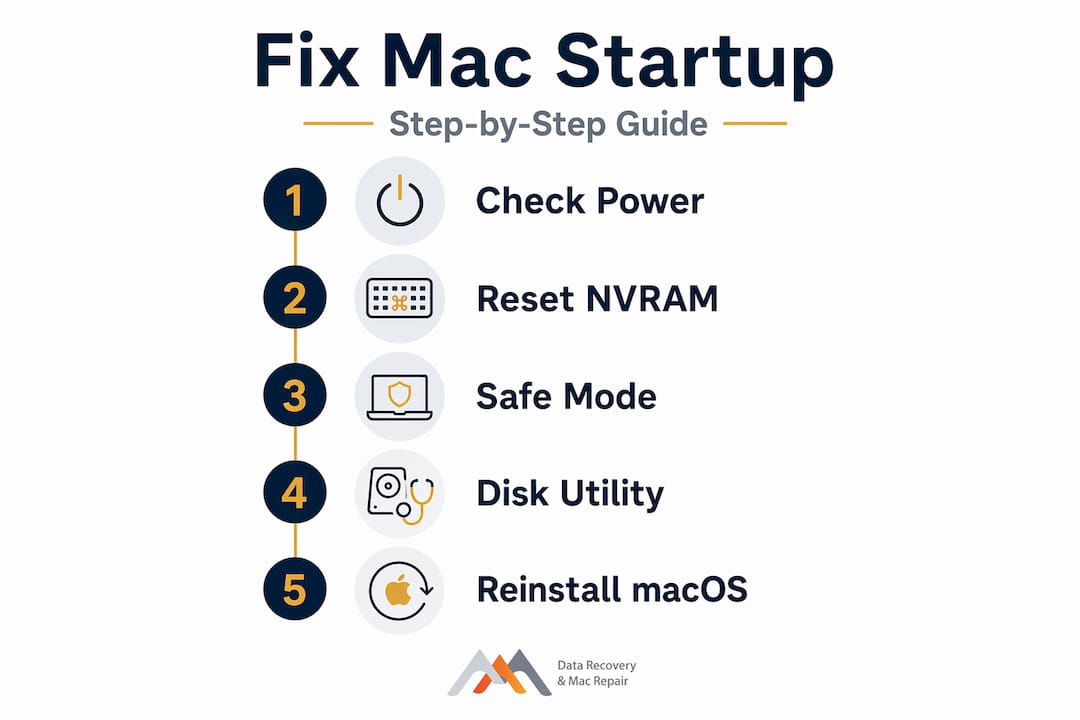
Work through these steps in order. Each one builds on the previous, and stopping as soon as the Mac starts normally will save you unnecessary time and risk.
1. Reset NVRAM (Intel Macs)
NVRAM stores startup disk selection settings, and a corrupted entry can produce a persistent “no startup disk” error even when the disk itself is healthy. Resetting NVRAM forces the Mac to clear that corrupted selection data and re-detect available startup volumes on the next boot.
To reset NVRAM, shut the Mac down fully, then press the power button and immediately hold Command + Option + P + R for about twenty seconds. The Mac may restart twice. Release the keys and allow the Mac to boot normally. On Apple Silicon Macs, NVRAM resets automatically when needed and does not require a manual key combination.
2. Boot into Safe Mode
Safe Mode loads minimal drivers and disables third-party kernel extensions, startup items, and login items. If your Mac boots successfully in Safe Mode but fails on a normal startup, a problematic login item or third-party extension is almost certainly the cause.
On Intel Macs, hold Shift immediately after pressing the power button. On Apple Silicon Macs, Safe Mode access differs: hold the power button until you see the startup options screen, select your startup disk, then hold Shift and click “Continue in Safe Mode.” Once inside Safe Mode, open System Settings, go to General, then Login Items, and remove any recently added or unfamiliar entries. Restart normally and check whether the problem resolves.
3. Use Recovery Mode and Disk Utility First Aid
macOS Recovery Mode provides Disk Utility, a macOS reinstall option, Time Machine restore, and Terminal access. It is the most direct way to repair a corrupted APFS volume or a damaged file system that is preventing startup.
- Boot into Recovery Mode using the shortcut for your Mac’s chip type (see table above).
- Select “Disk Utility” from the macOS Utilities window and click Continue.
- In Disk Utility, select your startup disk from the left sidebar. Start with the top-level physical disk, then work through each volume.
- Click “First Aid” and then “Run.” First Aid scans and repairs file system errors that block the startup sequence.
- If First Aid reports that it could not repair the disk, note the exact error message before proceeding. That message is critical information for any technician you consult.
- Restart the Mac after First Aid completes and confirm whether normal startup resumes.
Pro Tip: If Disk Utility shows your startup volume as grayed out or missing entirely, do not attempt repeated First Aid runs. A missing APFS container on an NVMe drive can indicate physical sector failure, and continued write attempts may overwrite recoverable data. Contact a data recovery specialist immediately.
4. Reset SMC on Intel Macs
SMC reset resolves power management issues that can prevent startup, particularly on Intel MacBooks showing no response to the power button or abnormal fan behavior at startup. The SMC controls hardware functions including power, thermal management, and battery charging. Apple Silicon Macs do not have a separate SMC; those functions are integrated into the T2 chip equivalent on the M-series architecture.

For MacBooks with a non-removable battery, shut down, then hold Shift + Control + Option + Power for ten seconds, release, and restart. For desktop Intel Macs, unplug the power cord, wait fifteen seconds, reconnect, wait five seconds, then press the power button.
5. Reinstall macOS if necessary
If Safe Mode, First Aid, and resets have not resolved the issue, a clean macOS reinstall from Recovery Mode is the next step. Reinstalling macOS through Internet Recovery does not erase your personal data when the startup volume is still intact and mountable. Select “Reinstall macOS” from the Recovery utilities window, follow the prompts, and allow the process to complete over a Wi-Fi connection.
| Fix | Purpose | When to use it |
|---|---|---|
| NVRAM reset | Clear corrupted startup disk selection | Folder with question mark, wrong startup disk |
| Safe Mode boot | Isolate third-party software conflicts | Mac boots in Safe Mode but not normally |
| Disk Utility First Aid | Repair APFS or HFS+ file system errors | Apple logo hang, corrupted volume warnings |
| SMC reset | Restore power management hardware functions | No power response, abnormal fan, no charging |
| macOS reinstall | Replace corrupted or missing system files | Prohibitory symbol, severe system file damage |
Advanced checks and when to get professional help
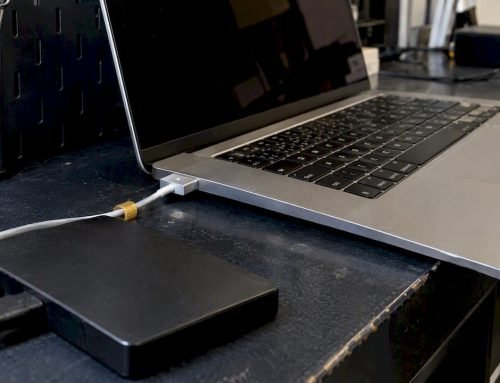
When the five steps above do not fix Mac boot problems, the issue is likely hardware, not software. Booting from an external USB or Thunderbolt drive with macOS installed is the most reliable way to confirm whether the internal NVMe SSD or logic board is at fault. If the Mac starts normally from the external drive, the internal storage is the problem. If it still refuses to start, a logic board fault is the more likely explanation.
Hardware faults that consistently require professional repair include:
- Liquid damage to the logic board, which can corrode solder joints and short power management circuits months after the initial incident
- Failed NVMe SSD with sectors that are physically unreadable, which no software-based First Aid run can repair
- Logic board component failure, including GPU faults, broken NAND access paths on soldered storage, or a damaged T2 security chip
- FileVault encryption issues where the encrypted volume cannot authenticate, sometimes caused by corrupted Secure Enclave keys
If you are in the Los Angeles area and the steps above have not restored your Mac, the team at Macwestlosangeles has performed Mac startup repair and data recovery since 2006. Free diagnostics are available, and same-day appointments are offered at 12041 Wilshire Blvd, Ste 26, serving clients from West LA, Santa Monica, Beverly Hills, Brentwood, Westwood, and Culver City.
For a deeper look at what professional diagnosis covers on complex hardware faults, the Mac Pro repair guide from Macwestlosangeles explains the diagnostic and repair process in detail.
My take on fixing Mac startup problems effectively
I have seen a lot of Mac startup failures at every level of complexity, and the most consistent mistake users make is jumping straight to a macOS reinstall without first running Disk Utility First Aid or attempting Safe Mode. That sequence matters enormously. A reinstall on a physically failing drive does not fix the drive. It just delays the point at which you realize the drive needs to be replaced, and it may overwrite the very data you were hoping to preserve.
The other pattern I see regularly is users who interpret a successful Safe Mode boot as meaning the problem is solved. It is not solved. It means you have confirmed a software cause. The actual fix is finding and removing the specific login item or kernel extension that is causing the conflict during normal startup. That usually takes less than five minutes in System Settings, but it requires you to follow through rather than stopping at the diagnostic confirmation.
My honest advice on DIY limits: if your Mac shows a folder with a question mark and Disk Utility cannot see the volume at all, stop. That is not a software problem you can fix with a reinstall. The data recovery steps required at that point involve hardware-level access to the NAND storage, which is not something a Recovery Mode terminal session can accomplish on a soldered SSD.
Preventing future startup issues comes down to two practices: keep your macOS version current (security patches regularly include APFS driver fixes), and maintain at least one current Time Machine backup. A backup does not prevent the failure, but it converts a catastrophe into a recoverable inconvenience.
— Kaya
Get expert Mac repair and data recovery in West LA
When DIY troubleshooting reaches its limits, Macwestlosangeles offers the professional Mac repair and data recovery services that Los Angeles-area clients have relied on since 2006. Whether you are dealing with a startup failure traced to a corrupted APFS volume, a physically damaged NVMe SSD, or logic board component failure, the team provides free diagnostics with a no-recovery, no-charge policy on data recovery cases. Same-day appointments are available at 12041 Wilshire Blvd, Ste 26, conveniently located near UCLA and the Getty Center. Call (310) 866-0828 to speak with a technician directly. For hardware failures that have put your data at risk, the hard drive data recovery service page details the full recovery process. For comprehensive repair services covering MacBook, iMac, Mac Mini, and Mac Pro, visit the Mac repair service page to book your appointment.
FAQ
What causes a Mac to show a folder with a question mark?
A folder with a question mark appears when the Mac cannot locate a valid startup disk, most often because the APFS startup volume is corrupted, missing, or the startup disk selection in NVRAM points to a volume that no longer exists. Resetting NVRAM and running Disk Utility First Aid in Recovery Mode resolves this in most software-related cases.
How do I get into Recovery Mode on an Apple Silicon Mac?
Hold the power button on an M1, M2, or M3 Mac until the startup options screen appears, then select Options and click Continue. This gives you access to Disk Utility, macOS reinstall, and Terminal without booting the main operating system.
Can Safe Mode fix a Mac that won’t start normally?
Safe Mode itself is a diagnostic tool, not a repair. If your Mac boots in Safe Mode but not normally, the fix is to remove the problematic login item or third-party kernel extension causing the conflict, which you can do from System Settings while in Safe Mode.
When should I stop troubleshooting and contact a professional?
Contact a professional when Disk Utility cannot see your startup volume, when the Mac fails to start from an external drive, or when you observe physical damage signs such as liquid exposure or burn marks near ports. These symptoms point to hardware faults that software-based fixes cannot address.
Is it safe to reinstall macOS without losing my data?
Reinstalling macOS through Recovery Mode or Internet Recovery preserves your personal data and applications when the APFS startup volume is still intact and mountable. If Disk Utility cannot mount the volume, do not attempt a reinstall, as it may require erasing the disk and will not protect any data currently on the drive.