TL;DR:
- Recovering data from memory cards requires immediate action, specialized software, and avoiding further writes to prevent data overwriting. Using a reliable USB card reader and conducting deep scans with professional tools increases the chances of successful recovery, especially when files are not physically damaged. When software recovery fails or physical damage is evident, consulting professional data recovery services is essential to retrieve lost files safely.
The memory card data retrieval process is the structured sequence of steps used to recover deleted, corrupted, or inaccessible files from SD cards, microSD cards, and CompactFlash cards using specialized software or professional lab services. Stop all disk writes immediately when you notice data loss. Every write operation to the card after a deletion or corruption event risks permanently overwriting files that are still technically present on the storage medium. Tools like Disk Drill, EaseUS Data Recovery Wizard, and Stellar Photo Recovery can scan for recoverable files in minutes, while professional services handle cases where software reaches its limits. Understanding which approach fits your situation is the difference between recovering your files and losing them permanently.
What does the memory card data retrieval process require?
Before you run any recovery software, gather the right equipment. A reliable USB card reader is the single most important hardware item. Using a trusted card reader rather than connecting through a camera or an unstable USB hub significantly improves the scan success rate. Camera connections introduce firmware variables that can interrupt the scanning process mid-read.
You also need a destination drive with enough free space to hold all recovered files. Never save recovered data back to the source memory card. Saving to the same card overwrites sectors that may still contain recoverable files, reducing your final recovery yield.
Here is a comparison of the three most widely used recovery tools for memory cards:
| Software | Best For | Scan Types | Free Tier |
|---|---|---|---|
| Disk Drill | Photos, videos, mixed file types | Quick scan, deep scan | Preview only (500 MB recovery on Windows) |
| EaseUS Data Recovery Wizard | Formatted and deleted files | Quick scan, deep scan | 2 GB free recovery |
| Stellar Photo Recovery | Camera RAW files, JPEG, video | Standard scan, advanced scan | Preview only |
Key prerequisites checklist:
- A dedicated USB 3.0 card reader (avoid generic no-brand readers)
- A computer running macOS or Windows with at least 10 GB of free space on a separate drive
- One of the three recovery tools listed above, downloaded from the official vendor site
- The affected memory card removed from the camera or device and handled by its edges only
Do not run Windows CHKDSK, macOS First Aid, or any format/repair prompt before completing your recovery scan. Those tools modify the file system and can destroy the metadata that recovery software depends on.
Pro Tip: If you use a Mac, connect your card reader to a USB-C port with a direct adapter rather than through a USB hub. Hub-related power fluctuations are a documented cause of interrupted scans.
How do you recover deleted or corrupted files step by step?
The memory card file recovery process follows a clear sequence. Skipping steps or changing their order reduces your success rate. Simple recovery cases often complete in under 10 minutes, which means acting quickly and correctly pays off fast.
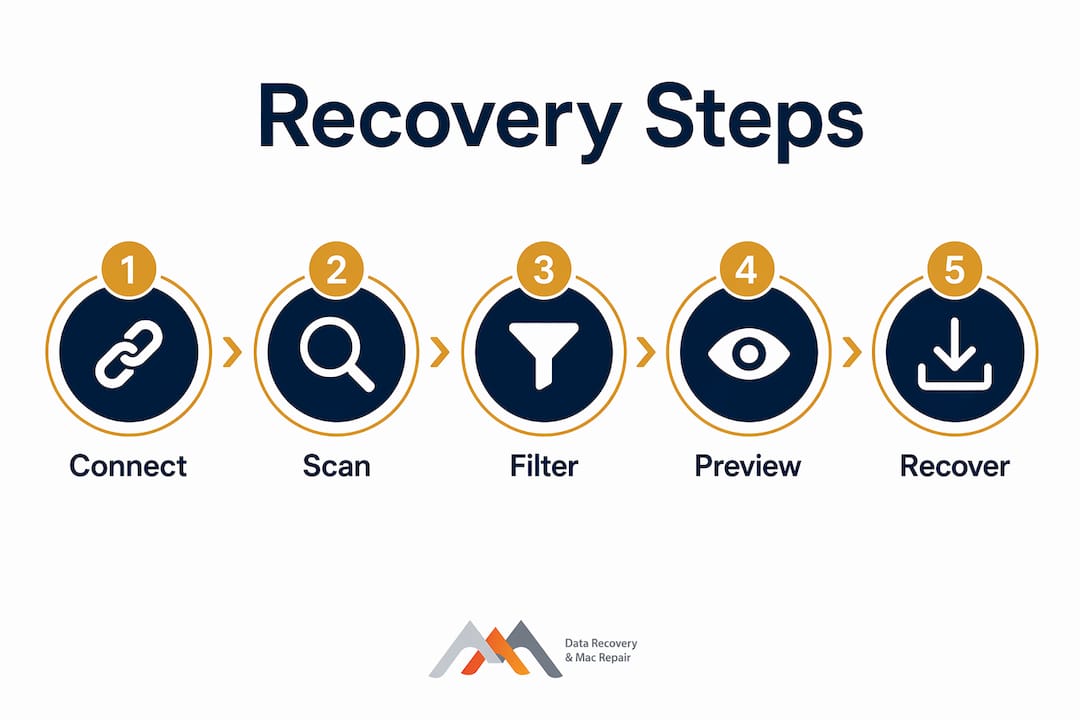
Step 1: Remove the card safely and connect it to your computer.
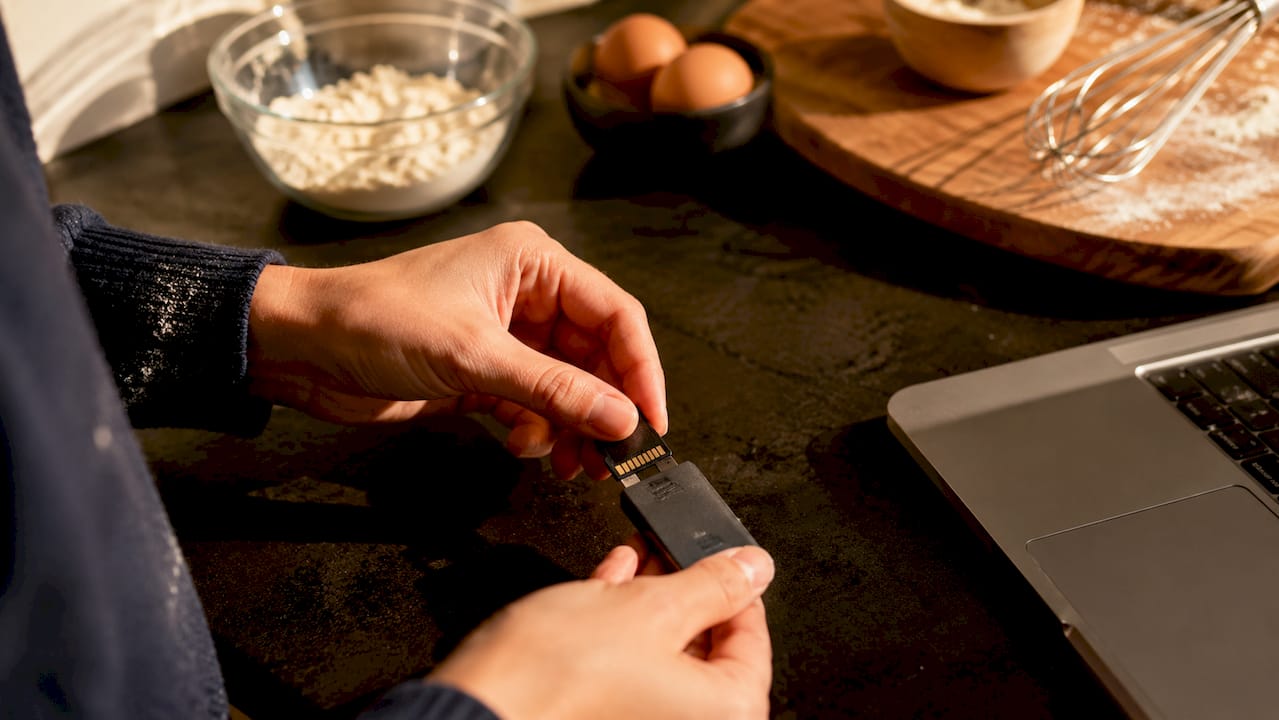
Eject the card from your camera or device using the proper eject function. Insert it into your USB card reader and connect to your computer. Confirm the operating system recognizes the card in Finder (macOS) or File Explorer (Windows) before launching any software.
Step 2: Launch your recovery software and select the memory card as the target drive.
Open Disk Drill, EaseUS Data Recovery Wizard, or Stellar Photo Recovery. Select the memory card from the drive list. Do not select your computer’s internal drive or the destination drive by mistake.
Step 3: Choose the appropriate scan type.
Start with a quick scan. If the quick scan returns few or no results, run a deep scan. Deep scans analyze raw NAND sectors and can reconstruct files with damaged metadata. Advanced scanning algorithms identify file signatures across approximately 400 file types, including camera RAW formats like CR2, NEF, and ARW.
Step 4: Filter and preview recoverable files.
Use the file type filter to narrow results to photos, videos, or documents. Preview images before selecting them. A corrupted preview thumbnail usually means that specific file is unrecoverable, but the surrounding files may still be intact.
Step 5: Select files and save them to a separate drive.
Check the files you want to recover. Click Recover and direct the output to your external drive or computer’s internal storage. Never point the output back to the source memory card.
| Step | Action | Key Tip |
|---|---|---|
| 1. Connect | Use USB card reader | Avoid camera USB connections |
| 2. Select drive | Choose memory card only | Confirm drive letter or mount point |
| 3. Scan | Start with quick scan | Escalate to deep scan if needed |
| 4. Preview | Filter by file type | Broken thumbnails signal unrecoverable files |
| 5. Save | Output to separate drive | Never save back to source card |
Pro Tip: If EaseUS Data Recovery Wizard returns zero results on a deep scan, try Disk Drill next. Different tools use different file signature databases, and a second scan with a different engine frequently recovers files the first missed.
What should you do when memory card recovery fails?
Troubleshooting is where most users lose confidence. The most common failure point is a card the computer does not recognize at all. Testing the card on multiple devices before assuming hardware failure is the correct first move. A card that fails on one laptop may read fine on a desktop with a different USB controller.
When the card is not detected, work through this sequence:
- Try a different USB card reader, preferably from a different manufacturer
- Test the card on a second computer running a different operating system
- Check whether the card appears in Disk Management (Windows) or Disk Utility (macOS) even if it shows no volume
- If the card appears as RAW format in Disk Management, do not format it. Run a deep scan immediately with Disk Drill or EaseUS
File system corruption varies between operating systems and camera firmware versions. Trying multiple recovery tools or camera-native RAW software increases success when standard tools fail. Canon’s Digital Photo Professional and Nikon’s NX Studio can sometimes read cards that consumer recovery software cannot parse.
Warning: Do not run the same deep scan on the same card more than two or three times. Repeated read cycles on a weakened card increase the risk of further sector degradation. If two full software attempts fail, stop and consult a professional.
Physical damage is a separate category entirely. A cracked card body, bent contacts, water exposure, or heat damage means the NAND flash or controller chip is compromised. Software tools cannot address physical failure. Continuing to insert a physically damaged card into readers can cause additional damage to both the card and the reader’s connector pins.
Signs that indicate physical damage rather than logical corruption:
- The card is visibly cracked, warped, or has corroded contacts
- The computer detects the card briefly, then immediately disconnects it
- The card generates heat during connection
- Recovery software crashes or freezes specifically when scanning this card
Pro Tip: If your card was exposed to water, let it dry completely at room temperature for 48 hours before attempting any connection. Do not use heat sources to speed drying.
When should you call a professional for memory card recovery?
Professional data recovery is the correct choice when physical damage is present, when the card’s controller chip has failed, or when two full software recovery attempts return no usable files. Professional labs access NAND flash memory directly, bypassing the card’s controller entirely. That capability is simply not available in any consumer software.
Situations that require professional intervention:
- Visible physical damage to the card body or contacts
- Water or liquid exposure
- The card was exposed to extreme heat or static discharge
- The card was in a device that suffered a power surge or logic board failure
- All software recovery attempts returned zero recoverable files
Professional recovery workflows typically include a free diagnostic evaluation, a recovery quote, and a no-recovery-no-charge policy. Free diagnostics and no recovery, no charge policies allow you to understand the situation before committing to any cost. That structure removes the financial risk from the evaluation phase.
Macwestlosangeles has provided professional memory card recovery services in West LA since 2006, serving clients in Santa Monica, Beverly Hills, Brentwood, Westwood, Venice, Hollywood, and Culver City. The team works with SD cards, microSD cards, CompactFlash, and Sony Memory Stick formats, handling both logical corruption and physical damage cases. Same-day appointments are available for urgent recovery needs at 12041 Wilshire Blvd, Ste 26, Los Angeles.
For SanDisk and Samsung memory cards specifically, SanDisk card recovery and Samsung-specific workflows account for the proprietary controller architectures those brands use, which affects how NAND access is performed at the lab level.
The cost of professional recovery scales with damage severity. Logical recovery cases are typically less expensive than physical NAND extraction. Getting a free diagnostic first gives you a clear picture of cost before any work begins.
Key takeaways
The memory card data retrieval process succeeds when you stop all writes immediately, use the right tools in the correct order, and escalate to professional services before physical damage worsens.
| Point | Details |
|---|---|
| Stop writes immediately | Every new write to the card risks overwriting recoverable files permanently. |
| Use a dedicated card reader | A reliable USB card reader improves scan accuracy compared to camera connections. |
| Run deep scans for complex cases | Deep scan algorithms identify file signatures across approximately 400 file types. |
| Save recovered files elsewhere | Always direct recovered files to a separate drive, never back to the source card. |
| Physical damage needs professional help | Software cannot recover data from cracked, water-damaged, or controller-failed cards. |
What 17 years of recovery work taught me about memory cards
Most users wait too long. By the time someone calls or walks in, they have already formatted the card once, run three different free tools, and inserted the card into four different devices trying to get it to read. Each of those actions reduces the recoverable file count. The single most damaging mistake is not the original data loss event. It is everything done afterward in a panic.
The second thing I have learned is that users consistently underestimate how often software recovery actually works when applied correctly and early. Deleted files persist because the file system only marks the space as available rather than erasing the data immediately. That means a card you accidentally formatted this morning is very likely still recoverable if you stop using it right now.
The third lesson is harder to hear. When a card has physical damage, no amount of software will help. I have seen people spend days running scan after scan on a card with a cracked controller chip. The data is there in the NAND, but no software can reach it without direct chip access. Recognizing that boundary early and calling a professional saves both time and the data itself. Experience in recovery work is not just about knowing the tools. It is about knowing when to stop using them.
— Kaya
Get expert memory card recovery help in west LA
When software reaches its limit, Macwestlosangeles delivers results. Since 2006, the team at 12041 Wilshire Blvd, Ste 26, Los Angeles has recovered data from memory cards, hard drives, SSDs, and RAID arrays for clients across West LA, Santa Monica, Beverly Hills, and beyond. Every case starts with free diagnostics and a no-recovery-no-charge commitment, so you know exactly where you stand before any work begins. Same-day appointments are available for urgent situations. For professional data recovery services covering memory cards and all storage devices, call Macwestlosangeles at 310-866-0828 today. You can also explore the full range of hard drive and device recovery options on the website.
FAQ
How long does memory card data recovery take?
Simple recovery cases using software often complete in under 10 minutes. Professional lab recovery for physical damage cases typically takes 24–72 hours depending on damage severity.
Can deleted files really be recovered from a memory card?
Yes. Deleted files remain on the card until new data overwrites their sectors, because the file system only marks that space as available rather than erasing it. Acting quickly and stopping all card use maximizes recovery success.
What is the best memory card recovery software in 2026?
Disk Drill, EaseUS Data Recovery Wizard, and Stellar Photo Recovery are the three most reliable tools for retrieving lost files from memory cards. Each supports deep scanning and previewing files before recovery.
Does formatting a memory card destroy all data permanently?
No. A standard format operation rewrites the file system structure but leaves most underlying file data intact. A deep scan with recovery software can retrieve files from a recently formatted card in most cases.
When should i stop using software and call a professional?
Stop using software and contact a professional when the card shows signs of physical damage, when the computer cannot detect the card at all, or when two complete deep scan attempts return no recoverable files.