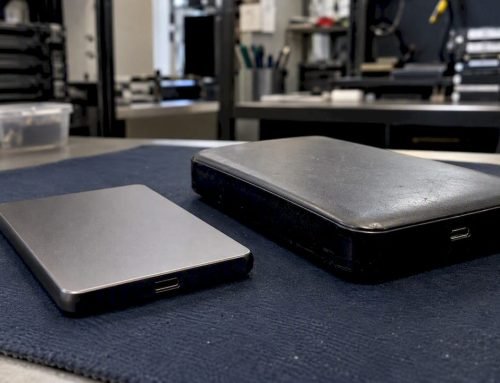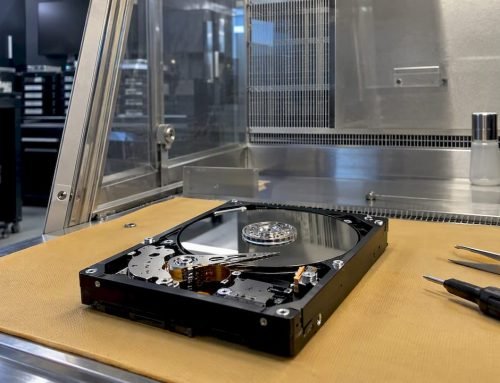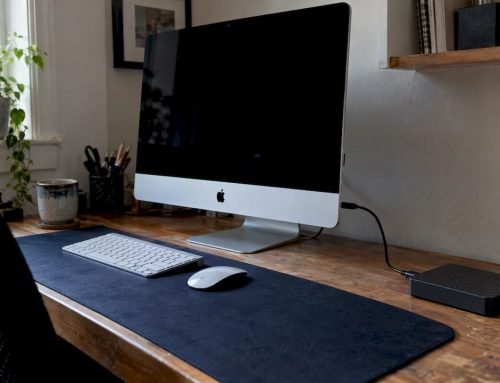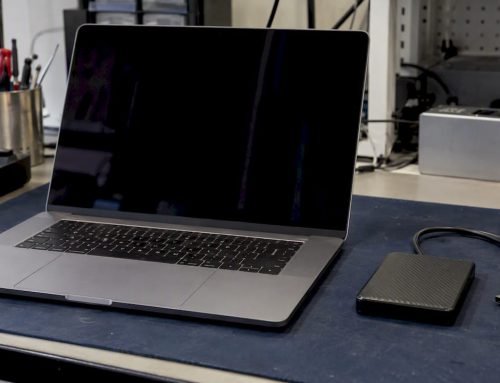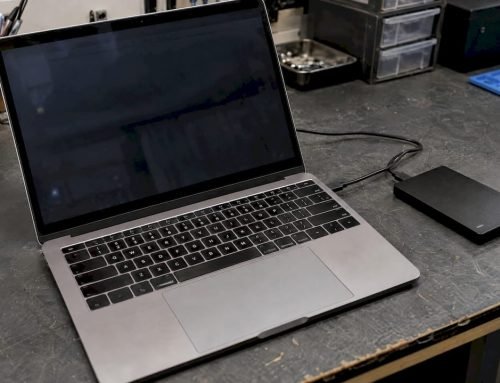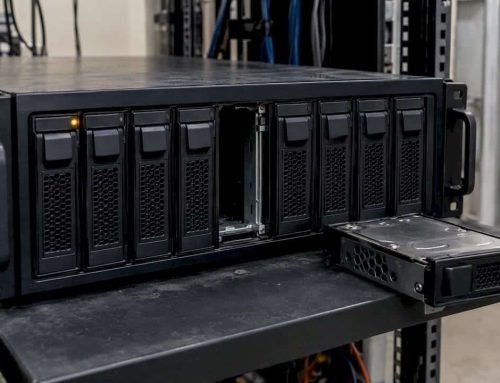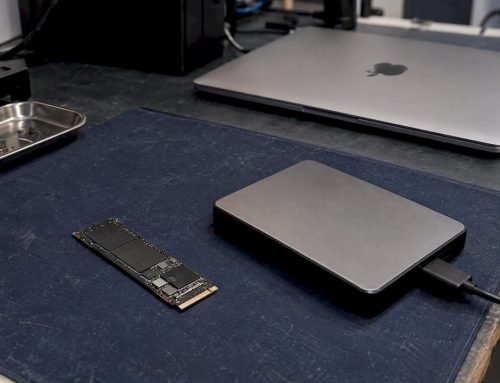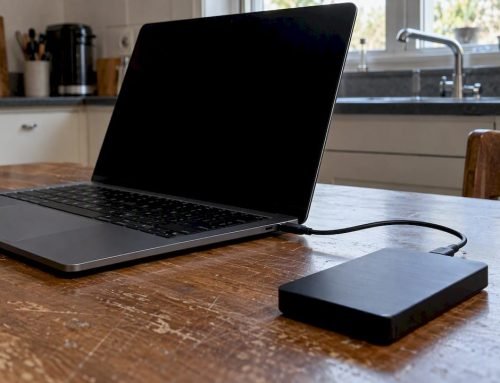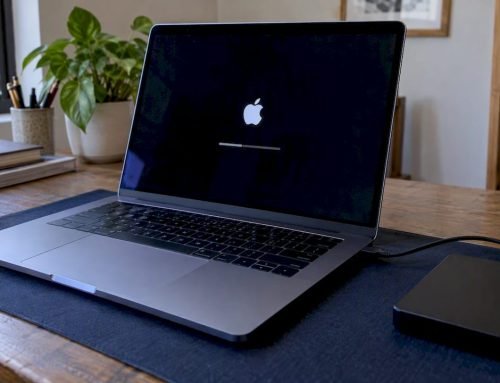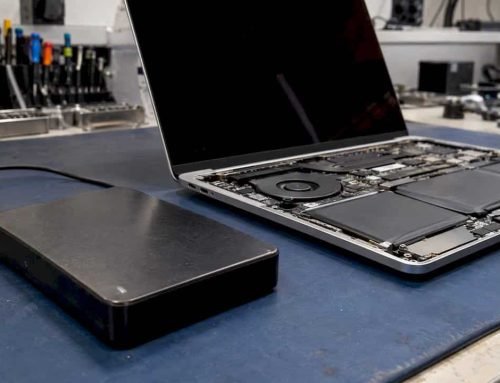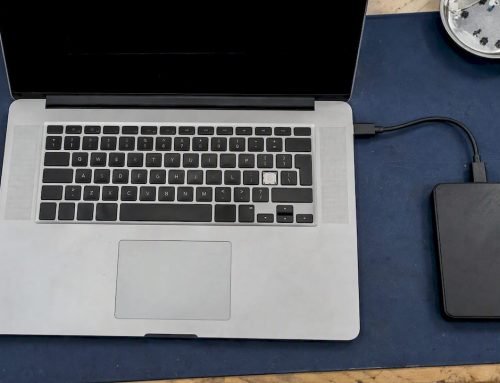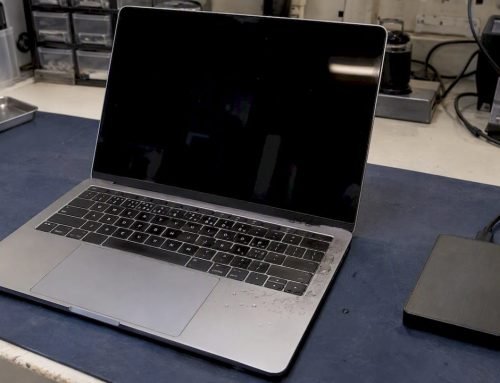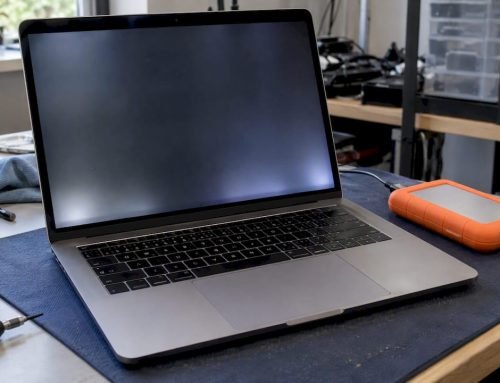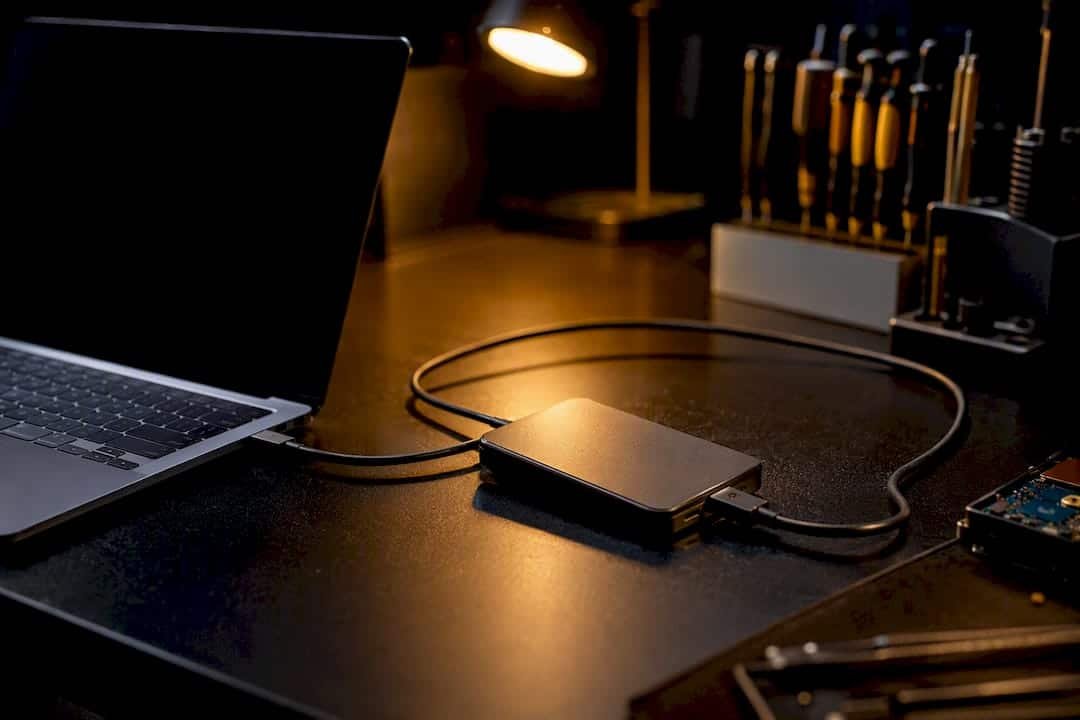
If Migration Assistant is frozen, the fastest fix is switching to a wired connection: a Thunderbolt cable first, a 1Gb Ethernet adapter second, or a Time Machine backup as a fallback. Turn off any VPN or firewall blocking the connection. If you see I/O errors or hear unusual clicking or grinding from either drive, stop all disk writes immediately and treat it as a possible hardware failure, not a software glitch.
Give it time before you panic. A large library over Wi-Fi can look stalled for a while and still be working. But there’s a real threshold where “still working” becomes “actually stuck”:
- No progress change for roughly an hour on a multi-gigabyte transfer means something has hung, not just slowed down.
- Repeated failures at the same file or the same percentage point signal a corrupted source, not a network fluke.
- Grinding, clicking, or repeated disconnects from an external drive mean you should stop and back away from that drive entirely.
Key Takeaways
A stuck Migration Assistant is almost always a wired-connection fix away from resuming, but a drive showing I/O errors needs professional imaging before another attempt, not another retry.
| Point | Details |
|---|---|
| Go wired first | Thunderbolt or 1Gb Ethernet resolves most stalls that peer-to-peer Wi-Fi can’t. |
| Wait one hour, then act | No progress after roughly an hour on a large transfer means force-quit and restart. |
| Split large libraries out | Deselect Photos and Music in Migration Assistant, transfer them manually afterward. |
| Stop writes on drive noise | Clicking, grinding, or SMART alerts mean stop immediately and image the drive. |
| Call for same-day diagnostics | Macwestlosangeles offers free diagnostics and no recovery, no charge at 310-866-0828. |
Table of Contents
- Migration Assistant Stuck? Run This 5-Minute Check First
- Which Connection Method Actually Resumes a Stuck Transfer?
- Why Do Photos and Music Libraries Stall the Whole Transfer?
- When Should You Stop and Call a Data Recovery Professional?
- Symptom-to-Fix Quick Reference
- Get Your Migration Finished the Right Way
- What the Data Actually Says About Stuck Migrations
- Sources
- FAQ
Migration Assistant Stuck? Run This 5-Minute Check First
Before diving into cables and settings, run through this quick diagnostic. It takes less time than making coffee, and it solves a surprising share of stuck migrations on its own.
- Open Migration Assistant’s Connection Details panel and see what method it’s actually using. Wi-Fi is the usual culprit.
- If it says Wi-Fi, stop the transfer and connect a Thunderbolt or USB4 cable between both Macs, or use a 1Gb Ethernet adapter on each.
- Confirm the cable itself carries a lightning-bolt icon molded into the connector. Plenty of USB-C cables look identical but only carry USB data, not Thunderbolt bandwidth.
- Turn off any VPN, third-party firewall, or antivirus tool on both machines. These frequently block the local network handshake Migration Assistant needs.
- Check that both Macs have a local hostname set and that every admin account has a password. Blank passwords break the authentication step silently.
- If an hour passes with zero movement, force-quit Migration Assistant on both Macs using the appropriate keyboard shortcut, restart, and try again with a different connection method.
- If you suspect the source drive itself is failing rather than the network, stop and consider imaging it before you try again.
Pro Tip: Keep both Macs plugged into power and disable sleep in System Settings before you start. A Mac that dozes off mid-transfer is one of the most common, and most avoidable, causes of a hang that never recovers.
Which Connection Method Actually Resumes a Stuck Transfer?
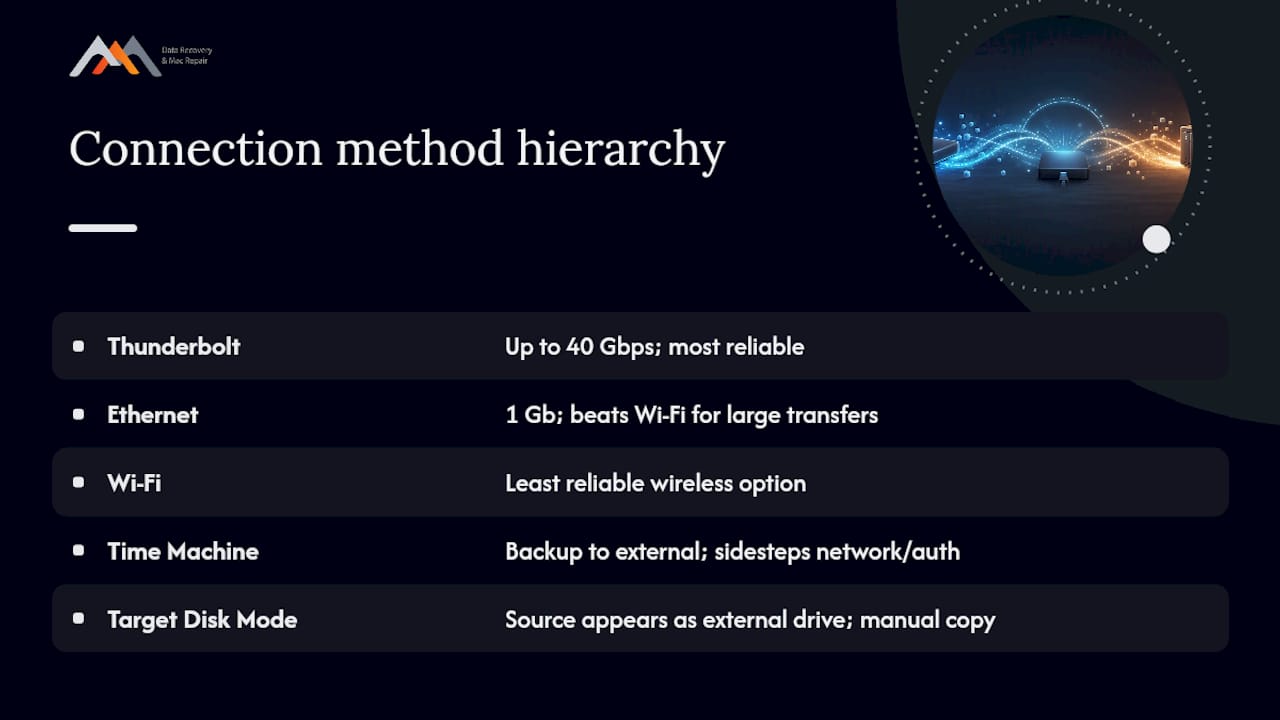
Apple’s own support guidance recommends wired connections over Wi-Fi whenever Migration Assistant misbehaves, and the order matters. Work through this hierarchy from most reliable to least.
Start with prep, not cables. Update macOS on both machines to matching or compatible versions first. A source Mac running a much newer OS than an older target can cause the migration to hang or refuse certain data categories outright. Confirm both machines have enough free disk space on the target, plug in power, disable sleep, and if FileVault is blocking the source drive from being read, unlock it before you begin.
Thunderbolt comes first. Thunderbolt 4 cables move data at up to 40 Gbps, which is why a direct cable connection so reliably outperforms anything wireless. Verify the cable has the lightning-bolt icon, then go to System Settings > Network and confirm a Thunderbolt Bridge interface appears and shows as connected. If it doesn’t, unplug and re-seat both ends, try a different Thunderbolt port on each Mac, and check that Migration Assistant’s Connection Details actually report a high transfer rate once the bridge is active. A Thunderbolt connection running at Wi-Fi speeds usually means the cable isn’t Thunderbolt-capable at all.
Ethernet is next best. A 1Gb Ethernet connection, whether direct or through a router, beats Wi-Fi decisively for large transfers. If you’re routing through a switch or router, cut other network traffic during the migration and check the link speed reported in Network settings.
Time Machine is your fallback, not a last resort. Create a fresh backup of the source Mac to an external SSD or HDD, then run Migration Assistant on the new Mac and restore from that backup instead of a live peer-to-peer connection. This sidesteps network and authentication problems entirely and often finishes faster than a stalled wireless attempt.
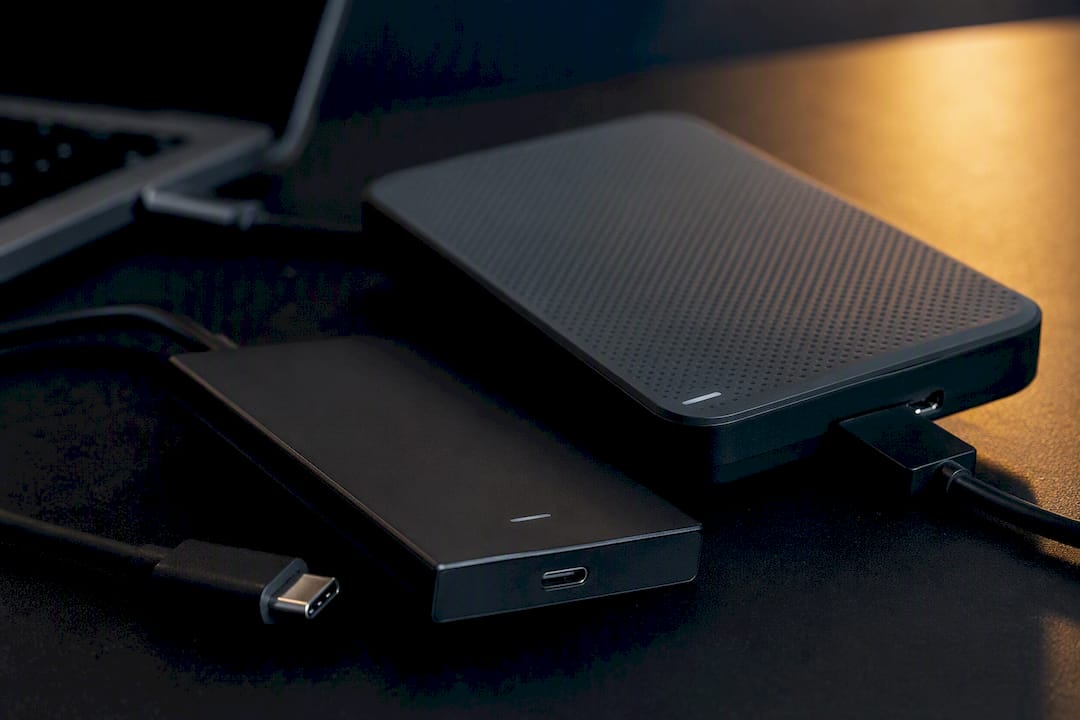
Target Disk Mode helps in specific cases. Older Intel Macs can boot directly into Target Disk Mode, letting the source appear as an external drive on the target Mac. Apple silicon Macs don’t support classic Target Disk Mode, but connecting the source as an external drive via Thunderbolt and copying files manually achieves the same result.
If authentication errors keep appearing, set a Local Hostname under System Settings > General > Sharing on both Macs, confirm every account has a password, and disable VPN and firewall software. Restarting the underlying networking service can also clear a hung state that a simple app restart won’t fix.
Why Do Photos and Music Libraries Stall the Whole Transfer?
Large media libraries are notorious for freezing Migration Assistant, and it’s rarely about raw file size. Photos and Music libraries contain thousands of small indexed files and permission metadata, and a single unreadable sector or corrupted thumbnail cache inside that library can stall the entire migration, not just that one folder.
A phased migration sidesteps this. Deselect large media libraries in Migration Assistant’s selection screen, transfer accounts, apps, and settings first, then handle the media separately.
- Copy the Photos library directly to an external SSD and open it on the new Mac by double-clicking it in the Photos app.
- Use
rsyncfrom Terminal for verified, resumable file copies of large folders instead of a blind drag-and-drop. - Connect the old Mac as an external drive and copy folders individually rather than trusting one giant batch job.
- After moving apps manually, expect to reactivate licenses for software tied to hardware IDs, and repair permissions if folders show unexpected access errors.
Pro Tip: If your Photos library alone is larger than 100GB, move it separately every time. It’s the single most common reason a migration that transferred everything else perfectly still won’t finish.
When Should You Stop and Call a Data Recovery Professional?
Stop immediately if you see repeated I/O errors in Console or Disk Utility, hear clicking or grinding from a drive, or get a SMART failure alert. These are hardware failure signs, not software bugs, and every additional read attempt risks overwriting recoverable data.
Stop all disk writes immediately the moment you suspect the source drive itself is failing rather than the network or software. Continuing to retry a migration against a dying drive is one of the fastest ways to turn a recoverable failure into a permanent one.
A failing drive doesn’t get better with more attempts. Non-destructive imaging first, then migration from the image, preserves far more data than repeated direct reads from a degrading disk.
Macwestlosangeles has handled Mac data recovery and repair in Los Angeles since 2006, with free diagnostics and a no recovery, no charge policy on every case. Our technicians work with APFS container repair, NVMe and RAID 0, 1, 3, and 5 array recovery, and logic-board component repair for machines that won’t even power on. Bring both Macs and any external drives involved in the migration, and same-day appointments are available for anyone in West LA, Santa Monica, Beverly Hills, Brentwood, Westwood, Venice, Hollywood, or Culver City. Call 310-866-0828 for same-day diagnostics before another migration attempt does more damage.
Symptom-to-Fix Quick Reference
| Symptom | Likely Cause | Quick Fix / When to Escalate |
|---|---|---|
| Stuck on “Checking” | Wi-Fi interference or hostname/auth failure | Switch to Thunderbolt or Ethernet; set local hostname |
| Stuck at 0 files transferred | Firewall, VPN, or antivirus blocking connection | Disable VPN/firewall, force-quit, restart both Macs |
| Very slow peer-to-peer transfer | Wi-Fi congestion or weak signal | Use Time Machine backup or wired connection instead |
| Authentication errors | Missing admin password or outdated hostname | Add passwords to both accounts, restart networking |
| Mid-file failure, repeats at same point | Corrupted file or failing source drive | Stop writes, image the drive, or call a professional |
Get Your Migration Finished the Right Way
Most stuck migrations are network problems wearing a hardware costume, but not all of them. If you’ve worked through the wired-connection steps, tried Time Machine, and you’re still watching the same file fail over and over, that pattern points to a drive issue Migration Assistant can’t fix on its own.
Macwestlosangeles offers free diagnostics on Mac hard drives, SSDs, and RAID arrays for exactly this situation, backed by a no recovery, no charge guarantee. We’re centrally located at 12041 Wilshire Blvd, Ste 26, between the 405 and Santa Monica, close to UCLA and the Getty Center, and same-day appointments are available for anyone dealing with a migration that’s turned into a data-loss scare. Call 310-866-0828 before running another transfer attempt against a drive that might be failing.
What the Data Actually Says About Stuck Migrations
Most guides treat Migration Assistant as a black box: something either works or it doesn’t, and if it fails, restart and hope. That advice undersells how predictable these failures actually are. Peer-to-peer Wi-Fi drops packets, retransmits, and stalls under load in ways a wired connection simply doesn’t, which is why the wired-first hierarchy isn’t a preference, it’s closer to a rule.
Where conventional advice really falls short is the framing around large libraries. Most people treat a hung Photos transfer as a patience problem, waiting hours for something that a corrupted thumbnail cache will never let finish. A phased migration isn’t a workaround, it’s the correct default for anyone with a media-heavy Mac.
The bigger blind spot, though, is drive health. Software troubleshooting assumes the hardware is fine. When it isn’t, every retry is a small bet against a degrading disk. Readers should prioritize ruling out hardware failure early, not last, especially if the same file keeps failing at the same point.
— Kaya
Sources
- The best way to transfer to a new MacBook is faster (and cheaper) than you’d think | ZDNET
- How to use Apple’s Migration Assistant | MacObserver
- How to use Migration Assistant with a Thunderbolt connection | Macworld
FAQ
Why is my Migration Assistant taking so long?
Large libraries, Wi-Fi interference, and outdated macOS versions on either Mac all slow Migration Assistant down. A large library transfer over Wi-Fi can take several hours, whereas the same transfer over wired Ethernet or Thunderbolt finishes much faster.
Why isn’t Migration Assistant working?
The most common causes are a Wi-Fi-only connection, an active VPN or firewall blocking the local network handshake, or a missing hostname and password on one of the accounts. Disabling those and switching to a wired connection resolves the majority of failures.
How do I speed up Migration Assistant?
Switch from Wi-Fi to a Thunderbolt cable or 1Gb Ethernet adapter, since Thunderbolt 4 supports speeds up to 40 Gbps compared to congested peer-to-peer wireless. Deselecting large media libraries and transferring them separately also speeds up the core account and app transfer.
How do I exit out of Migration Assistant?
Force-quit with Command+Option+Escape on both Macs if it’s been stuck for roughly an hour with no progress. Restart both machines before attempting the transfer again with a different connection method.
Is it safe to force-quit a stuck migration?
Yes, as long as you haven’t seen disk errors or unusual drive noise; a network-based stall doesn’t corrupt data when interrupted. If you suspect the source drive is failing rather than the connection, stop all disk writes and consider professional imaging before trying again.