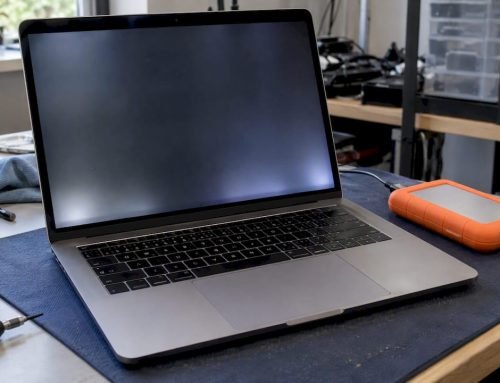
If your MacBook trackpad not clicking is a settings problem, the fixes below take five minutes. If the surface feels raised, stiff, or the click only returns intermittently after a reset, that pattern points to a hardware fault, often a swelling battery, and you should stop pressing on it. If you suspect battery swelling, stop clicking the trackpad now and back up your files. Call Macwest Data Recovery & Mac Repair at 310-866-0828 for same-day diagnostics in the Los Angeles area.
TL;DR:
- A swollen battery is a common hardware cause, often physically pushing up against the trackpad and preventing normal clicks.
- Resetting system settings or booting into Safe Mode can temporarily restore clicking but may not fix underlying hardware issues like battery swelling.
- If the trackpad surface feels raised or firm, stopping use immediately and getting a professional inspection reduces the risk of further damage.
- Diagnosing typically starts with visual inspection and Apple Diagnostics, with battery replacement usually resolving click failure caused by swelling.
- Repairs, mostly battery replacements, can often be completed within the same day, especially when caused by swelling or cable issues.
Table of Contents
- Quick Checklist: 6 Fixes To Try Before You Panic
- How Do I Fix Trackpad Settings And Reset The System?
- Could A Swollen Battery Be Causing This?
- What Does A Trackpad Repair Actually Cost And Take?
- What Does A Technician Check First (and Why)
- Why Most Trackpad Advice Skips the Real Decision Point
- Get Your Trackpad Diagnosed the Same Day in West LA
- Sources
- FAQ
Quick Checklist: 6 Fixes To Try Before You Panic
Before assuming your MacBook trackpad is broken, run through this list in order. Most of these take under a minute and rule out the software causes that mimic hardware failure.
- Do a full shutdown, not a restart. On Intel Macs, hold the power button until the screen goes black; on Apple Silicon, choose Shut Down from the Apple menu and wait 30 seconds before powering back on. A full power cycle clears certain hardware states that a simple restart leaves untouched.
- Check Trackpad settings. Go to System Settings > Trackpad > Point & Click and confirm Tap to Click is on, then test the Click slider and the Force Click and haptic feedback toggle at different positions.
- Disconnect every external device. Unplug USB hubs, external mice, and anything connected via Bluetooth, then retest the trackpad on its own.
- Run Apple Diagnostics. Restart your Mac and hold the D key during startup; write down any error code that appears.
- Use tap-to-click or plug in a mouse. This keeps you productive while you sort out the real cause.
- Stop immediately if the trackpad looks bowed or feels unusually hard. That is not a software symptom, and it means booking a diagnostic appointment instead of troubleshooting further.
How Do I Fix Trackpad Settings And Reset The System?
Software glitches account for a large share of trackpad complaints, and they are worth ruling out fully before you consider a repair. Start in System Settings > Trackpad > Point & Click, where the Click pressure slider and the “Force Click and haptic feedback” toggle both control whether you feel a click at all. macOS updates occasionally reset these values without warning, which is why a trackpad that worked fine yesterday can feel dead today.
Resets come next. On an Intel MacBook, an NVRAM/PRAM reset clears stored settings that sometimes interfere with input hardware; an SMC reset goes further and can resolve power delivery issues tied to the Taptic Engine. Apple Silicon Macs don’t have a separate SMC reset. Instead, a full shutdown held for 30 to 60 seconds before restarting does the equivalent job.
If the trackpad clicks normally in Safe Mode but not in a normal boot, a third-party app or driver is very likely interfering. Uninstall anything that modifies input behavior, such as custom gesture tools or old accessibility utilities, and check Accessibility > Pointer Control for double-click speed settings that may have changed.
- Check Trackpad settings first: Point & Click, Click pressure, Force Click toggle
- Try NVRAM/PRAM reset (Intel) or a full 30 to 60 second shutdown (Apple Silicon)
- Boot into Safe Mode to isolate software conflicts
- Remove input-altering third-party apps and recheck Accessibility settings
- Update macOS and firmware, since click sensitivity settings often drift after a system update
Pro Tip: If Safe Mode fixes the click but it comes back broken after a normal restart, don’t keep repeating resets. That pattern usually means a hardware or driver-level fault sitting underneath a temporary software workaround.
Could A Swollen Battery Be Causing This?
Yes, and it’s one of the most common hardware causes behind a trackpad that won’t click. A swollen battery physically pushes up against the underside of the trackpad, which blocks the Force Touch sensors from registering a normal press even though the cursor still glides fine.
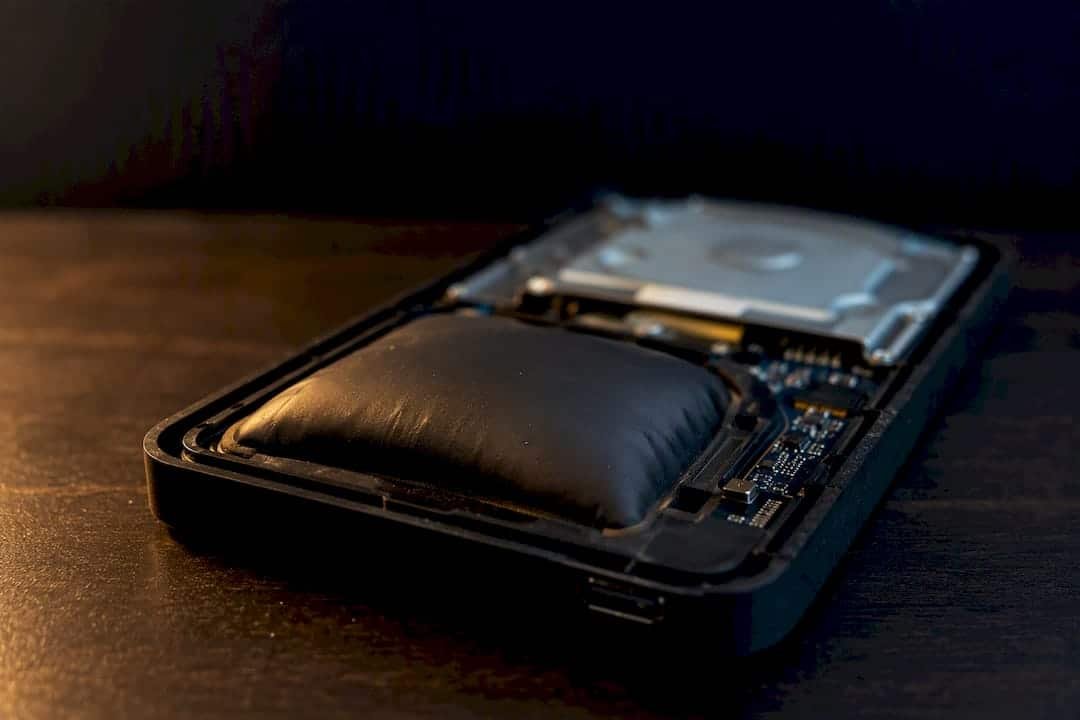
Look for a trackpad surface that feels raised or noticeably firmer than usual, uneven gaps where the bottom case meets the body, or a visible bulge near the battery. Battery cell growth often starts small, showing up first as subtle stiffness before any visible deformation appears. Catching it early avoids further pressure damage.
If you notice any of these signs, stop pressing on the trackpad immediately. Opening a MacBook with a swollen battery carries real risk, and pressing down on the case only adds mechanical stress to a cell that’s already under pressure. Our MacBook battery swelling guide walks through what safe versus risky handling looks like at home.
- Bowed or hard trackpad surface: check for battery swelling before doing anything else
- Cursor moves fine but no click feedback: usually an actuator or connection issue, not a sensor failure
- Apple Diagnostics returns NDR005 or NDR006: these codes flag a possible trackpad fault, though disconnecting peripherals first avoids false positives
- Click works intermittently after a reset: often a sign the underlying hardware issue hasn’t actually been resolved
A technician checks battery condition first, then inspects the trackpad’s flex cable and Taptic Engine connection, and finally traces the logic board for damage if those check out clean.
What Does A Trackpad Repair Actually Cost And Take?
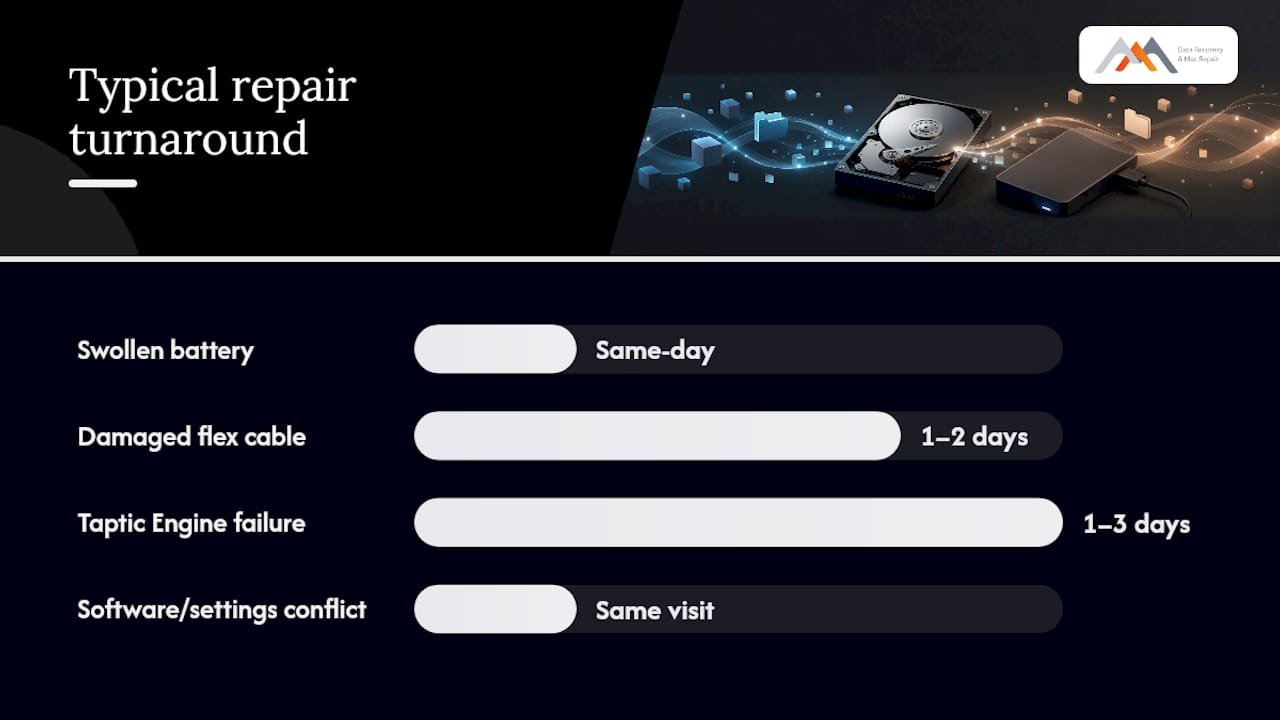
The repair path depends entirely on what’s failing. Battery swelling is the most common cause we see, and replacing the battery restores Force Touch function in most of those cases since the trackpad itself was never damaged. If the flex cable or Taptic Engine connection has failed instead, the fix moves to a trackpad or top-case replacement.
Many current MacBook models integrate the trackpad, battery, and keyboard into a single top-case assembly, which is why a straightforward click issue sometimes turns into a full top-case replacement rather than a small part swap. That affects both price and turnaround, a tradeoff general repair guides also flag when they cover part-level costs.
| Likely cause | Common fix | Typical turnaround |
|---|---|---|
| Swollen battery | Battery replacement | Same-day in most cases |
| Damaged flex cable | Cable replacement or top-case swap | 1 to 2 days |
| Taptic Engine failure | Taptic Engine or top-case replacement | 1 to 3 days |
| Software/settings conflict | No parts needed | Same visit |
Macwest offers free diagnostics on every intake, and if a battery has swollen enough to threaten your SSD or logic board, back up what you can first, ideally via Time Machine on APFS, and stop all disk writes immediately if you notice any sign of data corruption. Our step-by-step repair guide for LA users covers what to expect during intake.
What Does A Technician Check First (and Why)
Since 2006, our technicians have followed the same sequence on every trackpad complaint that comes through the door: visual inspection for swelling, Apple Diagnostics with peripherals disconnected, a flex-cable check, and substitution testing on the Taptic Engine connector. Battery condition gets checked first because it’s the fastest thing to rule in or out, and it’s the most common cause we see.
- Visual inspection for case gaps, bulging, or an uneven bottom panel
- Apple Diagnostics run with all peripherals unplugged to avoid false NDR005/NDR006 flags
- Flex-cable and Taptic Engine connector inspection
- Substitution testing to confirm which component is actually at fault
Never puncture or press on a swollen battery, and never attempt to charge a MacBook you suspect has a swollen cell. If there’s any sign your storage or logic board has been affected, stop all disk writes immediately and get the machine to a technician before doing anything else.
We offer free diagnostics and same-day appointments, and our data recovery work runs on a no recovery, no charge policy.
Why Most Trackpad Advice Skips the Real Decision Point
Most troubleshooting guides hand you a long list of fixes and let you figure out when to stop trying them yourself. That’s backwards. The real skill here isn’t knowing every possible setting to toggle, it’s recognizing the moment a software fix has failed twice and stopping before you make a hardware problem worse by continuing to press on a stiff trackpad.
The conventional advice treats a swollen battery as an edge case. In practice, it’s one of the most frequent causes behind a MacBook trackpad not clicking, and it’s also the one where continued use carries real risk. If a reset or Safe Mode test brings the click back temporarily and it disappears again, that’s not a coincidence. It’s the clearest signal you’ll get that something physical, not a setting, is at fault.
Prioritize the shape of the trackpad over the behavior of the cursor. A flat, responsive surface with no click is a different problem than a raised, firm one. Treat them differently, and you’ll save yourself a repair bill on a part that was never broken in the first place.
— Kaya
Get Your Trackpad Diagnosed the Same Day in West LA
If the checklist above didn’t bring your click back, or your trackpad feels raised, the fastest path forward isn’t another forum thread. It’s a technician who can rule out a swollen battery in minutes instead of guessing. Macwest Data Recovery & Mac Repair has been diagnosing exactly this issue since 2006, and every diagnostic is free, with no recovery, no charge on any data recovery work we perform alongside a repair.
Before you call, jot down your MacBook model, when the clicking stopped, any Apple Diagnostics code you saw (NDR005 and NDR006 are common), and whether the battery was recently replaced. We’ll give you a same-day appointment when your schedule allows and walk you through what parts, usually the battery, flex cable, or top case, are likely involved before you come in. Visit our Mac repair service page for details, or if you’d rather skip straight to booking, call 310-866-0828 now. We’re centrally located at 12041 Wilshire Blvd, Ste 26, between the 405 and Santa Monica, near UCLA and the Getty Center, serving West LA, Santa Monica, Beverly Hills, Brentwood, Westwood, Venice, Hollywood, and Culver City. If your Mac also shows signs of data risk, our hard drive data recovery page explains how we handle APFS and NVMe drives safely during repair.
Sources
- How to Fix Mac Trackpad Not Clicking — HowToGeek
- Adjust Force Click pressure — OSXDaily
- MacBook trackpad not clicking fix — iTech Repairs
- Ran Apple diagnostics on my 2020 MacBook Pro got errors NDR005, NDR006 — Apple Discussions
FAQ
Why Is My Trackpad Not Clicking Anymore?
The most common causes are a settings reset after a macOS update, a temporary software conflict, or a swollen battery pressing against the trackpad from underneath. Run the quick checklist first, and if the surface feels raised or hard, treat it as a hardware issue.
What Should I Do If My Trackpad Won’t Click At All?
Disconnect all peripherals, check System Settings > Trackpad > Point & Click for the Force Click toggle, then try a full shutdown and restart. If nothing changes and the trackpad looks or feels abnormal, book a free diagnostic rather than continuing to press on it.
How Do I Fix A Jammed Trackpad On A MacBook?
A trackpad that feels physically jammed or stuck, rather than just unresponsive, is rarely a software issue and often points to a swollen battery or a damaged flex cable underneath. Stop using it and get it inspected, since continued pressure can worsen battery swelling.
Why Does My Trackpad Move But Not Click?
The cursor and click function rely on separate systems: touch sensors handle movement, while the Taptic Engine handles the click feedback. If the cursor works but clicks don’t register, the fault usually sits in the actuator, its connection, or a battery pressing against it.
Can Macwest Fix A MacBook Trackpad That Won’t Click?
Yes. Macwest Data Recovery & Mac Repair diagnoses trackpad, battery, and top-case issues with free diagnostics and same-day appointments available in West LA and the surrounding area. Call 310-866-0828 to get started.