TL;DR:
- RAID recovery involves cloning all drives and reconstructing data virtually to prevent further damage. Immediate shutdown, proper labeling, and sector-by-sector cloning are essential before attempting virtual reconstruction. Professional help is recommended for complex failures involving multiple drive losses to ensure data integrity.
Step by step RAID recovery is the systematic process of restoring lost or inaccessible data from a failed RAID array by halting all disk writes, cloning each member drive, virtually reconstructing the RAID parameters, and securely extracting data without touching the original disks. Stop all disk writes immediately if your RAID array has just failed. Every write operation after failure increases the risk of permanent data loss. This guide covers RAID 0, 1, 3, 5, and 6 configurations and applies whether you are an individual user or an IT professional managing a production server. Tools like ReclaiMe Free RAID Recovery and ddrescue are referenced throughout because they represent the two most widely used approaches to sector-level cloning and virtual reconstruction.
What prerequisites and tools do you need before starting?
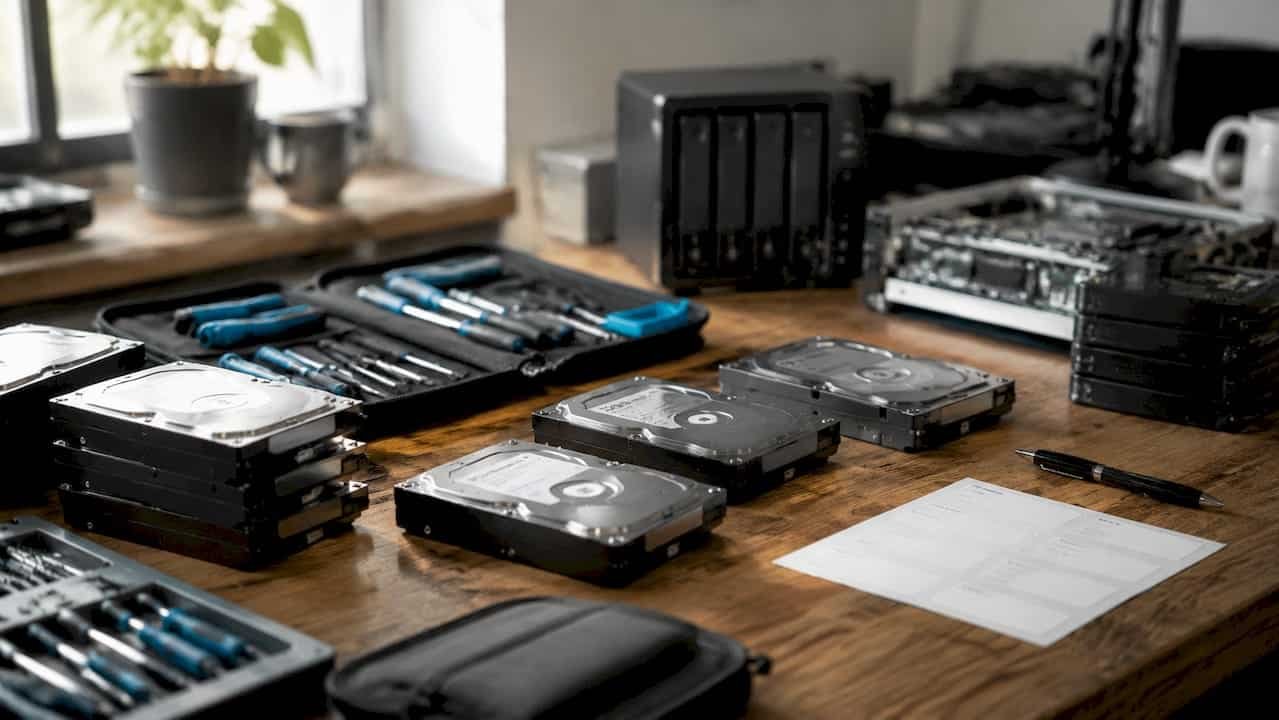
Preparation is the single most important factor in a successful RAID data recovery guide. Rushing into recovery without gathering configuration details first is the fastest way to make a recoverable situation unrecoverable.
Before touching any drive, collect the following information:
- RAID level (0, 1, 3, 5, or 6)
- Disk order within the array (which slot each physical drive occupied)
- Stripe size (commonly 64 KB or 128 KB, but varies by controller)
- Parity rotation scheme for RAID 5 and RAID 6
- Controller model and firmware version
- Failure event log from the RAID controller or NAS device
Pre-gathered RAID metadata reduces the diagnostic phase by 30–50%. That time savings directly translates to a higher probability of full recovery before any degraded drive deteriorates further.
Next, check the health of every member drive using S.M.A.R.T. diagnostics. Tools like Stellar Data Recovery Technician, CrystalDiskInfo on Windows, or the built-in smartctl command on Linux and macOS provide reallocated sector counts, pending sector counts, and uncorrectable error counts. Any drive showing critical S.M.A.R.T. values needs cloning before any other step.
Required tools for the complete RAID recovery process:
- Cloning hardware or software: ddrescue (Linux/macOS), HDDSuperClone, or a hardware duplicator like the Atola TaskForce
- Virtual RAID reconstruction software: ReclaiMe Free RAID Recovery, UFS Explorer RAID Recovery, or R-Studio
- Destination storage: One separate drive per source drive, each with capacity equal to or greater than the original
- Anti-static workspace and drive labels
Pro Tip: Label each drive with a permanent marker before disconnecting anything. Write the slot number, drive model, and serial number directly on the drive. A single mislabeled drive can corrupt the entire virtual reconstruction.
How to execute the RAID recovery process step by step
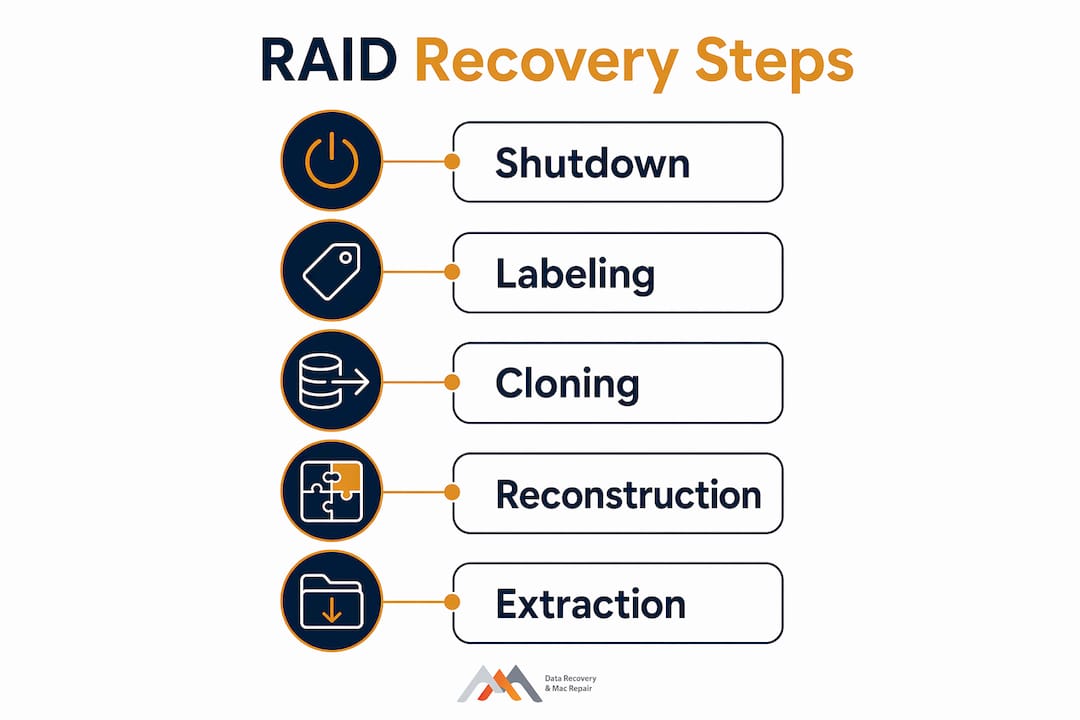
Professional RAID recovery follows a five-step workflow: immediate power down, physical labeling, drive cloning, virtual reconstruction, and file extraction. Each step protects the one that follows it.
Step 1: immediate shutdown and disconnection
Power down the RAID system cleanly if possible. If the system is unresponsive, perform a hard shutdown. Disconnect the server or NAS from the network immediately to prevent any automated rebuild, sync, or backup process from writing to the degraded array. Disconnecting the array and labeling all drives precisely is the first non-negotiable action in any stepwise RAID restoration.
Step 2: physical labeling and photography
Photograph the drive bay configuration before removing any drive. Label each drive with its slot position using a permanent marker or adhesive label. This documentation is your reference point for every subsequent step. Losing track of disk order in a RAID 5 or RAID 6 array makes virtual reconstruction exponentially more difficult.
Step 3: sector-by-sector cloning
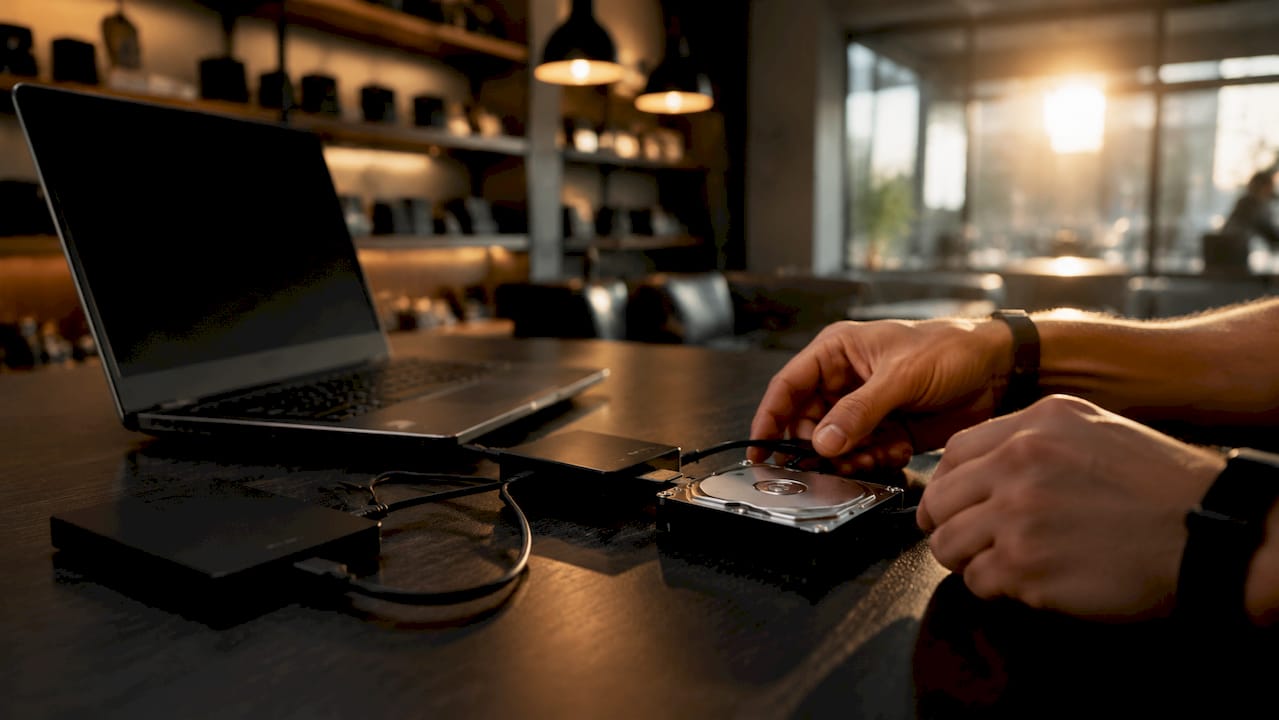
Clone every member drive to a separate destination drive before any analysis or reconstruction begins. Use ddrescue with a log file so interrupted cloning sessions can resume without restarting from scratch. The command structure for ddrescue is:
ddrescue -d -r3 /dev/sdX /dev/sdY recovery.log
Replace /dev/sdX with the source drive and /dev/sdY with the destination. The -r3 flag instructs ddrescue to retry unreadable sectors three times. Virtual reconstruction on cloned images protects original drives from further stress and allows multiple recovery attempts with varied parameters.
All subsequent steps work exclusively on the cloned images. The original drives go into anti-static bags and stay untouched.
Step 4: virtual RAID reconstruction
Load the cloned drive images into ReclaiMe Free RAID Recovery or R-Studio. The software will attempt to auto-detect RAID parameters. Always verify the auto-detected parameters against your pre-gathered configuration notes before proceeding.
The table below shows the key parameters to confirm for each common RAID level:
| RAID Level | Parameters to Confirm | Common Stripe Sizes | Parity Required? |
|---|---|---|---|
| RAID 0 | Disk order, stripe size | 64 KB, 128 KB | No |
| RAID 1 | Disk order, mirror pair | N/A | No |
| RAID 5 | Disk order, stripe size, parity rotation | 64 KB, 128 KB | Yes |
| RAID 6 | Disk order, stripe size, dual parity rotation | 64 KB, 128 KB | Yes (dual) |
Stripe sizes and parity calculations are often proprietary. Incorrect parameters produce garbled data that appears intact but is corrupted at the file level. Always preview files before committing to full extraction.
Step 5: scan, preview, and extract
Run a full scan of the virtually reconstructed RAID volume. Before extracting anything, preview a cross-section of critical files: documents, databases, and media files. Previewing confirms the reconstruction parameters are correct. If files appear corrupted or unreadable during preview, adjust the stripe size or disk order and rescan.
Once the preview confirms clean data, extract recovered files to a separate storage device. Never extract to one of the source clone drives. Recovery time ranges from hours to days depending on RAID complexity. Simple degraded arrays stabilize in 2–4 hours; complex multi-disk failures require 24–48 hours of forensic processing.
Pro Tip: For macOS-based RAID systems using APFS or HFS+, use a Mac-native tool like UFS Explorer or Disk Drill after virtual reconstruction to handle file system parsing correctly. Windows-based tools often misread APFS metadata.
How to troubleshoot common RAID recovery mistakes
The most destructive mistakes in RAID failure recovery steps are not hardware failures. They are human decisions made in the first 30 minutes after a failure is detected.
Critical mistakes to avoid:
- Clicking “Rebuild” or “Initialize” without testing drives first. Hasty rebuild attempts cause 70–80% of avoidable permanent data loss cases. That figure is not a warning. It is the documented outcome of the most common user response to a RAID failure.
- Swapping disk order to “test” configurations. Any change to physical disk positions without documentation destroys your reference point for virtual reconstruction.
- Running chkdsk or fsck on the degraded array. These tools write to the volume during repair, overwriting recoverable data.
- Assuming a RAID 1 mirror means the data is safe. RAID is designed for availability, not backup. Both mirror drives can fail simultaneously, and logical corruption replicates across all mirrors instantly.
“The RAID rebuild feature assumes every drive in the array is 100% healthy. A single read error on any secondary drive during rebuild can trigger an unrecoverable crash of the entire array.” — Tapscape RAID Recovery Guide
For RAID 5 arrays with two failed drives, or any RAID 6 array with three or more failed drives, stop all DIY attempts immediately. These scenarios require forensic methods that go beyond standard software tools. Attempting reconstruction with missing parity data and multiple bad drives without professional-grade hardware duplicators and forensic imaging tools will almost certainly result in total loss. Consult a professional RAID recovery service before proceeding.
How do you verify successful RAID data recovery?
Recovering a mountable volume is not the same as recovering usable data. File system analysis and repair after RAID reconstruction is often required before data extraction is complete and trustworthy.
Post-recovery verification steps include:
- File system consistency check: Run fsck (Linux/macOS) or chkdsk (Windows) on the extracted volume, not the source array, to identify and repair logical inconsistencies.
- File preview sampling: Open a representative sample of each file type: PDFs, spreadsheets, databases, and media files. Corrupted reconstruction shows up as unreadable files or garbled content even when the file size appears correct.
- Checksum and hash verification: Generate MD5 or SHA-256 checksums for critical files and compare them against known-good backups if available. This confirms byte-level integrity.
- Database consistency validation: For SQL databases, PostgreSQL, or Oracle files, run the database engine’s built-in integrity check after mounting the recovered volume. File-level recovery does not guarantee transactional consistency.
- Directory structure audit: Confirm that folder hierarchies, file counts, and file sizes match your last known-good state as closely as possible.
Pro Tip: If recovered files pass visual inspection but databases fail integrity checks, consider a second extraction pass using different RAID reconstruction parameters. A stripe size error of even 4 KB can corrupt database page boundaries while leaving document files readable.
Key takeaways
Successful RAID data recovery depends on stopping all disk writes immediately, cloning every member drive before any reconstruction, and verifying data integrity before considering the process complete.
| Point | Details |
|---|---|
| Stop writes immediately | Power down and disconnect the RAID array before any other action to prevent overwriting recoverable data. |
| Clone before reconstructing | Create sector-by-sector clones of all member drives so original disks remain untouched throughout the process. |
| Avoid the rebuild button | Hasty rebuild attempts cause 70–80% of avoidable permanent data loss; always clone first and reconstruct virtually. |
| Verify before extracting | Preview files after virtual reconstruction to confirm correct stripe size and disk order before full extraction. |
| Know when to call a professional | Multi-disk failures in RAID 5 or RAID 6 require forensic tools and expertise beyond standard DIY software. |
Why i think most RAID recoveries fail before they start
After working through hundreds of RAID failure cases, the pattern is consistent. The data was recoverable. The user made it unrecoverable within the first hour.
The single most damaging misconception I see is treating RAID recovery like a standard hard drive repair. People open the RAID controller interface, see the “Rebuild” button, and click it because it looks like the obvious fix. RAID recovery must be treated as a forensic process, with each disk handled as if it is independently failing. That mindset shift changes every decision that follows.
The second pattern I see constantly is skipping documentation. IT professionals who manage dozens of servers often cannot tell me the stripe size of a specific array after a failure because it was set during initial configuration years ago and never recorded. Preparing complete RAID metadata before contacting recovery experts accelerates diagnosis and improves success rates significantly. A 10-minute documentation habit during setup can save 48 hours of forensic reconstruction later.
My honest advice: if you are dealing with a RAID 5 or RAID 6 array with more than one failed drive, do not attempt DIY recovery. The math of parity reconstruction with missing drives is unforgiving. The role of experience in data recovery is not about having better software. It is about knowing which parameters to test first, how to interpret S.M.A.R.T. data from a drive that is partially readable, and when to stop before making things worse.
— Kaya
RAID recovery in west LA? Macwestlosangeles can help today
Macwestlosangeles has provided professional RAID data recovery services in Los Angeles since 2006, covering RAID 0, 1, 3, and 5 arrays across NVMe, SSD, and traditional HDD configurations. Every case starts with free diagnostics and a no-recovery, no-charge guarantee. Same-day appointments are available for urgent failures. The team handles APFS volumes, NVMe arrays, and Logic Board component repair for Mac-based RAID systems. Macwestlosangeles is centrally located at 12041 Wilshire Blvd, Ste 26, serving West LA, Santa Monica, Beverly Hills, Brentwood, Westwood, Venice, Hollywood, and Culver City. Call 310-866-0828 now to speak with a recovery specialist.
FAQ
What is the first step in RAID recovery?
The first step is to stop all disk writes and power down the RAID system immediately. Disconnect the array from the network to prevent any automated rebuild or sync process from writing to the degraded volume.
Can you recover data from a RAID 0 array with one failed drive?
RAID 0 has no parity or redundancy, so a single drive failure means the stripe set is broken. Recovery is possible through forensic carving of the cloned drives, but success depends on the extent of physical damage and whether the stripe size is known.
Is it safe to use the RAID controller’s rebuild function?
The rebuild function is risky because it assumes all remaining drives are fully healthy. A single read error during rebuild can cause the entire array to drop or corrupt parity data, resulting in total loss.
How long does RAID data recovery take?
Simple degraded arrays with one failed drive typically stabilize within 2–4 hours. Complex failures involving multiple bad drives in RAID 5 or RAID 6 require 24–48 hours of forensic processing.
When should you call a professional for RAID recovery?
Call a professional when two or more drives have failed in a RAID 5 or RAID 6 array, when S.M.A.R.T. data shows critical errors on multiple drives, or when DIY reconstruction produces garbled or unreadable files after multiple parameter attempts.