
TL;DR:
- Effective data loss prevention for Mac involves using native tools like FileVault, Time Machine, and iCloud Keychain alongside external backups. Combining encryption, local and offsite backups, and active monitoring creates a comprehensive protection strategy against theft, hardware failure, and ransomware. Regular testing and understanding the limitations of each layer ensure reliable data recovery and minimize risks of catastrophic loss.
Data loss prevention for Mac users is defined as a layered strategy combining disk encryption, automated backups, password management, and threat monitoring to protect data stored on macOS devices from theft, hardware failure, accidental deletion, and ransomware. Enabling FileVault, Time Machine, iCloud Keychain, two-factor authentication, and macOS updates covers approximately 95% of common data loss risks. That single statistic makes the case for acting on all five measures together, not just one or two. The industry term for this discipline is Data Loss Prevention, or DLP, and it applies to individual Mac users just as much as it does to enterprise IT teams. This guide walks you through every layer, from native macOS tools to third-party DLP software, so you can build a protection plan that actually holds.
What are the fundamental macOS tools for data loss prevention?
The strongest foundation for Mac data protection starts with features Apple ships with every machine. Most users activate one or two of them. The ones who activate all five are the ones who avoid catastrophic loss.
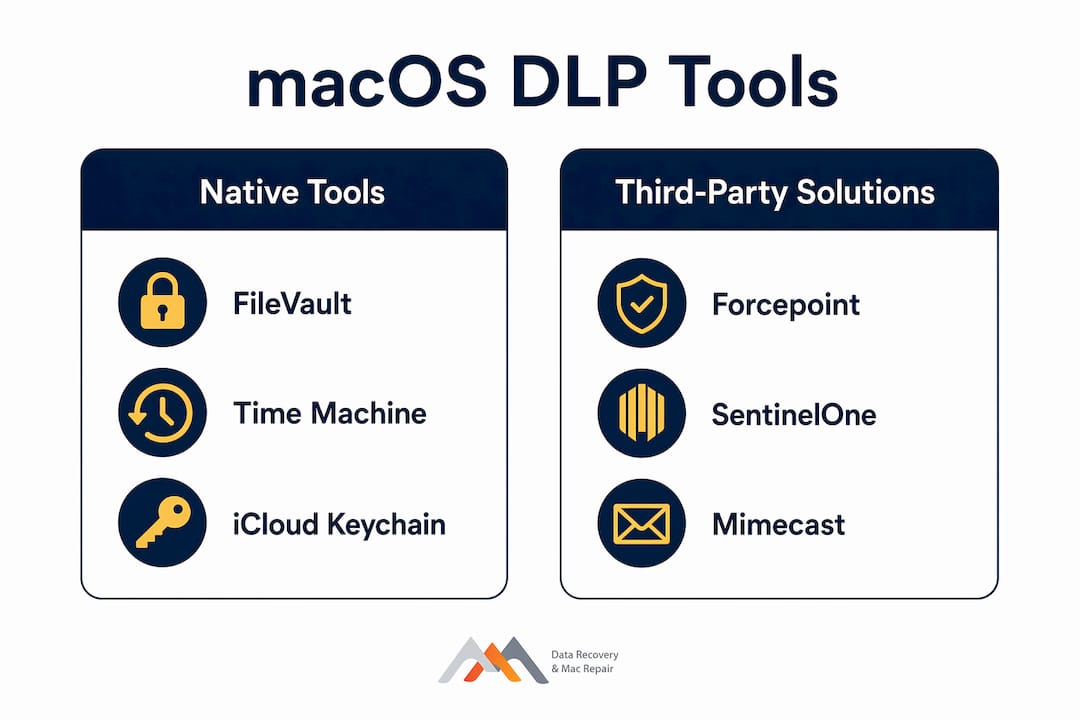
- FileVault disk encryption. FileVault encrypts your entire startup disk using XTS-AES-128 encryption. If your MacBook is stolen, the data is unreadable without your login credentials. Enable it in System Settings under Privacy and Security.
- Time Machine automated backups. Time Machine backs up hourly, daily, and weekly, capturing system files, applications, and documents. That version history lets you roll back to a specific point in time, which is critical after accidental deletions.
- iCloud Keychain and strong passwords. iCloud Keychain generates and syncs strong, unique passwords across all your Apple devices. Pair it with two-factor authentication on your Apple ID to block unauthorized account access.
- macOS software updates. Apple patches known security vulnerabilities with every macOS update. Delaying updates leaves those vulnerabilities open for exploitation.
- Find My Mac for remote lock and erase. Remote lock and erase via Find My Mac, combined with FileVault, renders a stolen device completely unusable. Activate it in System Settings under your Apple ID.
Pro Tip: Set Time Machine to back up to a dedicated external SSD rather than a spinning hard drive. APFS-formatted external drives deliver faster backup and restore speeds, which matters when you need files back quickly.
How to build a bulletproof 3-2-1 backup strategy for mac
The 3-2-1 backup rule is the professional standard for preventing data loss, and it applies directly to Mac users. The rule requires three copies of your data, stored on two different types of media, with one copy kept offsite. This structure means no single event, whether a fire, theft, or ransomware attack, can destroy all your data at once.
Here is how to implement it on a Mac:
- Copy 1: Your live Mac. This is your working copy. It lives on your internal NVMe or APFS-formatted SSD.
- Copy 2: Time Machine on an external drive. Connect a dedicated external drive and configure Time Machine in System Settings. Time Machine handles the scheduling automatically, creating incremental snapshots without requiring manual effort.
- Copy 3: Continuous cloud backup with Backblaze. Backblaze provides continuous offsite backup with 30-day version history, independent from Time Machine. That 30-day window means you can recover files deleted weeks ago, including files encrypted by ransomware before you noticed the attack.
The table below compares the two backup layers most Mac users rely on:
| Feature | Time Machine | Backblaze |
|---|---|---|
| Backup type | Local, incremental | Continuous cloud |
| Version history | Depends on drive size | 30 days |
| Offsite protection | No | Yes |
| Cost | Free (drive cost only) | Paid subscription |
| Recovery speed | Fast (local) | Slower (download) |
| Ransomware protection | Partial (if drive disconnected) | Strong (offsite, versioned) |
A healthy macOS environment is a prerequisite for reliable backups. Disk corruption or damaged cache files can cause Time Machine’s backup index to fail silently, meaning you think you have a backup when you do not. Run Disk Utility’s First Aid on your startup disk monthly to catch issues before they break your restore process.
Pro Tip: Combine APFS snapshots with encrypted external storage and a continuous cloud backup. This three-layer approach reduces recovery time and protects privacy without measurable performance loss during normal use.
Encryption vs. backup: what mac users get wrong
The most common misconception in Mac data security is treating FileVault as a substitute for backups. FileVault protects against physical theft through encryption, but it does nothing to protect against hardware failure, accidental deletion, or ransomware. Encryption and backup serve entirely different roles, and both are required.
Here is where users consistently go wrong:
- Treating iCloud Drive as a backup. iCloud Drive is a sync service, not a backup. When you delete a file on your Mac, iCloud syncs that deletion to every connected device. When ransomware encrypts your files, iCloud propagates the encrypted versions everywhere. A true backup stores an independent, versioned copy that sync cannot touch.
- Skipping encrypted backups. An unencrypted Time Machine drive is a liability. Anyone who picks up that drive can read your data without your Mac. Enable encryption when you set up Time Machine, and use FileVault on any external drive storing sensitive files.
- Ignoring APFS snapshots. macOS creates local APFS snapshots automatically on Apple Silicon and Intel Macs. These snapshots allow fast rollback without an external drive, but they are not a replacement for external or cloud backups since they live on the same physical disk.
- Running backups during heavy workloads. Pausing Time Machine during 4K video editing or virtual machine sessions prevents disk bottlenecks and potential data corruption. Resume backups when the intensive task completes.
A stable, healthy macOS installation is not optional for reliable data recovery. Disk corruption and cache damage can silently break Time Machine’s backup index, leaving you with a backup that cannot restore. Treat system health maintenance as part of your data protection routine, not a separate task.
How to recover deleted files on mac and prevent overwriting
Stop all disk writes immediately if you realize data has been lost. Every write operation to your Mac’s SSD after a deletion reduces the chance of successful file recovery. This applies whether you deleted a file accidentally, experienced a crash, or discovered missing data after a software update.
Practical steps to recover deleted files on Mac and limit further damage:
- Check Time Machine first. Open Time Machine, navigate to the folder where the file lived, and use the timeline on the right side of the screen to scroll back to a version before the deletion. This is the fastest and most reliable recovery method for files covered by your backup window.
- Check iCloud Drive’s Recently Deleted folder. Files deleted from iCloud Drive go to a Recently Deleted folder, accessible at icloud.com, and stay there for up to 30 days.
- Use Backblaze or your cloud backup service. Log into your cloud backup dashboard and restore the specific file version you need. Backblaze’s version history covers 30 days by default, which handles most accidental deletion scenarios.
- Do not install recovery software to the affected drive. If Time Machine and cloud backups fail, use a separate Mac or an external boot drive to run file recovery tools. Writing new software to the affected disk can overwrite the file data you are trying to retrieve.
- Contact a professional for physical drive failures. If your Mac will not boot and Time Machine is unavailable, the data may still be retrievable from the physical storage. Hard drive data loss causes range from logical corruption to NAND failure on soldered SSDs, and each requires a different recovery approach.
Pro Tip: Set up a calendar reminder every 90 days to test your Time Machine restore by recovering a single file. Most users discover their backup is broken only when they need it most.
Which third-party DLP solutions work best on macOS?
Enterprise-grade data loss prevention software adds a layer of protection that Apple’s native tools do not cover: monitoring and controlling how data moves off your Mac. This matters for business users, freelancers handling client data, and anyone working with sensitive financial or medical records.
Popular macOS DLP solutions include Forcepoint, Mimecast, SentinelOne, and Endpoint Protector. Each takes a different approach to monitoring data movements and blocking unauthorized transfers.
| DLP Solution | Primary Strength | macOS Compatibility | Best For |
|---|---|---|---|
| Forcepoint | Policy-based data control | macOS Ventura and later | Enterprise environments |
| Mimecast | Email and cloud data protection | macOS Monterey and later | Teams using Microsoft 365 |
| SentinelOne | Endpoint threat detection | Apple Silicon native | Security-focused businesses |
| Endpoint Protector | USB and device control | macOS Sonoma and later | Preventing physical data exfiltration |
Core DLP features to look for in any solution include real-time monitoring of data movements, blocking of unauthorized USB transfers, adaptive policies that adjust based on user behavior, and OS-level integration that does not require disabling System Integrity Protection. Compatibility with the latest macOS version matters more than feature count. A solution that breaks after a macOS update leaves you unprotected at the worst possible time.
For individual Mac users, the combination of FileVault, Time Machine, Backblaze, and iCloud Keychain covers the vast majority of risk scenarios without requiring enterprise software. Third-party DLP tools become worth the investment when you manage sensitive client data, operate under compliance requirements like CMMC or HIPAA, or need to control data security across multiple endpoints.
Understanding public-private key encryption also helps Mac users evaluate how FileVault and third-party tools protect data at rest versus data in transit, two distinct threat surfaces that require separate controls.
Key takeaways
Effective Mac data protection requires encryption, versioned backups, and active monitoring working together, not any single tool in isolation.
| Point | Details |
|---|---|
| Activate all five native tools | FileVault, Time Machine, iCloud Keychain, two-factor authentication, and macOS updates together cover 95% of common risks. |
| Follow the 3-2-1 backup rule | Keep three copies across two media types, with one offsite copy via Backblaze or equivalent cloud backup. |
| Encryption is not a backup | FileVault protects against theft but cannot recover deleted files or reverse ransomware encryption. |
| Test your backups regularly | Verify Time Machine restores every 90 days to confirm your backup index is intact and functional. |
| Stop disk writes after data loss | Halting all write activity immediately after accidental deletion maximizes the chance of successful file recovery. |
Why most mac users are one incident away from serious data loss
After working with Mac users who have lost years of irreplaceable data, I can tell you the pattern is almost always the same. They had one layer of protection, usually Time Machine or iCloud, and they assumed that was enough. Then one event, a logic board failure, a ransomware hit, or a stolen MacBook, bypassed that single layer entirely.
The uncomfortable truth is that most Mac users treat data protection as a setup task rather than an ongoing practice. They enable Time Machine once, plug in a drive, and never verify whether the backups are actually completing. I have seen Time Machine silently fail for months because of a corrupted APFS volume that nobody caught. The user thought they had 18 months of backups. They had zero.
The other mistake I see constantly is conflating iCloud sync with backup. iCloud is genuinely useful for accessing files across devices, but it is not a safety net. It is a mirror. Whatever happens to your files on one device happens everywhere.
The approach that actually works is treating your backup strategy like a business continuity plan. You build redundancy, you test it, and you update it when your workflow changes. If you add a new external SSD for video projects, that drive needs to be in your backup rotation. If you switch to a new MacBook with Apple Silicon and an NVMe SSD, verify that your Time Machine drive is formatted correctly for the new architecture.
The good news is that the tools are already on your Mac. The gap is almost always in execution, not access.
— Kaya
When prevention fails: Macwestlosangeles can recover what you lost
Even the most thorough data protection plan has limits. Physical damage, logic board failures, and corrupted NVMe or RAID arrays can put data beyond the reach of software recovery tools. Macwestlosangeles has provided professional Mac hard drive data recovery in Los Angeles since 2006, with free diagnostics and a no-recovery, no-charge policy. The team handles MacBook, iMac, Mac Mini, and Mac Pro recovery, including soldered SSD access, APFS volume reconstruction, and RAID 0, 1, 3, and 5 recovery. Same-day appointments are available at 12041 Wilshire Blvd, Ste 26, serving West LA, Santa Monica, Beverly Hills, Brentwood, and Westwood. Call 310-866-0828 for urgent data loss situations.
FAQ
What does FileVault actually protect against on a mac?
FileVault encrypts your entire startup disk, making data unreadable to anyone without your login credentials. It protects against physical theft but does not protect against accidental deletion, hardware failure, or ransomware.
Is iCloud drive a reliable backup for mac files?
iCloud Drive is a sync service, not a backup. Deletions and ransomware encryption propagate across all connected devices, so iCloud cannot serve as your only data protection layer.
How often should time machine back up my mac?
Time Machine backs up hourly by default, with daily and weekly snapshots retained based on available drive space. For heavy workloads like 4K video editing or virtual machines, pause Time Machine during those sessions to prevent disk bottlenecks.
What is the 3-2-1 backup rule for mac users?
The 3-2-1 rule means keeping three copies of your data on two different media types, with one copy stored offsite. For Mac users, this typically means your live Mac, a Time Machine external drive, and a cloud backup service like Backblaze.
When should i contact a professional data recovery service?
Contact a professional when your Mac will not boot, Time Machine is unavailable, and cloud backups do not cover the lost files. Physical storage failures, including NVMe SSD damage and logic board failures, require specialized hardware tools that go beyond software recovery methods.