
TL;DR:
- Mac system errors signal hardware, software, or file issues detected by macOS, requiring proper diagnostics. Using Safe Mode, Recovery Mode, and Disk Utility at appropriate depths helps identify and resolve these faults efficiently. Ignoring early warning signs risks data loss, making timely troubleshooting or professional repair essential.
Mac system errors are OS-detected faults that signal malfunctions in hardware, software, or file integrity, and understanding mac system errors is the first step toward resolving them before they cause data loss. macOS communicates these faults through specific error codes, kernel panics, spinning beach balls, and unexpected shutdowns. Apple’s built-in tools, including Safe Mode, Recovery Mode, and Disk Utility, each address a different layer of the problem. Knowing which tool to reach for, and when to call a professional, separates a quick fix from a costly mistake.
How do Safe Mode, Recovery Mode, and Disk Utility differ in diagnosing Mac errors?
These three diagnostic methods operate at distinct depths, and using the wrong one wastes time while the right one can resolve an issue in minutes.

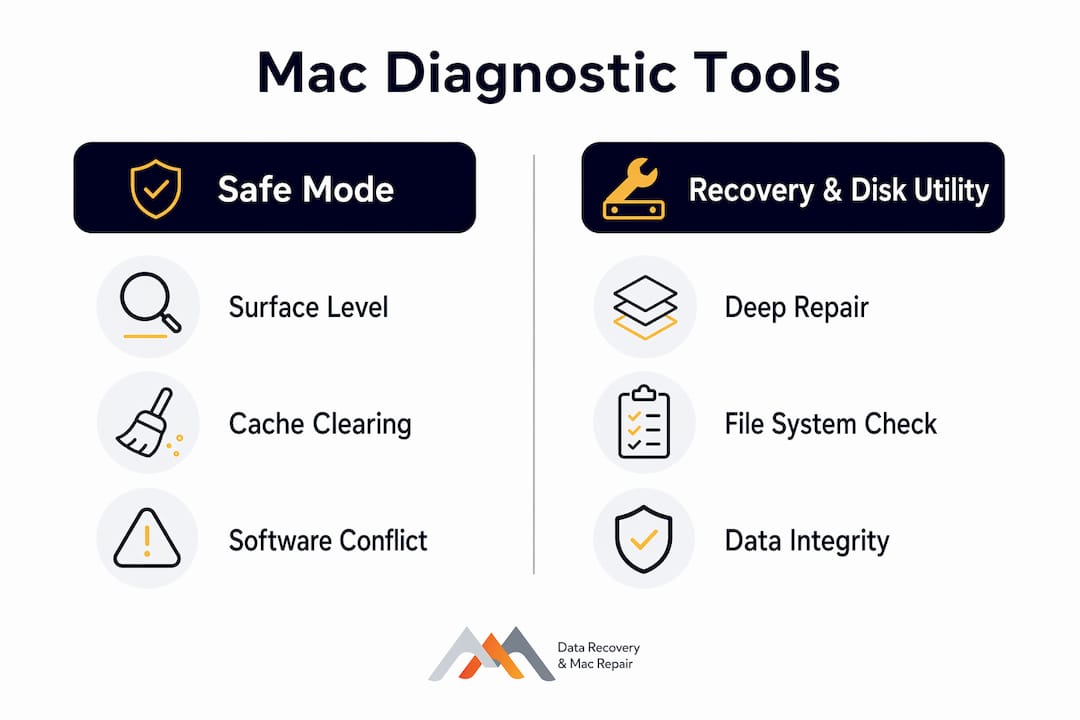
Safe Mode on macOS loads the operating system with non-essential extensions and login items disabled, runs a quick fsck_apfs check on the startup disk, and clears font and kernel caches. What it does not do is repair disk errors. Think of Safe Mode as a controlled environment for isolating conflicts, not a repair shop. If your Mac runs normally in Safe Mode but misbehaves on a standard boot, a third-party app or extension is almost certainly the cause.
Recovery Mode goes deeper. On Apple silicon Macs, you access it by holding the Power button until “Loading Startup Options” appears, then selecting “Options” to enter Recovery Assistant. From there, you can reinstall macOS, restore from a Time Machine backup, erase a disk, or launch Disk Utility. Certain advanced functions, including internet-based reinstalls, require administrator credentials and an active network connection. Recovery Mode is the right tool when the Mac cannot complete a normal startup.
Disk Utility First Aid is the most targeted repair option. Unlike Safe Mode’s read-only quick checks, First Aid unmounts volumes and runs full fsck_apfs scans that can detect and repair errors on APFS volumes, including snapshots. This distinction matters because a volume that passes Safe Mode’s quick check can still carry filesystem corruption that only First Aid will catch.
| Tool | Diagnostic depth | Primary use case |
|---|---|---|
| Safe Mode | Surface level, cache clearing | Isolating third-party software conflicts |
| Recovery Mode | System level, multi-tool access | Reinstalling macOS, restoring backups, disk erasure |
| Disk Utility First Aid | Deep APFS filesystem scan and repair | Fixing filesystem corruption and volume errors |
Pro Tip: Boot into Safe Mode before running First Aid. If the issue disappears in Safe Mode, you have a software conflict, not a disk problem, and you can skip the repair scan entirely.
What do common Mac error codes mean and how to decode them?
Mac error codes are not random. Each code maps to a specific failure category, and recognizing the pattern tells you where to focus your troubleshooting.
The most frequently encountered codes break down as follows:
- Error code 36 signals a file read or write failure. Error 36 typically arises during file copy operations and is linked to hidden .DS_Store metadata files, filesystem conflicts, or a problematic external drive. Reformatting the external drive to APFS or exFAT and retrying the copy resolves most cases.
- Error code -50 points to a parameter or filesystem error. Error -50 is caused by permissions mismatches, drive format incompatibilities, or invalid characters in a filename. Renaming the file, verifying disk permissions in Disk Utility, and confirming the drive is formatted correctly are the standard fixes.
- Error code 2003f appears in Recovery Mode when a macOS reinstall fails. This code almost always traces back to a dropped internet connection or a DNS configuration problem, not a hardware fault. Switching to a wired Ethernet connection or changing your DNS to 8.8.8.8 resolves it in most cases.
- “Apple could not verify this app is free of malware” is a Gatekeeper block, not a true system error. Gatekeeper triggers this message when an app lacks a recognized Apple developer signature. You can override it through System Settings under Privacy and Security, use the right-click Open option to permanently whitelist the app, or run a Terminal command to strip the quarantine flag.
When you encounter an unfamiliar code, search it with the macOS version appended, for example “Mac error -8003 Sequoia,” because Apple updates error definitions across releases and older forum answers may no longer apply.
What practical steps can Mac users take to fix common system errors?
Most Mac system errors respond to a short sequence of escalating fixes. Work through these in order before assuming the worst.
- Restart the Mac. A full power cycle clears temporary memory states and resolves a surprising number of freezes, app crashes, and display glitches. Force-quit unresponsive apps first using Command + Option + Escape, then restart.
- Install pending software updates. macOS updates frequently patch the exact bugs causing your error. Open System Settings, navigate to General, then Software Update, and apply any available updates before continuing.
- Boot into Safe Mode and observe. Safe Mode isolates startup conflicts by disabling third-party extensions and login items. If the error stops in Safe Mode, re-enable login items one at a time in System Settings to identify the culprit.
- Clear user caches manually. Open Finder, press Command + Shift + G, type "~/Library/Caches`, and delete the contents of that folder. Log out and back in afterward. This resolves many app-specific errors and performance slowdowns without touching system files.
- Run Disk Utility First Aid. Launch Disk Utility from Applications, select your startup volume, and click First Aid. For the most thorough scan, run First Aid from Recovery Mode, where the startup volume can be fully unmounted during the check.
- Reset permissions and security overrides. For Gatekeeper-blocked apps you trust, use System Settings under Privacy and Security to grant explicit permission. For persistent permission errors on files, use the
chmodcommand in Terminal or Get Info in Finder to reassign read and write access. - Reinstall macOS as a last resort. A macOS reinstall from Recovery Mode preserves your personal data while replacing system files. Back up to Time Machine or an external drive before proceeding.
Pro Tip: Keep at least 15% of your startup disk free at all times. APFS volumes use free space for snapshots and swap operations, and a nearly full disk causes errors that look like hardware failures but are entirely preventable.
Maintaining disk health also means monitoring NVMe SSD wear through third-party tools like DriveDx or smartmontools, which surface SMART data that macOS does not display natively. A drive showing reallocated sectors or high uncorrectable error counts needs attention before it fails completely.
For a structured approach, the MacBook troubleshooting checklist from Macwestlosangeles walks through these steps with Mac-specific detail.
When should Mac users seek professional repair or data recovery services?
Some errors exceed what software tools can fix. Recognizing the boundary between a software problem and a hardware failure protects both your data and your machine.
Seek professional help when you observe any of the following:
- Repeated kernel panics that persist after a clean macOS reinstall, which indicate logic board component failure, faulty RAM, or a failing NVMe SSD rather than a software conflict.
- Disk Utility First Aid reports errors it cannot repair, particularly on the startup volume. This outcome points to physical media degradation on the SSD or, in older machines, a failing hard drive.
- The Mac does not recognize its own storage. If Disk Utility shows no internal disk at all, the NVMe controller or the soldered SSD has failed, and no software tool will recover it.
- Liquid damage indicators are triggered. Liquid contact with a logic board causes corrosion that produces cascading, unpredictable errors across multiple subsystems.
- You suspect data loss. Stop all disk writes immediately. Continuing to use a disk after suspected data loss risks overwriting the precise data fragments that recovery operations depend on. Power the machine off and contact a recovery specialist.
Logic board repair on modern Macs requires component-level soldering skills and specialized equipment. APFS data recovery from a failed NVMe drive involves NAND access techniques and FileVault encryption handling that go well beyond consumer software. These are not tasks for general IT shops. Macwestlosangeles has provided Mac diagnostics and repair in the Los Angeles area since 2006, covering APFS, NVMe, RAID 0, 1, 3, and 5 configurations, and logic board component repair for MacBook, iMac, Mac Mini, and Mac Pro systems.
Key takeaways
Diagnosing Mac system errors correctly requires matching the right tool to the right problem layer, from Safe Mode for software conflicts to Disk Utility First Aid for APFS filesystem repair to professional logic board service for hardware failures.
| Point | Details |
|---|---|
| Match tool to problem depth | Use Safe Mode for software conflicts, Disk Utility First Aid for filesystem errors, Recovery Mode for reinstalls. |
| Decode error codes by category | Error 36 targets file operations, error -50 targets permissions, error 2003f targets network-dependent reinstalls. |
| Follow a fix sequence | Restart, update, Safe Mode, cache clear, First Aid, permissions reset, then reinstall before escalating. |
| Stop writes on data loss | Powering off immediately after suspected data loss maximizes recovery success rates. |
| Know the hardware threshold | Persistent kernel panics, unrecognized storage, and liquid damage require professional component-level repair. |
Why most Mac users wait too long to act on error signs
After working with Mac users across West LA for years, the pattern is consistent: the error appeared weeks before the failure, and the user dismissed it. A single kernel panic gets attributed to “a glitch.” Error code 36 on an external drive gets ignored because the file eventually copied. The spinning beach ball gets tolerated because the Mac still mostly works.
The problem with that approach is that macOS errors are diagnostic signals, not random noise. A filesystem error that First Aid catches today is a recoverable situation. The same error left alone for two months, while the drive continues writing data over degraded sectors, often becomes a partial or total data loss event. I have seen this sequence play out with APFS volumes on MacBook Pro machines where the user had months of warning and no backup.
Safe Mode is genuinely underused as a first diagnostic step. Most users either ignore the problem or immediately assume the worst and consider buying a new machine. Booting into Safe Mode takes 90 seconds and immediately tells you whether you have a software conflict or something deeper. That single data point changes the entire troubleshooting path.
My honest recommendation: run Disk Utility First Aid from Recovery Mode once every three months as routine maintenance, keep Time Machine active, and treat any persistent error code as a scheduled appointment with a technician, not a reason to panic or a problem to ignore.
— Kaya
Expert Mac repair and data recovery in West LA
Macwestlosangeles has served MacBook, iMac, Mac Mini, and Mac Pro users across West LA, Santa Monica, Beverly Hills, Brentwood, Westwood, Venice, Hollywood, and Culver City since 2006. Free diagnostics are available with every appointment, and the practice operates on a strict no recovery, no charge policy for data recovery cases. The team handles APFS and NVMe data recovery, RAID 0, 1, 3, and 5 configurations, logic board component repair, and full system recovery for machines affected by liquid damage, failed storage, or persistent system errors. For hard drive data recovery or Mac repair service in Los Angeles, same-day appointments are available. Call 310-866-0828 or visit 12041 Wilshire Blvd, Ste 26, Los Angeles.
FAQ
What is a Mac system error?
A Mac system error is a fault detected by macOS that affects hardware, software, or file integrity, communicated through error codes, kernel panics, or unexpected shutdowns. These signals indicate that the operating system cannot complete a requested operation and require targeted troubleshooting to resolve.
How do I enter Recovery Mode on an Apple silicon Mac?
Hold the Power button on your Apple silicon Mac until “Loading Startup Options” appears, then select “Options” to enter Recovery Assistant. From there you can run Disk Utility, reinstall macOS, or restore from a Time Machine backup.
What does Mac error code 36 mean?
Error code 36 indicates a file read or write failure, most commonly triggered by hidden .DS_Store metadata files or a problematic external drive. Reformatting the external drive and retrying the copy operation resolves most cases.
When should I stop using my Mac after a system error?
Stop all disk writes immediately if you suspect data loss, a drive is not mounting, or Disk Utility reports errors it cannot repair. Continued use risks overwriting recoverable data fragments and reduces the success rate of professional recovery.
Can Safe Mode fix Mac system errors?
Safe Mode clears caches and disables third-party extensions, which resolves software conflicts, but it does not repair filesystem errors. For actual disk repair, run Disk Utility First Aid from Recovery Mode instead.