TL;DR:
- Logical data loss on a Mac occurs when files become inaccessible due to filesystem corruption, accidental deletion, or reformatting, while the hardware remains intact. Acting quickly by stopping all disk writes and consulting professionals maximizes recovery chances before overwritten data vanishes. Professional diagnostics and methods like filesystem repair or file carving are essential for successful recovery, especially for APFS or encrypted volumes.
Stop all disk writes immediately if you just experienced data loss on your Mac. What is logical data recovery? It is the process of restoring files from a storage device that is physically intact but inaccessible due to software-level failures such as corrupted filesystems, accidental deletion, or failed OS installations. Many Mac users assume that lost data means a broken drive, but that misunderstanding costs them time and recovery success. This guide explains what logical data loss is, how the recovery process works, and exactly what steps you should take right now to protect your best chance of getting your files back.
Table of Contents
- Key Takeaways
- What is logical data recovery and what causes it on Mac
- Logical data recovery methods explained
- What to do right after Mac data loss
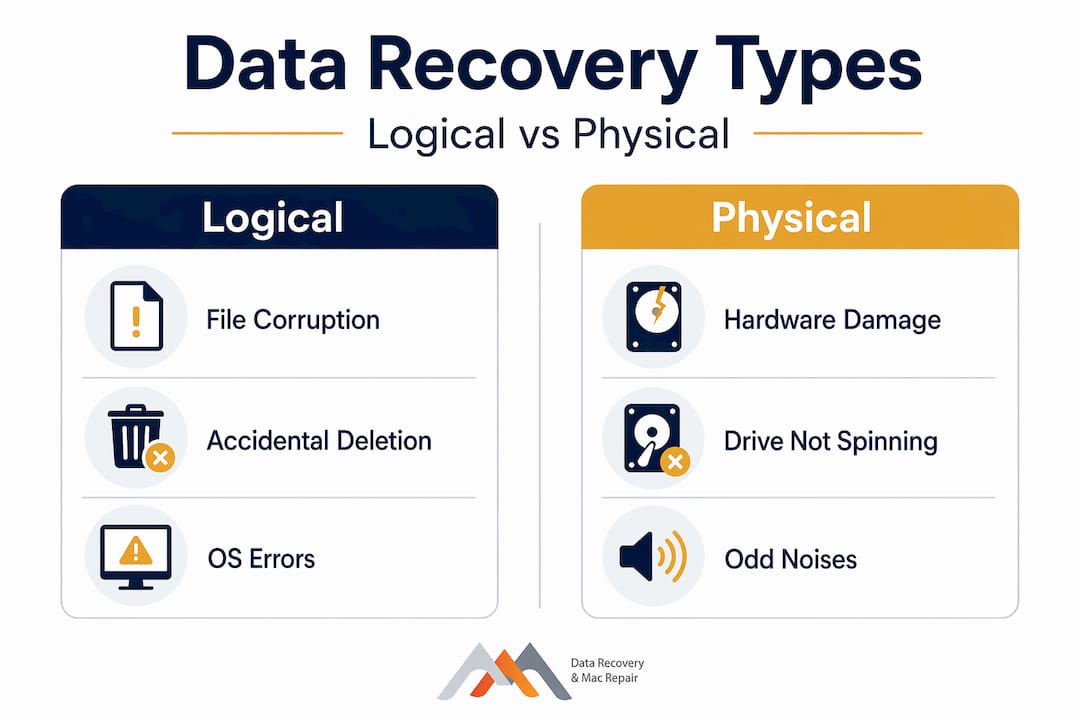
- Logical versus physical data recovery
- My take on logical data recovery after years in Mac repair
- Get professional Mac data recovery in West LA
- FAQ
Key Takeaways
| Point | Details |
|---|---|
| Logical loss is software-level | Your drive hardware is intact; files are lost due to APFS/HFS+ corruption, deletion, or reformatting. |
| Stop disk writes immediately | Every new file written to your Mac reduces the chance of recovering overwritten data blocks. |
| Read-only scanning protects data | Use recovery tools that scan in read-only mode and write recovered files to a separate drive. |
| Logical vs. physical differ greatly | Logical issues use software repair; physical damage requires cleanroom hardware intervention. |
| Free diagnostics are available | Macwestlosangeles offers free diagnostics and a no recovery, no charge policy since 2006. |
What is logical data recovery and what causes it on Mac
Logical data recovery applies when the physical device is intact but data is inaccessible due to software or file system errors. The drive itself has not failed mechanically. No bearings have seized, no NAND chips have burned out. The problem exists at the software layer, meaning the directory structures, partition maps, or file allocation tables that tell macOS where your files live have become damaged or erased.
Understanding what causes logical data loss on a Mac helps you recognize which type of problem you are dealing with. Common causes include:
- APFS or HFS+ filesystem corruption, which can occur after an unexpected shutdown, a failed macOS update, or a power interruption mid-write
- Accidental deletion, including emptying the Trash or using Terminal commands without confirming file paths
- Reformatting or repartitioning, where the drive structure is overwritten during a macOS reinstall or a failed Disk Utility operation
- OS reinstallation over an existing volume, which can wipe or corrupt previous user data if the installer does not recognize existing partitions
- Volume errors and journal corruption on APFS containers, which macOS sometimes flags as unreadable at boot
- FileVault encryption header damage, which can make an entire APFS volume appear blank even when data blocks remain physically present
The symptoms of logical data loss are distinct from physical drive failure. Your MacBook or iMac may fail to boot, display a folder with a question mark, show a drive as “Not Mounted” in Disk Utility, or report that a volume is unreadable. These are all signs that the filesystem structure is damaged, not necessarily that the hardware is gone. Recognizing this distinction is the first step toward a successful recovery.
Logical data recovery methods explained
The logical data recovery process uses two fundamentally different approaches depending on the extent of filesystem damage: partition and filesystem repair, and signature-based file carving. Understanding how each works helps you choose the right tool and avoid making things worse.
Partition and filesystem repair targets the structural metadata of your volume. Tools like TestDisk can rebuild corrupted partition tables and boot records, supporting both GPT layouts and Apple partition maps used on Mac drives. When a partition table is damaged but the underlying file data is untouched, this method can restore full directory access, including original filenames and folder structures. TestDisk can recover deleted files with approximately 97% accuracy when files are unfragmented and the original clusters have not been reused by new data.
File carving takes a completely different approach. Rather than relying on directory metadata, tools like PhotoRec scan raw data blocks for known file signatures and reconstruct files from those patterns. This method works even when the filesystem directory is completely destroyed, because it does not need the directory to find the data. PhotoRec writes recovered files to a separate drive rather than the source, which protects original data blocks from being overwritten during the process.
Here is when each method is appropriate:
- Use partition repair when your drive appears in Disk Utility but shows as unmountable or reports filesystem errors; the directory may be repairable
- Use file carving when the filesystem is too corrupted to repair, the volume does not appear at all, or the partition table cannot be reconstructed
- Use professional tools when your data involves APFS snapshots, FileVault-encrypted volumes, or NVMe SSDs with soldered storage controllers, where consumer software frequently fails
Mac-specific filesystem considerations matter significantly here. APFS uses copy-on-write metadata, B-tree structures, and space sharing between volumes, all of which differ substantially from traditional HFS+. Consumer recovery software may misinterpret APFS container boundaries or fail to reconstruct the B-tree index correctly, producing incomplete or corrupted output.
Pro Tip: Always run recovery software in read-only mode on the source drive, and always write recovered data to a completely separate external drive. Writing to the same drive you are recovering from can permanently overwrite the very data you are trying to restore.

What to do right after Mac data loss
The first minutes after data loss determine whether recovery is possible. Every file your Mac writes to the affected drive potentially overwrites data blocks that were freed when your files disappeared. Acting fast and correctly is the difference between a full recovery and a partial one.
Follow these steps in order:
Stop using the affected Mac immediately. Shut it down if possible. Do not open apps, browse the web, or let Time Machine run a backup to the affected volume. Any disk write reduces your recovery odds, as logical recovery success depends directly on how much data has been overwritten since the loss.
Do not run First Aid or Disk Utility blindly. Running macOS’s built-in repair utilities on a severely corrupted APFS volume can alter metadata in ways that make professional recovery harder. Get a professional assessment before attempting any repair.
Create a sector-by-sector clone of the affected drive before performing any recovery attempt. Work on the clone, not the original. This preserves the original state of every data block.
Connect an external drive with enough capacity to receive recovered files. Never direct recovery output to the same drive being scanned.
Use a trusted logical recovery tool or call a professional. If you are not certain whether you are dealing with a logical or physical issue, do not guess. Misusing repair tools on a drive with hidden physical damage can convert a recoverable situation into a permanent one.
For future prevention, a layered backup strategy is worth every bit of effort. Time Machine to an external drive, a cloud backup like Backblaze or iCloud Drive, and periodic clones using Carbon Copy Cloner each protect against different failure scenarios. Photographers and creatives managing irreplaceable files should review why redundant backup systems matter even when primary storage seems reliable.
Pro Tip: If your MacBook has a T2 or Apple Silicon chip, the internal SSD is soldered to the logic board. A failing or water-damaged logic board can present as logical data loss when the actual issue is hardware-level. A proper physical inspection must happen before any software recovery is attempted.
Logical versus physical data recovery
Understanding the difference between logical and physical recovery is not just academic. Choosing the wrong approach can destroy data permanently.
| Factor | Logical data recovery | Physical data recovery |
|---|---|---|
| Root cause | Filesystem corruption, accidental deletion, reformatting | Failed read/write heads, seized spindle, damaged NAND chips, logic board failure |
| Drive condition | Physically intact and detectable by the system or tools | Hardware component damaged or undetectable |
| Recovery method | Software tools, partition repair, file carving | Cleanroom hardware repair, head replacement, NAND chip reading |
| DIY feasibility | Possible with proper tools and careful procedure | Not recommended; risks permanent data loss |
| Typical turnaround | Hours to a few days | Days to weeks depending on damage severity |
| Cost range | Lower, often predictable | Higher, varies with hardware complexity |
| Mac-specific concern | APFS B-tree damage, FileVault headers, APFS snapshots | Soldered NVMe on MacBook Air/Pro, T2 chip dependency |
The most dangerous scenario is when logical and physical issues overlap. A drive that sounds perfectly normal can have a developing head fault that generates read errors only under sustained load. Running file carving software on that drive for hours can push failing heads past their limit, turning a recoverable situation into a total loss. Technicians verify physical health before attempting any logical repair, because hardware faults can mask themselves behind logical symptoms until it is too late.
My take on logical data recovery after years in Mac repair
I have worked with hundreds of Mac data loss cases, and the pattern that troubles me most is not the dramatic failures. It is the subtle ones. A user notices some files are missing, opens Disk Utility, clicks First Aid, gets an error, and then tries three different recovery apps over two days before calling for help. By that point, the APFS volume metadata has been altered multiple times, and what was originally a clean logical issue has become a layered recovery problem that takes significantly longer and costs more to resolve.
The misconception I see constantly is that consumer recovery software is safe to try freely. Some of it is, when used correctly on a cloned drive image. But most users do not image the drive first, and they do not realize that some tools write index files or temporary data back to the source volume during scanning. On APFS, which uses copy-on-write, that can silently reassign metadata pointers in ways that are difficult to reverse.
What actually works in my experience is a clean, methodical process: stop all writes, confirm physical health first, image the drive, then apply the right recovery method based on the damage type. For APFS volumes with snapshot integrity, professional tools that understand Apple’s B-tree structure produce results that no consumer app can match. The same is true for NVMe SSDs on modern MacBook Pro and MacBook Air models, where NAND access requires firmware-level communication that general-purpose software simply cannot replicate.
The good news is that most logical data loss cases are genuinely recoverable when handled promptly and correctly. The data is almost always still there. The question is whether you give it a chance to be retrieved before it gets overwritten.
— Kaya
Get professional Mac data recovery in West LA
If you are dealing with data loss right now and you are not certain whether it is a logical or physical issue, the safest step is a professional assessment before taking any action that could reduce your recovery options.
Macwestlosangeles has provided Mac data recovery services since 2006, working with APFS and HFS+ volumes, RAID 0, 1, 3, and 5 arrays, NVMe SSDs, and logic board-level storage failures. The free diagnostics policy means you will know exactly what you are dealing with before any work begins, and the no recovery, no charge commitment means there is no financial risk in getting a professional evaluation. Same-day appointments are available for urgent cases, and the lab is centrally located at 12041 Wilshire Blvd, Ste 26 in Los Angeles, convenient to West LA, Santa Monica, Beverly Hills, Brentwood, Westwood, Venice, Hollywood, and Culver City. Call (310) 866-0828 today to speak with a technician directly.
FAQ
What is logical data loss on a Mac?
Logical data loss on a Mac occurs when files become inaccessible due to APFS or HFS+ filesystem corruption, accidental deletion, reformatting, or OS-level errors, while the physical storage device remains undamaged and detectable.
How do I know if my Mac has logical or physical data loss?
If your Mac’s drive appears in Disk Utility but shows as unmountable, unreadable, or reports filesystem errors while the drive sounds normal and spins up properly, the issue is most likely logical rather than physical. Physical failures often involve clicking sounds, complete non-detection, or visible hardware damage.
Can I recover logical data from a Mac myself?
DIY recovery is possible for straightforward cases such as accidental deletion, using tools that scan in read-only mode and output to a separate drive. However, cases involving APFS encryption, NVMe SSDs, or severe directory corruption should be handled by a professional to avoid permanent data loss.
What causes APFS filesystem corruption on a Mac?
APFS corruption is commonly caused by interrupted write operations during power loss, a failed macOS update, forced shutdowns, or underlying storage hardware errors that corrupt the B-tree metadata structures before macOS can complete a consistent write.
How long does logical data recovery take?
Logical recovery from a Mac typically takes a few hours to two or three days depending on drive capacity, the extent of filesystem damage, and whether file carving is required. A professional service like Macwestlosangeles can assess your case and provide a timeline during the free diagnostic evaluation.