TL;DR:
- Hard drives often give warning signs like clicking sounds or errors before failing completely, so timely diagnosis is crucial.
- Prevention includes regular SMART health checks, environmental controls, proper backups, and early professional diagnostics to maximize recovery chances.
If you’re hearing clicking sounds from your Mac or watching files disappear without explanation, understanding why hard drives fail could be the difference between recovering your data and losing it permanently. Stop all disk writes immediately if you suspect your drive is failing. Every read and write cycle on a struggling drive risks overwriting recoverable data. Most hard drives don’t die without warning. They telegraph their decline through sounds, errors, and slowdowns that are easy to dismiss as normal system behavior. Knowing what those signals mean gives you a real chance to act in time.
Table of Contents
- Key takeaways
- Why hard drives fail: the four failure types
- How drive age and usage affect failure risk
- What actually causes drives to crash
- How to prevent failure and protect your data
- What I’ve seen clients get wrong about failing drives
- Get expert help at Macwestlosangeles in West LA
- FAQ
Key takeaways
| Point | Details |
|---|---|
| Four distinct failure types | Mechanical, electronic, logical, and environmental failures each require different recovery approaches. |
| SMART warnings are reliable | 78% of HDD failures show SMART degradation before total failure, giving you time to act. |
| Age accelerates risk | Enterprise drives show AFR jump to 4.2% after five years of continuous use. |
| DIY attempts cause damage | Repeated power cycling or improper repair attempts on failing drives dramatically reduce professional recovery success rates. |
| Professional diagnostics are free | Macwestlosangeles offers free diagnostics and a no recovery, no charge policy for all hard drive cases. |
Why hard drives fail: the four failure types
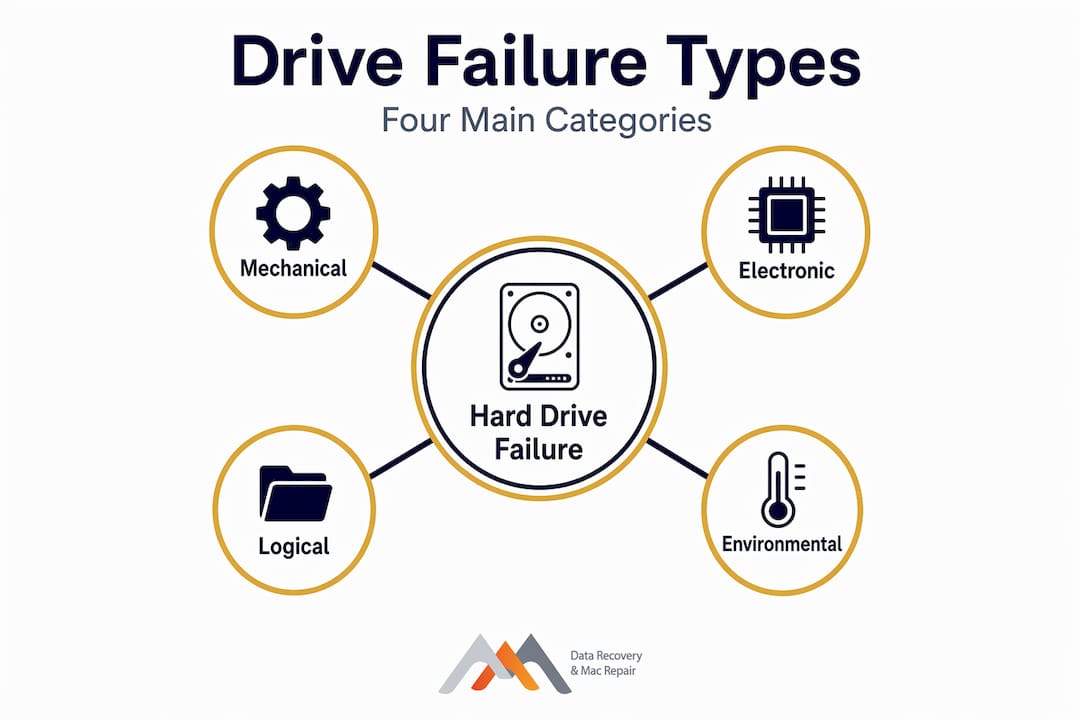
Not all drive failures are created equal. Hard drive failures break down into four primary categories: mechanical at roughly 40%, electronic at 25%, logical and firmware issues at 20%, and environmental causes at 15%. Each category has its own symptom profile, and misidentifying one can lead to the wrong response, which often makes recovery harder.
Mechanical failures
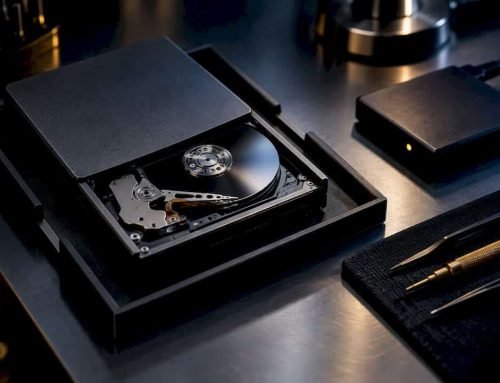
Mechanical failures involve the physical components inside the drive: the read/write heads, the spindle motor, and the magnetic platters themselves. When the read/write heads make contact with the platter surface, the result is a head crash. You’ll often hear it. Audible symptoms like clicking, grinding, beeping, or buzzing are classic indicators of serious mechanical damage, sometimes called the “click of death.” If your Mac’s drive is producing any of these sounds, power it down immediately and do not attempt to restart it.
Electronic failures
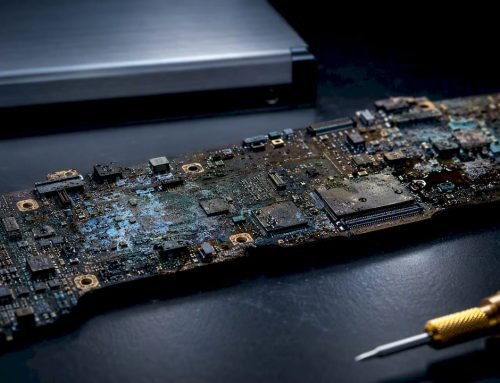
Electronic failures typically affect the printed circuit board (PCB) attached to the drive’s underside. Power surges, faulty power supplies, or static discharge can fry the PCB’s components. A common sign is a drive that powers on (you may see an LED indicator) but the platters never spin up. What makes electronic repair deceptively complex is that PCB replacement requires transferring the original drive’s unique calibration ROM chip via micro-soldering. Simply swapping in an identical-model PCB from another drive will not work. The ROM holds drive-specific calibration data, and without it, the drive won’t initialize.
Logical and firmware failures
Logical failures occur when the drive hardware is physically intact but the data structure or firmware is compromised. Corrupted file system tables, bad sector accumulation, or firmware bugs can make the drive unreadable without any mechanical damage at all. APFS volumes on Mac systems are particularly susceptible to partition table corruption after improper shutdowns or malware activity. In some cases, tools like TestDisk can address logical errors when the underlying hardware is stable, but attempting this on a drive showing any mechanical symptoms is a serious risk.
Environmental failures
Environmental damage covers liquid spills, heat exposure, dust accumulation, and physical shock. These causes are often preventable, yet consistently underestimated.
| Failure type | Common symptoms | Typical causes |
|---|---|---|
| Mechanical | Clicking, grinding, drive not detected | Head crash, motor failure, platter damage |
| Electronic | Powers on, no spin, LED active | Power surge, PCB damage, static discharge |
| Logical/Firmware | File errors, missing partitions, slow access | Bad sectors, corrupted APFS/HFS+, firmware bugs |
| Environmental | Drive unresponsive, physical corrosion | Liquid spill, heat spike, dust, humidity |
Pro Tip: Do not try to self-diagnose which failure type you’re dealing with based on symptoms alone. Overlapping signs, especially between mechanical and firmware failures, are common, and the wrong assumption can destroy a drive that was otherwise recoverable.
How drive age and usage affect failure risk
Hard drives do not fail randomly. They follow what reliability engineers call the “bathtub curve,” a failure pattern with elevated failure rates early in a drive’s life (from manufacturing defects), a stable middle period, and then sharply rising failures as components wear out. Consumer-grade HDDs typically have a reliable lifespan of three to five years. Enterprise drives, built for 24/7 operation, can reach five to seven years, but their failure rates still climb steeply with age.
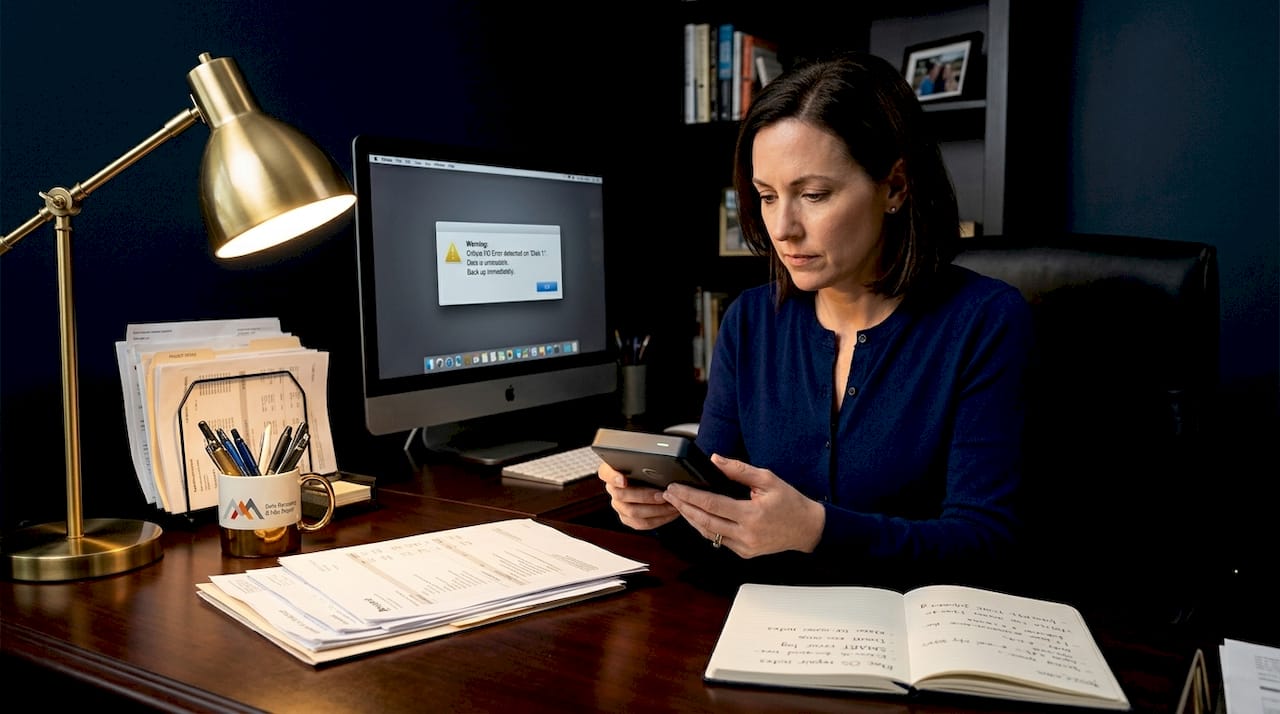
The numbers are striking. Enterprise HDDs show an annual failure rate of 0.9% during years one through three. After year five, that figure rises past 4.2%. For consumer drives running under heavier workloads, in warmer environments, or with irregular power cycles, the degradation timeline is often shorter.
Workload intensity matters too. A drive used for continuous video editing or large file transfers accumulates far more actuator arm movements than a drive used for basic document storage. Heat generated by intensive use accelerates bearing wear in the spindle motor and increases the likelihood of platter deformation over time.
| Drive type | Reliable lifespan | AFR years 1-3 | AFR after year 5 |
|---|---|---|---|
| Consumer HDD | 3-5 years | ~1.5% | 5%+ |
| Enterprise HDD | 5-7 years | 0.9% | 4.2%+ |
| Consumer SSD | 5-7 years | ~0.5% | 1.5%+ |
SMART monitoring gives you a genuine early warning window. Since 78% of drive failures display SMART attribute degradation before complete failure, running periodic health checks with tools like DriveDx or smartmontools on macOS is one of the most practical prevention habits you can adopt. Attributes like reallocated sector count, spin retry count, and uncorrectable sector count are the clearest red flags.
Pro Tip: If your drive is more than four years old and shows any SMART attribute degradation, treat it as a drive that has already begun to fail. Back up immediately and plan for proactive replacement rather than waiting for a full crash.
What actually causes drives to crash
Understanding the mechanisms behind each failure type helps you recognize when you may have contributed to the conditions and how to stop making things worse.
Physical shock and vibration are the leading cause of mechanical failure in consumer drives. A running hard drive has read/write heads floating nanometers above spinning platters at thousands of RPM. A drop from as little as 30 centimeters during operation can cause an immediate head crash, scoring the magnetic surface and destroying the data beneath. This is why a MacBook that slips off a desk while running is a recovery emergency, not just a hardware inconvenience.
Electrical surges are a quieter killer. A power spike from a failing UPS, a cheap power strip, or a sudden utility surge can send excess voltage into the drive’s PCB, burning out controller chips or the motor driver IC. Macs connected directly to wall outlets without surge protection are especially exposed during electrical storms.
Firmware corruption often results from improper shutdowns. When macOS is force-quit or loses power mid-write, the firmware area of the drive can become partially overwritten. The drive may spin up normally but refuse to be recognized by the system, a symptom that confuses many users into thinking the drive is physically dead when it isn’t.
Environmental stressors are the causes people most consistently underestimate. Prolonged exposure to heat and humidity increases failure rates by up to 40% compared to drives kept at 25°C with 45% relative humidity. A Mac tower or external drive sitting near a sunny window in a West LA apartment is accumulating risk every day.
Neglect and misuse accelerate all of these causes. Drives that never receive software updates, run with insufficient airflow, or get repeatedly powered off without proper shutdown sequences wear out faster and are harder to recover when they do fail.
How to prevent failure and protect your data
Prevention comes down to consistent habits and quick action when something feels off. Following this sequence gives you the best odds of avoiding catastrophic data loss.
Run SMART health checks monthly. Use DriveDx or smartmontools to monitor reallocated sectors, pending uncorrectable sectors, and spin retry count. Set alerts for any degrading attributes before they reach critical thresholds.
Back up to at least two locations. Time Machine to an external drive plus a cloud backup (Backblaze, iCloud, or similar) provides recovery options even if both your primary drive and one backup fail simultaneously.
Control your operating environment. Keep your Mac in a location with stable temperature and humidity. Environmental control is one of the most overlooked factors in extending drive life, yet maintaining a stable 25°C environment can reduce failure rates significantly.
Use a surge protector or UPS. This single step protects against PCB damage from electrical surges and gives you time for a clean shutdown during a power outage.
Stop using the drive at the first sign of trouble. If you hear clicks, see repeated file errors, notice significant slowdowns, or get “disk not recognized” messages, shut down cleanly and do not restart. Repeated power cycling on a failing mechanical drive causes progressive data destruction and reduces professional recovery success rates dramatically.
Book same-day diagnostics. Time is the most important variable in hard drive recovery. The longer a failing drive operates, the more data is at risk. Professional diagnostics at a facility like Macwestlosangeles can determine the failure type quickly and give you a realistic recovery assessment before you’ve committed to any repair path.
For complex cases involving RAID arrays, NVMe drives, or APFS-formatted volumes with firmware corruption, DIY approaches are rarely adequate. Recovery from those configurations requires specialized tools, a cleanroom environment for mechanical failures, and logic board component repair capabilities that go well beyond consumer software.
Pro Tip: If you’re dealing with a logical failure and the drive hardware is confirmed stable, a controlled attempt with TestDisk may be appropriate. For anything involving sounds, physical shock history, or unresponsive drives, treat it as a mechanical failure and contact a professional immediately.
You can learn more about the full scope of hard drive data loss causes and how professional recovery differs from self-service attempts.
What I’ve seen clients get wrong about failing drives
In my experience working with Mac users across West LA, Santa Monica, and Beverly Hills, the most common and damaging mistake is waiting. A drive will slow down noticeably, files will occasionally fail to open, or the system will take longer than usual to mount the volume. The user assumes it’s a software issue or a macOS update problem, so they restart the machine. Then they restart it again. By the time they bring the drive in, the read/write heads may have scored the platters across multiple passes.
The second mistake is conflating SMART health with actual drive health. I’ve seen drives with clean SMART reports fail within 48 hours, and drives with several degraded attributes that lasted another year under reduced workloads. SMART is a useful early warning signal, not a guarantee of remaining lifespan.
What I’ve found actually works is this: treat any change in drive behavior as significant until proven otherwise. A new sound is not normal. A file that wasn’t there yesterday is not a glitch. These are the drive telling you it needs attention. The clients who come in at the first sign of trouble have recovery rates that are dramatically higher than those who wait for total failure.
The no recovery, no charge policy at Macwestlosangeles removes the financial risk from getting a professional assessment early. There’s no reason to delay a free diagnostic while your data sits on a deteriorating drive.
— Kaya
Get expert help at Macwestlosangeles in West LA
When your hard drive shows any signs of failure, the fastest path to protecting your data is a same-day professional diagnostic. Macwestlosangeles has been serving Los Angeles since 2006 with specialized expertise in hard drive data recovery for Mac users, covering APFS volumes, NVMe drives, RAID 0, 1, 3, and 5 configurations, and logic board component repair. The free diagnostics policy means you get a clear picture of your situation at no cost, and the no recovery, no charge commitment means you only pay when your data is actually restored.
Macwestlosangeles serves West LA, Santa Monica, Beverly Hills, Brentwood, Westwood, Venice, Hollywood, and Culver City from 12041 Wilshire Blvd, Ste 26, conveniently located between the 405 and Santa Monica near UCLA. For local data recovery or Mac repair, call (310) 866-0828 to book your same-day appointment now.
FAQ
What are the most common hard drive failure symptoms?
The most recognizable hard drive failure symptoms include clicking or grinding noises, repeated failure to mount on your Mac, abnormally slow file access, frequent application crashes, and SMART attribute warnings in health monitoring tools. Any combination of these signals warrants immediate attention.
Why do hard drives crash without warning?
Some hard drive crashes, particularly electronic PCB failures from power surges, can occur with no prior symptoms. However, 78% of HDD failures do show SMART degradation before total failure, so regular monitoring catches the majority of cases before they become catastrophic.
What causes hard drives to fail faster?
The main accelerators of failure are physical shock during operation, exposure to heat and humidity above recommended levels, improper shutdowns that can corrupt firmware, and heavy continuous workloads on consumer-grade drives not rated for that use. Environmental factors alone can increase failure rates by up to 40%.
Can I recover data from a failed hard drive myself?
Logical failures with intact hardware may respond to tools like TestDisk or chkdsk, but mechanical, electronic, and firmware failures require professional equipment and cleanroom conditions. Attempting DIY recovery on a mechanically damaged drive typically worsens the damage and reduces professional recovery success rates.
How do I prevent hard drive failure on my Mac?
Run monthly SMART health checks, maintain two independent backups, use a surge protector, keep your Mac in a temperature-stable environment, and shut down your drive immediately at the first sign of abnormal behavior. Proactive drive replacement after four to five years of heavy use is also a sound practice for Mac users in LA.