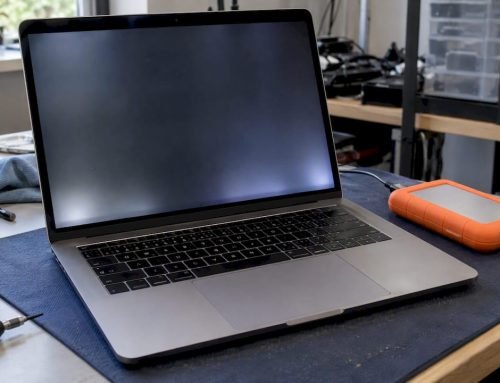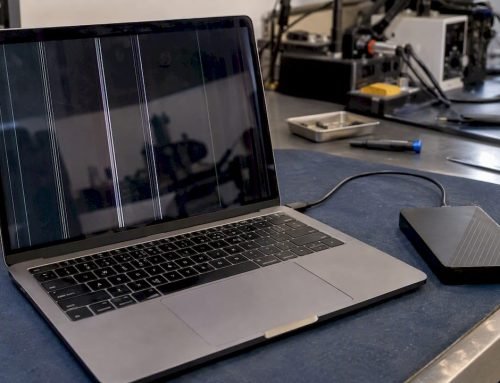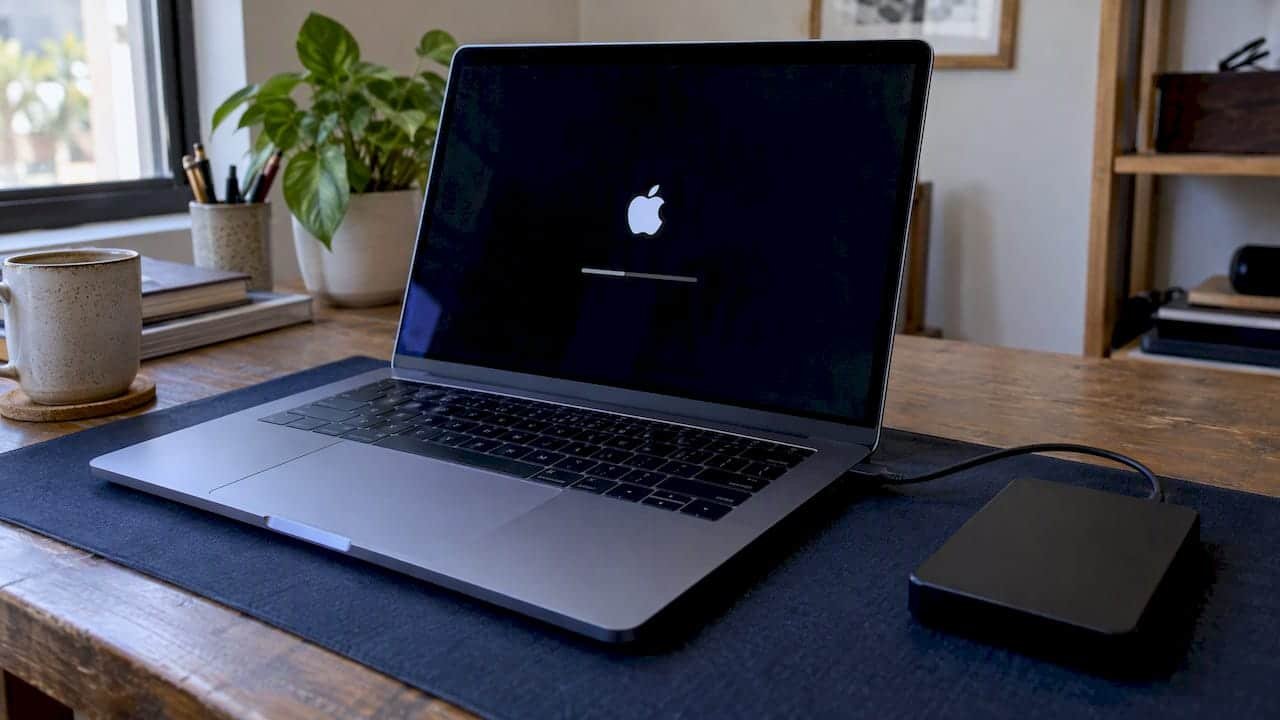
Stop all disk writes immediately: if your Mac is frozen on the Apple logo, hold the power button for up to 10 seconds to force a shutdown before you do anything else. This single move limits further strain on the drive and protects whatever data has not yet been corrupted. Once the Mac powers down, work through the restart checklist below before you touch Disk Utility or reinstall anything.
TL;DR:
- Unplug nonessential accessories, then watch the progress bar: a stalled screen after 20 minutes warrants troubleshooting, but an interrupted update may take several hours.
- Safe Mode differs on Intel and Apple silicon Macs; success points to a software conflict, while repeated failure suggests disk, firmware, or hardware trouble.
- In Recovery, run First Aid on the data volume, then the APFS container, then the physical drive; back up accessible files if repair fails.
- If Disk Utility cannot see the drive or First Aid repeatedly fails, stop disk writes and avoid restoring or reformatting before professional recovery.
- For Apple silicon firmware trouble, try a revive before a restore: a revive preserves internal data, while a restore erases it and requires another Mac.
Table of Contents
- Key Takeaways
- Try This Short Checklist Before Anything Else
- Try Safe Mode First on Intel and Apple Silicon Macs
- Run Disk Utility First Aid From macOS Recovery
- Understand Firmware Revive Before You Restore an Apple Silicon Mac
- Know When to Stop and Call a Professional Lab
- Protect Yourself From the Next Stuck Boot
- What We’ve Learned From Years of Stuck-Logo Repairs
- Get Your Mac Back Without Risking Your Files
- FAQ
- Sources
Key Takeaways
A frozen Apple logo usually points to a software conflict, a failing drive, or an interrupted macOS update rather than a dead computer. Most cases resolve with a forced shutdown, a Safe Mode boot, or a First Aid repair run from macOS Recovery, in that order. If the drive will not mount or First Aid keeps failing, stop making changes and bring the Mac to a data recovery lab before attempting a restore.
Try This Short Checklist Before Anything Else
Before diving into Recovery Mode or Terminal commands, run through a short sequence that resolves many stuck-logo cases without any risk to your files.
- Force shutdown by holding the power button for up to 10 seconds, according to Apple Support, then wait a few seconds before powering back on.
- Unplug every nonessential accessory, including USB drives, hubs, printers, and external displays, since a conflicting peripheral is a common cause of a stalled boot.
- Power on and watch closely: a progress bar that keeps inching forward is different from a wheel or logo that has not moved in 20 minutes.
- If the screen still will not progress, move to Safe Mode or macOS Recovery, covered next.
- Write down what you saw (a stalled progress bar, a spinning wheel, a folder with a question mark, or a prohibitory symbol) so a technician has a starting point if you need to escalate.
This sequence takes only a few minutes and rules out the simplest causes first, which matters before you start running repair tools on the drive itself.
Try Safe Mode First on Intel and Apple Silicon Macs
Safe Mode loads a minimal version of macOS and skips most third-party extensions and login items, which makes it the fastest way to tell whether a stuck logo is a software problem or something deeper. The steps differ depending on your chip.
- On an Intel Mac, shut down, then power on and immediately press and hold the Shift key until the Apple logo appears, according to Apple Support.
- On an Apple silicon Mac, press and hold the power button until “Loading startup options” appears, choose your startup disk, then hold Shift while clicking “Continue in Safe Mode.”
- If keyboard shortcuts do not register, switch to a wired keyboard or power-cycle once more before trying again, since Bluetooth keyboards sometimes miss the early boot window.
- A successful Safe Mode boot points to a software or extension conflict, something we can usually resolve without touching your files. Repeated failure in Safe Mode suggests a disk, firmware, or hardware issue that needs closer diagnostics.
Pro Tip: If Safe Mode loads successfully, restart normally right after. Many stuck-logo issues clear up on their own once macOS has completed a clean boot cycle.
Run Disk Utility First Aid From macOS Recovery
When Safe Mode does not resolve the freeze, macOS Recovery gives you access to Disk Utility, which can find and repair directory and formatting errors without reinstalling anything.
- On an Intel Mac, restart and hold Command-R until you see a progress bar or the Apple logo; on Apple silicon, hold the power button for startup options and choose “Options,” then “Continue.”
- Open Disk Utility and select your startup volume, typically listed as “Macintosh HD.”
- Run First Aid on the “Macintosh HD – Data” volume first, then the APFS container, then the physical device itself, repeating the process at each level, a sequence Apple Support recommends for working through the full APFS hierarchy.
- If First Aid reports it cannot repair the disk, back up any accessible data before considering a macOS reinstall from Recovery.
If the disk does not appear in Disk Utility at all, that is a hardware-level warning sign, not a software one, and it usually means the drive or its controller needs professional attention rather than another repair attempt.
One timing note worth flagging: if a macOS update was mid-install when the freeze happened, Apple Support notes the progress bar can legitimately pause for an extended stretch, and recommends starting installations in the evening so they have time to finish overnight.
Understand Firmware Revive Before You Restore an Apple Silicon Mac
Apple silicon and T2-equipped Macs handle firmware differently than older Intel models, and that difference matters a great deal if Recovery and First Aid have not fixed the freeze. Two options exist, and they are not interchangeable.
- A revive updates the Mac’s firmware without touching the data on the internal drive, making it the safer first attempt, according to Apple Support.
- A restore goes further and erases internal storage entirely, which Apple Support confirms is necessary only when a revive fails.
- Both procedures require a second Mac, a USB-C cable, and Apple Configurator, so they are not something you can do with a single frozen computer alone.
- If a revive does not resolve the firmware issue and a restore is the only remaining option, stop before proceeding if the data on that drive matters to you.
Attempt revive first for Apple silicon firmware issues: it preserves user data, while a restore erases it entirely and cannot be undone.
— Apple Support
For a deeper walkthrough of firmware-specific triage, our guide on Apple silicon data recovery steps covers the decision points in more detail.
Know When to Stop and Call a Professional Lab
Some symptoms mean the problem has moved past what Recovery or Safe Mode can fix, and keep going risks the data itself.
| Symptom | What it usually indicates |
|---|---|
| Drive missing from Disk Utility | Logic-board, controller, or physical drive failure |
| First Aid fails repeatedly | Deeper directory or NAND-level corruption |
| Clicking or grinding noises | Mechanical drive failure (rare on SSD-based Macs) |
| Visible liquid exposure | Corrosion risk to logic board components |
| Screen stays black with no chime | Possible logic-board or power delivery fault |
If any of these apply, stop all disk writes immediately and avoid running a restore or reformat, since either can overwrite data a lab could otherwise recover. We have been providing data recovery and logic-board repair services since 2006, offering free diagnostics and a no recovery, no charge policy on every case we handle. Our process starts with forensic imaging before any repair attempt touches the original drive, whether APFS, NVMe, or RAID configurations are involved. Same-day appointments are available for urgent cases. Call us to schedule an appointment.
Protect Yourself From the Next Stuck Boot
A frozen Apple logo is far less stressful when a current backup already exists. A few habits make the next incident, if there is one, much easier to recover from.
- Keep a Time Machine backup or full-disk image current, and verify it restores correctly before any major macOS upgrade.
- Watch your available storage and APFS container health, since a nearly full drive is more prone to update failures.
- Schedule OS upgrades for overnight hours and keep the Mac plugged into power throughout.
- Consider AppleCare or an extended warranty on higher-value machines, since logic-board and component-level repairs can be costly without coverage.
For more on building a recovery-ready backup routine, see our guide on how to recover lost data on your Mac.
What We’ve Learned From Years of Stuck-Logo Repairs
Most stuck-logo calls we get are not actually drive failures. They are interrupted updates, failing peripherals, or a directory error that First Aid clears in minutes. The cases that do need lab work almost always involve someone who kept restarting the Mac repeatedly or ran a restore before checking whether the data mattered. Our approach stays the same regardless: free diagnostics, forensic imaging before any repair, then a targeted fix. If you are in the Los Angeles area and the freeze will not clear, call 310-866-0828 before trying anything destructive.
— Kaya
Get Your Mac Back Without Risking Your Files
When a stuck Apple logo turns into a drive that will not mount or a First Aid repair that keeps failing, we take over from there. Our lab handles Mac data recovery, logic-board component repair, and APFS, NVMe, and RAID recovery for drives that Apple Stores often set aside as unrecoverable, backed by free diagnostics and a no recovery, no charge policy on every job. Same-day appointments are available for Los Angeles area clients in West LA, Santa Monica, Beverly Hills, Brentwood, Westwood, Venice, Hollywood, and Culver City, with our lab centrally located at 12041 Wilshire Blvd, Ste 26, between the 405 and Santa Monica, near UCLA and the Getty Center. Call 310-866-0828 or visit our Mac data recovery page to book an appointment today.
If your freeze coincides with audio dropouts or plugin crashes in a DAW, the troubleshooting steps at Vector DSP cover the driver-level conflicts that sometimes overlap with boot issues.
FAQ
Why is my MacBook stuck on a loading screen?
A MacBook typically stalls on the loading screen because of a corrupted system file, a failing drive, a conflicting peripheral, or an interrupted macOS update. Apple Support recommends a forced shutdown and unplugging nonessential accessories as the first troubleshooting steps. If the screen stays frozen after that, Safe Mode or Recovery is the next step.
What’s the average lifespan of a MacBook Air?
Apple does not publish an official lifespan figure for the MacBook Air, and actual longevity depends heavily on usage, battery cycles, and storage health. A machine that is well maintained, with regular backups and timely repairs, often lasts well beyond its original warranty period. Component-level issues like a failing SSD or battery can usually be addressed without replacing the whole unit.
Why did Apple remove the MacBook logo?
Apple has not published an official reason for removing the illuminated logo on recent MacBook models, and the change does not affect the boot process or the startup screens covered in this guide. The Apple logo still appears during startup, on-screen, regardless of whether the lid has a lit logo. This question is unrelated to stuck-boot troubleshooting.
How do I fix a stuck Apple logo?
Start with a forced shutdown by holding the power button for up to 10 seconds, then unplug nonessential accessories and restart, following the sequence Apple Support outlines. If that does not work, try Safe Mode, then macOS Recovery with Disk Utility First Aid. If the drive does not mount or First Aid keeps failing, stop and consult a data recovery professional before attempting a restore.
How long should I wait before assuming my Mac is actually stuck?
If a macOS update was installing when the freeze occurred, Apple Support notes the progress bar can take several hours to complete, so patience matters before you intervene. If there was no update in progress and the screen has not changed in 20 minutes, it is reasonable to attempt a forced shutdown. Watching for any progress bar movement, even slow, helps you decide whether to keep waiting or escalate.