Stop all disk writes immediately. When Disk Utility says it can’t repair a disk, First Aid has found file system damage it cannot fix, and every extra repair pass, install or save can overwrite the directory records a recovery depends on. If the files matter, copy out what still opens, stop running First Aid, and call us at (310) 866-0828 for a free diagnostic and a same-day appointment at our West LA lab. If nothing on the disk matters, the Apple steps below get you to a clean reformat.
TL;DR
- Disk Utility fixes formatting and directory structure problems only, so “can’t repair” and “exit code 8” mean the structure is damaged beyond what First Aid handles, or the hardware is failing.
- Stop writing to the disk, copy out whatever still opens, and do not erase until you know your files are safe somewhere else.
- If the disk won’t mount, clicks, or First Aid keeps failing, bring it to us: Since 2006, free diagnostics, and no recovery, no charge.
Table of Contents
- What “Disk Utility can’t repair this disk” actually means
- Symptoms and what they usually point to
- Why repeated First Aid runs can make recovery harder
- Step 1: Stop writes and take stock
- Step 2: Copy out what you can
- Step 3: Run First Aid in the right order, from Recovery
- Step 4: Decide between reformatting and professional recovery
- Why the recovery route is different for Macs
- RAID, NAS and multi-drive setups
- Our perspective
- Same-day help in West LA
- FAQ
- Sources
What “Disk Utility can’t repair this disk” actually means
Apple states plainly that Disk Utility can fix errors in the formatting and directory structure of a storage device, but it cannot detect or repair every problem a disk may have. A failed First Aid run is therefore not a verdict on your data. It is a verdict on the file system: the index that tells macOS where each file lives is damaged in a way the tool cannot rebuild.
The message usually arrives in a few forms:
- “Disk Utility can’t repair this disk. Back up as much of your data as possible, reformat the disk, and restore your backed-up data.”
- “The First Aid process has failed.”
- “Disk Utility stopped repairing your disk.”
- “Invalid B-tree node size.”
- “File system check exit code is 8.”
The last two are the log lines behind the dialog. On a Mac disk formatted as HFS+ (Mac OS Extended), the catalog is a B-tree: an index with a record for every file and folder. “Invalid B-tree node size” means a node in that index holds a value that breaks the format’s rules. The HFS+ specification requires a node size that is a power of two between 512 and 32,768 bytes, and a kernel patch discussion documents a case where a corrupted value of 1 left the lookup function unable to return a valid result. When the index cannot be read, the files may be fully intact on the platters or flash, yet the system has no map to reach them.
Exit code 8 is the generic result of that failure: the file system check ended with an error it could not resolve.
Symptoms and what they usually point to
The table below pairs the signs you see with the likeliest layer of the problem and how urgent it is. It is a triage guide, not a diagnosis; only a look at the drive itself settles it.
| What you see | Likely layer | Data risk | What to do |
|---|---|---|---|
| First Aid fails but the disk still mounts and files open | File system metadata (catalog, extents, APFS container) | Lower | Copy out your files now, then follow the steps below |
| Disk mounts read-only | Serious file system damage | Medium | Copy files off immediately, do not save to the disk |
| Disk is visible in Disk Utility but will not mount | Damaged volume structure | High | Stop. Do not repeat First Aid. Call us |
| Repair hangs, I/O errors or media errors appear | Failing hardware or bad blocks | High | Power down, stop using it, call us |
| Clicking, grinding or repeated disconnects | Mechanical failure | Very high | Unplug the drive and do not power it on again |
| Disk missing from the sidebar entirely | Connection, controller or board problem | Varies | Try another cable or port once, then call us |
Apple notes that if the device doesn’t appear in the sidebar, the Mac or the storage device might need service. For internal drives on modern Macs, that can mean a logic board problem, because the storage is soldered. That is component-level work we do in our lab.
Why repeated First Aid runs can make recovery harder
First Aid is not a read-only scan. When it runs on an HFS+ volume, it unmounts the volume and executes fsck_hfs with its repair flags against each available volume, which means it writes changes to the structures it is trying to fix. On a healthy disk with a small fault, that is exactly what you want. On a disk with a failing index or failing media, a second or third attempt can write partial fixes over records that a professional reconstruction would have used to rebuild your folder tree and file names.
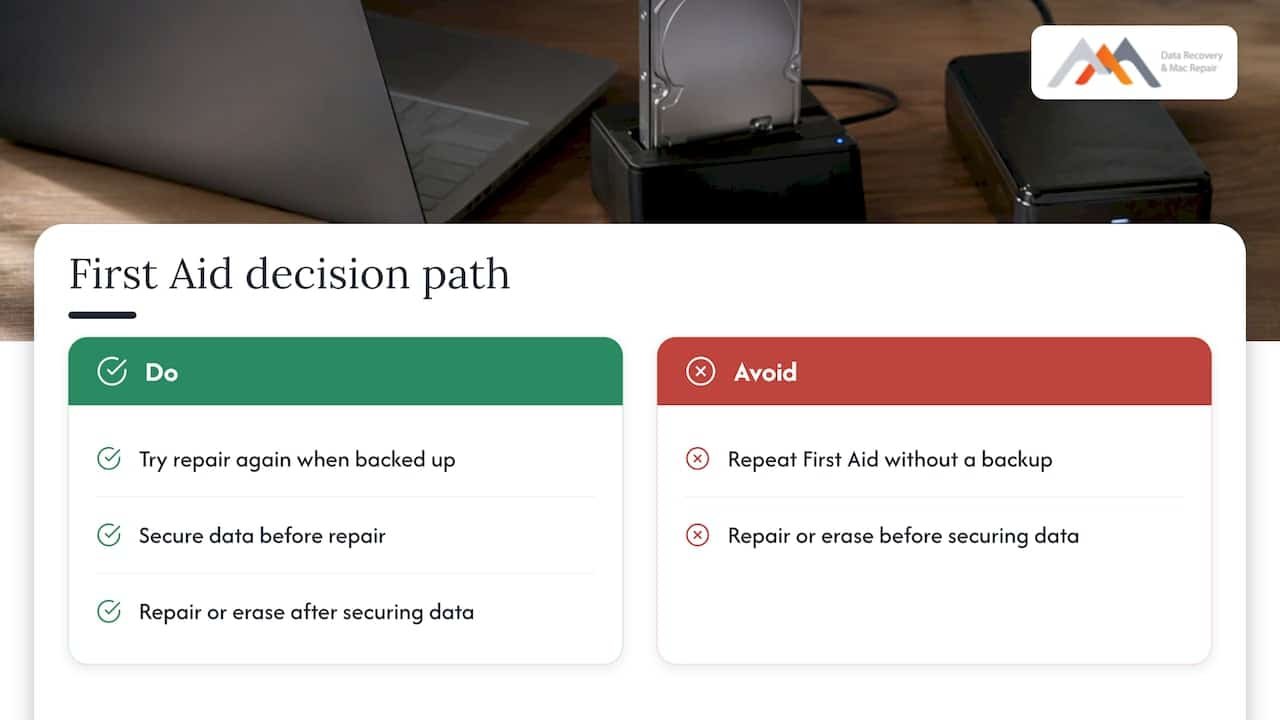
That is why our advice differs from the generic “run it again” instruction you find in most guides. Apple’s own steps say to try the repair again, and that is reasonable when your data is backed up. If it is not backed up, the order has to change: first secure the data, then repair or erase.
Step 1: Stop writes and take stock
Do this before touching Disk Utility again:
- Stop saving to the disk. Quit apps that autosave, pause cloud sync clients, and turn off Time Machine if the failing disk is the source or the destination.
- Do not install anything and do not reinstall macOS yet. An installer writes heavily to the volume you are trying to rescue.
- Do not open the Mac or charge a Mac that has had liquid exposure. Hardware damage needs a technician, not a repair tool.
- Note the exact message. The words “exit code 8,” “invalid node structure,” an I/O error or a mention that the disk is about to fail each point to a different cause.
- For an external drive, unplug it if it is clicking or freezing your Mac when attached. Keep it disconnected until you have a plan.
Our guide to what to do about file system corruption on a Mac explains the same sequence in more depth, including how corruption develops after unsafe shutdowns.
Step 2: Copy out what you can
Apple’s own guidance for a disk that cannot be repaired is to back up as much of your data as possible before you erase and reformat. In practice:
- If the disk still mounts, copy your irreplaceable folders (Documents, Desktop, Photos library, project files) to a different physical drive. Copy, do not move.
- Start with the files you cannot recreate, not the whole disk. If the drive is failing, every read stresses it, so the most valuable files go first.
- If copying stalls, throws errors, or the Mac freezes, stop. That is a sign the problem is below the file system, and further attempts only reduce what a lab can retrieve.
We lay out the details of this in our guide to backing up data from a hard drive. If the copy will not complete, this is the point to bring the drive in. Our recovery work starts with a forensic image, so the original disk is not read over and over while we work.
Step 3: Run First Aid in the right order, from Recovery
Once your important files are safe, or if the disk holds nothing you need, repeat the check properly. A common reason for failure is running First Aid on the live startup disk. Running the check from Recovery is more reliable because the Data volume is not mounted and in use, and the most frequent error in Disk Utility checks is its inability to unmount a volume before testing.
Our overview of Mac Recovery Mode and when to use it covers how to start into it on Intel and Apple silicon Macs. Once inside:
- Open Disk Utility and choose View > Show All Devices so containers and the physical device are visible, not only volumes.
- Apple’s order is to start with the last volume on the device, run First Aid on each volume and volume group moving up the list, then each container, and finally the device itself.
- Read each result. A pass on the volume and container followed by a failure on the physical device points away from a simple file system fault.
- If a volume will not unmount, a manual unmount and retry sometimes clears it.
On APFS volumes, Apple’s tool reports warnings and errors differently. Warnings can be normal observations; errors are the abnormalities First Aid should attempt to repair, often through deferred repairs. A single warning is not the same as a failed repair, so read which one you got.
One more note on an odd pattern: when First Aid says the disk needs repair and then says it is fine, that is often a deferred repair or a mounted-volume artifact, which is another reason to repeat the check from Recovery.
Step 4: Decide between reformatting and professional recovery
This is the decision that determines whether your files survive.
Apple’s sequence for a disk that still can’t be repaired is to back up what you can, reformat the disk, reinstall macOS, then restore. That sequence assumes a good backup exists. Erasing does not repair a file system, it replaces it, and what was on the disk is then very hard to retrieve. If you have not secured the data, reformatting is not the next step. Our page on what happens after a Disk Utility erase covers what is and is not recoverable once that button has been pressed.
| Your situation | Reasonable next step |
|---|---|
| Current Time Machine or other backup exists, disk has nothing else of value | Erase, reformat, reinstall macOS, restore (Apple’s sequence) |
| Files copied off successfully | Erase and reformat, then restore |
| Some files copied, the rest are important | Stop and call us before erasing |
| No backup, disk will not mount or copy | Stop. Professional recovery first |
| Clicking, I/O errors, repair hangs | Power down. Professional recovery first |
| Soldered SSD in a MacBook that will not boot | Bring in the whole Mac, no further repair attempts |
Apple adds that if problems continue after reformatting, the disk may be physically damaged and need replacing, and that if Disk Utility reports the disk is about to fail, you should back up and replace it, because it cannot be repaired.
Why the recovery route is different for Macs
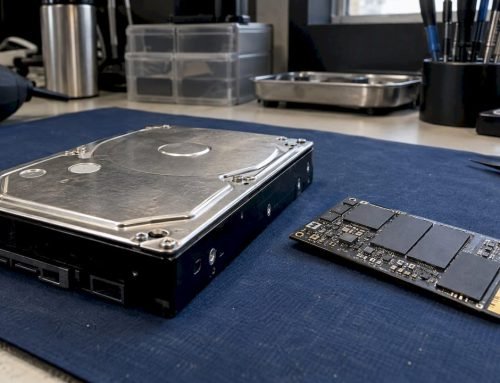
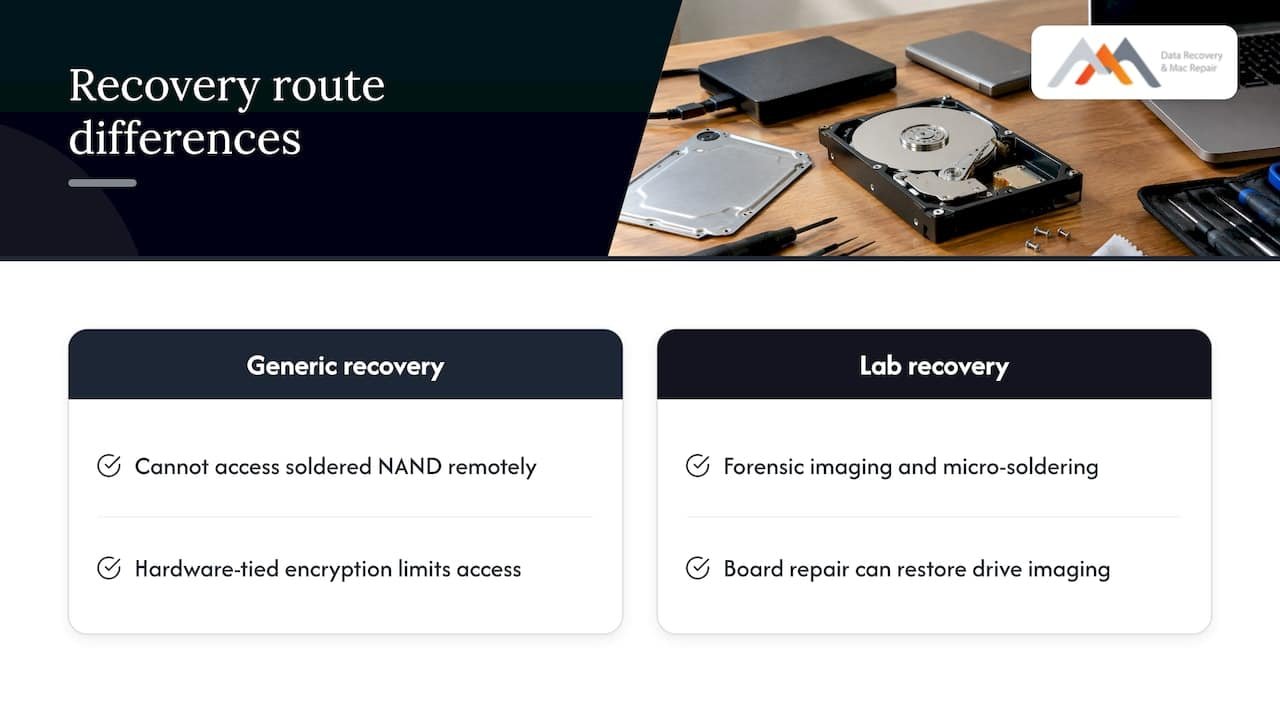
A Mac with an Apple silicon chip or a T2 security chip stores data on soldered NAND, with encryption tied to the hardware. A generic file recovery program running from another computer cannot reach it the way it could with a removable hard drive. When the file system is corrupted, the volume may still be readable at the physical level, but only if the NAND access path, the logic board and the encryption keys are handled correctly.
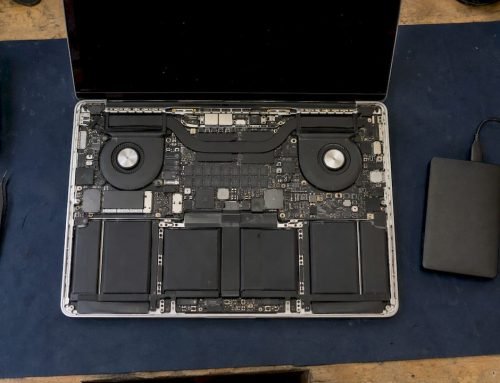
That is where our lab work applies: precision micro-soldering, forensic imaging and component-level logic board repair, including on Apple silicon Macs that Apple Stores often deem unrecoverable. If the cause is a failed power rail or a damaged storage controller connection, repairing the board can bring the drive back into a state where we can image it. See our Mac repair service page for the hardware side, and the APFS data recovery playbook for the file system side.
For external drives that fail First Aid and will not mount, our external drive not mounting guide walks through the checks that are safe to do before you disconnect the drive and bring it in. For an APFS volume on a Mac SSD that refuses to mount, the image-first approach is the one we follow.
RAID, NAS and multi-drive setups
If the disk Disk Utility cannot repair is a member of a striped or mirrored set, the stakes are higher. A RAID 0 set loses everything if one member fails, a RAID 1 mirror can carry the same corruption on both copies, and parity sets such as RAID 3 and RAID 5 can be damaged further by a rebuild started on a failing member. Do not rebuild, re-initialize or let a repair run on one member in isolation. Power the array down, label the drive order, and call us. Our RAID recovery page and the RAID 0 triage workflow show what we do with those sets.
Our perspective
We get this call in the same form again and again: a Mac owner ran First Aid, it failed, they ran it again, and then they erased the disk because the screen told them to. The screen is not wrong about the file system. It is silent about the files.
The point we make to every client is that “can’t repair” and “can’t recover” are different statements. Disk Utility is built to fix directory structure. When that structure is gone, our job begins at a different layer: imaging the media with forensic tools, reaching NVMe and NAND storage on soldered Macs through board-level work, and reconstructing the volume from the image rather than from the failing original.
That is why we start with a free diagnostic, and why our policy is no recovery, no charge. The earlier you stop writing to the disk, the more there is to work with. Since 2006 we have handled drives from home users, creative studios and businesses across West LA, and the pattern holds: the best outcomes come from people who stopped after the first failure.
Kaya
Same-day help in West LA
If First Aid failed and the files matter, we can look at the disk the same day. Macwest Data Recovery & Mac Repair is at 12041 Wilshire Blvd, Ste 26, between the 405 and Santa Monica, near UCLA and the Getty Center, and we serve Brentwood, Westwood, Santa Monica, Beverly Hills, Venice, Hollywood and Culver City. Diagnostics are free, and there is no charge if we do not recover your data. Call (310) 866-0828 to book a same-day appointment, or read about our Mac, hard drive, SSD and RAID data recovery services before you come in.
FAQ
Does “File system check exit code is 8” mean my data is gone?
No. It means the file system check ended with an error it could not resolve, usually because the directory index is damaged. The files themselves are often still on the disk. What protects them is not writing to the drive and not erasing it. If you need the data, call us before running further repairs.
Is it safe to run First Aid more than once?
It is fine when your data is backed up, and Apple’s guidance is to try again. If your files are not backed up, each pass writes changes to the file system structures, which can reduce what a lab can reconstruct. Copy out what you can first, and stop if the disk shows I/O errors or hangs.
Will erasing the disk in Disk Utility fix it?
Erasing creates a new, empty file system, and it is Apple’s recommended step once your data is backed up. It does not rescue the old contents. If you need the files and have no backup, do not erase. If the problem returns after reformatting, the disk may be physically damaged and need replacing, as Apple notes.
What does “Invalid B-tree node size” mean on a Mac?
It points to damage in the catalog B-tree, the index of every file and folder on an HFS+ volume. The index has a node whose size value breaks the format’s rules, so macOS cannot look files up. The cause can be an improper shutdown, bad sectors or a failing drive, which is why a hardware check matters.
Can you recover files from a Mac SSD that fails First Aid?
Often yes. Our lab works with forensic imaging and component-level logic board repair, including on soldered SSDs, so a corrupted volume does not necessarily mean lost files. Diagnostics are free, and under our no recovery, no charge policy you pay only if we recover your data. Call (310) 866-0828 for a same-day appointment.
Sources
- Repair a storage device in Disk Utility on Mac, Apple Support
- How to repair a Mac storage device with Disk Utility, Apple Support
- If you get a message that your disk can’t be repaired on Mac, Apple Support
- What to do when APFS has problems, The Eclectic Light Company
- What does Disk Utility’s First Aid really check, The Eclectic Light Company