TL;DR:
- Mac users face genuine risks of data loss from hardware failures, accidental deletions, ransomware, and theft, despite hardware reliability perceptions. Implementing a layered backup strategy based on the 3-2-1 rule—three copies on two different media types with one offsite—ensures comprehensive data protection and quick recovery. Regular testing of restore processes and disconnecting backup drives from the system are crucial practices to safeguard against ransomware and physical failures.
Every Mac user needs a backup strategy, and the assumption that Apple hardware is too reliable to fail is one of the most expensive misconceptions in personal computing. macOS’s APFS file system, soldered NVMe SSDs, and FileVault encryption give the impression of rock-solid data security. They don’t protect you from a corrupted update, a dropped MacBook, or ransomware that encrypts your files and your backup drive simultaneously. This article covers the real risks Mac users face, the backup solutions that actually work, and the layered strategy that prevents permanent data loss.
Table of Contents
- Key Takeaways
- Why Macs need backup: the risks are real
- Mac backup solutions: Time Machine, iCloud, and beyond
- Implementing the 3-2-1 backup strategy for your Mac
- Defending your backups against ransomware
- Mac backup best practices: frequency, storage, and automation
- My perspective on backup failures in the real world
- When backups fail: Macwestlosangeles can recover your data
- FAQ
Key Takeaways
| Point | Details |
|---|---|
| Macs face real data loss risks | Hardware failures, accidental deletions, ransomware, and theft can all destroy your data regardless of Apple’s reliability reputation. |
| iCloud is sync, not backup | iCloud propagates deletions and corruption instantly across devices, making it an unreliable substitute for a true backup. |
| The 3-2-1 rule is the standard | Three copies, two media types, and one offsite backup gives you protection against virtually every data loss scenario. |
| Test your restores regularly | Creating a backup means nothing if the restore process fails when you need it most. |
| Ransomware threatens connected drives | Backup drives permanently attached to an infected Mac can be encrypted just like your primary storage. |
Why Macs need backup: the risks are real
The causes of data loss on Macs are more varied and more common than most users expect. Apple silicon Macs use NAND-based SSDs soldered directly to the logic board. When that storage fails, there is no straightforward drive swap. Recovery requires specialized equipment and expertise, making prevention through backup far more practical than post-failure recovery.
Here are the primary threats Mac users face:
- SSD wear and drive corruption. NAND flash has a finite number of write cycles. SSDs don’t fail gradually with audible warning signs the way spinning hard drives do. They fail abruptly, often with no prior symptoms.
- Accidental file deletion. macOS’s Trash gives a brief grace period, but once you empty it, that data is gone without a backup. The APFS file system doesn’t preserve deleted file records indefinitely.
- Power outages and failed updates. A macOS update interrupted by a power failure or a kernel panic can corrupt the system volume, rendering your Mac unbootable and your data inaccessible.
- Ransomware and malware. The myth that Macs don’t get viruses has been thoroughly disproven. Ransomware targeting macOS has increased steadily, and it encrypts your files just as ruthlessly as it does on Windows systems.
- Theft and physical disasters. A stolen MacBook or a house fire takes your hardware and your data at the same time. A backup drive sitting next to your Mac offers no protection in either scenario.
- Liquid damage. A spilled coffee on a MacBook keyboard can travel directly to the logic board through internal pathways, killing the machine before you have a chance to react.
Understanding why backup is essential for Mac users starts with accepting that no hardware brand, regardless of quality, is immune to the physics of storage failure or the unpredictability of real-world accidents.
Mac backup solutions: Time Machine, iCloud, and beyond
Not all backup methods are created equal, and understanding their differences prevents a false sense of security. Here is how the main options compare:
| Solution | Type | Strengths | Limitations |
|---|---|---|---|
| Time Machine | Local backup | Hourly, daily, and weekly snapshots; built into macOS | Backup drive lost in same disaster as Mac |
| iCloud Drive | Cloud sync | Convenient, automatic | Syncs deletions instantly; not a true backup |
| Backblaze / Arq | Cloud backup | Offsite, version history up to 1 year | Requires subscription; restore speed depends on bandwidth |
| Bootable clone | Local image | Full system restore, fast recovery | Static copy; needs regular manual updates |
| External SSD/HDD | Local backup | Fast, inexpensive, flexible | Single point of failure if only copy |
Time Machine provides hourly, daily, and weekly versions of your files, cycling out the oldest snapshots automatically as your backup drive fills. It restores apps, files, and system settings, making it the most practical starting point for any Mac backup strategy. However, it has a critical weakness: if your Time Machine drive lives next to your Mac, a fire, flood, or burglary eliminates both simultaneously.
iCloud is sync, not backup. This distinction matters more than most people realize. When you delete a file on your Mac, iCloud propagates that deletion to every connected device within seconds. If ransomware corrupts your Documents folder, that corruption syncs to iCloud just as efficiently. True backups preserve older versions independently of what happens on your primary device.
Pro Tip: Carbon Copy Cloner and SuperDuper! create bootable clones of your entire Mac volume. If your internal NVMe SSD fails, you can boot directly from the clone and continue working while your primary drive is being replaced or repaired.
Offsite cloud backups like Backblaze run continuously in the background and maintain version history ranging from 30 days to a full year depending on your subscription tier. This makes them particularly effective for ransomware recovery, because you can restore your files to a point before the infection took hold.
Implementing the 3-2-1 backup strategy for your Mac
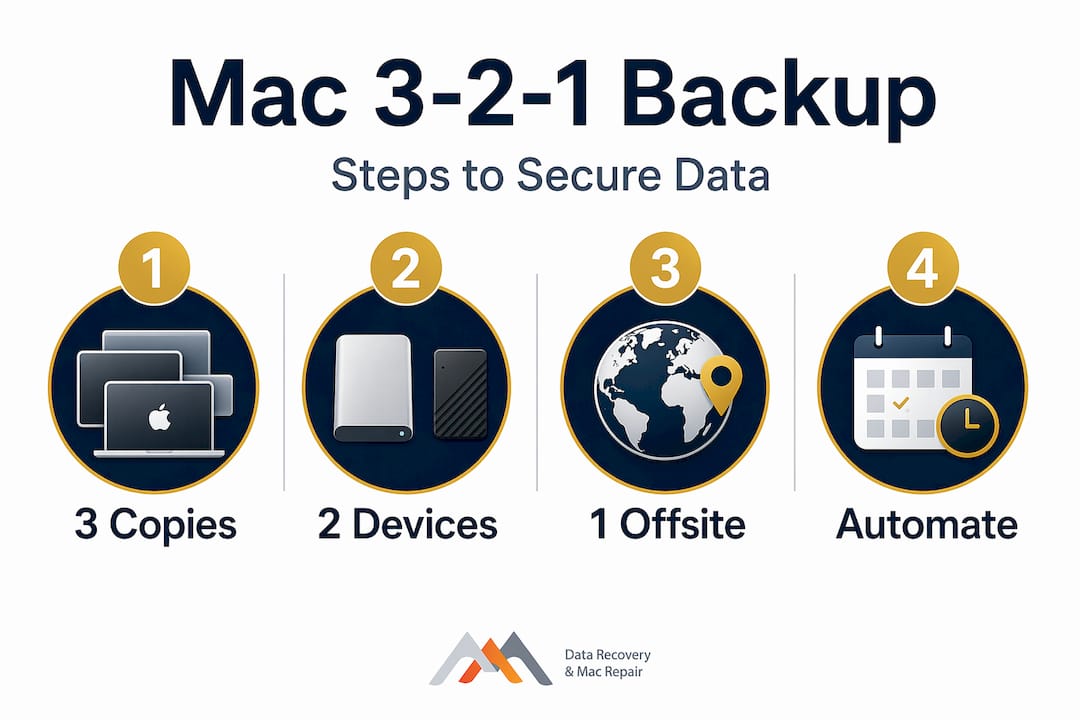
The 3-2-1 strategy is the industry-standard framework for reliable data protection, and experts recommend it for Mac users of all experience levels. The rule is straightforward: maintain three copies of your data, on two different types of media, with one copy stored offsite. Here is how to build it on a Mac:
Copy 1: Time Machine on a dedicated external drive. Connect a USB-C or Thunderbolt external drive to your Mac and set up Time Machine in System Settings. Use a drive at least twice the size of your internal storage to retain meaningful version history. For a MacBook with a 1TB NVMe SSD, a 2TB external HDD is a reasonable minimum.
Copy 2: A second external drive or bootable clone. Use Carbon Copy Cloner or a similar tool to create a bootable clone on a second external drive. Update this clone weekly or after any significant work session. Storing this drive at a separate physical location, such as your office, adds geographic redundancy even before you introduce cloud backup.
Copy 3: Offsite cloud backup. Services that perform continuous background backups of your entire Mac give you offsite protection without any manual effort after initial setup. This copy protects against scenarios where both local drives are lost in the same event, such as a home fire or a break-in.
Each layer of this system protects against different failure modes. Time Machine handles day-to-day accidental deletions. The bootable clone gets you working again quickly after a catastrophic hardware failure. The offsite cloud backup is your last line of defense against physical disasters and theft. Time Machine alone fails when your backup drive is in the same room as your Mac during a disaster.
Pro Tip: Schedule your cloud backup to run during off-hours when your Mac’s bandwidth isn’t being used for other tasks. Most cloud backup clients let you throttle upload speeds and set backup windows to avoid slowing down your workday.
Defending your backups against ransomware
Ransomware presents a unique threat to backup strategies because it doesn’t just attack your primary data. Ransomware can encrypt connected backup drives just as readily as your internal SSD, meaning a Time Machine drive permanently plugged into an infected Mac is not a safe backup at all. Protecting your backups against this threat requires specific practices:
- Disconnect your Time Machine drive when not in active use. You don’t need it connected 24 hours a day. Plug it in for scheduled backups, then disconnect it. A drive that isn’t connected cannot be encrypted.
- Use cloud backup services with immutable storage or version history. Services that retain 30 to 365 days of version history allow you to restore your files to a pre-infection state even after ransomware has run.
- Keep your macOS and security software updated. Most macOS ransomware exploits known vulnerabilities that Apple patches regularly. Running an outdated system is unnecessary risk.
- Never disable System Integrity Protection (SIP). SIP prevents unauthorized processes from modifying protected system directories, which limits what ransomware can access on your Mac’s APFS volume.
Beyond ransomware, the single most overlooked backup practice is testing your restores. The most common point of failure in any backup system is the restore process itself, not the backup creation. Many Mac users have a Time Machine drive that appears healthy but contains corrupted snapshots that will not mount when actually needed. Perform a test restore quarterly: pick a folder or a few key files, restore them to a different location using Time Machine, and verify the contents are intact and readable.
Mac backup best practices: frequency, storage, and automation
The importance of backing up Macs consistently cannot be overstated, and the specifics of how you back up matter as much as whether you back up at all. Here are the practices that make a real difference:
- Backup frequency should match your work rate. If you generate important files daily, hourly Time Machine backups are not excessive. For lighter use, daily is sufficient. The question to ask is: how much work can I afford to redo if my Mac fails right now?
- Size your backup drives appropriately. A backup drive that is too small will cycle through old snapshots too quickly, reducing how far back you can recover. Two to three times your internal storage capacity is the practical target.
- Mix SSD and HDD media for cost-effective redundancy. Your Time Machine drive doesn’t need to be fast; an HDD is sufficient and significantly cheaper per gigabyte. Reserve SSD external drives for bootable clones where read speed matters during recovery.
- Automate everything you can. Manual backup habits fail under time pressure. Time Machine runs automatically once configured. Cloud backup services run automatically. The bootable clone is the one step that typically requires a manual trigger; schedule it as a weekly calendar reminder until the habit is established.
- Account for FileVault encryption in your backup setup. Time Machine backups of FileVault-encrypted drives are themselves encrypted. Confirm your Time Machine backup password is stored somewhere you can access independently of the Mac, such as a password manager or a printed record stored securely offsite.
The cost of adequate backup storage has dropped dramatically. A 2TB external HDD costs under $60, and cloud backup subscriptions run roughly $7 to $9 per month. Measured against the cost of professional data recovery from a failed NVMe SSD soldered to a logic board, which can run from several hundred to over a thousand dollars, the investment in backup is straightforward.
My perspective on backup failures in the real world
I’ve seen what data loss actually looks like when someone arrives at a recovery service after the fact. The pattern repeats in a way that’s almost predictable: a Mac user who trusted their hardware, had a single Time Machine drive they hadn’t checked in months, and assumed that iCloud was “basically a backup.”
The hard truth I’ve come to is that single-point backup failure is less a technical problem and more a confidence problem. People trust their Macs precisely because Apple builds reliable hardware. That reliability becomes a liability when it prevents users from taking the threat seriously. Hard drives follow what engineers call a bathtub curve for failure rates, meaning they’re most likely to fail either early in their life or after years of steady use. If your Time Machine drive is three years old and you’ve never tested a restore from it, you’re operating on faith, not a backup strategy.
What I tell people is this: your backup is only as good as your last successful restore test. I’ve seen cases where a Mac’s APFS volume was corrupted, the Time Machine drive mounted fine, but the snapshots inside were unreadable. That’s not an edge case. It happens. The only way to know your backup works is to use it before you need it.
The offline backup habit of disconnecting your Time Machine drive after each backup session is one of the simplest and most effective ransomware defenses available. It costs nothing and takes five seconds. If you take one thing from this article, make it that.
— Kaya
When backups fail: Macwestlosangeles can recover your data
If you’re reading this after a data loss event rather than before, stop all disk writes immediately to maximize your recovery chances. Macwestlosangeles has provided professional Mac data recovery in Los Angeles since 2006, with specialized expertise in APFS file system recovery, NVMe SSD failures, RAID 0/1/3/5 arrays, and Logic Board component repair. We offer free diagnostics with a no-recovery, no-charge guarantee, so you have nothing to lose by bringing in your device. Same-day appointments are available at our location at 12041 Wilshire Blvd, Ste 26, serving West LA, Santa Monica, Beverly Hills, Brentwood, Westwood, and surrounding areas. Call us at 310-866-0828 or visit our Mac repair service page to get started.
FAQ
Do Macs really need a backup if they have iCloud?
Yes. iCloud syncs your files rather than backing them up, which means deletions and corrupted files propagate instantly to all your devices. A dedicated backup solution like Time Machine or a cloud backup service is required for true data recovery.
What is the best backup strategy for a Mac?
The 3-2-1 strategy is the recommended standard: three copies of your data, stored on two different media types, with one copy kept offsite. Time Machine plus a cloud backup service like Backblaze covers this framework effectively.
Can ransomware delete or encrypt Mac backups?
Yes. Ransomware can encrypt any drive connected to an infected Mac, including your Time Machine drive. Keeping your backup drive disconnected when not in active use and maintaining an offsite cloud backup with version history provides reliable protection.
How often should I back up my Mac?
Time Machine runs hourly backups automatically once configured, which is suitable for most users. If you work with critical files daily, confirm your Time Machine and cloud backup schedules are active and that you test a restore at least once per quarter.
What happens if my Mac’s SSD fails without a backup?
Recovery from a failed NVMe SSD soldered to a Mac logic board requires specialized equipment and professional expertise. The process is significantly more complex and costly than a standard drive replacement. Professional data recovery services can often retrieve data, but a working backup prevents the need entirely.