Key takeaways: Mac SSDs fail silently and without warning, making early symptom recognition critical for Los Angeles users. Immediate response, including stopping all disk writes and running Disk Utility First Aid, can mean the difference between full recovery and permanent data loss. Macwest Data Recovery & Mac Repair has served West LA, Santa Monica, and Beverly Hills since 2006, offering free diagnostics, same-day appointments, and a no-recovery, no-charge guarantee.
Most Mac users picture a failing hard drive as something loud and obvious, a drive that clicks, grinds, and announces its own death. That picture is accurate for older mechanical hard disk drives (HDDs), but it misses the reality of modern Mac storage entirely. Today’s MacBooks, iMacs, and Mac Pros ship with solid-state drives (SSDs) that fail silently and without warning, leaving Los Angeles users staring at a blank screen with no idea what went wrong. This guide covers everything you need: how to identify symptoms, what to do the moment failure strikes, and how to protect your data going forward.
Table of Contents
- Why Mac hard drives fail: HDD vs SSD explained
- Top symptoms of Mac hard drive failure you should never ignore
- Immediate recovery steps for hard drive failure on your Mac
- Preventing Mac hard drive failure: Essential habits and tools
- What most Mac users get wrong about hard drive failures
- Get local Mac hard drive recovery help today
- Frequently asked questions
Key Takeaways
| Point | Details |
|---|---|
| Different failure types | HDDs fail loudly; SSDs fail silently, so symptoms vary and prompt action is critical. |
| Recognize warning signs | Watch for slowdowns, crashes, file errors, boot problems, and strange noises or indicators. |
| Safe recovery steps | Use Disk Utility First Aid; stop if physical problems arise, and consult a pro in Los Angeles promptly. |
| Best prevention habits | Back up daily, monitor SMART, keep extra space, and protect your Mac from power surges. |
| Avoid DIY repairs | Do not attempt repeated power-ons or physical fixes—these can cause permanent data loss. |
Why Mac hard drives fail: HDD vs SSD explained
Understanding how and why drives fail helps you recognize problems before it’s too late and informs the recovery process.
Mac storage has evolved significantly over the past decade. Older iMacs and MacBook Pros used spinning HDDs, which store data on magnetic platters read by a mechanical arm. Modern Macs use NVMe SSDs, which store data electronically on NAND flash chips with no moving parts at all. These two architectures fail in completely different ways, and recognizing which type you have shapes every decision that follows.
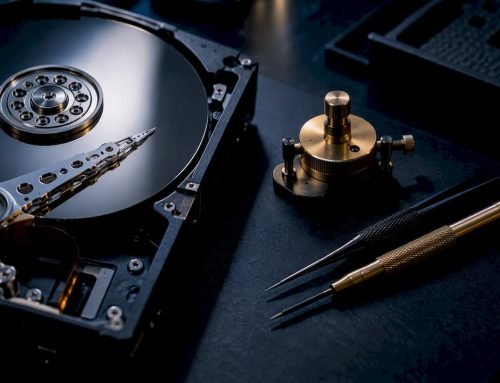
HDD failure modes are largely mechanical. Head crashes, stiction, and clicking are the classic signs that the read/write head has made contact with the platter surface or that the spindle motor is seizing. The key point here is that physical damage in an HDD worsens with every additional power-on. Each time you restart a mechanically compromised drive, the head can scrape more platter surface, destroying data that might otherwise have been recoverable. Professionals address this by working in ISO-certified cleanrooms and using donor parts from identical drive models to replace damaged components before attempting any read operation.
SSD failure modes are electronic. NAND wear, controller failure, and firmware corruption can all cause sudden, total data loss with zero prior symptoms. There is no clicking, no grinding, and no slowdown to tip you off.
| Feature | HDD | SSD |
|---|---|---|
| Failure warning | Audible (clicks, grinding) | Usually none |
| Primary cause | Mechanical wear, head crash | NAND wear, controller failure |
| Annual failure rate (AFR) | 1.3–1.6% (rises post-5 years) | ~0.98% (plateaus after 4–5 years) |
| Typical lifespan | 3–5 years under heavy use | 5–10 years, ~3,000 erase cycles |
| Recovery complexity | Cleanroom, donor parts | PC-3000 tools, NAND access |
Backblaze reliability data shows HDD annual failure rates climbing sharply after the five-year mark, while SSD failure rates plateau around years four and five. For deeper context on SSD lifespan expert analysis, Howard Oakley’s research provides granular data on write endurance across Mac SSD generations.
For Mac Pro owners or users with RAID 0, RAID 1, RAID 3, or RAID 5 configurations, the stakes are even higher. A single drive failure in a RAID 0 array means total data loss. Our team offers specialized Mac Pro recovery and handles complex array rebuilds that require both hardware expertise and precise logical reconstruction.
“Repeated power-ons on a physically damaged HDD can scrape the platters and permanently destroy data that would otherwise be recoverable. Stop, disconnect, and call a professional.”
Top symptoms of Mac hard drive failure you should never ignore
Now that you understand the risks, let’s cover how to spot hard drive failures before they escalate.
Stop all disk writes immediately if you notice any of the symptoms below. Continuing to write data to a failing drive can overwrite the very sectors that contain your recoverable files.
Critical warning signs for both HDD and SSD:
- Persistent slow performance and frequent crashes, especially during file operations
- Corrupted or missing files that were previously accessible
- Disk Utility First Aid reporting errors it cannot repair
- SMART status displaying “Failing” in Disk Utility or third-party tools like DriveDx
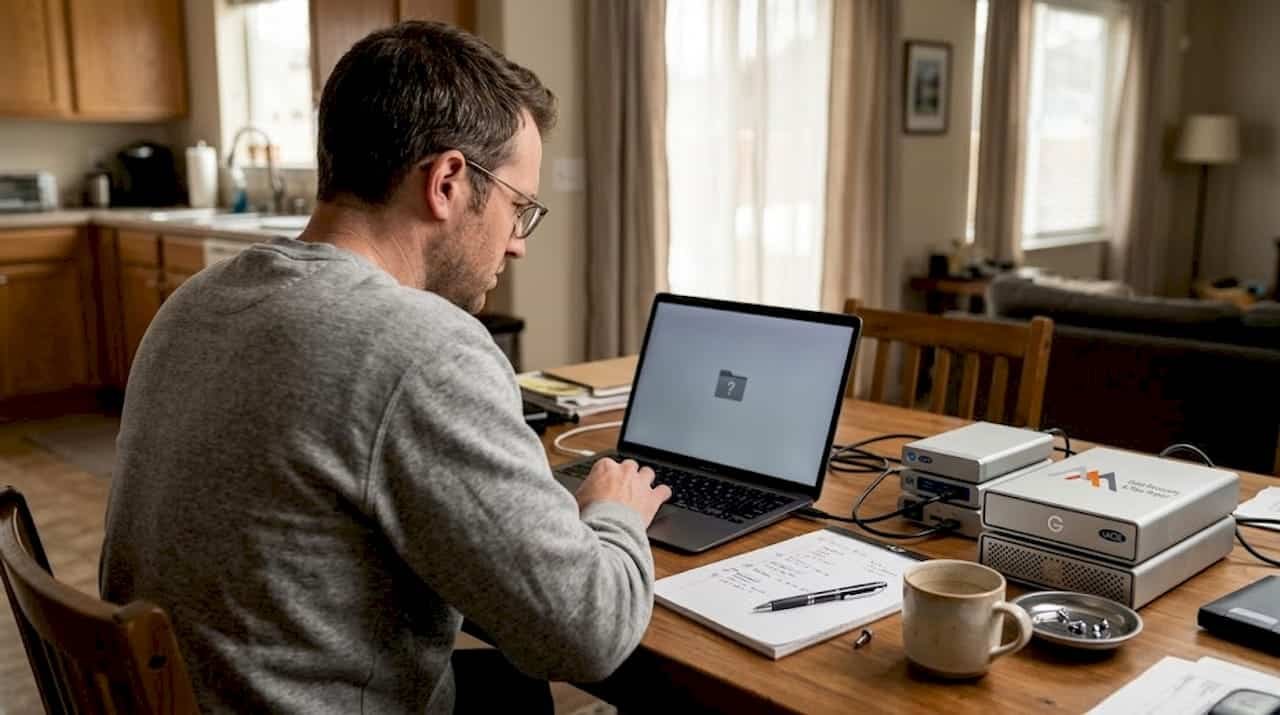
- Boot errors such as the folder with a question mark icon at startup
- Overheating beyond normal operating temperature
- Applications refusing to launch or freezing mid-use
- For HDDs specifically: clicking, grinding, or repetitive seek noises
| Symptom | HDD | SSD | Urgency |
|---|---|---|---|
| Clicking or grinding | Yes | No | Critical |
| Folder with question mark | Yes | Yes | Critical |
| SMART status “Failing” | Yes | Yes | Critical |
| Slow file transfers | Yes | Yes | High |
| Corrupted files | Yes | Yes | High |
| Overheating | Rare | Yes | Medium |
| App crashes | Yes | Yes | Medium |
HDD annual failure rates average between 1.3% and 1.6%, while Mac SSDs carry roughly a 0.98% AFR and plateau after four to five years of use. Mac SSDs are rated for approximately 3,000 erase-write cycles, translating to a practical lifespan of five to ten years under normal workloads.
For Los Angeles users running APFS-formatted drives with FileVault encryption enabled, a failing controller can make the encrypted volume appear entirely absent in Disk Utility, which is often mistaken for a software issue rather than a hardware failure. Our HDD recovery in Los Angeles team encounters this scenario regularly and has the tools to distinguish between logical and physical failure before any recovery attempt begins. If you are unsure whether your issue is hardware or software, our Mac repair service includes free diagnostics to pinpoint the exact cause.
Pro Tip: Run Disk Utility’s First Aid from macOS Recovery mode (hold Command + R at startup) rather than from within macOS itself. This gives the tool read access to the drive without the operating system actively writing to it, producing more accurate results.
Immediate recovery steps for hard drive failure on your Mac
If you’ve spotted concerning symptoms, here’s what to do right now so you avoid fatal mistakes and maximize your chances at recovery.
- Stop all disk writes immediately. Shut down the Mac if you suspect physical damage. Do not attempt to copy files, run software updates, or reinstall macOS.
- Boot into macOS Recovery (Command + R) and open Disk Utility. Run First Aid on the affected volume.
- Check SMART status in Disk Utility. If it reads “Failing,” do not proceed with DIY recovery.
- Do not power-cycle a clicking HDD. Each restart risks further platter damage and permanent data loss.
- Contact a professional data recovery service in Los Angeles if First Aid fails, if you hear physical noises, or if the drive does not appear in Disk Utility at all.
Professional recovery services use ISO-certified cleanrooms, donor drive components, and specialized hardware platforms like the PC-3000 to read data directly from NAND chips or damaged platters. DIY repairs on physically damaged drives consistently worsen outcomes, often converting a partial loss into a total one.
Several reputable data recovery providers in Los Angeles include DriveSavers, Secure Data Recovery, and 300 Data Recovery. For Apple-specific hardware, including soldered NVMe SSDs, logic board component repair, and APFS volume reconstruction, our Mac hardware repair experts at Macwest bring nearly two decades of focused Apple experience to every case.
For MacBook Pro owners specifically, soldered SSDs require chip-level NAND access techniques that general recovery shops often lack. Our MacBook Pro recovery service handles these cases with the precision they demand. Same-day appointments are available for urgent situations, and our no-recovery, no-charge policy means you pay only when your data comes back.
Preventing Mac hard drive failure: Essential habits and tools
With recovery complete or underway, it’s time to ensure your Mac stays protected and your data is never at risk again.
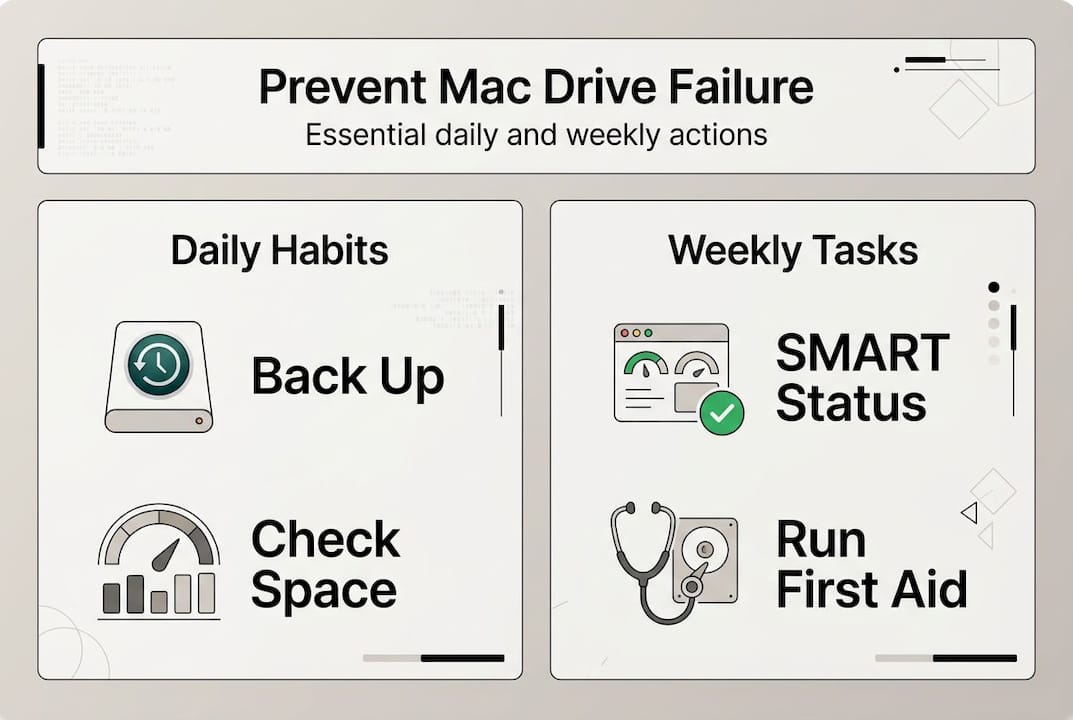
Prevention requires consistent habits and the right tools. The following checklist reflects best practices for Mac SSD longevity and applies equally to HDD-based systems still in use across the Los Angeles area.
Essential prevention checklist:
- Back up daily with Time Machine to an external drive or NAS. A backup that runs once a week is not enough for active work environments.
- Keep 15 to 25% of drive space free at all times. SSDs use spare area for wear leveling; filling a drive to capacity accelerates NAND degradation.
- Ensure sufficient RAM so macOS does not rely heavily on swap files, which add unnecessary write cycles to your SSD.
- Monitor SMART status with a tool like DriveDx, which provides granular health metrics beyond what Disk Utility displays.
- Use a UPS (uninterruptible power supply) to protect against sudden power loss, which can corrupt APFS metadata and cause logical failures.
- Run Disk Utility First Aid quarterly as a routine check, not just when problems appear.
Pro Tip: Always check your drive’s SMART status and available free space before performing a major macOS upgrade. Upgrades write significant data to the drive, and a drive already showing early warning signs may fail mid-installation, leaving your system in an unbootable state.
Our Mac repair specialists serving Brentwood, Westwood, Venice, Hollywood, and Culver City can also advise on external storage solutions, including LaCie recovery solutions for users who need reliable backup hardware paired with professional support.
What most Mac users get wrong about hard drive failures
The most persistent misconception we encounter at Macwest, after nearly two decades of Apple-focused data recovery in Los Angeles, is that hard drive failure always announces itself. It does not. Most Mac users wait for a symptom before taking action, which works reasonably well for HDDs but fails completely with SSDs.
SSD failures are sudden while HDD failures tend to be gradual, and that distinction changes everything about how you should prepare. An SSD can pass every SMART check on Monday and be completely unreadable by Thursday. The only reliable defense is a current backup, not symptom monitoring.
The second major mistake is attempting DIY recovery on a physically damaged HDD. We see this regularly. A user hears clicking, searches online, downloads recovery software, and runs it repeatedly. Each power-on grinds the platter surface further. By the time they reach our lab at 12041 Wilshire Blvd, Suite 26, the window for recovery has narrowed significantly. Professionals use donor parts, PC-3000 platforms, and cleanroom environments precisely because the drive cannot tolerate any further mechanical stress. Explore our Mac drive restoration guide for a detailed walkthrough of what professional recovery actually involves.
Get local Mac hard drive recovery help today
If your Mac is showing any of the symptoms described above, time matters. The longer a failing drive remains in use, the lower the probability of full data recovery.
Macwest Data Recovery & Mac Repair has provided trusted Apple-focused Mac hard drive data recovery to Los Angeles residents since 2006. We offer free diagnostics, same-day appointments, and a no-recovery, no-charge policy on all recovery cases. Whether you need Mac repair in Los Angeles for a logic board issue, a screen replacement, or liquid damage, or you need immediate local data recovery help for a failed SSD or HDD, our team at 12041 Wilshire Blvd, Suite 26 is ready to assist. Call us today to schedule your same-day appointment.
Frequently asked questions
How can I tell if my Mac has a failing hard drive?
Watch for slow performance, crashes, and corrupted files, along with SMART status showing “Failing,” boot errors like the folder with a question mark, or clicking noises from an HDD. SSDs may show no symptoms at all before failing.
What is the safest way to recover data from a failed Mac drive?
Run Disk Utility First Aid from macOS Recovery mode first; if it fails or you detect physical signs like clicking, stop immediately and contact a professional data recovery service to avoid worsening the damage.
How long does a Mac SSD typically last before failing?
Most Mac SSDs last 5 to 10 years under normal use, rated for approximately 3,000 erase-write cycles, though failures typically occur silently without prior warning signs.
How can I prevent hard drive failure on my Mac?
Back up daily with Time Machine, keep 15 to 25% free space on your drive, monitor SMART status with DriveDx, use a UPS for power protection, and run Disk Utility First Aid on a quarterly schedule.
Will repeated power-ons help recover a dead HDD?
No. Repeated power-ons on a mechanically damaged HDD can scrape the platters and permanently destroy recoverable data; contact a professional recovery service instead of attempting to restart the drive.