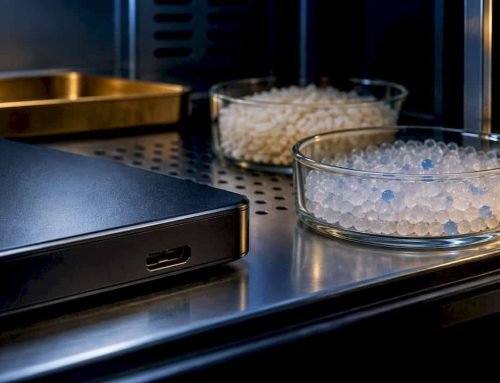

Sudden data loss on a Mac hard drive or SSD can stop your work, erase irreplaceable memories, and create real panic. Whether your drive stopped mounting, your files disappeared after a system crash, or you hear a clicking sound every time your Mac boots, the situation demands a clear, methodical response. Los Angeles Mac users have access to skilled recovery professionals who understand Apple hardware at a deep level, from APFS (Apple File System) partitions to soldered NVMe SSDs. This guide walks you through the causes of failure, the right immediate steps, available recovery tools and services, and what professional recovery actually looks like from start to finish.
Table of Contents
- Understanding Mac hard drive failure: Causes and symptoms
- Immediate steps to take after Mac hard drive data loss
- Tools and services for Mac hard drive data recovery in Los Angeles
- How professionals recover Mac hard drive and SSD data: Step-by-step
- Our take: Why local expertise makes the difference
- Los Angeles Mac hard drive data recovery: Your next step
- Frequently asked questions
Key Takeaways
| Point | Details |
|---|---|
| Local expertise matters | Los Angeles-based Mac recovery specialists offer faster and safer solutions for hard drive and SSD data loss. |
| Act fast after data loss | Immediately stop using the affected drive and consult recovery professionals to avoid permanent damage. |
| No-data-no-charge policies | Many Los Angeles recovery services only bill if your data is successfully restored, ensuring peace of mind. |
| Professional cleanroom facilities | Proper Mac hard drive recovery requires specialized equipment and environments for maximum success. |
Understanding Mac hard drive failure: Causes and symptoms
Not all data loss situations are the same, and identifying the type of failure you are dealing with is the first step toward a successful recovery. Mac hard drive failures generally fall into two categories: physical failures and logical failures.
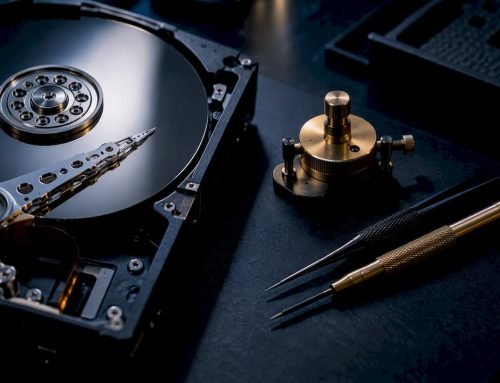
Physical failures involve actual hardware damage. This includes read/write head crashes, spindle motor failure in traditional HDDs, or NAND flash degradation in SSDs. Logical failures, on the other hand, involve no mechanical damage. Instead, the file system becomes corrupted, files are accidentally deleted, or a drive gets reformatted without a backup.
Common causes of Mac drive failure include:
- Hardware wear: HDDs have moving parts that degrade over time; SSDs have finite write cycles
- Accidental formatting: Reformatting a drive erases the file system structure, making files inaccessible
- Power surges: Sudden voltage spikes can corrupt firmware or damage storage controllers
- Software corruption: A failed macOS update or improper shutdown can corrupt APFS metadata
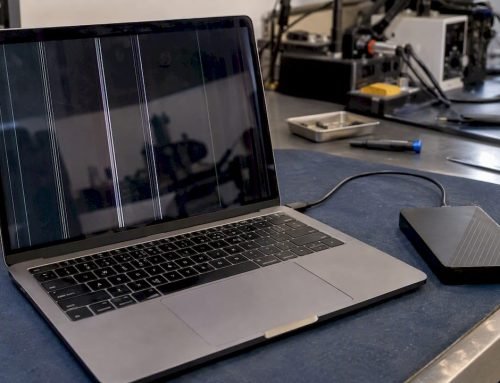
- Liquid damage: Water intrusion into a MacBook can short-circuit the storage controller directly
Symptoms to watch for include slow file access times, drives not appearing in Finder or Disk Utility, persistent spinning beach balls, kernel panic errors, and audible clicking or grinding sounds from the drive. Clicking noises in particular are a strong indicator of physical head damage and require immediate attention.
Do not continue using your Mac if you hear clicking sounds from the drive. Every additional read/write cycle risks overwriting recoverable data permanently.
Pro Tip: If your drive is not appearing in Disk Utility but your Mac is still running, boot into macOS Recovery (Command + R on startup) and check if the drive appears there. If it does not, the issue is likely hardware-level.
Los Angeles has a strong network of recovery specialists. Professional Mac data recovery services in the area include DriveSavers, SalvageData, DriveFish, PITS Data Recovery, and MacWest, all offering cleanroom facilities, Mac-specific expertise, and no-data-no-charge policies. Knowing your Mac repair options before a crisis hits can save critical time when it matters most.
Immediate steps to take after Mac hard drive data loss
Once you recognize the symptoms of drive failure, your response in the next few minutes can determine whether your data is recoverable. Acting quickly and carefully is essential.
Follow these steps in order:
- Stop using the drive immediately. Every write operation, even saving a document, can overwrite sectors that contain your lost files. Shut down your Mac if you suspect physical damage.
- Check physical connections. For external drives, try a different cable or USB port. A loose connection can mimic serious failure symptoms.
- Restart and observe. A single restart can sometimes resolve a temporary file system error. Watch for any error messages during boot and note them precisely.
- Open Disk Utility. Navigate to Applications > Utilities > Disk Utility. If your drive appears but shows errors, try running First Aid. If the drive does not appear at all, skip software tools entirely.
- Do not run third-party recovery software on a physically damaged drive. Tools like Disk Drill or R-Studio are effective for logical failures, but running them on a mechanically failing drive can accelerate damage.
- Document everything. Note the exact error messages, the drive model and serial number, when the problem started, and any recent events such as drops, spills, or software updates.
If your Mac shows a flashing folder with a question mark at startup, the system cannot locate a bootable volume. This is a critical symptom requiring professional evaluation.
Pro Tip: Before contacting a recovery service, take a photo of your screen showing any error messages. This helps technicians diagnose the issue faster and more accurately during intake.
Once you have protected the drive from further damage, reach out to local data recovery services for a professional assessment. Understanding the Mac hard drive restoration steps that professionals follow can also help you set realistic expectations before your appointment.

Tools and services for Mac hard drive data recovery in Los Angeles
Choosing between DIY software and professional recovery services depends largely on the nature of your failure. Here is a practical comparison to help you decide.
| Recovery method | Best for | Success rate | Risk level | Estimated cost |
|---|---|---|---|---|
| DIY software (Disk Drill, R-Studio) | Logical failures, deleted files | Moderate | Low to medium | $0 to $100 |
| Professional logical recovery | Corrupted file systems, formatted drives | High | Low | $200 to $500 |
| Professional physical recovery | Head crashes, motor failure, water damage | High with cleanroom | Low | $500 to $1,500+ |
Local providers such as MacWest, DriveSavers, SalvageData, and PITS Data Recovery bring Mac-specific expertise that general IT shops simply do not offer. Recovering data from a soldered SSD in a MacBook Pro, for example, requires NAND chip-off techniques and proprietary tools that are not available in consumer software.
Key advantages of professional Los Angeles services include:
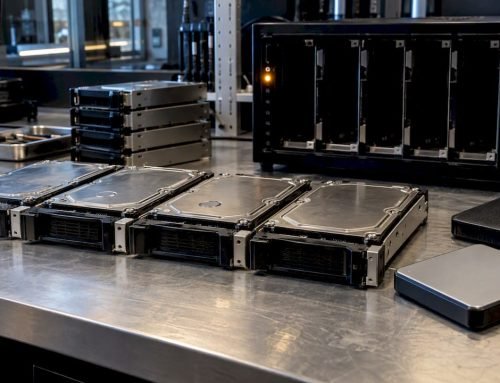
- Cleanroom facilities: ISO Class 5 or better environments prevent airborne particles from damaging exposed platters or NAND chips during disassembly
- Mac-specific expertise: Technicians trained in APFS, FileVault encryption handling, and Apple’s T2 and M-series security chip architecture
- No-data-no-charge policies: You pay only if your data is successfully recovered, removing financial risk from the process
- Chain of custody documentation: Reputable providers log every step, protecting your privacy and ensuring accountability
For owners of higher-end Apple hardware, specialized pages covering Mac Pro recovery details and Mac Mini recovery services outline exactly what to expect for each device type. DIY tools have their place, but for any situation involving physical symptoms or encrypted drives, professional recovery is the only reliable path forward.
How professionals recover Mac hard drive and SSD data: Step-by-step
Understanding what happens inside a professional recovery lab helps you prepare and set accurate expectations. Here is a typical workflow used by qualified Los Angeles technicians.
- Initial diagnosis and intake. The technician evaluates your drive using specialized diagnostic hardware. For HDDs, this includes checking SMART (Self-Monitoring, Analysis, and Reporting Technology) data and listening for mechanical anomalies. For SSDs, firmware status and NAND health are assessed.
- Cleanroom disassembly (if needed). Physically damaged HDDs are opened in a controlled cleanroom environment where particle counts are kept extremely low. Contamination from even a single dust particle can scratch a platter and destroy data permanently.
- Sector-by-sector imaging. Before any recovery attempt, technicians create a complete clone of the drive at the sector level. This preserves the original state and ensures that all subsequent recovery work is performed on the copy, not the original.
- File system reconstruction. Using tools like PC-3000, DeepSpar, or proprietary Mac recovery platforms, technicians rebuild the APFS or HFS+ (older Mac file system) structure to locate and extract files.
- Verification and delivery. Recovered files are verified for integrity, organized by type, and delivered to the client on a new storage device.
| Recovery stage | Typical duration | Notes |
|---|---|---|
| Diagnosis | 1 to 2 business days | Free at most providers |
| Physical repair and imaging | 3 to 7 business days | Cleanroom required |
| Logical reconstruction | 1 to 3 business days | Depends on drive size |
| Verification and delivery | 1 business day | Includes file integrity check |
Pro Tip: Ask your provider whether they perform recovery on a clone of your drive or on the original. Any reputable service will always work from an image, never from the source device.
For device-specific recovery workflows, detailed information is available for the iMac recovery process and MacBook Pro recovery steps, covering the unique challenges each model presents.
Our take: Why local expertise makes the difference
After working with Mac users across Los Angeles since 2006, we have seen a consistent pattern: clients who attempt remote or mail-in recovery services for physically damaged drives often lose critical time and, in some cases, lose data permanently due to improper handling during shipping.
Local expertise is not just a convenience. It is a technical advantage. When you bring your drive to a Mac-focused shop in Los Angeles, the technician can physically inspect the device, ask clarifying questions in real time, and adjust the recovery strategy based on what they observe. That kind of adaptive response is not possible through a mail-in service.
Mac-centric providers also understand the nuances that general recovery labs miss, including how Apple’s T2 chip encrypts NVMe storage at the hardware level, how APFS snapshots can sometimes be leveraged to restore data that appears lost, and how FileVault 2 encryption affects the recovery process. These are not minor details. They are the difference between a successful recovery and a failed one.
For anyone in Los Angeles dealing with data loss, working with Los Angeles data recovery experts who specialize in Apple hardware is the most reliable path to getting your data back safely and efficiently.
Los Angeles Mac hard drive data recovery: Your next step
When your Mac’s hard drive or SSD fails, every hour matters. MacWest Data Recovery and other local Los Angeles providers specialize in recovering data from all Mac models, including MacBooks, iMacs, Mac Minis, and Mac Pros, across both HDD and SSD configurations.
MacWest offers free diagnostic evaluations, no-data-no-charge policies, and same-day service options for urgent cases. Whether you are dealing with accidental deletion, physical drive damage, or a corrupted APFS volume, the team has the tools and experience to help. Explore the full hard drive data recovery service page for pricing and process details, or search for data recovery near me to find your nearest service point. Contact MacWest Los Angeles today to start your free assessment.
Frequently asked questions
How much does Mac hard drive data recovery cost in Los Angeles?
Recovery pricing typically starts around $300 for basic cases and can reach $1,500 or more for complex physical failures requiring cleanroom disassembly. Most providers offer free diagnostics before committing to a price.
Can I use data recovery software on a failed Mac hard drive?
Data recovery software is effective for logical errors such as accidental deletion or file system corruption, but physically damaged drives require professional cleanroom services to avoid permanent data loss.
Is it safe to open a Mac hard drive myself to recover data?
Opening a hard drive outside a certified cleanroom environment exposes the platters to dust and contaminants that can scratch the surface and destroy data permanently, making professional recovery impossible.
What is a ‘no-data-no-charge’ policy in data recovery?
A no-data-no-charge policy means you only pay the recovery service fee if your files are successfully retrieved, which removes financial risk and ensures the provider is motivated to succeed.