Stop all disk writes immediately, then check the Passwords app on any other Apple device signed in to your Apple Account, because that is the fastest place a lost FileVault recovery key turns up. If your Mac still signs in, you can generate a brand-new key in minutes. If it does not, the order of your next few steps decides whether your files stay reachable. This guide walks through each situation, explains what happens to your data in each, and shows when a Los Angeles lab visit makes sense.
Key Takeaways
A FileVault recovery key is a 24-character code created when FileVault is turned on, and on macOS 26 and later it may be stored in the Passwords app on your Apple devices. If you can still log in, you can turn FileVault off and on again to create a new key; if you cannot log in and have no key, Apple states that the encrypted volume stays encrypted. Macwest Data Recovery & Mac Repair, serving West LA since 2006, offers free diagnostics, same-day appointments and a no recovery, no charge policy at 310-866-0828.
TL;DR
- Stop all disk writes: do not reinstall macOS, erase the drive or run repeated reset attempts until you know what you are protecting.
- Search “recovery key” in Passwords on your iPhone, iPad or another Mac signed in to the same Apple Account.
- Still logged in? Turn FileVault off and on again in System Settings to get a fresh key, then store it in two places.
- Locked out with no key and no password? Erasing the Mac restores access to the machine, not to the old files.
- Call us for a free diagnostic and same-day appointment before you erase anything: 310-866-0828.
Table of Contents
- What a FileVault recovery key is
- Where to look first: five places a lost key hides
- If you can still sign in: generate a new key
- If you are locked out: what each situation means for your files
- What the encryption does and does not allow
- Symptoms that point to hardware, not a lost key
- Work and school Macs
- Stop all disk writes: the emergency checklist
- Prevent this next time
- Our perspective
- Same-day help in West Los Angeles
- FAQ
- Sources
What a FileVault recovery key is
FileVault is the full-disk encryption built into macOS. When you turn it on, Apple generates a recovery key as a sequence of 24 random numbers and letters, and stores it in the keychain so you can retrieve it with the Passwords app. Per Apple, the key does not contain the letters I or S, or the numbers 1 or 0, which helps when you are reading a printed or handwritten copy and wondering whether a character is an O or a zero.
The key is a second way to unlock the same encrypted volume. Your login password is the first. If you lose both, there is no third door, and that is by design.
Two setups change where the key might be:
- Personal Macs: you either saved the key yourself during setup, or, on recent macOS versions, it was saved to Passwords automatically.
- Work or school Macs: if you see a message that a recovery key was set by your company, school or institution, your administrator created the key for this Mac and holds it.
Where to look first: five places a lost key hides
Before you assume the key is gone, check every location below. Most “lost” keys are only misplaced.
| Where to check | Applies to | What to do |
|---|---|---|
| Passwords app on the same Mac | Mac you can still use | Open Passwords, click All, select your Mac’s name, then hold the pointer over the recovery key. Apple documents the steps for viewing the key in Passwords. |
| Passwords on an iPhone or iPad | Same Apple Account as the Mac | Open Passwords, tap All, tap your Mac’s name, tap the Recovery Key field. Apple lists the iPad steps. |
| Another Mac signed in to your Apple Account | macOS 26 Tahoe or later on the locked Mac | Search “recovery key” in Passwords. Apple says the key might be available on another device with iCloud Passwords & Keychain turned on. |
| Your password manager or printed setup page | Keys you saved yourself | Search your vault for “FileVault,” check documents, a safe or a drawer where you keep Wi-Fi and device paperwork. |
| Your IT administrator or MDM portal | Work or school Macs | Ask IT to retrieve the escrowed personal recovery key. |
One quirk matters if you have an older iPhone or Mac. According to TidBITS, recovery keys stored automatically in Passwords on macOS 26 sync to devices running iOS 26, iPadOS 26 or macOS 26, but not to devices on older operating systems. If your key is “missing,” the device that can see it may simply be one you have not updated.
What changed with macOS 26 Tahoe
Older guides tell you to look in your iCloud account for an escrowed key. That option no longer applies on macOS 26. Six Colors reports that Apple no longer allows the FileVault recovery key to be stored in the Apple Account, and that the key now lives in end-to-end encrypted iCloud Keychain, viewable through Passwords with Touch ID or your account password. If a forum post from a few years ago tells you to click “Store the key with Apple,” that advice describes a different era.
If you can still sign in: generate a new key
This is the best-case scenario, and it is common. You know your password, you are logged in, but you cannot find the key. You do not need the old key at all.
- Stop installing anything big. Heavy writes are not dangerous in this scenario, but avoid anything unrelated until the Mac is stable.
- Back up first. Copy your important files to an external drive or a second Mac. Our guide on backing up data from a hard drive covers the options.
- Open System Settings > Privacy & Security > FileVault.
- Turn FileVault off, then on again. A new recovery key is generated when it is re-enabled. Macworld notes that on Intel Macs without a T2 chip this decrypts and re-encrypts the drive, while on T2 Intel and Apple silicon Macs it takes seconds.
- Store the new key in two places. Six Colors recommends keeping it in another password manager as well, because without your password and your key you would be locked out of that data for good.
Apple also warns not to keep the recovery key on the Mac itself where others could discover it. A photo in the same Photos library, or a text file on the desktop, defeats the purpose of encryption.
On an older Intel Mac without a T2 chip, turning FileVault off starts a decryption that can take hours on a large drive. Leave the Mac plugged in, and if the drive has ever shown slow reads or clicking, bring it to us first instead of forcing a long full-disk operation.
If you are locked out: what each situation means for your files
This is where most searches for a lost FileVault recovery key end up. The table below separates the situations, because the right move depends on what you still have.
| Your situation | What it means | Safest next step | Likely data outcome |
|---|---|---|---|
| Forgot password, key found | You hold a valid second credential | Reset password with the key from the login screen | Data intact |
| Forgot password, key in Passwords on another device | The key exists, you only need to read it | Retrieve it, then reset the login password | Data intact |
| Forgot password, no key, but you can sign in to Apple Account recovery | Apple Account reset may be offered in Recovery | Follow the prompts in Recovery without erasing | Usually intact if the prompt succeeds |
| No password, no key, nowhere to look | Volume stays encrypted | Stop. Do not erase. Request a diagnostic | Depends on what is recoverable outside the encrypted volume |
| Erased the Mac and reinstalled macOS | New encryption keys replace the old ones | Stop all writes and call right away | Older data is typically beyond reach once overwritten |
Resetting your password with the key
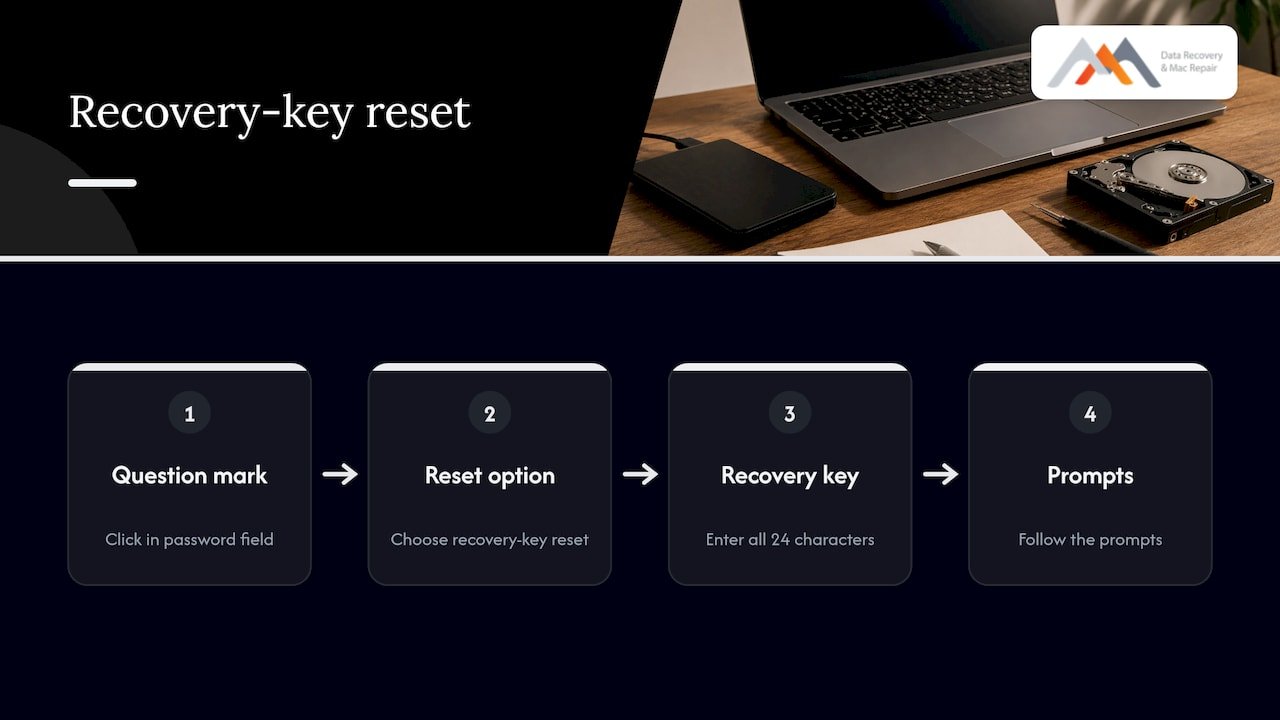
If you do find the key, Apple’s steps are short. At the login window, click the question mark in the password field, choose the option to reset it using your recovery key, enter the 24 characters and follow the prompts. Type it carefully: the characters are grouped in blocks, and a misread letter is the most common cause of a rejected key.
Using macOS Recovery without erasing
Apple’s current instructions say to start up from macOS Recovery and click “Forgot all passwords?” when asked to select a user. The onscreen instructions may ask for your Apple Account or your recovery key. If you are not prompted to create a new login password, open Terminal in Recovery and run the resetpassword command, which launches the Reset Password assistant, as Apple also describes.
Go through these screens slowly. They are not destructive on their own, but the same menu bar also contains Erase Mac, and that is the step you cannot take back.
Why we say “do not erase yet”
Apple’s support page describes Erase Mac as the last resort: if no other solution works, you can erase the Mac from Recovery Assistant and reinstall macOS. That gets you a working computer. It does not bring your old files back, because the previous volume encryption is gone with the erase. When the files matter, the correct order is diagnose first, erase last.
What the encryption does and does not allow
We want to be direct about this because it is the question behind most calls. Apple’s security documentation states that without valid login credentials or a cryptographic recovery key, FileVault-encrypted internal volumes remain encrypted. The same page notes that files deleted before FileVault was turned on are not encrypted and may be recoverable with forensic data recovery tools.
That leaves a practical set of cases where a lab diagnostic is worth the call:
- Your key exists but the drive is unstable. A failing SSD or a Mac that stalls at the Apple logo can block the reset steps above. Stabilizing and imaging the storage first protects what you have. See why a Mac stuck on the Apple logo needs a careful shutdown.
- The Mac will not power on correctly. A logic board fault is a hardware problem, separate from the encryption. Component-level logic board repair can bring the machine to a state where you can use your key and read the volume.
- Liquid damage. Corrosion on the board can interrupt startup before you ever reach a password screen. Our liquid damage repair work targets the board so the storage can be accessed.
- You erased the Mac or ran a reformat. Read what to expect in our guide to Disk Utility erase recovery.
- You have older, pre-encryption content or an external drive. External volumes behave differently, as covered in our FileVault external drive guide.
The type of Mac matters too. Intel Macs with a T2 chip, and Apple silicon Macs with soldered storage and a security chip, handle encryption in hardware, which is why MacBook Pro recovery differs by model and generation. Our primer on why encrypted MacBook drives complicate recovery explains the technical layers, including APFS volumes and NVMe storage, and our APFS data recovery playbook covers the file system side.
Symptoms that point to hardware, not a lost key
People often blame the key when the real culprit is the machine. This table helps you separate the two before you try risky steps.
| Symptom | Likely cause | Key helps? |
|---|---|---|
| Login window appears, password rejected, key rejected | Credential problem or mistyped key | Yes, if typed correctly |
| Login window never appears, Mac stuck on Apple logo or progress bar | Startup or storage fault | Not until the Mac boots |
| Mac powers on, black screen, no chime or no display | Logic board or display fault | No, repair first |
| Mac shows a folder with a question mark | Startup disk not found | No, storage or board issue |
| Recovery loads but the internal disk is missing in Disk Utility | NVMe/SSD or board failure | No, needs component-level work |
| Spilled liquid, then problems | Corrosion on the logic board | No, power down and bring it in |
If your symptoms sit in the lower four rows, searching for a recovery key will not fix anything. A diagnostic will.
Work and school Macs
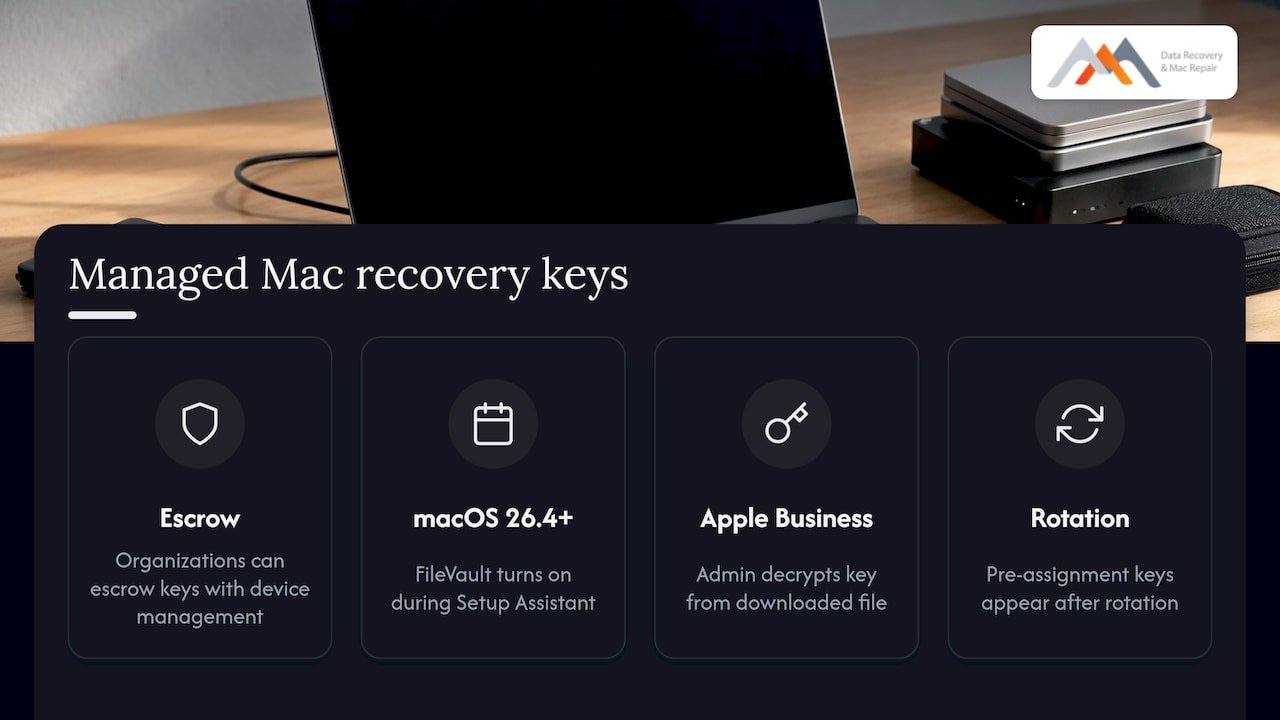
If your Mac is managed, the key may not be your responsibility. Apple explains that organizations can escrow the personal recovery key with their device management service, and on macOS 26.4 or later FileVault is turned on during Setup Assistant by default. Ask your administrator first.
IT teams have one more detail worth knowing. For devices managed through Apple Business, the recovery key is encrypted with a certificate your organization uploads, and an Organization Administrator decrypts it from a downloaded file. If the Mac was encrypted before FileVault was assigned, the key will not appear on the device page until it is rotated with sudo /usr/bin/fdesetup changerecovery -personal in Terminal. That is a common reason a key looks “lost” in a fleet when it was never escrowed.
Businesses in Westwood, Santa Monica and Culver City that run mixed fleets often add RAID or NAS storage behind the laptops. If a shared array is involved (RAID 0, 1, 3 or 5), keep those volumes powered down and untouched too, and read our overview of RAID data recovery for Los Angeles systems.
Stop all disk writes: the emergency checklist
Stop all disk writes immediately if the files on this Mac matter. Every write to a drive risks overwriting recoverable data, and on SSDs, background maintenance can make deleted blocks disappear quickly. Our page on why SSD data can vanish in minutes explains the mechanism.
- Shut the Mac down and do not keep restarting it to try passwords.
- Do not choose Erase Mac, Reinstall macOS or Disk Utility’s Erase unless you have decided the data is expendable.
- Do not open the case or charge a damaged battery if there was liquid or physical damage.
- Gather every device signed in to your Apple Account and check Passwords for the key.
- Write down the exact message on screen and the macOS version, if you know it.
- Call for a free diagnostic and ask for a same-day appointment.
Prevent this next time
Once you are back in, spend ten minutes so you never repeat the search.
- Open Passwords, confirm your Mac’s recovery key appears, and note the update date.
- Save the key in a second password manager, since Six Colors points out that the key can no longer be escrowed in iCloud on newer macOS.
- Keep a current backup. Our data loss prevention guide for Mac users and the guide to encryption on Macs show how encryption and backups work together.
- Update your iPhone and iPad so a key stored on a macOS 26 Mac can sync to them.
Our perspective
We have been recovering data from Macs in Los Angeles since 2006, and the pattern with FileVault is consistent: the people who keep their files are the ones who stopped early. A customer who calls before erasing, before reinstalling and before a dozen failed reset attempts gives us the most options.
We also want to be honest about the line between a credential problem and a hardware problem. A lost key on a healthy Mac is solved by Passwords, Recovery or a fresh key. A lost key on a Mac that also has a failing NVMe drive, liquid damage or a faulty logic board is a different job, and that is where our in-house micro-soldering, forensic imaging and component-level logic board repair come in.
Every case starts with a free diagnostic, and our no recovery, no charge policy means you do not pay if we cannot get your data back. Bring the Mac to our lab on Wilshire, and we will tell you plainly what the situation allows before you decide anything.
Kaya
Same-day help in West Los Angeles
If your Mac will not let you in and the files matter, we can look at it the same day. Macwest Data Recovery & Mac Repair is at 12041 Wilshire Blvd, Ste 26, between the 405 and Santa Monica, near UCLA and the Getty Center, and we serve Brentwood, Westwood, Santa Monica, Beverly Hills, Venice, Hollywood and Culver City. Diagnostics are free, and our no recovery, no charge policy applies to data recovery jobs.
Call 310-866-0828 to book a same-day appointment. You can see what we handle on our Mac data recovery page, read how we approach FileVault and encrypted drive recovery, or look at our Mac repair service in Los Angeles if the machine itself is failing.
FAQ
Can I reset my Mac if I don’t have my recovery key?
Yes, but there is a catch. If you can sign in, you can turn FileVault off and on to create a new key. If you cannot sign in, Apple’s last-resort option is to erase the Mac in Recovery and reinstall macOS, which gives you a working Mac but not your old encrypted files.
Where is my FileVault recovery key stored on macOS 26?
On macOS 26 and later, the key is stored in end-to-end encrypted iCloud Keychain and appears in the Passwords app under your Mac’s name. Open Passwords on any device signed in to the same Apple Account, search for “recovery key” and reveal it with Touch ID or your account password. Devices running older operating systems may not show it.
I forgot my FileVault recovery key and my password. Is my data gone?
Not necessarily yet. Apple states that without valid credentials or a recovery key, an encrypted internal volume stays encrypted, so do not erase the Mac and check every Apple device first. If the issue also involves hardware, such as a Mac that will not start, a diagnostic can show what is recoverable. Call 310-866-0828 before you erase.
Can Apple retrieve my FileVault recovery key for me?
On macOS 26, Apple no longer allows the key to be escrowed in your Apple Account, so there is no iCloud copy to request. The key lives in your Passwords app, or with your organization’s administrator if the Mac is managed. That is why a second copy in a password manager is worth having.
Does it cost anything to have a Mac looked at?
Diagnostics at Macwest are free, and our no recovery, no charge policy applies to data recovery. Same-day appointments are available at our West LA lab, and you can reach us at 310-866-0828.
Sources
- If you forgot your Mac login password, Apple Support
- Volume encryption with FileVault in macOS, Apple Support
- FileVault recovery key, Apple Support
- See the FileVault recovery key for your Mac in Passwords, Apple Support
- See the FileVault recovery key in Passwords on iPad, Apple Support
- macOS 26 Tahoe Pushes FileVault Use, TidBITS
- FileVault on macOS Tahoe uses iCloud Keychain, Six Colors
- FileVault keys can’t be escrowed in iCloud anymore, Six Colors
- How to find your FileVault recovery key in macOS, Macworld
- Reset your Mac login password, Apple Support
- If you can’t reset your Mac login password, Apple Support
- Manage FileVault with device management, Apple Support
- Create a FileVault configuration in Apple Business, Apple Support