Stop all disk writes immediately: close the apps that save to your Mac, pause any large downloads, and do not empty the Trash. Then open Recently Deleted in iCloud Drive, because Apple keeps deleted iCloud Drive files there for 30 days. If the files are not there and your Mac or its drive is failing, we can examine the drive in our West Los Angeles lab. We have done Mac data recovery since 2006, diagnostics are free, and there is no charge if we do not recover your data. Call 310-866-0828 for a same-day appointment.
TL;DR
- iCloud Drive is a sync service, not a backup: a deletion on one device spreads to every device on the same Apple Account, and Apple holds deleted files for 30 days in Recently Deleted.
- After 30 days, or after you empty the Trash or delete from Recently Deleted, the cloud copy is gone, and the only remaining places to look are Time Machine, other backups and the physical drive in your Mac.
- If the Mac itself is damaged, will not boot, or shows disk errors, stop using it and call Macwest Data Recovery at 310-866-0828 for free diagnostics, same-day appointments and a no recovery, no charge policy.
Table of Contents
- Why iCloud Drive files go missing
- Work out what happened: a symptom table
- Step 1: Check Recently Deleted on every device
- Step 2: Use Apple’s Data Recovery and look in other places
- Step 3: Check your backups, because iCloud is not one
- Step 4: When the problem is the drive, not the cloud
- Failure types and what they mean for recovery
- If your iCloud Drive copy lives on a RAID or NAS
- Advanced Data Protection: the recovery key is the file
- Promo: same-day help for Macs in West LA
- Perspective
- Prevent the next loss
- FAQ
- Sources
Why iCloud Drive files go missing
Most iCloud Drive data loss comes from one fact: iCloud Drive mirrors your files rather than archiving them. Apple’s documentation on Desktop and Documents folders states that, with the feature on, deleting a file on one device deletes it on every device signed in with the same Apple Account, and that it then sits in Recently Deleted for 30 days. A file you removed on an old iMac can disappear from your MacBook and iPhone in the same minute.
The usual causes fall into a few groups:
- Accidental deletion or an overwrite on any one device, which syncs everywhere.
- Sync state confusion. Files can show as cloud-only, waiting to upload, or blocked, so they look missing when they are not yet on the Mac you are using.
- Turning off Desktop and Documents syncing. Apple notes that switching the feature off leaves the files in iCloud Drive and creates new, empty local Desktop and Documents folders, which looks exactly like data loss.
- Storage and size limits. A full iCloud plan stops uploads, and Apple’s status guide lists an “Ineligible” state that usually means an individual file or folder is over the 50 GB limit.
- A failing local drive. If the only complete copy of a file was the one stored on your Mac’s SSD, and the SSD or logic board fails before the upload finishes, the cloud never had it.
The last cause is the one that decides whether a lab is needed, so the first job is to work out which situation you are in.
Work out what happened: a symptom table
Before you try anything, match what you see to the likely cause. The right column tells you the safest next move.
| What you see | Likely cause | Safest next move |
|---|---|---|
| Files gone from every device, Recently Deleted has them | Deletion synced across devices | Restore from Recently Deleted within 30 days |
| Files gone, not in Recently Deleted, deleted over 30 days ago | Retention window passed | Check Time Machine and other backups, then the local drive |
| Files show a cloud icon or say “In iCloud” | Cloud-only, not downloaded | Connect to the internet and download them |
| Files say “Waiting to Upload” or “Out of Space” | Sync stalled or plan full | Free space or upgrade storage, keep the Mac powered and untouched |
| Desktop and Documents suddenly empty | Syncing was turned off or changed | Look in iCloud Drive in Finder for the synced copies |
| Mac will not boot, clicks, or Disk Utility reports errors | Drive, SSD or logic board fault | Stop using the Mac and call a data recovery lab |
| Message about a recovery key or locked data | Advanced Data Protection or FileVault | Locate your recovery key before anything else |
Step 1: Check Recently Deleted on every device
Start with the 30-day window. Apple states that recently deleted iCloud Drive files can be recovered for 30 days from Recently Deleted on iPhone or iPad, on iCloud.com, or from the Trash on a Mac. The same page is explicit about the limit: files removed from Recently Deleted, or after the Mac Trash is emptied, are deleted immediately and cannot be recovered.
In practice:
- On a Mac, open the Trash in the Dock and look for the files. Use Put Back rather than dragging them out.
- On an iPhone or iPad, open the Files app, then Browse, then Recently Deleted.
- On any computer, sign in to iCloud.com, open iCloud Drive, and choose Recently Deleted.
The Files app and iCloud.com do not always show the same list. 9to5Mac has reported that the iPhone and iPad view may not show every file visible through iCloud.com, so check the web version before concluding anything is gone.
Do not empty the Trash to “clean up” while you investigate. That one click is the most common way a recoverable problem turns into a permanent one.
Step 2: Use Apple’s Data Recovery and look in other places
If Recently Deleted does not have the file, Apple’s support page for missing iCloud Drive files points to a second tool: Data Recovery at icloud.com/recovery, where you choose Restore Files, select the files and click Restore. The same page suggests searching other locations: third-party cloud services you may have used, Spotlight on your Mac, Time Machine backups and the iCloud Drive (Archive) folder.
For documents made in Pages, Numbers or Keynote, Apple also describes how iCloud.com can restore an earlier version of information that iCloud archived automatically. That helps with overwritten work, not with files deleted long ago.
Two practical checks save time here:
- In Finder, choose View, then Show View Options, and turn on iCloud Status. Apple’s guide explains the labels, so you can see at a glance whether a file is only in the cloud, waiting to upload, or out of space.
- Search with Spotlight by file name and by file type. Files often are not missing, just moved into a folder you forgot.
Step 3: Check your backups, because iCloud is not one
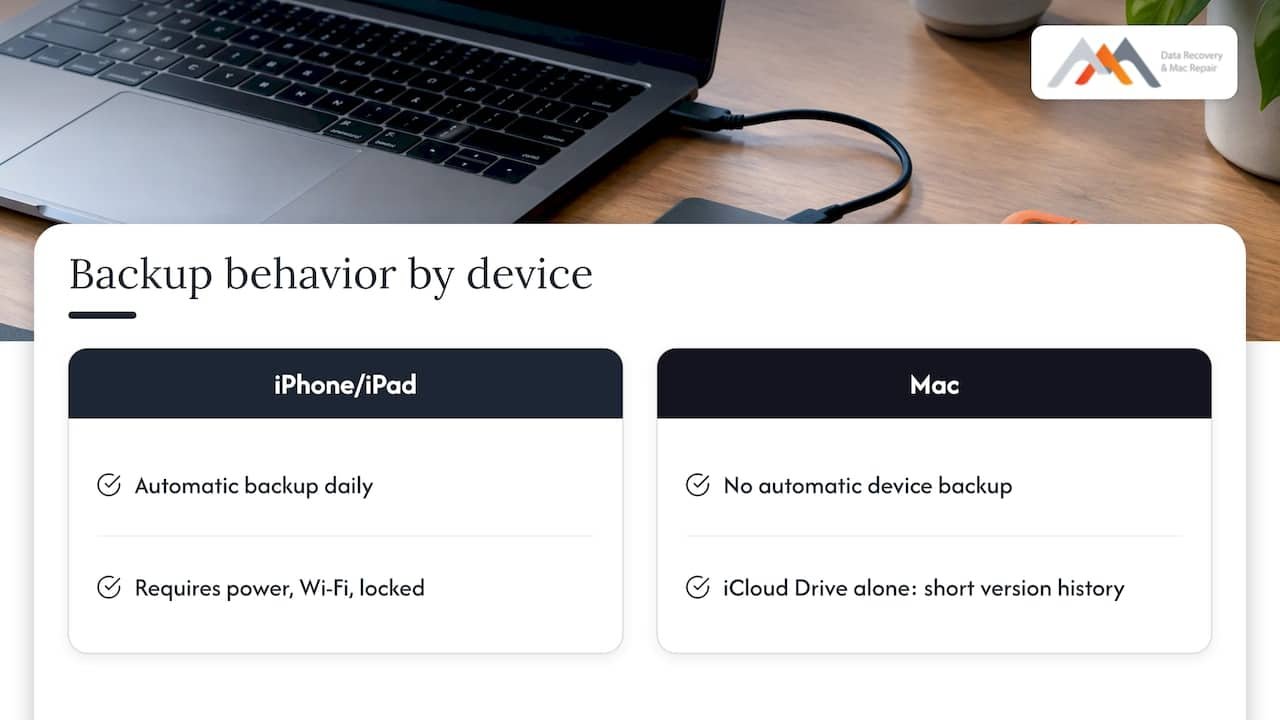
If the 30 days have passed, the next question is whether you ever had a real backup. Apple’s guidance on backing up a Mac recommends Time Machine for recovering older, deleted or inaccessible files, along with manual copies on external storage. Apple’s page on archiving iCloud information adds that iCloud automatically backs up an iPhone or iPad daily when it is on power, on Wi-Fi and locked, and advises keeping extra copies of iCloud Drive files so you can restore data if a device is damaged or lost.
That distinction matters for Mac owners. A Mac does not get that automatic device backup, so a Mac that relies on iCloud Drive alone has no version history beyond what Apple keeps for a short time. If you have a Time Machine drive, connect it and browse to the date before the loss. If you use APFS-formatted external drives, keep in mind that the drive should stay unmodified until you have found what you need. Our guide on why Macs need a real backup explains how to set one up so the next incident costs you minutes, not days.
Step 4: When the problem is the drive, not the cloud
This is where an iCloud question becomes a hardware question. Many people who search for iCloud Drive data loss discover that the files they need were never fully uploaded, or that a Mac with the only recent copy stopped working. In those cases the data lives on the internal SSD, and what you do in the next hour affects the result.
Stop all disk writes immediately if you see any of these:
- The Mac does not boot, restarts in a loop, or shows a folder with a question mark.
- Disk Utility says it cannot repair the disk, or First Aid fails.
- The Mac was exposed to liquid.
- Files open slowly, copy errors appear, or the Mac freezes during sync.
- An external drive, memory card or RAID volume holding your iCloud Drive copy is not mounting.
Why the urgency? Modern Mac storage is soldered NVMe flash in many models, and the way a drive handles deleted blocks can erase them quickly once the system keeps writing. Our article on stopping writes before TRIM explains how deleted data can disappear on an active SSD. Running recovery software, reinstalling macOS or letting iCloud keep syncing against a damaged volume can all overwrite what a lab could otherwise read.
Encryption adds a second layer. If FileVault is on, or the Mac has a security chip, the data is only readable with the right credentials, and encrypted MacBook drives complicate recovery in ways a general repair shop may not handle. Keep your password and FileVault recovery key available.
What to expect from a lab
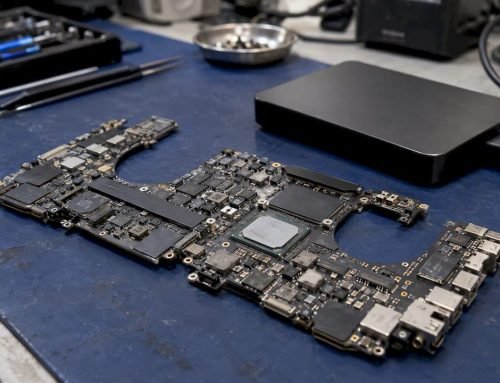
At Macwest Data Recovery & Mac Repair, we handle failed Macs with component-level logic board repair, precision micro-soldering and forensic imaging, which matters on Apple Silicon machines that an Apple Store may deem unrecoverable. Diagnostics are free, and our policy is no recovery, no charge. We are in West Los Angeles, so you can bring the Mac in rather than mail it away. The sequence is usually simple: we assess the drive and logic board, tell you what is recoverable, and only then do you decide. Our five-method overview of Mac data recovery shows how those approaches differ by failure type.
Failure types and what they mean for recovery
Not every failure behaves the same. This table summarizes the common Mac storage situations and how we approach them. It describes the kind of problem, not a guaranteed result.
| Situation | Typical symptom | Why stopping writes matters | Where to read more |
|---|---|---|---|
| Deleted files on an SSD | Files gone from Trash and Recently Deleted | TRIM can clear freed blocks | Deleted Mac files |
| Corrupt APFS volume | Disk Utility cannot repair, volume will not mount | Repair attempts can alter metadata | APFS recovery |
| Logic board or soldered SSD fault | No power, no boot, no disk visible | Repeated power cycles stress failing parts | Mac repair service |
| Liquid damage | Corrosion, intermittent power | Charging can short components further | Liquid damage repair |
| External or RAID volume failure | Array degraded, volume offline | Rebuilds on a failing member can destroy data | RAID recovery |
If your iCloud Drive copy lives on a RAID or NAS
Businesses and creative teams in Los Angeles often keep working files on a RAID enclosure or NAS and sync a folder to iCloud Drive from a Mac. That adds a layer: if the array fails, the Mac may see a missing volume, and iCloud may have only a partial copy.
The RAID level changes what failure looks like:
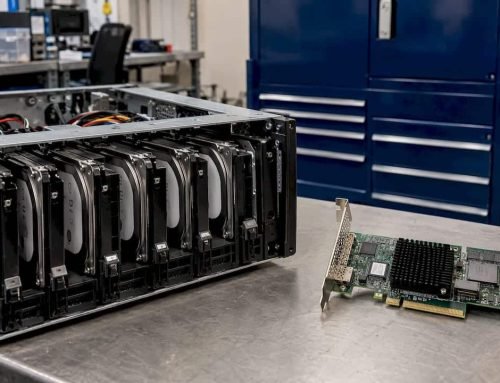
- RAID 0 stripes data across disks with no redundancy, so one failed member takes the whole volume offline. See our RAID 0 triage workflow.
- RAID 1 mirrors disks, so one member can fail while the data survives, but a bad sync or deletion is mirrored too.
- RAID 3 and RAID 5 use parity, so they tolerate a single disk failure, and a rebuild under load is the moment a second weak disk can fail.
Do not force a rebuild, reinitialize the array or swap in new disks until the original members are imaged. Our RAID recovery methods for Los Angeles systems cover the steps, and the Mac RAID recovery tutorial walks through macOS-specific behavior. IT service providers who manage client arrays can bring the whole enclosure to us rather than guess which member failed.
Advanced Data Protection: the recovery key is the file
One recent shift deserves its own note. Apple’s US iCloud terms state that with Advanced Data Protection on, end-to-end encryption covers iCloud Drive files, and Apple cannot help recover data protected that way, so you must keep your recovery key or recovery contacts safe. If you turned this on, store the key somewhere separate from the Mac, such as a printed copy in a safe place, before you need it.
Promo: same-day help for Macs in West LA
If your missing iCloud Drive files were on a Mac, an external drive, a memory card or a RAID that no longer behaves, the fastest way to find out what is recoverable is a free diagnostic. Our Mac data recovery service covers Mac computers, hard drives, SSDs, RAID and NAS systems and memory cards, and our Mac repair team handles MacBook, iMac, Mac Mini and Mac Pro hardware faults, including logic board and liquid damage repair. We offer same-day appointments and emergency service at 12041 Wilshire Blvd, Ste 26, between the 405 and Santa Monica, near UCLA and the Getty Center. We serve Westwood, Brentwood, Santa Monica, Beverly Hills, Hollywood, Venice and Culver City. Call 310-866-0828.
Perspective
We have worked on Mac data loss since 2006, and the most common misunderstanding we hear is that iCloud Drive protects everything. It keeps your files available on your devices, and that is valuable, but a synced deletion is a deletion everywhere.
The people who come to us in the best position are the ones who stopped as soon as they noticed. They did not reinstall macOS, did not run three recovery apps in a row, and did not keep syncing a failing disk. A drive that is left alone gives us the most to work with, whether the problem is an APFS volume that will not mount, a soldered NVMe module, or a logic board that no longer powers on.
That is why we built our service around a simple promise: free diagnostics, same-day appointments, and no recovery, no charge. You should know what is possible before you spend anything, and you should be able to hand a Mac to a lab a few miles away instead of mailing it off and waiting.
Kaya
Prevent the next loss
Once your files are back, make a repeatable plan:
- Keep Time Machine running to an external drive, so you have hourly, daily and weekly history.
- Treat iCloud Drive as sync and access, and keep a separate copy of anything irreplaceable.
- Check iCloud Status in Finder monthly to catch files stuck waiting to upload.
- Store your FileVault recovery key and, if used, your Advanced Data Protection recovery key away from the Mac.
- Replace a Mac showing early disk warnings before it fails, and image it first if the data matters.
FAQ
How long do deleted iCloud Drive files stay recoverable?
Apple keeps recently deleted iCloud Drive files recoverable for 30 days in Recently Deleted. After that, or once you delete them from Recently Deleted or empty the Mac Trash, Apple says they are removed immediately and cannot be recovered. After that point, backups and the original drive are the places left to check.
Why are my iCloud Drive files missing on one device but not another?
The cause is usually sync state rather than loss. Files can be cloud-only, waiting to upload, blocked by a full plan, or over the 50 GB item limit. Turning Desktop and Documents syncing off can also leave your files in iCloud Drive while creating new empty folders on the Mac.
Does iCloud back up my Mac?
No. iCloud syncs your iCloud Drive files, and its automatic daily backup applies to iPhone and iPad. For a Mac, Apple recommends Time Machine or another backup method so you can restore older or deleted versions of files.
What should I do if the missing files were on a Mac that will not start?
Stop all disk writes immediately: do not reinstall macOS, run repair tools repeatedly or keep charging a liquid-damaged machine. Bring it to us for free diagnostics and a same-day appointment, and call 310-866-0828 first if the Mac is in an emergency state. If we do not recover your data, you do not pay.
Can a lab recover files from an encrypted Mac?
It depends on the encryption and on whether you have the credentials. With FileVault or a security chip, the data is readable only with the right password or recovery key, so have them ready. If Advanced Data Protection is on, Apple cannot recover iCloud data for you, which makes your own recovery key essential.
Sources
- If you’re missing files in iCloud Drive – Apple Support
- Check your iCloud Drive file and folder status on Mac – Apple Support
- Add your Desktop and Documents files to iCloud Drive – Apple Support
- Keep your files up to date and share them with iCloud Drive – Apple Support
- Use iCloud.com to restore and recover iCloud information – Apple Support
- How to back up your Mac – Apple Support
- Archive or make copies of the information you store in iCloud – Apple Support
- iCloud Terms and Conditions – Apple
- How to recover lost iCloud Drive documents and files – 9to5Mac