Key takeaways: Stop all disk writes immediately if your Mac hard drive has stopped spinning, as continued power cycling can worsen mechanical damage and reduce recovery chances. A non-spinning hard drive typically signals a physical failure requiring professional intervention, not software fixes. Macwest Data Recovery & Mac Repair has served Los Angeles since 2006 with free diagnostics and a no recovery, no charge policy.
You’re on a deadline, your Mac is silent where it used to hum, and the files you need most are suddenly unreachable. A hard drive that stops spinning is one of the most stressful hardware failures a Mac user can face, because unlike a software crash, it often means your data is physically locked inside a damaged device. This guide walks you through the real causes of a non-spinning Mac hard drive, the safest immediate steps to take, and the recovery pathways available to you in Los Angeles, including when to stop troubleshooting and call a professional.
Table of Contents
- What does it mean when your Mac hard drive stops spinning?
- What you need before troubleshooting a non-spinning hard drive
- Step-by-step: First actions when your hard drive stops spinning
- When to seek professional data recovery services in Los Angeles
- Our perspective: Why DIY isn’t worth the risk for Mac hard drive recovery
- Connect with Los Angeles Mac hard drive recovery experts
- Frequently asked questions
Key Takeaways
| Point | Details |
|---|---|
| Mechanical issues are common | A silent or non-spinning Mac hard drive usually means a physical problem such as seized components or PCB failure. |
| DIY fixes are risky | Attempting to repair or power cycle a failed drive can dramatically reduce the chance of data recovery. |
| Professional help boosts results | Data recovery experts in Los Angeles achieve high recovery rates, especially when contacted promptly after drive failure. |
| Act quickly to protect data | Immediate steps and avoiding repeated restarts give the best chance for saving your files. |
What does it mean when your Mac hard drive stops spinning?
Not all Mac storage devices spin. Modern MacBook Pro and MacBook Air models use NVMe SSDs soldered directly to the logic board, which have no moving parts and fail silently. However, older iMac, Mac Mini, Mac Pro, and MacBook models from 2012 through 2019 commonly shipped with traditional HDDs (hard disk drives) or hybrid Fusion Drives, both of which rely on spinning platters to read and write data.
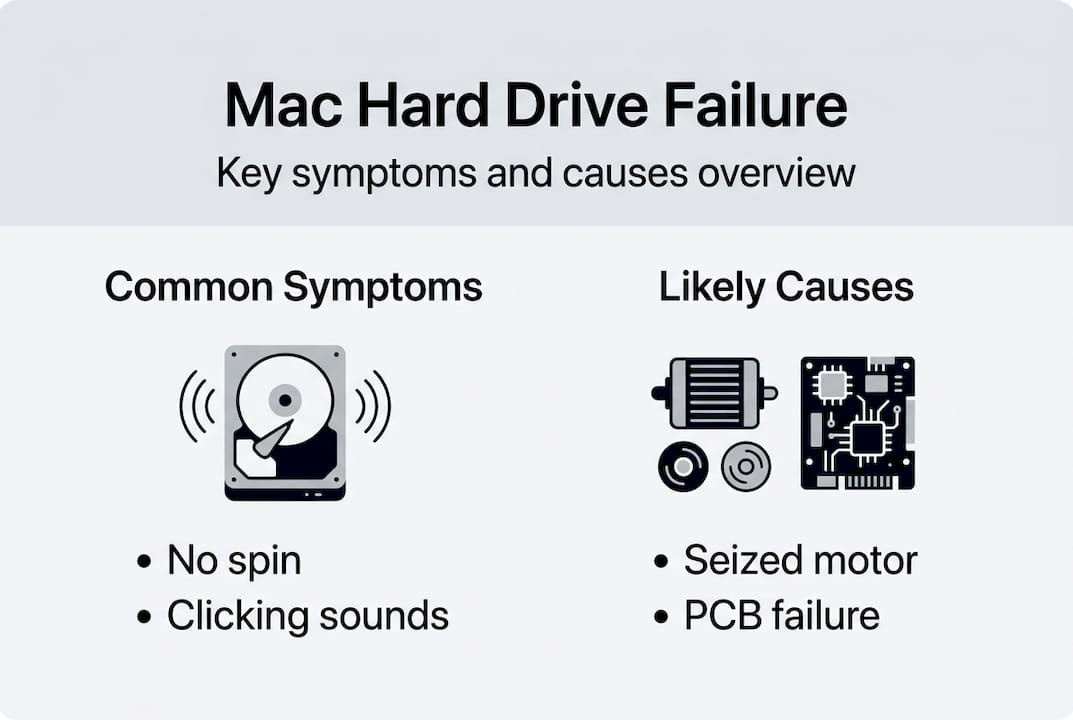
When an HDD stops spinning, the cause is almost always physical. Mechanical failures such as a seized spindle motor, stiction (where read/write heads stick to the platters), or failed bearings are the most common culprits. Electrical failures, including a damaged PCB (printed circuit board) or blown fuse, can also cut power to the motor entirely.
Mac HDD symptoms vary depending on the failure type. SSDs fail silently, while HDDs may produce clicking, whirring, or simply go quiet and refuse to mount in Disk Utility. Here is a breakdown of what each symptom typically signals:
| Symptom | Likely cause | Drive type affected |
|---|---|---|
| Complete silence, no spin | Seized motor or PCB failure | HDD |
| Clicking or ticking noise | Read/write head failure | HDD |
| Drive not mounting in Disk Utility | Firmware, APFS corruption, or physical failure | HDD and SSD |
| Beeping on power-up | Stiction (heads stuck to platters) | HDD |
| Intermittent mounting | Failing bearings or weak PCB connection | HDD |
Common models known for these failures include Seagate Barracuda, Western Digital Caviar, and Toshiba MQ series drives, all of which were standard in Apple configurations during this era.
Common non-spinning HDD symptoms to watch for:
- The Mac powers on but the drive does not appear in Finder or Disk Utility
- You hear a brief spin attempt followed by silence
- The system takes unusually long to boot before displaying a flashing folder icon
- Disk Utility shows the drive as grayed out or unreadable
- The Mac freezes during startup with a spinning beach ball
Do not attempt to power cycle your Mac repeatedly if the drive is not spinning. Each failed spin attempt can worsen stiction damage and further reduce the chance of successful mechanical issues diagnosis and recovery.
If your drive is still occasionally accessible, back up immediately using Time Machine or Carbon Copy Cloner before taking any further action.
What you need before troubleshooting a non-spinning hard drive
Once you’ve identified your drive’s symptoms, you’ll need to gather the right tools and information before you intervene. Preparation matters here, because the wrong move can permanently destroy data that would otherwise be recoverable.
Physical tools you may need:
- Anti-static wrist strap and mat (to prevent electrostatic discharge)
- Phillips #00 screwdriver set for Mac enclosures
- External USB or SATA enclosure to test the drive on another Mac
- A second Mac running macOS Ventura or later for diagnostic access
Before touching anything, review Mac user drive restoration steps to understand what the recovery process involves at each stage. This context helps you make informed decisions rather than reactive ones.
Consumer drives fail more frequently than enterprise-grade models due to differences in component quality, including aluminum versus glass platters and lower-tolerance bearings. This is relevant because most Mac configurations shipped with consumer-grade drives, meaning failure rates are higher than many users expect.
| Approach | Risk level | Cost | Data safety |
|---|---|---|---|
| DIY enclosure test | Low to medium | Minimal | Moderate if done carefully |
| DIY PCB swap | High | Low to medium | High risk of permanent loss |
| Professional recovery | Low | Medium to high | Best possible outcome |
| Ignoring the problem | Extreme | None upfront | Near-certain data loss |
Pro Tip: If your drive is still intermittently accessible, use backup strategies that prioritize your most critical files first. A full backup may not complete before the drive fails entirely, so copy your irreplaceable data manually before running any automated backup tool.
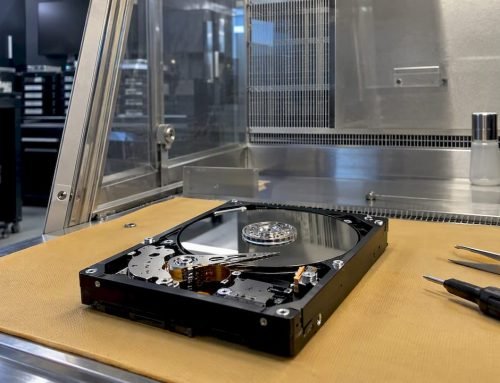
Avoid opening the drive enclosure under any circumstances. Hard drives require a cleanroom environment (ISO Class 5 or better) for safe internal access. Even a single dust particle landing on a platter can cause a head crash and destroy data permanently.
Step-by-step: First actions when your hard drive stops spinning
You have everything ready. Here are the first, safest steps to take for your non-spinning drive.
- Shut down your Mac immediately. Do not restart or force-quit applications. Hold the power button until the system powers off completely.
- Disconnect all power. Unplug the power adapter and, if accessible, remove the battery to prevent any accidental spin attempts.
- Inspect for physical damage. Check the drive’s PCB (visible on external drives) for burn marks, corrosion, or a burnt smell. Any of these signs indicate electrical failure.
- Test with a different cable or enclosure. Connect the drive using a known-good SATA-to-USB enclosure on a separate Mac. Sometimes a failed cable mimics a non-spinning drive.
- Open Disk Utility and check System Report. Navigate to Apple Menu > About This Mac > System Report > Storage. If the drive appears here but not in Disk Utility’s sidebar, the issue may be APFS volume corruption rather than a mechanical failure.
- Listen carefully during the spin attempt. PCB failure, firmware issues, or power loss each produce distinct sounds: beeping indicates stiction, clicking indicates head failure, and complete silence points to motor or PCB failure.
- Stop and contact a professional if the drive remains silent or produces abnormal sounds.
Do not attempt the “freezer trick” or the “tap and twist” method. These techniques are outdated, ineffective on modern drives, and can cause condensation or physical platter damage that makes professional recovery impossible.
Pro Tip: If you need to get Mac hardware checked quickly, same-day appointments are available in Los Angeles. Bring the drive in its original state without further power cycling for the best diagnostic outcome. You can also explore RAID and HDD recovery options if your setup involves multiple drives.
When to seek professional data recovery services in Los Angeles
If the steps above don’t revive your drive, here’s when to trust an expert and what to expect in Los Angeles.
Certain symptoms make professional intervention not just advisable but essential. These include:
- The drive produces no sound at all during power-up
- You hear beeping (stiction) or repetitive clicking (head crash)
- The PCB shows visible burn marks or corrosion
- The drive was exposed to liquid, impact, or extreme heat
- Your data is business-critical or legally required
- The drive is a RAID 0, RAID 1, RAID 3, or RAID 5 array with a failed member
Professional recovery services in Los Angeles, including those at Macwest Data Recovery, offer free diagnostics and a no recovery, no charge policy, meaning you only pay if your data is successfully restored. Recovery success rates range from 70 to 99 percent for non-severe mechanical cases, with outcomes heavily dependent on how quickly the drive is brought in and whether further damage has occurred.
| Failure type | DIY recoverable? | Pro recovery success rate |
|---|---|---|
| PCB failure | Rarely | High (80 to 95%) |
| Stiction (heads stuck) | No | Moderate to high (70 to 90%) |
| Seized spindle motor | No | Moderate (60 to 80%) |
| Head crash with platter damage | No | Low to moderate (30 to 60%) |
| Firmware/APFS corruption | Sometimes | Very high (90 to 99%) |
For Hitachi data recovery and other legacy Mac drive brands, specialized tooling and donor parts are often required. A reputable Los Angeles provider should be able to explain their cleanroom capabilities, turnaround time, and pricing structure before you commit. Review failure trends analysis for context on how different drive brands perform over time, which can help you ask better questions when evaluating a provider.
When calling a recovery center, ask specifically about their experience with Apple-formatted drives, APFS volumes, and FileVault encryption, as these require additional expertise beyond standard HDD recovery.
Our perspective: Why DIY isn’t worth the risk for Mac hard drive recovery
Since 2006, we’ve seen the full spectrum of Mac hard drive failures come through our doors in Los Angeles. The most common story we hear is: “I tried a few things I found online, and now it’s worse.” The freezer trick, the tap-and-twist, the PCB swap from a non-identical donor drive. These techniques circulate endlessly in Mac forums, and they share one critical flaw: they were designed for a generation of drives that no longer exists in most Mac configurations.
The uncomfortable truth is that logical software fixes only work when the drive actually spins. If the motor is seized or the heads are stuck to the platters, no amount of Terminal commands or third-party recovery software will reach your data. Hardware intervention in a controlled cleanroom environment is the only viable path.
Los Angeles has genuine resources here. Skilled, specialized shops with proper cleanroom facilities and Seagate data recovery expertise are available locally, which means you don’t need to ship your drive across the country and wait weeks. Leverage that advantage. The faster a failing drive reaches a professional, the better the outcome.
Connect with Los Angeles Mac hard drive recovery experts
When your Mac hard drive stops spinning, time is the most critical factor in determining whether your data can be recovered. Every power cycle, every DIY attempt, and every hour of delay reduces the probability of a full recovery.
Macwest Data Recovery & Mac Repair has provided trusted hard drive recovery services to Mac users across West LA, Santa Monica, Beverly Hills, Brentwood, Westwood, Venice, Hollywood, and Culver City since 2006. Located at 12041 Wilshire Blvd, Suite 26, between the 405 and Century City near UCLA and the Getty Center, we offer same-day appointments, free diagnostics, and a no recovery, no charge guarantee. Contact us today for a free assessment and a clear Mac repair for failed drives recovery plan.
Frequently asked questions
Why did my Mac hard drive suddenly stop spinning?
Mechanical failure causes such as a seized spindle motor, stiction, or PCB damage are the most common reasons, often triggered by a power surge, physical shock, or normal component wear over time.
Can I fix a non-spinning hard drive at home?
Do not attempt to open the drive or swap components without professional tools and a cleanroom environment, as consumer drives fail unpredictably and DIY repairs typically cause irreversible damage to platters and read/write heads.
What are the signs I need professional data recovery?
Seek professional help immediately if your drive stays completely silent, mounts inconsistently, produces beeping or clicking sounds, or contains business-critical data that cannot be replaced.
How successful are data recovery services for non-spinning drives?
Professional recovery succeeds 70 to 99 percent of the time for non-severe mechanical failures, with the best outcomes achieved when the drive is brought in promptly without further power cycling or DIY intervention.