
TL;DR:
- MacBook batteries decay over time primarily due to heat, full charges, and deep discharges, which accelerate chemical wear. Diagnostics using system tools reveal whether problems stem from hardware or software, guiding appropriate fixes. Deploying software solutions and proper maintenance practices can significantly extend battery lifespan and performance.
Your MacBook battery draining faster than expected is one of the most common and frustrating issues Apple users face, yet the real causes are rarely obvious. MacBook battery problems explained properly require looking beyond the surface symptoms, because fast drain, sudden shutdowns, and charging failures each point to different underlying issues. Understanding what is actually happening with your battery puts you in a position to apply the right fix rather than waste time on solutions that don’t address the root cause. This guide walks you through the chemistry, the diagnostics, the fixes, and the replacement decisions that matter most.
Table of Contents
- Key Takeaways
- How MacBook batteries age and why it happens
- Diagnosing MacBook battery issues accurately
- Common MacBook battery problems and how to fix them
- When to repair or replace your MacBook battery
- Best practices to extend MacBook battery lifespan
- My perspective on MacBook battery problems in West LA
- Get expert MacBook battery help in West Los Angeles
- FAQ
Key Takeaways
| Point | Details |
|---|---|
| Battery aging is chemical | Heat above 86°F and constant full charges accelerate capacity loss significantly faster than normal use. |
| Built-in tools diagnose accurately | System Settings and System Information give you cycle count and capacity data to identify real hardware vs. software problems. |
| Software often causes fast drain | Spotlight indexing, Power Nap, and background apps account for a large share of MacBook battery issues post-update. |
| Replacement complexity varies by model | Newer MacBook Pro battery swaps require full top-case disassembly, making professional service the practical choice. |
| Optimized charging extends lifespan | Enabling Apple’s Optimized Battery Charging can preserve up to 12% more capacity over two years compared to standard charging. |
How MacBook batteries age and why it happens
Understanding MacBook batteries starts with one fact: the lithium-ion cells inside your MacBook are consumable components. They are not designed to last forever, and the way you use your machine directly affects how fast they decline.
Every lithium-ion battery has a finite number of charge cycles. Apple defines one cycle as using 100% of total capacity, whether in one full discharge or spread across multiple partial charges. Battery capacity loss under heavy use reaches 10 to 20% in the first year alone, and heat is the primary accelerant. Temperatures above 30°C double the degradation rate by accelerating the electrochemical reactions inside the cells.
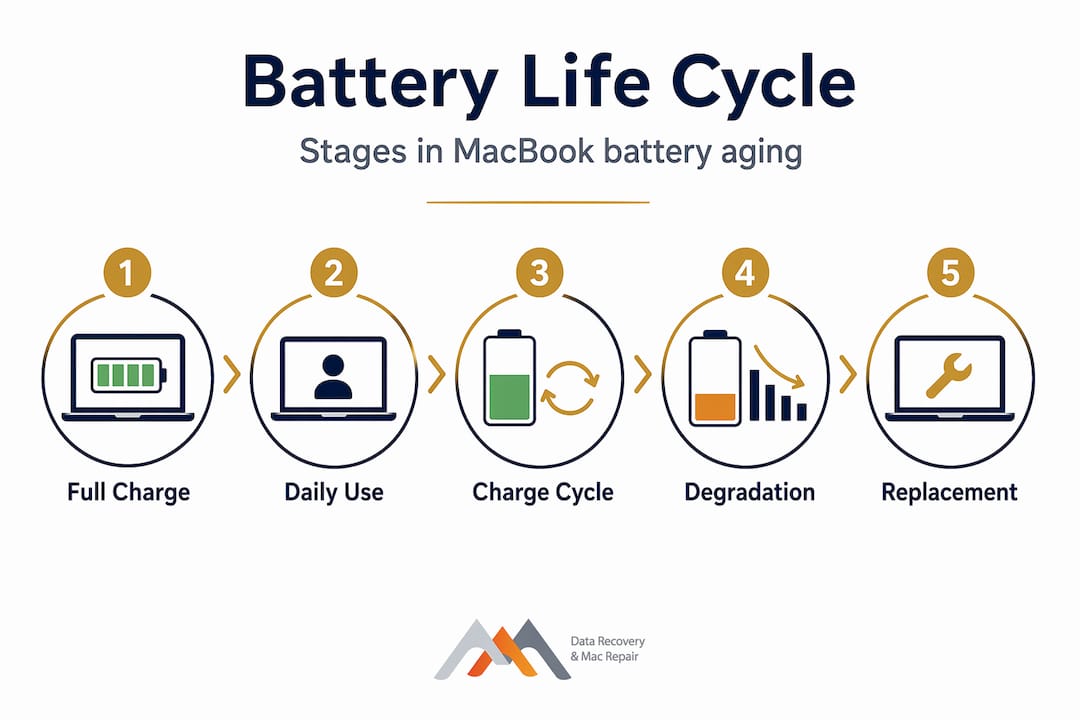
Constant full charges are a less obvious but significant problem. When your MacBook sits plugged in at 100% for hours every day, the battery cells experience sustained high voltage stress. Over time, this erodes the electrode materials inside each cell, permanently reducing the amount of charge the battery can hold. Think of it as keeping a rubber band at full stretch indefinitely. The elasticity degrades faster than if you only stretched it occasionally.
Deep discharges create the same type of damage from the opposite direction. Regularly draining your battery to 0% stresses the cells in a way that accelerates aging, particularly on older Intel-based MacBook models.
Software and background processes also create what feels like battery aging but is actually a different problem. A freshly updated macOS can trigger Spotlight reindexing, iCloud syncing, and background system tasks that run for 24 to 48 hours, making your battery appear to have lost capacity when it is actually under unusually heavy computational load.
| Degradation Factor | Symptom | Mitigation Strategy |
|---|---|---|
| Sustained heat above 86°F | Rapid capacity loss over months | Use on hard surfaces, avoid direct sunlight |
| Constant 100% charge | Swollen battery, reduced max capacity | Enable Optimized Battery Charging |
| Deep discharges to 0% | Inaccurate battery percentage readings | Keep charge between 20% and 80% when possible |
| High cycle count | Service battery warnings in System Settings | Monitor cycle count monthly via System Information |
| Background app overload | Fast drain with normal-looking health | Audit Activity Monitor for energy-intensive processes |
Pro Tip: If your MacBook gets warm while charging and sitting idle, check whether a background process like a system update or antivirus scan is running. Addressing that process often resolves both the heat and the apparent battery drain simultaneously.
Diagnosing MacBook battery issues accurately
Knowing that something is wrong with your battery is different from knowing what is wrong. MacBook battery troubleshooting starts with the tools Apple has already built into macOS, and reading those tools correctly separates a software fix from a hardware repair.
You can check battery health through System Settings > Battery > Battery Health. This screen shows your current maximum capacity as a percentage of the original design capacity, along with a status label. A “Normal” status means the battery is functioning within expected parameters. A “Service Recommended” label means the battery has degraded to the point where replacement is worth considering, typically below 80% of original capacity.

For more granular data, open System Information by holding Option and clicking the Apple menu, then selecting System Information. Navigate to the Power section. Here you will find the current cycle count, the battery’s design capacity in milliamp-hours, and the current full charge capacity. Comparing these two numbers gives you the actual percentage of remaining health, which can be more precise than the general status label.
Running Apple Diagnostics adds another layer. Restart your MacBook while holding the D key (or Command + D on older models) to launch the diagnostic tool. It will scan for hardware issues and return error codes. A PPT004 code specifically indicates battery service is needed, while codes beginning with PPM point to memory and logic board concerns rather than the battery itself.
Here are the key steps for a thorough battery health check:
- Open Activity Monitor (Applications > Utilities > Activity Monitor) and sort by Energy Impact to identify which apps are consuming the most power
- Use the Battery menu bar icon with the option to show apps using significant energy
- Check the temperature of your MacBook using a free tool like TG Pro to confirm whether thermal issues are compounding battery drain
- Record your cycle count and compare it against Apple’s rated maximum for your specific model
- Repeat the health check after a full reboot with no apps open to establish a baseline reading
Pro Tip: If your battery health reads as “Normal” but your runtime has dropped significantly, open Activity Monitor and look for processes consuming more than 20% CPU consistently. A single misbehaving app or background daemon can cut your real-world battery life in half without triggering any health warning.
Common MacBook battery problems and how to fix them
With diagnostics complete, you can match specific MacBook battery issues to targeted fixes. The most productive approach is to start with software-side solutions because they cost nothing and resolve a surprisingly large share of real-world cases.
Update macOS fully. A fresh operating system update sometimes ships with bugs that cause Spotlight indexing and Power Nap activity to run continuously. Applying the next point release typically patches these issues within days of the initial rollout.
Reset power management settings. On Intel MacBooks, resetting the System Management Controller (SMC) resolves a wide range of charging and phantom drain cases. On Apple Silicon models, a full shutdown and cold restart achieves the equivalent power reset because these chips manage power natively without a separate SMC chip.
Disable Power Nap. Power Nap allows your MacBook to perform background tasks while sleeping, which keeps the system partially active and drains the battery. Disabling Power Nap in System Settings > Battery can improve battery runtime by 15 to 25% in some cases.
Audit and quit background applications. Chrome, Zoom, and virtualization tools are among the heaviest energy consumers on macOS. Quitting these applications when not in use rather than leaving them running in the background has an immediate and measurable effect on battery drain.
Clean the charging port. Charging issues are frequently caused by debris in the MagSafe or USB-C port rather than a failed battery or charging system. Use a dry, non-conductive tool like a toothpick to carefully clear lint or dust from the port.
Try a different cable and charger. Apple Silicon MacBooks can charge from any USB-C power adapter, but lower-wattage adapters cause the battery to drain even while plugged in under heavy load. Matching the wattage to your MacBook model matters.
Calibrate the battery percentage reading. If your MacBook shuts down suddenly at 20% or 30% charge, the battery percentage reading may have drifted. A full charge to 100% followed by a natural discharge to shutdown, then another full charge, recalibrates the reading and often resolves premature shutdown behavior.
Pro Tip: Before assuming your battery has failed, boot your MacBook into Safe Mode by holding Shift at startup. If battery life improves dramatically in Safe Mode, the culprit is a third-party login item or kernel extension, not the battery hardware itself.
You can also find a more complete MacBook troubleshooting checklist covering broader hardware and software issues if the steps above do not resolve the drain.
When to repair or replace your MacBook battery
MacBook battery lifespan follows a predictable curve, and knowing where your battery sits on that curve determines the right next step. Apple rates most MacBook batteries to retain 80% capacity at 1000 charge cycles. M-series models outperform older Intel machines in practice, with some M4 MacBook Pro units showing 92% health after 200 cycles.
Signs that your battery genuinely needs replacement rather than troubleshooting include a “Service Recommended” status in Battery Health, visible physical swelling in the bottom case (which is a serious safety issue requiring immediate attention), runtime that has dropped below two hours on a model rated for eight or more hours, and repeated sudden shutdowns despite a recalibrated reading.
The repair complexity question is where many users encounter unexpected friction. On older MacBook models with removable batteries or earlier glued designs, replacement is relatively accessible. On current MacBook Pro models, however, Apple’s repair procedure requires full top-case disassembly, meaning the keyboard, speakers, and battery ship as a single integrated unit. Apple’s Self Service Repair program sells only this complete top-case assembly, currently priced at approximately $527. This is not a repair most users should attempt without professional training and proper tools.
| MacBook Model Generation | Rated Cycle Count | Typical Health at 1000 Cycles | DIY Repair Feasibility |
|---|---|---|---|
| Intel MacBook Air (pre-2019) | 1000 | ~78-80% | Moderate with proper tools |
| Intel MacBook Pro (2016-2019) | 1000 | ~75-80% | Low, adhesive battery removal required |
| M1/M2 MacBook Air | 1000 | ~82-85% | Low, glued assembly |
| M3/M4/M5 MacBook Pro | 1000 | ~80-85% | Very low, full top-case replacement |
Professional MacBook battery replacement from a qualified technician protects your device’s structural integrity and preserves the data stored on your SSD, which is a critical consideration on machines with soldered NVMe storage where a botched repair could result in permanent data loss.
Best practices to extend MacBook battery lifespan
Extending MacBook battery lifespan is primarily about managing voltage stress and thermal load over time. The following practices apply to every MacBook model and deliver measurable results when maintained consistently.
- Enable Optimized Battery Charging. This feature learns your charging schedule and holds the battery at 80% until shortly before you typically unplug, reducing the hours spent at full charge. Apple’s internal data shows 12% more capacity preserved over two years compared to charging without this feature.
- Use Low Power Mode proactively. Activating Low Power Mode in System Settings > Battery reduces background activity and screen brightness, extending runtime without requiring any other changes. Many users reserve this for when the battery is already low, but activating it at the start of a long meeting or travel day is equally effective.
- Avoid charging on soft surfaces. Pillows, blankets, and couches trap heat from your MacBook’s bottom vents. Elevated temperatures while charging accelerate degradation more than almost any other single factor.
- Keep macOS updated. Apple regularly patches power management inefficiencies in operating system updates. Staying current ensures your machine uses its most efficient power management firmware.
- Monitor cycle count monthly. Checking your cycle count takes under two minutes via System Information. Tracking it over time helps you plan proactively for battery service rather than being caught by sudden failures.
Pro Tip: What most users miss is that screen brightness is the single largest variable in real-world battery runtime. Dropping brightness from 100% to 60% in a reasonably lit room can add 90 minutes to your working session, more than most battery-saving apps or tweaks will ever recover.
My perspective on MacBook battery problems in West LA
I’ve been working with MacBook hardware since 2006, and the most consistent pattern I see is this: users either panic too early or wait too long. Someone calls convinced their battery has failed after one day of unusually short runtime, when a single rogue background process was actually the culprit. Others bring in machines with batteries that have visibly swollen to the point of deforming the trackpad, having dismissed the symptoms for months.
The troubleshooting steps in this guide address the majority of real-world cases I encounter. But what they cannot replace is a proper diagnostic with the device in hand. On newer MacBook models with complex NVMe and APFS storage architectures, any repair that involves disassembly carries a real risk to the data on that machine if something goes wrong. I’ve seen DIY battery attempts that cracked a connector, corrupted a volume, or damaged a logic board trace. The repair that seemed like it would save $200 turned into a $600 to $1,200 data recovery and logic board repair job.
My honest advice is to exhaust the software troubleshooting first. If that doesn’t resolve the issue, get a professional diagnostic before ordering parts or attempting repairs. In West Los Angeles, that diagnostic should cost you nothing. If someone wants to charge you just to look at the machine, look elsewhere.
— Kaya
Get expert MacBook battery help in West Los Angeles

If you’ve worked through the diagnostics and troubleshooting steps here and your MacBook is still struggling, Macwestlosangeles is ready to help. Since 2006, the team at 12041 Wilshire Blvd, Ste 26 has provided MacBook repair services to clients across West LA, Santa Monica, Beverly Hills, Brentwood, Westwood, Venice, and Culver City. Every battery assessment starts with a free diagnostic. There are no charges unless work is completed and the problem is resolved. Same-day appointments are available for urgent cases, and the shop’s central location near UCLA and the Getty Center makes it accessible from anywhere on the Westside. Call (310) 866-0828 to schedule your appointment today. You can also explore the full range of Mac repair options available for MacBook, iMac, Mac Mini, and Mac Pro hardware.
FAQ
Why is my MacBook battery draining so fast?
Fast battery drain is most commonly caused by high CPU usage from apps like Chrome or Zoom, Spotlight indexing after a macOS update, or Power Nap running background tasks during sleep. Check Activity Monitor and sort by Energy Impact to identify the specific cause.
How do I check my MacBook battery health?
Open System Settings > Battery > Battery Health to see your current capacity status and whether service is recommended. For exact cycle count and milliamp-hour readings, hold Option, click the Apple menu, and open System Information, then navigate to the Power section.
How many charge cycles does a MacBook battery last?
Apple rates most MacBook batteries to retain 80% of original capacity at 1000 charge cycles. M-series models tend to perform better in practice, with some M4 MacBook Pro units showing 92% health after 200 cycles.
Can I replace my MacBook battery myself?
DIY battery replacement is feasible on some older Intel MacBook models but very complex on current MacBook Pro hardware, which requires replacing the entire top case including keyboard and speakers as a single unit currently priced at approximately $527. Professional service is strongly recommended for M-series machines.
Does resetting the SMC fix MacBook battery problems?
Resetting the SMC resolves roughly 30% of phantom drain and charging issues on Intel MacBooks. On Apple Silicon models, a full shutdown followed by a cold restart achieves the equivalent power management reset, since these chips handle power natively without a dedicated SMC.