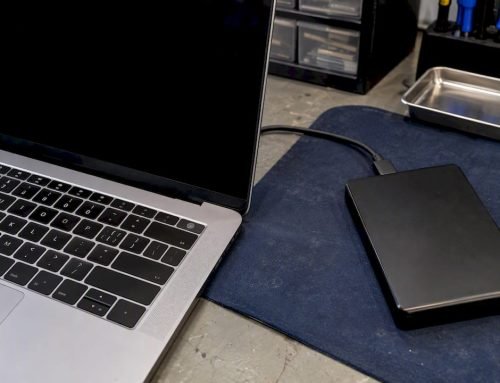
Stop using the drive immediately if your external drive turned read only and it holds files you can’t lose. Swap the cable, try a different USB port, and test the drive on another computer before touching any repair tool. If it still refuses to write access, don’t format it. Follow the operating system section below that matches your machine.
TL;DR:
- Most external drive read-only issues are caused by software factors like flags, permissions, or NTFS mounting, and can often be fixed with OS-specific commands.
- Hardware problems such as physical write-protect switches, controller failures, or damaged drives typically require professional diagnosis and cannot be resolved by software fixes alone.
- If a drive works on a secondary computer but remains read-only on your main machine, the root cause likely resides in the operating system, drivers, or settings rather than the drive itself.
- In case of clicking, grinding, or repeated disconnections, stopping DIY attempts and consulting a professional data recovery service is essential to prevent further damage.
- Imaging or cloning the drive before attempting repairs is the safest approach when the drive shows signs of physical or logical failure.
Table of Contents
- Why Is My External Drive Read Only? Quick Checklist
- How Do I Fix a Read Only External Drive on Windows?
- How Do I Fix a Read Only External Drive on Mac?
- How Do I Make an External Drive Writable on Linux?
- Could This Be a Hardware Problem, Not a Software One?
- When Should You Stop Troubleshooting and Protect Your Data?
- What’s the Fastest Path From Symptom to Fix?
- An Editor’s Take on Read-Only Drives
- Ready to Get Your Drive Diagnosed?
- Sources
- FAQ
Why Is My External Drive Read Only? Quick Checklist
Before opening any repair tool, run through this five-minute checklist. It rules out the causes that have nothing to do with corruption or hardware failure, and it protects your files while you figure out what’s actually wrong.
- Stop writing to the drive. Don’t save new files, don’t let backup software sync to it, and don’t let it auto-launch anything.
- Swap the cable and try a different USB port, preferably one wired directly to the motherboard rather than through a hub.
- Plug the drive into another computer and see whether it mounts as read-write there. This isolates the problem to the drive or the original machine.
- Check for a physical write-protect switch. Many USB flash drives and SD card adapters have a tiny slider that locks the whole device.
- If a prompt appears asking to format or initialize the drive, cancel it and copy your files off first instead.
Pro Tip: If the drive mounts fine on a second computer but stays read only on your main machine, the problem almost certainly lives in that machine’s operating system, drivers, or settings, not the drive itself.
How Do I Fix a Read Only External Drive on Windows?
Windows usually causes external drive read only issues through one of three things: a leftover write-protect flag, NTFS metadata corruption, or an unlocked BitLocker volume. Start in Disk Management (right-click the Start menu and select it) so you can see the volume and confirm Windows isn’t quietly asking you to format it.
From there, open Command Prompt as an administrator and run DiskPart:
list diskandlist volumeto find the correct drive numberselect disk Xorselect volume Xto target itattributes disk clear readonlyorattributes volume clear readonlyto strip the flag
If DiskPart returns “the operation is not supported on the current volume,” the write protection is enforced at the hardware or controller level, not by Windows software, according to Microsoft’s own DiskPart documentation. That’s your cue to move to the hardware checks below rather than keep fighting software commands.
If the volume is recognized but acting glitchy, run chkdsk /f X: (replace X with the drive letter) to repair NTFS file system errors without erasing anything.
Also check Device Manager for a yellow warning icon on the drive’s USB controller. A corrupted driver can mimic write protection convincingly. If you use BitLocker, unlock the volume properly with your recovery key, and consider suspending BitLocker before running repairs so the encryption layer doesn’t interfere. Advanced users sometimes find a WriteProtect registry key set under Storage Policies, but editing the registry carries real risk of breaking Windows if done wrong, so treat that as a last resort.
How Do I Fix a Read Only External Drive on Mac?
External drive read only mac issues almost always trace back to one fact: macOS mounts NTFS drives as read-only by default. This isn’t a bug. Apple never built native NTFS write support into macOS, so any drive formatted for Windows shows up viewable but not editable the moment you plug it in.
You have two legitimate paths forward, according to Apple’s own support documentation:
- Copy your files off, then reformat the drive to exFAT (cross-platform) or APFS (Mac-only) using Disk Utility.
- Install a third-party NTFS driver if you genuinely need ongoing write access to an NTFS drive without reformatting.
Before any reformat, run Disk Utility and choose First Aid on the affected volume. First Aid attempts non-destructive repairs to the file system, and it often clears up mysterious read-only behavior caused by minor corruption rather than by NTFS itself. If First Aid reports errors it can’t fix, don’t erase the drive on the spot. Image or copy the data first.
If the drive isn’t an NTFS issue at all, check permissions instead. Open Finder, select the drive, hit Command+I for Get Info, click the lock icon to authenticate, then set your account to Read & Write under Sharing & Permissions. Checking “Ignore ownership on this volume” often resolves stubborn permission conflicts left behind by a previous user or system.
One more wrinkle: if a drive was last connected to a Windows PC with Fast Startup enabled, Windows can leave the NTFS volume in an “unclean” state that macOS mounts read-only as a safety measure. Reconnect it to the Windows machine, run CHKDSK there, and eject it properly before bringing it back to your Mac.
Pro Tip: Paid NTFS drivers work well, but they’re an ongoing software cost, not a one-time fix. If you only need to grab a few files off an NTFS drive occasionally, exporting to exFAT is usually the simpler long-term move. If you’re troubleshooting a specific brand, our LaCie external hard drive repair guide covers Mac-specific quirks in more detail.
How Do I Make an External Drive Writable on Linux?
Linux gives you more direct control over mount behavior than Windows or macOS, which makes troubleshooting external drive write protection more transparent, if a little more command-line heavy.
- Run
lsblk -fto identify the device and confirm the mount options actually showro. - Try the simple fix first:
sudo mount -o remount,rw /mount/point. This resolves cases where the drive mounted read-only for no deeper reason than a default setting. - For NTFS drives, mount using
ntfs-3ginstead of the default driver, since it supports read-write NTFS access that the kernel’s native driver doesn’t fully provide. - Before that, run
sudo ntfsfix /dev/sdXNas a preliminary repair. This is especially useful for volumes left in an unclean state by Windows, a scenario documented extensively on Ask Ubuntu. - For native Linux file systems like ext4 mounted read-only, unmount the drive and run
fsckon it from a live USB session, since fsck should never run on a mounted volume.
If none of that clears it, the limitation may sit in the kernel driver or a flaky USB controller rather than the file system. At that point, copying the data using a Windows machine and CHKDSK is often faster than continuing to fight it on Linux.
Could This Be a Hardware Problem, Not a Software One?
Not every read-only drive is a software issue. Before you touch another command line, rule out the physical causes, since they’re often the fastest fix and the easiest to overlook.
- Swap the cable and use a direct port on the computer itself, not a USB hub, which can supply inconsistent power.
- If the drive is a 3.5-inch desktop hard drive or sits in a bus-powered enclosure, test it in a powered enclosure. Underpowered drives frequently throw read-only or connection errors that look like software problems.
- Check for a physical write-protect switch. SD cards, some USB sticks, and a handful of external enclosures have a small slider that locks writes at the hardware level.
- Listen closely to the drive. Clicking, grinding, or repeated spin-up-and-down cycles are hardware failure red flags. Stop attempting DIY fixes immediately and image the drive before any further repair, since continued use risks turning a recoverable problem into permanent data loss.
If the drive won’t power on at all rather than mounting read-only, that’s a separate issue covered in our guide on external drives that won’t turn on.
When Should You Stop Troubleshooting and Protect Your Data?
Stop all disk writes immediately if the files on that drive matter and you haven’t already. Every repair attempt, including CHKDSK and Disk Utility’s First Aid, writes to the disk in the process of fixing it, and a drive with underlying physical problems can degrade further with each pass.
The safer sequence is to create a full image of the drive first, using a tool like dd or a dedicated cloning utility, and then recover files from that image rather than the original disk, a workflow that data recovery guides consistently recommend for exactly this reason. Tools that throttle read retries, such as ddrescue, improve your odds of a clean image by avoiding long hangs on failing sectors.
- Use non-destructive file recovery software when the drive still mounts and just needs files pulled off it.
- Use imaging or cloning tools when the drive shows signs of instability but still responds.
- Skip DIY entirely and go straight to a lab when you hear clicking or grinding, see repeated remount failures, or a SMART warning appears.
| Symptom | Likely Cause | Recommended Action |
|---|---|---|
| Drive mounts but won’t write | File system flag, permissions, or NTFS default | OS-specific software fix |
| Drive works on one computer, not another | Driver or OS-level setting | Software fix on the problem machine |
| Drive disconnects and reconnects repeatedly | Failing controller or power issue | Stop use, image the drive |
| Clicking or grinding noise | Mechanical hardware failure | Stop immediately, contact a lab |
A qualified lab runs free diagnostics, images the drive in a controlled environment, and for physical damage, works in a clean room rather than on an open bench. Ask about turnaround time. Same-day appointments exist for drives that only need software-level repair, while physical recovery cases typically take longer.
What’s the Fastest Path From Symptom to Fix?
Match what you’re seeing to the right branch, and you’ll skip steps that were never going to help.
- Drive not detected at all: this points to hardware or a dead connection. Go straight to the cable, port, and power checks.
- Drive detected but read only: run the quick checklist, then the OS-specific fix that matches your machine.
- Fix doesn’t hold or errors persist: stop, image the drive read-only, and recover files from the image instead of the original.
- Drive makes noise or repeatedly fails to remount: skip software steps entirely and contact a professional.
Quick checks take minutes. CHKDSK, First Aid, and imaging can run anywhere from several minutes to a few hours depending on drive size and condition. Professional recovery timelines and cost vary by damage type, which is exactly why free diagnostics before committing to a repair matter.
| Step | Typical Time | Risk Level |
|---|---|---|
| Cable/port swap, test on another computer | 5 minutes | None |
| OS-specific software fix (DiskPart, First Aid, ntfsfix) | several minutes to a few hours | Low |
| Full drive imaging | 1 to several hours | Low if done correctly |
| Professional lab recovery | Varies by damage | Depends on drive condition |
An Editor’s Take on Read-Only Drives
Key takeaways: Most external drive read only problems are software, not hardware, and clear up with the right OS-specific command. The exceptions, hardware write-protect enforcement, controller failure, or physical drive damage, are the cases where continued DIY troubleshooting does more harm than good. When in doubt, image first and repair second.

The pattern worth noticing is how often people jump straight to formatting when a drive won’t write, when that’s usually the single worst move available. A drive stuck in NTFS read-only mode on a Mac isn’t broken. It’s behaving exactly as Apple designed it to. The fix is a five-minute reformat to exFAT, not a panic-driven wipe. The cases that actually deserve caution are the quiet ones: a drive that mounts, dismounts, and remounts on its own, or one that takes an extra few seconds to spin up each time. Those symptoms rarely show up in a “how to fix read only drive” search, but they’re often the earliest sign of a failing controller, long before clicking or grinding starts.
We’ve worked on Mac hardware and recovered data from failing drives since 2006, and the RAID and NVMe cases we see most often started as a drive someone assumed was “just being weird” for a few weeks. Free diagnostics exist precisely so you don’t have to guess whether a drive needs a ten-minute fix or a clean-room recovery.
— Kaya
Ready to Get Your Drive Diagnosed?
If your external drive is stuck read only and the software fixes above haven’t worked, or if you’re hearing clicking, grinding, or seeing repeated disconnects, don’t keep experimenting on the original disk. A local Mac repair and data recovery service offers free diagnostics and works on a no recovery, no charge basis, so you pay nothing if files cannot be retrieved. The service has a lab in the West LA area and serves surrounding communities with same-day appointments for drives that need urgent attention.

Services include recovery from APFS and NVMe drives, RAID arrays, and logic board component repair for Mac hardware issues that go beyond a single external drive. Visit our hard drive data recovery page to see how we approach imaging and recovery, or call 310-866-0828 to book a same-day diagnostic before further use makes the problem worse.
Sources
- Apple Support — If you can’t read or write files on an external storage device
- ClearlyLearned — External hard drive shows up but won’t open — how to access your files
- Ask Ubuntu — External hard drive set to read only on Ubuntu 18.04
FAQ
How do I turn off read only on an external hard drive?
On Windows, open an elevated Command Prompt, run DiskPart, select the drive, and run attributes disk clear readonly. On Mac, NTFS drives need reformatting to exFAT or APFS, while permission-based read-only issues clear up through Get Info’s Sharing & Permissions panel.
How do I get a drive out of read-only mode?
Start with the quick checklist: different cable, different port, test on another computer. If the drive still won’t write, move to the OS-specific fix, DiskPart on Windows, Disk Utility First Aid or reformatting on Mac, or mount -o remount,rw on Linux.
Why does my external hard drive say I can only read?
The most common cause is macOS mounting an NTFS-formatted drive as read-only by default, a deliberate Apple design choice rather than an error. Other causes include a write-protect switch, file system corruption, or a leftover BitLocker lock on Windows.
How can I change my external hard drive from read only?
Identify whether the cause is software (a flag, permission, or file system default) or hardware (a physical switch or failing controller), since each needs a different fix. Software causes usually clear with the OS-specific commands above; hardware causes require checking switches, cables, and power before any software attempt.
When should I stop troubleshooting and call a professional?
Stop immediately if you hear clicking or grinding, see the drive repeatedly disconnect and reconnect, or if the data is too important to risk further DIY attempts. A lab offering free diagnostics and a no recovery, no charge policy lets you assess the damage without committing to a repair blind.