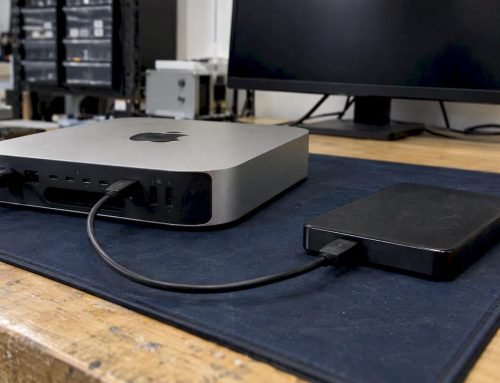
Stop all disk writes immediately, then have the drive diagnosed before anything is repaired, because a data recovery diagnostic is the step that identifies why your files are inaccessible and whether they can be retrieved safely. At Macwest Data Recovery & Mac Repair, serving Los Angeles since 2006, diagnostics are free, same-day appointments are available, and our policy is no recovery, no charge. Call 310-866-0828 to book.
TL;DR
- Stop all disk writes immediately: shut the Mac down, do not run repair tools, and do not keep using the drive.
- Diagnostics separate logical damage (file system, APFS container, deleted or formatted data) from physical damage (heads, controller, NAND, logic board power faults), and each calls for a different recovery path.
- Repairing a file system and recovering files are different jobs, and repair can overwrite the evidence you need.
- Our diagnostics are free, same-day appointments are available at our West LA lab, and you pay nothing if we recover nothing.
- Cost depends on what failed, which is exactly what the assessment determines.
Table of Contents
- Key Takeaways
- Stop all disk writes first
- What a data recovery diagnostic actually checks
- Physical versus logical failure: the symptoms
- File system repair versus data recovery
- Apple silicon, APFS and NVMe: why Mac diagnostics differ
- RAID and multi-disk diagnostics
- What to bring to your appointment
- What affects the cost of recovery
- Our perspective on diagnostics
- Book a free diagnostic in West LA
- FAQ
- Sources
Key Takeaways
A data recovery diagnostic is a non-destructive assessment that identifies the cause and extent of data loss before any repair is attempted. It tells you whether the problem is logical, physical, or both, and whether your files can be retrieved. Macwest offers free diagnostics, same-day appointments and a no recovery, no charge policy at 12041 Wilshire Blvd, Ste 26, Los Angeles.
Stop all disk writes first
Every write to a troubled drive can overwrite the data you are trying to save. That is why the first rule is to stop using the device, and it applies whether you have deleted a folder, reformatted a volume, or heard a clicking drive.
Practical rules for the moments before an assessment:
- Shut the Mac down properly if it still responds. If it does not, hold the power button until it turns off rather than letting it retry endlessly.
- Do not install recovery software on the affected drive. Installing it writes to the same disk you want to protect.
- Do not run repair utilities as a first attempt. Repair changes on-disk structures, which we explain below.
- Do not keep power-cycling a clicking, beeping or non-spinning drive. Repeated attempts can turn a recoverable head or firmware fault into surface damage.
- Do not open or charge a MacBook that has been exposed to liquid. Corrosion advances with power applied. Official guidance from the Scientific Working Group on Digital Evidence says not to power on a drive recovered from water or other liquids, dropped, or exposed to fire or extreme heat.
If you are in West LA, Santa Monica, Beverly Hills, Brentwood, Westwood, Venice, Hollywood or Culver City, you can bring the device straight to us. We sit between the 405 and Santa Monica, near UCLA and the Getty Center, and we keep same-day appointments open for urgent cases.
What a data recovery diagnostic actually checks
A diagnostic answers three questions in order: what failed, how much is affected, and what the safest route to the data is. The evaluation usually begins with the facts around the loss, because the history matters as much as the hardware. A recovery planning record typically covers the likely causes, who had access, which systems depend on the data, and any recent IT changes or repairs.
On the bench, a Mac assessment generally moves through these layers:
- Intake and history. What happened, when, and what has already been tried. A spilled drink, a failed macOS update, an accidental Disk Utility erase and a clicking external drive all start different workflows.
- Power and electrical checks. For a Mac that will not turn on, we look for shorts and failed power rails on the logic board. Component-level logic board repair can restore enough function to reach the storage.
- Storage detection. Does the drive or SSD enumerate at all? Is it a SATA drive, an NVMe module, or storage soldered to the board? Newer Macs with soldered SSDs need board-level access and a model-aware approach, which we cover in our guide to recovering files from a dead Mac.
- Health and read stability. Read behavior is tested carefully so that we do not stress a weak device. Unstable reads point toward a physical cause.
- File system and container analysis. We inspect the partition map, APFS container and volumes, or HFS+ structures, and look at whether snapshots or deleted records survive.
- Encryption status. FileVault and hardware encryption change what is possible, so we establish early what credentials or recovery keys exist.
- Recoverability estimate. You receive a plain explanation of what we found, what we expect to recover and what the job involves.
The assessment is free at Macwest, and the recovery itself falls under our no recovery, no charge policy. You decide how to proceed with the findings in hand.
Physical versus logical failure: the symptoms
The single most useful result of a diagnostic is classifying the failure, because the wrong guess costs data. The table below shows the symptoms we see most often. It is a screening guide, not a substitute for a bench assessment.
| Symptom | Likely category | What it usually means | Right first move |
|---|---|---|---|
| Files vanished after you emptied Trash or erased a volume | Logical | Directory entries removed, data often still present until overwritten | Stop writing, book diagnostics |
| Disk shows as unreadable or “not initialized” | Logical, possibly physical | Damaged partition map or APFS container, or an unstable device | Do not initialize; image first |
| Repeated clicking, grinding or beeping | Physical (HDD) | Head, motor or platter problem | Power off, do not retry |
| Drive spins up then vanishes from the Mac | Physical or firmware | Firmware corruption, weak heads or controller fault | Power off, bring in for assessment |
| Mac will not power on after liquid contact | Physical (board) | Corrosion or shorted components on the logic board | Do not charge or open it |
| Mac boots to a folder with a question mark or loops in Recovery | Logical, possibly physical | Startup volume damage or storage not detected | Check Recovery, then assess |
| Very slow reads, freezing, repeated file-system errors | Physical developing | Bad sectors or a failing SSD controller or NAND | Back up what you can, then assess |
| RAID array offline or degraded with a second disk failing | Mixed | Member drive failure plus possible controller or metadata issue | Do not rebuild; image members |
A useful rule of thumb: utilities can normally fix logical errors, so when repeated checks keep finding new errors, the cause may be physical. That is a hint to stop running checks and bring the drive in.
File system repair versus data recovery
Repair aims to make a volume consistent again, while recovery aims to get your specific files out intact. They are not the same goal, and running repair first can reduce what recovery can reach.
Apple’s own documentation is clear on the scope: Disk Utility can repair errors related to the formatting and directory structure of a Mac storage device, though it cannot detect or fix all disk problems. Apple also points users to restart in macOS Recovery to check a startup disk or volume. First Aid is a reasonable step for a healthy drive with a minor directory fault. It is the wrong first step for a drive holding data you cannot lose, particularly one that is also showing read problems.
| File system repair | Data recovery | |
|---|---|---|
| Goal | Make on-disk structures consistent | Retrieve the specific files you need |
| Works on | The original drive, in place | A forensic image or a stable copy of the drive |
| Risk | Changes the source; can discard orphaned records | Low when done on an image |
| Best when | Drive is healthy and data is backed up | Data is irreplaceable or the drive is failing |
| Typical tools | Disk Utility First Aid, fsck | Imaging hardware, file carving, APFS and HFS+ analysis |
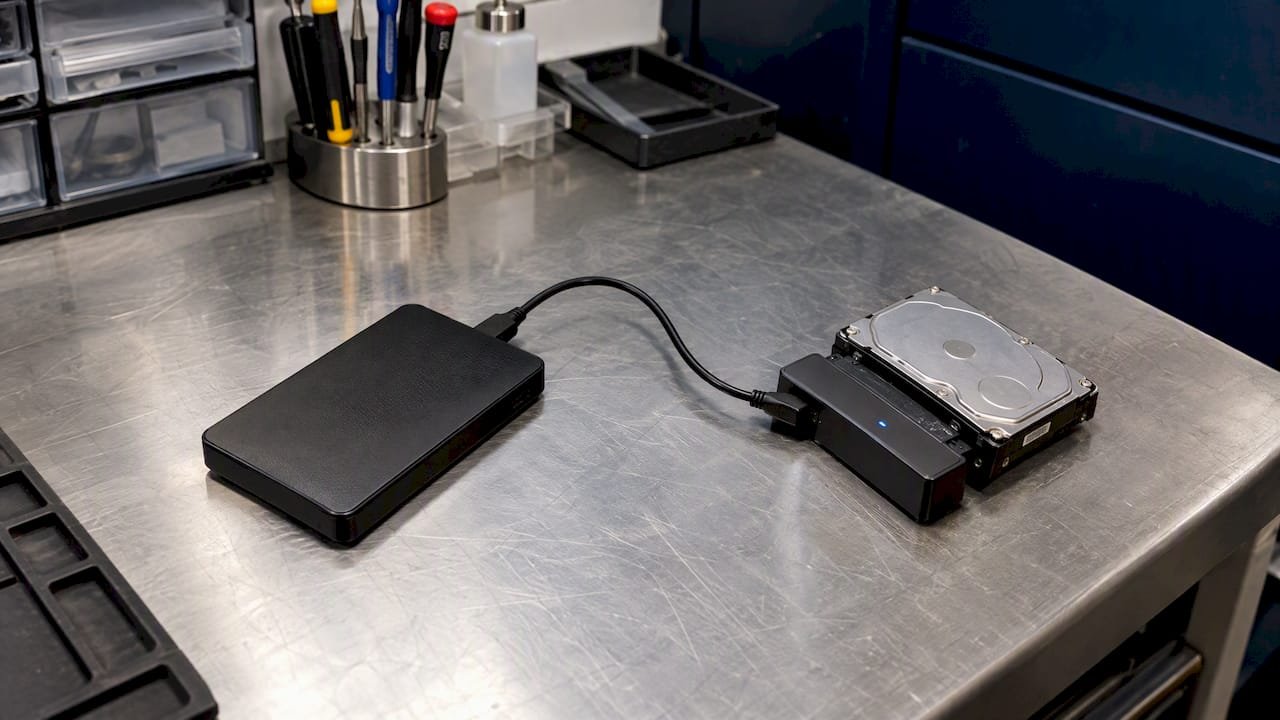
The safer sequence, which we follow, is to acquire a copy of the drive first, analyze that copy read-only, export the files that matter, and only then consider repairing a separate working copy. If you want the same principle explained for home users, our Mac file system corruption guide walks through it. For readers who want to understand how a bootable toolkit can preserve the original device and work from a master copy, that approach matches what a lab does with its imaging hardware.
Apple silicon, APFS and NVMe: why Mac diagnostics differ
A Mac assessment is not a generic drive test. Modern Macs combine several things that change the plan:
- APFS containers and snapshots. A single container holds multiple volumes that share space. Damage to container metadata can make every volume look gone, even though the data blocks are intact. Our APFS data recovery playbook covers what survives and what does not.
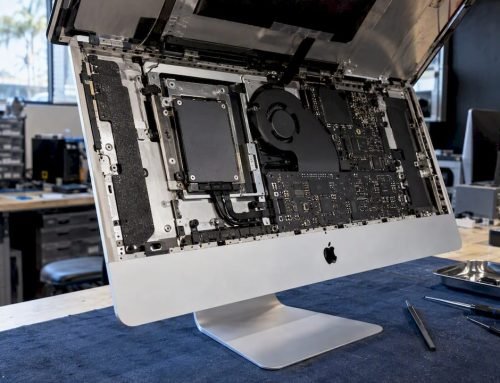
- Soldered NVMe storage. On many recent MacBooks the flash is part of the board, so there is no drive to pull. Recovery depends on getting the logic board to power up, which is where precision micro-soldering and component-level repair come in.
- Encryption. FileVault and the security hardware tied to the board mean the data is readable only on a working, matched system or with the right credentials. A diagnostic establishes this before any work begins.
- TRIM on SSDs. Deleted data on an SSD can be erased in the background, so time matters more than on a spinning disk. See our note on whether SSD data can be recovered.
If your Mac is dead, an Apple Store typically offers replacement of the whole board or device. We claim a different route: in-house component-level logic board repair and forensic imaging, aimed at cases that are sometimes written off elsewhere. Whether your specific Mac falls into that category is exactly what the free diagnostic establishes.
RAID and multi-disk diagnostics
Arrays need their own assessment because the data lives across several members. We see RAID 0, 1, 3 and 5 in Los Angeles homes, studios and offices, and each fails differently:
| RAID level | Layout | Typical failure story | Diagnostic priority |
|---|---|---|---|
| RAID 0 | Striped, no redundancy | One member fails and the whole volume is lost | Image every member, identify stripe size and order |
| RAID 1 | Mirrored | One disk dies, the survivor is old and fragile | Image the healthier mirror first |
| RAID 3 | Striped with dedicated parity disk | Parity or data disk failure, often in older systems | Confirm parity disk, image all members |
| RAID 5 | Striped with distributed parity | Second disk fails during rebuild | Do not rebuild; image members, reconstruct virtually |
The most damaging mistake is forcing a rebuild on a degraded array with aging disks. The rebuild reads every sector of every remaining drive, which is when weak members often fail. Imaging method matters too: NIST notes that imaging a RAID through a hardware controller may capture the accessible volume but not all the information on the individual drives, while imaging the drives separately can provide complete drive images. That is why we examine members individually. For more detail, see our RAID data recovery methods and the RAID 0 triage workflow.
What to bring to your appointment
A short list makes the assessment faster and often gets you an answer the same day.
- The affected device, plus its power adapter and any enclosure or cable.
- For an array, every member drive, labeled with its slot order if you can.
- Your Apple ID and FileVault recovery key or login password, if the Mac is encrypted.
- A list of what matters most: a Final Cut library, a Lightroom catalog, a QuickBooks file, a thesis.
- A short account of what happened and what has been tried, including any Disk Utility runs or software scans.
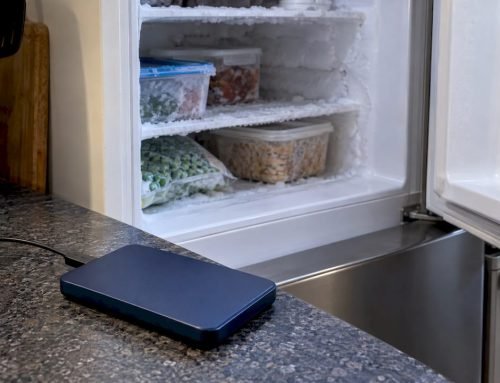
Do not clean, bake, freeze, or open a drive. None of those help, and several make physical damage permanent. For liquid exposure, SWGDE’s guidance for a drive submerged in non-flammable liquid is vacuum-sealed packaging to draw out moisture and limit air, then immediate delivery to a recovery service. In practice, for a wet MacBook, keep it off and bring it to us quickly.
What affects the cost of recovery
We do not publish a flat price, because the diagnostic result decides the work. The factors that move a quote are:
- Failure type. Logical recoveries from a stable drive involve less lab time than head, firmware or board-level work.
- Device type. A soldered SSD on a dead logic board is a different job from an external USB drive.
- Capacity and number of devices. Large arrays take more imaging time.
- Urgency. Same-day and emergency work is scheduled ahead of the regular queue.
- Encryption and access. Having your credentials ready avoids delays.
Because diagnostics are free and our policy is no recovery, no charge, you learn the scope and the quote before committing, and an unsuccessful job does not generate a recovery bill. Our hard drive data recovery page lists what we handle.
Our perspective on diagnostics
Most data we lose people never lose because of the failure itself. They lose it in the hours afterward, when a frightened owner runs one more scan, reinstalls macOS over the volume, or rebuilds an array that should have been imaged first.
That is why we treat the diagnostic as the most important part of the job. We do not guess from symptoms. We confirm what the drive is doing, make a stable copy when the hardware allows it, and work from that copy so the original is not stressed further. Since 2006 we have seen enough Macs, SSDs, hard drives and RAID sets to know that the quick fix is rarely the safe one.
We built our lab around that approach: in-house micro-soldering and component-level logic board repair, forensic imaging, and same-day appointments, so a customer in Westwood or Santa Monica is not waiting on a mail-in label while their data degrades. We believe a free diagnostic and a no recovery, no charge policy are the honest way to start, because the customer should know what is possible before they spend anything.
Kaya
Book a free diagnostic in West LA
If a Mac, drive, SSD, memory card or RAID has stopped giving you your files, bring it to our lab at 12041 Wilshire Blvd, Ste 26, Los Angeles, between the 405 and Santa Monica, near UCLA and the Getty Center. We serve West LA, Santa Monica, Beverly Hills, Brentwood, Westwood, Venice, Hollywood and Culver City. Call 310-866-0828 for a same-day appointment, and see our full data recovery services or our Mac repair service in Los Angeles.
FAQ
How long does a data recovery diagnostic take?
Many assessments can be completed the same day, particularly for a single Mac, external drive or memory card. Complex cases such as multi-disk arrays or boards that need component-level work may need longer to reach a firm answer. Call 310-866-0828 and we will tell you what to expect for your device.
Is a data recovery assessment really free?
At Macwest, yes: diagnostics are free, and our policy is no recovery, no charge. You receive the findings and a quote for the recovery before you decide anything.
Should I run Disk Utility First Aid before bringing my drive in?
Not if the data matters and the drive is behaving oddly. First Aid repairs directory and formatting errors, and Apple notes it cannot detect or fix every problem. Repair changes the source drive, so recovery is safest when it happens first, from a copy.
Can you recover data from a Mac that will not turn on?
Often, yes, depending on what failed. A diagnostic checks the logic board, power circuits and the storage itself, and component-level repair can sometimes bring a board back far enough to reach the data. Encryption and soldered storage affect the plan, so keep your login password or FileVault recovery key handy.
How is data recovery different from computer forensics?
Recovery focuses on getting your files back from a failed or damaged device. Forensics focuses on collecting and documenting digital evidence so it can stand up in an investigation, though both rely on careful imaging that avoids altering the original.
Sources
- Best Practices for Handling Damaged Digital Storage Devices, SWGDE (2025)
- Repair a storage device in Disk Utility on Mac, Apple Support
- The Impact of RAID on Disk Imaging, NIST
- Comprehensive guide to data recovery, Acronis
- How can I distinguish logical and physical hard drive failure, Server Fault
- Failing laptop hard drive: recover files first, Bootable USBs