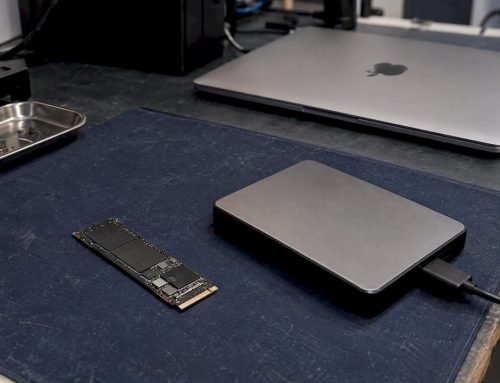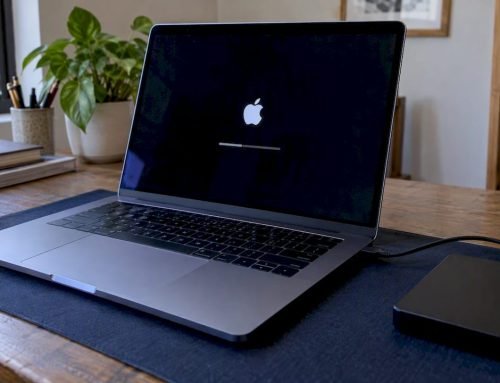
A MacBook power button failure is usually one of three things: a worn or liquid-damaged button or top case, a power or firmware fault that only looks like a dead button, or a logic board problem. The first two can often be sorted out with a few safe checks. The third needs a technician, and the sooner it gets one, the better your files’ chances. If your files matter and the Mac shows no signs of life, stop all disk writes immediately, which in practice means stop pressing, charging and rebooting repeatedly, and call us at (310) 866-0828 for a same-day appointment.
TL;DR
- A “dead” power button is often a power, firmware or logic board fault. Check the charger, outlet and cable first, then try the safe resets below.
- Do not open the Mac, keep hitting the button, or keep plugging and unplugging it if it smells of liquid, has been dropped, or holds files you cannot lose.
- On 2018 and newer Macs the SSD is soldered and encrypted, so a failed logic board can make data unreachable without component-level repair. A current backup is the real safety net.
- Macwest Data Recovery & Mac Repair has served Los Angeles since 2006, with free diagnostics, same-day appointments and a no recovery, no charge policy.
Table of Contents
- Key Takeaways
- What “power button failure” really means
- Start with the checks that cost nothing
- Safe resets for a button that seems unresponsive
- The button itself: wear, debris and liquid
- When a dead button is really a logic board problem
- What to do right now if the files matter
- How recoverable are your files? A model-generation guide
- Our perspective: diagnose first, then touch
- How we handle a MacBook with a failed power button
- Mac repair and recovery in West Los Angeles
- Preventing the next failure
- FAQ
- Sources
Key Takeaways
A MacBook that ignores its power button has a power, firmware, button or logic board fault, and only a diagnosis can tell which. Repeated power attempts on a shorted board can damage more components, so protect the data before you experiment. Macwest has repaired Macs and recovered data in West Los Angeles since 2006, with free diagnostics and no recovery, no charge.
What “power button failure” really means
People use the phrase for several different symptoms, and each points to a different part. Sorting yours into the right row saves time and, more importantly, keeps you from doing something that makes recovery harder.
| What you see | Most likely cause | Safe to try yourself? |
|---|---|---|
| Nothing at all: no sound, no light, no fan, no chime | Power delivery fault, charger or cable, or a logic board short | Yes: check charger, cable, outlet. Then stop. |
| Button feels mushy, sticks, or does not click back | Debris, a swollen battery pushing on the top case, or a worn mechanism | Only look. Do not press hard or pry. |
| Button works intermittently, especially after a spill | Liquid residue and corrosion on the button contacts or the board | No. Power it off and bring it in. |
| Fans spin or the screen glows, but no startup | Firmware, macOS or display fault, not the button | Yes, the resets below |
| Black screen with an exclamation point or a restore message | Corrupted firmware on the Mac | Needs a second Mac and Apple’s tools |
| Mac turns on only while held, or shuts off at once | Battery, power management or board fault | No. Diagnostics first. |
Technicians often point out that “no signs of life” is frequently mistaken for a button fault when the real issue sits on the logic board or in firmware. A technician discussion on Apple’s support forum makes the same point about repeated power-on attempts on a shorted board: they can trigger cascade failures in other components, so getting proper diagnostics early is the most important step for preserving data.
Start with the checks that cost nothing
Before you decide the button is broken, rule out the boring causes. Apple’s own guidance for a Mac that will not start begins with the power connection: confirm that the cable is undamaged and seated firmly in both the Mac and a working outlet, and try another compatible cable or adapter if you have one, as laid out on Apple’s page for a Mac that doesn’t turn on.
- Test the outlet and adapter. Plug in something else to confirm the outlet is live. Inspect the cable for fraying near the connector, and look inside the charging port for lint.
- Unplug everything. Disconnect external drives, displays, hubs and dongles. A faulty accessory can stop a Mac from starting.
- Leave it charging for 15 to 30 minutes. A fully drained battery sometimes shows no response at first.
- Press the button once, firmly, and wait. Pressing it repeatedly does not help, and on a board with a fault it adds stress.
- Listen and look. A startup chime, fan noise, keyboard backlight or a faint glow when the display is angled toward a light all prove that the Mac has power, which makes a button or display fault more likely than a dead board.
Write down what you observe. When you call a shop, “the charging light shows amber, no chime, no backlight” is far more useful than “it’s dead.”
Safe resets for a button that seems unresponsive
If the Mac shows some life, or nothing at all after the basic checks, a reset is reasonable. Which one depends on the processor.
Intel-based MacBooks
On an older Intel-based MacBook, resetting the SMC (system management controller) can restore power behavior. Apple notes this applies to Intel-based Macs only, and you do not need it on Apple silicon. The exact key sequence depends on whether your model has a T2 chip, so follow Apple’s SMC instructions for your model rather than a forum post from 2013. Many old threads still circulate with outdated sequences, including some that rank for this exact problem.
Apple silicon MacBooks (M1 and later)
There is no SMC to reset. One documented approach is to unplug all accessories and then press and hold the power button for about 10 seconds before releasing it and pressing it once more. A user with an M1 Max MacBook Pro described this method working after the Mac had refused to start. If it works for you, back up as soon as the Mac boots. A fault that clears once can return.
When the problem is firmware, not the button
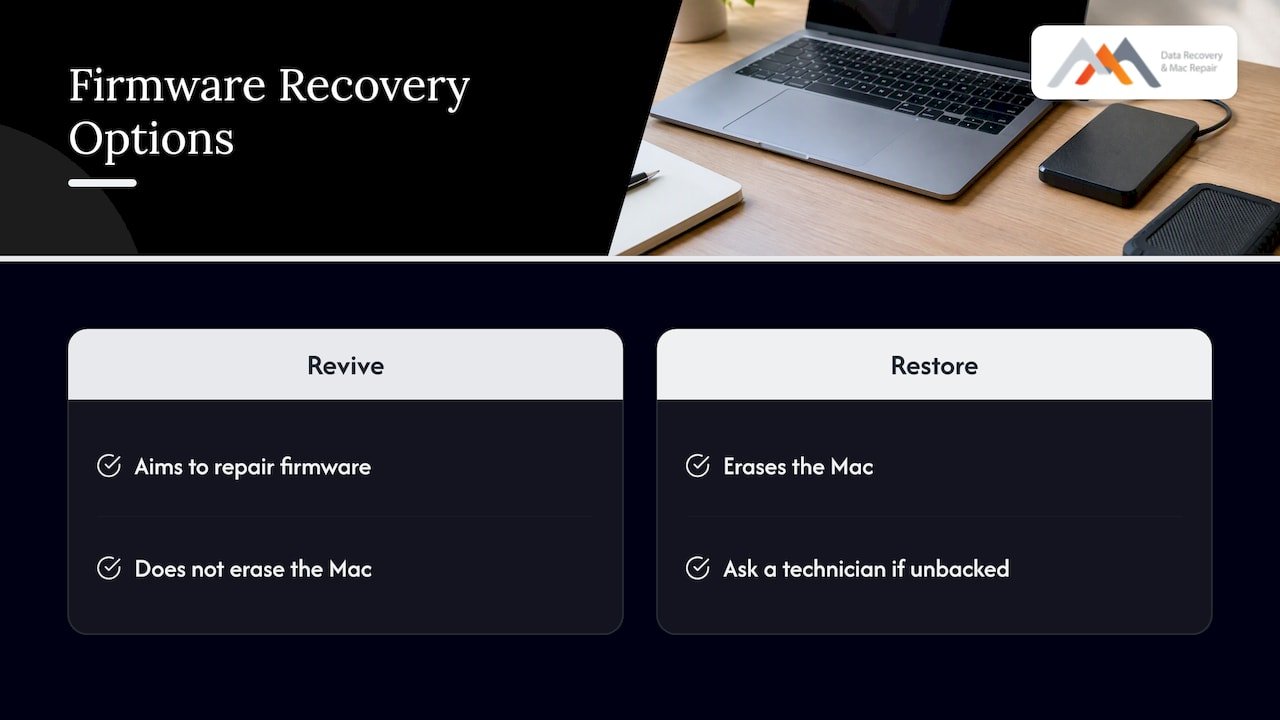
A Mac that powers up but shows a black screen with an exclamation point, or a message pointing to a restore page, has a working power button. The firmware is damaged. The fix is a Revive or Restore using a second Mac and Apple Configurator, a sequence one Mac user called a finger-twister when it went wrong for them. A Revive aims to repair firmware without erasing, but a Restore erases the Mac. If the files on that machine are not backed up, ask a technician before choosing Restore.
The button itself: wear, debris and liquid
When the Mac clearly has power, but the button does not respond, the key itself or what lies beneath it is the suspect.
- Debris or sticky residue. A button that sticks or feels gritty may have dirt under the key. Switching the Mac off and gently clearing the area is the extent of what we advise at home.
- A swollen battery. On many MacBooks the battery sits directly under the top case. A swelling cell can push on the keyboard and button area, which can cause sticking or a visible bulge in the case. Stop using and charging a Mac with a bulging case and have it checked.
- Liquid. Even a small spill can leave residue that makes a button work erratically days or weeks later, while corrosion spreads on the board. If liquid is involved, read our guide on protecting your data after a MacBook water spill and our liquid damage repairs.
- Top case design. On many models the power button is part of the keyboard assembly, and on Touch ID models it doubles as the fingerprint sensor. A failed button can therefore mean a top case replacement, not a simple switch swap. A battery and keyboard sit tightly together there, so DIY prying risks cracking the battery or tearing ribbon cables.
If your Mac is older than five years and only the button fails, a repair is often realistic. We inspect it and tell you what the part involves before any work starts.
When a dead button is really a logic board problem
This is where the stakes rise. If your MacBook shows nothing on the charger, nothing on the screen, and no sign of life after the steps above, the cause may be a short or failed component on the logic board, such as a power management chip or a charging circuit. Our guides to logic board failure signs and step-by-step logic board repair describe what the symptoms look like and how a bench repair proceeds.
Here is the part most owners do not realize. On Macs from 2016 onward, the SSD is soldered to the board, and on Macs with a T2 chip or Apple silicon, it is also hardware-encrypted. Community experts on Apple’s forums explain that if the logic board is replaced or fails, access to the data on the internal SSD is lost, because the board has to be functional to unlock the encrypted storage. Another answer on a Mac Stack Exchange thread recommends keeping a recent backup with Time Machine or iCloud, precisely because the drive cannot be pulled out and read elsewhere.
That is why replacing the whole board is the wrong first move if you need your files. The data lives in the NAND chips, and it is unlocked by the Secure Enclave and the surrounding circuitry. Repairing the failed components on the original board, rather than swapping it for a different one, is what can bring the Mac back to a state where the encrypted volume can be read. Our page on what MacBook logic board data loss means for your files goes deeper.

What to do right now if the files matter
Stop all disk writes immediately. For a Mac that will not turn on, that means:
- Stop trying to power it on. Every attempt on a shorted board can do further damage.
- Disconnect the charger if you notice heat, a burning smell, or any liquid exposure.
- Do not open the case and do not disconnect the battery unless you are trained to. Components under the shield cans are tiny and easy to tear off.
- Do not erase, reinstall or restore macOS. On an Apple silicon Mac, erasing can cut off your only route to the data.
- Write down the model and year, and the last time you made a backup.
- Call (310) 866-0828 and book a same-day appointment for free diagnostics.
If the Mac does start, even briefly, copy your most important folders to an external drive or iCloud and do nothing else with it. A short window of power is a gift. Spend it on the backup, not on browsing.
Our Apple silicon data recovery guide covers the six steps to take and how to tell when you have reached the point to call a lab.
How recoverable are your files? A model-generation guide
Recovery odds depend heavily on what kind of Mac you own. This table is a general guide to how the storage design affects the approach, not a promise. We can only tell you what is possible after diagnostics.
| Mac generation | Storage | Encryption | What it means for a dead Mac |
|---|---|---|---|
| Pre-2016 Intel MacBooks | Often removable or standard SSD | Optional FileVault | The drive can frequently be read separately, so a failed button or board is less threatening to the data |
| 2016 to 2017 Intel MacBook Pro and Air | Soldered SSD | Optional FileVault | The board matters. Recovery may involve repair or direct access to the storage chips |
| 2018 and later Intel with T2 | Soldered NVMe-class SSD | Hardware encrypted | Needs a working board and security chip, so component-level repair is usually the route |
| Apple silicon (M1 and later) | Soldered, in the chip’s design | Hardware encrypted, tied to the Secure Enclave | Highest dependence on a functional logic board, and no usable data without it |
One Apple Community answer is blunt about the practical outcome: on 2018 and later Macs with T2 or Apple silicon, if the board or Secure Enclave is damaged the data can be physically unrecoverable. That is exactly why speed and restraint at the start matter, and why repair of the original board is worth attempting before anything is replaced. Our overview of why MacBook Pro recovery differs by model and generation walks through the differences in detail.
Our perspective: diagnose first, then touch
We have spent years watching the same mistake. A customer’s MacBook stops responding to its power button, and over the next few days it gets pressed, charged, held, reset, opened and sometimes a replacement part is ordered online. By the time it reaches the bench, the original fault is buried under new ones.
Our view is that a Mac with no signs of life should be treated as a data recovery case until proven otherwise. The power button is the cheapest part of the story. The expensive part is the logic board, and behind it the encrypted storage that holds a decade of photos, client files and tax records. In our lab, we start with diagnostics: we measure current draw, inspect the board under magnification, and check for shorts, corrosion and failed power circuits before we decide on anything. If the board can be repaired at the component level, using micro-soldering, the Mac and its data often come back together. If the data cannot be reached, you owe us nothing for recovery.
The second thing we want you to take away is that a backup beats any repair. Time Machine to an external drive takes minutes to set up, and it turns a catastrophic failure into an inconvenience. The owners who ask us what could have prevented a loss almost always have the same answer.
— Kaya
How we handle a MacBook with a failed power button
We work from the same sequence on every device, so you know what happens to your Mac at each stage.
- Intake and history. We note the model, the symptoms, what has been tried, and whether liquid or a drop was involved.
- Free diagnostics. We confirm whether the fault is the button, top case, battery, firmware or logic board, and tell you the findings in plain language.
- Data first. If the Mac holds files you need, we plan the route to them before any repair that could change the board’s state.
- Repair. That may be a top case or button replacement, a battery swap, or component-level logic board repair for Apple silicon and Intel Macs that other repair channels often treat as beyond saving.
- Verification. We confirm that the Mac starts reliably, and that your data is intact before it is returned.
If data recovery is needed and we cannot get your files, there is no recovery charge. You can see the full range of what we recover, including SSDs, external drives, RAID arrays (levels 0, 1, 3 and 5) and memory cards, on our data recovery page.
Mac repair and recovery in West Los Angeles
We are at 12041 Wilshire Blvd, Ste 26, between the 405 and Santa Monica, close to UCLA and the Getty Center. Owners come to us from Westwood, Brentwood, Santa Monica, Beverly Hills, Venice, Hollywood and Culver City, and a local lab means you can hand over the Mac in person instead of shipping a device that holds your whole digital life.
- Since 2006, repairing Macs and recovering data in Los Angeles.
- Free diagnostics on every device.
- No recovery, no charge on data recovery work.
- Same-day appointments for urgent cases, for individuals and for businesses.
For repair details, see our Mac repair service in Los Angeles page. If the power button problem started after a spill, our MacBook Air and liquid damage repairs page explains what we do. For a dead Mac that you cannot afford to lose files from, call (310) 866-0828 and we will find you a slot today.
Preventing the next failure
Most power button disasters become disasters because there was no backup. A few habits remove most of the risk:
- Run Time Machine to an external SSD, and keep iCloud Drive or a second copy for your key folders.
- Keep liquids off the work surface. Spill damage often shows up weeks later as an intermittent button or a Mac that will not charge.
- Replace swollen batteries promptly. Do not keep using a Mac whose case no longer sits flat.
- Use a quality charger and cable. Frayed cables cause many “dead Mac” calls.
- Do not wait on intermittent behavior. A button that works sometimes is a warning, so copy your files while it still does.
FAQ
How do I turn on a MacBook if the power button is broken?
Some MacBooks power on when you connect them to a charger, but this behavior depends on the model, so it is not a reliable workaround. Do not pry at the button or short anything on the board to force it. If the button is genuinely failing, a technician can usually repair or replace it, and we diagnose it free.
Why is my MacBook power button not working, but the charger light is on?
A charger light shows that the adapter has power, not that the Mac is accepting it. The fault could be the cable, the charging port, the battery, firmware or a board-level short. Try another cable and outlet, unplug accessories, and if there is still no response, bring it in rather than pressing the button repeatedly.
What should I do if my MacBook power button is stuck?
Power the Mac down if you can and stop using the button. A stuck button is often debris, a swollen battery pressing on the top case, or liquid residue. Do not force it or open the case yourself, because the battery sits directly beneath. Have it inspected the same day if the case looks raised.
Can I recover my files if the MacBook will not turn on?
Often yes, but it depends on the model. On 2018 and newer Macs the SSD is soldered and hardware-encrypted, so the logic board has to be brought back to working condition to read it. We run free diagnostics, and if we cannot recover your data, there is no recovery charge.
Can I fix a MacBook power button myself?
The safe fixes are the free ones: another cable and outlet, unplugging accessories, and the manufacturer’s reset steps. Anything that involves opening the case risks the battery and the delicate cables. If your files are not backed up, hold off even on the resets and call us first.
Sources
- If your Mac doesn’t turn on, Apple Support
- When macOS Firmware Goes Bad, Podfeet Podcasts
- How I can get data from ssd MacBook Pro, Apple Community
- Macbook air 13” (2019) not booting, Apple Community
- My MacBook Pro wasn’t turning on, Ask Different
- Which options would I have to recover files from a dead MacBook (2022), Ask Different