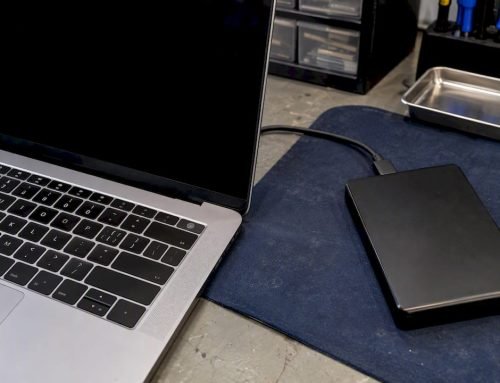
Thermal shutdown is your Mac’s built-in safety response, not a malfunction. Move it to a hard, ventilated surface, unplug it if it’s safe to touch, and let it cool for a suitable period before restarting. If you suspect a drive is failing or files went missing, stop all disk writes immediately. A single shutdown is often benign, but repeated ones mean it’s time to run real diagnostics.
TL;DR:
- Most overheating shutdowns are caused by blocked airflow, dust buildup, or runaway processes, not hardware failure, but repeated shutdowns signal deeper issues.
- Cooling the Mac involves shifting it to a hard, ventilated surface, unplugging peripherals, and waiting at least 10 minutes before restarting to prevent hardware damage.
- Software issues can cause overheating if they lead to CPU overuse, but hardware problems such as failing sensors or thermal paste aging often cause heat buildup even at idle.
- Apple Diagnostics and Safe Mode help distinguish between software and hardware causes; failing sensors or abnormal shutdown codes require professional assessment.
- Recurrent shutdowns after ruling out software are often linked to hardware faults like a swollen battery, damaged thermal sensors, or logic board issues and should be evaluated by a technician.
Table of Contents
- Why Does a Mac Overheat and Shut Down?
- How Do You Cool Down an Overheating Mac Right Now?
- Is It a Software Problem or a Hardware Problem?
- When Should You Get Professional Repair?
- How Do You Prevent Future Overheating Shutdowns?
- A Technician’s View on Overheating Macs
- Get Your Mac Diagnosed Today
- Sources
- FAQ
Why Does a Mac Overheat and Shut Down?
A Mac overheating shutdown almost always traces back to one of five sources: airflow, software, fans, power delivery, or aging hardware. Apple sets a clear operating range for Mac laptops between 50°F and 95°F (10°C to 35°C), and running outside that band impairs how well the machine can regulate its own internal temperature. Most cases people bring into a repair shop, though, have nothing to do with room temperature and everything to do with how the Mac is being used or maintained.
Here’s what typically drives the heat up until macOS forces a shutdown to protect the logic board:
- Blocked ventilation. Working on a bed, couch cushion, or lap traps hot air against the intake vents. Apple explicitly warns that soft surfaces and blocked vents are primary overheating triggers, and dust buildup inside the chassis makes it worse over time.
- Runaway processes. A stuck browser tab, a frozen Spotlight index, or a rogue background app can pin the CPU at 100 percent for hours without you noticing.
- Fan behavior that looks scary but isn’t. Fans ramping up loudly during a video export or a big file transfer is normal. Apple notes that fan noise itself is a designed cooling response, but fans running at max speed while the Mac sits idle usually points to a stuck process or blocked airflow, not a failing fan.
- Charger and battery issues. A damaged adapter, a swollen battery, or a non-Apple charger delivering inconsistent power can generate heat that has nothing to do with the CPU at all.
- Aging thermal paste or failing sensors. On Macs several years old, dried-out thermal paste between the CPU and heat sink stops transferring heat efficiently, and a failing temperature sensor can trigger shutdowns even when the machine isn’t actually that hot.
How Do You Cool Down an Overheating Mac Right Now?
Getting a Mac back online safely after a thermal shutdown takes a specific order of operations. Skipping steps, especially the cooling step, is how people turn a scare into a real hardware failure.
- Let it cool first. Don’t force the power button repeatedly on a chassis that’s hot to the touch. Set it on a hard surface, remove any case, and give it 10 to 30 minutes.
- Stop disk writes if you suspect data risk. If the shutdown happened alongside a beach ball freeze, a corrupted file warning, or unusual clicking noises, don’t try to save files or run repair utilities. Writing to a failing drive can overwrite the very data you’re trying to protect.
- Disconnect peripherals. External drives, hubs, and displays can add electrical load and heat. Unplug everything except power.
- Quit heavy processes. Once it’s back on, open Activity Monitor, sort by CPU, and quit anything unfamiliar pulling excessive resources. Close extra browser tabs, since dozens of open tabs are a surprisingly common culprit.
- Restart cleanly. On Apple silicon Macs, a simple restart resets thermal management. On Intel Macs, an SMC reset (shut down, then hold the power button briefly before restarting) can clear stuck fan or sensor states.
- Run deeper checks if it happens again. Boot into Safe Mode to rule out startup software, then run Apple Diagnostics to check for hardware-flagged issues.
Pro Tip: Keep a mental timestamp of when shutdowns happen. “Every time I run Final Cut” points to software load; “randomly while just browsing” points more toward a hardware or sensor problem.
For a broader checklist you can save for next time, our MacBook troubleshooting checklist walks through the same sequence with more detail on each step.
Is It a Software Problem or a Hardware Problem?
Telling the two apart is mostly about isolation. Software-driven overheating tends to correlate with a specific app or task and disappears in Safe Mode. Hardware-driven overheating tends to happen even at idle, gets progressively worse, and often comes with other symptoms like a burning smell or visible fan debris.
- Check Activity Monitor and Console. A CPU core pinned near 100 percent with the display asleep, or repeated kernel panic messages in Console, points to a software culprit.
- Boot into Safe Mode. If the shutdowns stop happening with peripherals disconnected and only default processes running, you’re looking at a third-party app or extension, not a component failure.
- Run Apple Diagnostics. This built-in tool flags failing sensors, battery faults, and some memory issues directly, and Apple’s own guidance recommends it as the standard first step for unexplained restarts.
- Watch for internal shutdown codes. Some Macs log specific shutdown error codes that point to sensor exceedances or memory temperature faults, information a technician can pull to skip the guesswork.
Third-party monitoring apps like iStat Menus can show internal sensor readings, but Apple cautions that they only read sensor data, not actual case temperature, so don’t treat a “normal” app reading as proof the hardware is fine.
When Should You Get Professional Repair?
Certain warning signs mean it’s past the point of a DIY fix, and pushing forward risks both the machine and your data. If you’ve hit repeated shutdowns after ruling out software, smell anything burning, notice a swollen battery, or fail Apple Diagnostics outright, that’s your signal to bring it in.
Here’s what a qualified technician actually checks that you can’t do from the keyboard:
- Thermal sensor logs and shutdown error codes tied to specific components
- Logic board heat signatures under load testing
- Battery and charger output, since a failing adapter can mimic a logic board fault
- NVMe and APFS drive health, especially if a shutdown happened mid-write
- RAID array status on Mac Pro or external RAID setups, where a thermal event can desync a rebuild
If a drive was writing data when the shutdown hit, stop all disk writes immediately and don’t attempt DIY recovery software. Our data recovery service includes free diagnostics and a no recovery, no charge policy, meaning you only pay when data actually comes back. Apple’s own guidance is blunt on this point too: battery and internal repairs should only be handled by trained technicians, since improper repairs can themselves cause overheating or injury.
Before you come in, write down when the shutdowns started, what you were running each time, and any exact error text or shutdown code on screen. That timeline cuts diagnostic time significantly.

How Do You Prevent Future Overheating Shutdowns?
Most repeat cases we see come down to habits, not defects. A few changes fix the majority of them permanently.
- Keep the Mac on a hard, elevated surface and out of direct sun, staying inside Apple’s 50°F to 95°F operating range.
- Have vents professionally cleaned every 12 to 18 months if you notice dust or a musty smell near the exhaust.
- Update macOS and apps regularly. Apple tunes thermal management with nearly every system update.
- Switch on Low Power Mode during lighter tasks. Apple confirms it can meaningfully cut thermal output by limiting performance when full speed isn’t needed.
- Use only Apple-certified chargers, and have thermal paste or fan replacement handled by a professional rather than attempted at home.
Pro Tip: If your fans run at max speed at idle for more than a few minutes, that’s rarely a fan fault. Check Activity Monitor first; the fan is usually just responding to something else.
A Technician’s View on Overheating Macs
Most overheating calls we get aren’t dramatic. They’re a laptop that sat on a duvet for six months, or a battery that swelled just enough to lift the trackpad. The shutdown itself is the machine doing its job correctly. What worries me is when people restart it five times in a row trying to force through a save, because that’s how a thermal event turns into a corrupted drive. Since 2006, the pattern holds: check the drive health before you touch anything else. We offer free diagnostics and same-day appointments precisely because the first hour after a shutdown matters more than people realize.
— Kaya
Get Your Mac Diagnosed Today
Our service provides diagnosis of logic board heat faults, battery and charger replacements, and data recovery from APFS and NVMe drives affected by thermal events, all under a free diagnostics and no recovery, no charge policy, so you’re never paying for an answer you didn’t get. Centrally located at 12041 Wilshire Blvd, Ste 26 between the 405 and Santa Monica, near UCLA and the Getty Center, we serve West LA, Santa Monica, Beverly Hills, Brentwood, Westwood, Venice, Hollywood, and Culver City with same-day appointments for urgent cases. If your drive was writing data when the shutdown hit, don’t wait: call 310-866-0828 or start with our hard drive data recovery service to get a technician looking at your drive today.
Sources
- Mac notebooks: Use and safety information (Apple Support)
- About fans and fan noise in your Apple product (Apple Support)
- If your Mac restarted because of a problem (Apple Support)
FAQ
Why Is My MacBook Overheating and Shutting Off?
It’s almost always blocked airflow, a soft work surface, or a runaway background process, though aging thermal paste and failing batteries cause it in older machines too.
Why Does My MacBook Keep Overheating When Closed?
Closed-lid overheating usually means the Mac didn’t actually go to sleep, often because a background task or external display connection kept it awake inside a bag with no airflow.
Is It Bad if Your Mac Overheats?
An occasional thermal shutdown is a protective response and not damaging by itself, but repeated overheating accelerates battery wear and can eventually stress the logic board.
How Do You Cool Down an Overheating Mac?
Move it to a hard, ventilated surface, unplug it if safe, and let it sit for 10 to 30 minutes before restarting; quitting heavy processes in Activity Monitor speeds up the recovery.
When Should I Take My Mac in for Overheating Repair?
Bring it in if shutdowns recur after you’ve ruled out software causes, if you notice a burning smell or swollen battery, or if Apple Diagnostics flags a hardware fault.