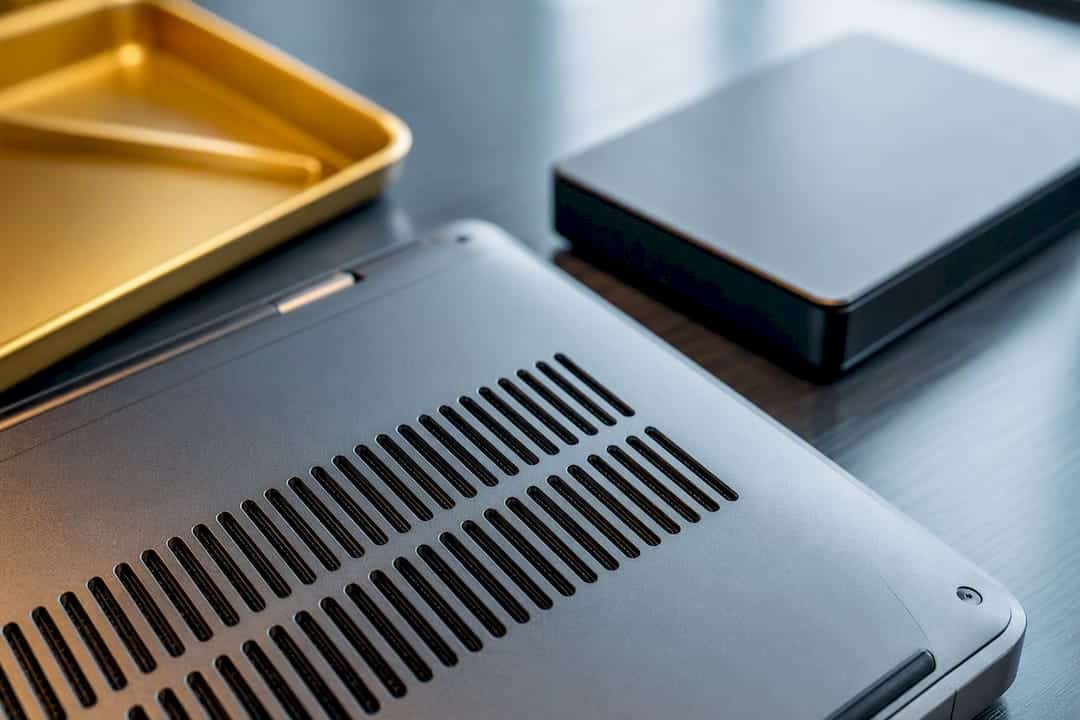
Your MacBook’s fan is loud because internal sensors detect heat, usually from a CPU or GPU task, and spin the blades faster to pull that heat out of the case. Open Activity Monitor first and check for a runaway process, then move the laptop onto a hard, flat surface so the vents can actually breathe. If the noise sounds like grinding or clicking, or the machine stays hot even when idle, stop troubleshooting and get it looked at professionally.
TL;DR:
- Most loud fan issues on a MacBook are caused by software processes like Spotlight indexing or backup tasks, which usually resolve within a few hours.
- Dust buildup on the fan blades and heatsink fins is a common hardware cause, and cleaning with compressed air or professional servicing can significantly reduce noise.
- A grinding or clicking fan noise indicates a mechanical failure in the fan or bearing, requiring professional replacement rather than software fixes.
- Software resets, such as macOS updates, SMC resets, and enabling Low Power Mode, can fix many high fan speed problems caused by system bugs or sensor glitches.
- Persistent loud fan noise with no obvious software cause warrants professional diagnostic testing and possible hardware repair, especially if combined with overheating or shutdowns.
Table of Contents
- Quick Fixes for a Loud MacBook Fan You Can Try Right Now
- What’s Actually Causing the Noise? Diagnose It With Activity Monitor
- Software Fixes That Stop Runaway Fan Behavior
- Hardware Maintenance: Cleaning, Testing, and Knowing When Fans Are Failing
- When It’s Time to Call a Repair Shop
- A Repair Tech’s Take on Fan Noise Panic
- Get Your MacBook Fan Fixed the Right Way
- Sources
- FAQ
Quick Fixes for a Loud MacBook Fan You Can Try Right Now
Before you dig into diagnostics, run through the basics. Most cases of a loud fan MacBook owners report get resolved by one of these steps, usually within a few minutes.
- Move the laptop to a hard, flat surface. Beds, couch cushions, and laps block the intake vents on the bottom case and force the fan to work harder.
- Open Activity Monitor (Applications > Utilities) and check the Energy and CPU tabs for anything hogging resources.
- Quit unused browser tabs and heavy apps. A single tab running an ad-heavy video autoplay can spike CPU load for hours.
- Turn on Low Power Mode, which Apple documents as a way to reduce fan noise and energy use on supported Macs.
- Install pending macOS updates, then restart. Software bugs occasionally cause background processes to loop and overheat the machine.
- Unplug external displays, hubs, or peripherals temporarily to see if the load drops.
- A cooling pad can help as a stopgap while you diagnose the real cause, but it will not fix a hardware problem.
Pro Tip: Keep a laptop stand or a simple book under the back edge of your MacBook when you’re on a desk. Raising the rear by even half an inch improves airflow under the vents more than most people expect.
If the fan noise has a mechanical, grinding quality rather than a smooth rush of air, stop here. That sound points to a physical fan problem, not a software one.
What’s Actually Causing the Noise? Diagnose It With Activity Monitor
A fan that spins up during a video export and quiets down afterward is doing exactly what it’s designed to do. A fan that’s loud at idle, with nothing running, is telling you something different, and Activity Monitor is where you find out which one you’re dealing with.
- Open Activity Monitor from Applications > Utilities, or search for it with Spotlight.
- Click the Energy tab and sort by Energy Impact. Apps with sustained high scores are the ones driving heat, since Energy Impact reflects real resource use, not just momentary spikes.
- Switch to the CPU tab and sort by % CPU. Look for anything unfamiliar consuming a significant portion of CPU for several minutes straight.
- Check for
mds_storesormdworker, which handle Spotlight indexing after a large file transfer, and for backup clients like Time Machine or iCloud sync mid-upload. These cause macbook fan running constantly symptoms that resolve on their own within an hour or two. - If
kernel_taskis high on the list, leave it alone.
That last point trips up a lot of people. Kernel_task isn’t a rogue app. Apple explains that it’s a built-in temperature management function that deliberately occupies CPU cycles to make the processor less available to other tasks when things run hot. Force-quitting it isn’t possible, and trying to work around it won’t cool anything down. It’s a symptom, not a cause.
Also check the room. A macbook overheating issue on a hot day near a sunny window is often just physics: ambient temperature and blocked vents both increase fan activity, according to Apple’s own guidance on fan behavior. If Activity Monitor looks clean and the room isn’t warm, run Apple Diagnostics by restarting and holding D at startup, which flags hardware faults Activity Monitor can’t see.
Software Fixes That Stop Runaway Fan Behavior
Once you know software is the likely culprit, a handful of resets and settings changes clear up most cases of macbook fan speed control gone haywire.
Start with the basics Apple recommends for unexpected heavy fan use: a full restart, or on Apple silicon Macs, simply closing the lid for ten seconds and reopening it. This resets background daemons without a full reboot. Make sure macOS is fully updated. Apple regularly patches bugs that cause specific apps or system processes to loop unnecessarily and drive up CPU use.
On Intel Macs, an SMC reset often resolves fans that spin at high speed with no clear workload behind them:
- Shut the Mac down completely.
- Press and hold Shift+Control+Option and the power button together for 10 seconds, then release and power on.
- On MacBooks with the T2 chip, the combination is the same, but confirm your model’s exact steps before proceeding, since sequences vary by year.
Apple silicon Macs don’t have a user-accessible SMC reset. A restart handles the equivalent function.
Turn on Low Power Mode under System Settings > Battery, and if you’re on battery power often, this alone can meaningfully cut fan activity during everyday browsing. Close problematic apps: chat apps with dozens of open windows, browsers with 40-plus tabs, or backup software mid-sync are common offenders. If noise persists after all of this, boot into Safe Mode to see if a third-party login item or kernel extension is the source.
If none of this resolves it, write down what you tried, including CPU percentages and app names from Activity Monitor. That record saves a repair technician time and, often, saves you money.
Hardware Maintenance: Cleaning, Testing, and Knowing When Fans Are Failing
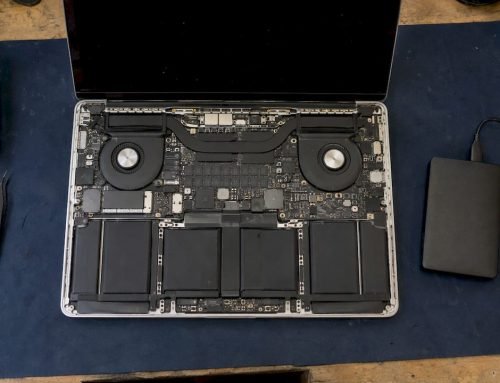
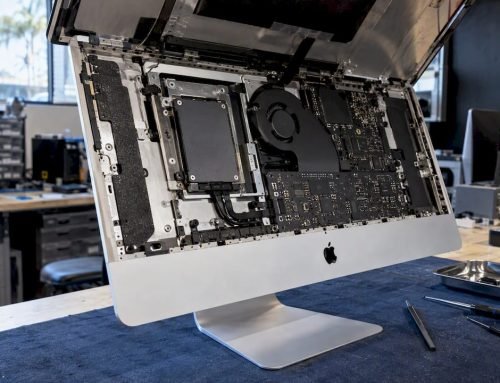
Dust is the most common physical reason a mac fan running loud complaint turns out to have a mechanical answer. It cakes onto fan blades and heatsink fins, cutting airflow and forcing the fan to spin faster and louder to move the same amount of air. A can of compressed air, held upright and used in short bursts through the vents while the fan blades are gently held still with a toothpick, clears most surface dust. For heavier buildup, a technician using a mini vacuum and proper anti-static precautions gets deeper into the assembly. Don’t open a sealed unibody chassis yourself unless you’re experienced. Modern MacBooks route ribbon cables close to the case, and one torn connector turns a $0 cleaning job into a logic board repair.
| Symptom | Likely Cause | Recommended Action |
|---|---|---|
| Fan loud only during heavy tasks | Normal thermal response to CPU/GPU load | No action needed; monitor with Activity Monitor |
| Fan loud at idle, no apps running | Dust buildup, stuck fan, or bad sensor | Clean vents; run Apple Diagnostics |
| Grinding or clicking noise | Worn fan bearing | Professional fan replacement |
| Fan stuck at max speed | Failed temperature sensor or fan control fault | Diagnostics and possible fan or sensor replacement |
| Hot to the touch even after cleaning | Degraded thermal paste | Professional thermal rework |
- Grinding, clicking, or a fan stuck permanently at maximum speed usually means a bearing or sensor failure, not a software issue.
- Thermal paste dries out over time. On Macs older than roughly four years, a professional thermal rework that replaces the paste and reseats the heatsink often does more for idle temperatures than any cooling pad ever will.
Cooling pads and angled stands help airflow at the margins, but they’re a mitigation, not a repair. If your MacBook keeps overheating despite a clean setup and updated software, the fan assembly or thermal paste is the more likely explanation.
When It’s Time to Call a Repair Shop
Certain signs mean it’s time to stop troubleshooting on your own. A fan that grinds, clicks, stays loud even when the Mac is idle, or a machine that shuts down repeatedly from heat despite every software fix, all point to hardware failure that needs a technician’s tools to diagnose properly.
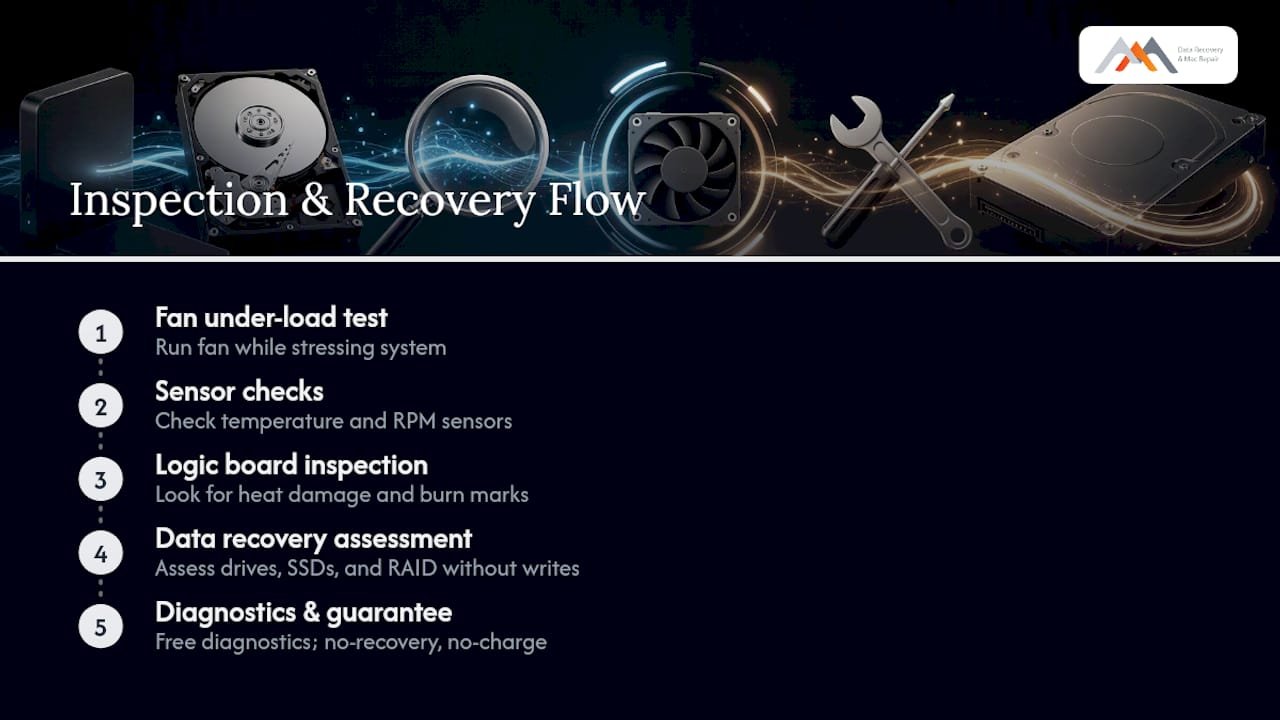
If you suspect the overheating has already damaged a drive, or you notice files disappearing, corrupting, or the disk making unusual sounds, stop all disk writes immediately and back up what you can before the drive is touched again. Professional diagnostics at this stage typically include fan load testing, sensor calibration checks, a logic board inspection for heat damage, and thermal paste replacement where needed.
- Grinding or clicking fan noise
- Fan loud constantly, even at idle
- Repeated thermal shutdowns
- Persistent heat after cleaning and software resets
- Any sign of drive corruption alongside overheating
Macwest Data Recovery has been diagnosing exactly these problems in West LA since 2006, and every visit starts with free diagnostics before any work begins. Same-day appointments are available for urgent overheating cases. Call 310-866-0828 to get on the schedule today.
A Repair Tech’s Take on Fan Noise Panic
Most people assume a loud fan means their Mac is dying. In our experience, it almost never does. It means the machine is doing its job, protecting expensive silicon from heat damage, and the real question is whether the trigger is a stuck browser tab or a bearing that’s finally worn out after years of daily use. Since 2006, the pattern has been consistent: run Activity Monitor before you touch anything else, clean the vents before you assume the worst, and if the noise persists at idle, get diagnostics rather than guessing. Free diagnostics and a “no recovery, no charge” policy exist precisely so you don’t have to gamble on which one it is. If you suspect drive damage anywhere in this process, stop all disk writes immediately and call before you make it worse.
— Kaya
Get Your MacBook Fan Fixed the Right Way
If you’ve worked through Activity Monitor, cleaned the vents, and the fan still won’t quiet down, you’re past the point where another software tweak helps. Professional repair services offer inspections that include testing the fan under load, checking sensors, and inspecting the logic board for heat damage, often backed by free diagnostics and a no recovery, no charge guarantee on data recovery work. Centrally located at 12041 Wilshire Blvd, Ste 26, between the 405 and Santa Monica near UCLA and the Getty Center, Macwestlosangeles serves West LA, Santa Monica, Beverly Hills, Brentwood, Westwood, Venice, Hollywood, and Culver City with same-day appointments for exactly this kind of overheating problem. If your Mac’s heat has you worried about the files on it, the hard drive data recovery team can assess drives, SSDs, and RAID setups without adding more writes to an already stressed disk. Call 310-866-0828 to book a same-day diagnostic and stop guessing about what’s actually wrong.
Sources
This guide draws on Apple’s own documentation for fan behavior and Apple silicon troubleshooting, its Activity Monitor energy guide, its explanation of kernel_task, and iFixit’s MacBook fan troubleshooting reference, alongside Apple’s developer guidance on energy monitoring.
- MacBook Fan Loud – iFixit Troubleshooting
FAQ
How do I stop my MacBook fan from being so loud?
Check Activity Monitor’s Energy and CPU tabs for a runaway process, move the laptop to a hard flat surface, and enable Low Power Mode. If the noise continues at idle, it likely points to a hardware issue that needs professional diagnostics.
Why does my Mac sound like a jet engine?
That level of fan noise usually means a demanding task, like video export or an indexing job, is pushing CPU and GPU temperatures up, and the fans are responding exactly as designed. If it happens with nothing running, suspect dust buildup or a failing fan.
How do I cool down a MacBook?
Keep it on a hard surface with clear vents, close unused apps and browser tabs, turn on Low Power Mode, and avoid working in direct sunlight or hot rooms. Cleaning dust from the vents also restores airflow that gets choked off over time.
Why is my MacBook fan going crazy for no reason?
It’s rarely truly “no reason.” Background tasks like Spotlight indexing, Time Machine backups, or iCloud syncing can spin fans up for an hour or more without any visible app open, and a quick Activity Monitor check usually reveals the culprit.
When should I stop troubleshooting and call a repair shop?
Call for professional help if the fan grinds, clicks, or stays loud at idle after software fixes, or if the Mac keeps shutting down from heat. Macwestlosangeles offers free diagnostics and same-day appointments for exactly these cases.