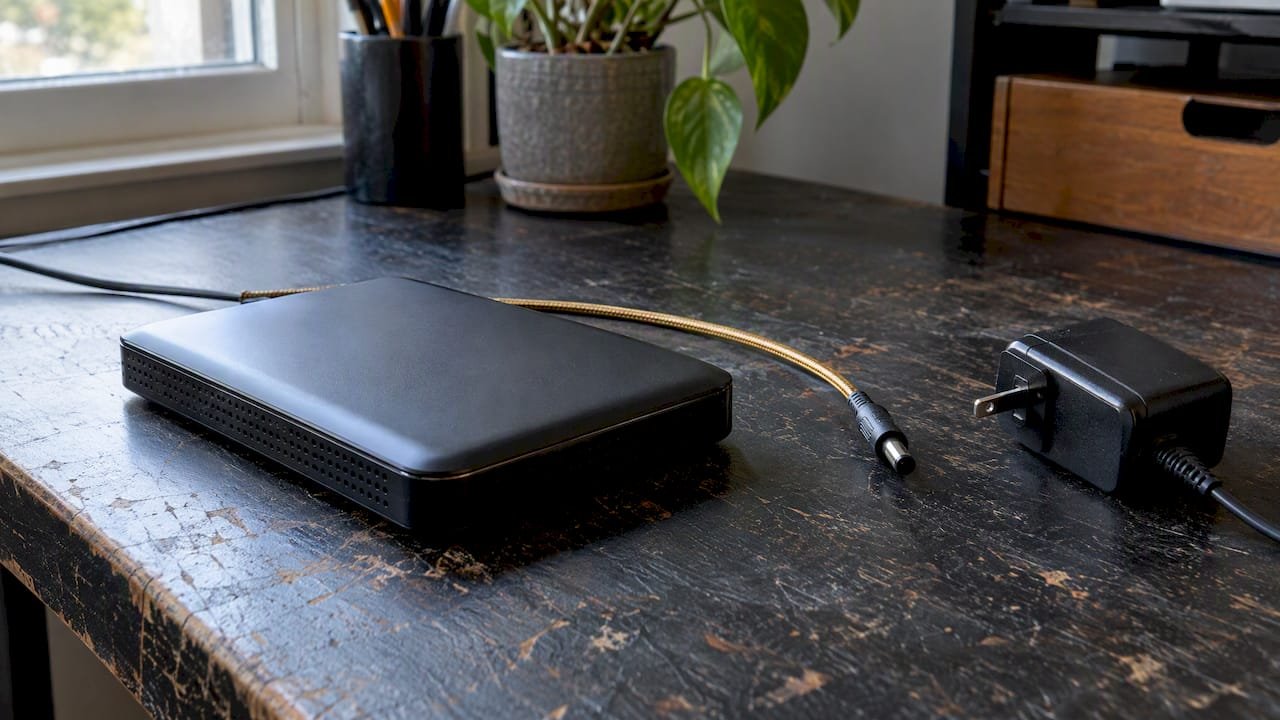
Stop all disk writes immediately if the data on that drive matters to you. A beeping hard drive almost always means one of two things: the drive is not getting enough power to spin up, or it is experiencing mechanical failure inside the enclosure. Before you do anything else, try a non-invasive test such as a different cable, port, or computer, and save any repair attempts for after you have ruled out power as the culprit.
Key Takeaways: Beeping from an external hard drive usually points to insufficient power delivery or mechanical failure of the heads and spindle. A quick swap of cable, port, or host computer can isolate power issues in minutes without risking your files. If you hear grinding, clunking, or repeated hard clicks alongside the beep, power down and contact a data recovery lab rather than continuing to use the drive.
TL;DR:
- Beeping drives are usually caused by power issues or mechanical failure, with loud or rhythmic beeps indicating serious hardware problems.
- Testing with a direct port, a known-good cable, or a powered USB hub can often determine if power starvation is the cause before further action.
- Repeated clicking or grinding noises mean the drive likely has a mechanical fault and requires professional data recovery, not continued use.
- Firmware corruption can produce persistent beeps that do not resolve with cable or port swaps, needing specialized imaging in a clean-room lab.
- SSDs do not beep; beeping signifies a mechanical HDD problem, so diagnosis focuses on cables, ports, and power rather than drive faults.
Table of Contents
- Quick checklist to isolate power from mechanical problems
- What’s actually causing the beeping noise
- Step-by-step diagnostics once the basics check out
- Safe fixes you can try without risking your files
- When to stop troubleshooting and call a professional
- Protecting your data before failure happens again
- What a Mac-focused recovery lab actually does
- How firmware corruption can trigger beeping sounds
- Can temperature or environment make a hard drive beep?
- Steps to back up data quickly once beeping starts
- Do SSDs beep the same way HDDs do?
- A lab’s honest take on avoidable mistakes
- Get a free diagnostic before the beeping gets worse
- FAQ
- Sources
Quick checklist to isolate power from mechanical problems
Run through these checks in order. Each one tells you something different about whether you are dealing with a power problem or a hardware failure.
- Connect the drive directly to a rear desktop port or a laptop’s primary USB port, skipping any hub, since Seagate’s troubleshooting guidance recommends removing drives from hubs first when power is suspected.
- Swap in a known-good, short USB cable and try the drive on a second computer to see if the beeping follows the drive or stays with the original setup.
- If the drive still will not spin reliably, try a powered USB hub or a Y-cable that pulls current from two ports at once.
- With the drive disconnected, reconnect it and listen or feel for a spin-up; grinding or severe clicking means you should power down right away.
Pro Tip: Keep your USB cable as short as possible. Seagate notes that longer cables can drop power delivery enough to cause a portable drive to beep instead of spin.
What’s actually causing the beeping noise
Hard drive beeps are the drive’s way of telling you it cannot complete a basic task, usually spinning up or reading a sector. The sound itself gives you clues about which problem you are facing.
- Power starvation: intermittent single beeps paired with a drive that stalls or spins slowly often clear up with a direct port, a fresh cable, or a powered hub.
- Enclosure or adapter failure: a faulty USB enclosure or a failing power brick can make a perfectly healthy drive beep, since the electronics outside the drive are what is actually struggling.
- Mechanical failure: repeated hard clicks, grinding, or a rhythmic alarm-like beep usually points to a problem with the actuator arm or spindle motor, and continued use risks scratching the platters.
- Host beep codes: sometimes the beep comes from your computer’s internal speaker rather than the drive itself, unrelated to disk health entirely.
Seagate’s own documentation draws a clear line between normal drive sounds (soft whirring, occasional clicks) and failure indicators, which it describes as persistent, loud, or metallic. When a beep repeats on a fixed interval or grows louder over several attempts, treat it as a mechanical warning rather than a one-off glitch. Our guide to warning signs of hard drive failure covers how these sounds compare to other red flags like slow file transfers or frequent disconnects.
Step-by-step diagnostics once the basics check out
Once you have tried a different cable, port, and host, move on to checking whether your system even recognizes the drive. This tells you whether the problem sits upstream of the drive electronics or inside them.
- Open Disk Utility on a Mac, Device Manager on Windows, or your BIOS/UEFI setup screen to see if the drive shows up at all, even if it will not mount.
- If the drive is invisible to the system, work through Seagate’s BIOS detection checklist, which covers disabled ports, missing drivers, and cable faults.
- If the drive appears but won’t mount, Apple’s Disk Utility troubleshooting guide walks through First Aid repair attempts for Mac-formatted volumes.
- Run a vendor diagnostic tool such as SeaTools only after these non-invasive checks, since a SMART failure reading at this stage tells you the drive’s own health monitoring has flagged a problem.
- A drive that is detected but won’t mount is a different problem than one that never shows up at all.
- A SMART “failing” result means stop testing and move to imaging, not repeated retries.
Safe fixes you can try without risking your files
A few low-risk fixes solve most power-related beeping without touching the drive’s internals.
- Swap the USB cable for a short, high-quality one and plug directly into a primary port rather than a hub.
- For portable drives, try a powered USB hub or a Y-cable to supply extra current.
- Move the drive to a different enclosure or adapter, or connect it internally with a known-good power supply, to separate enclosure electronics from the drive mechanism itself, an approach TechGyo’s troubleshooting walkthrough also recommends for isolating adapter faults.
- Never open a sealed drive, attempt head or platter repairs yourself, or run destructive repair utilities before the data has been imaged.
Pro Tip: If swapping the enclosure makes the beeping stop, the original drive mechanism is likely fine and the enclosure or power brick was the real problem.
When to stop troubleshooting and call a professional
Grinding, loud metallic clunks, or repeated hard clicks mean you should power down now and consider contacting professional data recovery services to protect your data. Continued spin attempts on a mechanically failing drive risk scratching the platters, which turns a recoverable job into a much harder one. If you’ve reached this point, our clicking hard drive recovery guide outlines the shutdown-and-imaging sequence labs follow before any repair begins.
- Stop immediately on grinding, clunking, or repeated hard clicks; do not power-cycle again hoping it resolves itself.
- A professional lab typically starts with a free diagnostic, then creates a forensic image before attempting any physical repair.
- Component-level work, including logic-board repair and head or platter intervention, happens in a clean room after imaging is complete.
- Ask any lab about turnaround time, same-day options, and whether they charge if the data cannot be recovered.
| Symptom | Likely cause | Recommended action |
|---|---|---|
| Single intermittent beep, drive stalls | Insufficient power | Try direct port, new cable, or powered hub |
| Repeated hard clicking | Actuator or head assembly issue | Power down, seek professional imaging |
| Grinding or metallic clunk | Platter or spindle damage | Power down immediately, do not retry |
| Not detected, no beep | Enclosure, cable, or driver fault | Test BIOS/Disk Utility detection, swap adapter |
Protecting your data before failure happens again
A beeping scare is a good reminder that backups matter more than any single drive’s reliability.
- Follow a 3-2-1 backup approach: two local copies on separate drives plus one offsite or cloud copy.
- Verify backups periodically rather than assuming a backup job completed successfully.
- Replace aging portable drives proactively instead of waiting for the first warning sound.
- Consider RAID, network-attached storage, or cloud sync for redundancy, matched to your budget and how irreplaceable the files are.
What a Mac-focused recovery lab actually does
A lab built around Apple hardware since 2006 handles cases that generic repair shops often cannot. Free diagnostics come first, followed by forensic imaging before any physical repair begins. Component-level diagnosis, clean-room head swaps, and logic-board micro-soldering matter especially on Apple Silicon Macs, where APFS containers and soldered NVMe storage require engineers familiar with that architecture. A no recovery, no charge policy and same-day appointments are worth asking about wherever you take the drive.
How firmware corruption can trigger beeping sounds
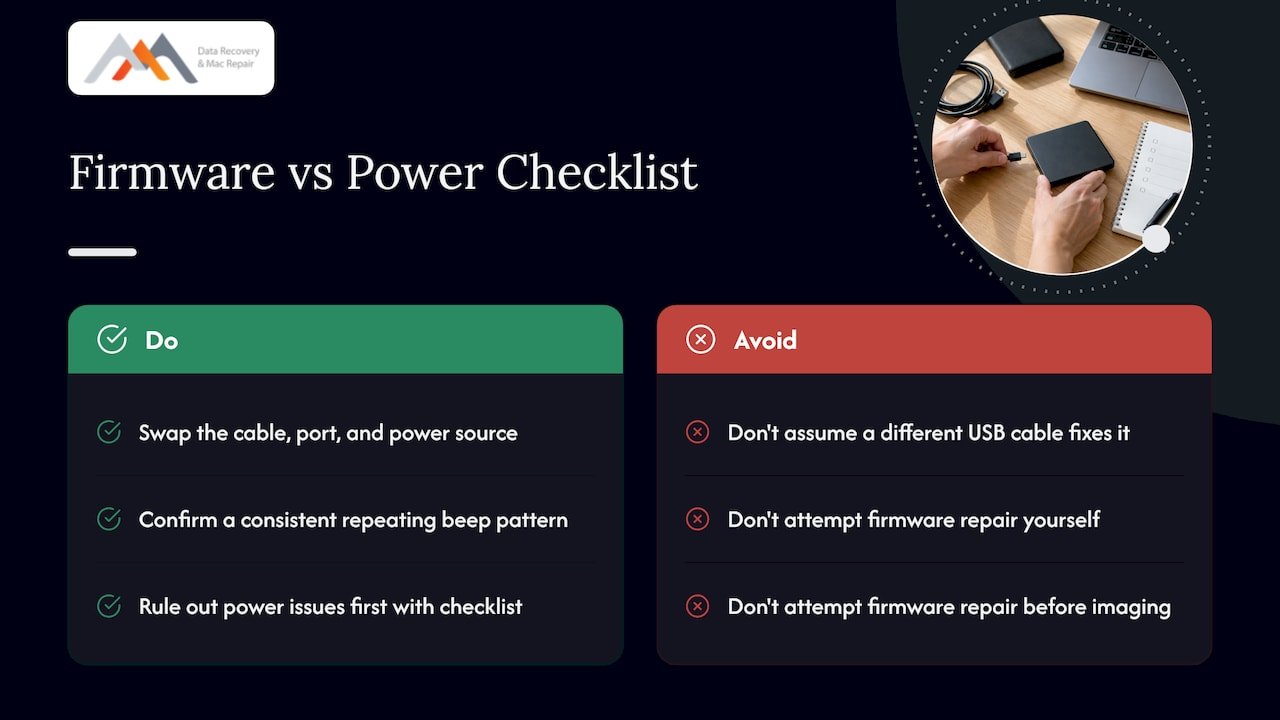
Firmware is the embedded software that tells a hard drive how to initialize, manage its service area, and communicate with your computer. When firmware becomes corrupted, often from a bad update, a power interruption mid-write, or sector damage in the area where firmware data lives, the drive can get stuck in a loop trying to initialize itself. That loop sometimes produces a repeating beep as the drive’s controller retries the same failed startup sequence over and over.
Firmware corruption looks similar to power starvation from the outside: the drive may spin briefly, beep, then go silent, or cycle through spin-up and spin-down repeatedly. The key difference is that swapping the cable, port, or power source does nothing to change the pattern, because the problem lives in the drive’s own control board rather than in how much current it receives.
This matters because firmware-level problems are not something you fix with a different USB cable. Specialized tools exist for certain drive families to access firmware modules directly, but this work carries real risk of making the data less recoverable if done incorrectly. If you have already ruled out power issues with the checklist above and the beeping persists in a consistent, repeating pattern regardless of cable or port, firmware corruption becomes the more likely explanation, and that is a job for a lab equipped to image the drive before attempting any firmware-level repair.
Can temperature or environment make a hard drive beep?
Hard drives are mechanical devices with tight tolerances between the read/write heads and the spinning platters, which makes them sensitive to the conditions they operate in. Extreme heat can cause the drive’s internal components to expand slightly, sometimes enough to affect head alignment or motor performance, and a drive straining to spin up under thermal stress can produce the same kind of power-related beep described earlier.
Cold is a factor too, particularly for drives that have been shipped or stored in an unheated space. Bringing a cold drive directly into a warm, humid room risks condensation forming inside the enclosure, and a drive that beeps shortly after this kind of temperature swing may be reacting to moisture rather than a genuine mechanical fault.
Dust and poor ventilation inside a desktop case or external enclosure contribute as well, since a drive running hotter than it should draws more current to maintain spin, which circles back to the same power-starvation pattern that causes beeping in the first place. If your drive only beeps after being left in a hot car, a cold garage, or a poorly ventilated desk setup, let it return to room temperature for a few hours before testing again rather than forcing a cold or overheated drive to spin immediately.
Steps to back up data quickly once beeping starts
The moment you hear beeping and know the data matters, your priority shifts from troubleshooting to preservation. Stop all disk writes immediately, which means do not save new files to the drive, do not run disk-checking utilities that write to the disk, and do not attempt a reformat.
If the drive is still detected by your computer, copy your most critical files first, documents, photos, financial records, anything irreplaceable, to a different, healthy drive before attempting any further troubleshooting. Work from a simple priority list: things you could never recreate come first, things you could replace or re-download come last.
If the drive is not mounting or disappears mid-copy, stop trying to force it. Repeated connection attempts on a drive that is failing mechanically increase the risk of permanent damage with each try. At that point, the safest backup step is no longer something you do yourself: it is getting the drive imaged by a lab before the window to recover those files closes. Our guide to fixing an external hard drive that won’t turn on covers this same triage logic for drives that go silent rather than beep.
Do SSDs beep the same way HDDs do?
No. The beeping covered throughout this guide is a mechanical hard drive (HDD) problem by nature, tied to spinning platters, a motor, and read/write heads that need adequate power and physical alignment to function. An SSD has none of these moving parts, so it cannot produce the same kind of power-starvation or mechanical-failure beep.
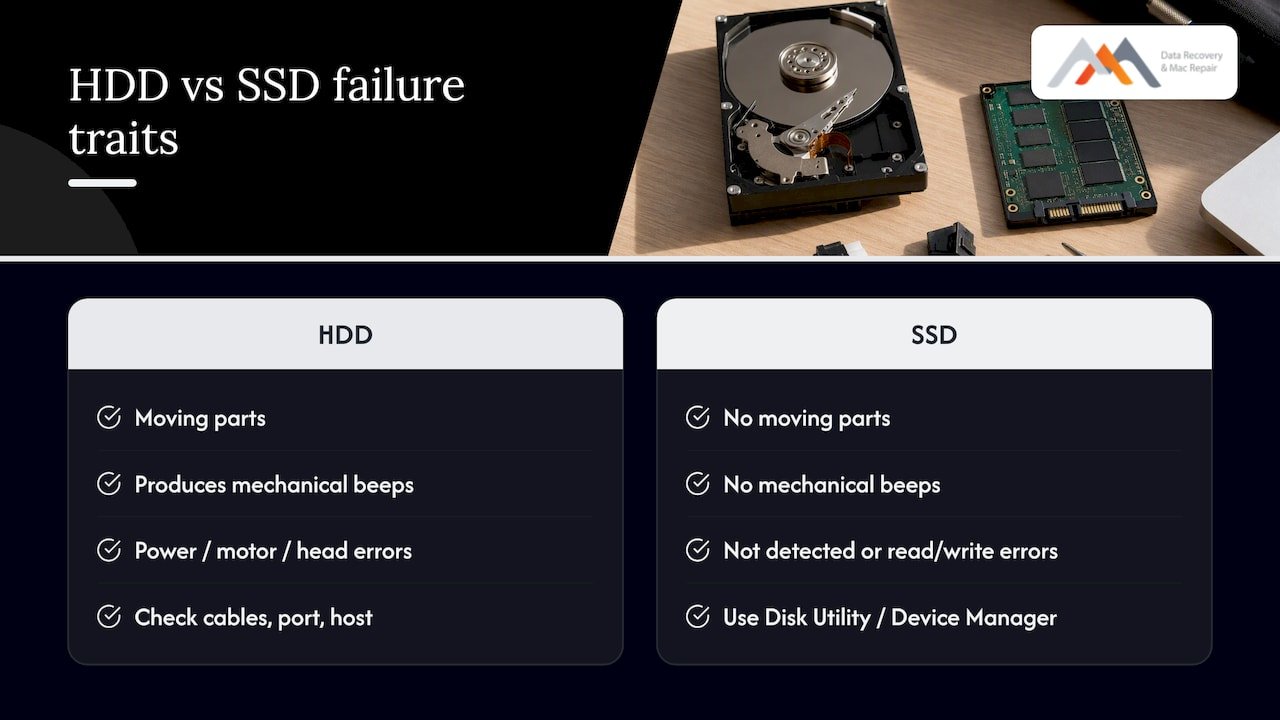
When an SSD fails, it typically does so silently: the drive simply stops being detected, throws read or write errors, or disappears from the system entirely, often tied to NAND wear, controller failure, or firmware issues rather than anything audible. If you hear a beep coming from a drive, you are almost certainly dealing with an HDD, whether it’s the internal drive in an older Mac or an external portable unit.
This distinction matters for diagnosis. A beeping drive tells you where to start, cable, port, host, because the sound itself is a clue. A failing SSD gives you no such audible warning, which means detection checks through Disk Utility or Device Manager become your primary diagnostic tool from the start rather than a secondary step after ruling out noise-based causes.
A lab’s honest take on avoidable mistakes
The most common mistake we see is repeated power-cycling: unplugging and reconnecting a beeping drive over and over, hoping persistence fixes it. It rarely does, and it often worsens mechanical damage. Grinding or hard clicks after multiple attempts are the clearest sign to stop. Before calling, have your drive’s model and serial number ready along with a list of what you’ve already tried.
— Kaya
Get a free diagnostic before the beeping gets worse
Our technicians have seen the beeping patterns described above play out on actual drives in a professional data recovery lab setting. Many reputable data recovery labs offer free diagnostics and a no recovery, no charge policy, meaning you may not incur charges if data cannot be recovered. Some data recovery services offer same-day appointments for urgent cases.
Before you call, have your drive’s model, the symptoms you’re hearing, and anything you’ve already tried on hand. For urgent beeping or clicking drives, contact a professional data recovery service to get guidance on next steps. We’re centrally located at 12041 Wilshire Blvd, Ste 26, between the 405 and Santa Monica, near UCLA and the Getty Center, and we serve West LA, Santa Monica, Beverly Hills, Brentwood, Westwood, Venice, Hollywood, and Culver City.
- Many professional data recovery providers offer free diagnostics and no recovery, no charge policies.
- Some provide same-day appointments for urgent cases.
- Advanced data recovery includes handling logic-board, APFS, and RAID (0, 1, 3, 5) scenarios.
Start with our hard drive data recovery page to see what a diagnostic visit looks like, or call 310-866-0828 directly.
FAQ
I plugged in my external hard drive and nothing happened. What should I do?
Try a different USB cable and a direct port on your computer first, skipping any hub, since this isolates most power delivery problems quickly. If the drive still shows no activity, test it on a second computer; if nothing changes across hosts, the drive itself likely needs professional diagnosis.
Why is my car beeping as I drive?
A car’s dashboard beeps are generated by the vehicle’s onboard warning system and are unrelated to hard drive failure, covering things like open doors, low fuel, or seatbelt alerts. If you’re troubleshooting a hard drive, this kind of beep comes from an entirely different system and isn’t a diagnostic clue for storage devices.
What are the signs of a dying HDD?
Grinding, repeated hard clicking, or a rhythmic alarm-like beep are strong indicators of mechanical failure, according to Seagate’s drive sound guide. Slow file transfers, frequent disconnects, and drives that fail to mount consistently are other warning signs worth taking seriously before the drive stops responding entirely.
Why is my PC making a weird beeping noise?
The beep may come from the computer’s internal speaker rather than an attached drive, often signaling a hardware issue unrelated to storage, such as memory or boot problems. If you suspect the beep is drive-related, check whether it stops when the drive is disconnected to confirm the source before troubleshooting further.
Sources
- What should I do for a noisy disk drive? | Seagate
- Troubleshoot Disk Utility problems on Mac – Apple Support