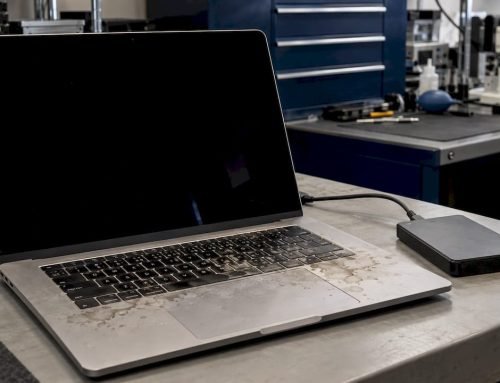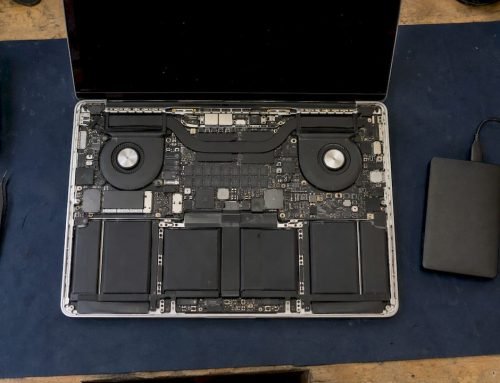
Stop all disk writes immediately: if your iMac or Mac mini Fusion Drive is failing, shut the Mac down, leave it unplugged from anything you might copy to, and call us at (310) 866-0828 to book a same-day appointment. A Fusion Drive spreads your files across a small flash drive and a large hard drive, so every minute of normal use on a failing member can overwrite or scatter data you still need. Free diagnostics and our no recovery, no charge policy mean the first step costs you nothing.
TL;DR
- Stop all disk writes immediately, power the Mac down and do not run repair tools, reinstall macOS or erase either drive before the data is safe.
- A Fusion Drive combines an SSD and a hard drive in one volume, so recovery depends on reaching both devices at the same time.
- Macwest Data Recovery & Mac Repair has served Los Angeles since 2006, with free diagnostics, no recovery, no charge and same-day appointments at 12041 Wilshire Blvd, Ste 26.
- RAID speeds up video editing on a Mac, but it is never a backup, and RAID 0, 1, 5 and 1+0 each fail in different ways.
Table of Contents
- How a Fusion Drive works and why it fails the way it does
- Symptoms that point to Fusion Drive failure
- What to do in the first hour
- A split Fusion Drive: what it means and what not to do
- Recovering data from a failed Fusion Drive
- RAID for video editing on a Mac
- Book a same-day appointment in West Los Angeles
- Our perspective on Fusion Drive failures
- Frequently asked questions
- Sources
How a Fusion Drive works and why it fails the way it does
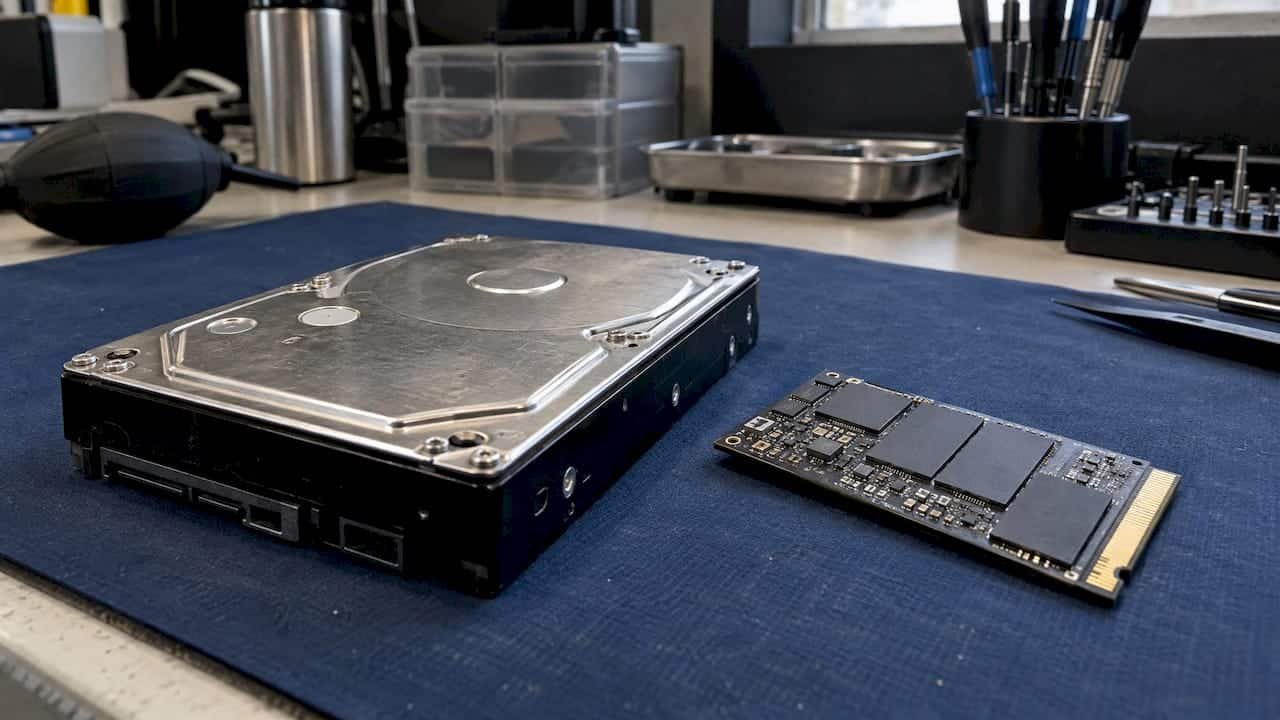
A Fusion Drive is a single logical volume built from two physical devices: a small SSD for speed and a conventional hard drive for capacity. Apple offered it as a storage option on some iMac and Mac mini computers, and Apple describes it as a hard drive and flash storage combined in a single volume. macOS decides which files live on which device, moving frequently used data to the flash and the rest to the platters.
That design is the reason failures look different from a plain hard drive failure. Your documents, photos and system files are not neatly kept on one device. A single project folder can have some blocks on the SSD and others on the spinning disk. When either member degrades, the volume as a whole can stop mounting, even if the other drive is spinning normally.
There are two common failure paths:
- The hard drive fails. This is the member with moving parts. Clicking, long beach-ball pauses and slow boots usually point here. The SSD may still be healthy, but the volume cannot be read as a whole.
- The SSD wears out or fails. Smaller-capacity SSDs used intensively wear faster than larger ones because they have fewer cells over which to spread writes, so the flash portion of a Fusion Drive can be the first part to give out. Because the flash tier also holds the files macOS touches most, the effects show up quickly in the system.
A third situation is not a hardware failure at all: the two members get separated and macOS shows them as two disks. We cover that in its own section below.
Symptoms that point to Fusion Drive failure
Most owners notice a pattern before the Mac stops working. The table below pairs what you see with what it usually means and what to do at that moment.
| What you see | Likely cause | What to do right away |
|---|---|---|
| Clicking, grinding or repeated spin-up sounds | Hard drive mechanical problem | Power down, stop all disk writes, call for diagnostics |
| Spinning beach ball, very slow launches | Failing hard drive or worn SSD | Back up what you can to an external drive, then call |
| Mac boots to a question mark folder | Volume not found or damaged | Do not reinstall macOS, call for diagnostics |
| Disk Utility shows two drives instead of one | Split Fusion Drive | Do not erase either drive, see the split section below |
| Disk Utility First Aid fails or reports a hardware error | Underlying device failure | Stop repair attempts, power down, call |
| Files open with corruption or are partly missing | Damaged volume metadata or failing member | Stop writing, avoid copying in bulk, call |
One detail worth knowing: Apple’s drives report health data in the industry-standard S.M.A.R.T. format, but macOS does not alert you to error messages on its own, and the author recommends drive-health monitoring software such as DriveDx. So a Fusion Drive can be in trouble long before the Mac tells you. If you notice any symptom above, treat it as a warning.
For a wider look at the warning signs on any Mac drive, see our guide to signs of hard drive failure you should never ignore.
What to do in the first hour
The order of your actions matters more than their speed. These steps keep the most data recoverable:
- Stop all disk writes immediately. Quit apps, stop syncing, and shut the Mac down from the Apple menu. If it hangs, hold the power button.
- Do not erase, reformat or reinstall. Apple Support sometimes suggests reinstalling macOS in routine troubleshooting, but on a drive that holds data you cannot lose, erasing a member can remove what was recoverable.
- Do not keep running First Aid. Disk Utility can check for and fix formatting and directory structure errors, but it cannot detect or repair every problem, and if it says the disk is about to fail, the guidance is to back up your data and replace the disk.
- Check the health message once, if the Mac still starts. A fatal hardware error message in Disk Utility means the disk has an irreparable hardware problem that no utility can fix, and you should back up as much data as possible.
- If the Mac still boots and the drive is only slow, copy your most important files to an external drive, using Time Machine or a cloning app. Macworld’s advice for a Fusion Drive whose SSD looks like it is failing is to make a complete backup before doing anything else. If you hear clicking, skip this step: heavy copying can push a failing hard drive past the point of recovery. Power down and call us instead.
- Call for a same-day appointment. Our lab is at 12041 Wilshire Blvd, Ste 26, between the 405 and Santa Monica, close to UCLA and the Getty Center. Diagnostics are free.
If you have no current backup and are unsure whether to keep using the machine, our guide to backing up data from a hard drive walks through safe options for LA users.
A split Fusion Drive: what it means and what not to do
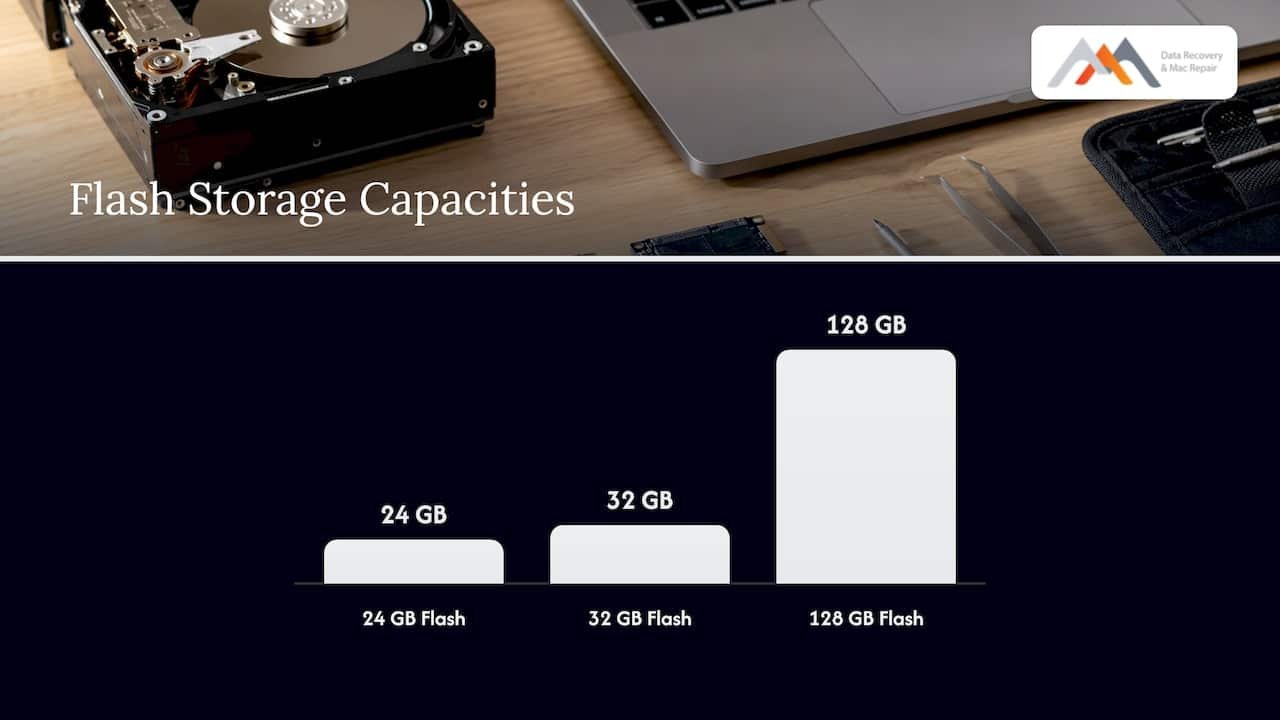
A split Fusion Drive is the most searched Fusion Drive problem, and it is often misunderstood. If the Fusion Drive shows up as two drives in the Finder, it is no longer working as a Fusion Drive. You can confirm it in the macOS storage overview: one drive labeled Flash Storage at 24 GB, 32 GB or 128 GB, and a second drive of at least 1 TB means the pair has been split.
A split can happen after a failed update, an interrupted repair or a command that separated the members. It does not always mean a drive has died, but it does mean the single volume macOS used to present is gone, and what you do next decides whether your files stay reachable.
What we advise before anything else:
- Do not erase the larger drive to “start fresh” until you know whether its contents matter. Because Fusion Drive files were distributed across both devices, the hard drive alone may hold only part of your data.
- Do not recreate the Fusion Drive on top of the existing members if you need what was on them. Rebuilding the volume writes new structures over the old ones.
- Follow Apple’s own fix only after your data is secured. Apple publishes a procedure for fixing a split Fusion Drive, last updated in December 2025, and it is the right route for a healthy but separated pair once you have a backup.
If the files matter and you have no backup, bring the Mac in as is. We can image the members first and work from the images, so the originals stay untouched.
Recovering data from a failed Fusion Drive
Because the volume spans two devices, recovery works best when both are readable at the same time. That is why a one-member failure is not hopeless: when the hard drive has mechanical trouble but the SSD is fine, or the reverse, a lab can work on the failing member and reunite the data from both sides. When a member is missing or physically failing and nothing is done about it, you tend to see partial files, with some documents opening and others broken.
Here is how the main scenarios compare in practice. The outcomes are general descriptions of what depends on what, not guarantees for any specific drive.
| Scenario | What the data depends on | How we approach it |
|---|---|---|
| Hard drive clicking, SSD healthy | Stabilizing the hard drive enough to image it | Free diagnostics, then a controlled image of each member |
| SSD worn or failed, hard drive healthy | Reaching the flash tier where metadata and hot files sit | Evaluate the flash device and the volume structure together |
| Both members readable, volume will not mount | Volume or APFS container structure | Image both members, then rebuild the volume from the images |
| Split Fusion Drive, nothing erased | Reassembling the logical volume | Image both drives before any change |
| Erased or reinstalled over the volume | How much was overwritten | Stop all disk writes and call for diagnostics |
Our workflow is built around imaging first. We describe our approach as forensic imaging of the failing media, then working on the copy rather than the original. For Macs that use a different storage design, such as soldered SSDs, we also perform micro-soldering and component-level logic board repair, which is part of how we reach data that Apple Stores often deem unrecoverable. Related reading on the APFS side is in our guide on recovering an APFS volume that will not mount, and for formatted or erased volumes see what to do after a Disk Utility erase.
If your Mac needs hardware work as well as data recovery, our Mac repair service in Los Angeles covers iMac, Mac mini, MacBook and Mac Pro repairs, and we can coordinate both under one roof.
RAID for video editing on a Mac
Many editors who outgrew a Fusion Drive moved to RAID, which brings its own failure modes. The short answer: RAID is excellent for speed and for surviving certain failures, and it is never a replacement for a backup.
Apple’s Disk Utility can build a striped RAID set (RAID 0) for faster access, especially for large files such as digital video. It also supports a mirrored set (RAID 1), which can protect against some hardware failures, but mirroring does not protect against user errors or software corruption, so regular backups are still required.
For demanding work such as multicam, 4K RAW or higher with effects, Videomaker recommends a fast computer with a RAID 0, while noting that RAID 0 has no fault tolerance, so one failed drive loses everything on the set. The same article suggests a stripe size around 64K or 128K for video and warns that creating a RAID erases the disks, so back up first.
| RAID level | Speed for video | Survives a drive failure? | Typical risk | Best use |
|---|---|---|---|---|
| RAID 0 | Highest | No | One bad drive loses the whole set | Scratch and cache, never the only copy |
| RAID 1 | Moderate | Yes, one drive | Does not protect against deletion or corruption | Project drives where uptime matters |
| RAID 3 | Good for large sequential files | Yes, one drive | Dedicated parity drive can become a bottleneck and a failure point | Legacy arrays, some older video workflows |
| RAID 5 | Good | Yes, one drive | Rebuild stress, a second failure during rebuild loses the set | Shared storage with a separate backup |
| RAID 1+0 | High | Yes, usually one per mirror pair | Half the raw capacity | Four-bay enclosures where rebuild safety matters |
One practical point from the editing community: a RAID 5 tower is one copy of your data that survives one specific failure mode, and on a four-bay unit RAID 1+0 keeps half the capacity but a rebuild is a straight mirror copy rather than a long parity rebuild. The sensible setup for most editors is a RAID for working speed and a separate backup for the finished work.
If a Mac RAID fails
The same rule applies as with a Fusion Drive: stop all disk writes immediately. Do not rebuild, re-initialize or swap in a new drive until someone has looked at the members. A forced rebuild on an array with a second weak drive is a common way to turn a recoverable RAID 5 into a lost one. For a RAID 1 recovery on a Mac, the mirror partner is often readable on its own, but do not assume it is complete if the array was degraded for a while.
Our lab recovers RAID 0, 1, 3 and 5 arrays, including server and NAS units. These pages explain the process in more detail:
- Mac RAID recovery tutorial for macOS
- RAID 0 failure triage for IT and home users
- Step-by-step RAID recovery guide
Book a same-day appointment in West Los Angeles
We are Macwest Data Recovery & Mac Repair, and we have worked on Macs and storage devices in Los Angeles since 2006. Our lab at 12041 Wilshire Blvd, Ste 26 sits between the 405 and Santa Monica, near UCLA and the Getty Center, so it is a short trip from Westwood, Brentwood, Santa Monica, Beverly Hills, Venice, Hollywood and Culver City.
Here is what you get when you bring in a failing Fusion Drive:
- Free diagnostics to find out which member is failing and what condition the volume is in.
- No recovery, no charge. You do not pay if we cannot recover your data.
- Same-day appointments and emergency service for urgent cases.
- In-house work, including forensic imaging, micro-soldering and logic board component repair, rather than mailing your Mac away.
Call (310) 866-0828 or see our data recovery services for individuals and businesses. Our RAID recovery page covers multi-drive arrays.
Our perspective on Fusion Drive failures
At Macwest we see the same pattern with Fusion Drive failures: the owner tries one more repair, one more reinstall or one more erase, and each attempt writes to a volume that was still recoverable an hour earlier. Our firm advice is to stop, power down and let us look at the members before anything is changed.
We favor imaging first because a Fusion Drive is two devices acting as one. Reading both members into images lets us work on a copy, rebuild the volume logic from the images and leave the originals untouched. Since 2006 that has been our approach to hard drives, SSDs and RAID arrays alike.
Free diagnostics and no recovery, no charge exist so that cost is not the reason you wait. If your data matters, the best next step is a same-day appointment at our West LA lab, where the person who diagnoses the drive is in the same building as the person who can repair the logic board if that turns out to be part of the problem.
Kaya
Frequently asked questions
Can data be recovered from a failed Fusion Drive?
Often yes, especially when you stop using the Mac as soon as trouble starts. Because files are spread across the SSD and the hard drive, recovery works best when both devices can be read, and a member that is missing or badly damaged can leave partial files. Call us for free diagnostics and we will tell you what condition each member is in. If we cannot recover your data, there is no charge.
What does a split Fusion Drive mean?
It means macOS now sees the flash drive and the hard drive as two separate disks instead of one volume. Apple’s guidance says the drive is then no longer working as a Fusion Drive. Do not erase either disk until your data is backed up or imaged.
Should I run Disk Utility First Aid on a failing Fusion Drive?
Run it once at most, and only to read the result. First Aid cannot repair every problem, and repeated repair attempts on a drive with hardware trouble can make recovery harder. If it reports a hardware error, power the Mac down and call.
Is RAID a good idea for video editing on a Mac?
Yes, for speed. A striped set is useful for large video files, and a mirrored set can protect against some drive failures. Neither replaces a backup, because mirroring does not guard against user error or software corruption. Keep a separate copy of every project.
Do you offer same-day service for Fusion Drive and RAID recovery?
Yes. We offer same-day appointments and emergency service at 12041 Wilshire Blvd, Ste 26 in West Los Angeles, with free diagnostics. Call (310) 866-0828 to book.
Sources
- How to fix a split Fusion Drive, Apple Support
- Repair a storage device in Disk Utility on Mac, Apple Support
- Check if a Mac disk is about to fail, Apple Support
- Overview of creating disk sets using Disk Utility on Mac, Apple Support
- What to do if your Mac’s Fusion Drive fails, Macworld
- How to configure a RAID for video storage, Videomaker
- Best Thunderbolt RAID arrays for video editing, The Post Flow