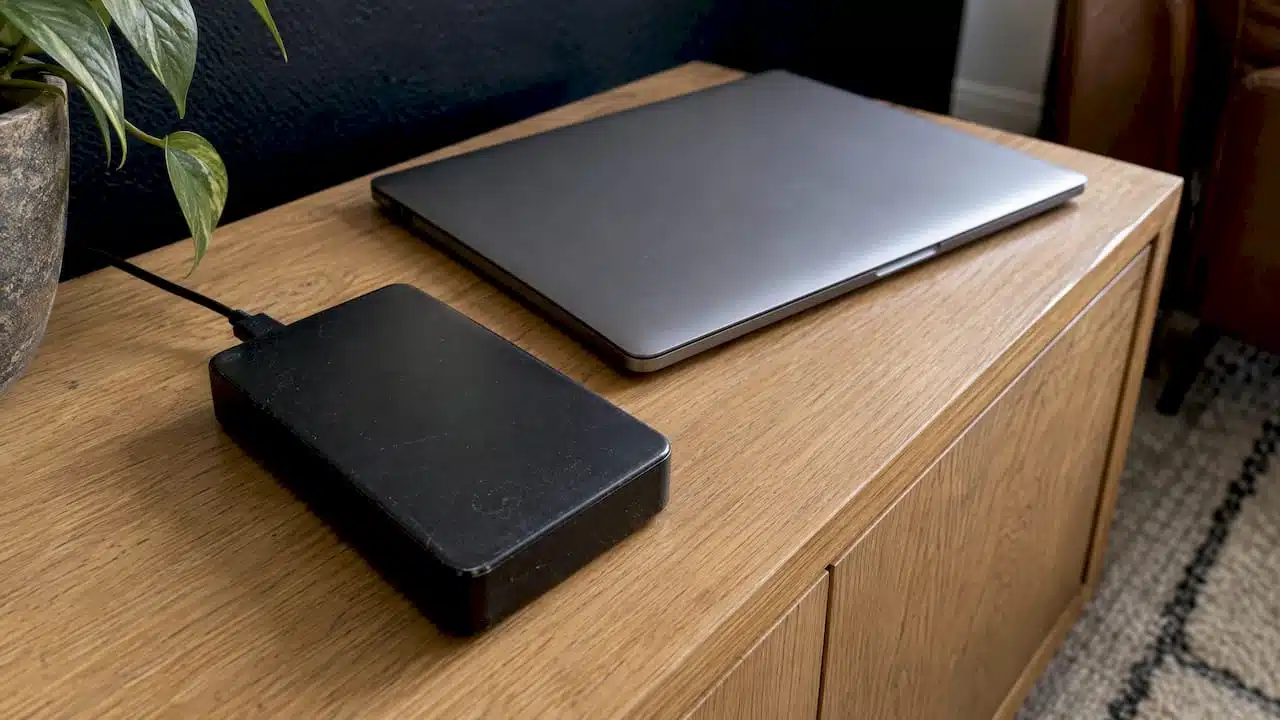
Stop all disk writes immediately if your Time Machine drive is clicking, will not mount or shows errors, and otherwise unlock the backup with the backup password you created when you turned on encryption. Apple states that restoring files from an encrypted Time Machine backup requires that backup password, so recovery comes down to two questions: do you have the password, and is the drive physically and logically healthy enough to read? This guide covers both, step by step. If the drive itself is failing, we have been recovering Mac data in West Los Angeles since 2006, with free diagnostics, same-day appointments and a no recovery, no charge policy. Call 310-866-0828.
TL;DR
- An encrypted Time Machine backup unlocks only with its backup password, which is separate from your Mac login password.
- To restore a whole Mac, boot into macOS Recovery, reinstall macOS if needed, then choose a Time Machine backup in Migration Assistant and enter the password when asked.
- If the disk will not mount, makes noise or shows errors, stop using it: every new write, repair attempt or “start a new backup” prompt can reduce what can be recovered.
- If the password is lost, check your keychain first, and keep the drive untouched while you look.
- If the hardware has failed, a lab can work from the failed disk or the Mac itself. Our West LA lab offers free diagnostics and same-day appointments.
Table of Contents
- Key Takeaways
- What makes an encrypted Time Machine backup different
- How to check whether your backup is encrypted
- Unlocking an encrypted Time Machine disk on your Mac
- Restoring a whole Mac from an encrypted backup
- Symptoms, likely causes and the right first move
- Why stopping disk writes protects the backup
- When the problem is the Mac, not the backup
- Protecting the backup you already have
- Our perspective
- Same-day help in West Los Angeles
- FAQ
- Sources
Key Takeaways
An encrypted Time Machine backup is readable only with the backup password you set during setup, and Apple’s Recovery tools will ask for it before any file or full-system restore. When the problem is a failing disk, a corrupted backup image or a dead Mac rather than a forgotten password, stopping all writes preserves your options and lets a lab image the drive before anything is changed. Macwest Data Recovery has handled Mac, SSD, hard drive and RAID recoveries in Los Angeles since 2006, with free diagnostics and no recovery, no charge.
What makes an encrypted Time Machine backup different
When you set up Time Machine, you can switch on Encrypt Backup. Apple says that when you do, you are asked to create a backup password that you will need to restore files later. Everything on the backup disk is then stored in encrypted form, so a stolen or lost drive cannot simply be plugged into another computer and read.
That protection is also the reason recovery feels harder. Three things are true at once:
- The backup password is not your Apple Account password and not your Mac login password. Apple says no one but you should have access to it.
- The data is only as recoverable as the disk underneath it. If the drive has bad sectors or a failed controller, the encryption layer cannot be reached at all.
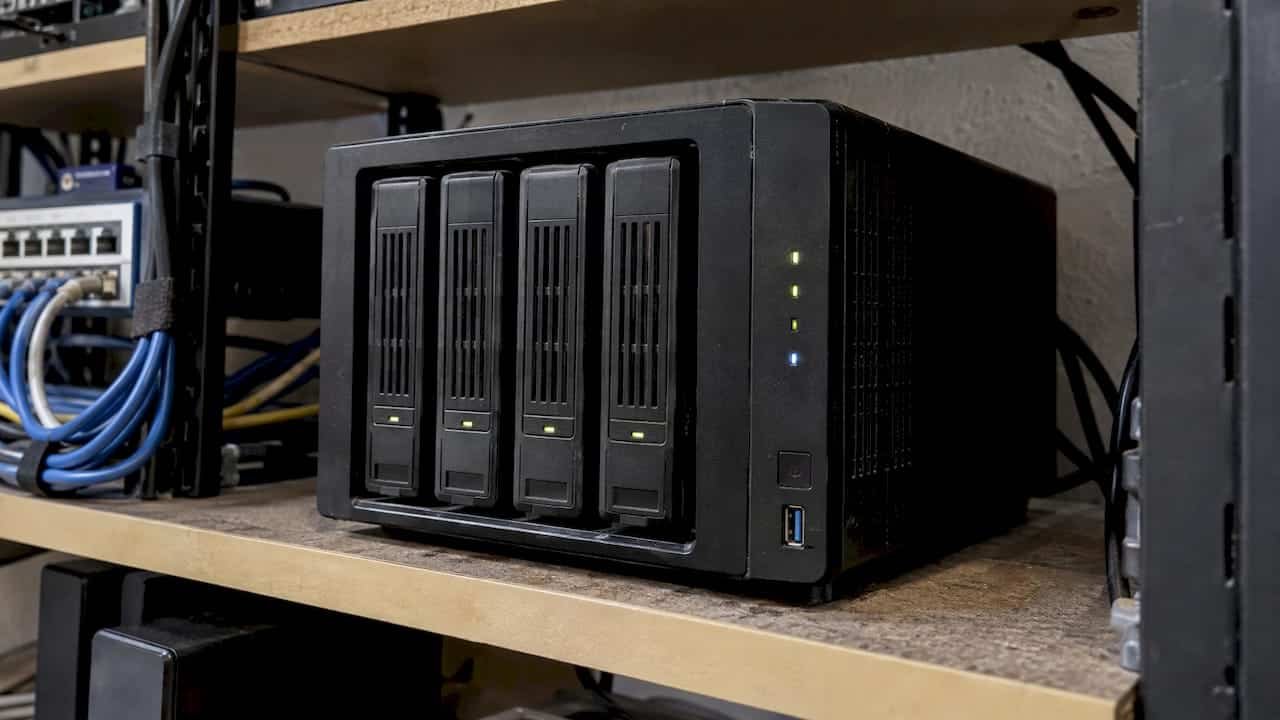
- On a network or NAS destination, the backup is typically a disk image stored on a share, so a network or file system fault can block it even when the password is correct.
Most people who search for this topic fall into one of three situations: they need to unlock a healthy backup, they need to restore a Mac from it, or the backup will not open and they do not know why. The sections below follow that order.
How to check whether your backup is encrypted
If you are not sure, look at the backup disk in the Time Machine settings or in Finder. An encrypted backup disk usually shows a lock icon and asks for a password when you connect it or mount it again. If you turned on Encrypt Backup during setup, it is encrypted, and the password you created then is the one you need.
A second clue is behavior. Disconnect the disk, reconnect it and see whether macOS asks for a password. Apple notes that with encryption on for an external backup disk, disconnecting it may lock it, and you unlock it by entering the backup password. You can also store that password in your keychain so the disk unlocks automatically when it is reconnected to the same computer.
If the disk is not recognized at all, no prompt appears and it does not show in Finder or Disk Utility, the issue is not the password. Go to the symptom table later in this guide, or read our guide on an external drive not mounting on a Mac.
Unlocking an encrypted Time Machine disk on your Mac
For a healthy disk, the unlock is short:
- Connect the backup disk and make sure it is powered on. For a network backup, confirm your Mac is on the same network.
- When macOS prompts for the backup password, enter it exactly, including capitalization and any symbols.
- If you chose to save it to the keychain, the disk will unlock without a prompt on the original Mac.
- Open Time Machine and confirm that the timeline of dates loads.
One point trips up many people: the prompt is asking for the backup password, not your login password. If you typed your login password several times and it failed, that is the likely reason.
Finding a forgotten backup password
Before assuming the password is gone, look in places where you or your Mac may have stored it:
- Keychain Access on the Mac that made the backup. Apple says you can save the backup password in your keychain at setup, so an entry for the backup may exist on that computer.
- The password manager you use, under the name of the disk or Time Machine.
- The password hint, if you entered one during setup.
- A written note or a setup email to yourself from the time you turned on encryption.
If none of these turns up the password, be realistic. The encryption is built so that only the password opens the data, which is the same property that protects you if the drive is lost. Do not run repair tools, reformat the disk, or accept a “Start New Backup” prompt while you search: those actions can overwrite the very data you are trying to reach. Keep the disk unplugged and unchanged, and keep looking for the password. Businesses that want to understand how encryption policies and key handling fit into a wider data protection plan can read about protecting critical data with encryption.
Restoring a whole Mac from an encrypted backup
If your Mac will not start, or you are moving to a new machine, the restore runs through macOS Recovery. Apple’s guide to recovering all your files from a Time Machine backup gives this sequence:
- Make sure the backup disk is connected and turned on. For a disk on a network, make sure the Mac is on the same network.
- Start up in macOS Recovery. On a Mac with Apple silicon, press and hold the power button until startup options appear. On an Intel Mac, hold Command-R during startup. Apple’s page on starting up from macOS Recovery also lists Option-Command-R and Shift-Option-Command-R for Internet Recovery.
- Reinstall macOS first. Apple says you must reinstall before you can restore, and that a damaged startup disk must be repaired or replaced first.
- In Migration Assistant, choose to transfer from a Time Machine backup.
- Select the backup disk, enter the backup password when asked, then choose the date and time of the backup you want.
Two cautions apply at this stage. First, Apple warns that a Time Machine backup should be used to restore the computer it came from, and that Migration Assistant is the route to a different computer. Second, if Internet Recovery shows network errors such as -2001F, -2002F or -2003F, Apple suggests trying Ethernet instead of Wi-Fi, trying each key combination, using a different network or trying again later.
If the reinstall step itself fails, see our notes on what to do when a macOS reinstall fails before you try again repeatedly.
Network and NAS backups
Apple’s page on backup disks you can use with Time Machine lists an external storage device, a Mac shared as a network destination, a NAS device and AirPort Extreme or Time Capsule as supported destinations. It notes that Time Machine on a NAS works over SMB, that AFP is not supported in macOS 27 or later, and that Mac-to-Mac network backup is recommended only when both Macs run macOS 11 or later.
In practice, a restore from a NAS fails for three reasons: the share is not reachable from Recovery, the backup image is damaged, or the password is wrong. Many small-business NAS units use RAID 1 or RAID 5 for redundancy, and a RAID is not a backup: a degraded array, a failed controller or a double disk failure can take the Time Machine image offline together with everything else on the volume. Our RAID data recovery work covers RAID 0, 1, 3 and 5 arrays and NAS units.
Symptoms, likely causes and the right first move
Use this table to decide whether you have a password problem, a software problem or a hardware problem.
| What you see | Most likely cause | Safe first move | When to call a lab |
|---|---|---|---|
| Password prompt rejects your entry | Wrong password, often the login password typed instead of the backup password | Stop guessing after a few tries; check keychain and password manager | If the disk was also dropped or acted up before |
| Disk does not appear in Finder or Disk Utility | Failed enclosure, cable, power or drive electronics | Try another cable and port once, then power it down | If it still does not appear |
| Clicking, beeping or repeated disconnects | Failing heads, bad sectors or a seized motor in a mechanical drive | Stop all disk writes immediately and unplug it | Right away |
| Disk mounts but Time Machine shows no dates | Incomplete or damaged backup index, or a snapshot still validating | Wait and let it finish; do not choose “Start New Backup” | If it stays empty after the disk is confirmed healthy |
| NAS backup will not mount | Network fault, damaged disk image or degraded RAID | Check the network on both ends; do not rebuild the array | If the NAS shows degraded or failed disks |
| Mac will not boot and the backup is the only copy of recent work | Logic board, power or soldered SSD failure | Do not keep powering on or charging | Right away |
| Disk Utility says it cannot repair the volume | File system or APFS container damage | Stop and do not run repeated repair passes | Before any further repair attempt |
Our article on Disk Utility failing to repair a Mac disk explains why repeated repair attempts on a damaged volume are risky when the data matters.
Why stopping disk writes protects the backup
A damaged drive is a snapshot of a moment. Each time the Mac or the drive writes to it, that snapshot changes. On an APFS volume, a new backup run, a repair or an erase can create new metadata and release old blocks. Using the disk can therefore cut your chance of getting back older versions of your files.
That is why the prompt “Start New Backup” deserves caution. If macOS says it cannot continue with the existing backup, choose to back up later and call us first. Starting a new backup is an action on the destination disk, and you want that disk left alone until its contents are safe.
For encrypted disks the same rule holds, with one more reason: an interrupted write to an encrypted container can leave the container header in an inconsistent state, and the header is what lets the password unlock the data. Our guide on why encrypted MacBook drives complicate recovery goes deeper on how the encryption layer affects the work.
When the problem is the Mac, not the backup
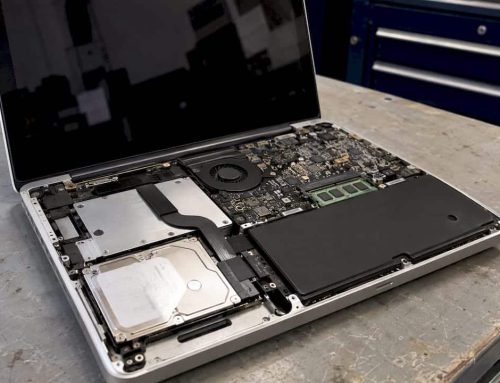
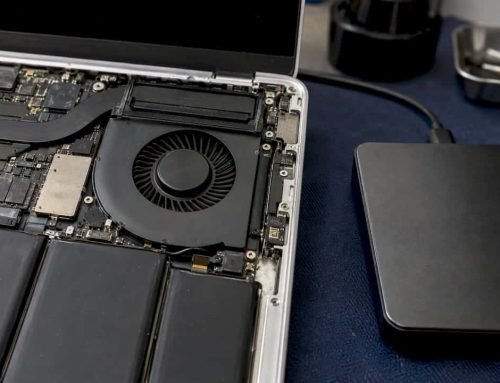
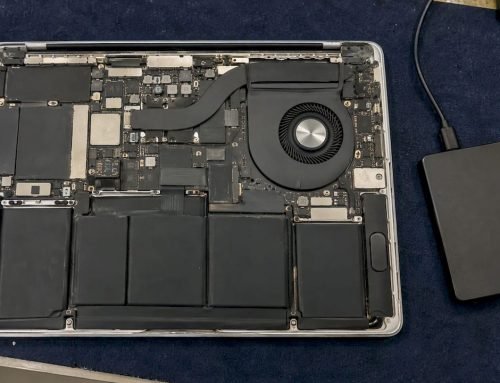
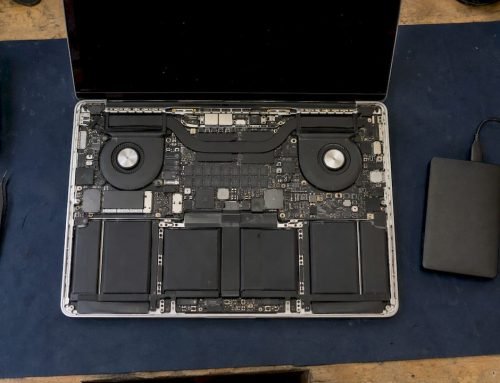
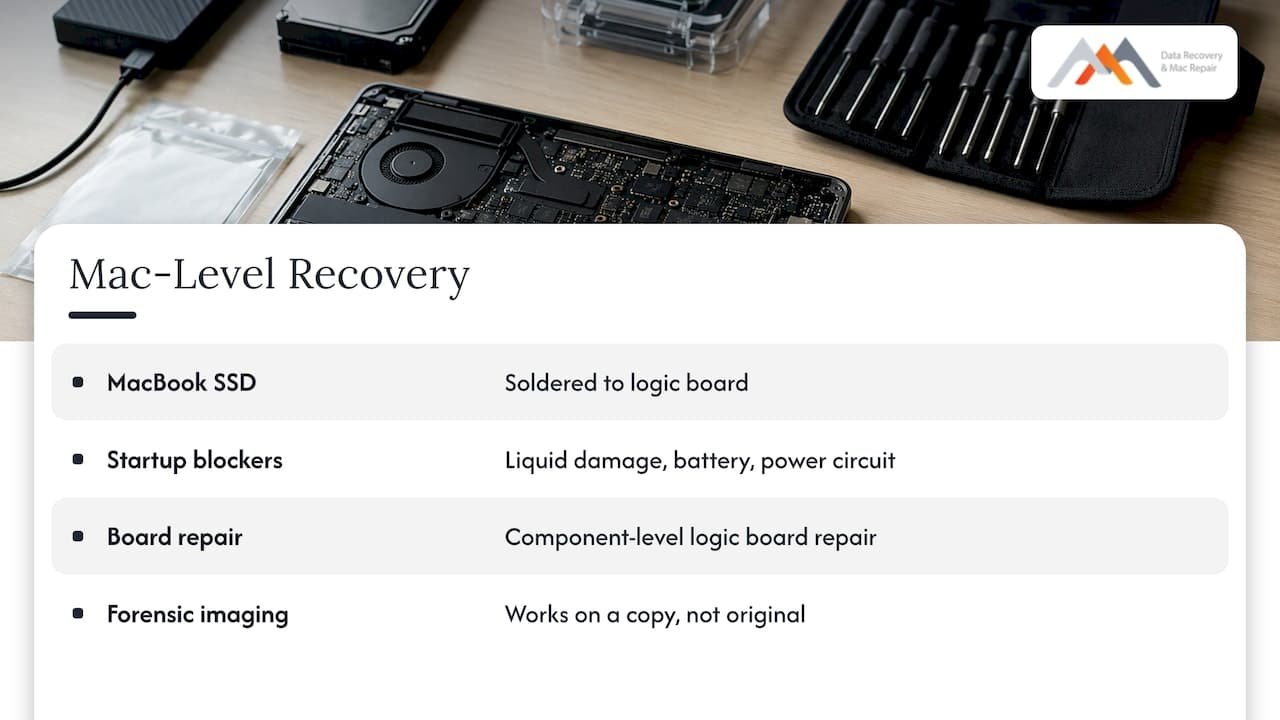
Sometimes the backup is fine and the Mac is not. That is common with newer MacBooks, where the SSD storage is soldered to the logic board and the Mac cannot simply have its drive moved into another machine. In that case the route to your data is a repair at the component level of the logic board, such as power rail and charging circuit faults, or a direct read of the storage over its NVMe interface. Liquid damage, a failed battery or a dead power circuit can all keep a Mac from starting, even though the data inside is untouched.
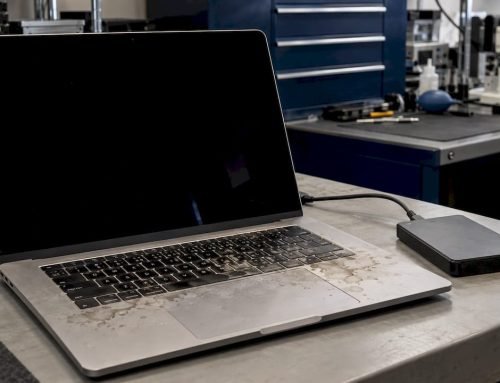
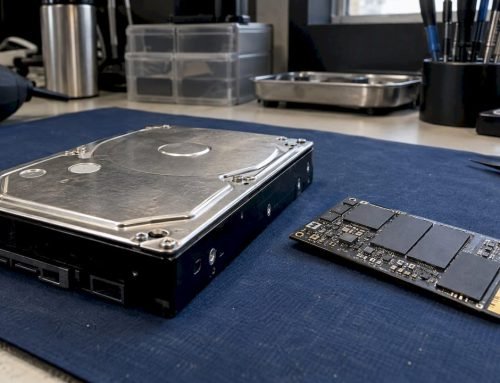
Our lab does precision micro-soldering and component-level logic board repair, and uses forensic imaging so that work happens on a copy rather than on the original. If your Mac is dead and your only recent copy is on an encrypted Time Machine disk you cannot open, a repaired Mac or a lab recovery is often the quickest route to a working restore. Our guide to recovering files from a dead Mac walks through the triage, and our page on SSD data that can vanish quickly explains why waiting matters with flash storage.
Protecting the backup you already have
A few habits keep an existing backup usable while you troubleshoot:
- Work on one change at a time and write down what you changed.
- Do not reformat the backup disk to “fix” it. That is an erase, not a repair.
- Keep a second copy of anything irreplaceable before you experiment. Time Machine should not be the only place your photos, projects or business files live. Teams that document their backup routines can look at how backups are documented and managed in a business system.
- Apple recommends a backup disk with at least twice the storage capacity of your Mac, for example 2 TB for a 1 TB Mac, so older versions are not pushed out early.
- Test a restore of one file now and then. A backup you have never restored from is a guess.
If your backup is stalled rather than locked, read our eight safe checks for a stuck Time Machine backup. If you want the basics first, our Time Machine backup guide covers how it works.
Our perspective
Most of the encrypted Time Machine cases we discuss start the same way: a person tries one more thing, and then one more, and the drive is in worse shape by the time it reaches us. The password question is simple and the answer is firm, because encryption is designed that way. The hardware question is where a lab changes the outcome.
A failing backup disk, a degraded NAS, a damaged APFS container or a Mac with a dead logic board are all problems with a physical or structural cause, and they respond to careful, low-impact handling: image the device first, work from the image, and leave the original alone. That is how we approach Mac, SSD, hard drive and RAID jobs, and it is why free diagnostics and a no recovery, no charge policy suit this work. You learn what is wrong before you spend anything.
Being local matters too. When a disk is failing, hours count, and a same-day appointment on Wilshire Boulevard beats a week in a mail-in queue.
Kaya
Same-day help in West Los Angeles
If your encrypted Time Machine disk, NAS or Mac is not responding, bring it to our lab at 12041 Wilshire Blvd, Ste 26, between the 405 and Santa Monica, near UCLA and the Getty Center. We serve Westwood, Brentwood, Santa Monica, Beverly Hills, Venice, Hollywood and Culver City, for individuals and for businesses with servers and RAID systems.
What you get: free diagnostics, same-day appointments, a no recovery, no charge policy, and more than a decade and a half of Mac experience since 2006. Our data recovery service covers Mac drives, external and internal hard drives, SSDs, RAID and NAS systems and memory cards, and our Mac repair service covers logic board, liquid damage, screen and battery work. Call 310-866-0828 and tell us what happened and what you have already tried.
Bring the backup password if you have it, and bring the Mac and the backup disk together if both are affected. Keep everything powered off until you arrive.
FAQ
Can I decrypt a Time Machine backup without the password?
Apple’s design requires the backup password to restore files from an encrypted backup, and Apple says no one but you should have it. Check your keychain, your password manager and any notes before concluding it is lost. Leave the disk untouched while you search.
Is the Time Machine backup password the same as my Mac login password?
No. It is a separate password you create when you turn on Encrypt Backup. If your login password is rejected at the restore prompt, try the backup password, which Apple says you can store in your keychain for automatic unlocking on the same computer.
How do I restore an encrypted backup when my Mac will not start?
Start in macOS Recovery, reinstall macOS if required, then use Migration Assistant to transfer from a Time Machine backup. Select the backup disk, enter the backup password and choose the date to restore. If the Mac will not reach Recovery, a logic board or storage fault is likely, and we can diagnose it free of charge.
Why does my encrypted backup on a NAS not mount?
Common causes are an unreachable share, a damaged backup image or a degraded RAID array underneath. Check the network on both devices first, and do not rebuild the array or start a new backup. If the NAS reports failed disks, call us for RAID recovery before changing anything.
Do you charge if you cannot recover my data?
Our diagnostics are free, and our policy is no recovery, no charge. Call 310-866-0828 to book a same-day appointment at our West LA lab.
Sources
- About the Time Machine backup password on Mac, Apple Support
- If you need a password to unlock your backup disk on Mac, Apple Support
- Recover all your files from a Time Machine backup, Apple Support
- How to start up from macOS Recovery, Apple Support
- Backup disks you can use with Time Machine, Apple Support
- Back up your Mac with Time Machine, Apple Support
- Protect critical data with encryption
- Backup documentation