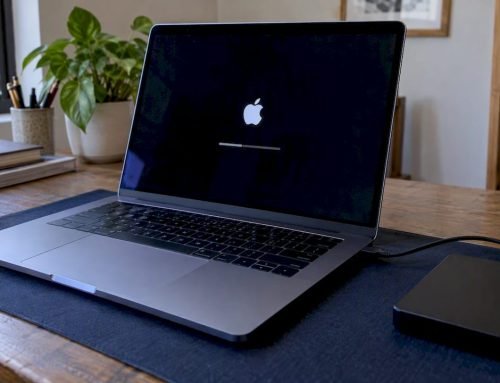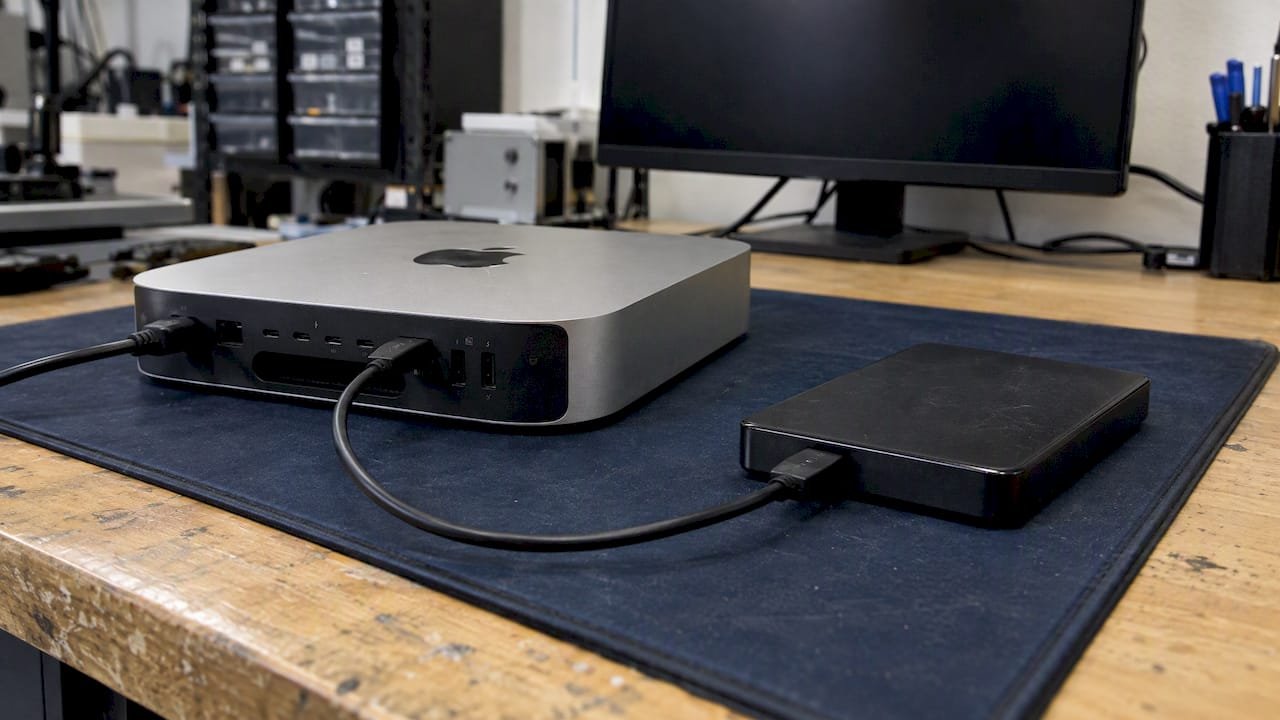
Stop all disk writes immediately if the files on that Mac matter to you, then work through the fixes below in order: check the connection and free space, reinstall from macOS Recovery, repair the startup disk in Disk Utility, and only then consider a firmware revive or a full erase. Most failed reinstalls are temporary or caused by something simple, but a repeating failure can also mean a damaged APFS volume, a failing NVMe drive or a logic board fault. An erase cannot be undone, so it is the last step, not the first.
This guide explains what each error usually means, which steps are safe, and the point where a lab should take over. If you are in Los Angeles and the Mac holds data without a current backup, call us at (310) 866-0828 and ask for a same-day appointment.
TL;DR
- A failed reinstall is often fixable: Apple lists checking your connection, installing from macOS Recovery and repairing the startup disk with Disk Utility before any erase.
- Do not erase, reformat or keep retrying if you have no backup, because every write to a struggling drive lowers the odds of recovering your files.
- MacWest has served Los Angeles since 2006, offers free diagnostics and same-day appointments, and works on a “no recovery, no charge” basis for data recovery.
Table of Contents
- Stop and read this first if the Mac holds unbacked-up files
- What the error messages actually tell you
- Step-by-step fixes, in the order that protects your data
- Why a reinstall keeps failing even after every fix
- What not to do
- Our perspective: why we stop before the erase button
- When to bring the Mac to a lab in Los Angeles
- Business Macs and RAID systems
- How to avoid the problem next time
- FAQ
- Sources
Stop and read this first if the Mac holds unbacked-up files
A reinstall is not a harmless retry. Each attempt writes to the internal drive, and a full erase removes the volume structure that recovery software and labs rely on. On a Mac that has been failing to install, you do not yet know whether the cause is software, the network or the storage hardware.
Before you try anything else, ask one question: is there a recent Time Machine or cloud backup of everything you cannot replace?
- Yes: you can work through the fixes below with little risk.
- No, or not sure: do the non-destructive steps only (connection, power, free space check from Recovery) and skip erasing. Shut the Mac down if it is looping, and call us.
If you see a prompt offering to erase the disk, decline it until you have confirmed what is on the drive.
What the error messages actually tell you
The wording on screen narrows the cause. Apple notes that the message might say an error occurred while downloading, preparing or installing, or that the software is damaged, could not be verified, failed to personalize or needs to be reinstalled, and that the cause varies and is sometimes only temporary. Macworld lists other common messages, such as “The macOS installation couldn’t be completed” and a not-enough-free-space warning.
Here is how we read them in the shop:
| What you see | Most likely cause | Data risk | First move |
|---|---|---|---|
| “An error occurred while preparing the installation” | Unstable network, wrong system date, or an installer that does not match the Mac | Low | Check the connection and the date, then reinstall from Recovery |
| “This copy of the Install macOS application is damaged” or “can’t be verified” | Old or corrupted installer file, or an incorrect system clock | Low | Delete the downloaded installer and download a fresh one from Apple |
| “Not enough free space” | Full startup volume | Low | Free space or install from Recovery |
| Installer stops partway, then restarts into Recovery | Interrupted write, damaged APFS volume or storage errors | Medium | Run First Aid in Disk Utility, do not erase yet |
| Disk Utility cannot see the internal drive | Failing NVMe controller, soldered SSD fault or logic board problem | High | Stop, power off, call a lab |
| “Failed to personalize” or a stuck progress bar on Apple silicon or T2 Macs | Firmware or Apple personalization problem | Low to medium | Check the connection, then consider revive or restore |
| Mac boots to a question mark folder or a black screen | Startup disk not detected, power or board fault | High | Stop and have it diagnosed |
The last two rows are where DIY fixes stop being cheap. A drive that does not appear in Disk Utility cannot be fixed by reinstalling an operating system onto it.
Step-by-step fixes, in the order that protects your data
The sequence below follows Apple’s own troubleshooting order, with the data-safety notes we add from the bench.
1. Check your internet connection
The installer needs a stable connection to download macOS and fetch firmware information specific to your Mac model. If you are on public Wi-Fi, a hotspot or a congested network, switch to a wired connection or a different network. Many “preparing the installation” failures are simply a download that timed out.
2. Check the date and time
An incorrect system clock can make a perfectly good installer look invalid, which produces the “can’t be verified” message. Forum threads about this error commonly point to the date as the culprit. If Recovery shows the wrong date, correcting it is a free, non-destructive fix.
3. Check free space
If you are installing from within macOS, the volume needs room for the installer and the new system. Macworld covers the not-enough-free-space warning among the common failures. Moving files to an external drive helps, but only copy files off a drive that is behaving normally. If the Mac is freezing or throwing disk errors, copying large volumes of data can make a weak drive worse.
4. Install from macOS Recovery
To keep other software from interfering, Apple recommends installing macOS from macOS Recovery. If you were using the App Store or Software Update, Apple says starting in safe mode before installing might help. Reinstalling from Recovery installs a fresh copy of the system without erasing your user data by default, so choose the reinstall option, not Erase.
A tip we see work in practice: if the Recovery version that loads is older or newer than the one that shipped with the Mac and keeps failing, try installing the latest version your hardware supports instead. Reader reports in forum threads describe this fixing the “preparing the installation” error, though it is anecdotal and not a guarantee.
5. Repair the startup disk
Open Disk Utility from Recovery and run First Aid on the startup volume. Apple’s guidance is to repair your startup disk with Disk Utility and, if a previously downloaded installer is reported as damaged, delete it and download a new one from Apple afterward.
How to read the result:
- First Aid completes with no errors: the file system is likely sound. Retry the install.
- First Aid reports errors it repaired: retry the install once. If it fails again, stop.
- First Aid fails, hangs or reports it cannot repair the volume: this is your signal to stop. A volume that cannot be repaired holds data a lab may still be able to read, but only if nobody erases it.
6. Revive or restore firmware (Apple silicon and T2 Macs only)
Apple says that, rarely, a Mac with Apple silicon or a T2 Security Chip might need to revive or restore Mac firmware to clear a persistent installation problem. This step requires a second Mac and a cable. Revive is intended to update firmware without touching your data, while restore is a heavier reset, so read Apple’s instructions on the page before choosing. If you do not know whether your data is backed up, ask before you restore.
7. Erase and reset (last resort)
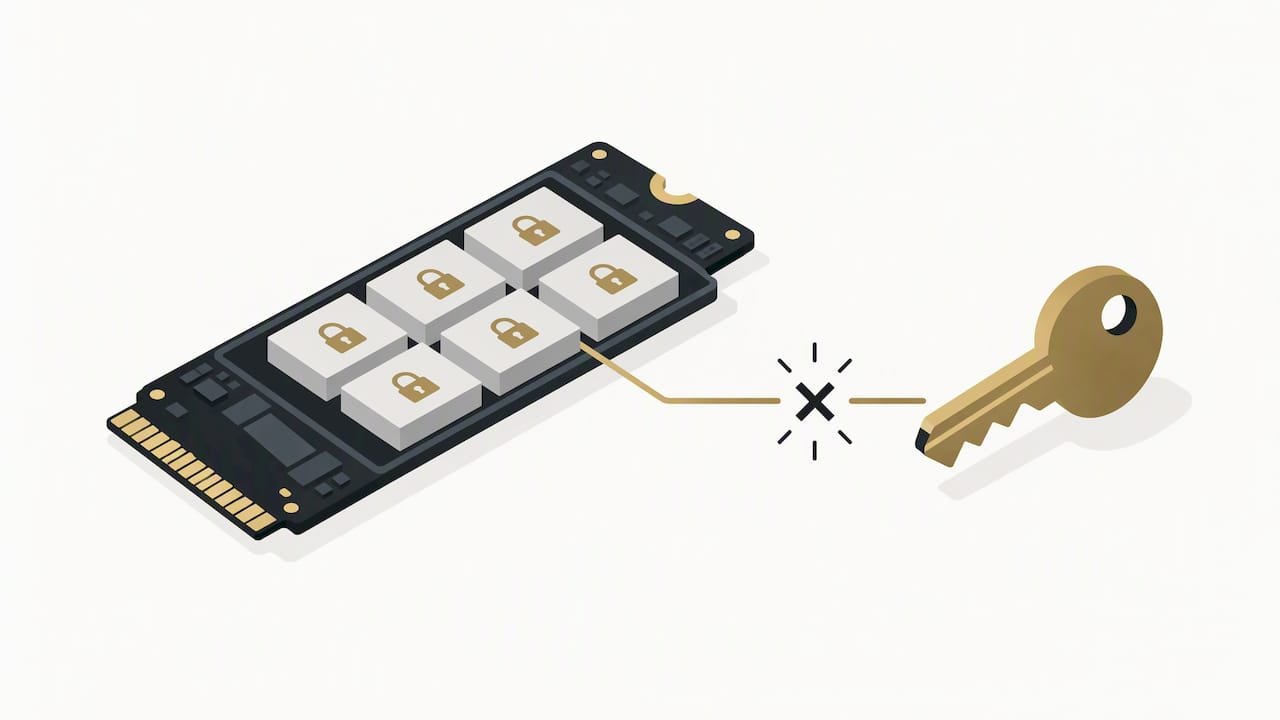
Apple’s final suggestion is to erase your Mac and reset it to factory settings if nothing else works. On a Mac with a soldered SSD and FileVault, an erase destroys the encryption keys, and the old data becomes unreadable by anyone. Do this only when you have a backup or when the data does not matter.
Why a reinstall keeps failing even after every fix
When the software steps fail repeatedly, the problem usually sits below the operating system. These are the patterns we diagnose most often:
- Damaged APFS container or volume structure. An interrupted update or sudden power loss can leave metadata inconsistent. First Aid fixes minor cases; severe cases need forensic imaging before any repair.
- Failing NAND or NVMe controller. On modern MacBooks the storage is soldered to the board. Read errors, a drive that disappears from Disk Utility, or an installer that stalls at the same percentage point to the storage hardware.
- Logic board faults. Liquid exposure, a shorted power rail or a failed component can interrupt installation or prevent the Mac from seeing its storage at all. These need component-level repair, not another reinstall.
- Firmware and security chip issues. On Apple silicon and T2 Macs, a corrupted firmware state can block personalization during install.
- External causes. A flaky USB hub, an unstable network or a half-seated peripheral can break an install that is otherwise healthy. Disconnect everything except power.
Symptoms that separate a software problem from a hardware one
| Symptom | Leans software | Leans hardware |
|---|---|---|
| Fails at different points each time | Yes (network, installer) | Sometimes |
| Fails at the same percentage every time | Sometimes | Yes (storage or board) |
| Disk Utility shows the drive, First Aid passes | Yes | No |
| Disk Utility shows no internal drive | No | Yes |
| Mac recently got wet or was dropped | No | Yes |
| Clicking, or a drive that is hot to the touch (older Macs with hard drives) | No | Yes |
| Works fine on a different network | Yes | No |
Two or more entries in the hardware column mean you should stop retrying.
What not to do
- Do not keep hitting retry. Repeated install attempts rewrite the same weak areas of the drive.
- Do not run data recovery software that installs onto the failing drive. Installing it writes to the disk you are trying to rescue.
- Do not open the case or charge a wet MacBook. If liquid was involved, power it off and bring it in unopened.
- Do not erase to “see if it fixes it” unless you have verified a backup.
- Do not freeze, bake or tap the drive. These myths cause damage.
Our perspective: why we stop before the erase button
We have worked on Macs in Los Angeles since 2006, and the same story repeats: someone gets a reinstall error, tries every forum tip including an erase, and only then calls us. By that point the recoverable data may be gone, particularly on a Mac with FileVault on a soldered SSD.
Our advice is simple. If the Mac has no current backup, the first diagnostic should happen before the first erase. In our lab we use forensic imaging where the drive allows it, so any further work happens on a copy rather than the original. For Apple silicon and T2 Macs with soldered storage, recovery often comes down to NAND access and component-level logic board repair with micro-soldering, which is repair work many general repair counters do not do. We say this about our own approach, not as a universal rule: every Mac is different, and diagnostics are what tell us what is realistic.
We would rather tell you honestly that a reinstall is all you need than sell you a repair. That is why diagnostics are free and why data recovery is on a no recovery, no charge basis.
— Kaya
When to bring the Mac to a lab in Los Angeles
Call instead of retrying if any of these apply:
- The Mac has files without a backup and the reinstall has failed twice.
- Disk Utility does not list the internal drive, or First Aid cannot repair the volume.
- The Mac was exposed to liquid, dropped or lost power during an update.
- The Mac is an Apple silicon or T2 model and revive or restore does not complete.
- The machine is a business computer, a RAID or NAS member, or holds client data.
What happens at MacWest
We are at 12041 Wilshire Blvd, Ste 26, between the 405 and Santa Monica, near UCLA and the Getty Center. That puts us a short drive from Westwood, Brentwood, Santa Monica, Beverly Hills, Venice, Culver City and Hollywood.
- Free diagnostics. We examine the Mac and the drive and tell you whether the issue is software, storage or the logic board.
- A clear plan. You hear what is recoverable and what the options are before work begins.
- Data recovery first when needed. Mac data recovery covers internal drives, SSDs, external drives, memory cards and RAID or NAS systems, and is no recovery, no charge.
- Repair second. If the cause is hardware, our Mac repair service in Los Angeles covers logic board work, screens, batteries and more for MacBook, iMac, Mac Mini and Mac Pro.
- Same-day appointments are available for urgent cases. Call (310) 866-0828.
If liquid is involved, see our page on Apple liquid damage repair. For laptops specifically, our MacBook Pro data recovery page explains the process in more detail.
Business Macs and RAID systems
If the Mac that failed to reinstall is a workstation, a Mac Pro or a server connected to a RAID, treat the downtime as a data-risk event too. Reinstalling the operating system on a machine that manages a RAID 0, 1, 3 or 5 volume can change how the array is detected. Never rebuild or re-initialize an array to get the system booting. A RAID 5 set that lost a member and is then re-initialized can turn a recoverable situation into an unrecoverable one.
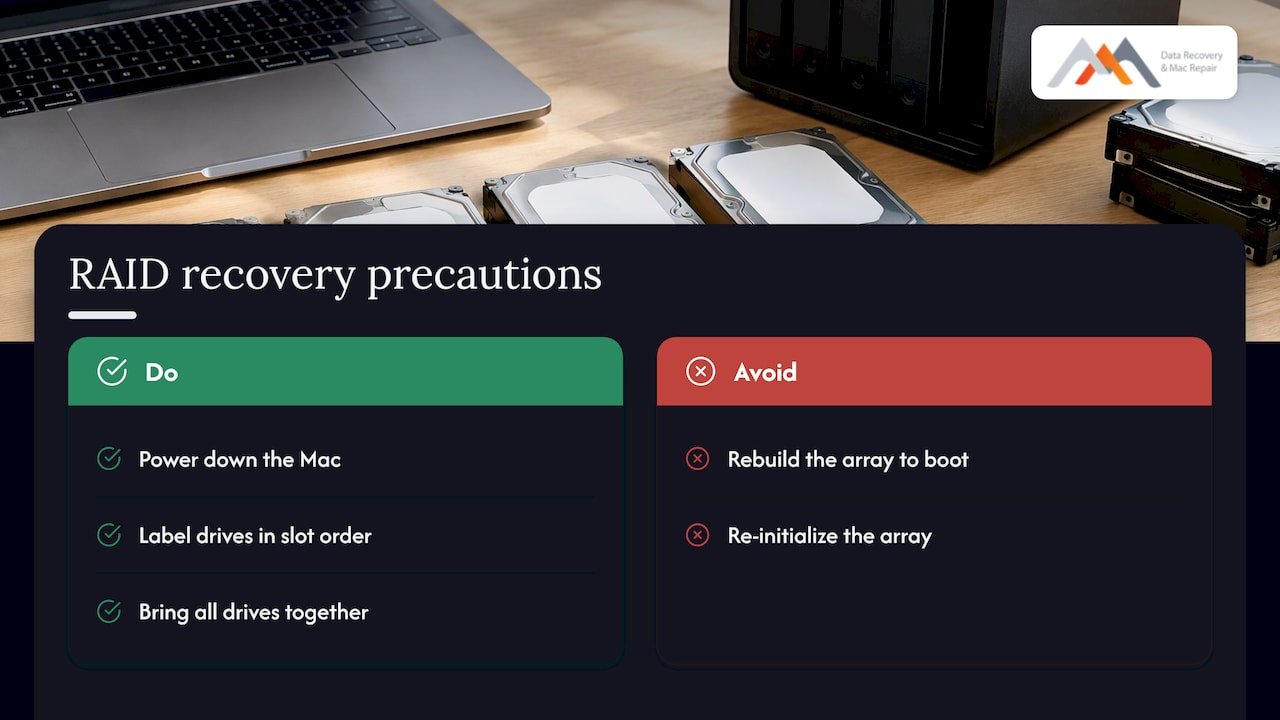
For businesses, the practical sequence is: power down, label the drives in their slot order, and bring everything in together. We handle RAID and server data recovery and can often make same-day diagnostic time for teams with an outage.
How to avoid the problem next time
- Keep a Time Machine backup plus a second copy somewhere else, such as a cloud service.
- Before any major macOS update, confirm the backup finished and that you can open a few files from it.
- Keep at least 20 to 30 GB free before updating, so the installer is not squeezed.
- Update on a stable network and plug in a laptop.
- Our Apple repair checklist for Mac users in Los Angeles is a good routine to follow before and after updates.
FAQ
Will reinstalling macOS from Recovery erase my files?
Choosing the reinstall option in macOS Recovery installs a fresh copy of the system and does not erase your data by default. Erasing is a separate action in Disk Utility or the reset flow, so avoid it unless you have a backup. If the reinstall keeps failing, stop before erasing and have the drive checked.
Why does it say macOS could not be installed?
Apple says such errors can come from a download, preparation or installation problem, a damaged or unverifiable installer, or a firmware issue, and that they are sometimes only temporary. The usual causes are an unstable network, an incorrect date, a full disk or a damaged startup volume. If it fails repeatedly at the same point, suspect the storage or logic board.
What can I do if I cannot reinstall macOS at all?
Work through the order Apple gives: connection, Recovery, Disk Utility repair, firmware revive or restore, then erase. Stop at the first sign of hardware trouble, such as a missing internal drive in Disk Utility, especially if you have no backup. At that stage a diagnostic is safer than another attempt.
Can I get my data back if the reinstall failed and the Mac won’t boot?
OFten yes, if nothing has overwritten or erased the drive, but results depend on the failure. We offer free diagnostics, and data recovery is no recovery, no charge. An erased drive on a Mac with FileVault and a soldered SSD is the hardest case, which is why we say stop before you erase.
Do you offer same-day help in Los Angeles?
Yes, we offer same-day appointments for urgent Mac and data cases at our Wilshire Blvd location. Call (310) 866-0828 so we can tell you what to bring and keep the Mac powered off until you arrive.
Sources
- If an error occurred while updating or installing macOS, Apple Support
- What to do if your macOS update is stuck installing, Macworld