
TL;DR:
- Immediately stop all disk writes, disconnect external drives, and verify the format type to maximize recovery chances.
- Use appropriate software like Disk Drill or TestDisk with a deep scan, preview files, and save recovered data to a separate storage device for best results.
Stop all disk writes immediately. Knowing how to restore a formatted drive begins with that single rule, because every new file written to the drive after formatting overwrites the data you are trying to recover. Formatted disk recovery is possible in most cases because a quick format deletes file index structures but leaves the underlying data sectors intact. The industry term for this process is “formatted drive data recovery,” and tools like Disk Drill, TestDisk, and Recuva are built specifically for it. Your success rate depends heavily on drive type, time elapsed, and whether you take the right steps in the next few minutes.
How to restore a formatted drive: what to do right now
The window for successful recovery closes faster than most people expect. Recovery probability sits at 95% within the first hour after formatting, then drops to just 10 to 30% after one month. That statistic means every minute you spend writing new data, installing apps, or even browsing the web on the affected drive is reducing your odds.
The immediate action checklist:
- Stop using the drive. Do not save files, download anything, or install software to the formatted volume.
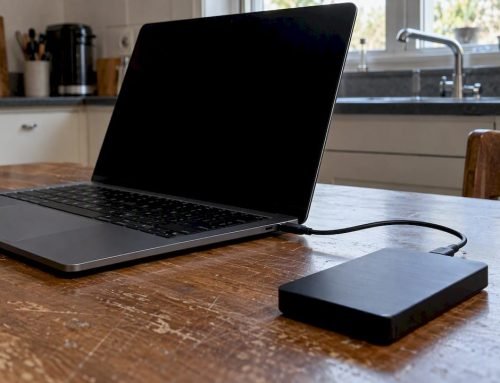
- Disconnect if external. If the formatted drive is an external HDD or SSD, unplug it from your Mac or PC right now.
- Identify the format type. A quick format is recoverable in most cases. A full format, which overwrites data sectors, drops success rates to 5 to 15% for most drives.
- Check your OS backup tools. macOS Time Machine and Windows File History may already hold a recent snapshot of your data. Check these before reaching for third-party software.
- For SSD users: disable TRIM immediately. This is covered in detail below, but do not skip it.
Pro Tip: On a Mac, open Disk Utility and check whether the drive still appears. If it does, do not attempt to mount or repair it yet. Simply note its status and proceed to the recovery steps below.
The distinction between quick format and full format matters enormously here. Quick format removes the file allocation table or master file table, which is essentially the drive’s index. The raw data remains physically present on the platters or NAND chips until new data overwrites it. Full format goes further by writing zeros across sectors, which is why its recovery rate is so much lower.
Which recovery software should you use?
Choosing the right tool is the difference between recovering 90% of your files and recovering nothing. The three most widely used options for formatted disk recovery are Disk Drill, TestDisk, and Recuva, and each serves a different scenario.
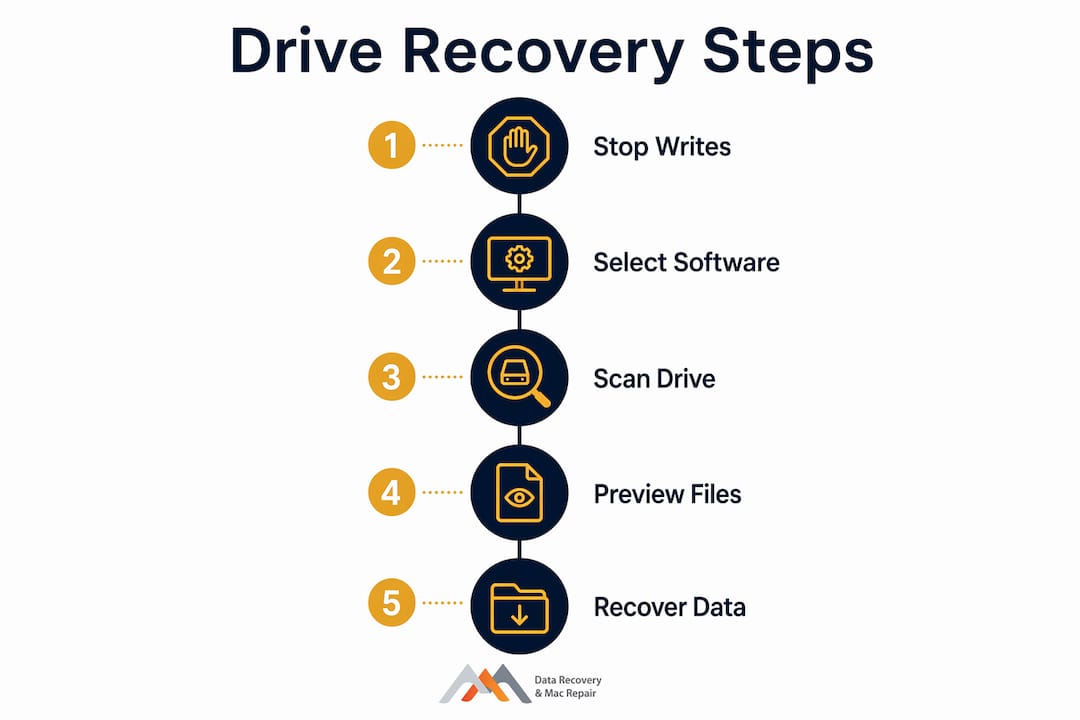
Step-by-step recovery using Disk Drill, TestDisk, or Recuva:
- Download the software on a different drive. Installing recovery software on the formatted drive overwrites the very data you are trying to retrieve. Use a second internal drive, an external USB drive, or a bootable recovery USB.
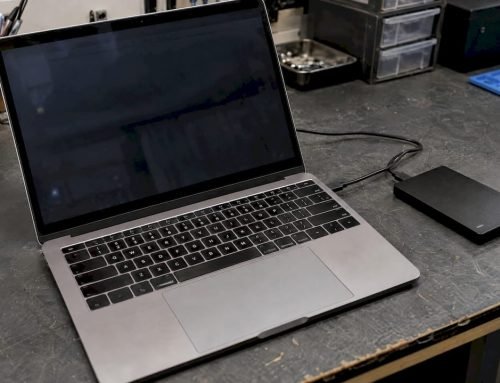
- Connect the formatted drive as a secondary volume. On a Mac, use Target Disk Mode or an external enclosure. On Windows, connect via USB or SATA adapter.
- Run a deep scan, not a quick scan. Quick scans read the file system index, which is gone after formatting. Deep scans read raw sectors and reconstruct file signatures. This takes longer but finds far more.
- Preview files before committing to recovery. Tools like Disk Drill allow previewing photos, videos, and documents during the selection process. Use this feature to confirm file integrity before saving.
- Save recovered files to a third drive. Never save recovered files back to the formatted drive. Use a separate external drive or cloud storage.
| Tool | Best for | Partition recovery | File preview | macOS support |
|---|---|---|---|---|
| Disk Drill | General formatted drive recovery | Yes | Yes | Yes |
| TestDisk | Partition table and folder structure | Yes | Limited | Yes |
| Recuva | Windows HDD quick recovery | No | Yes | No |
TestDisk rebuilds partition tables for FAT, NTFS, exFAT, and ext2/3/4 file systems, which preserves the original folder structure and file metadata. File carving tools like Recuva recover raw file data but often lose folder names and directory trees. For APFS volumes on a Mac, Disk Drill handles the Apple File System natively, which makes it the stronger choice for macOS users recovering from a formatted drive.
Pro Tip: If you are recovering from a formatted Mac drive formatted as APFS or HFS+, use Disk Drill’s “Rebuild Catalog” feature before running a full deep scan. This step alone can restore the entire directory structure in minutes.
SSD vs HDD: why recovery success rates differ
The physical architecture of your drive determines how recoverable your data is, and the gap between HDD and SSD recovery is significant. HDD quick format recovery succeeds approximately 90% of the time, while SSD recovery under the same conditions ranges from 60 to 80%, and only when TRIM is disabled immediately.
| Drive type | Quick format success rate | Full format success rate | TRIM impact |
|---|---|---|---|
| HDD | ~90% | 5 to 15% | Not applicable |
| SSD (TRIM disabled) | 60 to 80% | 5 to 15% | Minimal |
| SSD (TRIM active) | 0 to 40% | Near 0% | Severe |
TRIM is a command built into modern operating systems that instructs an SSD to wipe deleted or formatted data blocks in the background, preparing them for faster future writes. On a hard disk drive, deleted data simply sits in place until overwritten. On an SSD with TRIM active, the controller begins erasing those blocks almost immediately after a format event. This is why disabling TRIM immediately after formatting is the single most important step for SSD users.
To disable TRIM on Windows:
Open Command Prompt as Administrator and run: "fsutil behavior set DisableDeleteNotify 1`
Confirm it worked by running: fsutil behavior query DisableDeleteNotify
A result of 1 means TRIM is disabled. You can re-enable it after recovery with the value 0.
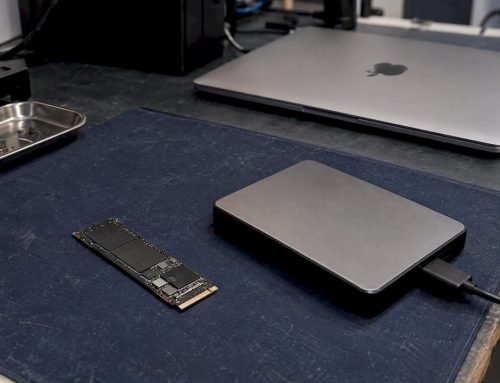
On macOS, TRIM management is handled at the system level and cannot be disabled through a simple terminal command on Apple-branded SSDs. For Mac users with a formatted NVMe or APFS SSD, speed is the only real protection. The Mac SSD recovery workflow differs from Windows in several important ways, particularly for soldered SSDs in MacBook Pro and MacBook Air models where direct NAND access requires specialized hardware.
For SSD users, the practical advice is direct: act within the first hour, disable TRIM on Windows immediately, and consider professional recovery if the drive is a soldered Mac SSD.
When DIY recovery is not enough
Software recovery works well for logical failures, meaning cases where the drive is physically intact but the file system has been wiped or corrupted. Physical damage is a different situation entirely, and attempting software recovery on a physically damaged drive can make the condition worse.
Signs that your drive needs professional attention:
- The drive makes clicking, grinding, or beeping sounds during operation.
- Your Mac’s Disk Utility or Windows Disk Management does not detect the drive at all.
- The drive appears in the system but shows 0 bytes of capacity or an unrecognized format.
- The drive was exposed to liquid, heat, or physical impact before the data loss occurred.
- Multiple recovery software tools fail to complete a scan or return no results.
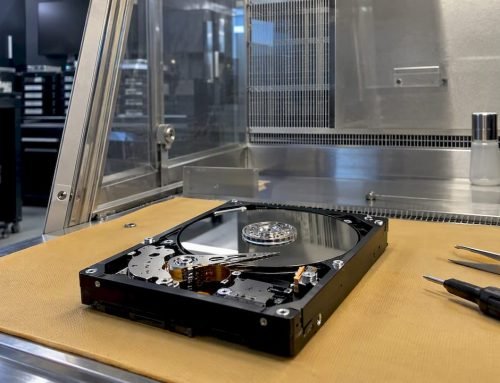
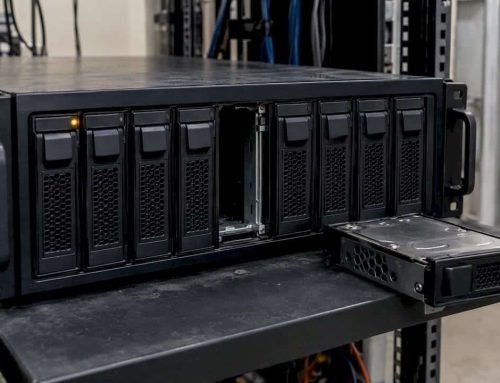
Physical symptoms like clicking noises or non-detection indicate hardware damage where DIY recovery is not just ineffective but actively risky. Opening a drive outside a certified cleanroom, even briefly, introduces dust particles that can score the magnetic platters permanently. For RAID systems formatted across multiple drives, the complexity multiplies further, since RAID 0, RAID 1, RAID 3, and RAID 5 each require different reconstruction approaches that consumer software handles poorly.
Professional data recovery services in Los Angeles offer logic board component repair, NAND chip access for soldered SSDs, and cleanroom platter recovery that no software tool can replicate. Before contacting a professional, note the drive’s make, model, serial number, approximate date of formatting, and whether any files have been written to the drive since the event. This information helps technicians assess the case and set realistic expectations before work begins.
Key takeaways
Successful formatted drive recovery depends on stopping disk writes immediately, disabling SSD TRIM within the first hour, and using the right recovery tool for your drive type and file system.
| Point | Details |
|---|---|
| Act within the first hour | Recovery probability is 95% in hour one and drops to 10 to 30% after one month. |
| Disable TRIM on SSDs | Run fsutil behavior set DisableDeleteNotify 1 in Windows Admin Command Prompt immediately. |
| Match the tool to the task | Use Disk Drill for APFS/Mac, TestDisk for partition table recovery, Recuva for Windows HDD. |
| Never install software on the formatted drive | Always use a separate drive for recovery software to avoid overwriting recoverable data. |
| Physical damage requires professional help | Clicking sounds or non-detection mean stop all DIY attempts and contact a specialist. |
What 18 years of formatted drive cases have taught me
The most common mistake I see is not the format itself. It is what happens in the 20 minutes after the format, when someone panics and starts reinstalling software, copying files back, or running multiple recovery tools simultaneously on the same drive. Each of those actions reduces the recoverable data surface in ways that are often irreversible.
Modern recovery software like Disk Drill has become genuinely impressive. It handles APFS, NVMe, and even FileVault-encrypted volumes with a level of reliability that was not possible five years ago. But software has a hard ceiling. Once TRIM has run on an SSD or a full format has overwritten the sectors, no tool recovers what is no longer there. The technology is good. Physics is still the final authority.
The SSD situation in 2026 deserves particular attention. As more MacBook Pro and MacBook Air models ship with soldered NVMe storage, the window for DIY recovery narrows further. You cannot remove a soldered SSD and connect it to a recovery workstation the way you can with a 2.5-inch HDD. That physical constraint means the causes of hard drive data loss and the recovery paths for modern Macs are genuinely different from what worked even three years ago.
My honest recommendation: attempt DIY recovery only when the drive is physically healthy, the format was a quick format, and you can act within the first few hours. For everything else, the cost of a professional consultation is almost always lower than the cost of a failed DIY attempt that permanently destroys recoverable data.
— Kaya
Recover your data with Macwestlosangeles
Macwestlosangeles has provided professional hard drive recovery in Los Angeles since 2006, serving clients across West LA, Santa Monica, Beverly Hills, Brentwood, Westwood, Venice, Hollywood, and Culver City. The team handles HDD, SSD, NVMe, APFS, RAID 0/1/3/5, and logic board component repair with free diagnostics on every case. The no recovery, no charge policy means you pay only when your data comes back. Same-day appointments are available at 12041 Wilshire Blvd, Ste 26, conveniently located between the 405 and Santa Monica near UCLA. Call (310) 866-0828 or visit the data recovery services page to book a consultation today.
FAQ
Can you recover data from a fully formatted drive?
Full format recovery is possible but difficult, with success rates of only 5 to 15% because the process overwrites data sectors directly. Professional cleanroom recovery gives the best odds when software tools return no results.
How long do you have to recover a formatted drive?
Recovery probability is 95% within the first hour and falls to 10 to 30% after one month. Act immediately and stop all disk writes to preserve the best possible recovery window.
How do you recover a formatted drive on a Mac?
Use Disk Drill connected to the formatted Mac drive as a secondary volume, run a deep scan, and save recovered files to a separate external drive. For soldered APFS SSDs in newer MacBook models, professional NAND-level recovery is often the only viable path.
Does TRIM destroy SSD data after formatting?
TRIM instructs the SSD controller to erase formatted data blocks in the background, which can reduce recovery chances to near zero if left active. Disabling TRIM immediately via fsutil behavior set DisableDeleteNotify 1 on Windows is the most critical step for SSD formatted disk recovery.
When should you call a professional instead of using recovery software?
Contact a professional if the drive makes clicking or grinding noises, is not detected by Disk Utility or Windows Disk Management, or if two or more recovery tools fail to complete a scan. These are signs of physical hardware damage where DIY attempts risk permanent data loss.