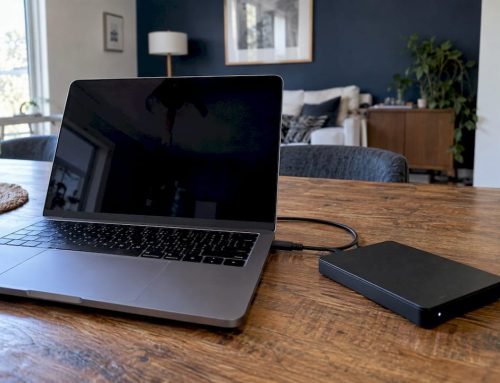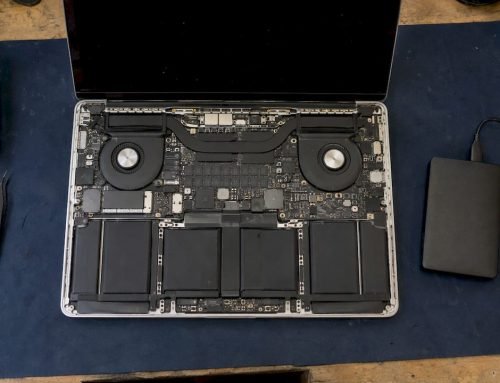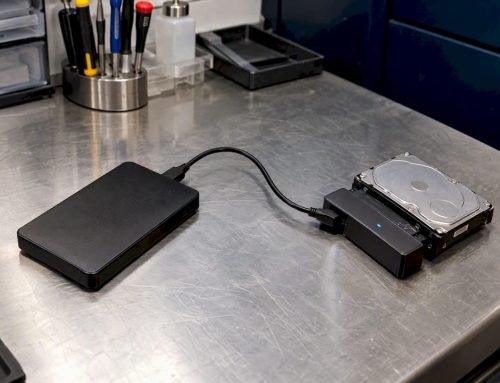
Stop all disk writes immediately. A SMART status failing message means at least one internal drive attribute has crossed the manufacturer’s own failure threshold, and the drive is telling you it expects to die soon, possibly within hours. The correct response isn’t to run a repair tool or reboot repeatedly. It’s to back up whatever you can reach right now, or create a full disk image before you do anything else.
TL;DR:
- A SMART failure indicates at least one drive attribute has crossed the manufacturer’s threshold, often predicting failure within 24 hours, and requires immediate backup.
- Do not attempt repairs or run disk utilities like chkdsk on the failing drive, as these actions can worsen damage and reduce recovery chances.
- Use dedicated tools like smartctl, CrystalDiskInfo, or manufacturer utilities to check SMART status, but always prioritize imaging the drive if it still responds.
- Key warning attributes include reallocated sectors, pending sectors, and uncorrectable sectors, with persistent increase signaling progressing hardware degradation.
- If the drive exhibits clicking, grinding, or cannot be read reliably after imaging attempts, seek professional data recovery services to prevent total data loss.
Table of Contents
- What Does “SMART Status Failed” Actually Mean?
- What Should You Do Right Now to Protect Your Data?
- How Do You Check SMART Status on Windows, Mac, and Linux?
- Which SMART Attributes Actually Signal Danger?
- Why Do Drives Fail SMART Checks in the First Place?
- What Is the Safest Way to Image a Failing Drive?
- When Should You Stop Troubleshooting and Call a Lab?
- Where Can You Get Professional Help in West LA?
- Where Can You Read More on SMART Diagnostics?
- Sources
- FAQ
What Does “SMART Status Failed” Actually Mean?
SMART, short for Self-Monitoring, Analysis, and Reporting Technology, is a set of internal counters every modern hard drive and SSD tracks on its own controller. Each counter, called an attribute, gets compared against a threshold value the manufacturer sets. When one attribute crosses that line, the overall status flips from PASSED to FAILED, even if every other attribute looks fine.
Seagate’s own diagnostic documentation confirms this is exactly how the flag works: a single breached threshold, often tied to attributes like reallocated sectors or raw read error rate, is enough to trigger a failure prediction. The catch is that manufacturers implement and weight these attributes differently. The smartmontools manpage for smartctl goes further, warning that a failing health status can mean breakdown within 24 hours. That’s a narrow window. A PASSED status, meanwhile, is not a guarantee of long-term health. SMART is a prediction tool built on vendor-specific logic, not a certified inspection.
What Should You Do Right Now to Protect Your Data?
Every minute you keep writing to a failing drive is a minute closer to permanent data loss. Work through these steps in order:
- Stop writing to the drive. Close open applications, cancel backups in progress, and don’t save new files to it.
- Copy small, critical files first if the drive still responds normally. Documents, photos, and databases beat large video libraries when time is short.
- Image the entire drive with a tool built for damaged media if it’s slow, freezing, or throwing read errors, rather than trying to drag-and-drop everything.
- Never run chkdsk /r, fsck, or any disk repair utility on the original drive. These tools write heavily and can finish off a drive that’s already failing.
- Power off immediately if you hear clicking, grinding, or repeated spin-up attempts, and stop trying to run it yourself.
Pro Tip: Reseat the cable or try a different USB port before you assume the worst. A loose SATA connector or a flaky USB bridge can throw a false SMART failure that clears the moment you get a solid connection.
How Do You Check SMART Status on Windows, Mac, and Linux?
Every major operating system gives you a way to read SMART data, though none of them make it a headline feature.
- Windows: CrystalDiskInfo gives a passive, color-coded readout of attributes without touching the drive. Seagate and Western Digital owners can run SeaTools or the manufacturer’s own diagnostic for a deeper test. Avoid Windows repair tools until you’ve imaged the drive.
- macOS: Disk Utility shows a basic S.M.A.R.T. status line (“Verified” or “Failing”) under the drive’s info panel, but it won’t show individual attributes. For that, install smartctl through Homebrew and run short and long self-tests, which log results without altering data.
- Linux:
smartctl -Hreturns overall health,-Alists every attribute, and-l selftestshows self-test history. External drives on USB-to-SATA bridges or behind RAID controllers sometimes hide SMART data entirely; adding-T permissiveor a tolerance flag can force a readout anyway.
Community threads, including a long-running Western Digital forum discussion on SMART failures, consistently recommend testing a second port or cable before assuming the drive itself has failed.
Which SMART Attributes Actually Signal Danger?
Six attributes matter more than the rest, and they tell different parts of the same story. Reallocated Sector Count tracks bad sectors the drive has already swapped for spares. Current Pending Sector Count flags sectors waiting to be reallocated because they failed a read but haven’t been remapped yet. Offline Uncorrectable counts sectors the drive gave up on entirely. Spin Retry Count and Raw Read Error Rate point to mechanical or head-alignment trouble. Power-On Hours just tells you the drive’s age in service.
A single spike in Current Pending Sector Count, then a return to zero, often means a transient read glitch, not doom. A steady upward climb across multiple scans is the real warning sign.
| Attribute | Rule-of-thumb danger threshold | What it usually indicates |
|---|---|---|
| Reallocated Sector Count | Above a high threshold | Physical media degradation |
| Current Pending Sector Count | Above a significant threshold | Unstable sectors awaiting remap |
| Offline Uncorrectable | Any nonzero and rising | Permanent unreadable sectors |
| Spin Retry Count | Any nonzero | Motor or bearing wear |
These numbers come from recovery-industry field experience compiled in guidance like Save My Disk’s hard drive recovery overview, and they shift by manufacturer. Treat them as guidelines, not hard cutoffs.
Why Do Drives Fail SMART Checks in the First Place?
Four broad causes sit behind most SMART status failures, and each points to a different next move. Mechanical wear, clicking, grinding, or repeated spin retries, means physical components inside the drive are breaking down, and that almost always calls for cleanroom disassembly rather than software. Electrical and PCB faults can sometimes let you image the drive safely, but the risk of a short escalating the damage is real. Firmware corruption often masquerades as a full failure while the platters themselves stay perfectly readable, if you have the right tools. SSDs fail differently altogether, wearing down NAND cells and shrinking spare capacity until they hit a wall and simply stop responding, often with no clicking or warning at all.
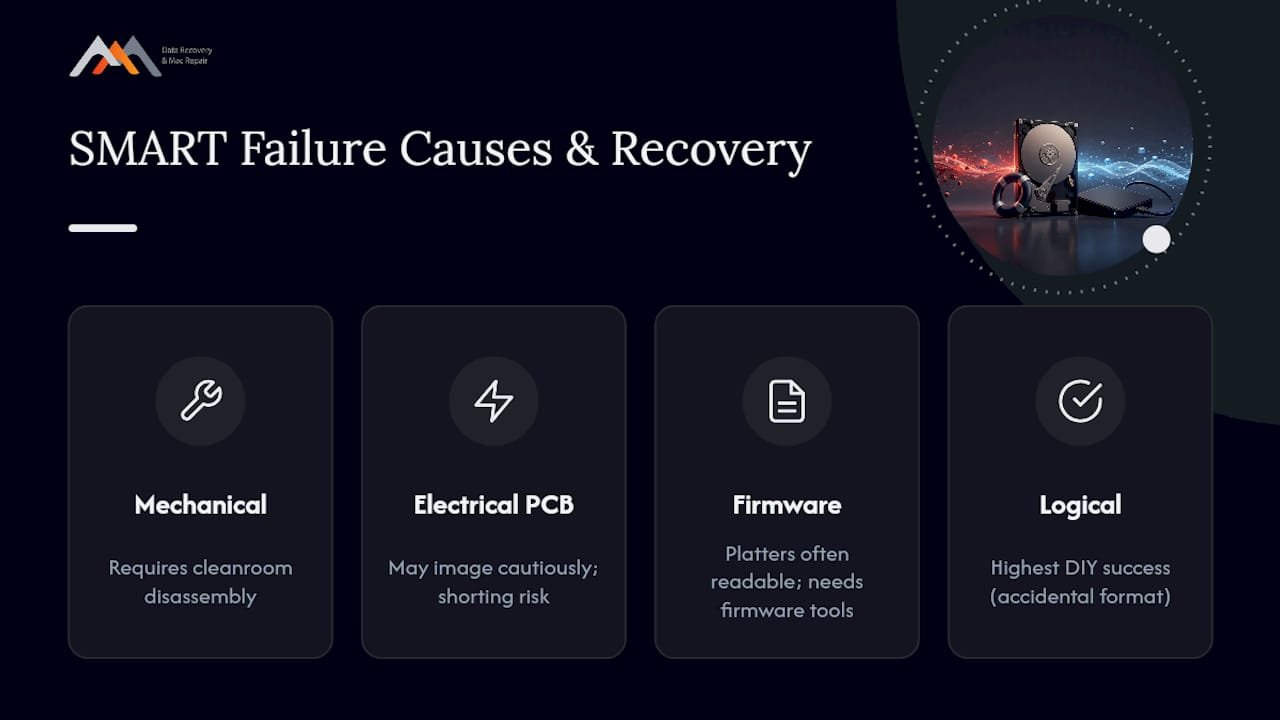
Logical failures, like accidental formatting, tend to have the highest DIY success rates. Mechanical and firmware failures carry lower odds without lab equipment, and attempting them yourself can turn a recoverable drive into an unrecoverable one. Reviewing common signs of hard drive failure helps you match your symptoms to the right category before you decide what to try.
What Is the Safest Way to Image a Failing Drive?
If the drive still mounts and reads, even slowly, image it before touching anything else. Imaging copies every sector, readable or not, onto healthy storage, which preserves your only shot at recovery if the original keeps degrading.
- Prepare a destination drive with at least as much free space as the source, ideally a fresh SSD or HDD you won’t reuse for anything else.
- Run ddrescue, a tool purpose-built for damaged media, using a command structure like
ddrescue -d -r3 /dev/source /path/to/image.img /path/to/logfile. The log file lets you resume if the process stalls. - Let it work in passes. ddrescue grabs easy sectors first, then circles back to retry the damaged ones, which maximizes total recovered data.
- Verify the image by mounting it read-only and spot-checking a few known files before you run any recovery software against it.
- Run every repair or file-carving tool on the image, never on the original drive.
Pro Tip: If the drive is failing fast and time is short, prioritize your most irreplaceable folders first inside ddrescue’s file list rather than letting it churn through a full disk in strict sector order. This mirrors the imaging-first approach outlined in professional recovery guidance, which flags chkdsk /r as one of the fastest ways to destroy what’s left of a failing drive.
When Should You Stop Troubleshooting and Call a Lab?
Clicking, grinding, a drive that vanishes from the system, or an image that fails partway through are your signals to stop. At that point, consumer software has hit its ceiling. Professional labs use PC-3000 systems and cleanroom head swaps to recover data that ddrescue simply can’t reach. Data recovery specialists have handled these cases for many years, offer free diagnostics, and work on a no recovery, no charge basis, with same-day appointments for Mac and PC drives in West LA.
— Kaya
Where Can You Get Professional Help in West LA?
Macwest Data Recovery is the direct next step when a SMART failure has moved past what smartctl and ddrescue can safely fix. The lab handles hard drive and SSD data recovery, RAID and NAS array reconstruction, and logic board component repair for Mac systems, all backed by free diagnostics and a no recovery, no charge guarantee. Every job starts with an honest assessment of whether the drive needs imaging, firmware work, or a cleanroom head swap, so you’re never paying for guesswork.
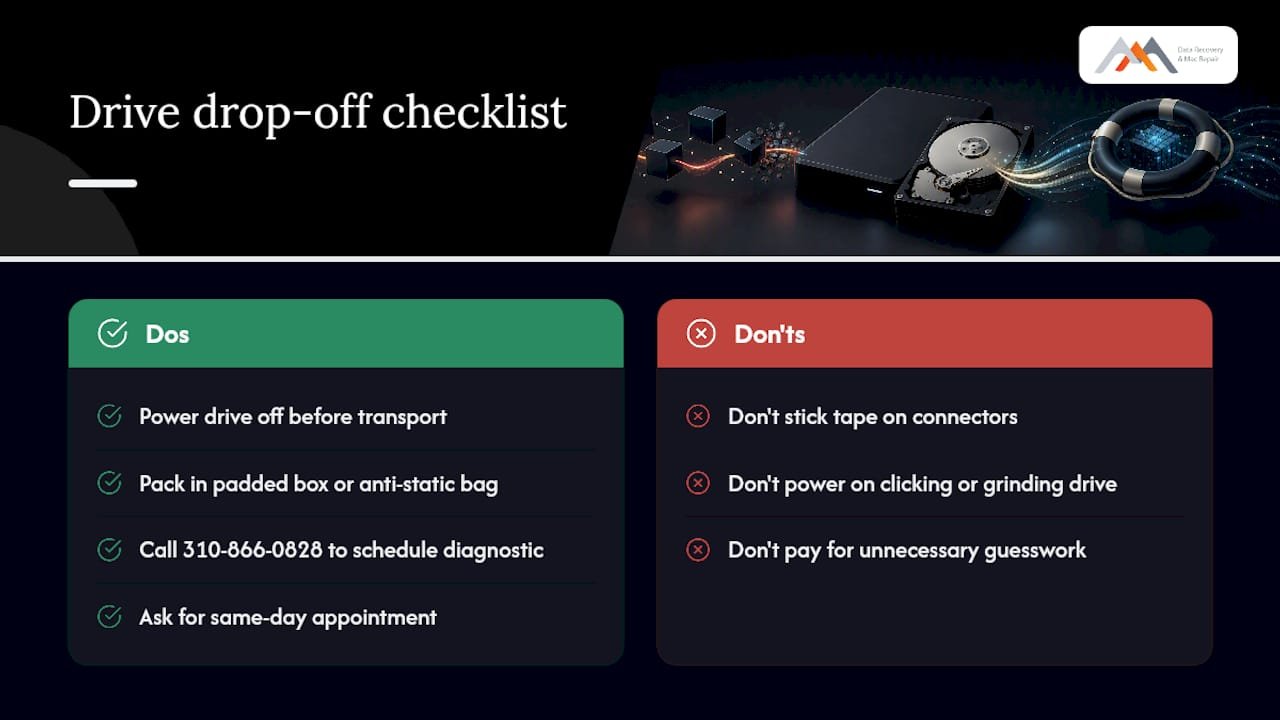
If you’re bringing in a drive, power it off and skip the packaging tape directly on connectors; a padded box or anti-static bag protects it better in transit. If the drive is clicking or grinding, do not power it on again at all. The Mac West lab sits at 12041 Wilshire Blvd, Ste 26, between the 405 and Santa Monica, close to UCLA and the Getty Center, serving Brentwood, Westwood, Venice, Hollywood, and Culver City with same-day appointments. Call 310-866-0828 to get a free diagnostic scheduled before that SMART warning turns into a total loss.
Where Can You Read More on SMART Diagnostics?
Seagate publishes its own SMART diagnostic interpretation guide for readers who want manufacturer-level detail. The smartctl manpage documents every flag mentioned above, and Save My Disk’s recovery guide covers imaging-first workflows in more depth.
Sources
- How do I interpret SMART diagnostic utilities results? | Seagate US
- smartctl(8) — smartmontools
- Hard drive data recovery 2026: complete guide (DIY vs lab) – Save My Disk
FAQ
Can You Bypass a SMART Status Bad Warning?
You can technically disable SMART checking in BIOS or ignore the warning in software, but that doesn’t fix the underlying attribute failure. Bypassing the alert just removes your early warning system while the drive keeps degrading underneath it.
Can a SMART Error Be Fixed?
Software cannot repair the physical, electrical, or firmware problem that triggered the error; SMART attributes report existing damage rather than causing it. The reliable path is backing up immediately and replacing the drive, with professional recovery reserved for data you couldn’t copy off in time.
What Does It Mean When My Hard Drive Fails the SMART Test?
It means at least one monitored attribute, commonly reallocated sectors or read error rate, has crossed the manufacturer’s failure threshold, and the drive is flagging a high risk of failure soon. Treat it as urgent regardless of how the drive currently sounds or performs.
Should I Replace My Hard Drive After a SMART Error?
Yes, once you’ve secured your data through a backup or full image, plan on replacing the drive rather than continuing to use it. A drive that has already breached one threshold tends to keep degrading, and the cost of a new drive is far lower than the cost of a second failure.
Does Macwest Data Recovery Offer Free Diagnostics for a Failing Drive?
Yes, Macwest Data Recovery provides free diagnostics along with a no recovery, no charge policy, and same-day appointments are available for Mac and PC drives at the West LA location. Call 310-866-0828 or visit the data recovery services page to get a diagnostic scheduled.