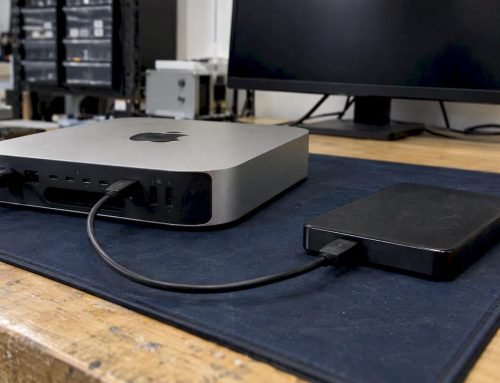
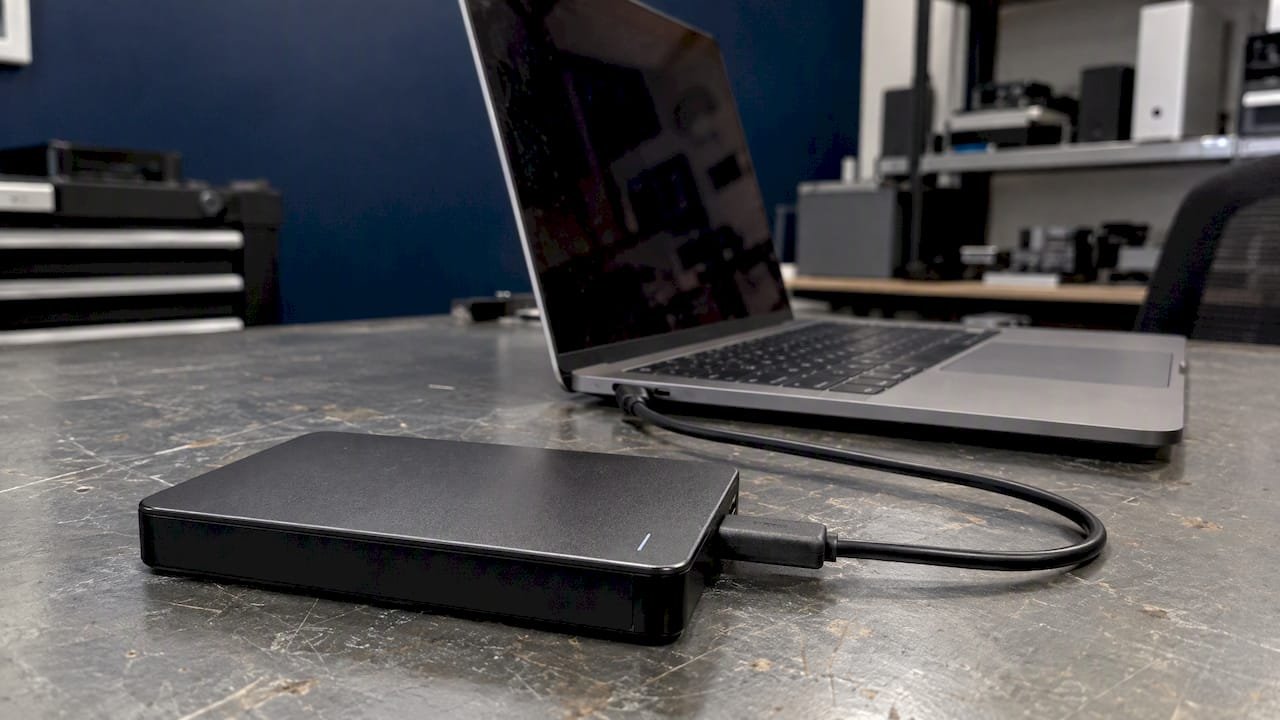
Stop all disk writes immediately if an encrypted external drive has stopped mounting and holds data you cannot lose. Do not run repair tools, reformat, or let Time Machine or Spotlight touch it, and call us at 310-866-0828 for a same-day appointment. If the drive works and you only want to protect it, the short answer is that FileVault itself covers your Mac’s startup disk, while an external drive is encrypted separately with an encrypted APFS format, using either Finder or Disk Utility, and unlocked with the password you create.
This guide explains the difference, walks through both encryption methods, covers format and macOS compatibility, and shows what to do when an encrypted drive or a Mac mini will not start. We have recovered data from Macs and external storage in Los Angeles since 2006, and encrypted media is a large part of what comes through our lab.
TL;DR
- FileVault protects the Mac’s startup disk, and an external drive is encrypted on its own with a password, using Finder (Control-click, Encrypt) or Disk Utility (Erase with an encrypted format).
- Disk Utility encryption erases the drive, so copy your files elsewhere first, and never lose the password: without it, the data cannot be read.
- If an encrypted drive will not mount, stop all disk writes immediately, do not erase it, and bring it to us for free diagnostics with a no recovery, no charge policy.
- Mac mini that will not power on or boot: check power, accessories and Apple’s service program for 2023 M2 units before assuming the drive is the problem.
Table of Contents
- FileVault and an encrypted external drive are not the same thing
- Two ways to encrypt an external drive on a Mac
- Choosing the right format
- Unlocking an encrypted drive and keeping the password safe
- When an encrypted external drive will not mount
- Our perspective: why encrypted drives deserve a lab, not a guess
- Mac mini will not power on or will not boot
- Why encryption changes the recovery job
- Same-day help in West Los Angeles
- FAQ
- Sources
FileVault and an encrypted external drive are not the same thing
People search for FileVault on an external drive because the two ideas get blended together on Apple’s own screens. They solve related problems with different tools.
FileVault is the feature that protects the disk your Mac starts from. According to Apple’s explanation of how FileVault works, on Apple-silicon and T2 Macs the internal data is encrypted automatically, and turning FileVault on adds protection against anyone accessing it without your login password. Enabling it needs an administrator account, and Apple’s FileVault guide says you choose between unlocking with your iCloud account or a separate recovery key.
An external drive has no login window, so it is protected with a password of its own. The result behaves like FileVault from the user’s side: the drive shows up, macOS asks for a password, and the contents stay unreadable until you supply it.
| Startup disk (FileVault) | External drive (encrypted volume) | |
|---|---|---|
| What unlocks it | Your login password, iCloud account or recovery key | The password you set when encrypting |
| Where you turn it on | System Settings, Privacy & Security | Finder or Disk Utility |
| Recovery path if the password is lost | iCloud account or recovery key | Only the password you created |
| Effect on existing files | Encrypts in place | Finder keeps files; Disk Utility erases the drive |
| Typical failure we see | Mac will not boot, login password unknown | Drive will not mount or asks for a password nobody remembers |
Two ways to encrypt an external drive on a Mac
Both methods are Apple’s own, and the one you pick depends on whether the drive already holds files.
Method 1: Finder, when the drive already has files
Per Apple’s encryption guide for Mac, Finder can encrypt a mounted removable disk without erasing it first:
- Connect the drive and wait for it to mount.
- Control-click the disk in the Finder sidebar.
- Choose Encrypt, then create a password and a hint.
- Click Encrypt Disk and let it finish before unplugging.
Apple notes that this converts the disk to APFS, so a Mac running an older macOS version that cannot read APFS will not be able to open the data afterward. Leave the drive connected and the Mac awake until the process is complete. An interrupted conversion is one of the more avoidable reasons drives arrive at our lab.
Method 2: Disk Utility, when you are starting clean
Apple’s Disk Utility instructions describe this path: choose View > Show All Devices, select the device, click Erase, pick GUID Partition Map and an encrypted file-system format, create and verify a password, and click Erase. This process wipes the device.
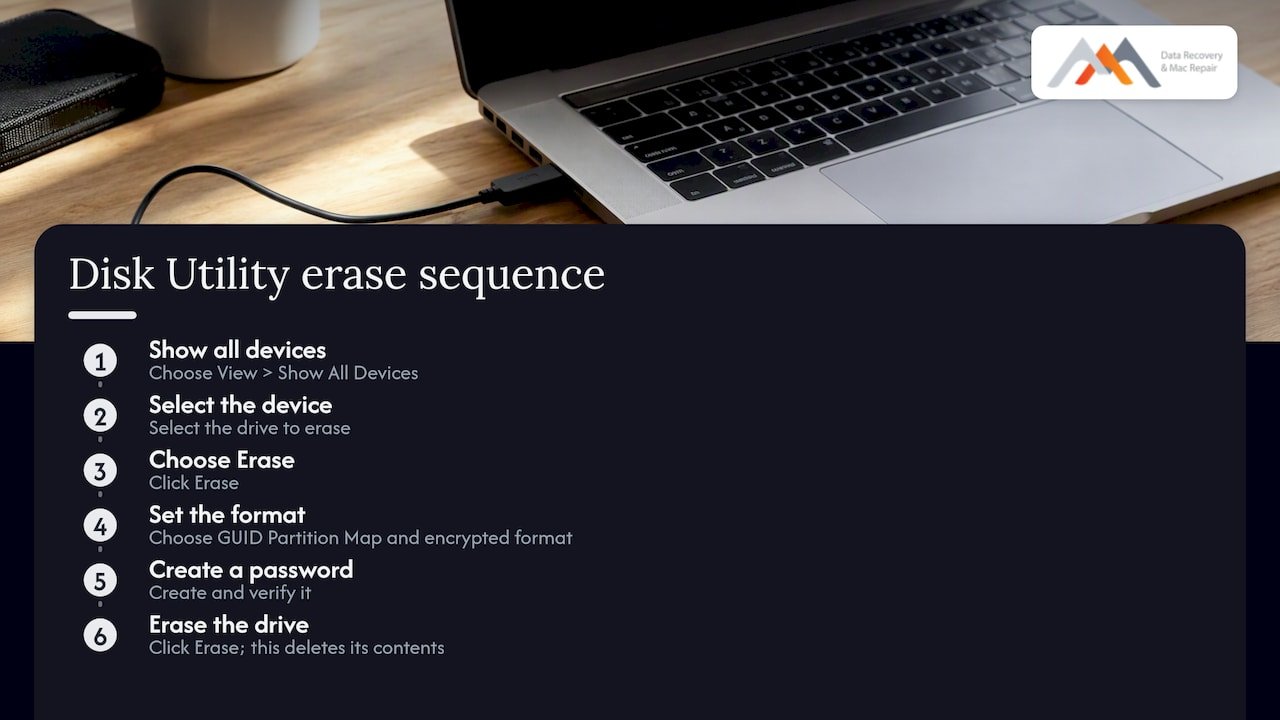
Apple states that erasing deletes everything on the drive and that you should copy files you want to keep to another storage device first. Apple also says Disk Utility uses GUID Partition Map when erasing a non-startup device, and that secure-erase options are not available for SSDs. If you erased the wrong drive, stop writing to it and read our page on recovery after a Disk Utility erase before you do anything else.
Choosing the right format
For almost every Mac-only drive in 2026 the choice is encrypted APFS. Apple’s file system reference lists APFS as supported on macOS 10.13 or later, including external direct-attached storage, with APFS (Encrypted) and APFS (Case-sensitive, Encrypted) among the encrypted options.
| Situation | Format to consider | Reason |
|---|---|---|
| Mac-only external SSD or NVMe enclosure | APFS (Encrypted) | Native to modern macOS and suited to flash storage |
| Drive that must be read on very old Macs | Check the oldest macOS in use first | APFS needs macOS 10.13 or later |
| Encrypted Mac OS Extended drive from years ago | Convert to encrypted APFS | See Apple’s macOS 28 notice below |
| Drive shared with Windows | Do not use APFS | Windows cannot read it natively |
One date matters if you have an older drive. Apple’s support notice of July 22, 2026 says macOS 28 and later will support Mac OS Extended only when it is not encrypted. Encrypted Mac OS Extended volumes should be converted to encrypted APFS, decrypted, or reformatted. Do that conversion while you still have a working backup, not after a failure.
Unlocking an encrypted drive and keeping the password safe
When you reconnect the drive, enter the password created when encryption was enabled. Apple explains that storing that password in Keychain lets the drive unlock automatically when it is connected to the same Mac. That convenience is useful, but it also means many people have not typed the password in years.
The risk is real and Apple is blunt about it. For the startup disk, Apple warns that if you forget both the login password and the recovery key and cannot reset the password, the files and settings are lost permanently. An external drive has the same property with fewer safety nets.
Practical habits that prevent this:
- Save the drive password in Keychain and also in a password manager you control.
- Write the password hint so it means something to you in two years.
- Keep a second copy of important files on a separate drive. Encryption protects against strangers, not against failure.
- Protect the account that holds your credentials. A hardware key can harden your Mac login, and a guide to YubiKey sign-in on macOS covers how that fits with keeping recovery credentials safe.
If you also rely on an Apple Account for recovery, a plain-language walkthrough on avoiding an iCloud lockout with YubiKey shows how two-factor keys can prevent a permanent lockout.
When an encrypted external drive will not mount
Stop all disk writes immediately. Every write, including an automatic repair, can overwrite the structures a recovery depends on. Then work through the checks below, which touch the drive as little as possible.
- Check the physical chain. Try a different cable and port, and connect the drive directly to the Mac rather than through a hub. A drive that clicks, beeps or does not spin should be powered down at once.
- Look for it in Disk Utility. Choose View > Show All Devices. If the device appears but the volume does not, the enclosure and drive are alive and the problem is in the file system or the encryption layer.
- Decide whether to run First Aid. Apple’s repair procedure says to have a current backup before repairing, then run First Aid from the last volume upward through the volume groups and containers, and finally on the device. If the device is missing, shut down, unplug nonessential devices and check the cable, connections and power. Apple adds that if errors cannot be repaired, the disk should be erased.
- Watch for a failing-disk warning. Apple says that when Disk Utility reports a disk is about to fail, you should back up the data and replace the disk, because that condition cannot be repaired.
The key point for you: Apple’s last step, erase, is correct when you have a backup and disastrous when you do not. If the only copy of your files is on that drive, do not run First Aid repeatedly and never erase. Bring it in instead. Our pages on external drives that will not mount and on imaging before repair explain why we copy the drive sector by sector before working on it.
Symptom guide for encrypted external drives
| What you see | Likely layer | First move |
|---|---|---|
| Drive does not appear in Disk Utility at all | Cable, enclosure, power or failed hardware | Power down, try another cable, then call us |
| Device appears, volume is grey or missing | File system or APFS container damage | Stop writes, do not erase, request diagnostics |
| Password prompt rejects a password you are sure about | Wrong keyboard layout, changed credentials or damaged encryption metadata | Check Keychain and password manager, try once more, then stop |
| Drive mounts read-only or very slowly | Failing sectors | Copy off what you can only if it is safe, otherwise image first |
| Disk Utility reports the disk is about to fail | Hardware failure | Back up what you can and call us |
Our perspective: why encrypted drives deserve a lab, not a guess
Most of the encrypted drives that reach us were not damaged by encryption. They were damaged by the attempts to fix them afterward: a repair run three times, a reformat to see if it would mount, a recovery app installing onto the same drive it was meant to rescue.
Our approach is built around that. We create a forensic image of the drive first and work from the image, so the original is touched as little as possible. That matters most for encrypted APFS volumes, where one overwritten metadata block can turn a recoverable job into an unrecoverable one. Our engineering is in-house, with precision micro-soldering and component-level logic board work for the Macs those drives connect to.
We also say plainly what encryption means for a job: if the password or recovery key is available, the odds are far better, and if it is not, no lab can promise to read the data. That is why we start with free diagnostics, and why our policy is no recovery, no charge. You find out what is possible before you pay for anything.
Since 2006 we have kept the lab in Los Angeles so you can hand your drive to a person, not a shipping label.
Kaya
Mac mini will not power on or will not boot
Several readers arrive here because a Mac mini that holds an encrypted drive, or boots from one, has stopped working. First separate two different problems: a Mac with no power at all, and a Mac that powers on but cannot load macOS. Macworld’s troubleshooting guide makes the same distinction, recommending you check the power connection and display and disconnect accessories.
No power, no light, no fan
Check the outlet, the power cord and any power strip, then unplug every accessory, including external drives, and try again. If you own a 2023 M2 Mac mini, check the serial number against Apple’s program. Apple’s service program notice, current as of June 13, 2025, says a very small number of 2023 M2 Mac mini units made from June 16, 2024 through November 23, 2024 may fail to power on, and eligible units are serviced at no charge after serial-number verification.
If the serial number is not covered, or the Mac still shows nothing, the cause may sit on the logic board: a failed power-delivery component, a shorted part or liquid residue. That is component-level work, and it is where our micro-soldering bench is used. A blinking status light is useful information, so note what it does and tell us when you call.
Powers on but will not boot
If you see a login window on a FileVault-enabled Mac, Apple’s startup guidance says entering your account password also unlocks the disk. A firmware-password lock icon means you need that password before starting from another disk or macOS Recovery. Per Macworld, Apple-silicon Macs enter Recovery by holding the power button until startup options appear and choosing Options > Continue, while Intel Macs use Command-R during startup. From Recovery you can run Disk Utility First Aid.
Before you do, ask whether the Mac’s internal SSD holds files you have no backup of. On many modern Macs the storage is soldered, so you cannot pull the drive and connect it elsewhere. Our T2 chip recovery guide explains what is and is not recoverable on those machines.
| Symptom | Most likely area | What to do |
|---|---|---|
| No light, no fan, no chime | Power supply, board or an eligible service-program unit | Check cord and outlet, then Apple’s serial tool, then call us |
| Light blinks but screen stays black | Display connection, firmware or board fault | Unplug accessories, note the pattern, call us |
| Apple logo, then stalls | macOS or storage problem | Try Recovery, run First Aid only if you have a backup |
| Login window appears, password rejected | Credentials, not hardware | Use Apple Account or recovery key reset path |
| Boots to a question mark or empty disk | Storage not detected | Stop, do not reinstall macOS over it, bring it in |
Why encryption changes the recovery job
Encryption does not make data unrecoverable, but it does change what a lab must do. The contents of an encrypted volume are unreadable without the key, so recovery usually has two parts: get a clean image of the device, then unlock and rebuild the volume using the password or recovery key.
That has practical consequences:
- Physical failures come first. A drive with bad sectors, a dying NVMe controller or a damaged enclosure bridge must be stabilized before any file-system work. Our page on why encrypted MacBook drives complicate recovery goes deeper on the soldered-storage case.
- APFS metadata is fragile. Our walkthrough on recovering an APFS volume explains why we stop writes and image first.
- RAID adds another layer. Encrypted volumes sitting on RAID 0, 1, 3 or 5 arrays need the array rebuilt in the correct order and parameters before the encrypted volume can even be identified. RAID 0 has no redundancy, RAID 1 mirrors, and RAID 3 and 5 use parity, so a second failure or a bad rebuild changes what is recoverable. See our RAID data recovery page.
- The key decides the ceiling. With the password or recovery key, the outcome depends on the physical condition of the media. Without it, we cannot promise anything.
Typical outcomes by situation
These are not guarantees, only how we think about a job before diagnostics.
| Situation | Key available | What we look at first |
|---|---|---|
| Encrypted APFS external, will not mount | Yes | Image, then repair the container from the image |
| Encrypted external, clicking noise | Yes | Stabilize the hardware before anything else |
| Encrypted external, password forgotten | No | Check Keychain and other Macs the drive was used with |
| Accidentally erased through Disk Utility | Depends | Stop writes, assess what was overwritten |
| Failed NVMe or soldered SSD in a Mac | Yes | Logic board and NAND access options |
Same-day help in West Los Angeles
If your encrypted drive or Mac will not respond, we offer free diagnostics, same-day appointments and a no recovery, no charge policy for Mac data recovery, including external and internal drives, SSDs, RAID and memory cards. For a Mac that will not power on, our Mac repair service covers logic board component repair, liquid damage, and emergency repairs for MacBook, iMac, Mac mini and Mac Pro.
We are at 12041 Wilshire Blvd, Ste 26, between the 405 and Santa Monica, near UCLA and the Getty Center, serving West LA, Santa Monica and Beverly Hills, plus Brentwood, Westwood, Venice, Hollywood and Culver City. Call 310-866-0828 and tell us what the drive does when you connect it, and whether you have the password or recovery key.
FAQ
Can I use FileVault on an external drive?
FileVault itself is the feature for your Mac’s startup disk. For an external drive you use an encrypted APFS format instead, applied through Finder (Control-click the disk and choose Encrypt) or Disk Utility (Erase with an encrypted format). The experience is similar: the drive asks for a password when you connect it.
Does encrypting an external drive erase it?
It depends on the method. Disk Utility’s Erase route wipes the device, so copy your files elsewhere first. Finder’s Encrypt option works on a mounted disk without erasing it first, but it converts the disk to APFS, which older macOS versions cannot read.
What if I forgot my external drive password?
First check Keychain on the Mac that normally uses the drive, since Apple allows the password to be stored there for automatic unlocking. If no copy of the password exists, the data cannot be read by normal means, so do not erase or reformat the drive, and call us for free diagnostics to see what is realistic.
My encrypted drive will not mount. Should I run First Aid?
Only if you have a current backup, which is Apple’s own advice before any repair. If the drive holds the only copy of your files, stop all disk writes immediately and bring it in. We image the drive first and work from the copy.
My Mac mini has no power or will not boot. Is my data gone?
Usually not. A Mac mini with no power often has a power, cable or logic board fault that leaves the storage intact, and a Mac that powers on but will not boot may only need Recovery steps. Check whether your 2023 M2 unit falls under Apple’s service program, then call us for a same-day appointment if it does not help.
Sources
- Encrypt and protect a storage device with a password in Disk Utility
- Protect your Mac information with encryption
- How does FileVault work on a Mac?
- Protect data on your Mac with FileVault
- File system formats available in Disk Utility on Mac
- About support for encrypted Mac OS Extended disks
- Erase and reformat a storage device in Disk Utility
- If you need a password to unlock your backup disk
- How to repair a Mac storage device with Disk Utility
- Repair a storage device in Disk Utility on Mac
- Mac mini no power service program
- If your Mac doesn’t start up all the way
- MacBook won’t turn on? How to fix a Mac that won’t start