Stop all disk writes immediately if your Mac won’t boot after an update, then work through these fixes in order: force restart, Safe Mode, NVRAM and SMC resets, Recovery with Disk Utility, and a macOS reinstall. If the drive makes noise, won’t mount, or startup fails repeatedly, stop and call us at 310-866-0828 for same-day help.
TL;DR:
- Apple silicon handles NVRAM resets automatically, while SMC resets apply only to Intel Macs with power, battery, fan, or sleep problems.
- Safe Mode can bypass failed extensions and login items, but it cannot repair damaged APFS containers or fix an internal drive missing from Disk Utility.
- A standard Recovery reinstall normally preserves user data, whereas erase and install wipes the disk; use destructive options only after verifying a backup.
- Disconnect peripherals, and confirm that your Mac supports the installed macOS version; unsupported releases can stall at the Apple logo.
- If a firmware progress bar is active, wait rather than powering off, since interrupting the update can prevent startup.
Table of Contents
- Which eight steps should you try first?
- How do you perform each troubleshooting step?
- What if the problem is your data, not just the boot process?
- How do you check for firmware or hardware compatibility problems after an update?
- Which macOS update errors come up most, and what fixes them?
- What do we see most often after failed updates?
- Where can you get same-day Mac repair and data recovery in West LA?
- FAQ
- Sources
Which eight steps should you try first?
Work down this list in order. Each step is more invasive than the last, so stop as soon as your Mac starts normally.
- Step 1: Stop all disk writes. Unplug external drives and do not copy files or run cleanup tools.
- Step 2: Force restart. The key combination differs between Intel and Apple silicon.
- Step 3: Boot into Safe Mode, which loads only essential system software.
- Step 4: Reset NVRAM/PRAM if your display or startup disk selection looks wrong.
- Step 5: Reset the SMC, but only on Intel Macs, when power or fan behavior seems off.
- Step 6: Boot into Recovery and run Disk Utility First Aid on your APFS volumes.
- Step 7: Reinstall macOS from Recovery, or boot from an external installer.
- Step 8: If symptoms persist or the drive shows signs of failure, stop and contact a recovery lab.
How do you perform each troubleshooting step?
Reports of this problem are common. Apple silicon owners describe Macs that won’t turn on after an update, and an Apple Support Community thread records boot failures after the newest macOS, with Safe Mode, Recovery Mode, and Disk Utility First Aid suggested as first moves. Here is how each step works in practice.
- Force restart. On Apple silicon, press and hold the power button until the startup options screen appears. On Intel, hold Control + Command + the power button until the Mac restarts. If a firmware update appears to be running, give it time before you cut power.
- Safe Mode. On Intel, restart and hold Shift until the login window appears. On Apple silicon, shut down, hold the power button until startup options show, select your startup disk, then hold Shift and click Continue in Safe Mode. Safe Mode disables third-party extensions and checks the startup disk, so it often clears a failed driver or kernel extension install. It will not repair a damaged APFS container.
- Reset NVRAM/PRAM. On Intel, restart and hold Option + Command + P + R briefly. This resets display settings, the startup disk selector, and similar stored preferences. Apple silicon Macs handle this automatically at startup, so there is nothing to hold.
- Reset the SMC. This applies to Intel Macs only. It addresses power, battery, fan, and sleep behavior, so try it when the Mac shows no signs of life or the fans spin at full speed with no display.
- Boot into Recovery. On Intel, hold Command (⌘)-R at startup. On Apple silicon, hold the power button and choose Options. Open Disk Utility, select the container and then each volume, and run First Aid. This checks APFS structures and confirms whether the NVMe or SSD storage is recognized at all. If the internal drive does not appear, the problem is below the software level.
- Reinstall macOS. A standard reinstall from Recovery normally keeps your user data and replaces system files. An erase-and-install wipes the disk, so choose it only after your files are safe elsewhere.
- External boot or Target Disk Mode. A bootable macOS installer on a USB drive lets you start the Mac when the internal system is damaged. On Intel Macs, Target Disk Mode (hold T at startup) exposes the drive to a second Mac so you can copy files off. Apple silicon Macs can be reached from another Mac using Apple Configurator, but that route is for restoring the system, so confirm your data is backed up first.
- Back up before anything destructive. If you have a recent Time Machine or external backup, restoring from it is the cleanest way back. If you have no backup, avoid erase options.
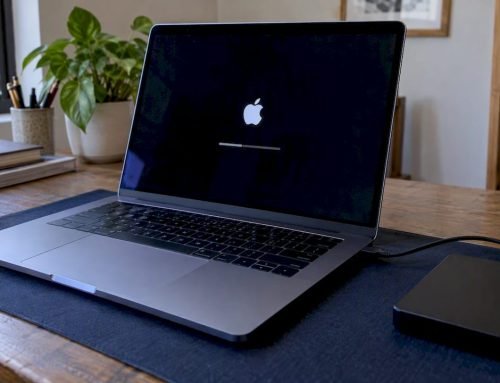
Pro Tip: If you see a firmware update progress bar or an interrupted update message, do not power off mid-process. Wait, then follow the recovery prompts exactly.
What if the problem is your data, not just the boot process?
Stop all disk writes immediately. Every write, whether a reinstall attempt, a cleanup utility, or a file copy, can overwrite the blocks a lab would otherwise recover. Because the stakes are your files, match the symptom to the right response:
- Clicking or grinding from a hard drive: power off and call us before trying anything else.
- Disk not shown in Disk Utility: stop writes and call; this points to the drive or logic board.
- Repeated kernel panics after each restart: try Safe Mode once, then stop.
- Firmware update that fails or loops: do not keep retrying; call.
| Symptom | Likely technical cause | What you should do |
|---|---|---|
| Stuck on Apple logo or loading bar | Interrupted update, damaged system files | Safe Mode, then First Aid |
| Black screen, fans spin | Display or power controller fault | NVRAM/SMC reset, then call |
| Internal drive missing in Disk Utility | NVMe/SSD or logic board fault | Stop writes and call |
| Kernel panic loop | Failed driver or kernel extension | Safe Mode, then reinstall |
In our lab, we create a forensic image of the drive first, then work from the image so the original stays untouched. For soldered storage we repair the logic board at the component level, and we reconstruct RAID 0, 1, 3, and 5 arrays when external volumes are involved. Diagnostics are free, and under our no recovery, no charge policy you pay only when we get your data back. Same-day appointments are available.
How do you check for firmware or hardware compatibility problems after an update?
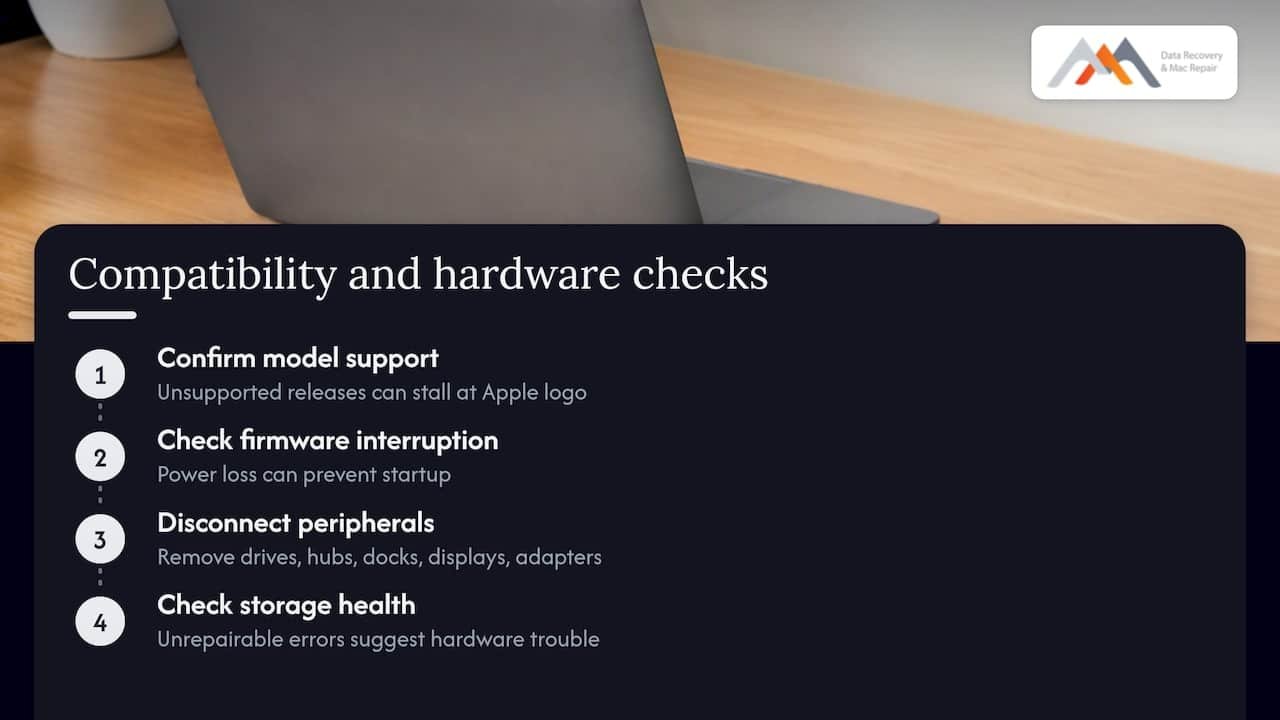
An update can fail for reasons that have nothing to do with corrupted files. Start with compatibility: confirm that your Mac model is supported by the macOS version you installed. An older Mac pushed onto an unsupported release through a workaround can stall at the Apple logo, and no amount of resetting will change that.
Next, think about what changed in hardware. Newer macOS versions update firmware alongside the system, and a power loss or forced shutdown during that stage can leave the Mac unable to start. Disconnect everything non-essential: external drives, hubs, docks, displays, and adapters. A misbehaving peripheral can hang startup, and removing it is a free test.
Pay attention to storage health, too. A drive that was already degrading often fails the stress of a large update, which makes the update look like the cause when it was only the trigger. If First Aid reports errors it cannot repair, or Disk Utility cannot see the internal NVMe storage, treat it as a hardware problem. Our Mac repair service handles these diagnostics, and before you bring a machine in, our Apple repair checklist explains what to prepare.
Which macOS update errors come up most, and what fixes them?
Several failure patterns can occur, and each has a sensible first response.
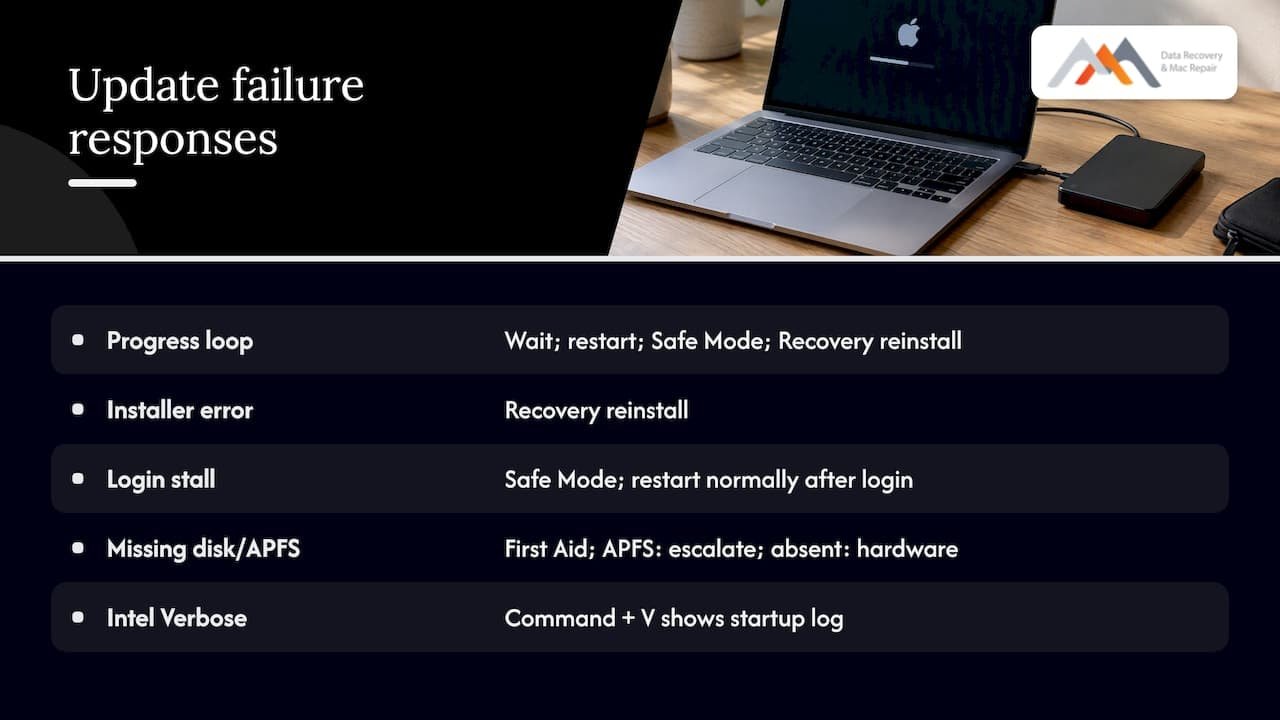
Stuck progress bar or Apple logo loop. The installer stalled partway through. Give it time, since large updates can run long, then force restart and try Safe Mode. If it still loops, reinstall from Recovery.
“An error occurred while preparing the installation.” This usually means the installer file is damaged or the disk is short on space. Boot into Recovery and reinstall instead of using the downloaded installer.
Question mark folder or “no startup disk.” The Mac cannot find its system. Run First Aid in Recovery. If the disk does not appear, the cause is hardware.
Stuck at the login screen. This often follows a failed extension or login item. Safe Mode bypasses both. If you can log in there, restart normally afterward.
Verbose Mode. On Intel Macs, holding Command + V at startup shows the text log of what the Mac is doing. The last lines before a freeze often name the failing component, which helps you or a technician narrow the cause. Apple silicon Macs do not offer this option.
If APFS volumes won’t mount, escalate quickly. For APFS-specific background on when recovery is possible and what to do immediately, this APFS data recovery article from an external lab is a useful read.
What do we see most often after failed updates?
Since 2006, we have helped with Mac problems including interrupted firmware updates, failed kernel or driver installs, and damaged APFS containers. The data may still be on the drive, and repeated reinstall attempts can put it at risk. If your Mac is down and the files matter, call us before you try a fourth fix. Free diagnostics and no recovery, no charge mean there is no cost to finding out. Have your Mac model, macOS version, and symptoms ready when you call.
— Kaya
Where can you get same-day Mac repair and data recovery in West LA?
Call 310-866-0828 about a same-day appointment. We are at 12041 Wilshire Blvd, Ste 26, between the 405 and Santa Monica, near UCLA and the Getty Center, serving West LA, Santa Monica, Beverly Hills, Brentwood, Westwood, Venice, Hollywood, and Culver City.
- Mac repair for MacBook, iMac, Mac Mini, and Mac Pro, including logic board component repair
- SSD, HDD, and RAID recovery through our Mac data recovery service
- Emergency same-day appointments
- Free diagnostics, and no recovery, no charge
Bring the power adapter, any backups, and any service history you have.
FAQ
How do you fix a Mac that won’t boot?
Stop all disk writes, then try a force restart, Safe Mode, and an NVRAM reset on Intel Macs. If those fail, run Disk Utility First Aid in Recovery and reinstall macOS. If the drive does not appear, call a lab.
Why is your Mac stuck on the loading screen after an update?
The update likely stalled partway through, often from an interrupted firmware step or a damaged system file. Wait a while, then force restart and try Safe Mode before reinstalling from Recovery.
How do you force a Mac to start up?
On Apple silicon, hold the power button until startup options appear. On Intel, hold Control + Command + the power button. If nothing happens at all, the cause may be power or logic board related.
Why is your MacBook stuck on a black screen after updating?
The display may be fine while the system fails to finish loading. Disconnect peripherals and try a force restart, then an NVRAM reset on Intel. A black screen with spinning fans can point to a hardware fault that needs a technician.