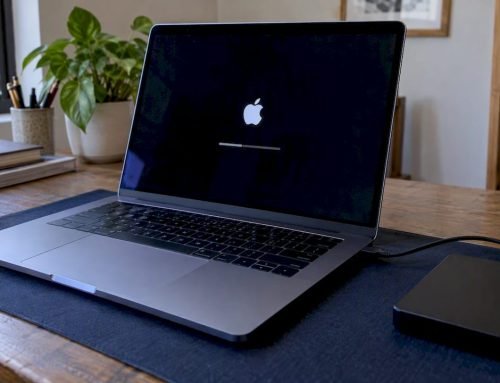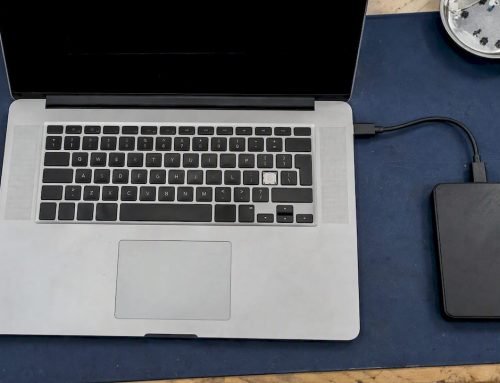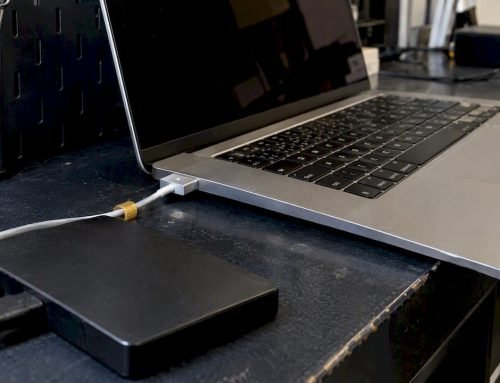
Stop all disk writes immediately if you suspect the backup disk is failing, otherwise confirm the disk is powered, mounted in Finder, and click Back Up Now from the Time Machine menu. If a time machine backup stuck on “Preparing” still won’t move, work through the checklist below, starting with the least invasive fix. Some stalls may clear with basic troubleshooting, but avoid changes that could put data at risk.
TL;DR:
- Connect the disk directly, bypass hubs, pause sync and antivirus tools, then restart and choose Back Up Now to test for network trouble.
- Run First Aid on each volume, then the container, then the physical device; if it repeatedly fails or warns of disk failure, stop all writes.
- Apple says interrupted backups usually resume automatically, so remove the .inProgress marker only when a stall persists; if it returns, suspect corruption or a busy volume.
- Use APFS or APFS Encrypted when possible; Apple recommends a backup disk with at least twice your Mac’s storage, and reformatting erases every backup.
- Large, frequently changing files, sync activity, and Spotlight indexing can prolong preparation; temporarily exclude virtual machine images, mail caches, or large Photos libraries.
Table of Contents
- Quick checklist: 8 fast steps to try immediately
- How do you run Disk Utility First Aid on a Time Machine disk?
- How do you remove the .inProgress file and restart Time Machine?
- Is your backup drive’s format and free space the problem?
- Why do network and NAS backups stall?
- What software keeps Time Machine busy?
- Why does Time Machine take so long to prepare?
- When should you stop DIY and call a recovery lab?
- A technician’s view: protect the data first
- Need help right now? Here’s how we can step in
- FAQ
- Sources
Quick checklist: 8 fast steps to try immediately
Run these in order. These checks are intended to be non-destructive, but take care to avoid changes that could put data at risk.
- Confirm the backup disk is powered, mounted in Finder, and listed in Time Machine settings.
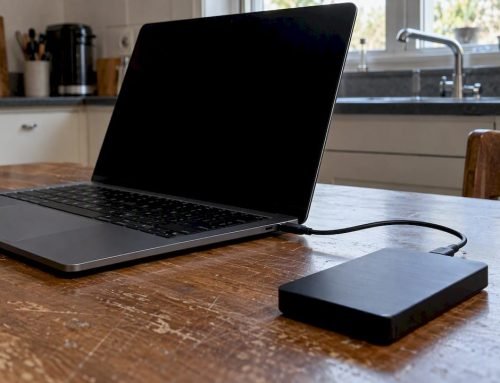
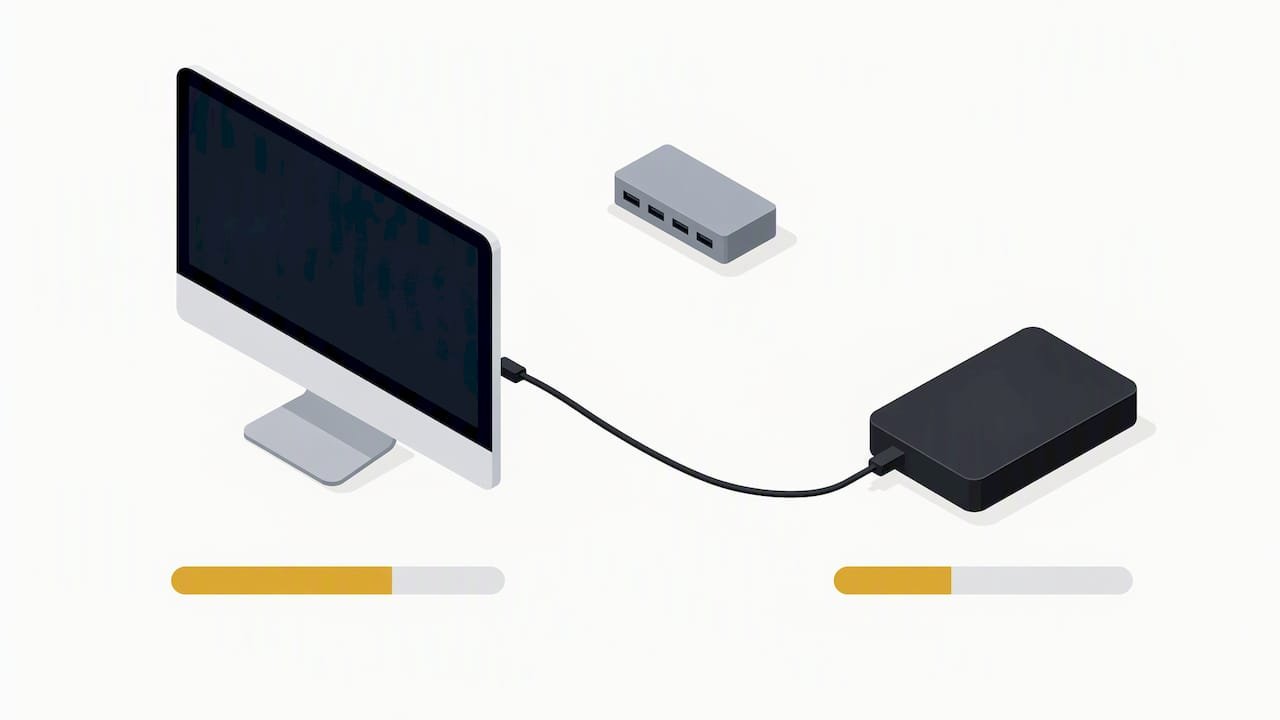
- Plug the disk straight into your Mac. Skip USB hubs and swap the cable or port if you have a spare.
- Pause iCloud Drive and any other sync service for now.
- Exclude the backup volume from antivirus scanning and pause cloud-sync clients.
- Restart the Mac, then choose Back Up Now from the Time Machine menu.
- Note where the .inProgress marker sits so you can remove it later if the backup fails again.
- If you back up over a network, connect a disk directly to test whether the network is the culprit.
- If the disk clicks, or Disk Utility warns of failure, stop writing to it and call us.
Pro Tip: Don’t see the Time Machine icon? Turn it on in System Settings > Control Center > Time Machine, so you can watch progress and start manual backups.
Apple’s own troubleshooting guidance says to connect the backup disk directly instead of through a hub and to check free space on both the Mac and the backup disk.
How do you run Disk Utility First Aid on a Time Machine disk?
Open Disk Utility, choose View > Show All Devices, and run First Aid in this order: each volume, then the container, then the physical device at the top of the tree. Running them bottom-up and then top-down catches directory problems at every layer, which is where many stalled backups begin.
- First Aid completes cleanly: try Back Up Now again.
- First Aid reports errors it repaired: restart the Mac and retry the backup.
- First Aid fails: run it once more. Apple advises that repeated failures can point to physical damage requiring replacement or service.
- Network backups: hold Option while opening the Time Machine menu and choose Verify Backups.
Disk Utility’s First Aid can repair directory-level issues but can’t fix every problem. If it says the disk is about to fail, back up what you can and stop repair attempts. Each extra write is a risk to your data.
How do you remove the .inProgress file and restart Time Machine?
An interrupted backup may leave a marker file. Apple says an interrupted backup usually resumes on its own, so avoid removing files from the backup unless you know what they are. Apple confirms that an interrupted backup usually resumes on its own, so only do this when the stall persists.
- Open the backup disk in Finder and go to the Backups.backupdb folder, then your Mac’s folder.
- Look for a file or folder ending in .inProgress.
- Drag it to the Trash and empty the Trash. If Finder refuses, use Terminal with great care, because a wrong path deletes real backups.
- Choose Back Up Now and watch the menu bar progress.
If the .inProgress file keeps reappearing and the backup stalls at the same point, suspect disk corruption or a volume that something else keeps busy. Move to the format and escalation sections rather than repeating this step.
Is your backup drive’s format and free space the problem?
A wrong format or a nearly full disk quietly stalls backups. Select the drive in Finder and choose Get Info, or check it in Disk Utility, to see its format and capacity.
- APFS or APFS Encrypted is the preferred format on modern macOS, per Apple’s list of supported Time Machine disks. For deeper understanding, see our technical guide on how APFS works. Older Mac OS Extended still works.
- Capacity matters. Apple suggests a backup disk at least twice your Mac’s storage when needed, since Time Machine keeps many versions of your files.
- Dedicate the disk. Storing other files on it competes with backups for space.
- Reformatting erases everything, including every backup on the disk. Copy anything you need first. Our guide to backing up data from a hard drive walks through moving files off safely.
Why do network and NAS backups stall?
An unstable network is a leading cause of stalled remote backups, and the fastest test is to remove the network from the equation.
- Connect a spare disk directly to your Mac and run one backup. If it finishes, your network or NAS is the problem.
- Use SMB, which Time Machine supports for network storage.
- Copy a large file to and from the NAS. Slow speeds or errors during that copy point to a network or NAS fault.
- Check the NAS firmware and the vendor’s Time Machine documentation, then keep a direct-disk backup running while you sort it out.
Make sure the Mac and the backup device sit on the same network, as Apple’s troubleshooting page notes.
What software keeps Time Machine busy?
Apps that lock or constantly rewrite files make backups crawl. Apple notes that large or frequently changing files and third-party utilities can keep the backup disk busy.
- Exclude the backup volume from antivirus scanning and pause cloud-sync apps while you troubleshoot.
- Exclude churn-heavy folders in Time Machine Options: virtual machine images, mail caches, and large Photos libraries.
- Expect Spotlight indexing and background sync to stretch the “Preparing” stage.
Pro Tip: Exclude the heavy folders temporarily, finish one clean backup, then remove the exclusions you don’t need. You get a healthy baseline without losing long-term coverage.
Why does Time Machine take so long to prepare?
Knowing the cause saves you from repeating fixes that can’t work.
- Local snapshots: on APFS, snapshots are created hourly on the internal disk and kept up to 24 hours or until macOS needs the space. A nearly full internal disk can make backups look frozen.
- Interrupted history: preparation time grows after interrupted backups, improper ejections, recent macOS updates, or interfering antivirus software.
- File churn: apps that keep rewriting big files force repeated large copies.
- Hardware: if every fix fails, the drive itself may be dying.
When should you stop DIY and call a recovery lab?
Stop all disk writes immediately if Disk Utility says the disk is about to fail, First Aid keeps failing, or the drive disconnects at random or makes unusual noises. More repair attempts on failing hardware can turn recoverable data into lost data.
- Don’t reformat, run repeated repairs, or keep retrying backups on a suspect disk.
- Before you call, note your macOS version, the backup drive model, the symptoms, and what happened right before the stall.
- Our guide to common Mac data recovery challenges explains what we look for first.
- If the Mac’s own ports or internal drive seem faulty, our Mac repair team can check the hardware.
A technician’s view: protect the data first
In our lab, the order is always the same: preserve the data, then run non-destructive checks like First Aid and a direct connection. A failing backup drive may show warning signs. Stopping writes when a problem appears can help protect data. Since 2006, we’ve focused on protecting data before attempting repairs.
— Kaya
Need help right now? Here’s how we can step in
When a backup disk or your Mac itself is failing, a same-day appointment beats another night of guessing. Our lab handles data recovery for Macs, hard drives, SSDs, and RAID systems, and we repair logic boards at the component level.
- Free Diagnostics, and no recovery, no charge
- SSD, HDD, and RAID recovery
- Same-day appointments at 12041 Wilshire Blvd, Ste 26, serving West LA, Santa Monica, and Beverly Hills
- Call 310-866-0828 for urgent cases
FAQ
Why is my Time Machine backup taking forever?
Large or frequently changing files, an interrupted earlier backup, or software that keeps the disk busy are the usual causes. Excluding heavy folders and pausing sync apps often brings the time back to normal.
Why can’t I back up my external disk to Time Machine?
Check that the disk is connected directly, formatted as APFS, and has enough free space. A failing disk can also refuse backups, so run First Aid and stop if it reports serious errors.
How do I remove a backup drive from Time Machine?
Open Time Machine settings, select the disk, and click the minus button to remove it. Removing it from the list doesn’t erase the backups on the disk.
How long does Time Machine take to prepare a backup?
It depends on how much data changed and how fast the connection is. A first backup or one after an interruption can take longer. If preparation appears stalled, check the causes listed above.