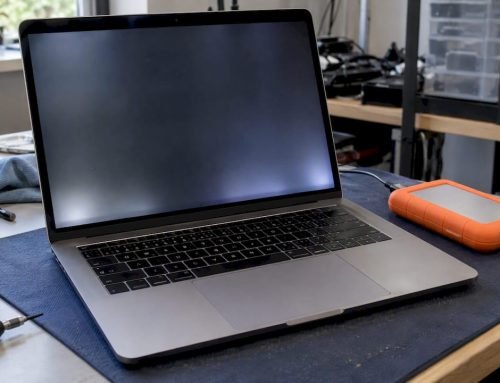
If a flashlight held at an angle reveals a faint image on a dark screen, your LCD is working and the backlight circuit has most likely failed, as 9to5Mac explains. Stop all disk writes immediately if the Mac also boots strangely or your drive acts up. Then try Safe Mode, run Apple Diagnostics, and test an external monitor. Burned connectors or repeated fuse blows mean stop and call us.
TL;DR:
- Run Safe Mode, test brightness controls, and save Apple Diagnostics reference codes; check Parts & Service after replacements, since some repairs require Repair Assistant.
- If an external display works, the fault likely lies in the screen, cable, or backlight circuit; flickering as you move the lid suggests cable damage.
- A blown fuse often signals a short, so replacing it alone can cause repeat failure; driver and boost circuit testing requires a qualified technician.
- Stop disk writes and avoid repeated restarts if storage or boot behavior is unstable; burned pins, liquid damage, or data risk warrant professional help.
- Check Apple’s service page for current eligibility before paying, because earlier backlight programs for some 13 inch MacBook Pro models have ended.
Table of Contents
- Which quick software checks should you run first?
- How do you isolate a display fault from a cable or logic board fault?
- What fails on the logic board when the backlight dies?
- Should you repair it yourself or bring it to a shop?
- What have we learned about backlight failures since 2006?
- How can you get help from us today?
- FAQ
- Sources
Which quick software checks should you run first?
Software and firmware problems can mimic a dead backlight, so rule them out before anyone opens the case. These steps cost nothing and risk nothing:
- Start in Safe Mode. On an Intel Mac, hold Shift during startup. On Apple silicon, hold the power button until startup options appear, then hold Shift. Apple documents the full procedure in its Safe Mode guide, and you should then test the brightness keys and the keyboard backlight controls.
- Run Apple Diagnostics by holding D at startup, or Option-D for the internet version. Apple Diagnostics helps identify which hardware component may be at fault and shows reference codes for display and keyboard hardware. Write the code down, because technicians use it for triage.
- Check for a recent repair. If a part was replaced, open Parts & Service in System Settings. The Mac parts and service history page explains how replacement parts appear there as Genuine, Unknown, Unverified or Used.
A few related points belong in your notes:
- Some qualifying repairs are not finished until you run Repair Assistant, which retrieves calibration information after a part is installed.
- Firmware revive or restore through Apple Configurator is only for rare cases where diagnostics point to firmware. A restore can erase internal storage, so Apple’s own instructions are worth reading before you try it.
- If your data matters, back it up first or talk to us before restoring anything.
How do you isolate a display fault from a cable or logic board fault?
Hardware isolation works from the cheapest test to the most invasive one. Do the first two before you ever pick up a screwdriver.
- Flashlight test: In a dim room, shine a bright light across the dark screen at a shallow angle. A faint macOS image or login window means the panel is alive and the backlight path has failed.
- External monitor: Connect a display over HDMI, USB-C or Thunderbolt. If the external screen shows a normal desktop, the graphics pipeline is working and the fault sits in the built-in display, its cable or the backlight circuit.
- Visual inspection: With the Mac powered off and unplugged, check the display cable, connector and hinge area for burned pins, corrosion, kinks or creases. Reseat a connector only if you are comfortable doing it, and ground yourself against static first.
- Assembly swap: Swapping in a known-good display assembly or cable is a legitimate isolation step, but connectors are fragile and a mistake can add a second fault.
| Observation | What it usually points to |
|---|---|
| Faint image under flashlight, external monitor works | Backlight circuit, display cable or backlight driver |
| No image at all, even with flashlight and external monitor | Logic board or graphics pipeline |
| Image dims or flickers when you flex the lid | Damaged display cable or connector |
| Burned smell or discolored pins | Short in the cable or connector, which can also blow a fuse |
Repair-community threads on iFixit Answers report burned backlight connector pins and blown fuses as common causes, which is why the connector deserves a close look. Our screen replacement guide covers what a display assembly swap involves.
What fails on the logic board when the backlight dies?
When the display and cable check out, the fault usually lives on the logic board, in the small circuit that powers the LEDs. iFixit’s backlight troubleshooting guide for the 13-inch MacBook Air A1466 describes a common chain: a short in the display cable or connector blows a fuse (F7700 on that board), and the driver and boost circuitry, including the LP8550 driver, can fail with it. Replacing only the fuse without finding the short often leads to repeat failures.
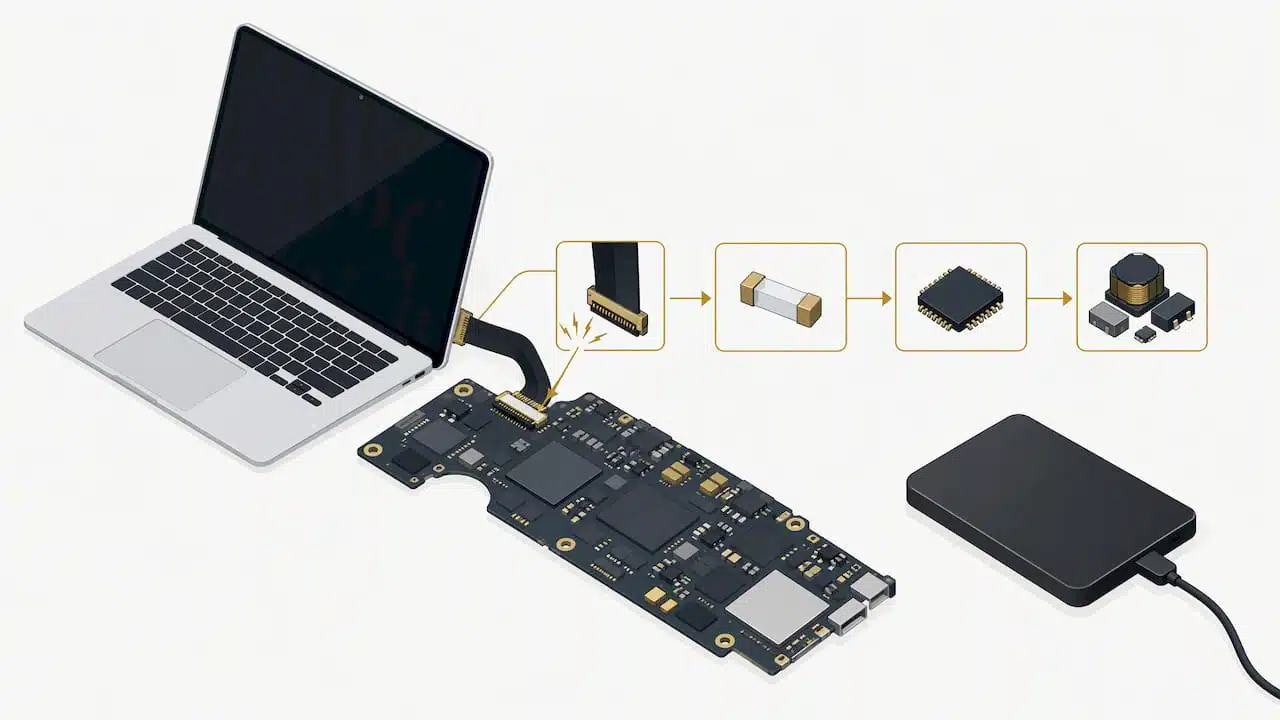
A backlight circuit needs a healthy main power rail, an enable signal and a boost stage that raises voltage enough to light the LED strings. iFixit’s guide describes checking the board’s main power rail and boost-voltage behavior. These powered-board tests should be left to a qualified technician. Technicians use diode-mode readings and voltage checks to learn whether the driver, a feedback trace, the connector or the LEDs are at fault. Those tests need a good multimeter, a schematic and steady hands, so we treat them as shop work.
Keyboard backlight and camera failures tie in here as well. On newer models, the ambient light sensor signal can travel through the display flex cable, so a damaged or swapped display can take the keyboard glow down with it. Replacing a display assembly can also trigger T2 pairing and calibration issues, which is where Repair Assistant comes back in. A MacBook Pro 16-inch thread on iFixit shows owners hitting exactly this after a display replacement.
- A blown fuse is a symptom, not the cause. The short behind it has to be found.
- Driver and boost components are tiny, which is why this work is micro-soldering.
- Our logic board repair guide and failure signs checklist explain the symptoms in more depth.
Pro Tip: Photograph the screen, the lid angle and any error codes before you shut the Mac down, so the technician sees exactly what you saw.
Should you repair it yourself or bring it to a shop?
Some steps are reasonable at home. Others put your data and your board at risk. Use this order:
- Do the safe tests first: SMC or NVRAM reset where your model supports it, Safe Mode, the flashlight test and an external display.
- Reseat the display connector only when the Mac is off, unplugged and you are comfortable with fragile connectors.
- Stop and get professional help for burned pins, repeated fuse blows, liquid damage, anything needing component-level logic board work, or any time your data is at risk.
- If the drive or boot behavior seems unstable, stop all disk writes immediately and avoid repeated power cycles that could overwrite or further damage storage.
- Check whether a service program applies before paying for a repair. Apple ran backlight programs for some 13-inch MacBook Pro models, but MacRumors reports these programs have ended, so confirm current eligibility with Apple’s service page rather than assuming coverage.
Apple’s service page points owners to the Genius Bar or an Apple Authorized Service Provider, and out-of-warranty repairs there usually carry a cost, so ask for an estimate first.
At a shop, expect a diagnosis, a written estimate and a clear answer on whether the repair is a cable, a display assembly or a board-level job. For common parts, turnaround depends on the diagnosis and parts availability.
What have we learned about backlight failures since 2006?
Since 2006, we have seen the same pattern repeat. Drops and spills can damage display cables and connectors, and logic board component repair may be an option. Our advice is simple: write down your symptoms and leave the Mac powered off if you suspect liquid or data risk. If you suspect liquid damage or data risk, leave the Mac powered off and contact a technician. Free diagnostics and same-day appointments let us triage quickly. Some models still need micro-soldering or calibrated parts, and Repair Assistant steps afterward, so we set expectations before work starts.
— Kaya
How can you get help from us today?
Call us at 310-866-0828 to book a same-day appointment. We offer free diagnostics, and when a failure puts your files at risk, our data recovery runs on a no recovery, no charge basis. Our shop sits at 12041 Wilshire Blvd, Ste 26, between the 405 and Santa Monica, serving West LA, Santa Monica, Beverly Hills, Brentwood, Westwood, Venice, Hollywood and Culver City.
- MacBook logic board repair, screen and cable replacement, and liquid damage repair, all on our Mac repair service page
- Data recovery when storage is affected, including APFS and NVMe drives
- What to bring: your model identifier, a short symptom timeline, whether the keyboard backlight or camera also failed, and any recent drops or spills
FAQ
Why isn’t my MacBook backlight working?
The most common causes are a failed backlight circuit on the logic board, a damaged display cable or a blown fuse. A flashlight test tells you quickly whether the panel itself still shows an image.
My MacBook Pro screen light isn’t working. What can I do to fix this?
Start with Safe Mode, run Apple Diagnostics and connect an external monitor. If those checks point to hardware, powering down and booking a diagnosis is safer than repeated restarts.
How do I activate the backlight on a Mac?
Use the brightness keys for the display and the keyboard backlight keys or Control Center for the keys. If the controls respond but nothing lights, there may be a hardware fault.
Is it worth repairing a 7 year old MacBook?
Often yes, especially when the fix is a cable or a board-level component repair and the Mac holds data you want to keep. We give a free diagnosis and an estimate so you can compare it against replacement cost.