A Mac kernel panic happens when macOS detects an unrecoverable error and forces a restart to stop the damage from spreading. The moment it happens, save the panic log before you touch anything else, and if you suspect a drive is failing, stop all disk writes immediately. One isolated panic is usually not an emergency; repeated panics within days or weeks mean it’s time to dig deeper or bring the Mac in for diagnosis.
TL;DR:
- Kernel panics caused by software issues often stop after updating macOS, removing outdated kernel extensions, or disconnecting problematic peripherals.
- Repeated panics, especially after safe mode tests and reinstallations, typically indicate hardware deterioration like failing RAM, SSD, or logic board components.
- Analyzing the panic log reveals whether third-party kernel extensions or specific hardware are involved, guiding targeted repairs or troubleshooting steps.
- Persistent boot loops or hardware failure codes from Diagnostics strongly suggest professional inspection rather than further DIY troubleshooting.
- Immediate data safety measures include stopping all writes if storage issues are suspected and providing logs and recent change timelines to technicians.
Table of Contents
- What Is a Mac Kernel Panic, Exactly?
- What Causes Kernel Panics on a Mac?
- How Do You Fix a Kernel Panic Right Now?
- How Do You Read and Save a Panic Log?
- What Should You Do About a Kernel Panic Boot Loop?
- When Should You Stop Troubleshooting and Call a Professional?
- Why Macwest’s Experience Matters Here
- A Technician’s Take on Real-World Kernel Panics
- Get a Free Diagnosis Before a Panic Costs You Data
- Where This Guidance Comes From
- Sources
- FAQ
What Is a Mac Kernel Panic, Exactly?
A kernel panic is fundamentally different from an app freezing or spinning its beachball. When an application misbehaves, macOS can usually kill it and move on. But the kernel is the core of the operating system, the layer that manages memory, hardware communication, and process scheduling for everything else running on the machine. When the kernel itself hits an error it cannot recover from, it has no safe way to keep going. It halts the entire system and forces a restart rather than risk corrupting your files or damaging hardware further.
That’s the protective logic behind it, according to Apple’s own support documentation: the panic is the system choosing a controlled shutdown over an uncontrolled one. On modern macOS, this shows up as a black or gray screen with a message that your Mac restarted because of a problem, sometimes with a “Report” button offering more detail. Panics tend to cluster around specific moments: heavy CPU or GPU load, waking from sleep, or right at startup. Any of those patterns is a clue worth noting, because it narrows down where the fault likely lives.
What Causes Kernel Panics on a Mac?
Kernel panics generally trace back to one of three places: software conflicts, peripheral hardware, or internal component failure. Sorting which category you’re in is the fastest way to stop wasting time on the wrong fix.
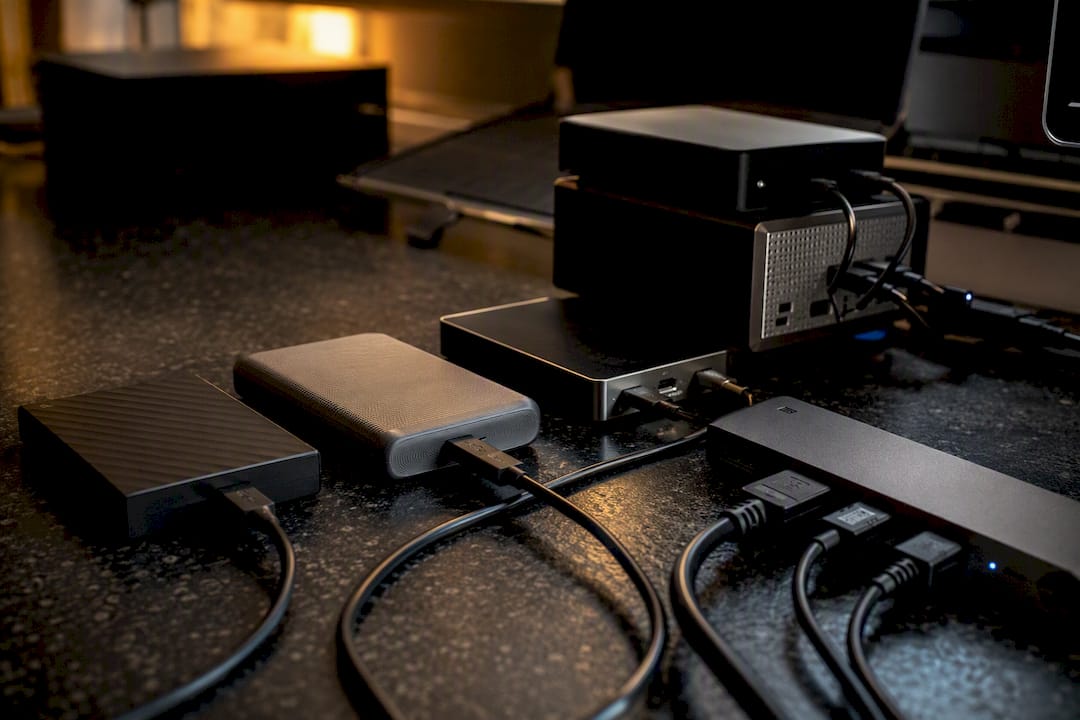
Third-party kernel extensions, often called kexts, are one of the most common software culprits. These are low-level drivers that hook directly into the kernel, and older or poorly maintained ones frequently break after a macOS update. According to Eclectic Light’s technical analysis, peripheral conflicts are just as common. Docks, USB hubs, and external displays can trigger a panic during the handshake process, especially right after your Mac wakes from sleep.
Then there’s hardware. Failing RAM, a degrading SSD, an unstable GPU, or a logic board with a failing power rail can all trigger kernel-level errors that look identical to a software problem from the outside. A partially completed firmware update can leave a Mac in a confused state that manifests the same way.
Common triggers worth checking first:
- Recently installed kernel extensions or drivers, particularly from antivirus, VPN, or virtualization software
- A dock, hub, or external monitor connected when the panic occurred
- A recent macOS update that hasn’t fully settled, or one that stalled partway through
- Storage that’s been showing other warning signs, like slow saves or app hangs
- A Mac that’s several years old and has never had its RAM or SSD tested
How Do You Fix a Kernel Panic Right Now?
Work through these steps in order. Each one either fixes the problem outright or eliminates a suspect, which matters because guessing randomly wastes time you may not have if storage is failing.
- Copy the panic log before doing anything else. When the restart dialog appears, click “Report” if it’s offered, then select and copy the text into a plain text file saved somewhere safe. This log is your best diagnostic evidence, and it disappears once you dismiss the dialog.
- Let it restart normally the first time. Don’t force a shutdown unless the Mac is genuinely frozen and unresponsive. A normal restart preserves more diagnostic data than a forced power cycle.
- Boot into Safe Mode. Safe Mode disables non-Apple kernel extensions and login items, which tells you immediately whether third-party software is the cause. If the panics stop, you’ve found your category.
- Disconnect every non-essential peripheral. Unplug docks, hubs, external drives, and secondary displays. Test with only the Apple keyboard and mouse attached, since a single misbehaving USB device is a surprisingly frequent trigger.
- Update macOS, your apps, and remove outdated kext-based software. Apple Support specifically recommends removing incompatible plug-ins and starting in Safe Mode as a first response.
- Run Apple Diagnostics. On Intel Macs, restart while holding D. On Apple silicon, hold the power button until you see startup options, then run Diagnostics from Recovery.
- Reinstall macOS after backing up, if panics continue and no single kext or peripheral is to blame.
Pro Tip: Keep a running note of what changed on your Mac in the 48 hours before each panic, new software, a connected drive, an update. Handing that timeline to a technician along with your saved panic log can cut diagnostic time dramatically.
If panics keep happening after Safe Mode testing and a clean reinstall, that’s a strong signal you’re dealing with hardware deterioration rather than a software fix.
How Do You Read and Save a Panic Log?
The panic log is the single most useful piece of evidence you have, and most Mac owners never look at it. When the restart dialog appears, the “Report” button reveals the full text; copy it into a text file immediately, because it can be harder to retrieve later. You can also find historical panic reports in Console.app, under Reports, or on disk in /Library/Logs/DiagnosticReports.
A handful of fields tell most of the story:
- The first line beginning with “panic” usually names the type of failure and sometimes the specific process involved.
- The kernel version line confirms which macOS build was running, useful for cross-checking known issues after an update.
- “Last loaded kexts” lists any third-party extensions active at the moment of the crash, often the fastest way to spot the culprit.
- The BSD process name points to what software was running when the kernel gave out.
- The backtrace shows the sequence of function calls leading to the failure, which developers can trace using tools described in Apple’s technical note on debugging kernel panics.
Saved panic logs also let a technician compare multiple events side by side, and a repeating kext name or backtrace pattern across several logs is often the clearest sign of exactly which component or driver is failing.
What Should You Do About a Kernel Panic Boot Loop?
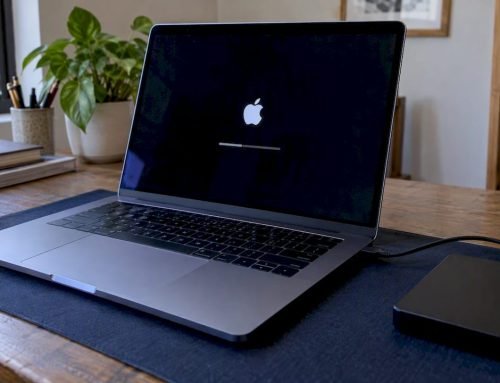
A boot loop, where your Mac panics, restarts, and panics again before you ever reach the login screen, is the most urgent version of this problem because you lose the ability to troubleshoot from within macOS.
- Force a shutdown by holding the power button for about ten seconds, then wait a moment before powering back on.
- Attempt to boot into Recovery Mode or Safe Mode to bypass whatever is triggering the loop during normal startup.
- On Apple silicon Macs, use the startup options screen for Recovery; if that fails, DFU mode through a second Mac and Apple Configurator may be necessary.
- On Intel Macs, try Internet Recovery or run Apple Diagnostics before attempting a reinstall.
A boot loop that survives Recovery attempts often points to a firmware or logic board issue rather than anything fixable through software alone.
When Should You Stop Troubleshooting and Call a Professional?
Stop all disk writes immediately if you suspect your storage is failing and you haven’t backed up recent files. Every additional write risks overwriting recoverable data.
A few signs mean DIY steps have run their course:
- Panics continue after Safe Mode testing, updates, and a clean macOS reinstall
- Your Mac is caught in a boot loop that Recovery Mode can’t resolve
- Apple Diagnostics returns a hardware failure code
- You notice unusual heat, noise, or a burning smell from the case
- Disk Utility or a S.M.A.R.T. check flags drive errors
At that point, a professional will typically inspect the logic board, run NVMe and APFS diagnostics, and check RAID or SSD health depending on the storage configuration. Getting ahead of the problem, rather than repeatedly retrying software fixes, meaningfully improves the odds of a full data recovery.
Why Macwest’s Experience Matters Here
Macwest has been diagnosing Mac hardware and recovering data since 2006, which means we’ve seen more failing logic boards, dying NVMe drives, and bad kexts than any single troubleshooting guide can cover. Every diagnostic starts free, and our policy is simple: no recovery, no charge. In the shop, that typically means logic board inspection, APFS and NVMe-level checks, and RAID array diagnosis where relevant. A saved panic log speeds all of it up considerably, since it tells our technicians exactly where to start looking instead of testing everything from scratch.
A Technician’s Take on Real-World Kernel Panics
Most of the kernel panics that come through our door aren’t dramatic. They’re an old kext left over from software the customer forgot they installed, a flaky USB hub, or a drive that’s been quietly degrading for months before it finally throws an error macOS can’t ignore. Same-day appointments are available for triage when your schedule allows it. Bring your saved panic log and a quick note on what changed recently. We’ll document our findings in a diagnostics report with a clear next-step estimate, so you know exactly what you’re dealing with before committing to a repair.
— Kaya
Get a Free Diagnosis Before a Panic Costs You Data
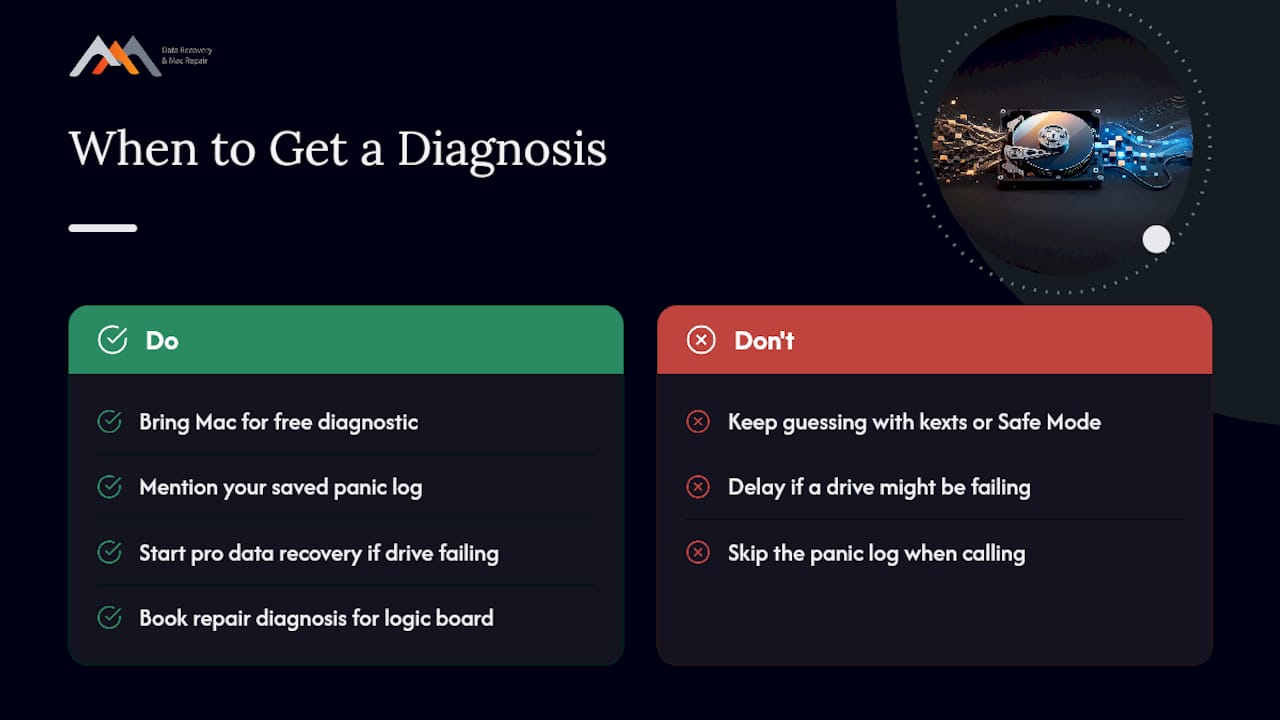
Software troubleshooting only gets you so far when the real problem is a failing NVMe drive or an unstable logic board, and every repeated panic is another chance for data corruption. Macwest is the alternative to guessing your way through kexts and Safe Mode cycles: bring the Mac in and our technicians run a free diagnostic, checking APFS volume health, RAID configurations, and logic board components directly, backed by our no recovery, no charge policy. We’re centrally located at 12041 Wilshire Blvd, Ste 26, between the 405 and Santa Monica, close to UCLA and the Getty Center, and we serve West LA, Santa Monica, Beverly Hills, Brentwood, Westwood, Venice, Hollywood, and Culver City. Same-day appointments are often available for urgent cases. When you call, mention your saved panic log, what symptoms you saw, and any recent software or hardware changes. Start with professional data recovery if a drive is at risk, or book a Mac repair diagnosis for logic board or startup issues. Call 310-866-0828 to schedule.
Where This Guidance Comes From
The troubleshooting steps here draw on Apple’s official support guidance for kernel panic recovery, the developer-level debugging framework in Apple’s TN2063 technote, and field analysis from Eclectic Light’s coverage of panic causes and log reading. Together they cover both the user-facing fixes and the technical detail behind what a panic log actually reveals.
Sources
- If your Mac restarts and a message appears – Apple Support
- How to deal with a kernel panic – The Eclectic Light Company
- Technical Note TN2063: Understanding and Debugging Kernel Panics
FAQ
How Serious Is a Kernel Panic on a Mac?
A single kernel panic is usually not serious and often traces back to a peripheral or a software conflict. Panics that recur repeatedly over time or happen frequently within short periods point to a deeper software or hardware problem that needs diagnosis.
What Is a macOS Kernel Panic?
It’s a forced restart triggered when the core of macOS, the kernel, hits an error it can’t safely recover from, and shuts down to prevent further data corruption. It’s different from an app crash because it affects the entire system, not just one program.
Can a Kernel Panic Fix Itself?
Sometimes a one-off panic caused by a temporary glitch won’t recur, but a panic caused by a bad kext, a failing peripheral, or degrading hardware will keep happening until the underlying cause is fixed. Treat any repeat panic as a sign to start troubleshooting rather than hoping it resolves on its own.
How Do I Fix a Kernel Panic Error on My Mac?
Save the panic log, boot into Safe Mode to rule out third-party software, disconnect all peripherals, and update macOS and your apps. If panics continue after a clean reinstall, run Apple Diagnostics or bring the Mac to a professional for logic board and drive-level testing.
When Should I Take My Mac to a Repair Shop for Kernel Panics?
Bring it in if panics persist after Safe Mode testing and a reinstall, if you’re stuck in a boot loop, or if Apple Diagnostics flags a hardware failure. Macwest offers free diagnostics and a no recovery, no charge policy, with same-day appointments often available for urgent cases.